How to fix
Gaming Services install error 0x80073D26
on Windows
Resolve the Gaming Services install error 0x80073D26 on Windows 10 quickly and easily. Expert-tested solutions ensure a seamless gaming experience!

![[Fix] Gaming Services install error 0x80073D26 on Windows 10](https://ugetfix.com/wp-content/uploads/articles/askit/fix-gaming-services-install-error-0x80073d26-on-windows_en-768x432.jpg)
What causes [Fix] Gaming Services install error 0x80073D26 on Windows 10?
- Windows Store not functioning properly
- Assumption of a newer version of Gaming Services already installed
- Issues with the Windows Registry
- Corrupted installation files
- Problems with the PC repair tool
Repairs Windows system files, removes malware, and restores a clean OS state — without reinstalling.
I have been trying to play Xbox Game Pass games for a while now. The problem is that I can't install Gaming Services that I need for it to work - I get an error 0x80073D26 every time I try downloading it from Microsoft Store. Please help?
Xbox Game Pass is a great opportunity for those who want quick access to a list of 300 games to choose from, although it is based on a monthly subscription. Players who have enough time to play many games in a short period of time benefit from the service the most - it seems like more than 23 million people are indeed interested.[ref en-2]
Once the subscription is purchased, users can access games either via Xbox console or a Windows machine. To be able to install games on desktop computers, players need to ensure that Gaming Services are set up and running via the Microsoft Store. Unfortunately, that's when the attempt to download the games is stopped due to the 0x80073D26 error.
Many users reported that they were able to push the download to the completion stage, and only then the error showed up. At this point, people believe the app is downloaded and installed, however, it does not show up in the Apps and Features section.
As evident, the first thing you should do when you can't install Gaming Services due to the 0x80073D26 error is to make sure that Windows Store is working well. For example, restarting an app could sometimes do wonders. We also provide multiple different troubleshooting options below.
In most cases, however, the reason lies within Windows assuming that a newer version of the service is already installed, hence it delivers the 0x80073D26 error. To resolve this, you would have to access the Windows Registry editor and perform some changes there - be aware that you need to make a registry backup before proceeding with this.
Before you begin to apply fixes in our step-by-step guide, we recommend you try running a PC repair tool [d1] - it specializes in various issues that could arise on Windows, replaces damaged sectors, and fixes corrupt system files automatically, eventually resolving DLL[ref en-1] errors, Blue Screen crashes, and more.
Fix 1. Reset Microsoft Store cache
All you have to do is run a simple command on your machine:
- Type wsreset in Windows search bar and hit Enter
- A black pop-up window will show up - do not close it
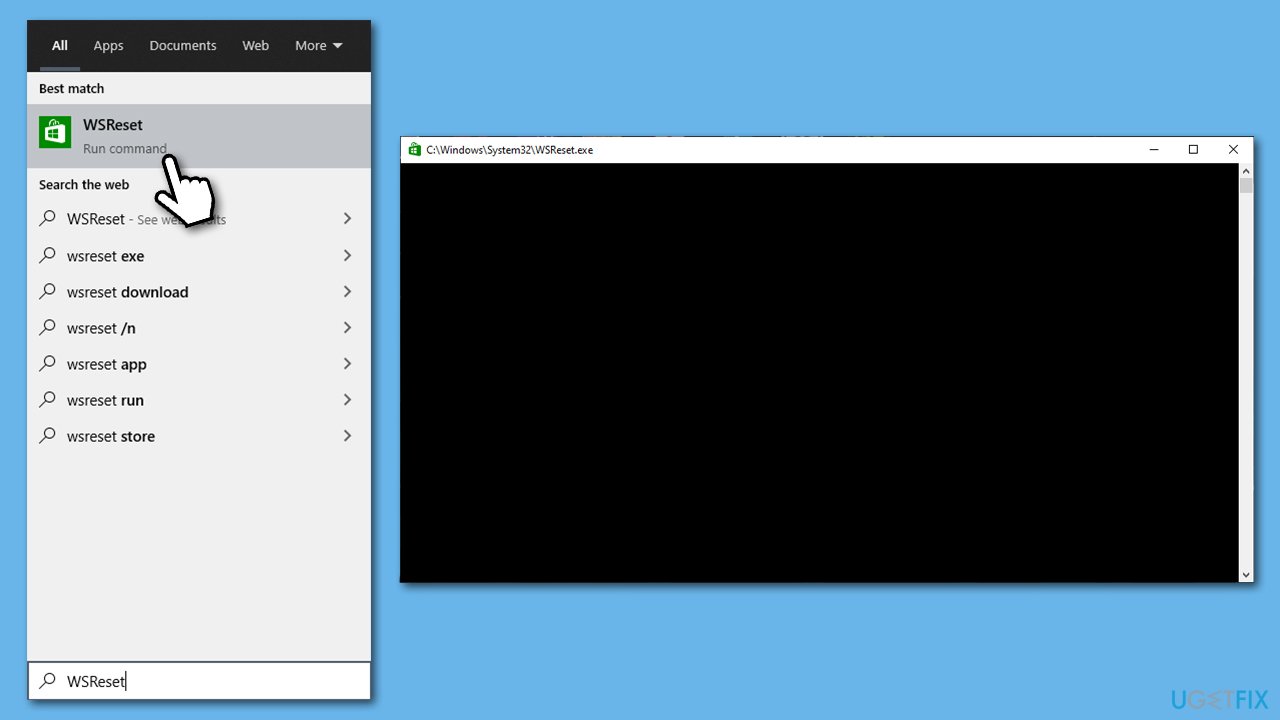
Fix gaming services install error 0x80073d26 on windows run wsreset command - As soon as it disappears, Windows Store should re-open
- Now try downloading Microsoft Gaming Services once more.
Fix 2. Reset Microsoft Store
A more advanced reset can be done via the Apps and Features section as explained below:
- Right-click on Start and pick Apps and Features
- Scroll down until you find Microsoft Store
- Select Advanced options
- Scroll down and click Terminate and then Reset.
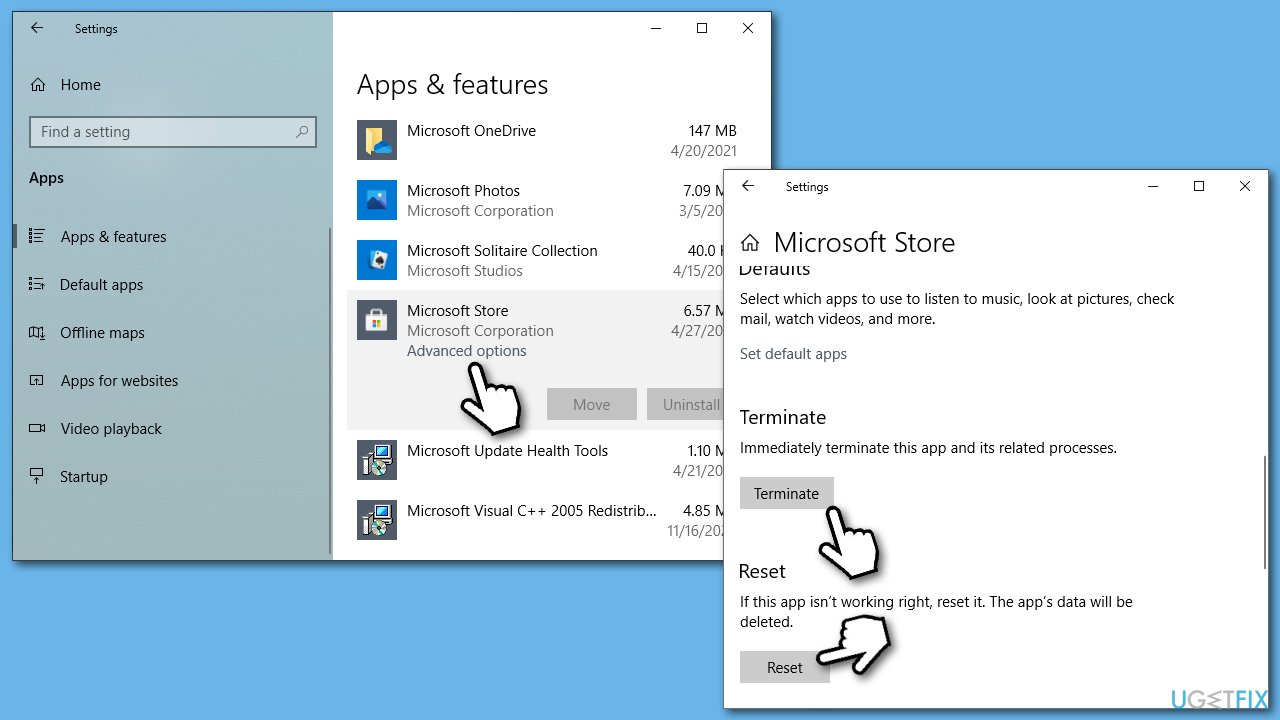
Fix gaming services install error 0x80073d26 on windows reset microsoft store
Fix 3. Run System File Checker and Deployment Image Servicing and Management scans
System file corruption can be addressed with the help of SFC and DISM[ref en-3] scans, which are easily accessible via an elevated Command Prompt:
- Type cmd in Windows search bar
- Right-click on Command Prompt search result and select Run as administrator
- Copy and paste the following command and press Enter:
sfc /scannow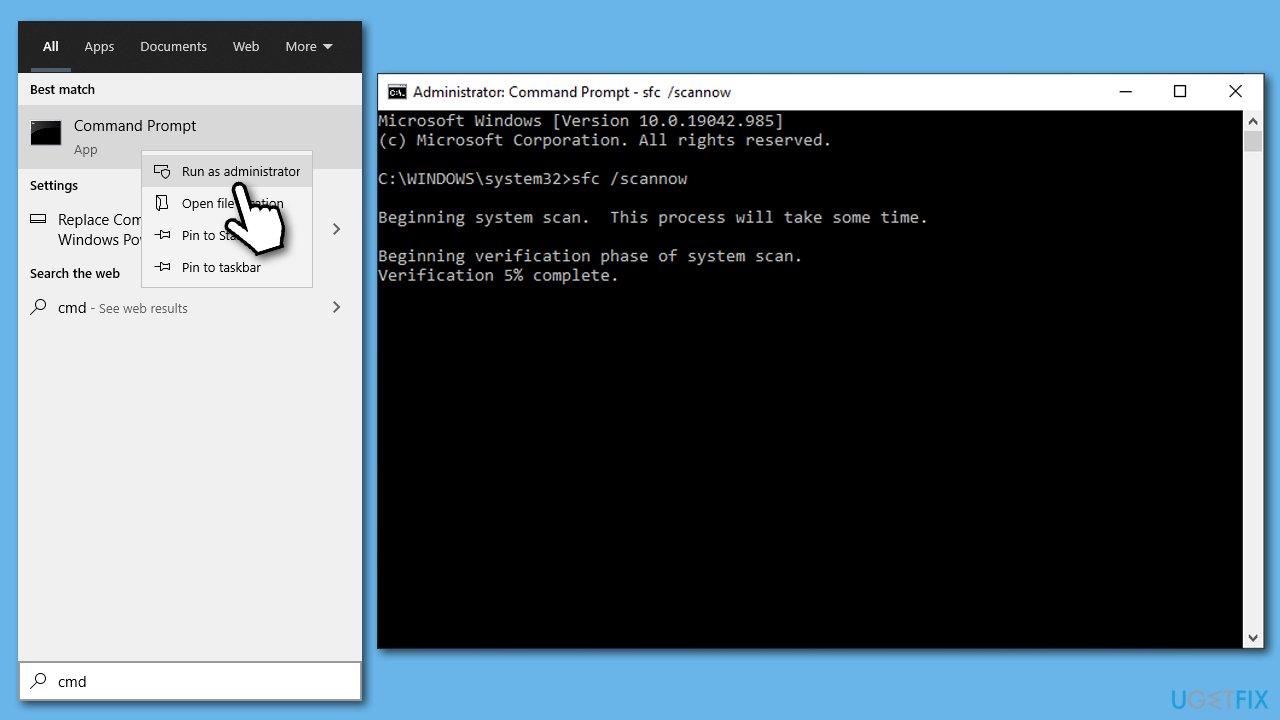
Fix gaming services install error 0x80073d26 on windows run system file checker - Wait for the scan to finish and show results
- If SFC found no errors, proceed with the next solution; if integrity violations were found and repaired - restart your PC; finally, if System File Checker was unable to fix system file corruption, use the following commands (don't forget to press Enter after each):
DISM /Online /Cleanup-Image /CheckHealth
DISM /Online /Cleanup-Image /ScanHealth
DISM /Online /Cleanup-Image /RestoreHealth - Finally, restart your computer.
Fix 4. Delete Gaming Services registry entries
As already mentioned, Windows might be mislead for some reason and assume that a newer version of the service is already installed on the system. If that is the case, you should delete registries that make Windows make this assumption:
Warning: we do not recommend meddling with the registry editor unless you know what you are doing, as incorrectly deleting entries might cause serious system malfunctions. Before proceeding with the below steps, backup your registry
- Type in regedit in Windows search and press Enter
- Once User Account Control warning shows up, click Yes
- Navigate to the following location:
Computer\\HKEY_LOCAL_MACHINE\\SYSTEM\\CurrentControlSet\\Services
- Scroll down until you find GamingServices and GamingServicesNet
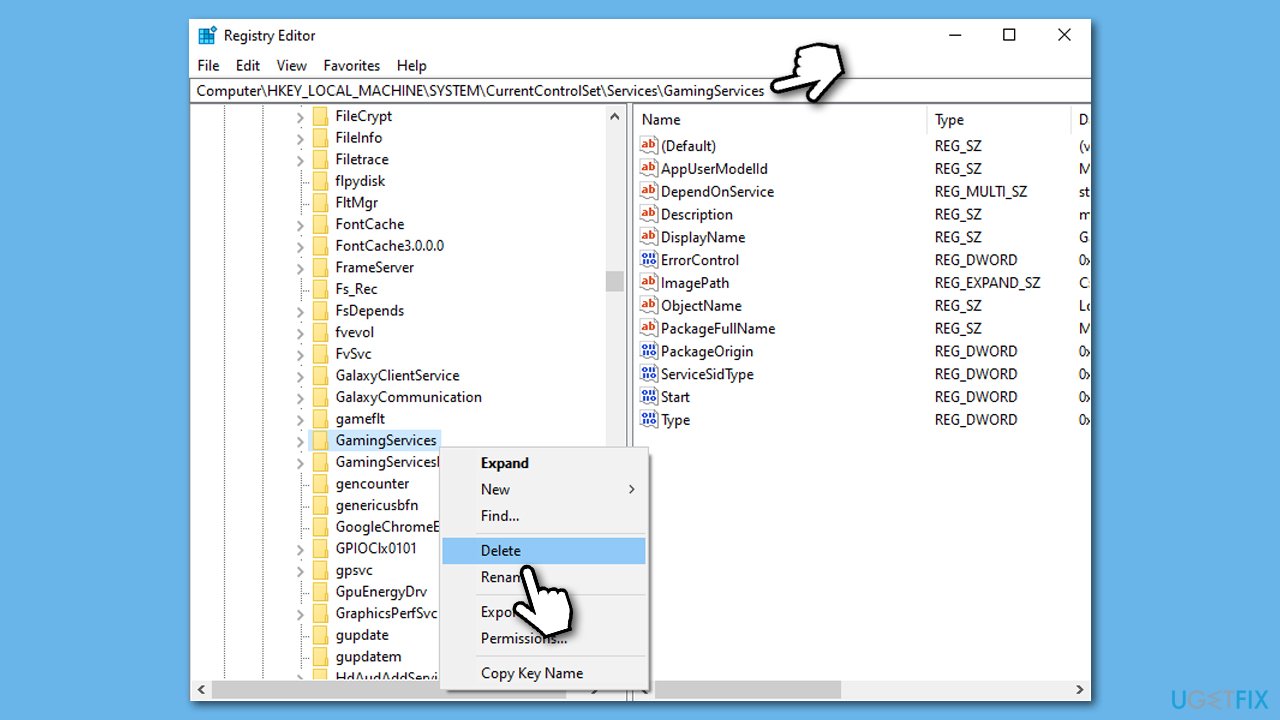
Fix gaming services install error 0x80073d26 on windows delete gamingservices registry keys - Right-click and press Delete on both of them
- Restart your computer and try downloading the required package once again.
Fix 5. Run Windows Store Apps troubleshooter
- Type in Troubleshoot in Windows search and press Enter
- On the right-side of the window, select Additional troubleshooters
- Scroll down until you find Windows Store Apps
- Click Run the troubleshooter and wait till it is finished - Windows should apply fixes automatically.
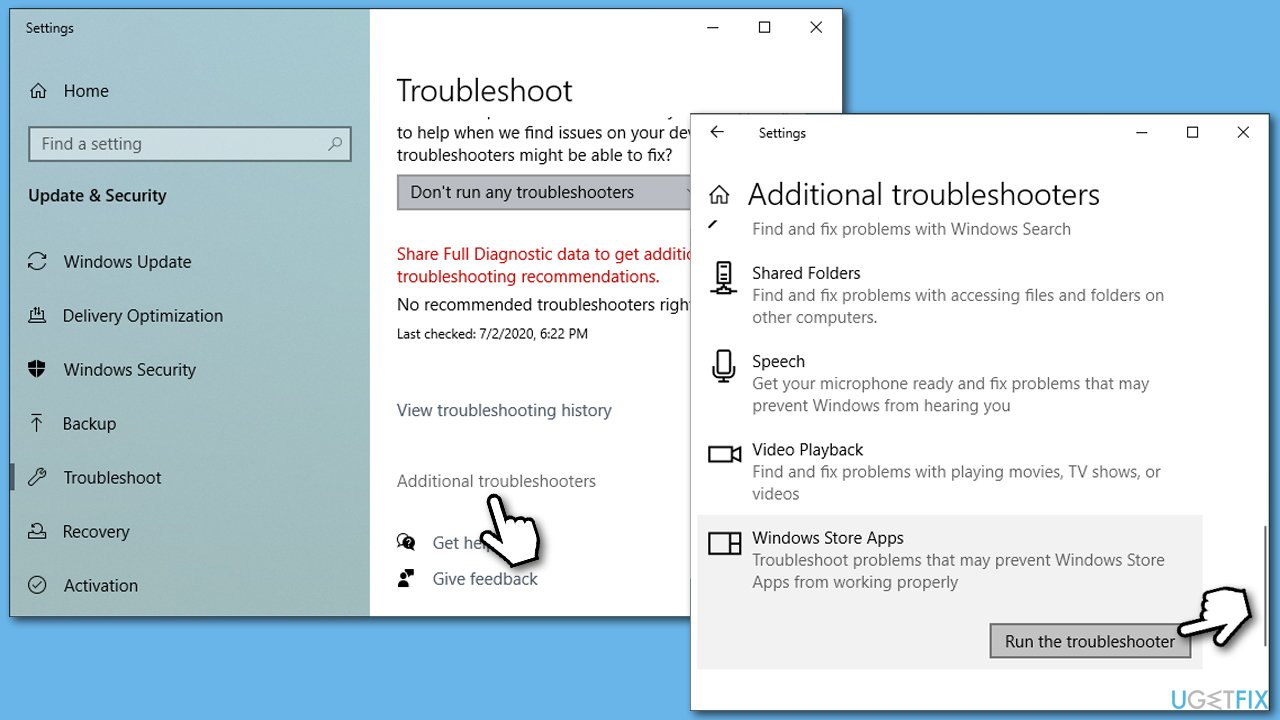
Fix gaming services install error 0x80073d26 on windows run windows store troubleshooter
We hope that this article helped you fix 0x80073D26 error for good. Here are similar topics that might be interesting or helpful to you:
Bottom line
To resolve the 0x80073D26 error, ensure that the Windows Store is working properly, restart the app, and check for any assumptions of a newer version of Gaming Services. Additionally, accessing the Windows Registry editor and making necessary changes may help. If none of these solutions work, consider using a PC repair tool to address underlying issues.
Frequently asked questions
The error code 0x80073D26 usually indicates a problem with the Windows Store or Gaming Services installation, preventing it from completing successfully on Windows 10.
To fix the 0x80073D26 error, you can try resetting the Windows Store cache using the 'wsreset' command or reinstalling Gaming Services from the Microsoft Store.
Yes, ensuring that your Windows 10 is up to date can help resolve compatibility issues that may be causing the 0x80073D26 error with Gaming Services.




Report an issue
What's wrong with this guide? We review every report and update or remove content.
Report received — thank you. We'll review and fix it.
You need a free account to submit a report.
Be the first to comment