How to fix
Transparent pop-up appears above the search bar
on Windows
Resolve the annoying transparent pop-up above the search bar in Windows 10 or 11 with our expert-tested solutions. Get your system back to normal quickly!

![[Fix] Transparent pop-up appears above the search bar in Windows](https://ugetfix.com/wp-content/uploads/articles/askit/fix-transparent-pop-up-appears-above-the-search-bar-in-windows_en-768x432.jpg)
What causes [Fix] Transparent pop-up appears above the search bar in Windows?
- Simple bug related to inconsistencies within the operating system
- Issues after upgrading to Windows 11
- Potential conflicts with older versions of the OS
- Corrupted system files
- Improper system settings
Repairs Windows system files, removes malware, and restores a clean OS state — without reinstalling.
I can't use my search bad in Windows properly. Every time I use it or even hover over it, a small, transparent pop-up shows up and does not go away until I restart my PC. It looks like the result preview is not fully loaded or something like that. Is there any way to get rid of this annoying thing? I am tired of rebooting my PC every time this happens.
With each new Windows version, users expect to find new features and improvements, which would further enhance and overall experience and ease of use of the operating system. With the release of Windows 11 in October 2021, users set the bar higher than that of the previous version of the system, and, while people were relatively happy with their initial experiences, the launch did not get away without issues.
Several bugs[ref en-2] were reported upon users downloading and installing Windows 11 on PCs. This is not something unusual, as all the previous OS versions suffered from similar problems. We have already discussed how the shutdown box was showing up randomly whenever users were creating a document or simply browsing the web.
Today we are going to discuss another bug that users noticed almost immediately after upgrading - a transparent pop-up that shows up as soon as users hover their noise pointer over the search box. While the issue mostly appears on Windows 11, older versions of the OS could sometimes also be affected by it.
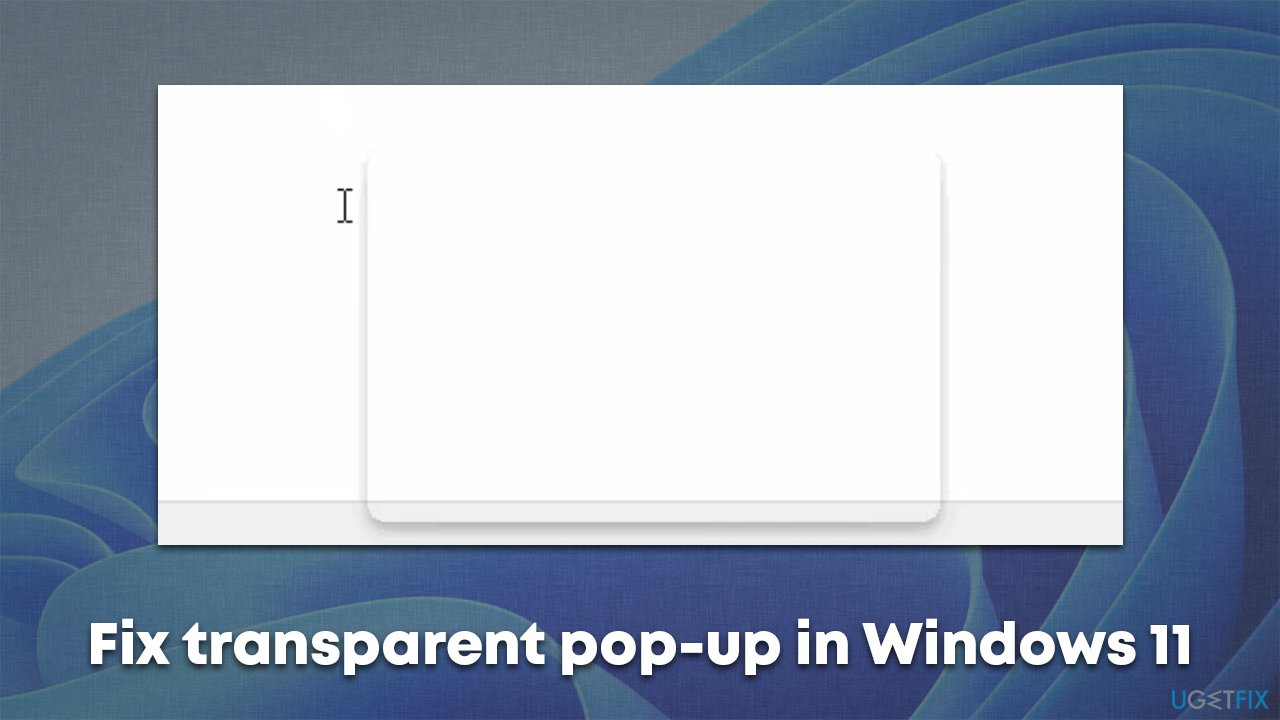
There could be many reasons for the issue to occur, but it is likely to be a simple bug related to inconsistencies within the operating system. There are several methods that should be done in order to troubleshoot and fix the transparent pop-up which appears after hovering over or using the search box.
Before you proceed with the manual solutions for the transparent pop-up fixes, we strongly recommend you perform a full system scan with a powerful PC repair tool [d1]. The application uses unique technology to find and replace damaged system files without having to reinstall the operating system, which resolves issues like BSODs,[ref en-1] registry[ref en-3] errors, program crashes, and much more.
Solution 1. Turn off task view
This solution helped most users to fix the issue easily.
- Click the Start button and then select Settings
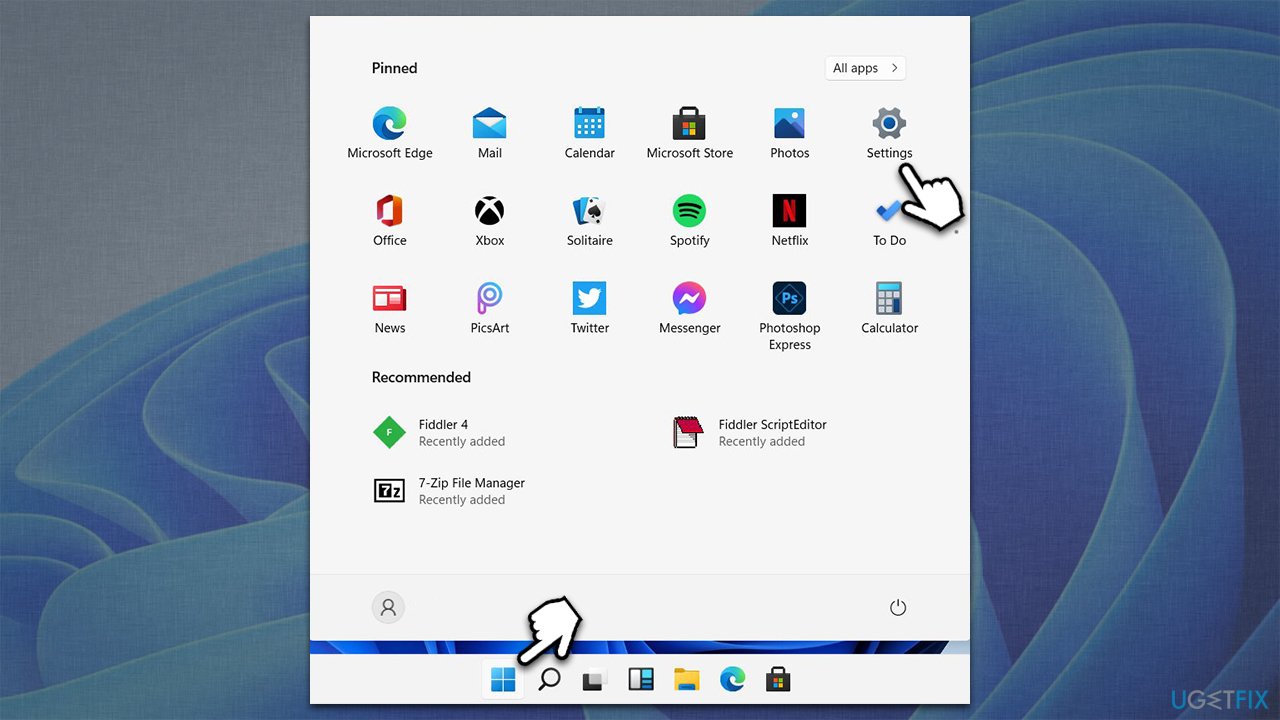
Fix transparent pop up appears above the search bar in windows turn off task view - Go to the Personalization section
- Here, pick Taskbar
- Under Taskbar items, turn off the Task view by putting the switch to the left position
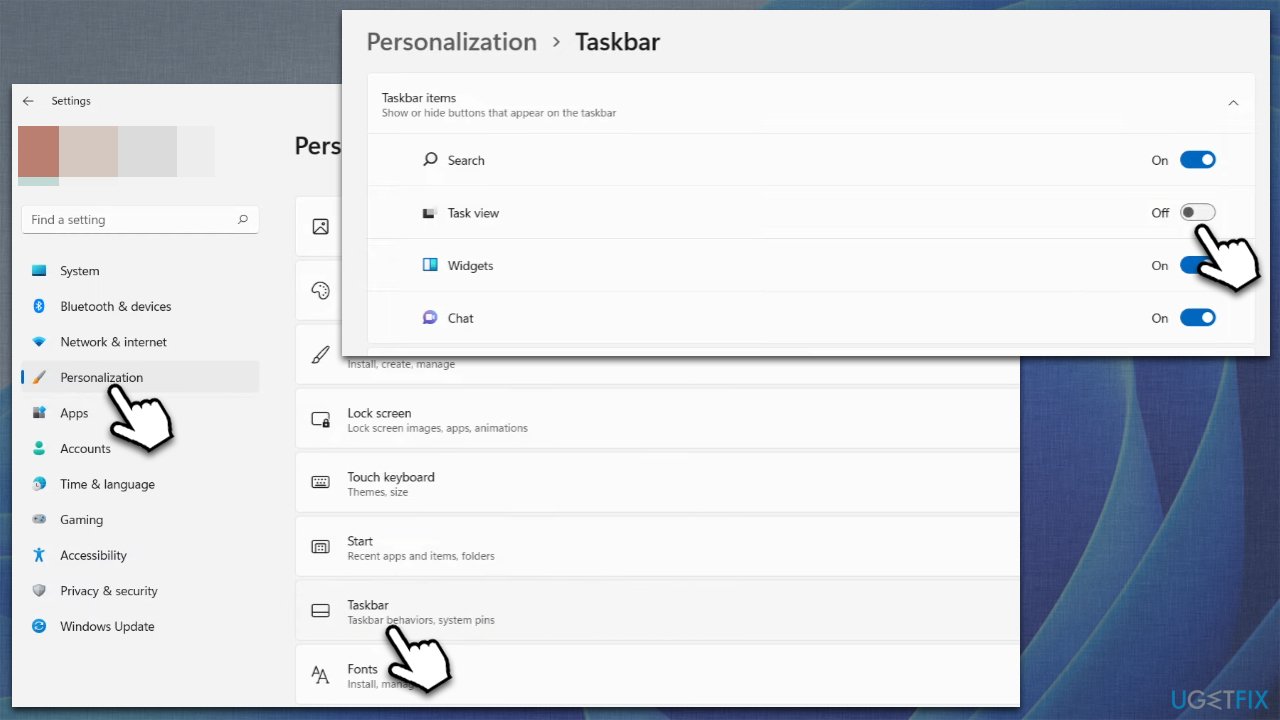
Fix transparent pop up appears above the search bar in windows turn off task view2 - Restart your system and see if that helped you remove the transparent pop-up next to the search box.
Solution 2. Run SFC and DISM to fix corrupted system files
System file corruption is among the most common issues related to system malfunctions. If you are experiencing any behavior like pop-up boxes that look buggy, try repairing corrupted files to resolve the issue:
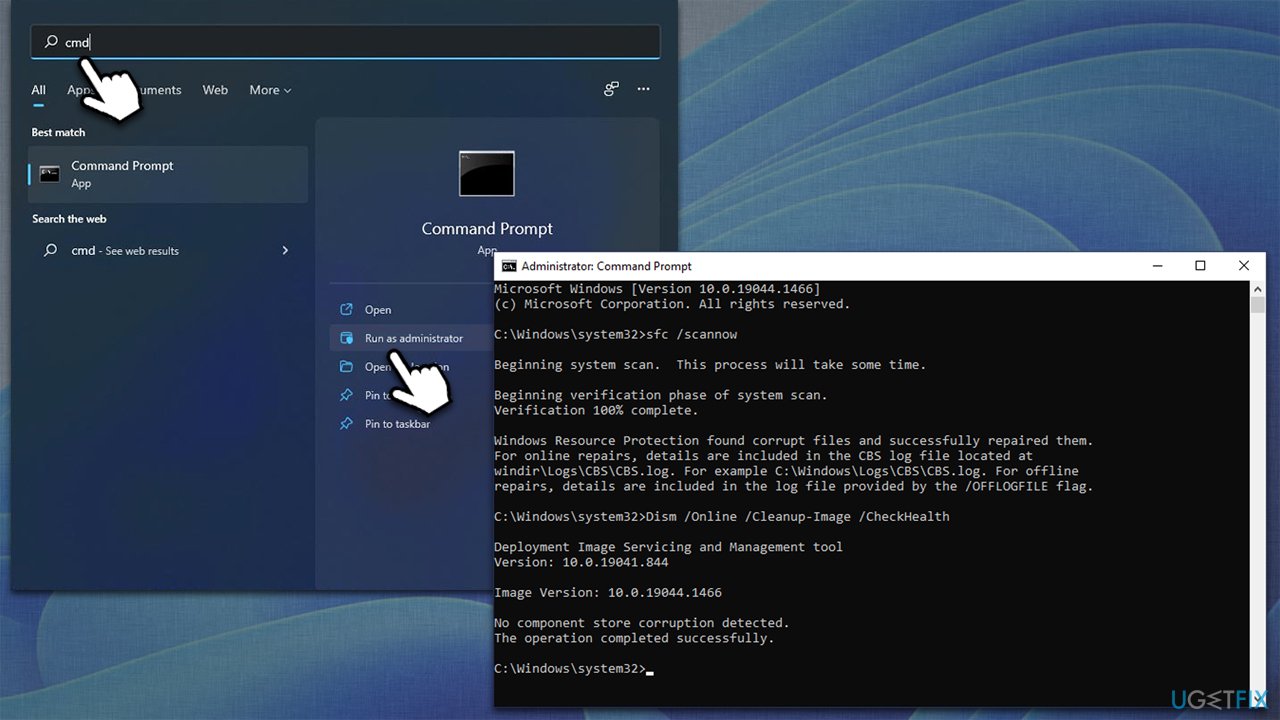
- Type cmd in Windows search and select Run as administrator
- When User Account Control shows up, click Yes
- Use the following command and press Enter:
sfc /scannow - Once the scan is complete, you should also run the following commands to repair Windows image files (don't forget to press Enter after each):
DISM /Online /Cleanup-Image /CheckHealth
DISM /Online /Cleanup-Image /ScanHealth
DISM /Online /Cleanup-Image /RestoreHealth - Restart your PC.
Fix transparent pop up appears above the search bar in windows run sfc dism
Solution 3. Restart Windows Explorer
Explorer.exe can sometimes be unstable and cause a lot of issues, such as high resource usage or lag. Restarting it may sometimes fix the issue with the taskbar or other Windows elements.
- Press Ctrl + Shit+ Esc on your keyboard
- Find Windows Explorer
- Right-click it and select Restart.
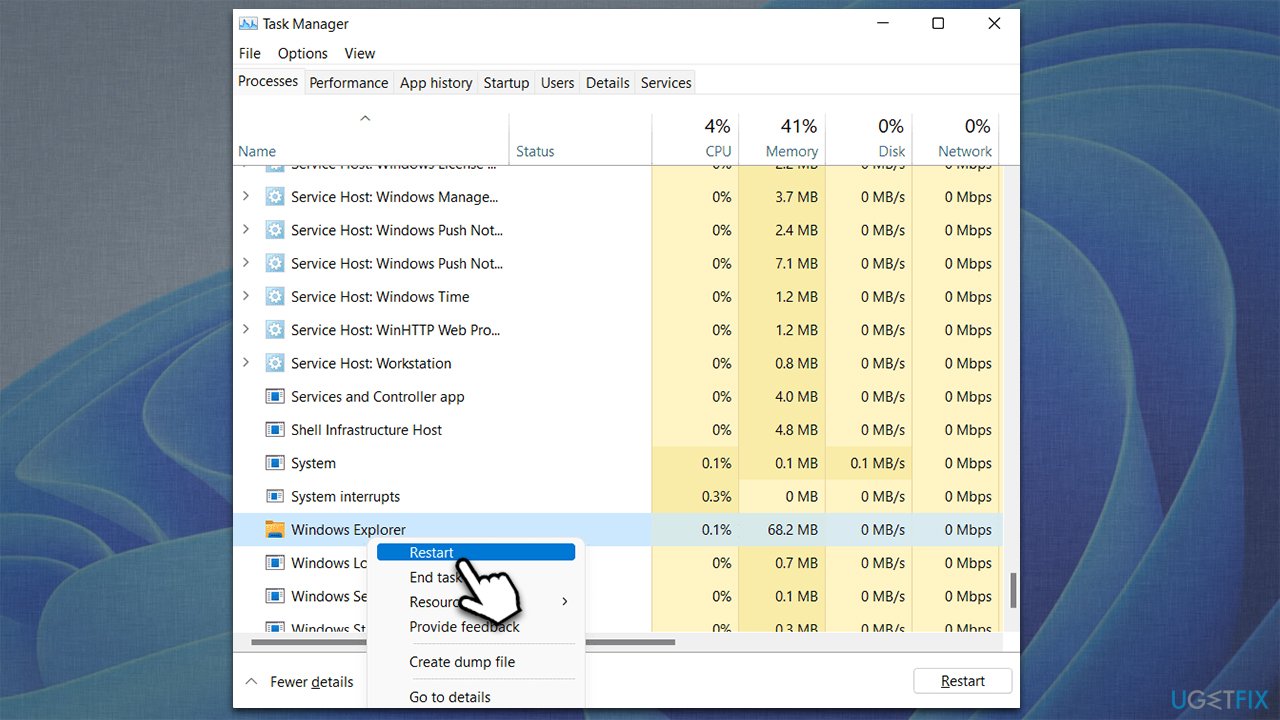
Fix transparent pop up appears above the search bar in windows restart windows explorer
Solution 4. Run Check disk
Disk errors can cause bad sectors, which might result in various system bugs. To check your disk, proceed with the following steps:
- Open Command Prompt as administrator as explained in previous methods
- In the new window, type in the following command and hit Enter:
chkdsk c: /f
(Note: use chkdsk c: /f /r /x command if you are using SSD as your primary partition) - If you receive an error, type in Y, press Enter, close down Command Prompt, and restart your device
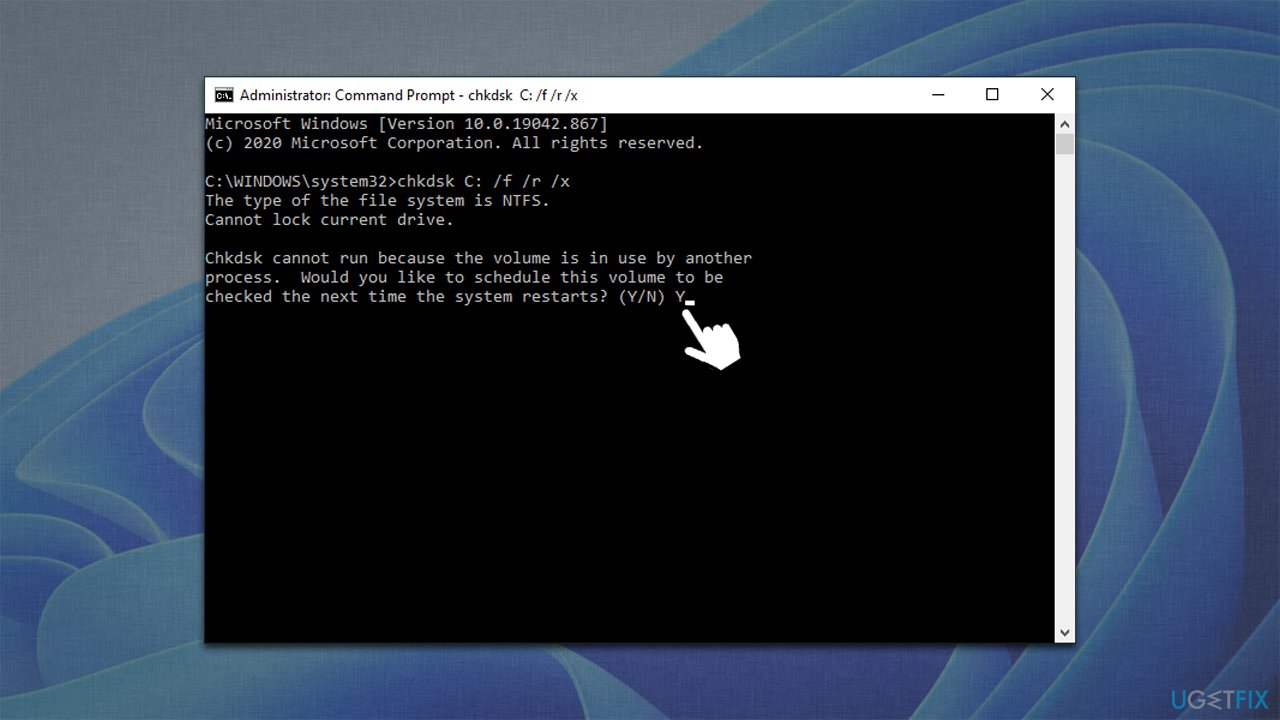
Fix transparent pop up appears above the search bar in windows run check disk - The scan should start as soon as your reboot and results displayed soon after.
Solution 5. Update Windows
If you have not yet applied all the available updates, you should do it immediately, as patches often fix various system bugs.
- Click Start and select Settings
- Go to the Windows Update section
- Click Check for updates and wait
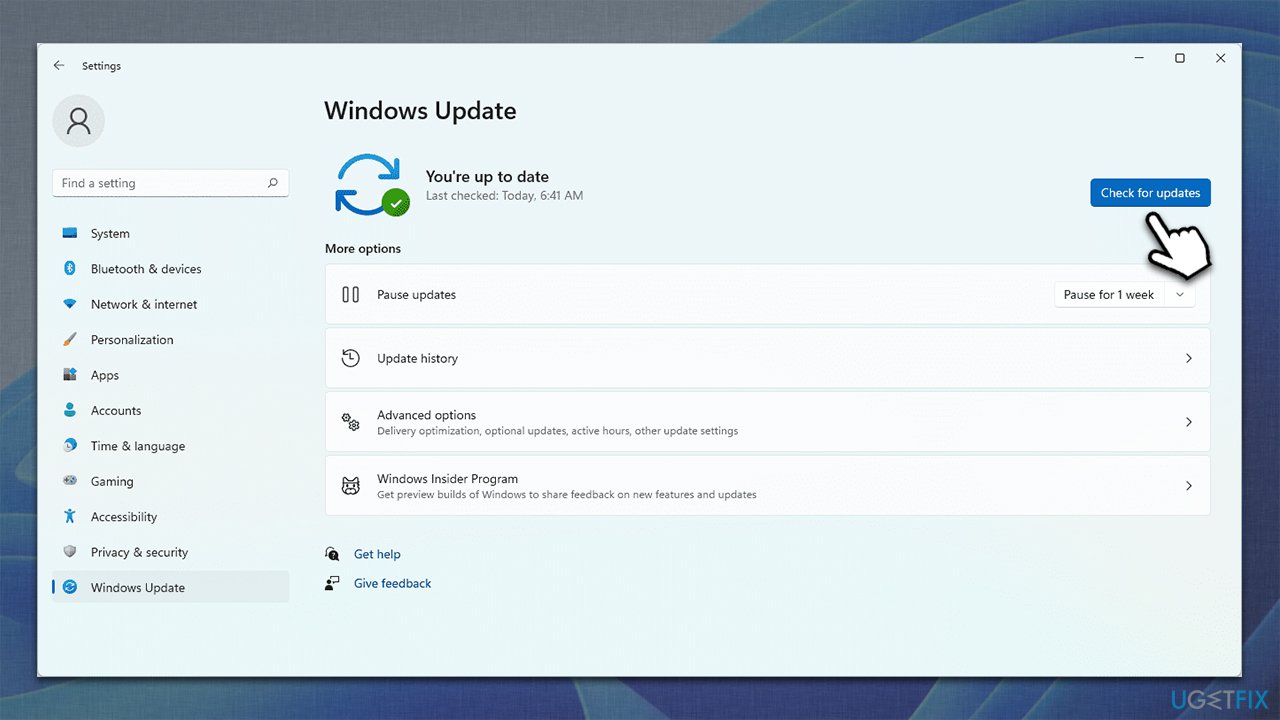
Fix transparent pop up appears above the search bar in windows update windows - Once Windows downloads all the necessary files, restart your PC.
Bottom line
To troubleshoot the transparent pop-up issue, users should perform a full system scan with a reliable PC repair tool and consider adjusting system settings. If these methods do not resolve the problem, further investigation or professional assistance may be necessary.
Frequently asked questions
The transparent pop-up can be caused by a glitch in the search feature or conflicting third-party applications. Ensuring your system is up to date and disabling unnecessary startup programs may help resolve this issue.
You can try restarting the Windows Explorer process or resetting the search feature through the settings. If the problem persists, consider running the Windows Troubleshooter for search and indexing.
Yes, you can prevent it by disabling certain visual effects or resetting your display settings. Additionally, checking for updates or performing a clean boot may also help eliminate the issue.




Report an issue
What's wrong with this guide? We review every report and update or remove content.
Report received — thank you. We'll review and fix it.
You need a free account to submit a report.
Be the first to comment