How to fix
Windows takes too long to shut down
on Windows
Discover effective solutions to speed up your Windows 10 or Windows 11 shutdown process and eliminate frustrating delays. Expert-tested fixes await!

![[Fix] Windows takes too long to shut down](https://ugetfix.com/wp-content/uploads/articles/askit/fix-windows-takes-too-long-to-shut-down_en-768x432.jpg)
What causes [Fix] Windows takes too long to shut down?
- Missing Windows updates
- Corrupted system files
- Outdated drivers
- Third-party security program
Repairs Windows system files, removes malware, and restores a clean OS state — without reinstalling.
Hello. I have a Windows 11 PC, and previously it took about 10 seconds to shut down but now it takes more than 2 minutes. What could be wrong?
Microsoft released Windows 11 at the end of 2021. Many people have rushed to update to the newest version to try it out. It offers an updated user interface, design, and many other features.[ref en-1] However, some users experience issues with the newest operating system. We previously wrote about many Windows 11 bugs like the WiFi icon missing, clock and date missing, and File Explorer lagging.
Now some people report having a problem with Windows 11 shutting down. They describe the shutdown process as taking way longer than it should. While it is unknown why exactly this could be happening, some people report that the culprit was a third-party security program.
In this guide, you will find 7 methods to help you fix the Windows takes too long to shut down problem. The issue could be caused by missing Windows updates, corrupted system files, outdated drivers,[ref en-2] etc. If you want to avoid a lengthy troubleshooting process, you can use a maintenance tool like [d1].
It can fix various system errors, BSODs,[ref en-3] corrupted files, and registry issues. It can also automatically clear cookies and cache from your machine, which are often the culprits of many malfunctions. Otherwise, follow the step-by-step instructions below.
Method 1. Install Available Updates
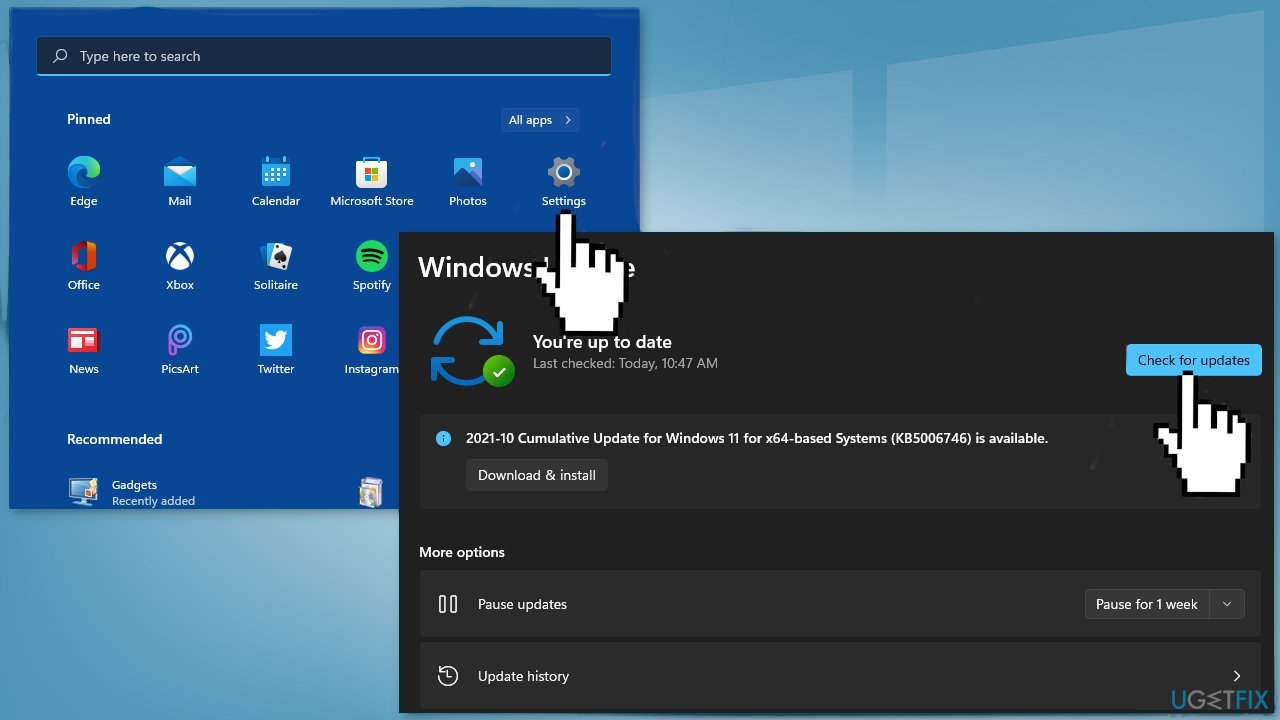
- Click Start on the taskbar
- Select the Setting app pinned to the Start menu
- Click Windows Update on the left side of Settings
- Press the Check for updates button to download and install new patch updates
Method 2. Close Background Apps in Task Manager
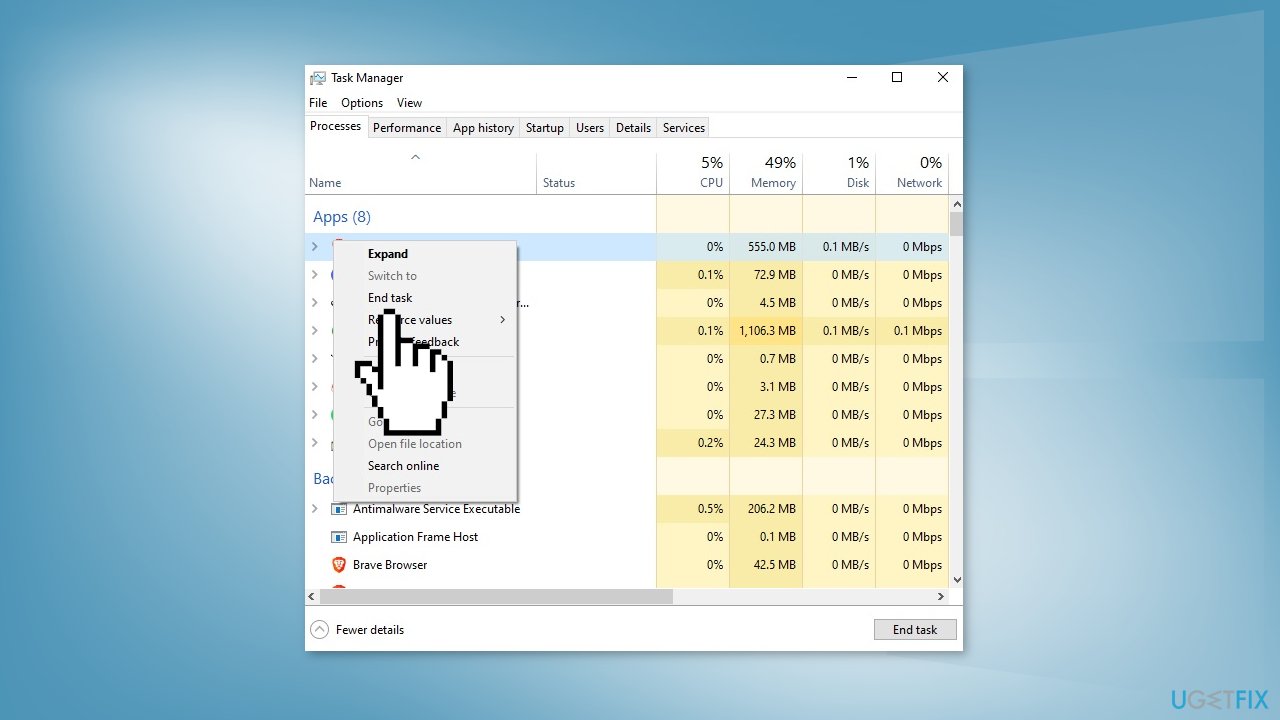
- Right-click on the Start and select Task Manager
- In the Task Manager window, under the Background processes, look the apps that are running
- If you find any app that is running in the background and you are not using it, right-click on it and select End task
- Shut down your PC and see if the issue is resolved
Method 3. Repair Corrupted System Files
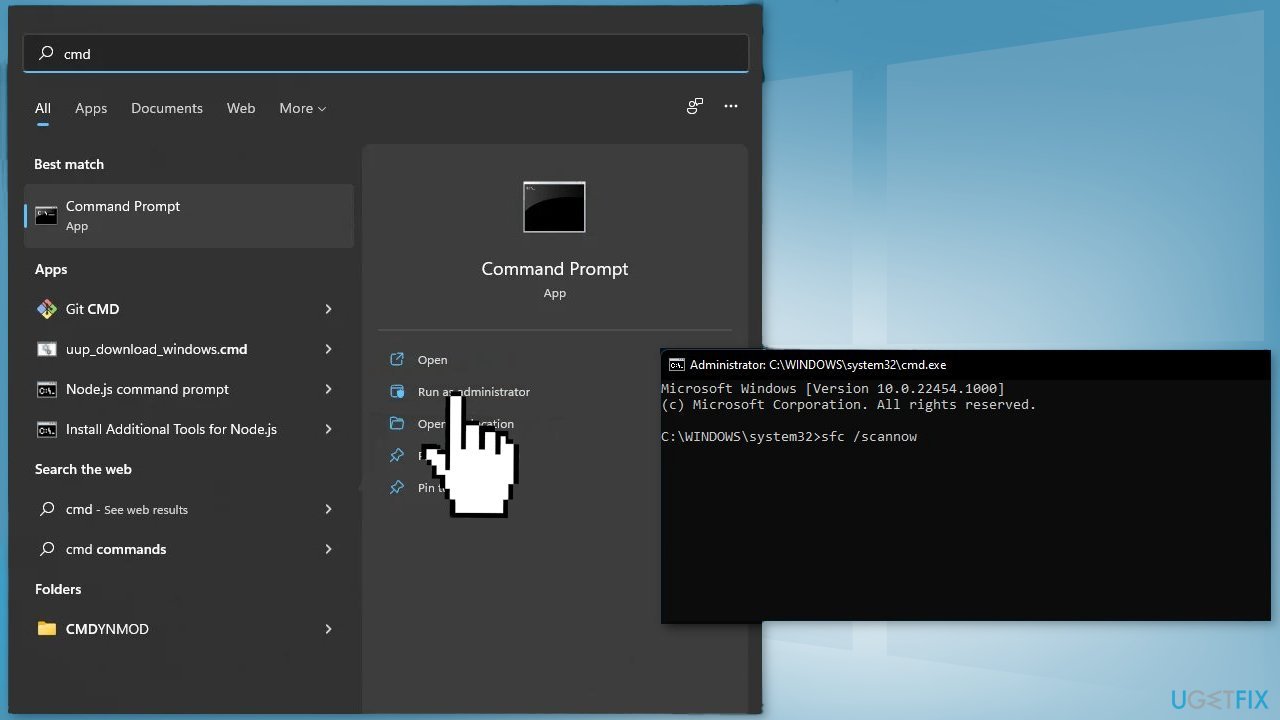
- In the search box on the taskbar, type Command Prompt
- Select Run as administrator, and then select Yes
- Type DISM.exe /Online /Cleanup-image /Restorehealth and then press Enter
- After you see a message The operation completed successfully, type sfc /scannow and press Enter
- After you see a message that says, Verification 100% complete, type exit
- Close the window and see if the issue is fixed
Method 4. Uninstall Third-Party Security Software
Many users report having the long shut down problem because of a security tool F-Secure. You should try to uninstall it and see if it fixes the issue.
- Click on the Start button and select the cog to open up Settings
- Select Apps and click on App & features.
- Scroll down to the app you want to uninstall, and click on the three dots on the right
- Click on the Uninstall button
- A small pop-up window will appear. Click on the Uninstall button again
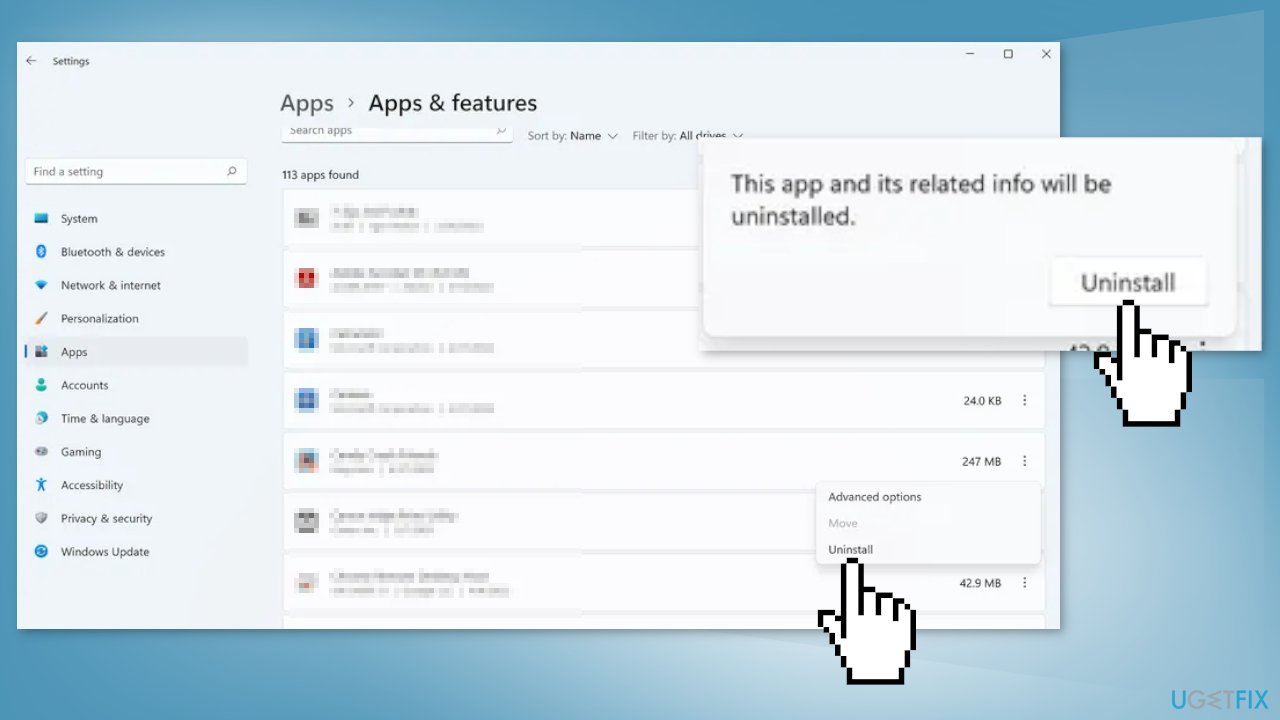
- Wait for the process to finish
Method 5. Update Drivers
- Type Device Manager in the search area of your taskbar and click Open
- Inside the Device Manager window, expand the different drivers
- Right-click on them and select Update from the context menu
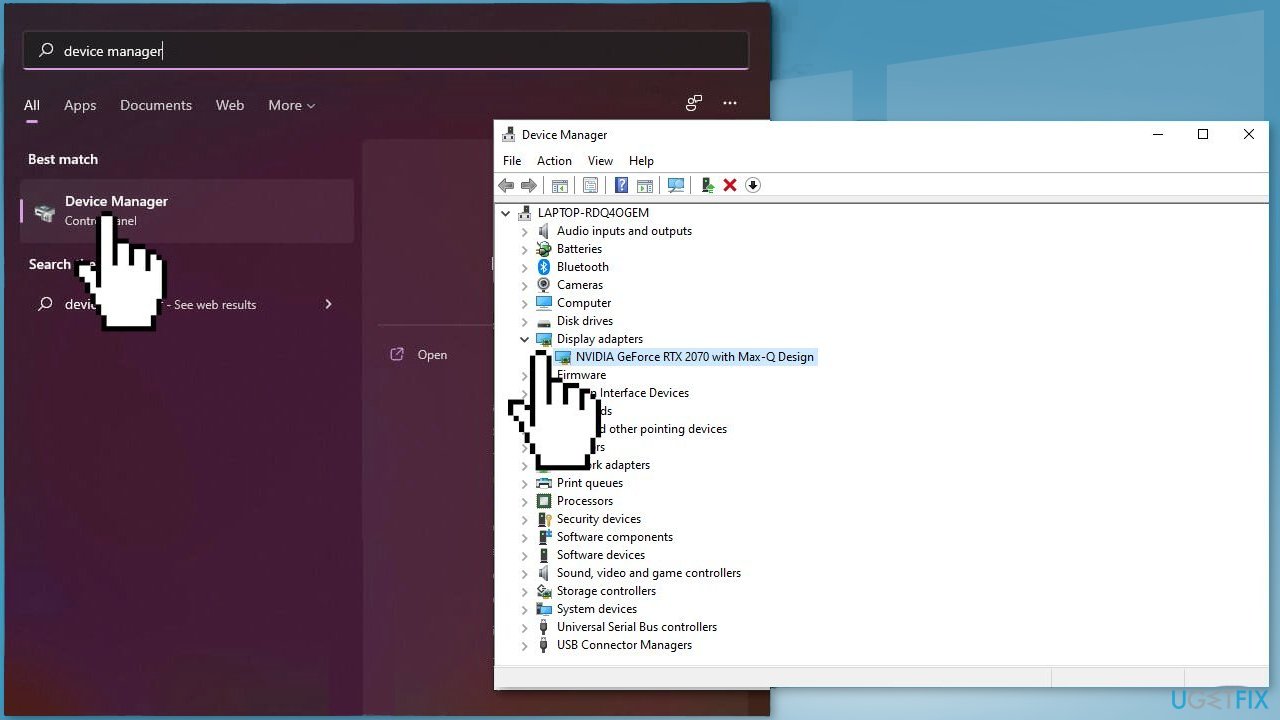
- If this did not help or Windows was unable to find any updates, use a utility like [rev id="DriverFix"] that can find the best drivers for your system and install them automatically
Method 6. Create a Shutdown Shortcut
- Go to desktop, right-click anywhere and select New > Shortcut
- In the Create Shortcut window, go to the Type the location of the item field and type the below shortcut
Shutdown.exe -s -t 00
- Click on Next and go to the Type a name for this shortcut field and name it
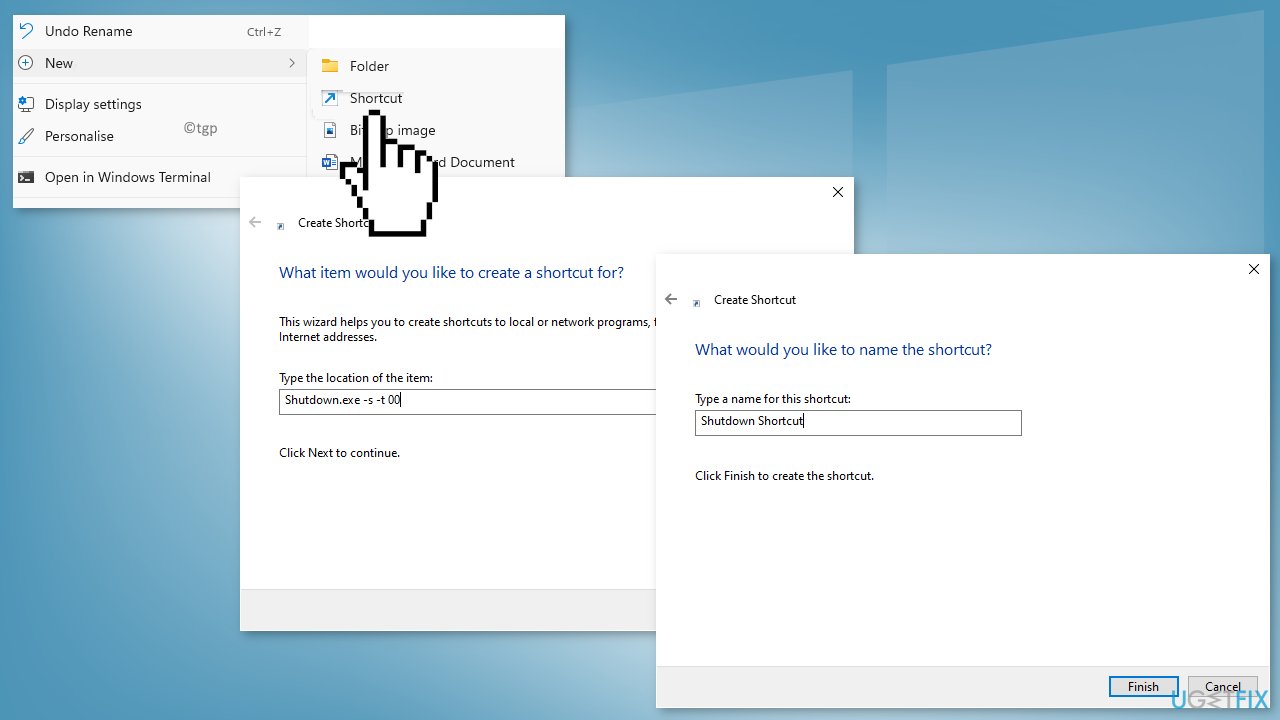
- Click on the Finish button
- Go to the desktop and double-click on the Shutdown Shortcut created and your PC should shut down
Method 7. Perform a Repair Install
- Visit the official Microsoft website to download Windows 11 Installation Media
- Run the Media Creation Tool and select Create Installation Media for another PC
- Select your USB drive
- Let the Process complete of writing the Installation files to the USB drive
- Click Finish
- On the PC you wish to upgrade, Press Windows + E to open the File Explorer
- Open the Removable drive and click Setup.exe
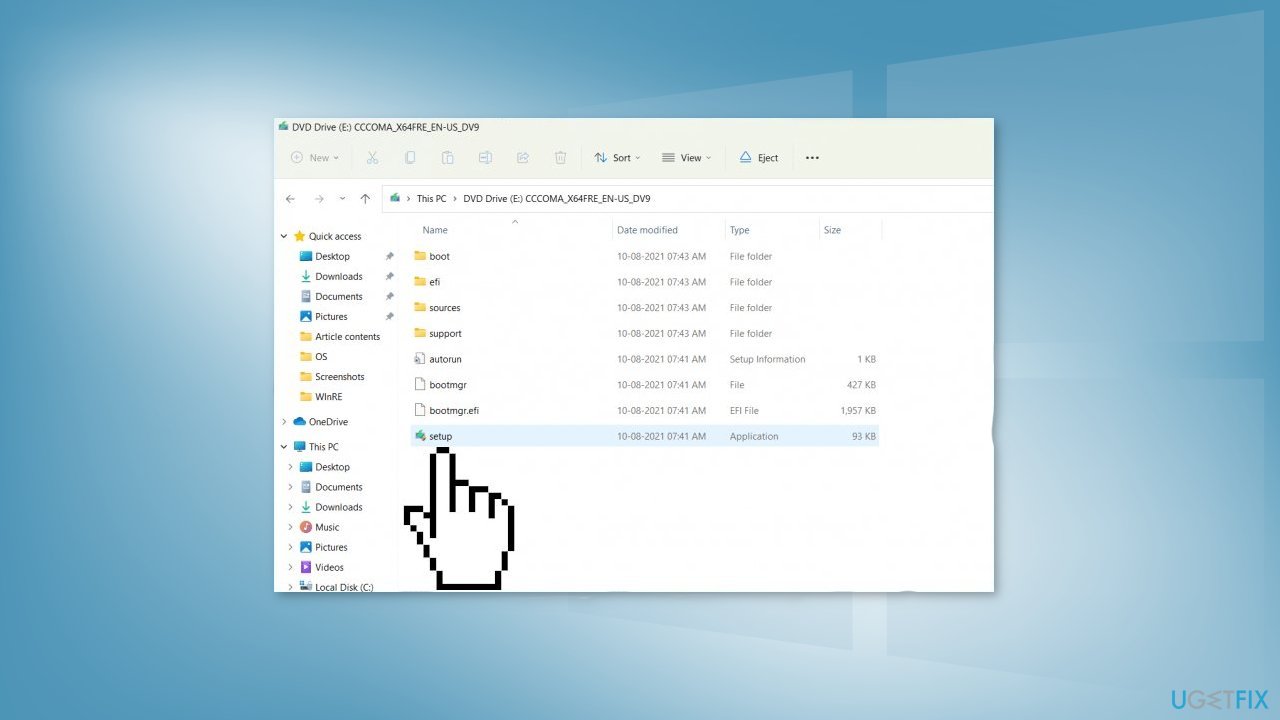
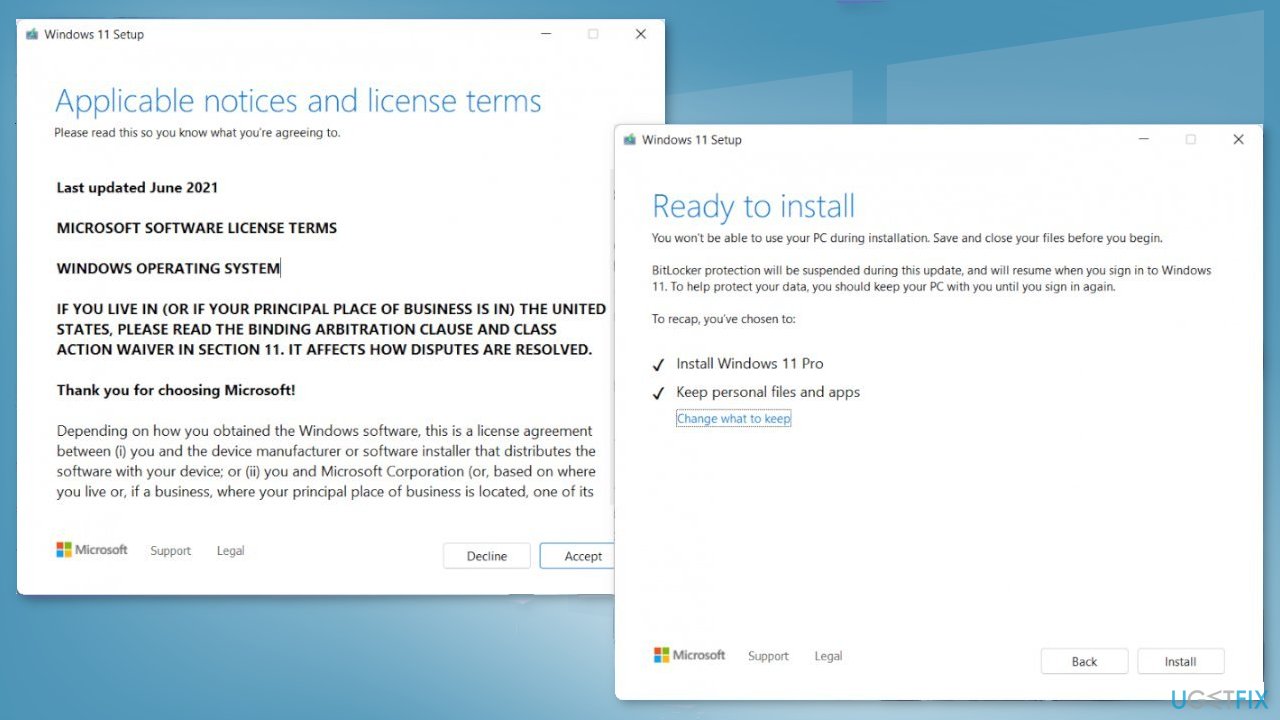
- Accept the license terms on the next screen
- Confirm the Upgrade options – Files, apps and Settings are kept
- Click Install, and the upgrade should start
Bottom line
To address the issue of Windows taking too long to shut down, you can install available updates, close background apps in Task Manager, and repair corrupted system files. If these methods do not resolve the problem, consider using a maintenance tool or further troubleshooting.
Frequently asked questions
Windows 10 may take longer to shut down due to background processes or applications that are still running. To resolve this, check for any pending updates or background tasks that need to be closed before shutting down.
To speed up the shutdown process in Windows 11, you can disable fast startup in the power options. This feature can sometimes cause delays during the shutdown process.
Yes, certain settings like enabled hybrid shutdown or problematic drivers can lead to slow shutdowns in Windows 10. Adjust these settings and ensure your drivers are updated to improve shutdown times.




Report an issue
What's wrong with this guide? We review every report and update or remove content.
Report received — thank you. We'll review and fix it.
You need a free account to submit a report.
Be the first to comment