How to fix
Enable Thumbnail Previews in File Explorer
on Windows
Unlock thumbnail previews in File Explorer on Windows 11 easily! Follow our expert-tested guide for a seamless experience and enjoy zero traces left.

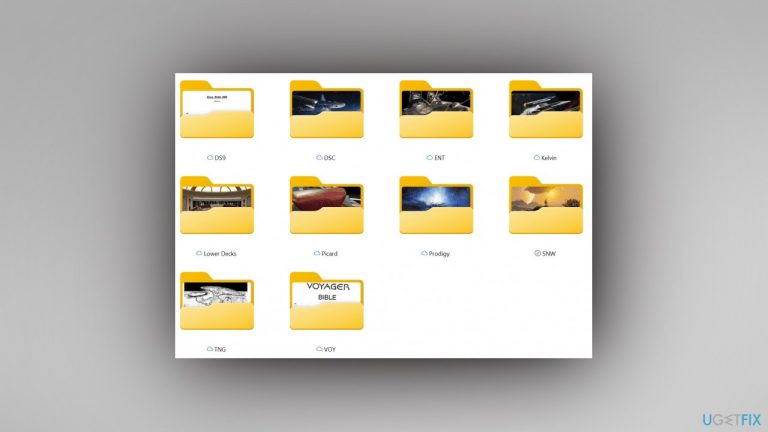
What causes How to enable Thumbnail Previews in File Explorer in Windows 11?
- Thumbnails for multimedia folder icons removed by Microsoft
- Thumbnail previews disabled by default after system upgrade
- Users unable to see contents of folders without opening them
- Thumbnail cache may be corrupted
- Photos app settings not configured correctly
Repairs Windows system files, removes malware, and restores a clean OS state — without reinstalling.
Hello. I tried to sort my photos out but it is quite hard when you cannot see the thumbnails. Is there any way to enable thumbnail previews in Windows 11?
Microsoft released Windows 11 back in 2021 and it has received both praise and criticism. Initially, the newest version was full of bugs. We previously wrote about Windows 11 issues like clock and date missing, File Explorer lagging, and fingerprint reader not working. However, one of the most controversial changes that Microsoft made was to remove thumbnails for multimedia folder icons. Instead, a little white stripe on the folder icon confirms the folder has content.
This has made a lot of users unhappy, and frustrated. Now sorting files in folders is more difficult since people cannot see what is inside without clicking on the folder. However, another issue has occurred. For some users, thumbnail previews in File Explorer for pictures were also disabled by default when they upgraded the system.
If people wanted to sort through thousands of pictures, this would be an extremely lengthy process, as they would have to open every single image to see it. Fortunately, there is a way to enable thumbnail previews in File Explorer in Windows 11. In this guide, you will find 3 methods that might help you fix the issue, and help see pictures better.
We also recommend getting a repair tool like [d1] that can help keep the system running smoothly. This powerful software can repair various system errors, BSODs,[ref en-1] corrupted files, registry[ref en-2] issues. It can also automatically clear cookies and cache[ref en-3] which are often the culprits of many malfunctions. Otherwise, proceed with the instructions below.
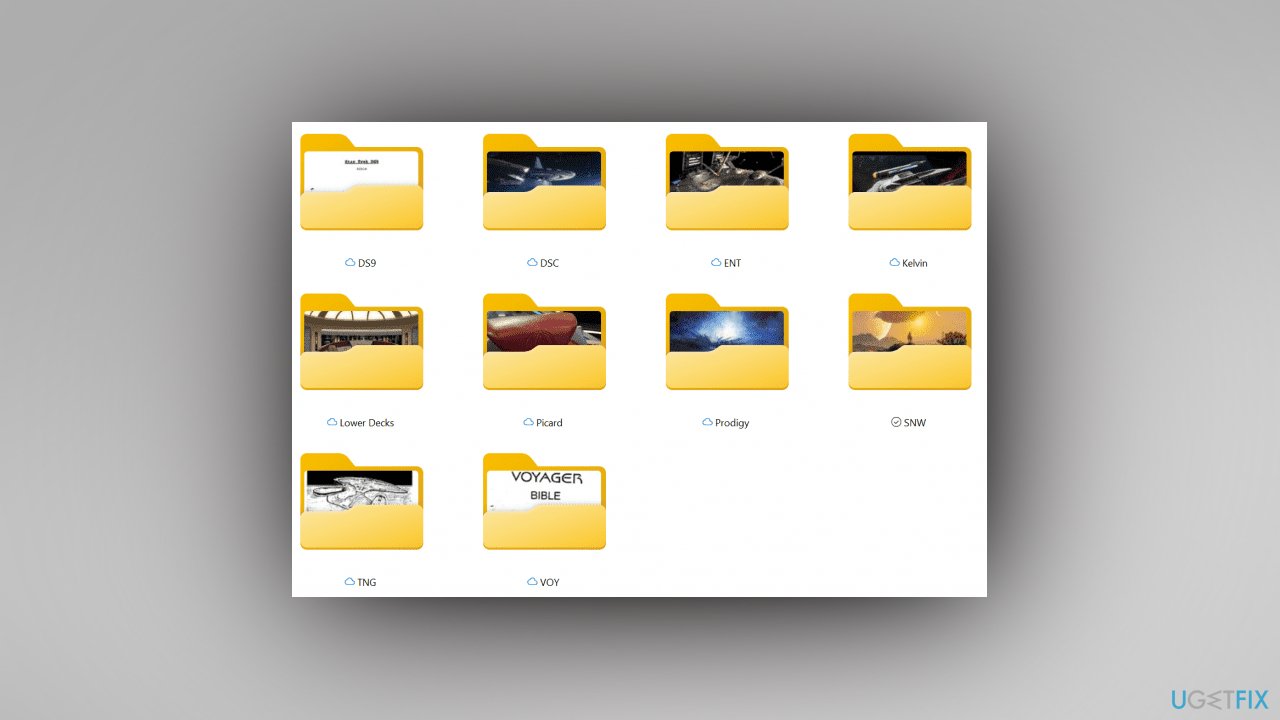
Method 1. Turn On Thumbnail Previews
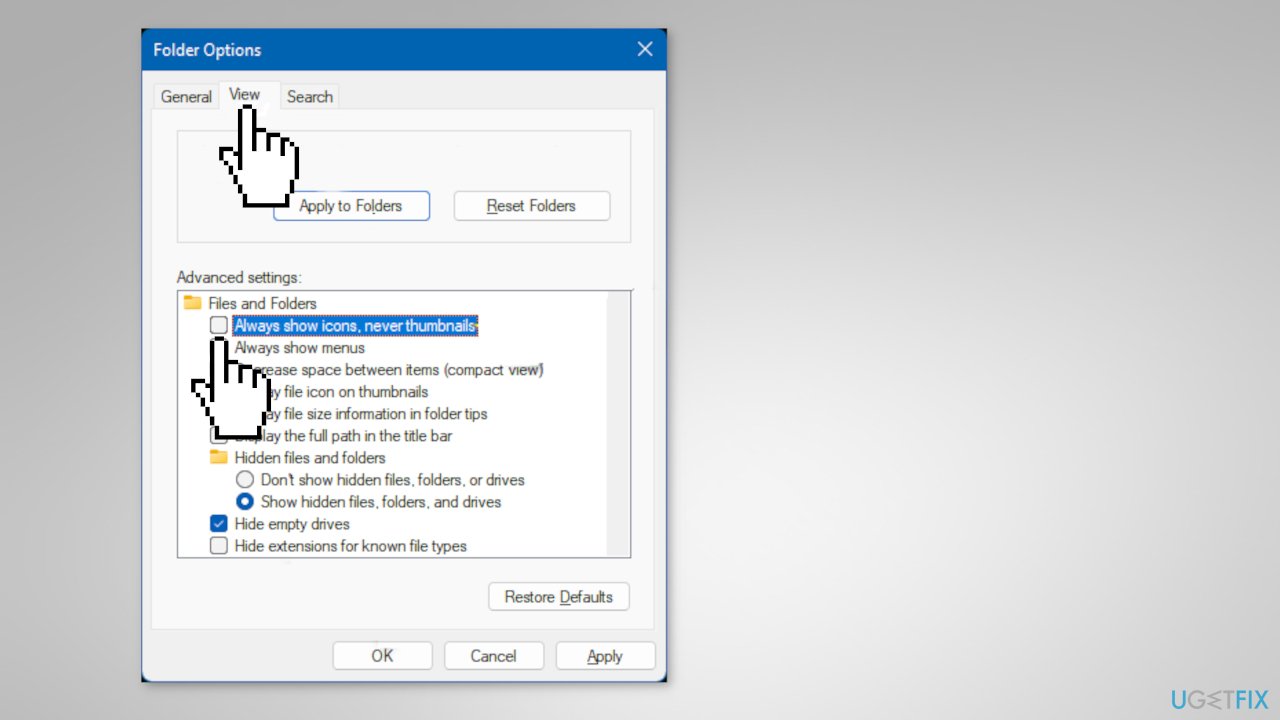
- Open File Explorer
- Click on the See more (3 dots) button, and tap on Options
- Check (off) or uncheck (on) Always show icons, never thumbnails, and click on OK
Method 2. Clear and Reset Thumbnail Cache
If thumbnail previews are enabled and turned on with the Photos app but you are still not seeing them, then you can try clearing and resetting the thumbnail cache.
- Open Disk Cleanup
- Select the Windows C: drive and click on OK
- Check the Thumbnails box, and tap on OK
- Tap on Delete Files to confirm
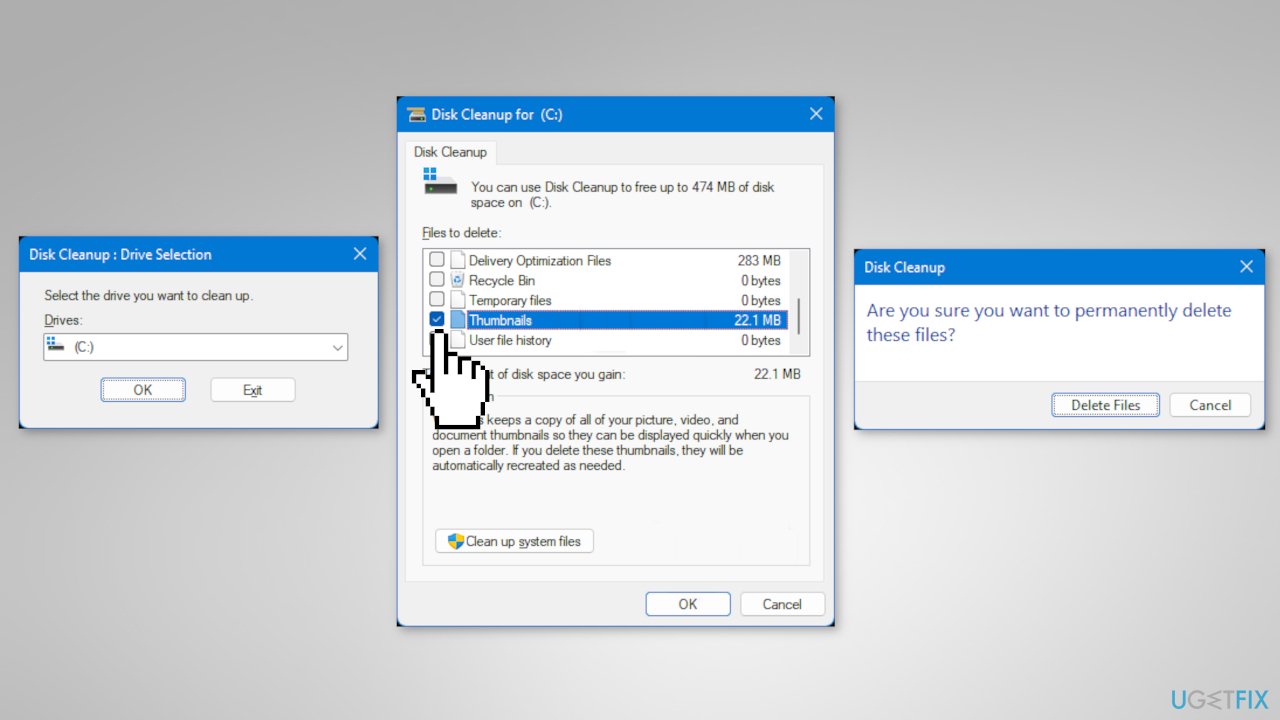
- When finished, restart the computer
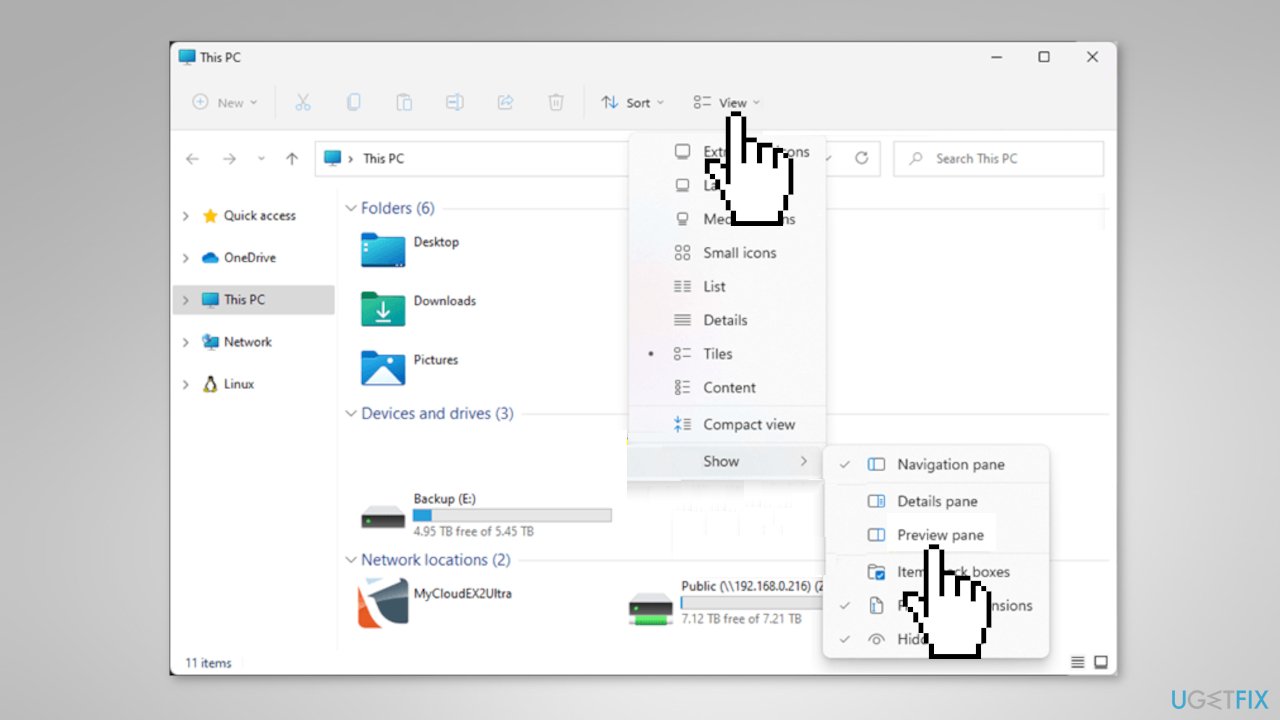
Method 3. Enable Preview Pane in File Explorer
In addition, you could enable the preview pane in File Explorer below to make seeing previews of the images easier.
- Open File Explorer
- Click on View on the command bar
- Tap on Show
- Check Preview pane
Bottom line
To enable thumbnail previews in File Explorer in Windows 11, you can turn on thumbnail previews in the options menu or clear and reset the thumbnail cache. If these methods do not resolve the issue, consider using a repair tool to address potential system errors.
Frequently asked questions
To enable thumbnail previews, open File Explorer, click on 'View', select 'Show', and ensure 'Thumbnails' is checked.
If thumbnails are still not appearing, try clearing the thumbnail cache by going to Disk Cleanup, selecting 'Thumbnails', and then clicking 'OK'.
Yes, if 'Always show icons, never thumbnails' is checked in the Folder Options, it will prevent thumbnails from displaying. You can uncheck this option to restore thumbnail previews.




Report an issue
What's wrong with this guide? We review every report and update or remove content.
Report received — thank you. We'll review and fix it.
You need a free account to submit a report.
Be the first to comment