How to fix
0x8007025D – 0x2000C Windows upgrade error
on Windows
Resolve the 0x8007025D - 0x2000C Windows upgrade error effortlessly. Follow our expert-tested steps for Windows 10 and Windows 11 upgrades. Fixed in min…

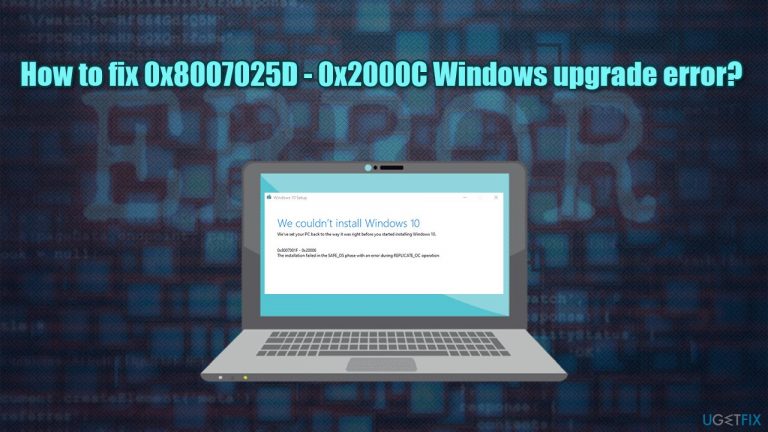
What causes How to fix 0x8007025D – 0x2000C Windows upgrade error?
- Overly aggressive third-party antivirus software
- Insufficient space on the hard drive
- Corrupted Windows files
- Breaking hardware
Repairs Windows system files, removes malware, and restores a clean OS state — without reinstalling.
Hello. I have a relatively old laptop with a Windows 7 on it. When I try to upgrade it to Windows 10, I always receive the 0x8007025D - 0x2000C error, Any ideas why this is happening? Help would be greatly appreciated.
There are plenty of reasons why users would want to upgrade Windows to the newer version. For example, Windows 7, which has been considered one of the best OS versions since its release by many,[ref en-3] is no longer supported by Microsoft. This means that no new updates are being shipped to patch the latest software vulnerabilities - this makes the usage of an outdated operating system particularly dangerous.
Unfortunately, not everyone can smoothly perform this transition, as many users complained about receiving the 0x8007025D - 0x2000C error. The error message shows up when the computer tries to install the necessary patch files and reports the following:
We couldn't install Windows 10
We've set your PC back to the way it was right before you started installing Windows 10.0x8007025D - 0x2000C
The installation failed in the SAFE_OS phase with an error during APPLY_IMAGE operation.
While it may seem that the error provides quite a bit of information, it does not help regular computer users, and they keep looking for methods to fix 0x8007025D - 0x2000C The installation failed in the SAFE_OS phase with an error during APPLY_IMAGE operation error once and for all.
It is also important to note that many users received the error not only while upgrading from Windows 7 to Windows 10 but rather when trying to jump from major Windows 10 versions, such as 20H2 or 1909. This is particularly common among other Windows update/upgrade errors, such as 0xC19000101 – 0x30018, 0xC1900101 – 0x4000D or 0x8007000D-0x90002.
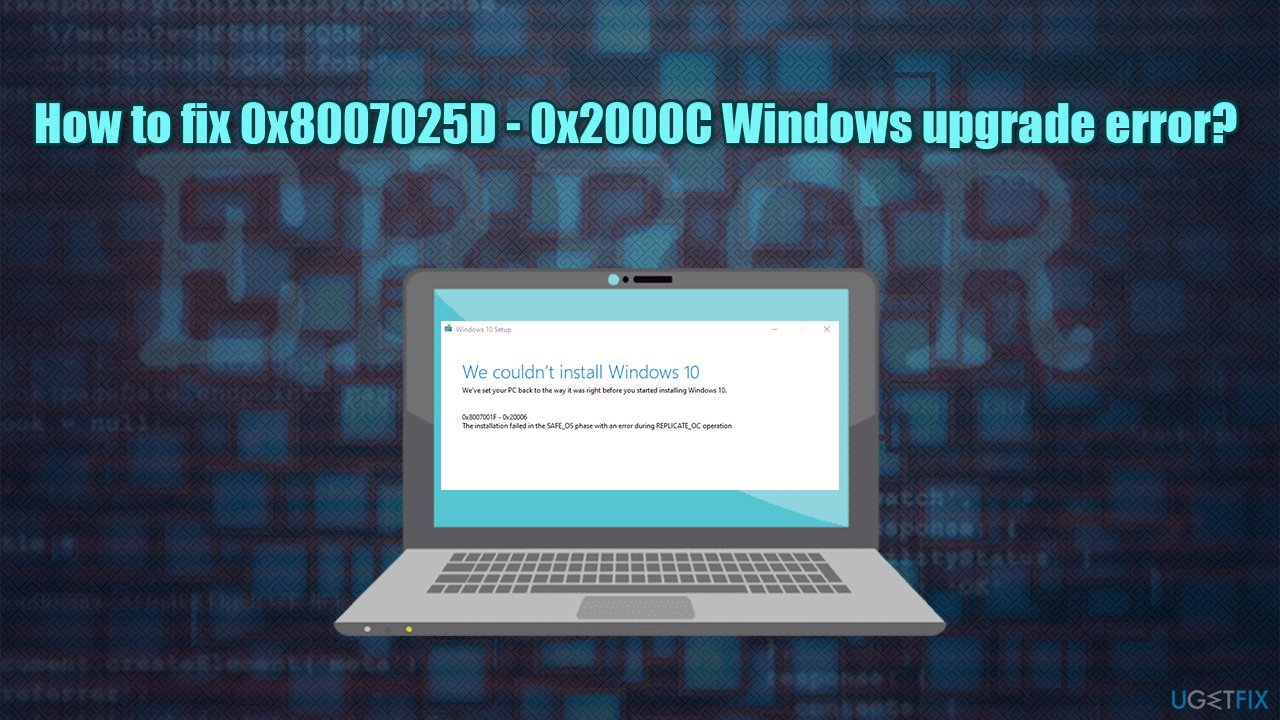
That being said, the most likely reason for the 0x8007025D - 0x2000C error might be related to an overly aggressive third-party antivirus software, insufficient space on the hard drive, corrupted Windows files, or breaking hardware. Therefore, below you will find several fixes that should help you find a solution to this rather annoying problem.
If you are less tech-savvy and rather let somebody else do the job for you, we highly recommend you try using [d1] instead of going through all the steps manually. The app is a unique Windows repair software that can find and fix problems such as BSODs,[ref en-2] errors, crashes, etc., automatically.
Fix 1. Run Disk Cleanup to ensure you have enough space on your hard drive
First of all, if you were running an older operating system, your hardware might also be slightly outdated (you will need 32GB of free space for a brand new Windows 10 x64 install). While you can increase the space by buying a new hard drive or an SSD,[ref en-1] you can also use the built-in cleaning utility Disk Cleanup to get rid of temp files:
- Type Disk Cleanup in Windows search and press Enter
- Pick your main drive (C: by default)
- Select Temp files from the list by ticking the checkboxes and then click Clean up system files
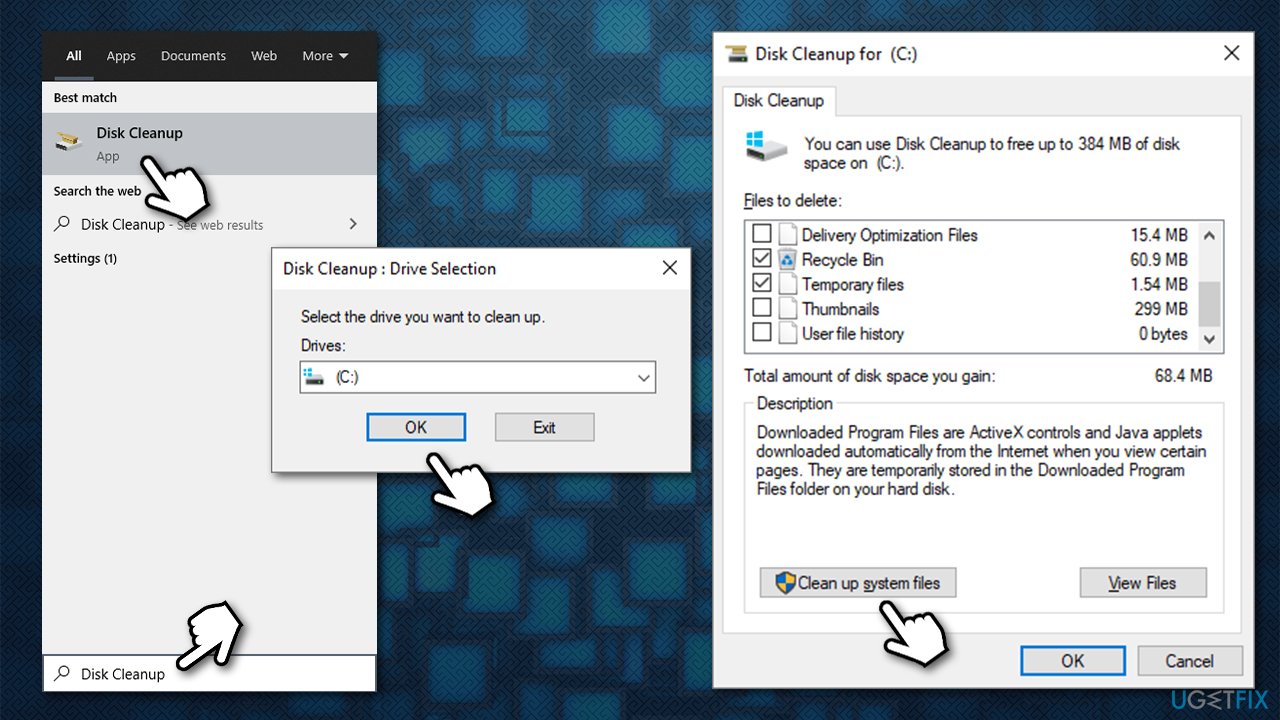
How to fix 0x8007025d 0x2000c windows upgrade error use disk cleanup - Select your main drive once again
- In here, select Windows system files you want to get rid of (Windows update section is likely to take the largest amount of space)
- Click OK.
Fix 2. Temperately disable or uninstall third-party security software
It was reported by users that some of the third-party anti-malware solutions could cause the 0x8007025D - 0x2000C Windows 10 upgrade error. In particular, users mentioned all types of Norton products.
Thus, when trying to upgrade, you should uninstall or temporarily stop this software from running (the first step would be easier). Keep in mind that you should re-install your security software or have Windows Defender running after the upgrade is performed successfully.
Fix 3. Check system files
If your installed Windows OS is corrupted, it may not be able to install the new files correctly. Thus, verify Windows system files with System File Checker.
- Type in cmd in Windows search
- Right-click on Command Prompt and select Run as administrator
- In the new window, type in sfc /scannow and press Enter
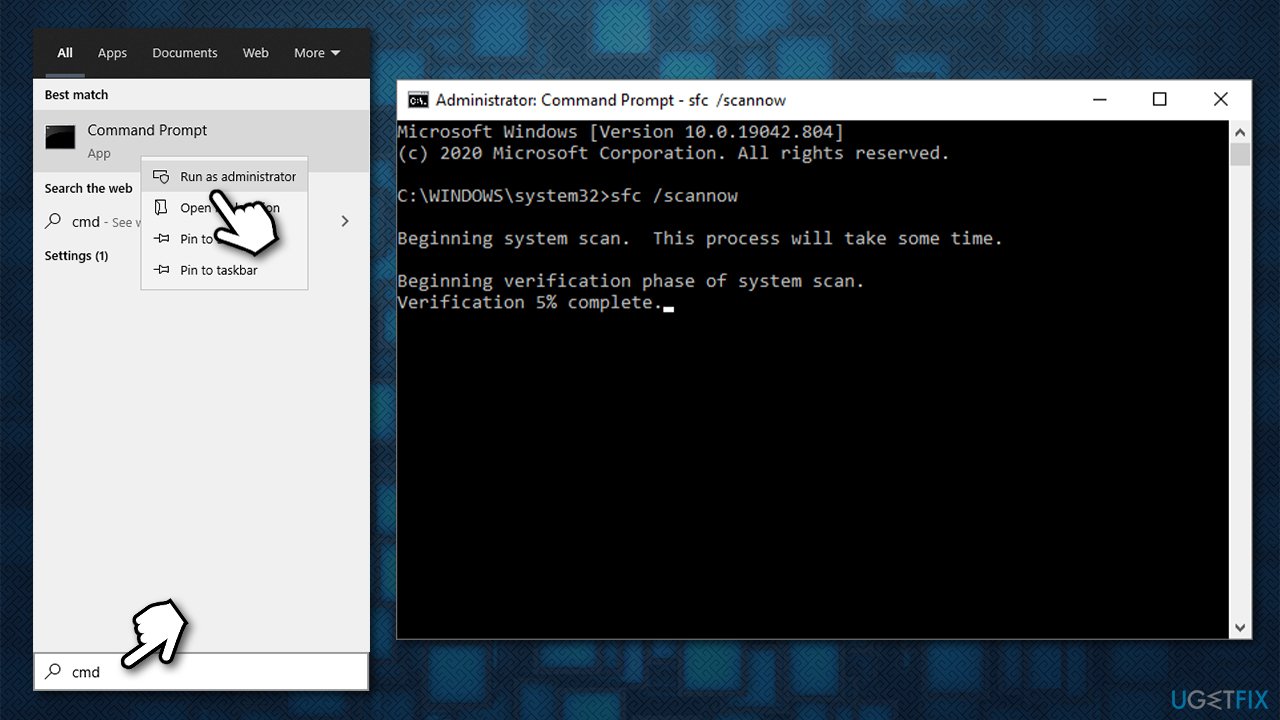
How to fix 0x8007025d 0x2000c windows upgrade error run sfc scan - Wait till Windows finishes the scan and reports on what was repaired.
If SFC scan returned an error, you can try repairing Windows image files with another set of commands (don't forget to press Enter after each):
Dism /Online /Cleanup-Image /CheckHealth
Dism /Online /Cleanup-Image /ScanHealth
Dism /Online /Cleanup-Image /RestoreHealth
Fix 4. Reset Windows Update components
- Open Command Prompt with administrator's privileges as explained above
- Ruin the following commands, pressing Enter after each:
net stop wuauserv
net stop cryptSvc
net stop bits
net stop msiserver
ren C:\\Windows\\SoftwareDistribution SoftwareDistribution.old
ren C:\\Windows\\System32\\catroot2 Catroot2.old
net start wuauserv
net start cryptSvc
net start bits
net start msiserver - Reboot your PC and try upgrading again.
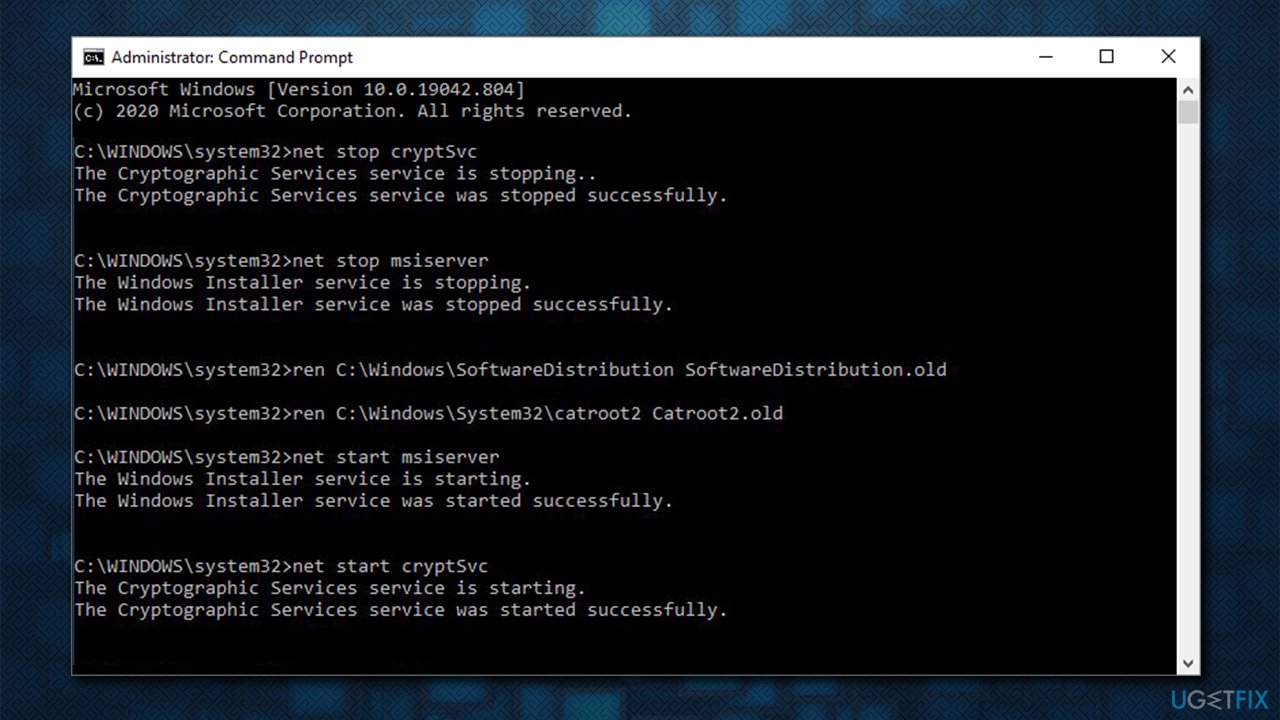
How to fix 0x8007025d 0x2000c windows upgrade error reset windows update components
Fix 5. Use the Media Creation tool
One of the main reasons why you might not be able to upgrade from older Windows versions to Windows 10 is due to incompatible versions of both. Thus, you should instead download the installation media and do a clean install of Windows 10:
- Download Windows 10 installation media from the official Microsoft website
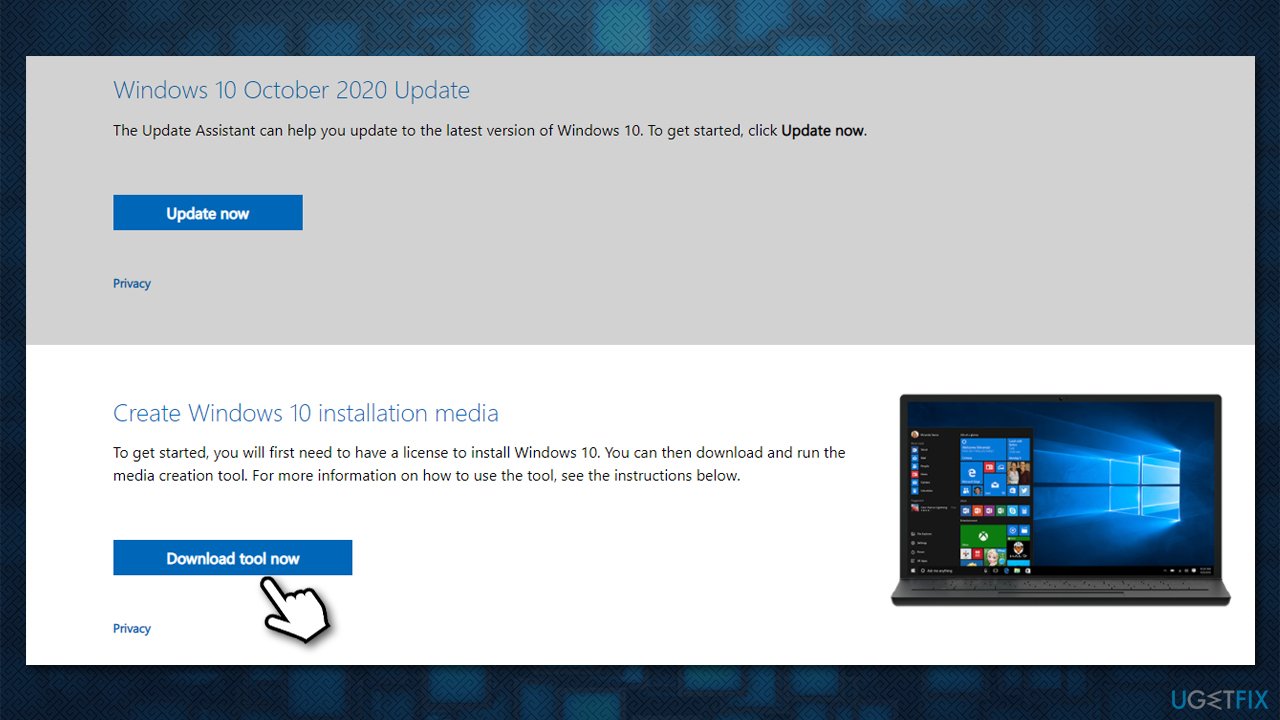
How to fix 0x8007025d 0x2000c windows upgrade error download media - Once downloaded, double-click MediaCreationTool.exe
- Agree to terms and click Next
- In the next window, select Create installation media (USB flash drive, DVD or ISO file) for another PC an press Next
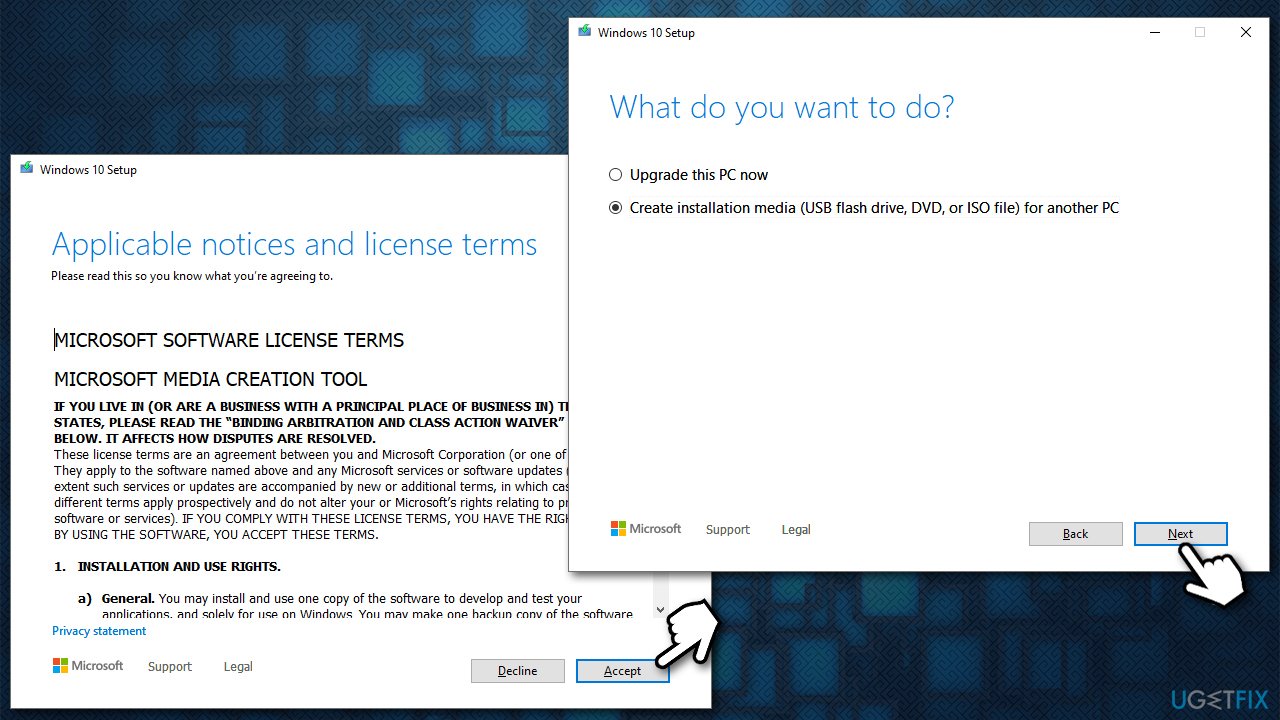
How to fix 0x8007025d 0x2000c windows upgrade error create usb flash bootable - You can now create an ISO image on a DVD or rely on the USB flash instead. We highly recommend picking the latter due to simple usability (note that some newer Windows 10 versions might not even fit to a standalone DVD)
- Insert empty USB flash drive and press Next
- Once the USB is ready, you can now start the upgrade process
- Reboot your PC (you might have to access BIOS and ensure that Windows would boot from the USB), and you should enter the installation phase
- Select your language, time and keyboard preferences, and press Next
- Finally, click Install Windows and wait for the process to be fully completed.
Note: remember to backup your personal files before this process, as you might lose them forever otherwise.
Bottom line
To fix the 0x8007025D - 0x2000C error, you can try disabling your antivirus software, freeing up hard drive space, repairing corrupted Windows files, or checking for hardware issues. If none of these solutions work, consider seeking professional assistance.
Frequently asked questions
This error typically occurs due to issues with the installation media, corrupted files, or hardware problems like RAM or hard drive failures.
You can create a new USB installation media using the Windows Media Creation Tool to ensure that the files are not corrupted.
Try running the Windows Update Troubleshooter, check your hard drive for errors, and ensure all your hardware components are properly connected.




Report an issue
What's wrong with this guide? We review every report and update or remove content.
Report received — thank you. We'll review and fix it.
You need a free account to submit a report.
Be the first to comment