How to fix
0x800f0988 and 0x800f08a errors
on Windows
Resolve 0x800f0988 and 0x800f08a errors in Windows 10 quickly and effectively, ensuring your system runs smoothly. Expert-tested solutions included.

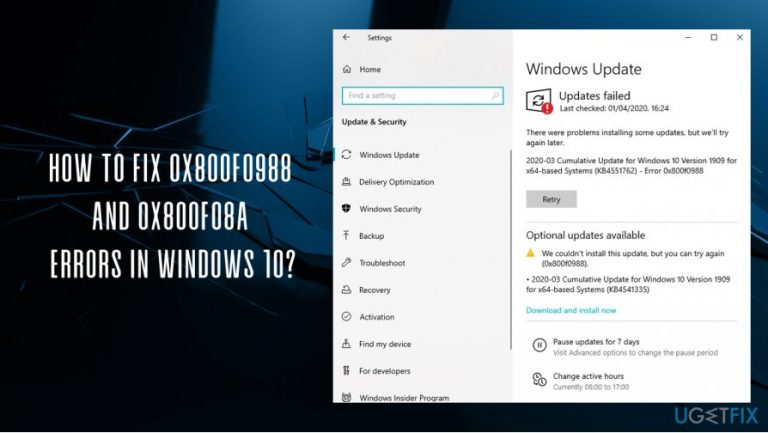
What causes How to fix 0x800f0988 and 0x800f08a errors in Windows 10?
- Windows updates not installing smoothly
- Errors occurring after a particular patch release
- Outdated system vulnerabilities
- Issues with NET Framework installation
- Multiple error codes assigned to different KB updates
Repairs Windows system files, removes malware, and restores a clean OS state — without reinstalling.
Hi, I heard many complaints from people about Windows update errors before but never encountered one myself. However, this morning, when I ran my routine updates on my Win 10 PC, I received 0x800f0988 and 0x800f08a errors. Since I have never encountered such issues before, I have no clue how to fix this. Any help would be appreciated.
It is indeed common knowledge that Windows updates do not always get installed as smoothly as intended. 0x800f0988 and 0x800f08a errors are just one of many Windows 10 update issues that users encounter on a regular basis,[ref en-2] although many complained that the errors occur after a particular patch is released.
In this particular case, 0x800f0988, 0x800f08a, and 0x800F081F errors are commonly experienced (the latter is often encountered when NET Framework fails to be installed) on Windows versions such as 1903, although later releases like 2004 can also suffer from the same issue.
While some updates might only fix a few minor bugs and improve user experience with new features, other patches are critical for online security. Zero-day vulnerabilities[ref en-1] are regularly patched by Microsoft, as outdated systems can be vulnerable to cyberattacks otherwise. In other words, all Windows computers running unpatched OS versions might be susceptible to malware infections (to make matters worse, the infiltration does not require any user interaction in most cases). Thus, the need to fix 0x800f0988 and 0x800f08a errors is very high.
Users encounter 0x800f0988 and 0x800f08a errors after the updates are downloaded and then being installed. In other cases, the error might pop-up after the PC restarts with the following message:
Updates failed
There were problems installing some updates, but we'll try again later.
If you keep seeing this and want to search the web or contact support for information, this may help:
While the prompt claims that updates will be installed later, the error fix does not come automatically, and users keep experiencing the same issues. In other cases, several error codes (0x800f0988, 0x800f08a, and 0x800F081F) can be experienced at the same time, although they can be assigned to a different KB (Knowledge Base) updates.
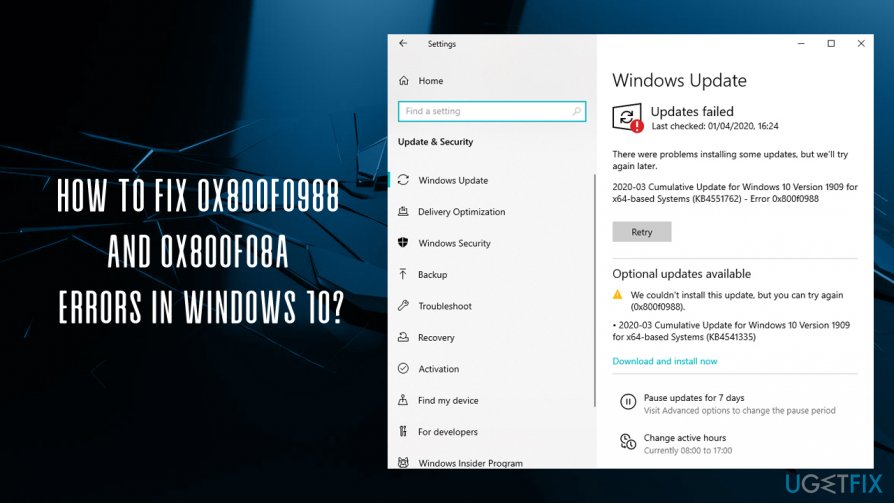
There might be several different reasons for the 0x800f0988 and 0x800f08a errors to occur, including corrupted system files, the incorrect status of Windows Update or another service, and many more. In other words, the solution to this problem might vary depending on why the error occurred in the first place.
This is why we are addressing 0x800f0988 and 0x800f08a errors fix in different ways - we provide several solutions below. You should try each one of them until you find what works for you. Note that you could attempt to fix various Windows problems automatically with such tools as [d1].
Fix 1. Run Windows Update Troubleshooter
When it comes to Windows update errors, it is often wise to start from a very basic fix - Windows Update troubleshooter.
- Right-click on Start button and pick Settings
- Select Troubleshoot on the left
- Choose Windows Update entry on the right
- Click on it and pick Run the troubleshooter
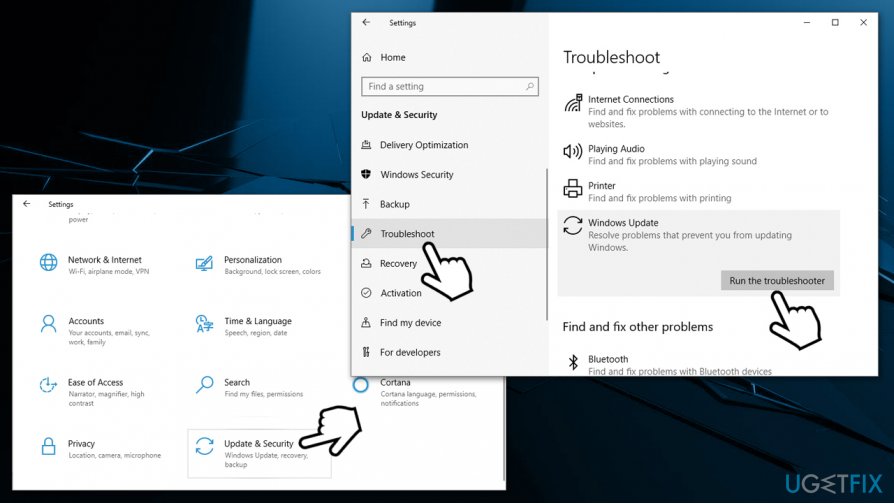
How to fix 0x800f0988 and 0x800f08a errors in windows 10 run update troubleshooter
Fix 2. Reset Windows Update components
The easiest way to reset Windows update components is by running a set of commands on Command Prompt.[ref en-3] You will have to access the tool with Administrator's rights:
- Type in cmd in Windows search
- Right-click on Command Prompt search result and select Run as administrator
- In the new window the opens, type in the following commands, pressing Enter after each:
net stop wuauserv
net stop cryptSvc
net stop bits
net stop msiserver
ren C:WindowsSoftwareDistribution SoftwareDistribution.old
ren C:WindowsSystem32catroot2 Catroot2.old
net start wuauserv
net start cryptSvc
net start bits
net start msiserver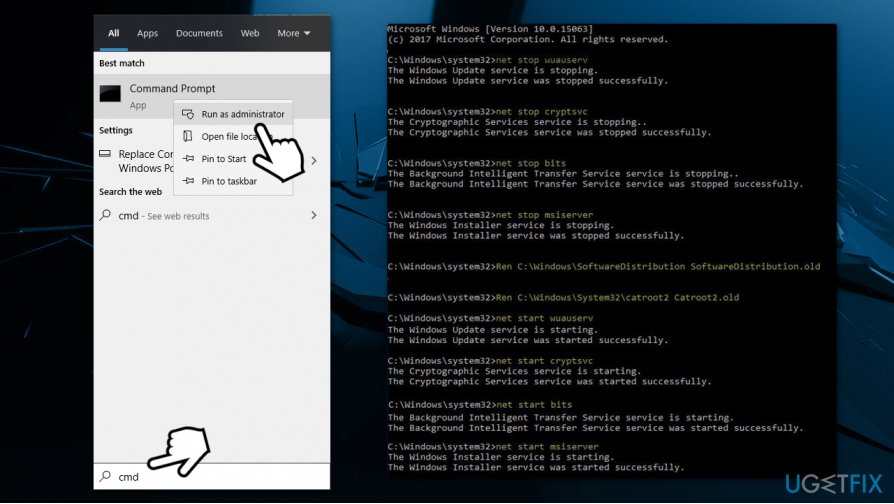
How to fix 0x800f0988 and 0x800f08a errors in windows 10 reset windows update components
Fix 3. Run DISM and SFC tools via Command Prompt
Another way to fix 0x800f0988 and 0x800f08a errors is by running built-in scans such as DISM and SFC. These will check for the integrity of system files and attempt to fix all the found problems automatically:
- Open Command Prompt as administrator as explained above
- Type in the following command and hit Enter:
sfc /scannow - Wait till scan finishes - Windows will inform you if any issues were found
- If that did not help you with the issue you should open Command Prompt once again and type in the following command, hitting Enter after:
dism /online /cleanup-image /startcomponentcleanup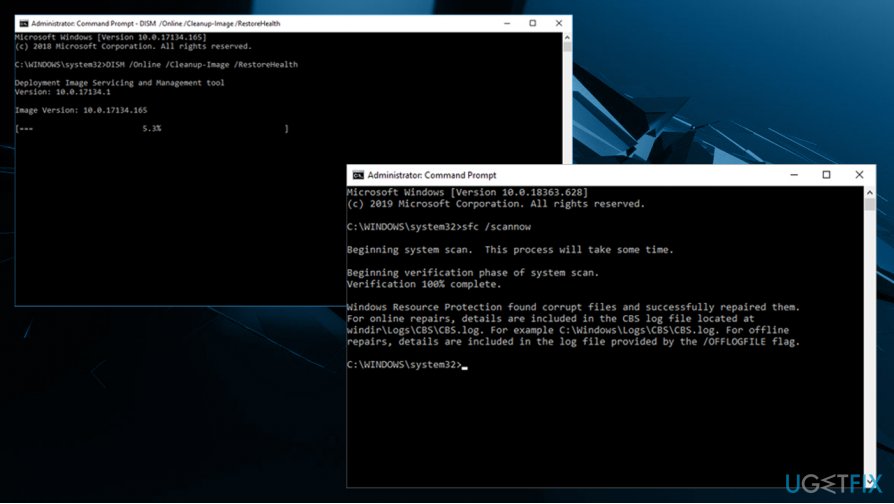
How to fix 0x800f0988 and 0x800f08a errors in windows 10 run dism and sfc
Fix 4. Install updates manually
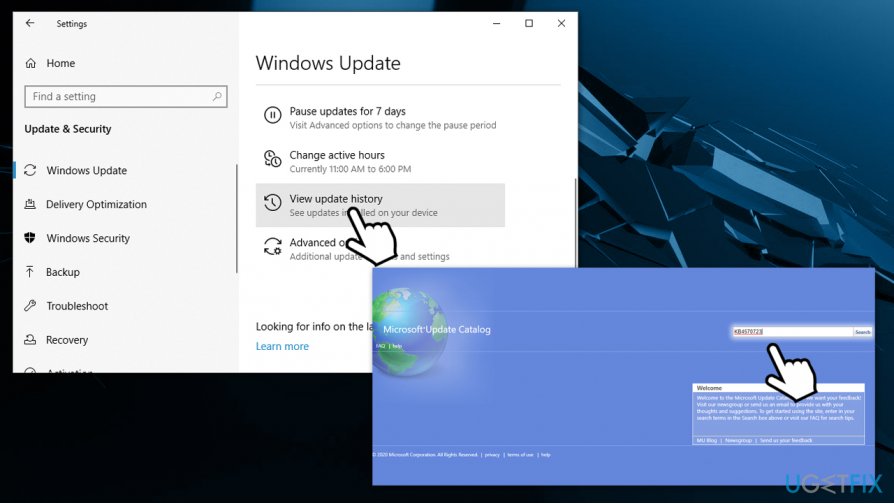
Windows updates and versions can sure be confusing, as they are marked by different KB numbers. However, there is a simple way to find out which updates failed to be installed (if you did not note it initially) and then attempt to install them manually. Here's how to do it:
- Right-click on Start button and pick Settings
- Go to Update & Security
- On the right side of the tab, scroll down a bit and select View update history
- Note which KB failed to install under the given error code
- Go to Microsoft Update Catalog, and type in the KB number you want to install (for example, KB4570723)
- Download and install updates manually
How to fix 0x800f0988 and 0x800f08a errors in windows 10 install updates manually
Fix 5. Reset your computer
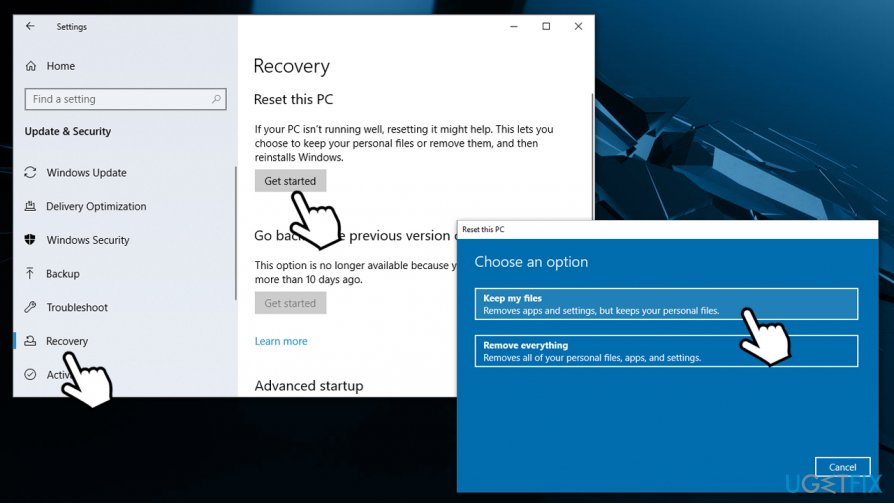
If none of the above-listed methods helped you with the problem, we suggest you reset Windows. You should not worry about your personal files - all of them will remain intact after the process. However, you will lose some of the installed apps (again, files created with those apps will remain).
- Right-click on Start and select Settings
- Go to Updates & Security section
- Choose Recovery
- Under Reset this PC, click the Get started button
- Pick Keep my files and proceed with on-screen instructions to finalize the process.
How to fix 0x800f0988 and 0x800f08a errors in windows 10 reset windows
Bottom line
To fix the 0x800f0988 and 0x800f08a errors, users should ensure their system is up to date, check for issues with the NET Framework, and consider reinstalling problematic updates. If these solutions do not resolve the errors, users may need to seek further assistance or contact support.
Frequently asked questions
The error code 0x800f0988 typically indicates that there is a problem with the Windows Update service or that certain required files for the update are missing. This can prevent users from successfully installing updates.
To resolve the 0x800f08a error, you can try running the Windows Update Troubleshooter, which can automatically detect and fix issues related to Windows updates. Additionally, ensure that your system files are intact by running the System File Checker tool.
Yes, both the 0x800f0988 and 0x800f08a errors can also occur in Windows 11, often due to similar issues with Windows Update or system file corruption. Applying the same troubleshooting steps for Windows 10 can help in resolving these errors in Windows 11.




Report an issue
What's wrong with this guide? We review every report and update or remove content.
Report received — thank you. We'll review and fix it.
You need a free account to submit a report.
Be the first to comment