How to fix
AmdRyzenMasterDriver.sys BSOD
on Windows
Resolve the AmdRyzenMasterDriver.sys BSOD error in Windows 10 or 11 with our expert-tested solutions. Get back to smooth performance in minutes!


What causes How to fix AmdRyzenMasterDriver.sys BSOD in Windows?
- Missing core files
- Corrupt device drivers
- Windows updates
- AMD Software issues
- Asus AI Suite issues
Repairs Windows system files, removes malware, and restores a clean OS state — without reinstalling.
Hello. I recently encountered a Blue Screen of Death that showed AmdRyzenMasterDriver.sys has failed. Is there anything I can do?
A blue screen,[ref en-1] also known as a "STOP Error," is caused by Windows encountering a critical failure. This causes Windows to crash and stops it from working properly. The restart function is the only thing Windows can do. This can sometimes lead to data loss as active apps do not have a chance to save the data. BSOD errors should be taken seriously and fixed as soon as possible.
Recently, people encountered an AmdRyzenMasterDriver.sys BSOD in Windows. There are different reasons that may cause this error - missing core files, corrupt device drivers,[ref en-2] Windows updates, and others. Some say that the crash can also be related to AMD Software or Asus AI Suite. AmdRyzenMasterDriver.sys can fail with a number of stop codes:
- SECURE_PCI_CONFIG_SPACE_ACCESS_VIOLATION
- SYSTEM_THREAD_EXCEPTION_NOT_HANDLED
- PAGE_FAULT_IN_NONPAGED_AREA
- DRIVER_VERIFIER_DETECTED_VIOLATION
- IRQL_NOT_LESS_OR_EQUAL
Troubleshooting manually could take a while, so you can try using an automatic solution [d1] to avoid going through all of the possibilities. The repair tool can identify the damaged system components, fix BSODs, and registry[ref en-3] issues by scanning the system. This software could also be used to free up space by clearing cookies and cache,[ref en-4] which should boost the device's performance.
Otherwise, follow the step-by-step instructions below where you will find 6 possible solutions to the AmdRyzenMasterDriver.sys BSOD in Windows.
Method 1. Update Windows
- Press the Windows key + R to open the Run box
- Type ms-settings:windowsupdate in the text box and press Enter
- Click the Check for Updates button
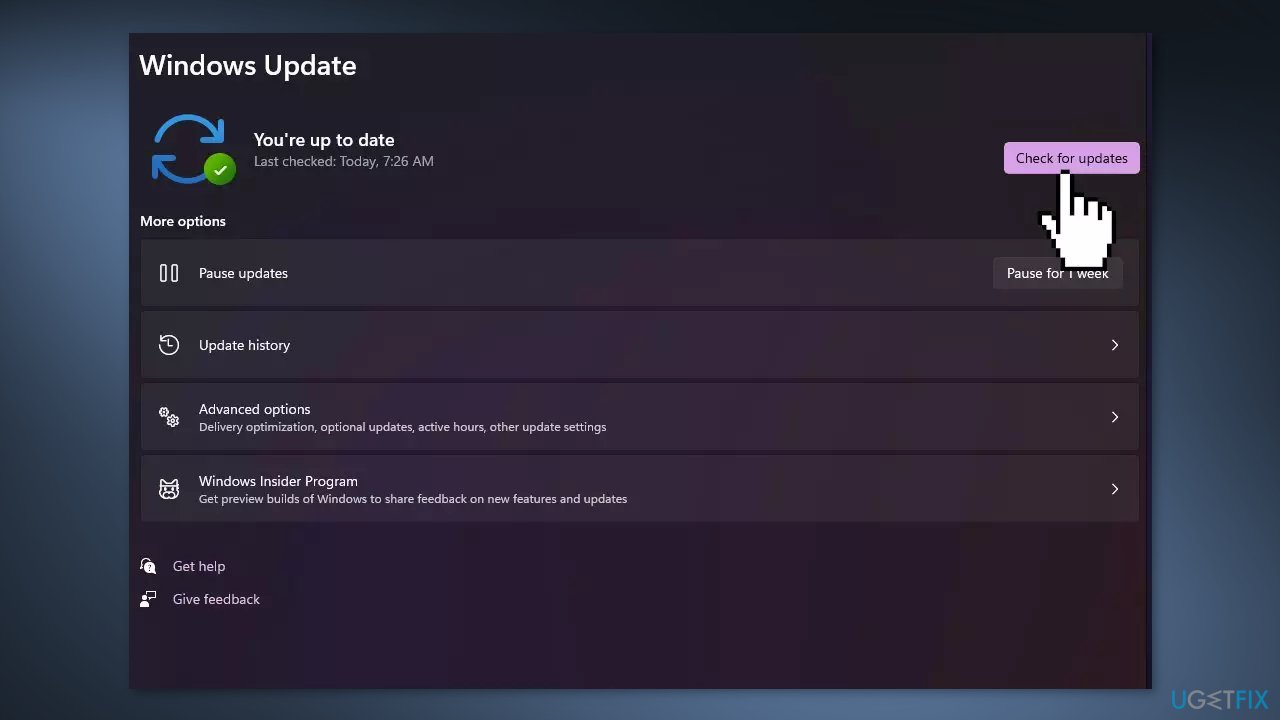
- If a new update is available, click the Download & Install all button.
- Restart your computer after the process is finished and check to see if the problem is fixed
Method 2. Uninstall the most recent Windows Update
If Windows did not find any available updates or you notices that the issue appeared after installing a recent update, try uninstalling it.
- Click on the Start menu and type updates
- Press Enter to launch the Settings page
- Click on Update history
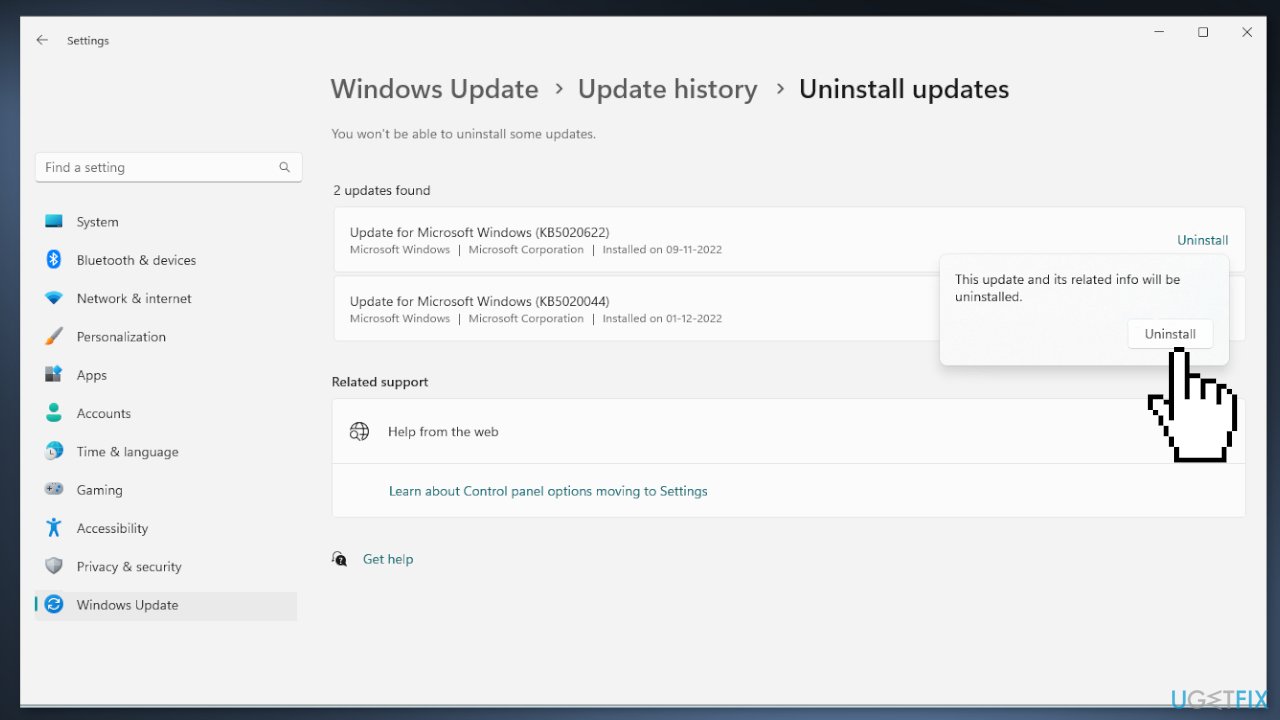
- From the next page, click on Uninstall updates
- Locate the patch you have recently installed and click on Uninstall
- Follow the on-screen instructions
Method 3. Fix Corrupted System Files
Use Command Prompt commands to repair system file corruption:
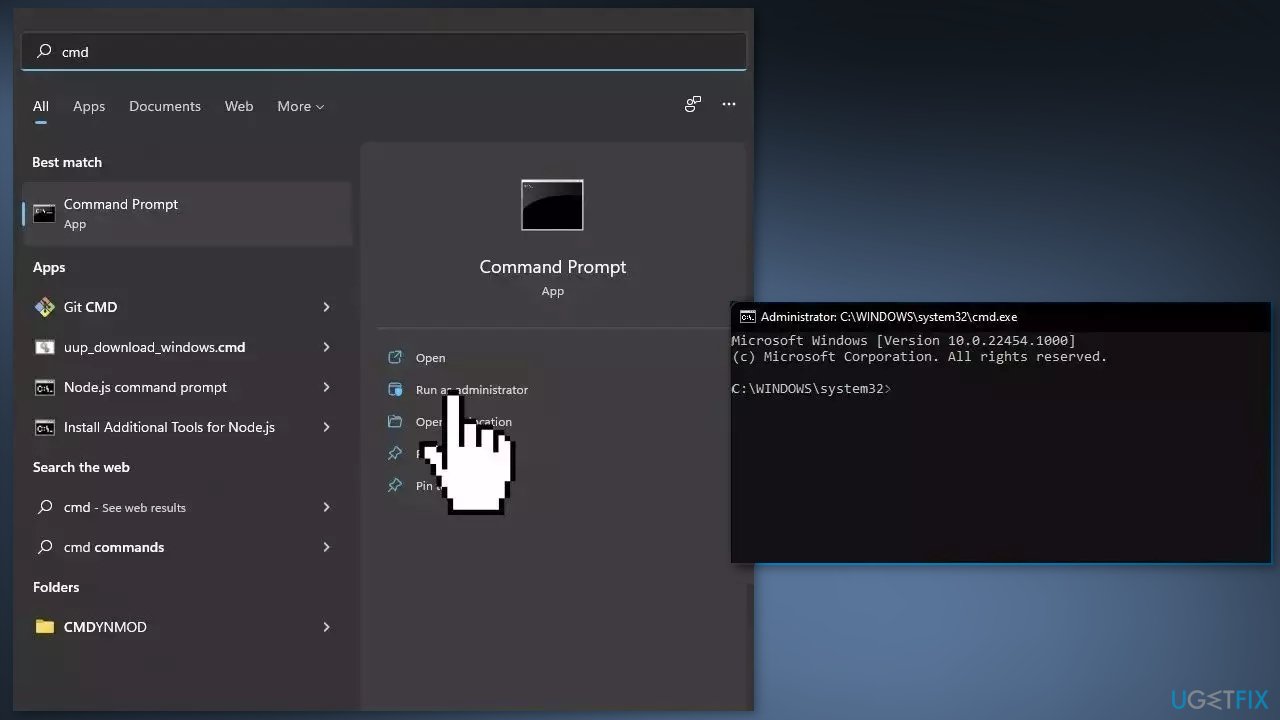
- Open Command Prompt as administrator
- Use the following command and press Enter:
sfc /scannow
- Reboot your system
- If SFC returned an error, then use the following command lines, pressing Enter after each:
DISM /Online /Cleanup-Image /CheckHealth
DISM /Online /Cleanup-Image /ScanHealth
DISM /Online /Cleanup-Image /RestoreHealth
Method 4. Uninstall AMD Software and Asus AI Suite
- Press the Windows key + R to open the Run box
- Type appwiz.cpl and hit the Enter key
- On the Programs and Features window, select AI Suite 3 (or another version) and click on Uninstall
- Select Yes on the prompt saying Are you sure you want to uninstall the AMD driver?
- Follow the on-screen instructions and finish the removal
- Restart your computer and check whether AI Suite is uninstalled
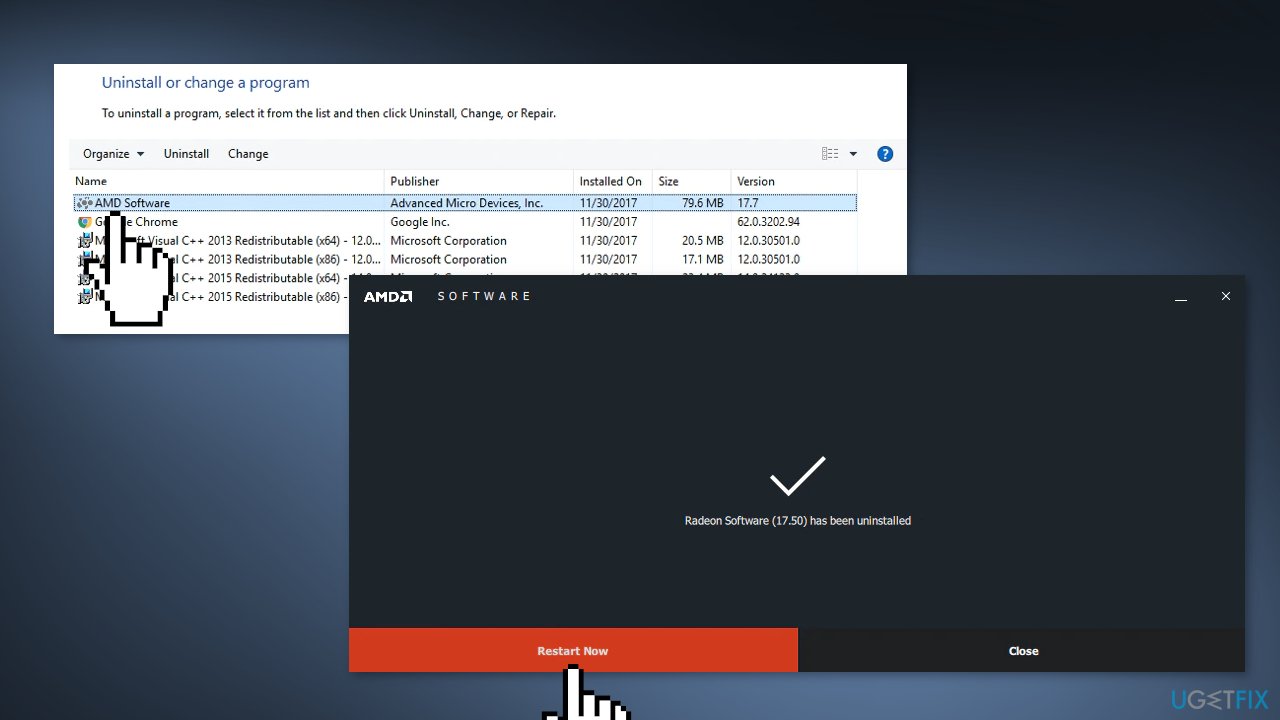
- Go to Programs Features, and select AMD Software
- Click on Uninstall
- When the process is completed, you may come across the options to Restart Now and Close
- Select Restart Now
- Power on your computer and press F2 or Del
- Then hold down F7 to enter into Advanced Mode
- Select Advanced, then CPU Configuration
- Set SVM Mode as Enabled
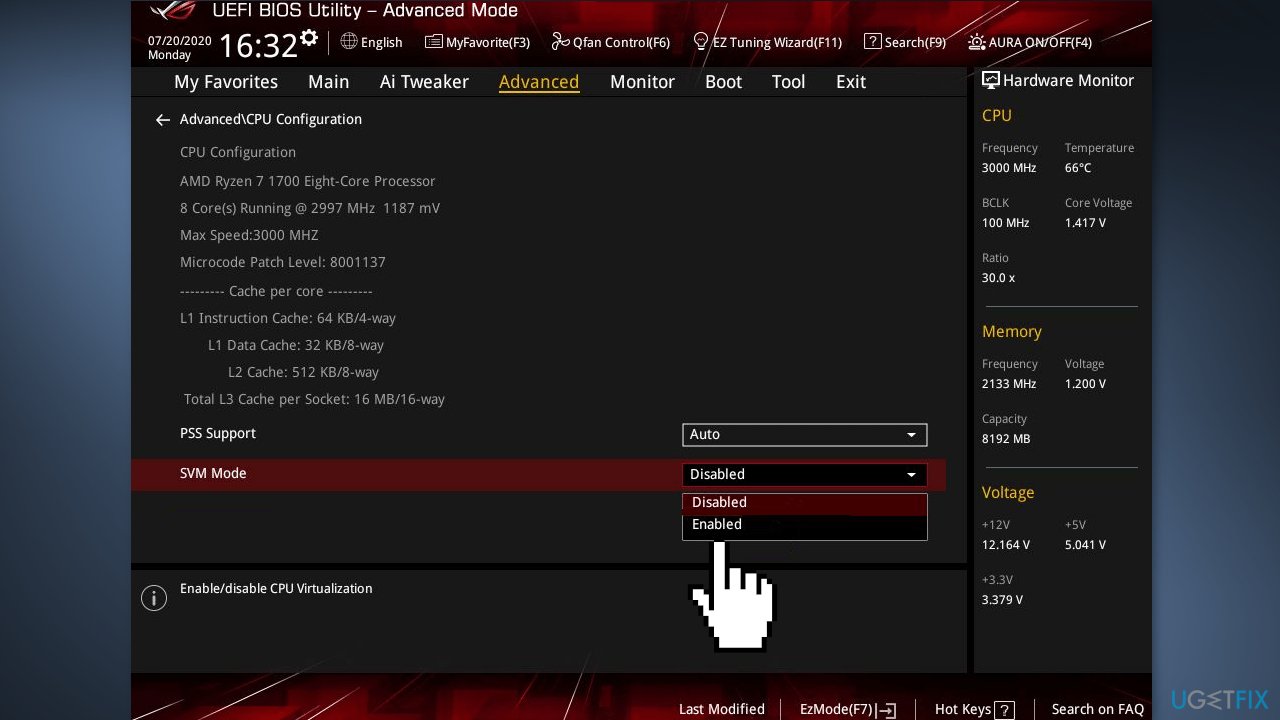
- Save the changes and start the PC
- Now go to the AMD website and download the chipset drivers
- Install the driver and reboot the device
- You can also use a dedicated utility like [rev id="DriverFix"] that can find the best drivers for your machine and install them automatically
Method 5. Perform System Restore
- Go to the Start menu, type restore, and click on Create a restore point
- Click System Restore, then follow the prompts until you can select a restore point
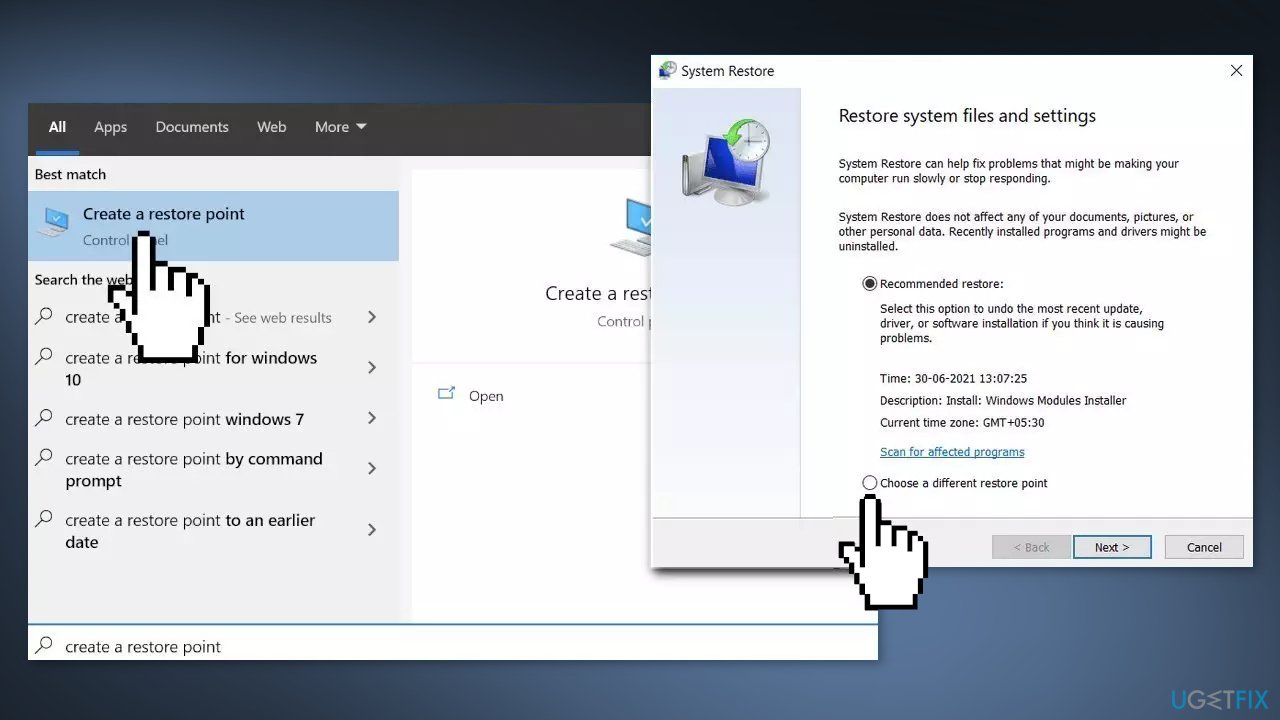
- Select the one you want (ideally before the AmdRyzenMasterDriver.sys BSOD started appearing) and go ahead with the process
Method 6. Repair Install Windows
- Visit the official Microsoft website to download Windows 11 or Windows 10 Installation Media
- Run the Media Creation Tool and select Create Installation Media for another PC
- Select your USB drive
- Let the Process complete of writing the Installation files to the USB drive
- Click Finish
- On the PC you wish to upgrade, Press Windows + E to open the File Explorer
- Open the Removable drive and click Setup.exe
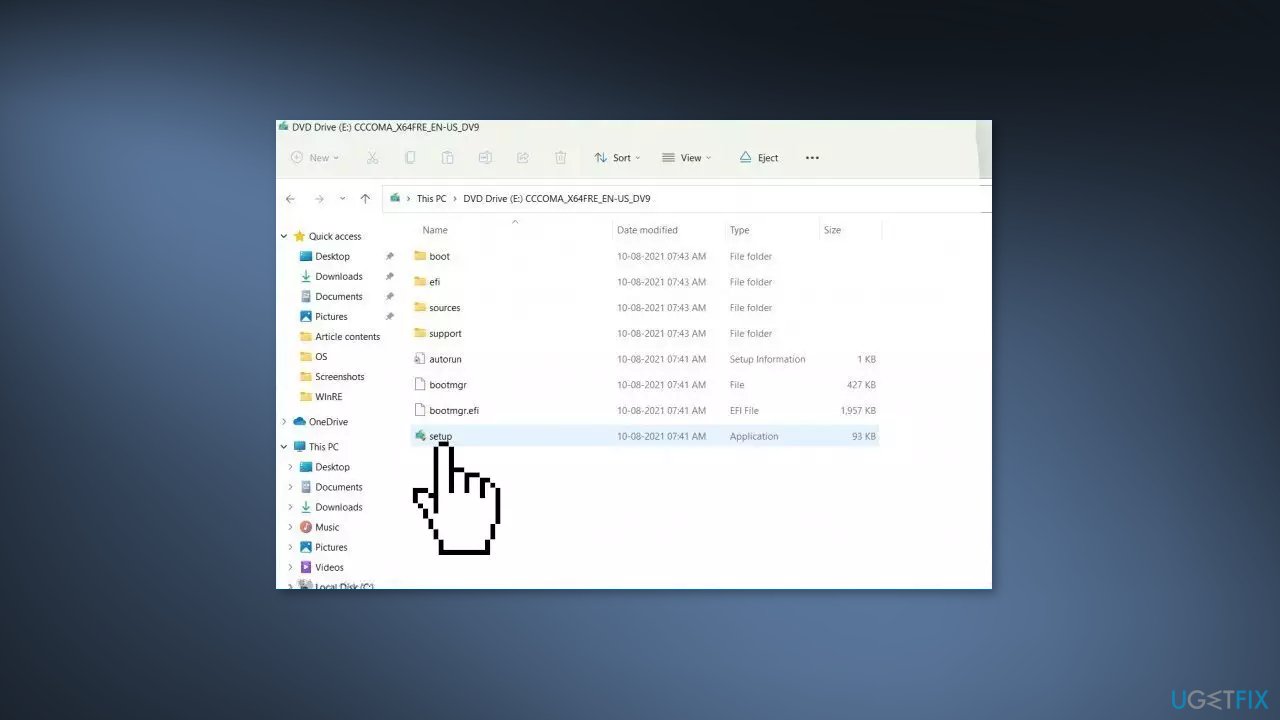
- Accept the license terms on the next screen
- Confirm the Upgrade options – Files, apps and Settings are kept
- Click Install, and the upgrade should start
Bottom line
To fix the AmdRyzenMasterDriver.sys BSOD, you can update Windows, uninstall the most recent Windows update, or use an automatic solution to identify and repair system issues. If these methods do not resolve the problem, consider further troubleshooting or seeking professional assistance.
Frequently asked questions
The AmdRyzenMasterDriver.sys BSOD error is typically caused by issues with the AMD Ryzen Master application or its drivers, which may be incompatible or corrupted.
To uninstall the AMD Ryzen Master application, go to Settings > Apps in Windows 10 or Windows 11, find AMD Ryzen Master in the list, and select 'Uninstall'.
Yes, you can update the AMD drivers by visiting the official AMD website, downloading the latest driver version compatible with your system, and installing it on Windows 10 or Windows 11.




Report an issue
What's wrong with this guide? We review every report and update or remove content.
Report received — thank you. We'll review and fix it.
You need a free account to submit a report.
Be the first to comment