How to fix
“An error occurred while starting Roblox”
on Windows
Resolve the "An error occurred while starting Roblox" issue on Windows 10 or 11 effortlessly with expert-tested solutions. Fixed in minutes!


What causes How to fix “An error occurred while starting Roblox” in Windows?
- Internet Connection Issues
- Firewall or Antivirus Interference
- Roblox Server Issues
- Outdated Roblox or Browser Version
Repairs Windows system files, removes malware, and restores a clean OS state — without reinstalling.
I am running Windows, and since a few days ago, I can't seem to be able to launch Roblox - I receive the "An error occurred while starting Roblox" message instead. Any tips on how to resolve this?
Whether you're a long-time fan of Roblox or a newcomer excited to dive into the world of user-created online multiplayer experiences, encountering an error while trying to start the game can be frustrating. One common problem that Windows users often face is the "An error occurred while starting Roblox" message. In this article, we will explore this issue in-depth and provide you with effective solutions to resolve it.
Roblox is a popular online platform and game creation system that allows users to program games and play games created by other users. Unfortunately, like any other software, Roblox can also run into errors and glitches.
The "An error occurred while starting Roblox" error typically appears when the game client cannot connect to the game server, indicating that there might be an issue with your internet connection, software conflicts, or the Roblox servers themselves.
There are several reasons why "An error occurred while starting Roblox" might show up when launching the game - here are a few examples:
- Internet Connection Issues: The most common cause of this error is a problem with the user's internet connection. Check to make sure that your connection is stable and functioning. Troubleshooting your network might help you resolve the issue.
- Firewall or Antivirus Interference: Your firewall or antivirus software may sometimes block Roblox from accessing the internet. Try disabling these temporarily to see if they're causing the problem. If this resolves the issue, you may need to add Roblox to the list of exceptions in your antivirus or firewall settings.
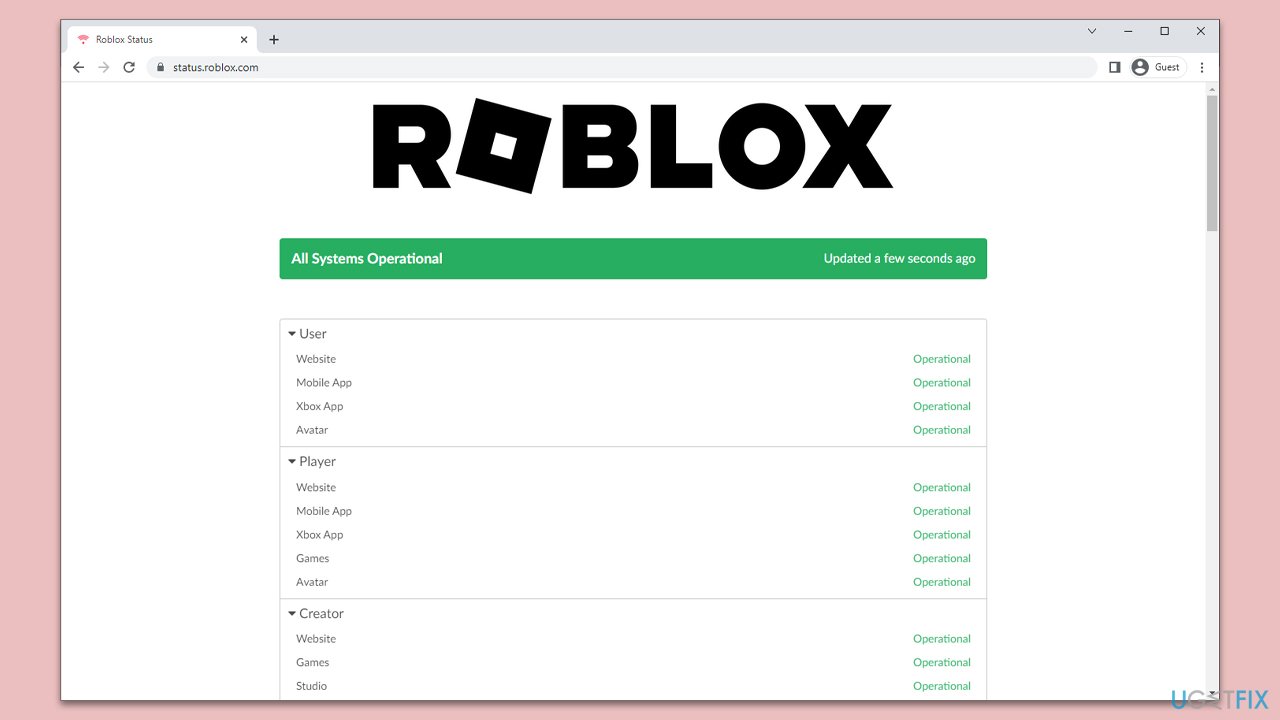
- Roblox Server Issues: If the issue isn't with your own system or internet connection, it's possible that the Roblox servers themselves are experiencing problems. You can check the Roblox status page for any ongoing server issues.
- Outdated Roblox or Browser Version: An outdated Roblox player or web browser can also cause this issue. Ensure that you're using the latest version of your browser and that your Roblox player is updated.
- Corrupt Roblox Installation: If none of the above solutions work, your Roblox installation may be corrupt. Uninstalling and then reinstalling the game can often fix this problem.
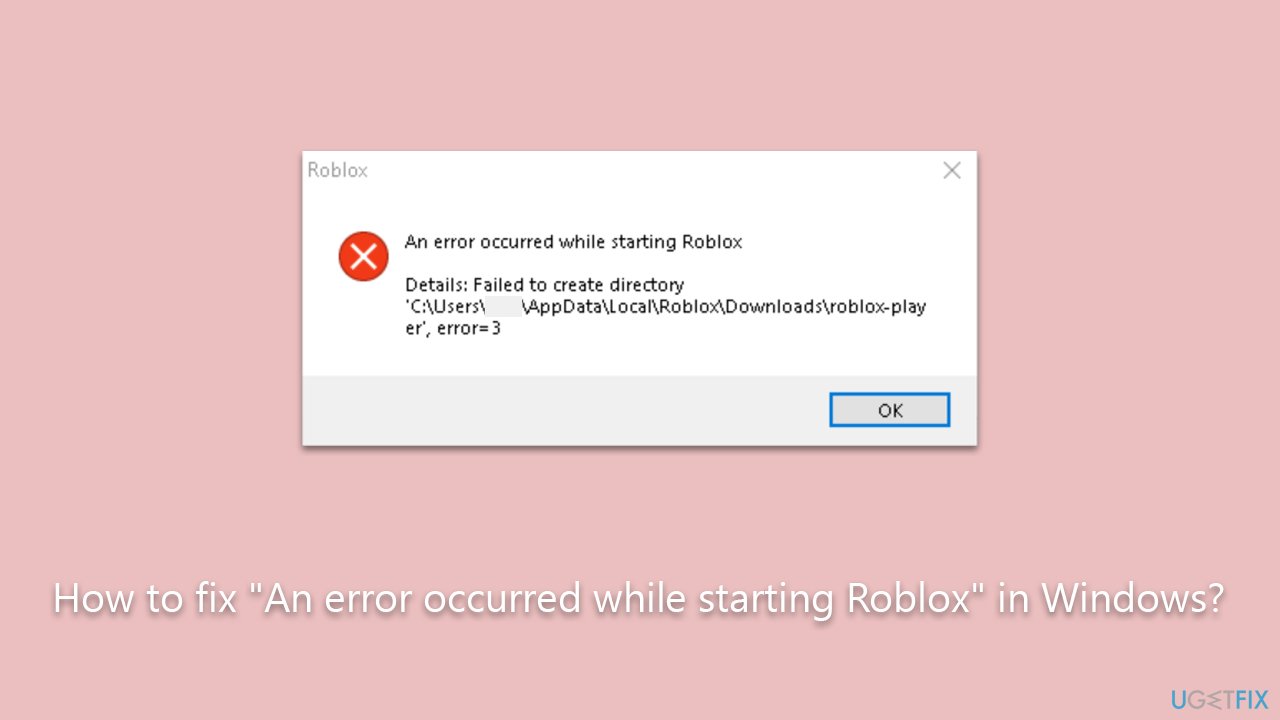
The "An error occurred while starting Roblox" error can be frustrating, but it's usually easy to fix with a little bit of troubleshooting. By following the solutions outlined above, you should be able to resolve the issue and get back to enjoying your favorite games on Roblox. Before proceeding, check out [d1] PC repair software, which can quickly and easily diagnose underlying Windows issues and fix them automatically for you.
Fix 1. Check server status
Visit the Roblox status page to check if there are any ongoing server problems. This page provides real-time updates on the operational status of various Roblox services, allowing you to identify if there are any ongoing server problems. If there are, you may just have to wait until the issues are resolved.
Fix 2. Check your internet connection
Test your connection: Open a browser and try visiting several websites. If you're having trouble loading pages, your internet might be unstable.
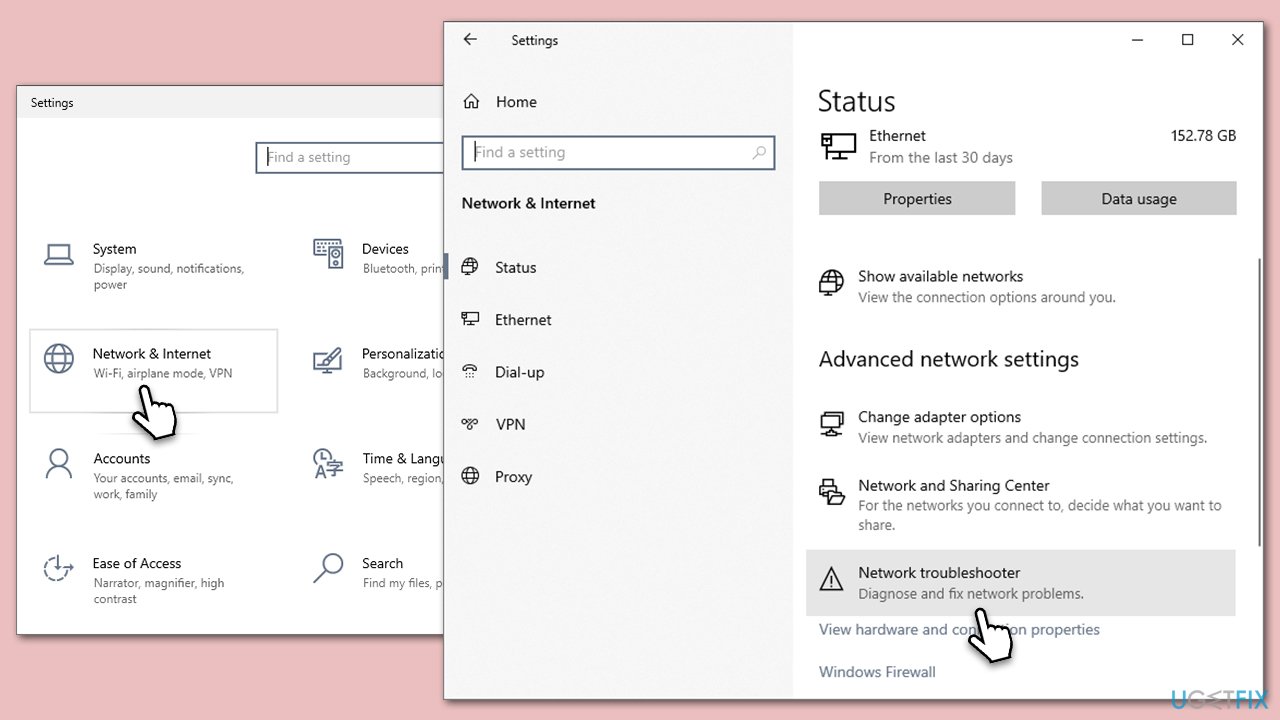
Run network troubleshooter as follows:
- Right-click on Start and pick Settings.
- Go to Network & Internet section.
- On the right side, find the Advanced network settings section.
- Click Network troubleshooter and wait.
- The fixes should be automatically applied.
Fix 3. Disable your third-party antivirus
Third-party antivirus software is designed to monitor and block potentially harmful activities on your computer. While this is generally a good thing, these programs can sometimes mistake harmless activities, like running a game like Roblox, as threats.
In other words, the antivirus might be generating a false positive. When this happens, the antivirus software can prevent the game from starting or functioning correctly, leading to errors such as "An error occurred while starting Roblox."
Disabling the antivirus software temporarily can help determine if it's the cause of the problem. If the game runs correctly with the antivirus software disabled, it's a good indication that the software was blocking the game. To resolve this, you can add Roblox as an exception in your antivirus software settings, so it no longer blocks the game, and you can still benefit from the protection the software provides.
Fix 4. Allow Roblox through Firewall
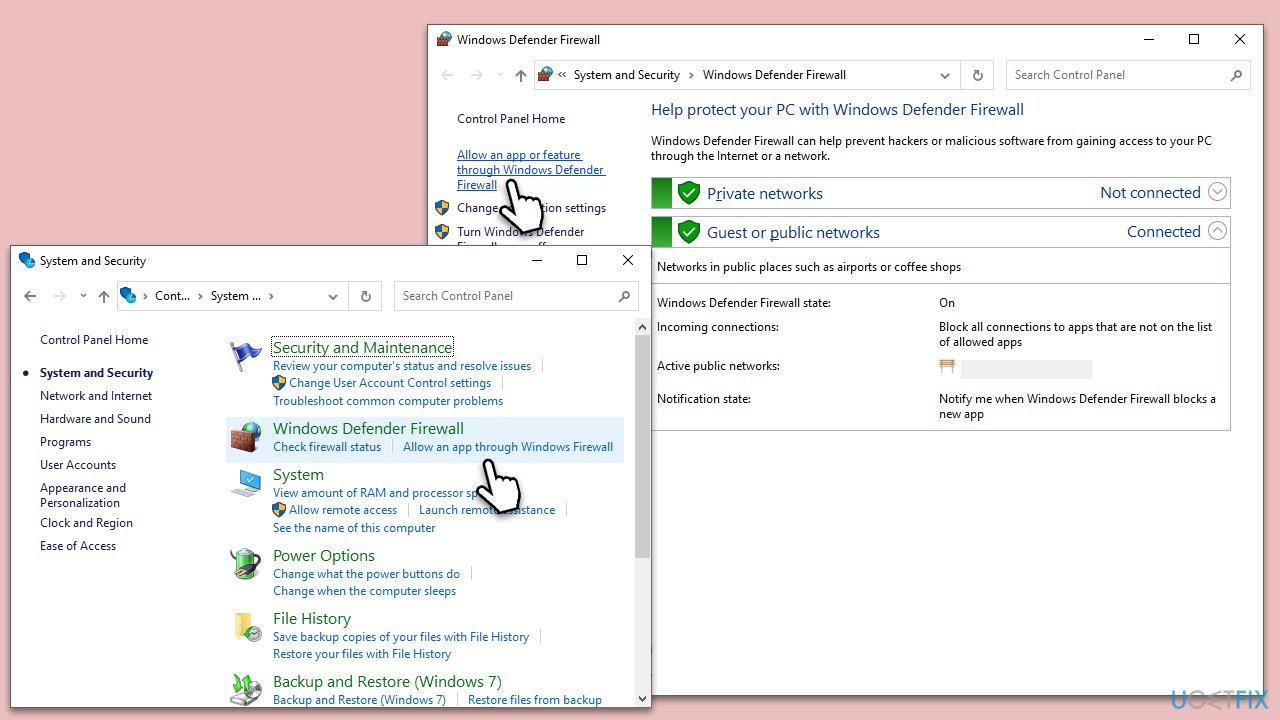
Windows Firewall might be blocking the app from starting, which might occur after a Windows update and come up unexpectedly.
- Type Control Panel in Windows search and press Enter.
- Click on System and Security.
- Select Windows Defender Firewall.
- On the left-hand side, click on Allow an app or feature through Windows Defender Firewall.
- Click on Change settings.
- Scroll down the list to find Roblox. If it's not on the list, click on Allow another app, locate Roblox, and add it.
- Ensure both Private and Public checkboxes are ticked for Roblox.
- Click OK to confirm the changes.
Fix 5. Reset your internet connection
If you or a program has meddled with internet connection settings (or they were altered dye to other reasons, e.g., malware infection), resetting it to default might help. It will remove any set-up proxies, reset Winsock, etc.
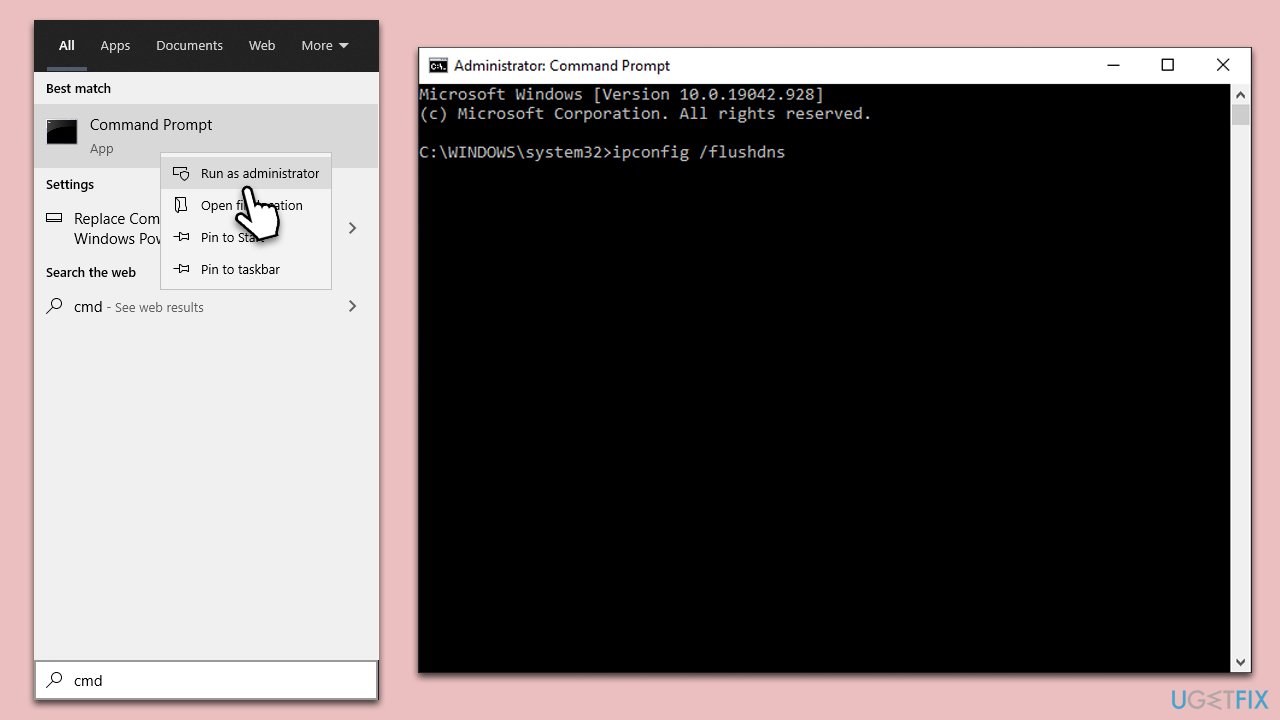
- Type cmd in Windows search and hit Enter.
- When User Account Control shows up, click Yes.
- Copy and paste each of the following commands, pressing Enter every time:
ipconfig /flushdns
ipconfig /registerdns
ipconfig /release
ipconfig /renew
netsh winsock reset - Close down Command Prompt and restart your system.
Alternatively, you can reset your router/modem. To do this, unplug the power source of your router/modem, wait a minute, then plug it back in. Wait for all lights to stabilize before trying to connect again.
Fix 6. Reinstall Roblox
- Right-click on Start and pick Apps and Features.
- Scroll down to find Roblox from the list.
- Click Uninstall and then confirm with Uninstall.
- Follow the prompts to remove the app.
- Next, press Win + E on your keyboard to open File Explorer.
- Navigate to the following location (make sure Hidden files are visible):
C:\Users\USERNAME\AppData\Local - Access the Roblox folder, press Ctrl + A to mark everything, and then Shift + Del to delete it all.
- Restart your computer.
- Launch Microsoft Store and install the game again.
Other topics that might interest you:
Bottom line
To resolve the "An error occurred while starting Roblox" issue, check your internet connection, disable your firewall or antivirus temporarily, and ensure that both Roblox and your web browser are up to date. If none of these solutions work, consider checking the Roblox status page for server issues.
Frequently asked questions
Try updating your graphics drivers and ensuring that Windows 10 is fully updated, as outdated drivers can cause this error.
Ensure that your Windows 11 firewall or antivirus is not blocking Roblox, and consider adding it to the exceptions list.
Yes, you can reinstall Roblox by uninstalling it through the Settings app in Windows, then downloading the latest version from the official website.




Report an issue
What's wrong with this guide? We review every report and update or remove content.
Report received — thank you. We'll review and fix it.
You need a free account to submit a report.
Be the first to comment