How to fix
Assertion Failed: Bad Event handle error in Modern Warfare 2
on Windows
Resolve the Assertion Failed: Bad Event handle error in Modern Warfare 2 on Windows 10 or 11 with expert-tested solutions for smooth gameplay.

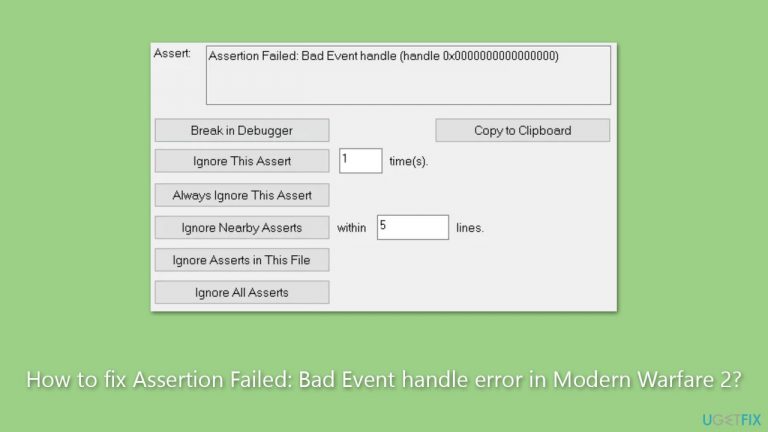
What causes How to fix Assertion Failed: Bad Event handle error in Modern Warfare 2?
- Discrepancy between installation locations of Steam and the game
- Corrupted game files
- Corrupted Windows files
- Internet connectivity issues
Repairs Windows system files, removes malware, and restores a clean OS state — without reinstalling.
Every time I attempt to launch Call of Duty: Modern Warfare 2, I receive a startup crash with the message "Assertion: Assertion Failed: Bad Event handle." Is there anything I can do to fix this? I can't play the game right now...
On 16th November 2022, the highly anticipated battle royale version of Call of Duty: Modern Warfare 2, Warzone 2.0, was released to public enthusiasm. As a game that has enjoyed immense popularity, the expectation and influx of players were high.
However, despite its widespread appeal and acclaim, the game has not been without its share of technical issues. One such error troubling the users is the "Assertion Failed: Bad Event handle" error, which appears when they attempt to launch the game on the Steam platform.
The primary cause behind this issue is a discrepancy between the installation locations of Steam and the game. When Call of Duty: Modern Warfare 2 is installed on a different drive than where Steam resides, the error tends to manifest. This is due to the inability of Steam to correctly access and communicate with the game files, causing an assertion failure.
But this is not the only reason behind the problem. Another potential cause could be corrupted game files or even corrupted Windows files. These files, if damaged or incomplete, can hinder the smooth operation of the game, leading to the appearance of the "Bad Event handle" error. Regularly updating your game, Steam, and Windows system can reduce the chances of such file corruption.
Moreover, internet connectivity issues may also contribute to this error. A stable and strong internet connection is vital for launching and playing online games like Warzone 2.0 without interruption. Thus, a weak or unstable connection could potentially disrupt the communication between the game and the Steam server, resulting in this error.
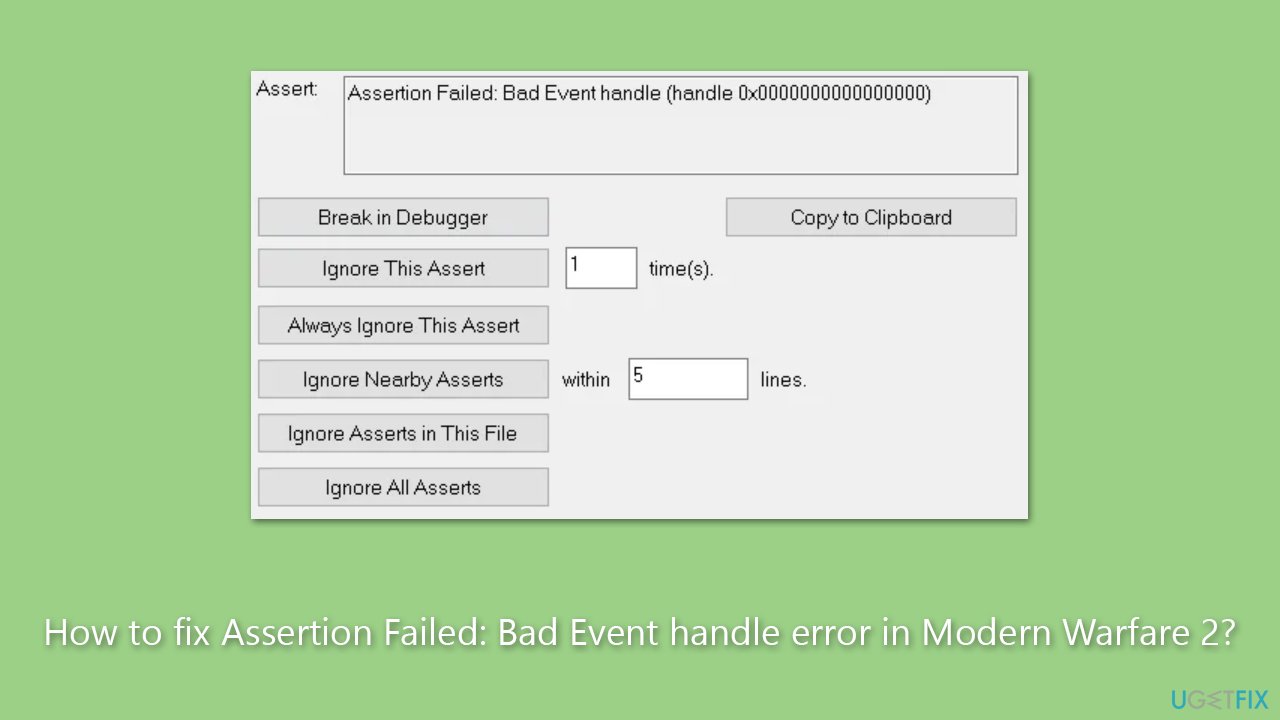
Understanding these causes is the first step towards resolving this pesky error. By ensuring a correct installation location, maintaining updated and uncorrupted files, and securing a stable internet connection, players can enjoy the thrilling experience that Call of Duty: Modern Warfare 2 promises, free of technical hitches.
We also recommend running a PC repair tool [d1] to ensure no underlying Windows issues are causing the error.
Fix 1. Change the installation folder of game files
You can either uninstall the game and install it on the same drive as Steam, or you can move game files. Here's how:
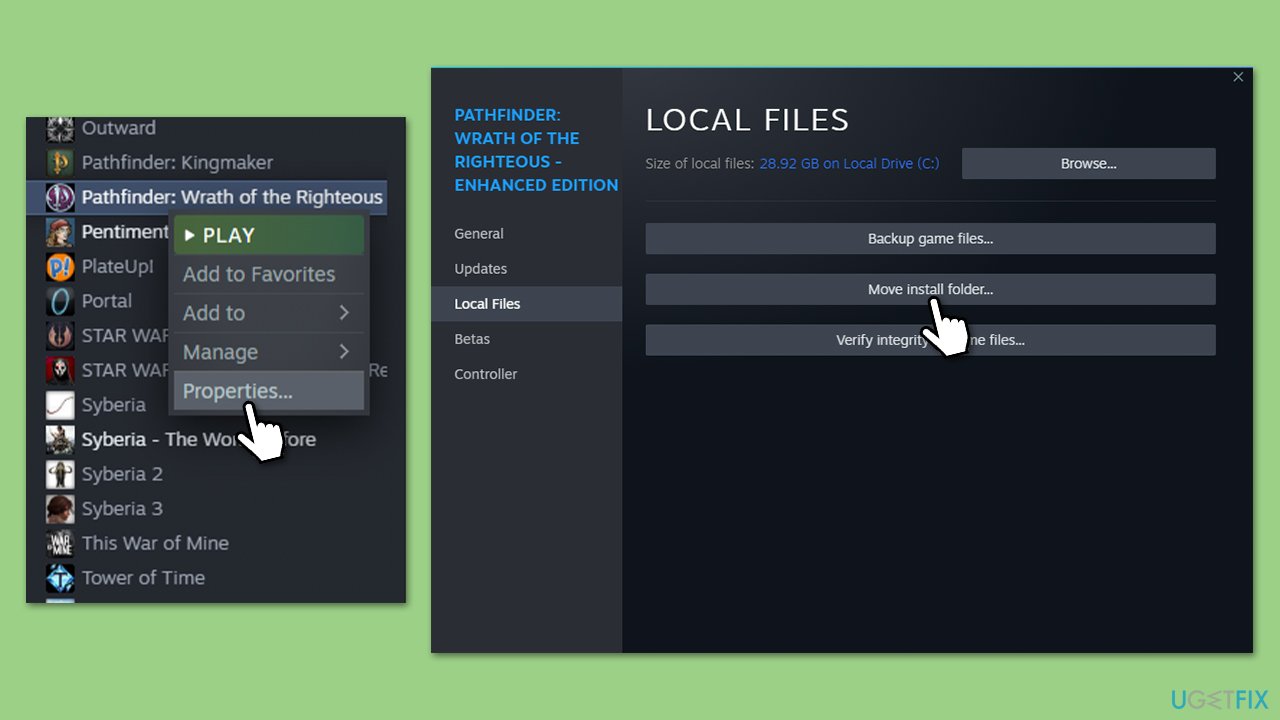
- Open Steam and go to your Library.
- Right-click on the game and select Properties.
- On the left side, pick Local files.
- Click Move install folder.
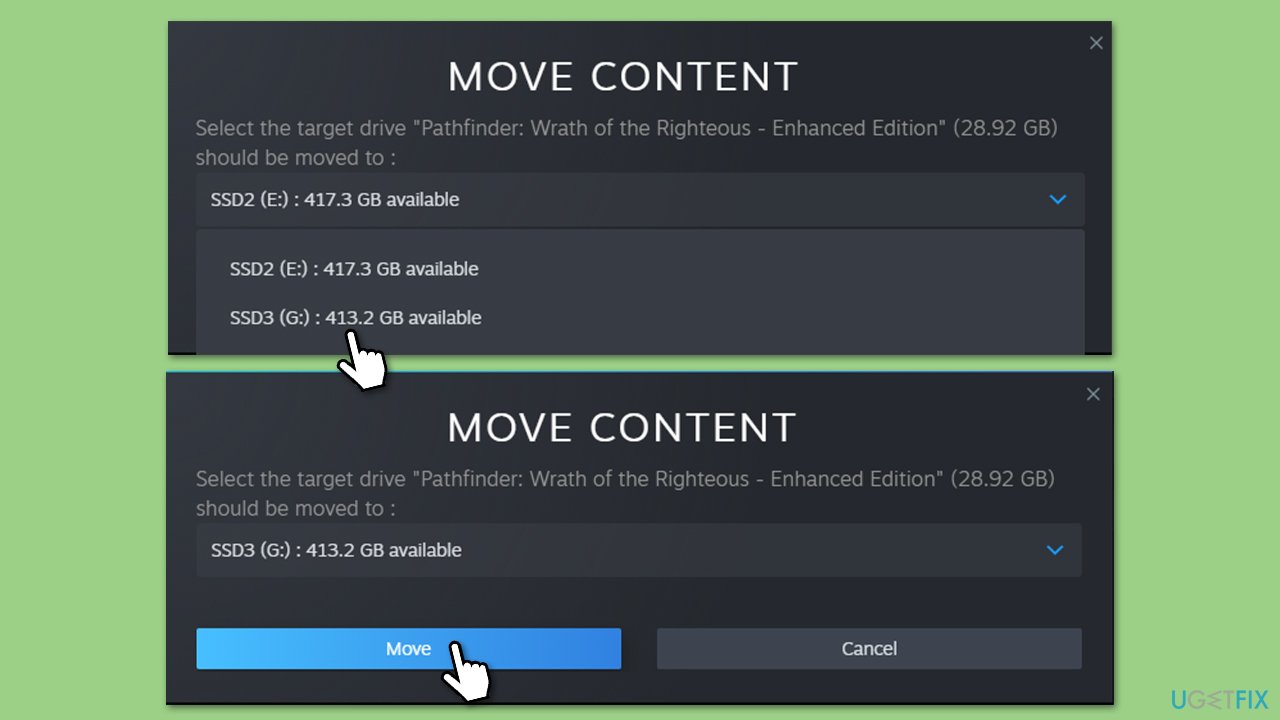
- From the drop-down menu, select the same drive where your Steam is installed.
- Click Move.
Fix 2. Check the integrity of game files
Another simple fix is checking for corrupted game files.
Steam
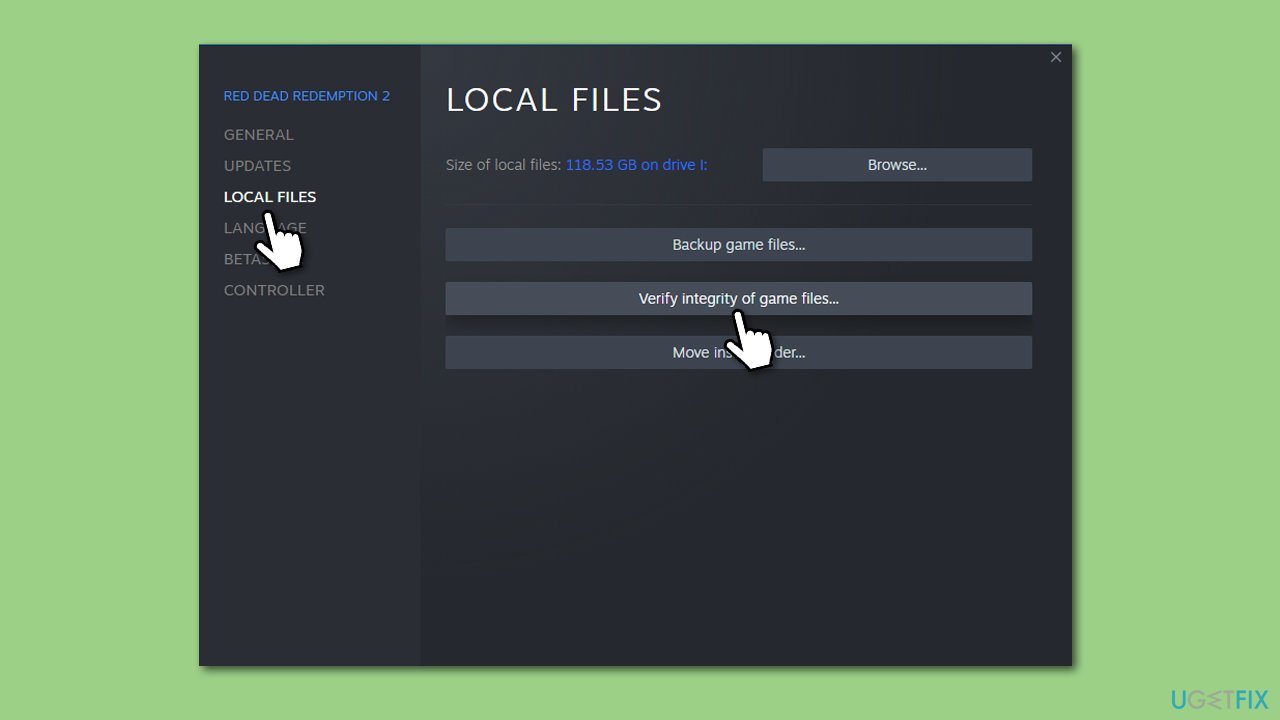
- Open Steam and go to your Library.
- Right-click on the game and select Properties.
- On the left side, pick Local files.
- Click Verify integrity of game files...
- Wait till the process is finished.
Battle.net
- Open the Battle.net client on your PC.
- Select Call of Duty Warzone 2/MW in the client.
- Click on the gear icon next to the Play button and select Scan and repair from the menu.
- Wait for the scan to finish.
Fix 3. Run network troubleshooter
Ensure that your network connection is fine by following these steps:
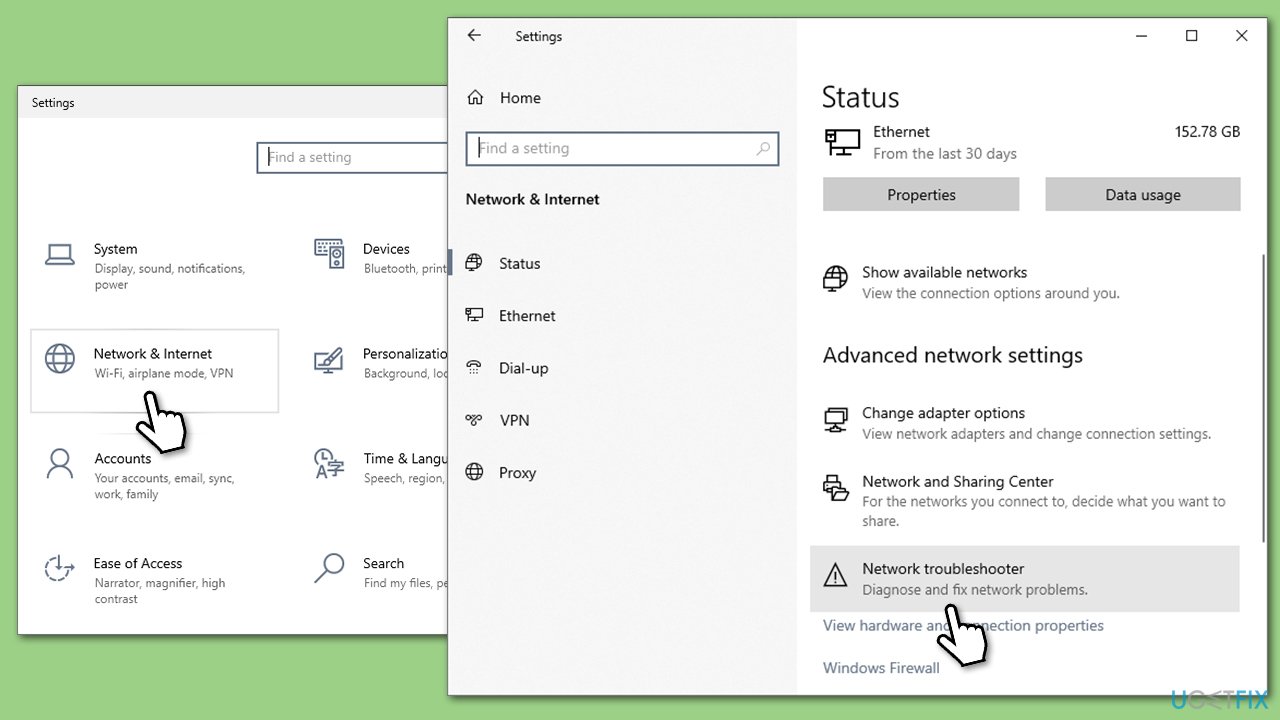
- Right-click on Start and pick Settings.
- Go to Network & Internet section.
- On the right side, find the Advanced network settings section.
- Click Network troubleshooter and wait.
- The fixes should be automatically applied.
Fix 4. Check for system file corruption
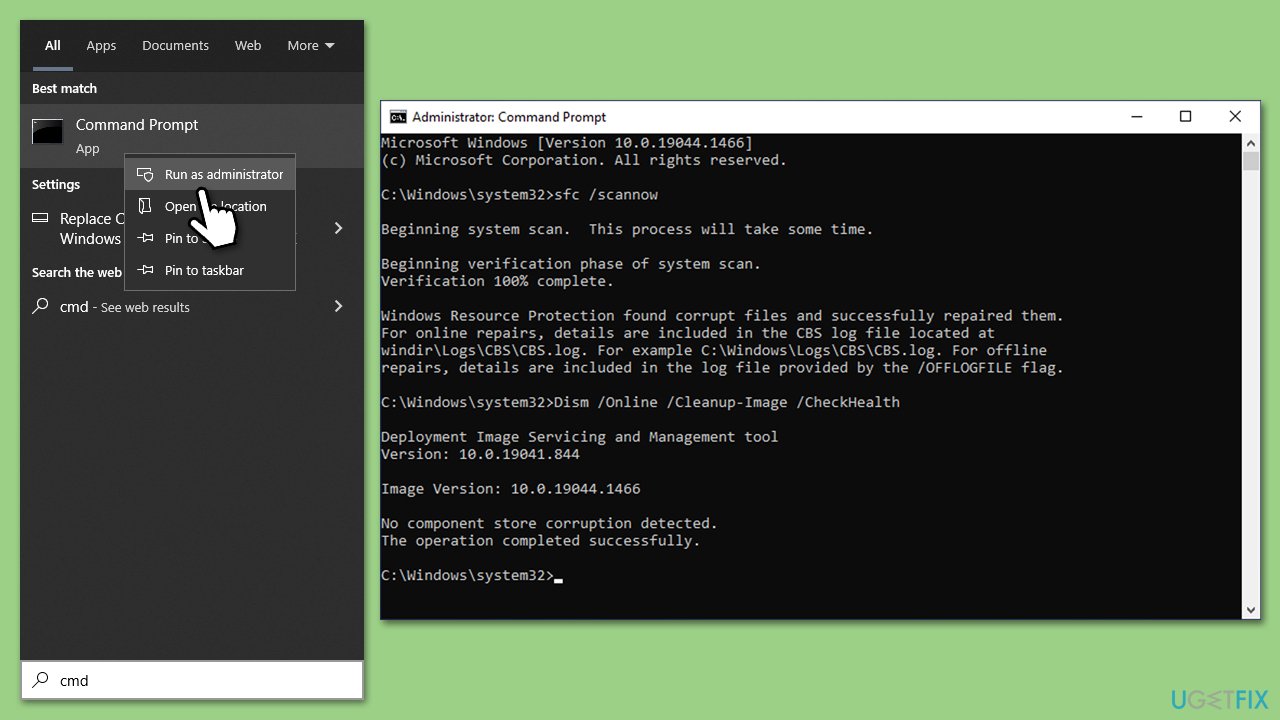
- Type cmd in Windows search, right-click on Command Prompt, and select Run as administrator.
- When User Account Control shows up, click Yes.
- Use the following command and press Enter:
sfc /scannow - Once the scan is complete, you should also run the following commands to repair Windows image files (don't forget to press Enter after each):
DISM /Online /Cleanup-Image /CheckHealth
DISM /Online /Cleanup-Image /ScanHealth
DISM /Online /Cleanup-Image /RestoreHealth - Restart your system.
Fix 5. Update your drivers/Windows
You should always ensure you have the latest GPU drivers installed for a smooth gaming experience. Driver updates are constantly being released and include numerous fixes and improvements. To do this, you can visit the GPU manufacturer's website or employ an automatic driver updater such as [rev id="DriverFix"].
While the Windows update feature might not always find the latest drivers for your particular GPU, it is worth installing all the available updates as well:
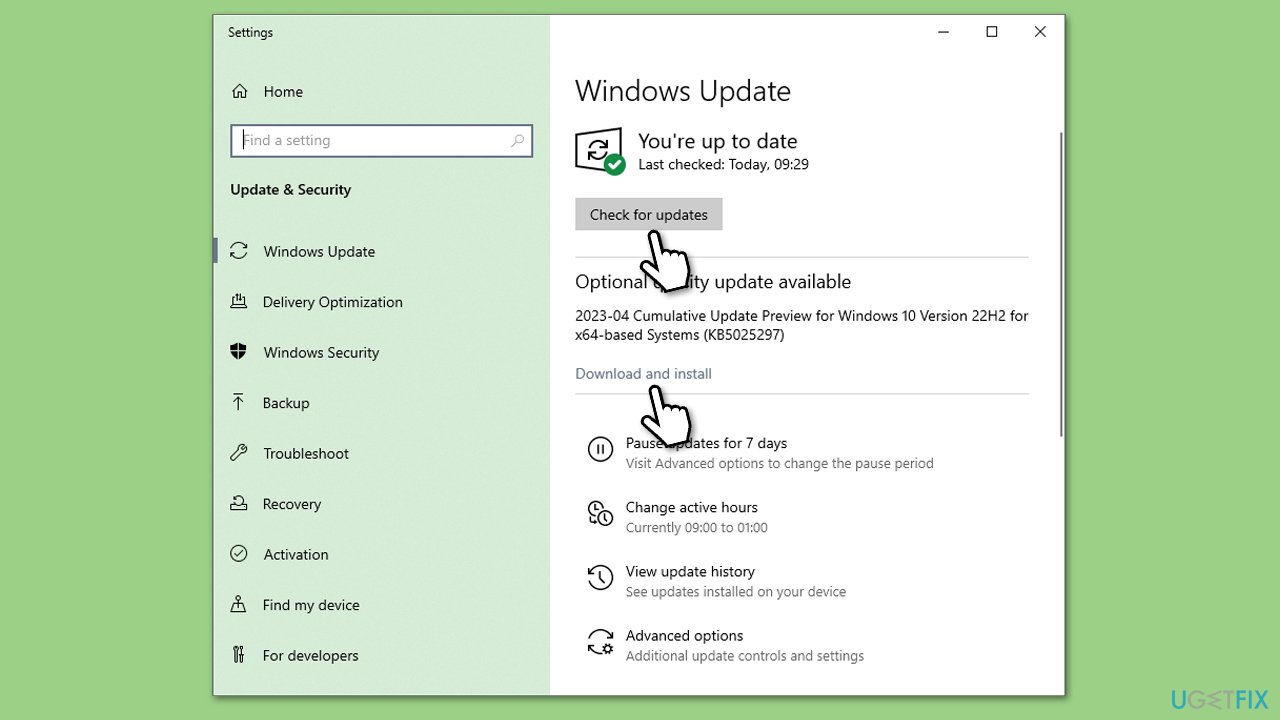
- Type Updates in the Windows search field and press Enter.
- Here, click Check for updates.
- If optional updates are available, install them as well.
- Restart your computer.
Other quick fixes that could work for you
Some of these things you might have already tried - use tips you haven't tried yet.
- Scan your system for malware and ensure it's not infected.
- Temporarily disable third-party security software and see if that helps.
- If you are using a VPN, disable it and try launching the game.
- Run Modern Warfare 2 as administrator.
- Reinstall the game.
Other related topics you might find useful:
Bottom line
To fix the 'Assertion Failed: Bad Event handle' error, ensure that Call of Duty: Modern Warfare 2 is installed on the same drive as Steam, regularly update your game, Steam, and Windows, and secure a stable internet connection. If these solutions do not resolve the issue, further troubleshooting may be necessary.
Frequently asked questions
This error often arises due to corrupted game files or issues with the DirectX settings on Windows 10. Ensure your game files are verified and that your graphics drivers are up to date.
To fix this error on Windows 11, try running the game as an administrator and adjusting compatibility settings. Additionally, check for any pending Windows updates that might resolve underlying issues.
Yes, you can attempt to repair the game through the Battle.net client or Steam, which may fix the error without requiring a full reinstall on Windows 10 or Windows 11.




Report an issue
What's wrong with this guide? We review every report and update or remove content.
Report received — thank you. We'll review and fix it.
You need a free account to submit a report.
Be the first to comment