How to fix
Battlefield 2042 “Couldn’t start the game” error 10022
on Windows
Resolve the "Couldn't start the game" error 10022 in Battlefield 2042 on Windows 10 and 11 easily. Expert-tested solutions for quick fixes!


What causes How to fix Battlefield 2042 “Couldn’t start the game” error 10022?
- Game code redemption issues on the Origin platform
- Instability of the Windows system
- Insufficient computer resources, mainly GPU and CPU
- Technical issues related to Easy Anti-Cheat
- Unexpected errors after game updates
Repairs Windows system files, removes malware, and restores a clean OS state — without reinstalling.
Hello, I have purchased Battlefield 2042, played it for some time and everything was fine. After a few days, I would suddenly receive "Couldn't start the game" Error Code 10022 (Unexpected error 0xC0030004). Now I can't play at all. Please help.
The widely-anticipated video game Battlefield 2042 was launched on November 19, 2021. Developed by DICE studio and published by Electronic Arts, the franchise was established as early as 2002 and since then has been loved by millions of players worldwide. Unfortunately, as time passed and new game versions were released, not only did the quality of the game decrease but the releases were plagued by more and more technical issues.
Battlefield 2042 was received primarily negatively,[ref en-3] with people complaining about the lack of maps, weapons, and features that were available in previous games. Likewise, players also experienced a lot of in-game issues, including the inability to move due to being stuck somewhere on the map, visual glitches,[ref en-1] and other bugs. Despite the issues, there are many players who enjoy the game and are eager to play it.
Battlefield 2042 Error Code 10022 "Couldn't start the game" is another unfortunate issue that gamers have to deal with. In this case, they are unable to even launch the game, which makes the whole situation even more frustrating. The error is also marked with another code - 0xC0030004, which is an Easy Anti-Cheat[ref en-2] code.
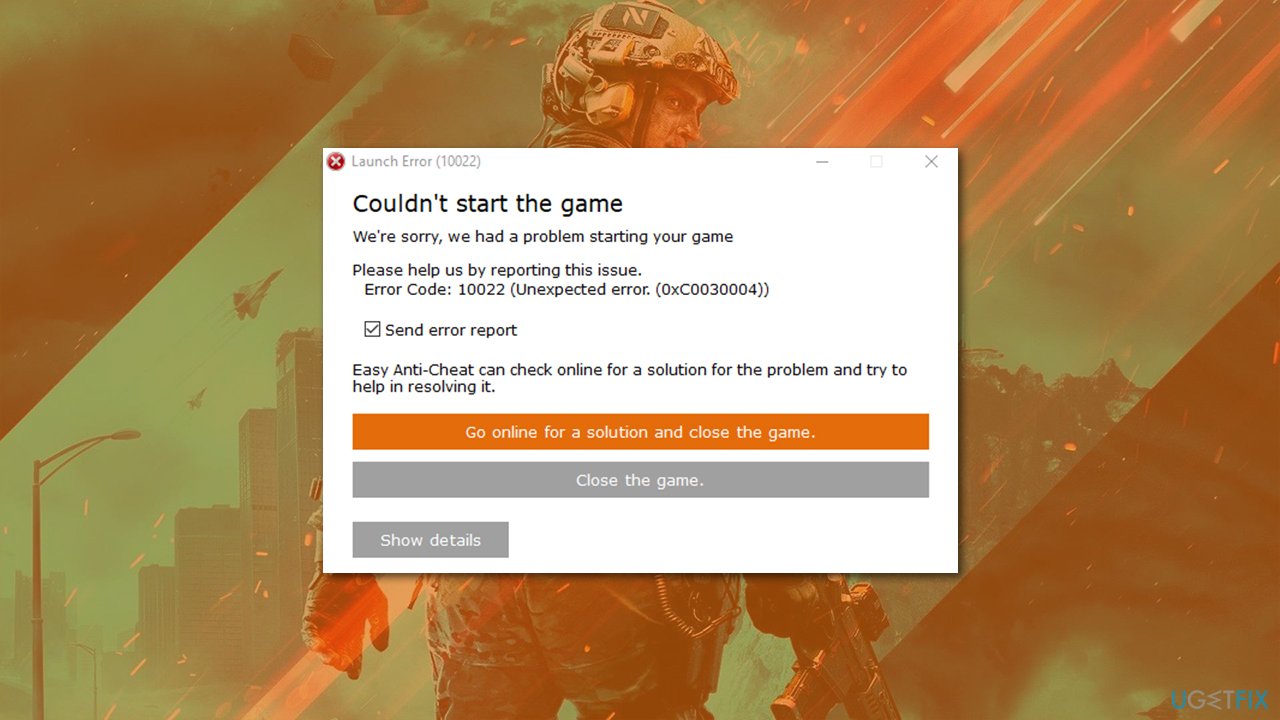
In some cases, the issue occurs right after they purchase the game code somewhere else, apply it on the Origin platform to redeem it, and they are incapable of launching it. In other situations, people claimed that they played the game for quite a while without any issues, just to one day suddenly experience "Couldn't start the game" Error Code 10022" error.
Errors and crashes while gaming are not uncommon, as they use an enormous amount of computer resources, mainly GPU and CPU. Likewise, game crashes and errors might arise due to the instability of the Windows system itself, so we strongly recommend ensuring that it is not the case first. The easiest way to troubleshoot Windows issues is by employing a powerful PC repair tool [d1].
1. Check the requirements
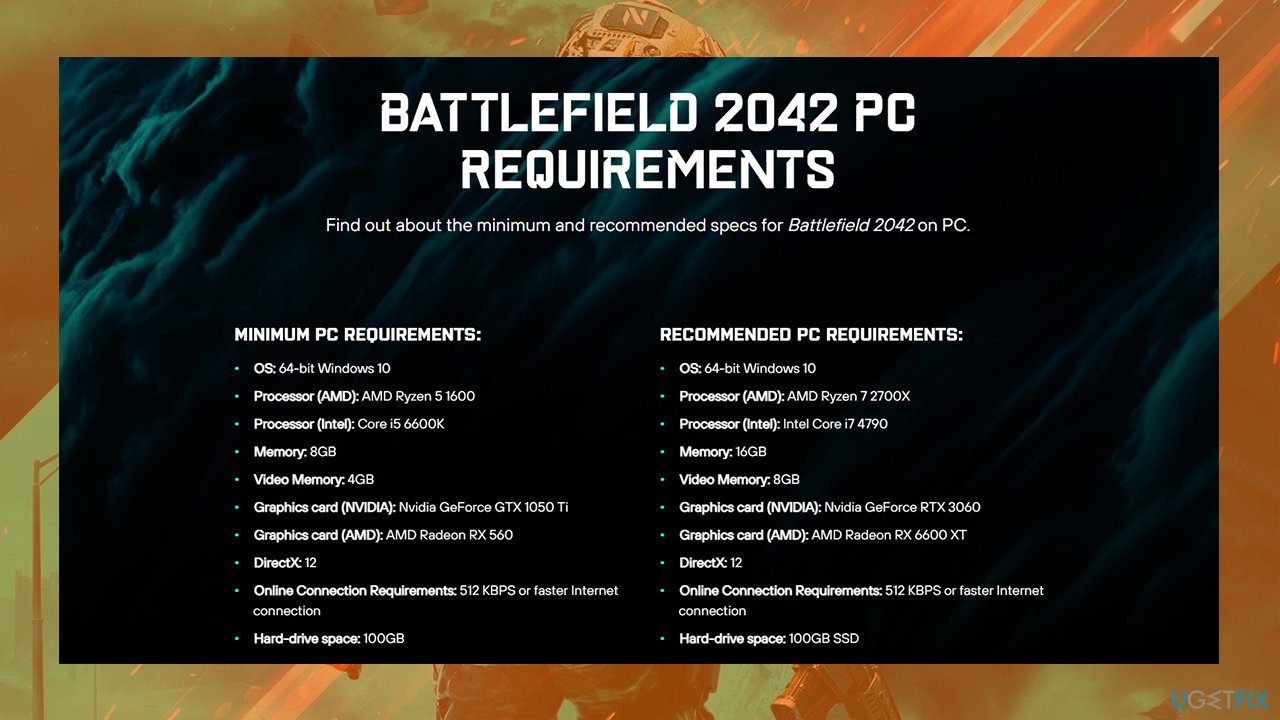
Before you proceed with troubleshooting, make sure that the game is compatible with your device and can run at least minimum requirements:
| Operating system | 64-bit Windows 10 |
| Processor | AMD Ryzen 5 1600, Core i5 6600K |
| Memory | 8GB |
| VRAM (GPU memory) | 4GB |
| Graphics card | Nvidia GeForce GTX 1050 Ti, AMD Radeon RX 560 |
| Network speed | 512 KBPS or faster |
| DirectX version | 12 |
| Disk space | 100GB |
2. Resolve software conflicts with Clean Boot
If third-party software is interfering or conflicting with the game components, you might receive Battlefield 2042 "Couldn't start the game" error 10022. First of all, you should ensure that third-party antivirus is turned disabled or temporarily uninstalled. If that does not help, you can use Clean Boot:
- Press Win + R, type msconfig, and hit Enter
- Go to the Services tab and tick the Hide all Microsoft services checkbox
- Select Disable all
- Go to the Startup tab and click Open Task Manager
- Here, right-click on each of the non-Windows entries and select Disable
- Close down the Task Manager
- Go to the Boot tab and tick the Safe boot option
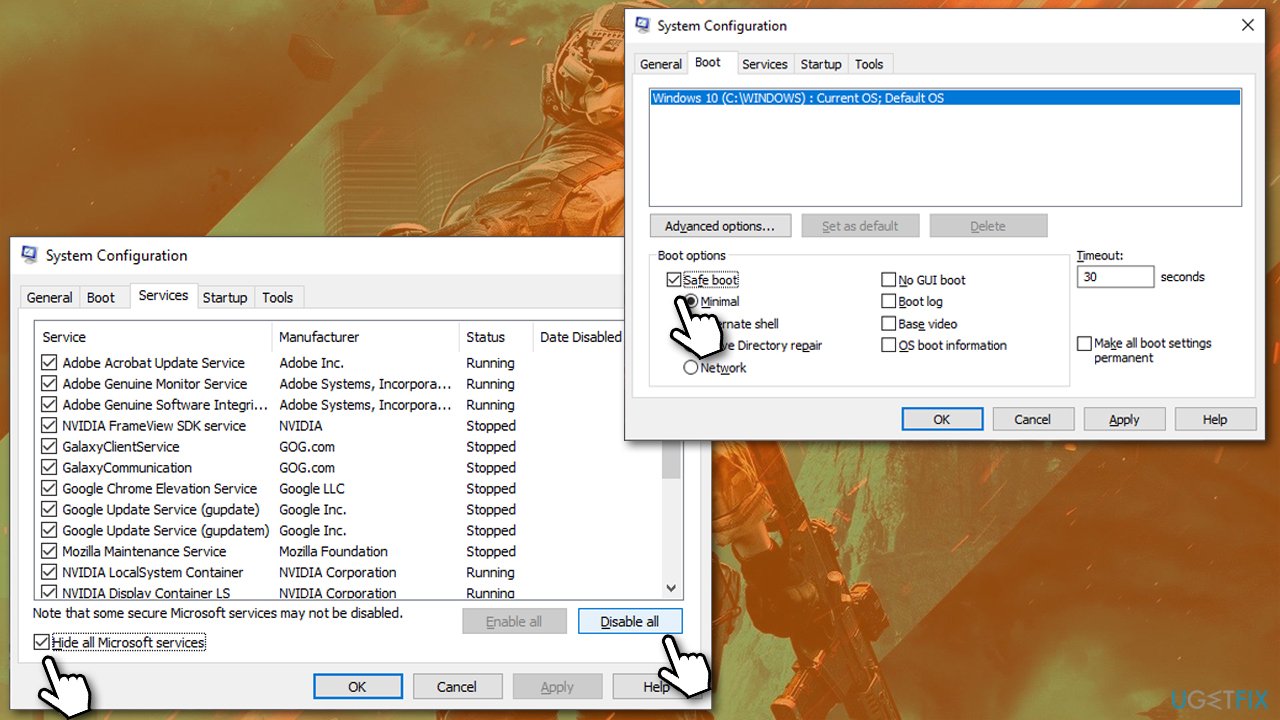
How to fix battlefield 2042 couldnt start the game error 10022 try clean boot - Restart your PC.
If the problem goes away in Safe Boot, it means that a third-party application is causing the issue. To resolve this, you should enable each of the non-Microsoft services one-by-one to find the solution.
3. Repair Easy Anti-Cheat
The error code points at Easy Anti-Cheat, so you can try repairing it.
- On Steam, right-click on the Battlefield 2042 entry and select Manage > Browse local files
- Here, locate the EasyAntiCheat folder and enter it
- Right-click on EasyAntiCheat_Setup.exe and pick Run as administrator
- Select Battlefield from the drop-down menu
- Click Repair Service
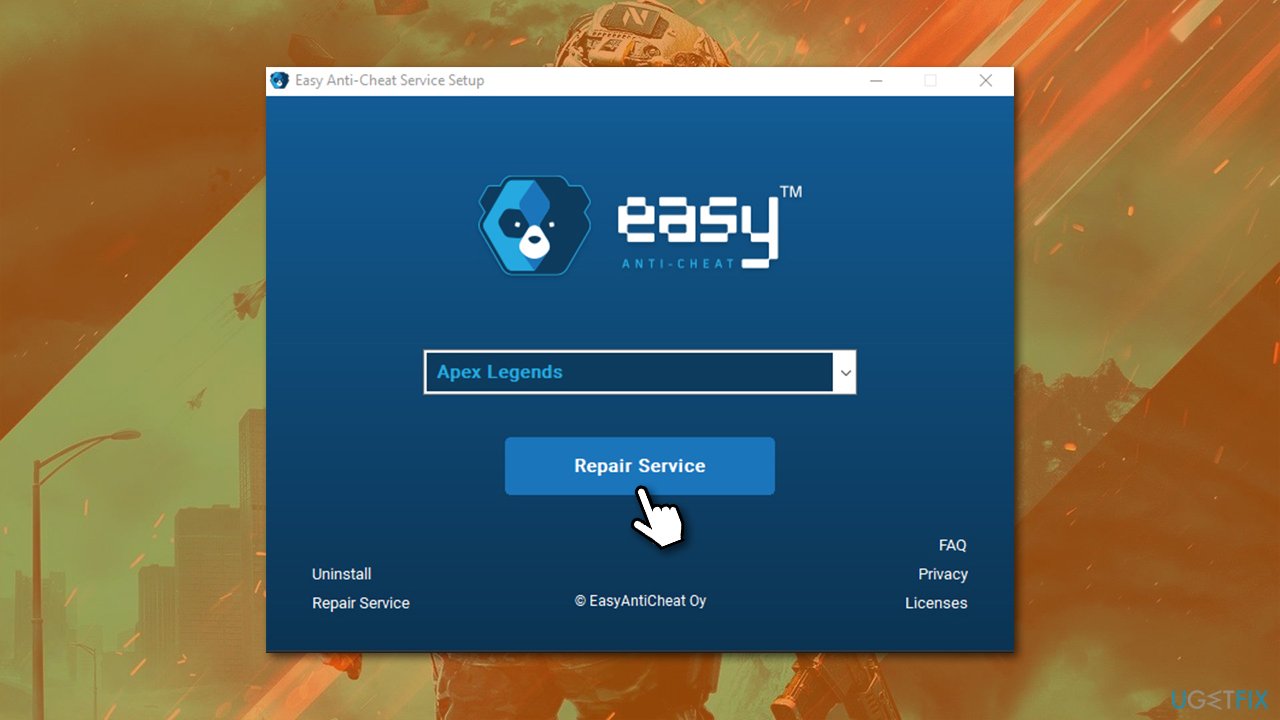
How to fix battlefield 2042 couldnt start the game error 10022 repair easy anti cheat - Follow the next prompts to repair the service and reboot your PC once done.
4. Make sure Easy Anti-Cheat service is running
In order for the game to launch, you need to make sure that the Easy Anti-cheat service is running:
- Type in Services in Windows search and hit Enter
- Scroll down until you locate the EasyAntiCheat entry
- Double-click it to launch the Properties
- Under Startup type, pick Manual
- Click Start, Apply, and OK.
5. Reinstall the game
This method might take a while because redownloading the game quickly is not possible if you have a slow internet speed. Nonetheless, this might just be enough to fix the error, as the installation also reinstalls Easy Anti-Cheat.
- Type in Control Panel in Windows search and press Enter
- Go to Programs > Uninstall a program
- Find the game on the list, right-click and pick Uninstall
- Proceed with on-screen instructions to finish.
- If you are using Steam/Origin, you can uninstall the game directly through these launchers
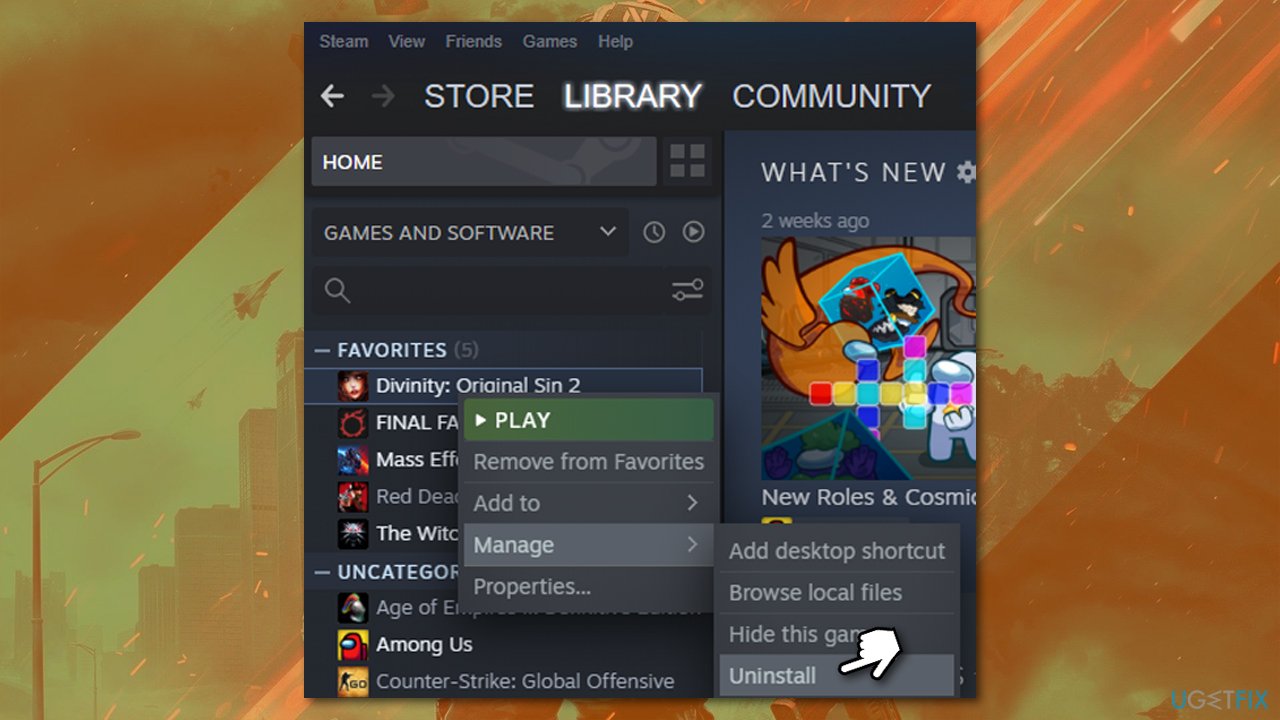
How to fix battlefield 2042 couldnt start the game error 10022 reinstall the game - Once done, redownload and install the game once again.
6. Clean-install your drivers
In some cases, drivers might cause significant issues with games. We recommend reinstalling them from scratch. For more details, check our in-depth article about the driver reinstallation process.
- Right-click on Start and pick Device Manager
- Here, expand the Display adapters section
- Right-click on your GPU and select Uninstall device
- In the prompt, make sure you mark the Delete the driver software for this device option and click Uninstall
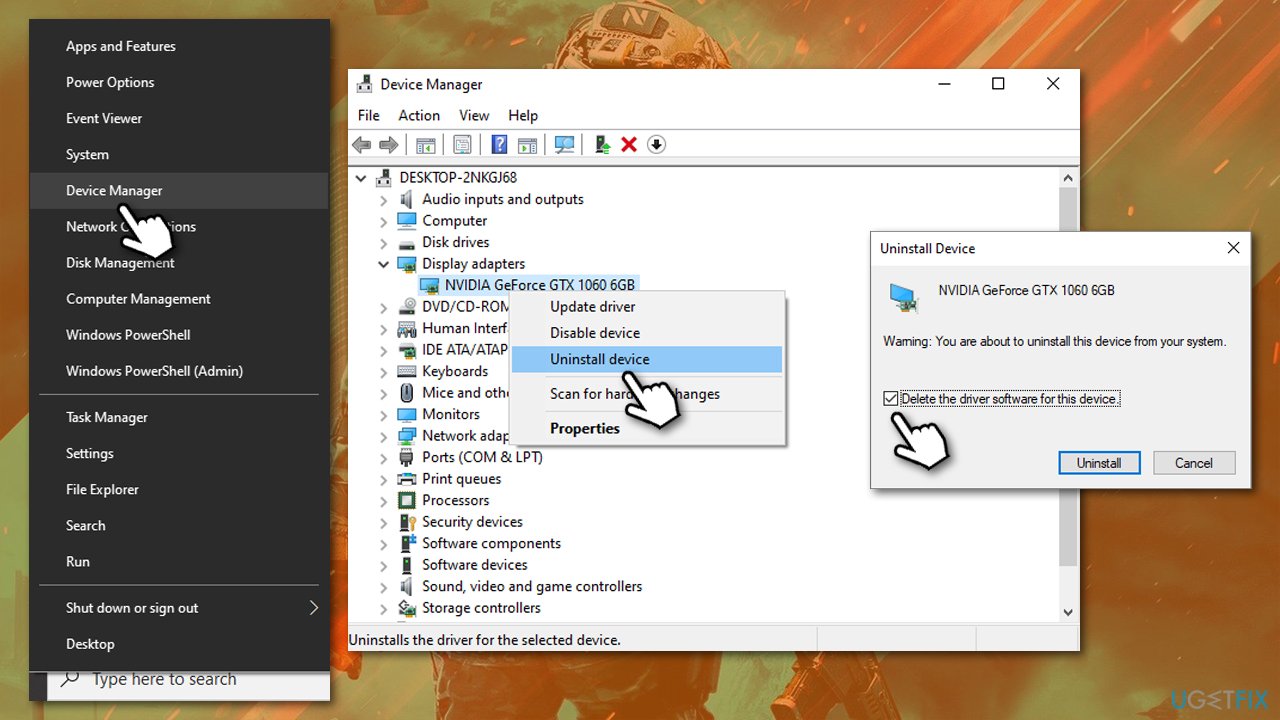
How to fix battlefield 2042 couldnt start the game error 10022 reinstall drivers - Once done, reboot your PC.
Don't be surprised that the desktop might not look like it usually does - this is due to a lack of drivers. At this point, you should download the driver for your particular GPU model on the manufacturer's website and install it. Alternatively, you can employ an automatic [rev id="DriverFix"] tool which could do the job for you quicker and more efficiently.
Other topics you might be interested in:
Bottom line
To resolve the "Couldn't start the game" error 10022, ensure your Windows system is stable and your computer meets the game's resource requirements. Additionally, check for any issues with the Easy Anti-Cheat system and consider redeeming the game code again if necessary. If none of these solutions work, further troubleshooting may be required.
Frequently asked questions
Try verifying the game files through the EA app or Steam, as corrupted files can lead to this error. Additionally, ensure your Windows 10 is updated and that your graphics drivers are the latest version.
Yes, temporarily disabling your antivirus software can help determine if it's blocking the game from launching. If this resolves the issue, consider adding Battlefield 2042 to the antivirus exceptions list.
Ensure that the Windows Firewall is not blocking the game by checking the allowed apps section, and make sure that your Windows 11 is not in a restrictive mode like 'Game Mode' that could interfere with game launches.




Report an issue
What's wrong with this guide? We review every report and update or remove content.
Report received — thank you. We'll review and fix it.
You need a free account to submit a report.
Be the first to comment