How to fix
BCM20702A0 Driver error
on Windows
Resolve the BCM20702A0 Driver error in Windows 10 or 11 quickly and easily. Get expert-tested solutions guaranteed to fix the issue in minutes.

What causes How to fix BCM20702A0 Driver error in Windows?
- Drivers are outdated
- Drivers are corrupted
- No compatible drivers available
- Device configuration issues
- Bluetooth service is disabled
Repairs Windows system files, removes malware, and restores a clean OS state — without reinstalling.
Hello. Bluetooth on my Windows computer does not seem to be working and I got a BCM20702A0 Driver error. How could I fix this?
Windows is one of the most popular and powerful operating systems in the world. It was created by Microsoft and is loved for its customization abilities, user-friendly interface, and easy troubleshooting options. However, like many other things, it does not come without issues and errors. The complexity of having to configure different system components like drivers is likely to cause an error sooner or later.
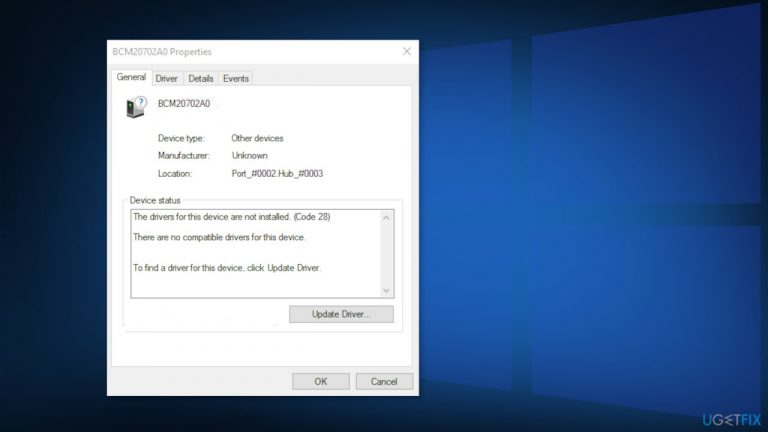
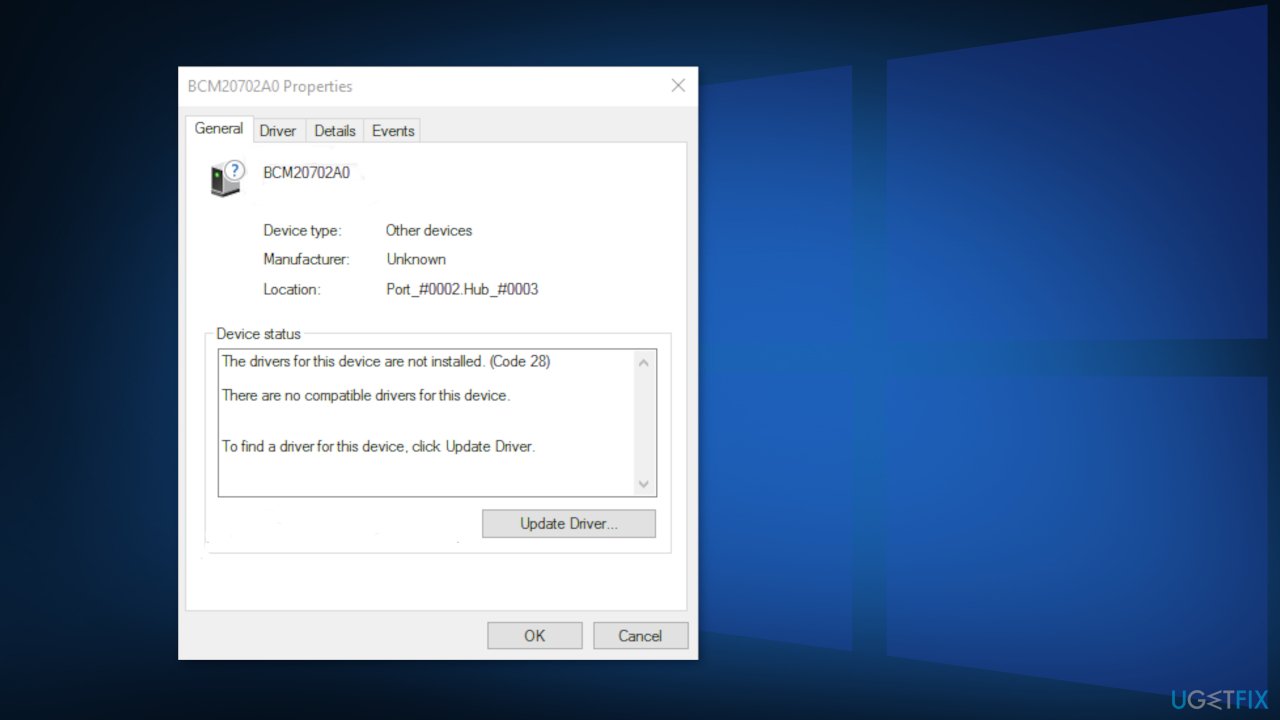
With their Windows PC, users can pair all kinds of devices using Bluetooth[ref en-1] - including keyboards, mice, phones, speakers, and more. Unfortunately, some Windows users have encountered the BCM20702A0 driver error which seems to signal that the drivers for the device are not installed or there are no compatible drivers. The full error message says:
The drivers for this device are not installed. (Code 28)
There are no compatible drivers for this device.
To find a driver for this device, click Update Driver.
The majority of affected users say that the same device used to work normally on the same exact configuration. This causes a problem where people do not know how to fix this because at first hand there seems to be nothing wrong. There are a couple of possibilities why you could be experiencing this error and the most probable one is that your drivers are indeed outdated or corrupted.
In this article, we provide a couple of possible solutions for the BCM20702A0 driver error. Depending on the severity of your issue, a simple troubleshooter scan could be enough, or you might have to reinstall your drivers. If you want to avoid a lengthy process, you can try using a repair tool [d1] to avoid going through all the possible fixes. This powerful software can fix various system errors, corrupted files, BSODs[ref en-2] and optimize the machine by clearing junk files[ref en-3] for maximum performance. Or you can start the process step-by-step:
Solution 1. Run the Bluetooth troubleshooter
- Right-click on the Windows icon
- Click on the gear-shaped icon to access the Settings
- select the Update & Security settings
- On the left-hand side, click on Troubleshoot
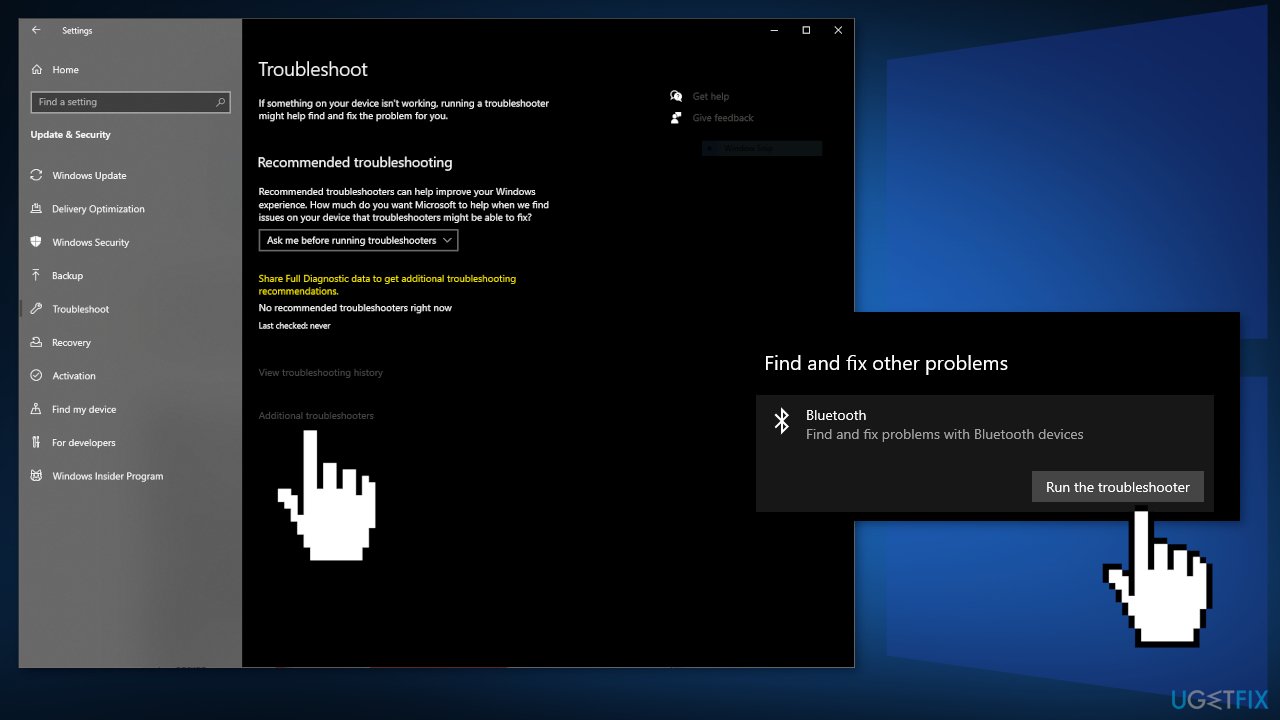
Run the bluetooth troubleshooter - Scroll down and click on Additional troubleshooters
- Click on the Bluetooth device
- Click on Run the troubleshooter
Solution 2. Turn Airplane mode off
- Press the Windows key + I together
- Click on Network & Internet
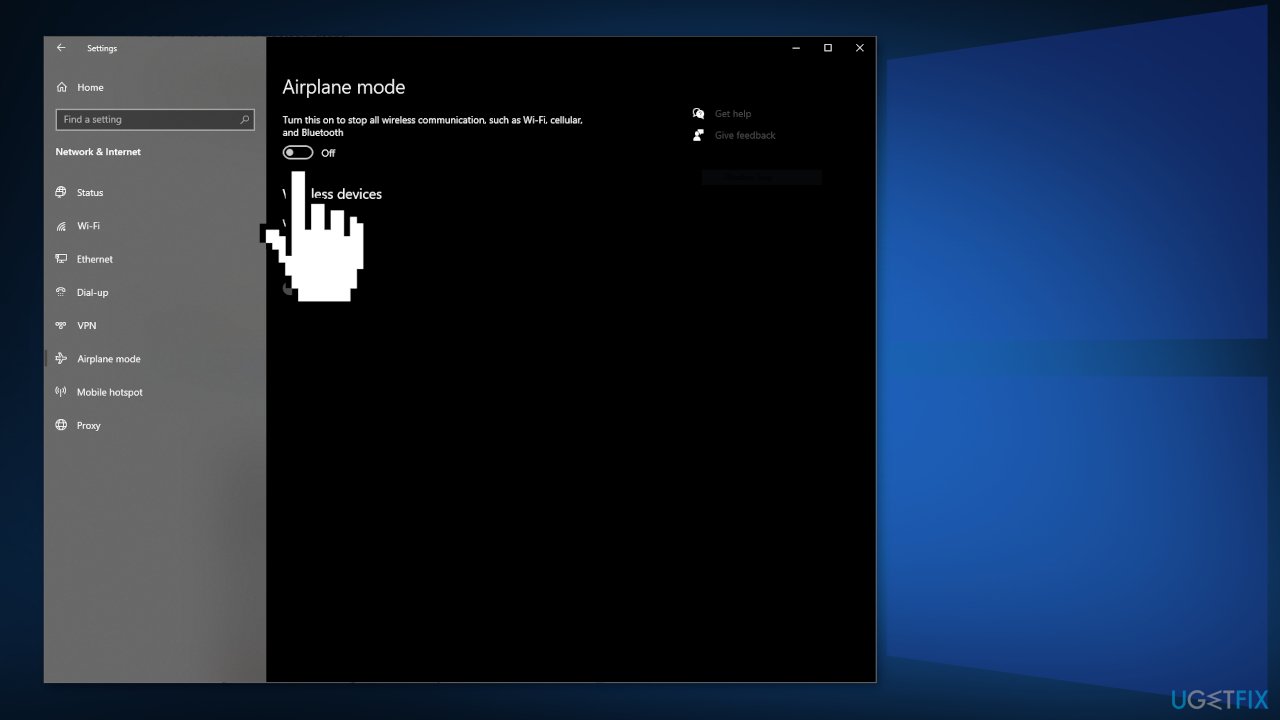
Turn airplane mode off - Click on the Airplane mode
- Make sure the Airplane mode is switched to Off
Solution 3. Check Bluetooth services
- Press Windows + R to launch Run
- Write down services. msc and click OK to access the Services
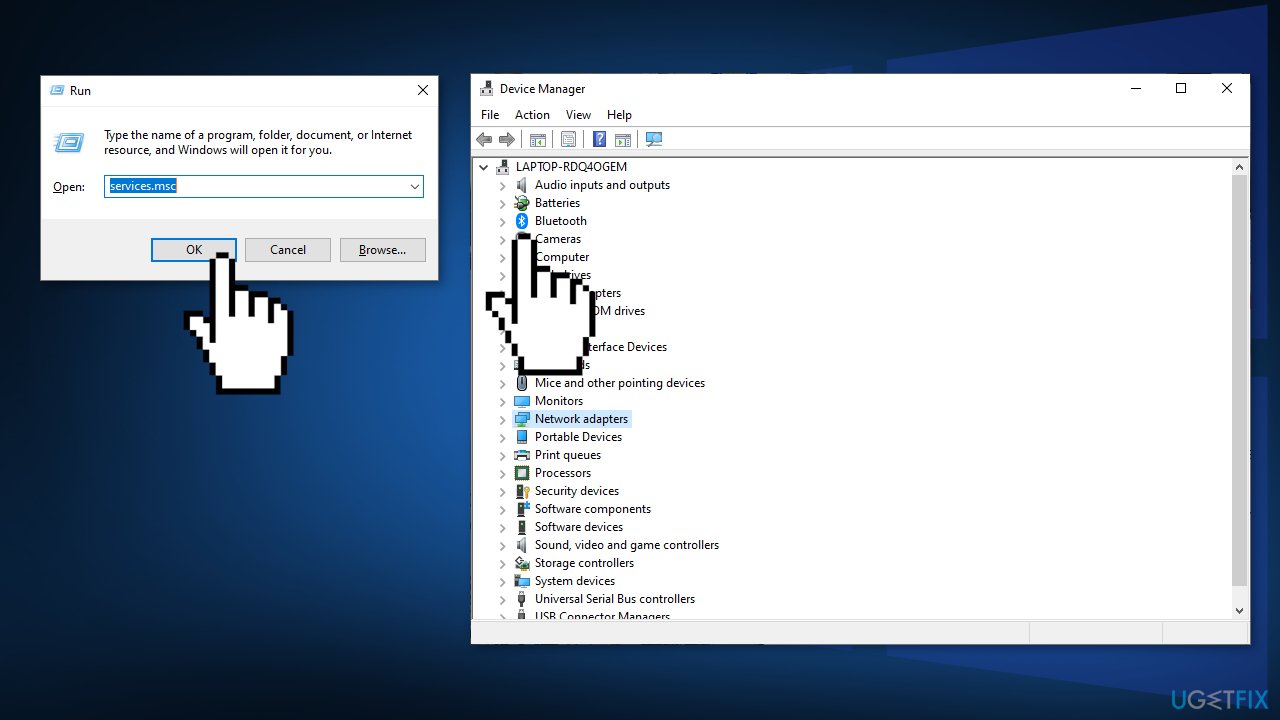
Check bluetooth services - Once the Services window appears you have to find Bluetooth Support Service
- Right-click on it and select Restart
- After restarting the service, double click on the Bluetooth Support Service
- When the Properties window opens up, click on the Startup type and set it to Manual mode
- Check if it is Running or not. If it isn’t, then click on Start
- Click on Apply and OK
Solution 4. Uninstall Bluetooth drivers and USB Controllers
Drivers are an integral part of any Windows operating system and are typically delivered along with Windows updates. However, as we mentioned before, the operating system is not the best way to update your drivers. With[rev id="DriverFix"], you can ensure that all your drivers are up to date and not malfunctioning.
- Press Windows key + R to open the Run dialog box
- Type devmgmt.msc and press Enter
- In the Device Manager, expand the drop-down menu associated with Bluetooth
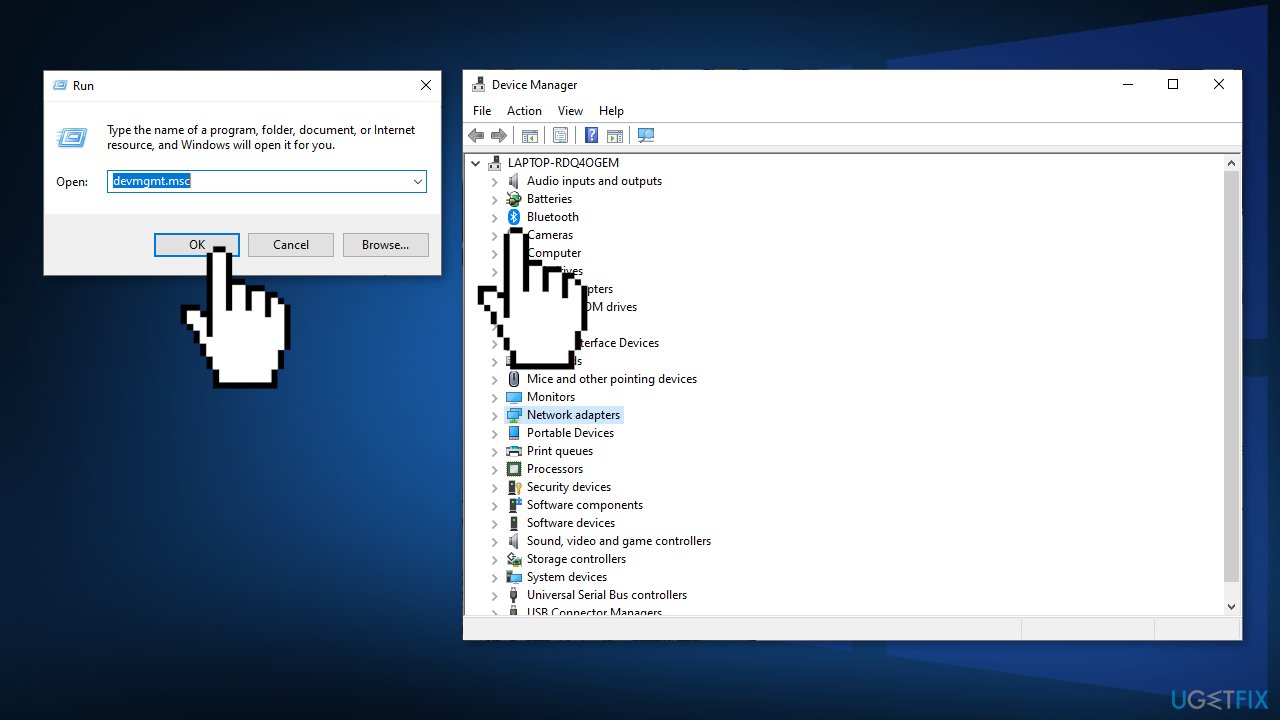
Uninstall bluetooth drivers and usb controllers - Right-click and Uninstall every driver inside
- In case you’re using a dongle to equip your system with Bluetooth, you’ll also need to uninstall every USB controller under Universal Serial Bus controllers
- Restart your computer in order to force your operating system to install the missing drivers
You might also be interested in these topics:
Bottom line
To fix the BCM20702A0 driver error, you can run the Bluetooth troubleshooter, update your drivers, or reinstall them. If these solutions do not resolve the issue, consider using a repair tool to address potential system errors.
Frequently asked questions
The BCM20702A0 Driver error is often caused by outdated or corrupted Bluetooth drivers, compatibility issues, or conflicts with other software on your system.
You can update the BCM20702A0 Driver by going to Device Manager, right-clicking on the Bluetooth device, and selecting 'Update Driver' to search automatically for updated driver software.
If reinstalling the driver doesn't resolve the issue, try running the Windows Troubleshooter for Bluetooth or check for Windows updates to ensure all system components are current.




Report an issue
What's wrong with this guide? We review every report and update or remove content.
Report received — thank you. We'll review and fix it.
You need a free account to submit a report.
Be the first to comment