How to fix
BitLocker missing
on Windows
Discover effective solutions to restore BitLocker in Windows 10 and Windows 11. Get expert-tested tips for a quick fix with zero traces left.

What causes How to fix BitLocker missing in Windows?
- BitLocker is not enabled on the device
- The Windows edition does not support BitLocker
- The BitLocker service is disabled
- The device does not meet the minimum hardware requirements
- Device encryption is being used instead of BitLocker
Repairs Windows system files, removes malware, and restores a clean OS state — without reinstalling.
Hi, I have a problem I hope you can help me with. I had to turn off Bitlocker, but when I search for it in Control Panel or settings, it's simply not there. Please advise on this, thanks.
BitLocker is a built-in encryption feature in Windows that provides protection for sensitive data stored on a computer's hard drive. It is commonly used by individuals and organizations to secure their data against unauthorized access. However, some users have reported that BitLocker is missing from their Windows 11 or Windows 10 devices. This can be a cause for concern, especially if your device contains sensitive data.
It's important to note that device encryption and BitLocker drive encryption are two different security features. While all Windows Home editions support only the former, every other edition supports both security features.
If your installed Windows edition supports BitLocker and your device meets the minimum hardware requirements, but you're still unable to find BitLocker in Control Panel or Settings, don't worry. There are several solutions you can try.
One solution is to check if BitLocker-responsible service is enabled. Another solution is to enable control of the feature via the elevated Command Prompt. If these options don't work, you can reset or reinstall Windows.
If you're experiencing issues with BitLocker missing from your Windows 11 or Windows 10 device, there are several troubleshooting methods you can try. It's important to ensure that your device meets the minimum requirements for BitLocker and that you have the correct Windows edition installed. By following the suggestions provided below, you should be able to resolve the issue and secure your sensitive data.
Using PC repair software such as [d1] is recommended to scan your computer for any potential issues and resolve them automatically before proceeding. The app is perfect when dealing with common Windows issues such as Blue Screen crashes, system errors, registry corruptions, and similar.
Fix 1. Check if your system supports Bitlocker
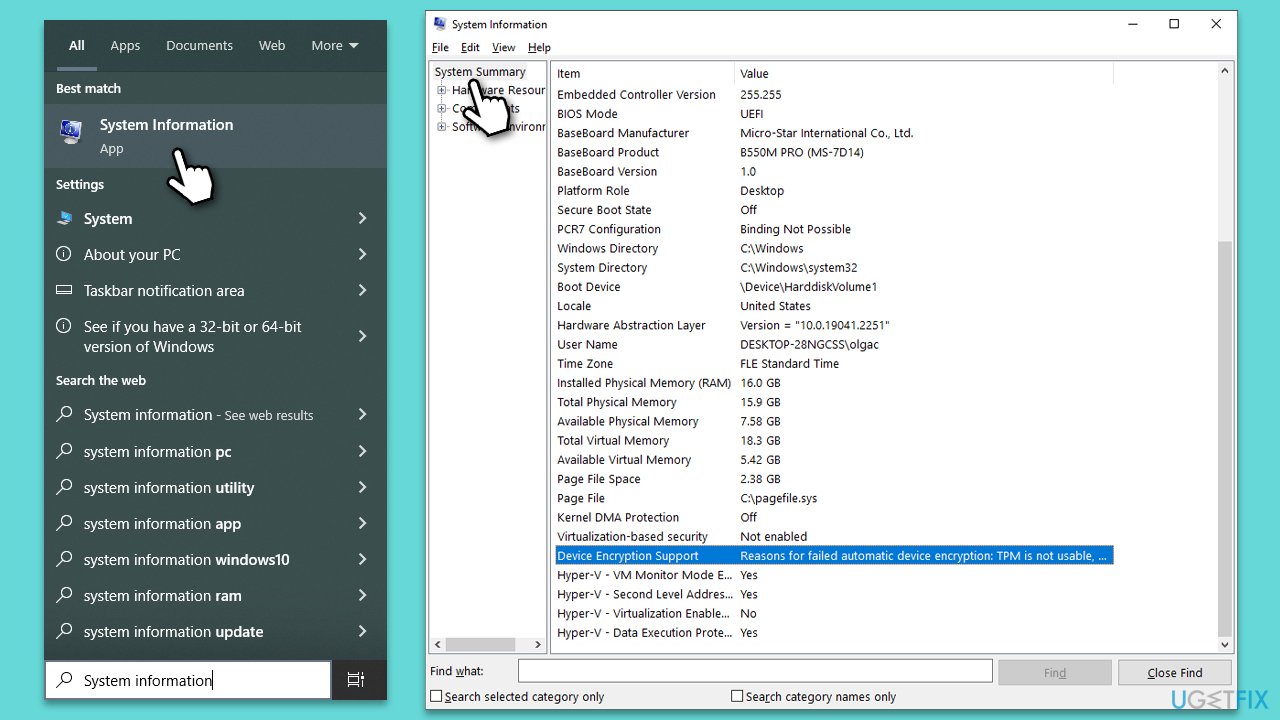
First, let's confirm that your Windows version actually supports Bitlocker. Here's how:
- Type System Information in Windows search and press Enter.
- In the left pane, make sure that System Summary is selected.
- In the right pane, check the Device Encryption Support at the bottom.
- If your system meets the requirements, proceed with the next solitons.
- Otherwise, you should see why Bitlocker is not supported and can address those issues separately.
Fix 2. Check services
Windows services are programs that run in the background of a Windows operating system and perform various tasks, such as managing network connections, printing documents, and handling system updates.
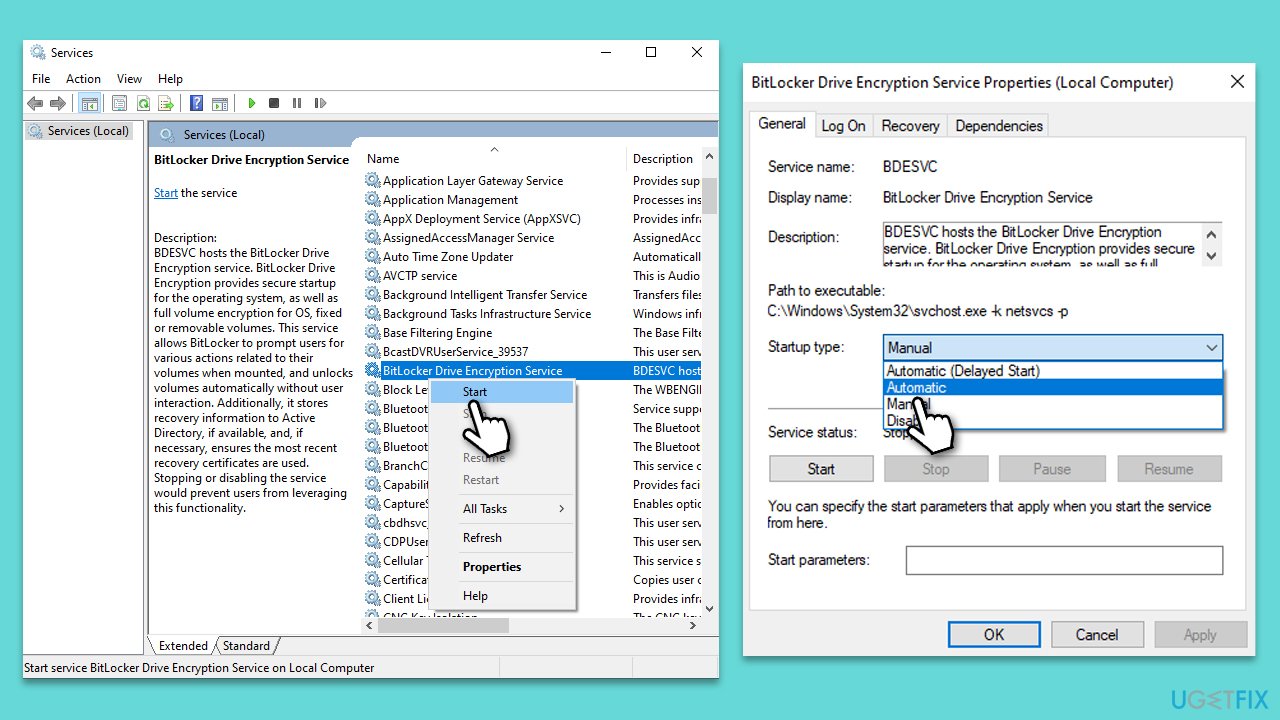
They are essential for the proper functioning of a Windows computer as they provide crucial system-level functionality and ensure that the operating system runs well. This includes BitLocker functionality - so you need to make sure BitLocker Driver Encryption Service is running and is set to the correct startup setting:
- Type Services in Windows search and hit Enter.
- Scroll down to find BitLocker Driver Encryption Service.
- If the service is not running, right-click and select Start.
- If it is already running, right-click and select Restart.
- Double-click the service to open its Properties.
- Under Startup type, select Automatic from the drop-down menu.
- Click Apply and OK.
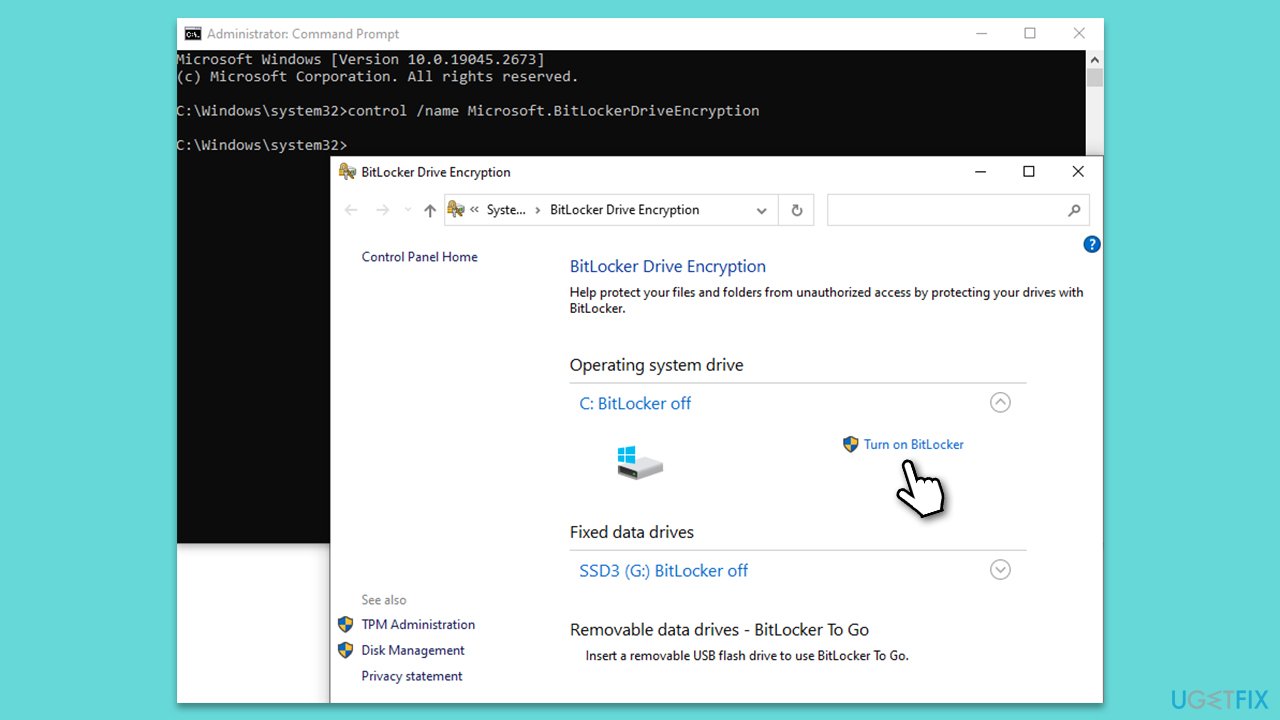
Fix 3. Use Command Prompt to control BitLocker
- Type cmd in Windows search.
- Right-click on Command Prompt and select Run as administrator.
- User Account Control window will ask you whether you want to make changes - click Yes.
- In the Command Prompt window, copy and paste the following command and press Enter:
control /name Microsoft.BitLockerDriveEncryption - This command should open the Control Panel applet. If it doesn't, use this command instead:
manage-bde -status
Fix 4. Reset Windows
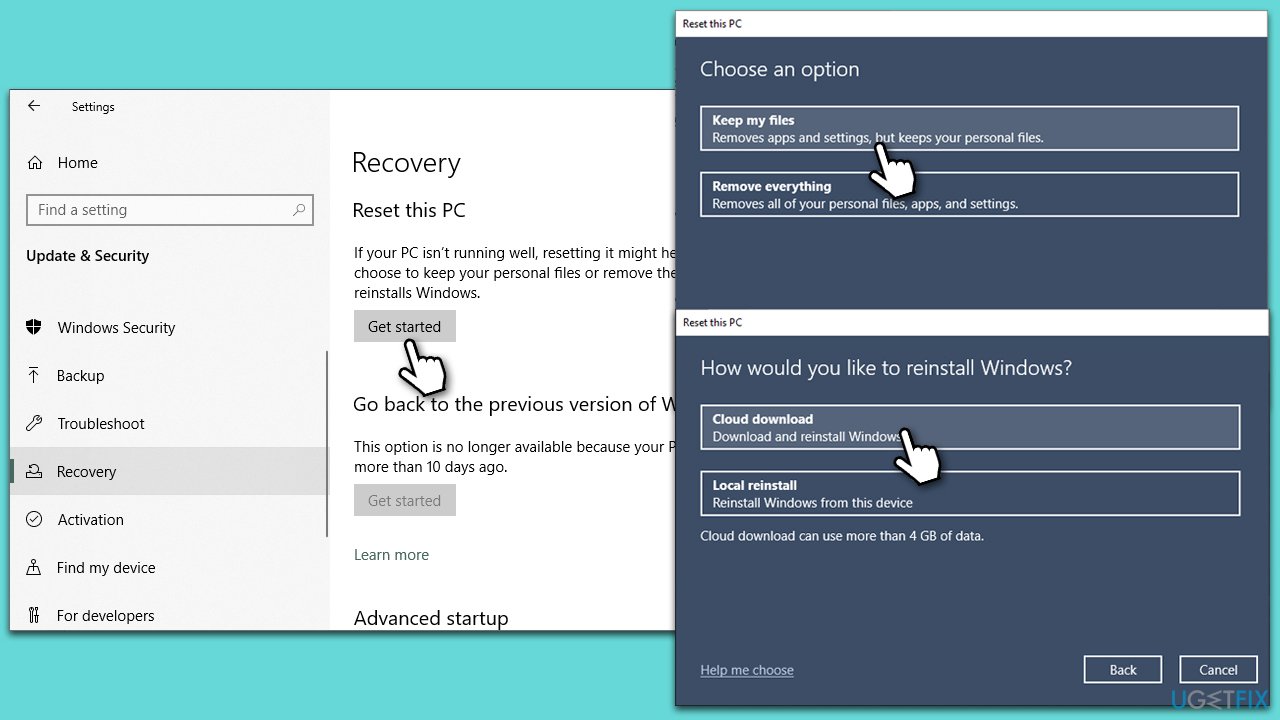
If the solutions above did not solve the BitLocker missing in Windows issue, you could opt to reset Windows.
- Right-click on Start and pick Settings.
- Go to Update & Security and pick Recovery.
- Find Reset this PC section and click Get Started.
- Select Keep my files and Cloud download.
- Next, pick whether you want to reinstall the apps.
- Click Reset.
- Your system will restart, and the Windows reset process will begin.
Other related topics you might want to check out:
Bottom line
To fix the issue of BitLocker missing, check if your system supports BitLocker, ensure the BitLocker service is enabled, and use the elevated Command Prompt to enable the feature. If these solutions do not resolve the problem, consider resetting or reinstalling Windows.
Frequently asked questions
BitLocker may be missing if your Windows 10 edition does not support it, as it is only available on Pro, Enterprise, and Education versions. Additionally, ensure that your system's TPM (Trusted Platform Module) is enabled in the BIOS settings.
If BitLocker is not showing in Windows 11, check if you are using a compatible edition, then enable TPM in your BIOS and ensure that your system meets the hardware requirements for BitLocker.
If BitLocker is missing after a Windows update, try restarting your computer and checking for any additional updates, as this may resolve the issue. You can also run the System File Checker to repair any corrupted system files that might be affecting BitLocker.




Report an issue
What's wrong with this guide? We review every report and update or remove content.
Report received — thank you. We'll review and fix it.
You need a free account to submit a report.
Be the first to comment