How to fix
Blue Screen Error SYSTEM_SERVICE_EXCEPTION (ntfs.sys)
on Windows
Fix the SYSTEM_SERVICE_EXCEPTION (ntfs.sys) blue screen error on Windows 10/11 easily. Get expert-tested solutions and resolve issues in minutes.

What causes How to fix Blue Screen Error SYSTEM_SERVICE_EXCEPTION (ntfs.sys) on Windows?
- Corrupted system files
- Outdated drivers
- Malware infection
- Hardware failure
- Incompatible software
Repairs Windows system files, removes malware, and restores a clean OS state — without reinstalling.
Hi. From time to time, I receive a BSOD window which claims that my PC needs a reboot and that now the error is collecting some kind of information. The file ntfs.sys is mentioned on that blue screen. Why do I receive this message?? Please help me to get rid of it because each time it shows up, I have to restart the system or sometimes It restarts automatically, leading to the loss of files that I currently was working on. Please let me know what I should do.
You might be watching a video, or doing some work on your Excel spreadsheet when suddenly your screen flashes, and you are returned into a Blue Screen of Death[ref en-1] labeled as SYSTEM_SERVICE_EXCEPTION (ntfs.sys). As it is a BSOD, there is nothing else you can do but only restart your machine and hope that it does not repeat again.
As a result of SYSTEM_SERVICE_EXCEPTION (ntfs.sys) error, you might lose any unfinished work or get interrupted in the middle of your video game match - all of these can create a great amount of frustration, as all the Blue Screens prompt a PC restart. Essentially, a stop error means that something critical happened during the operation of Windows, and it shut itself down in order to prevent damage to the system.
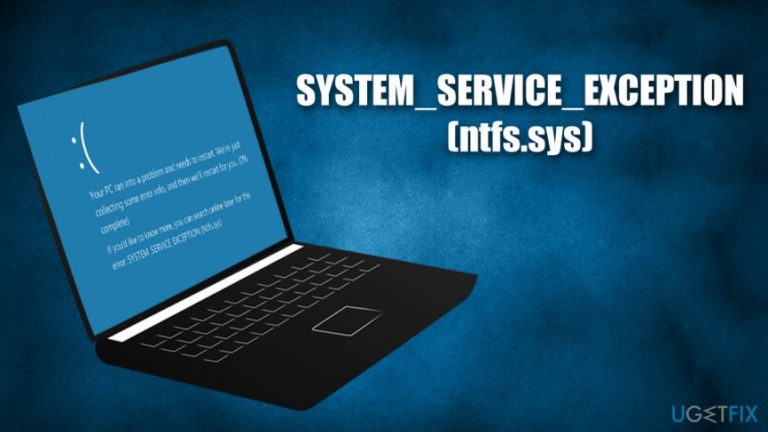
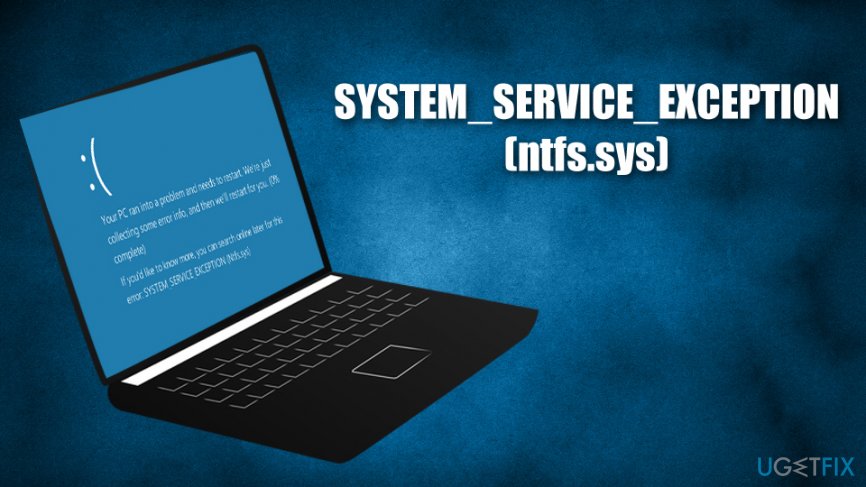
Windows 10 SYSTEM_SERVICE_EXCEPTION (ntfs.sys) BSOD reads the following:
Your PC ran into a problem and needs to restart. We're just collecting some error info, and then we'll restart for you. (0% complete).
If you'd like to know more you can search online later for this error: SYSTEM_SERVICE_EXCEPTION (ntfs.sys)
Knowing error codes is extremely useful as, while they do not indicate how to solve issues, they direct users to sites that can help them fix SYSTEM_SERVICE_EXCEPTION (ntfs.sys) error once and for all.
There are a variety of SYSTEM_SERVICE_EXCEPTION errors that can occur, but they often indicate a different file it is related to, such as dxgkrnl.sys, win32k.sys, fltmgr.sys, and many others. However, the indication of ntfs.sys (which stands for New Technology File System) does not particularly direct to what is exactly wrong, although it might implicate there is an issue with a driver.[ref en-2]
Therefore, reasons for SYSTEM_SERVICE_EXCEPTION (ntfs.sys) error to occur may vary, including failing system files, conflicting anti-virus software,[ref en-3] corrupted drivers, broken hardware, and much more. Due to this, there is a certain amount of troubleshooting to be done in order to fix SYSTEM_SERVICE_EXCEPTION (ntfs.sys) BSOD error. Before you start, however, we advise you to scan the machine with [d1] - this app can help you fix Windows computers automatically.
Fix 1. Update Windows to the latest version
Windows updates are crucial for the operating system to function properly. Checking whether there are new updates to be applied could quickly solve the issue.
- Right-click on Start and pick Settings
- Select Update & Security
- Click on Check for Updates
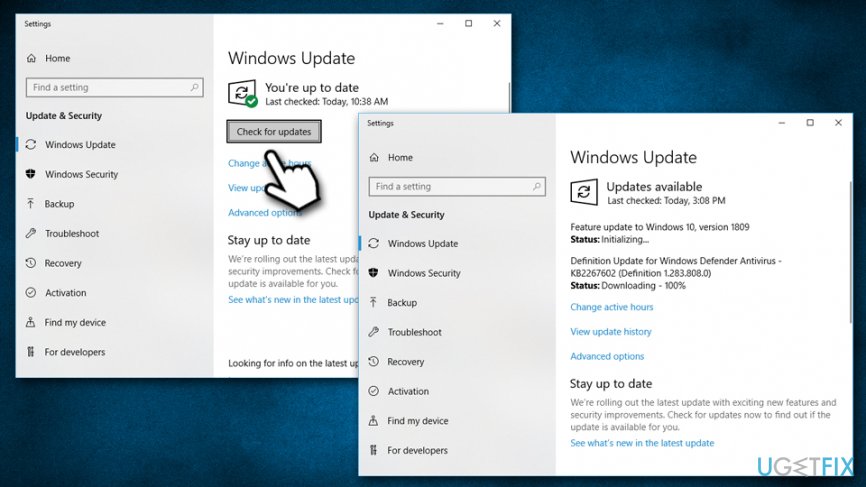
Fix system service exception ntfs sys error update windows - Wait till Windows downloads and installs new updates
- Reboot your computer
Fix 2. Uninstall anti-virus
If you are running Windows 10, you should remove BitDefender and Webroot antivirus. If you are running any of these programs and see if SYSTEM_SERVICE_EXCEPTION (ntfs.sys) error goes away, nevertheless, turn on a built-in Windows Defender in order to keep your system protected from malware.
- Type in Control Panel into Windows search and hit Enter
- Go to Programs > Uninstall a program
- Locate BitDefender or Webroot in the list
- Right-click on all the installed components of the AV, and then select Uninstall
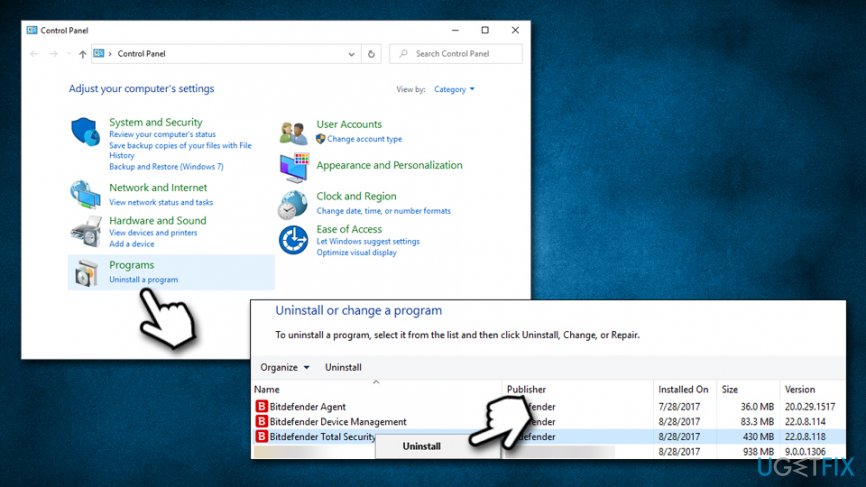
Fix system service exception ntfs sys error uninstall bitdefender or webroot - After that, reboot your device
- Once the system boots up, click on Show hidden icons button to open the system tray
- Double-click on Windows Defender icon and then select the Turn on
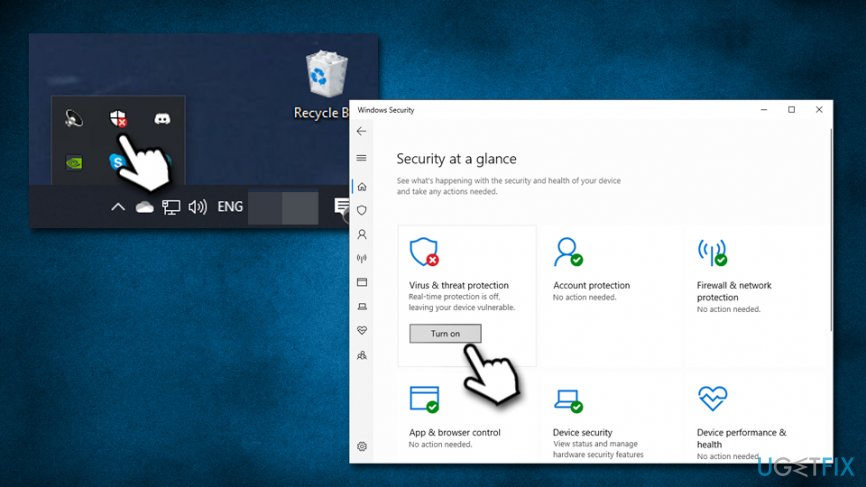
Fix system service exception ntfs sys error turn on windows defender
Fix 3. Check for malfunctioning drivers
Malfunctioning drivers might often cause BSODs. Therefore, if you find one that is marked, there is a high chance that it is causing issues, including the STEM_SERVICE_EXCEPTION (ntfs.sys) error. In case there are some malfunctioning, you will have to reinstall them.
- Right-click on Start button and select Device Manager
- Expand the drivers and check if any of the drivers are marked with a yellow exclamation mark
- Right-click on the driver and select Uninstall
- After that, go back to Device Manager and select Scan for hardware changes
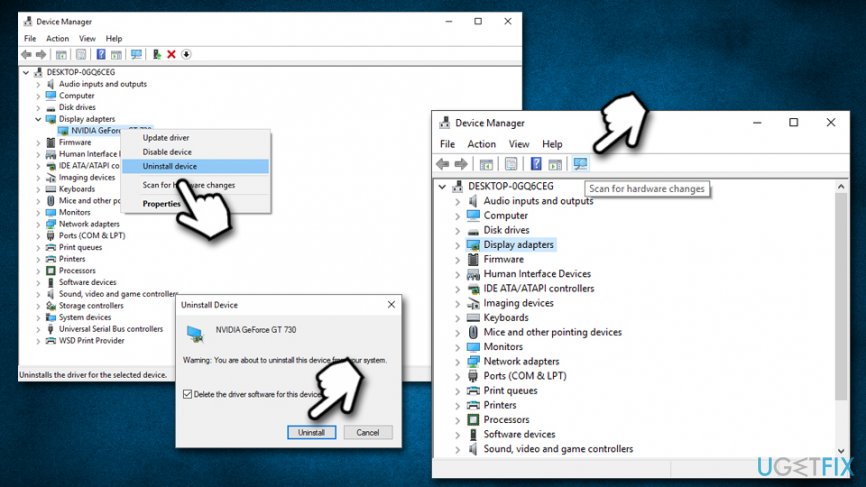
Fix system service exception ntfs sys error reinstall problematic drivers - You will be informed that the driver is missing. What you have to do is to click on Run the Update, what will ask Windows to find a compatible driver and install it automatically
Fix 4. Run Driver Verifier
This test will ensure that all your third-party drivers have no issues. Here's how to run it:
- Type in Verifier into Windows search
- If UAC shows up, click Yes
- Pick Create Standard settings and then click Next
- Go for Automatically select unsigned drivers and go for Next again
- Update all the drivers by clicking Finish
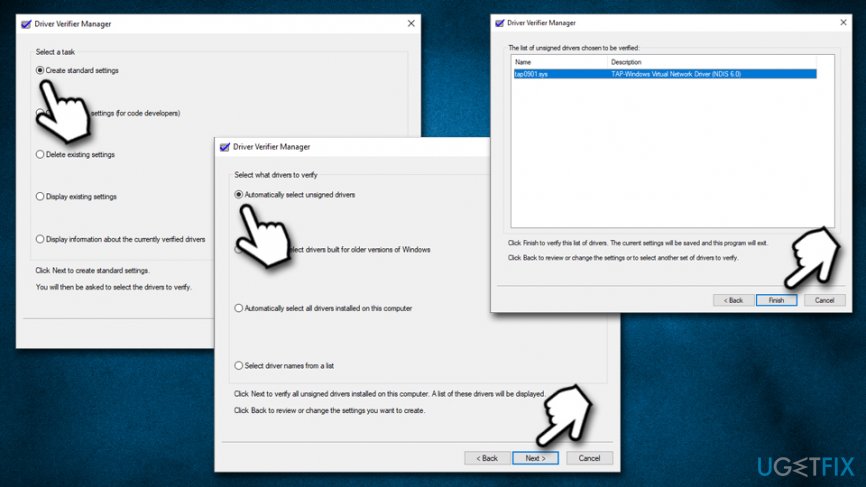
Fix system service exception ntfs sys error use driver verfier
Fix 5. Check disk for errors
Ntfs.sys is a driver that provides your hard drive with instructions to your hard drive on how to operate properly. Therefore, the issue might be related to problems with your hard drive (HDD).
- Type in cmd into Windows search
- Right-click on Command Prompt search result and and pick Run as administrator
- If User Account Control prompt shows up, click Yes
- In the newly-opened window, type in the following command and hit Enter:
chkdsk /f /r
- Next, type in Y and then reboot your PC - the disk integrity check will run
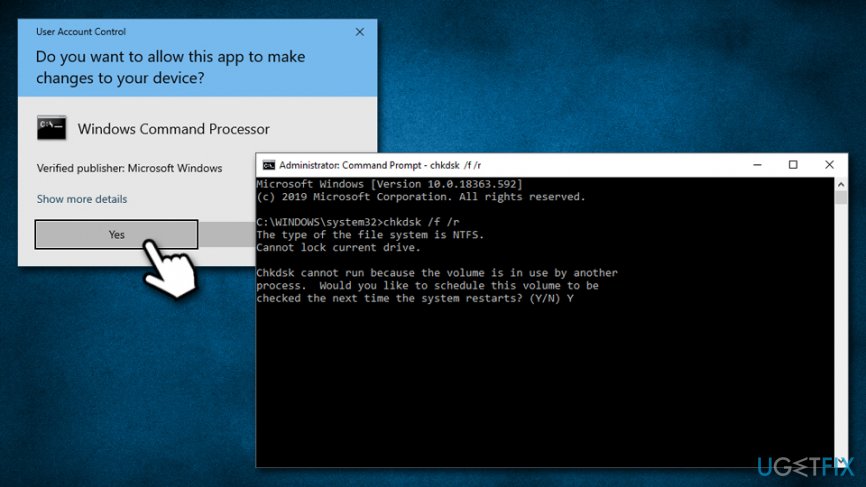
Fix system service exception ntfs sys error check disk with dism
Fix 6. Ensure system files are intact with System File Checker
This simple test will help you to determine whether system files are functioning as intended. In case some abnormalities are found, SFC can also repair them.
- Open Command Prompt with administrator's rights as explained in the previous step
- Run the following command and hit Enter:
sfc /scannow
- Wait till Windows performs a full scan - it will also inform you if any system file errors were present and whether the SFC managed to fix them
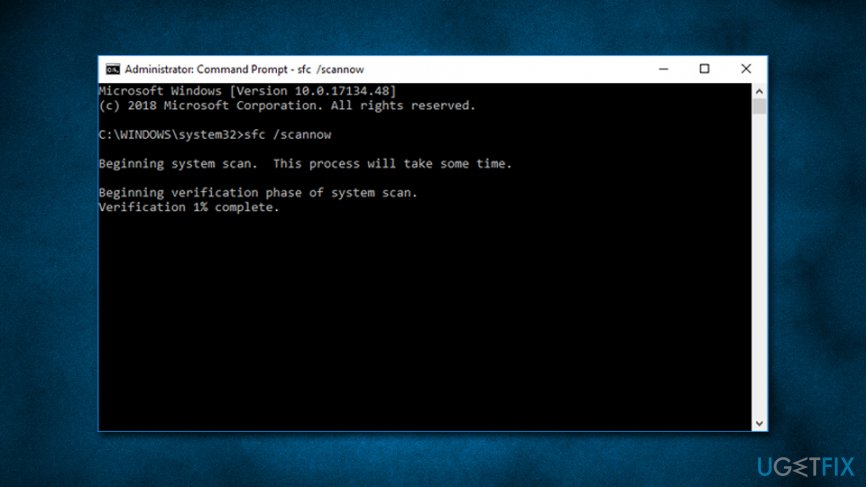
Fix system service exception ntfs sys error run sfc scan
Fix 7. Check your RAM with Windows Memory Diagnostic
Failing RAM can cause BSODs. To ensure that it is working as intended, you can run a built-in Windows Memory Diagnostic tool:
- Type in Memory into Windows search
- Right-click on the Windows Memory Diagnostic and pick Run as administrator
- Click Restart now and check for problems (recommended) - the PC will restart IMMEDIATELY so make sure you saved all your work
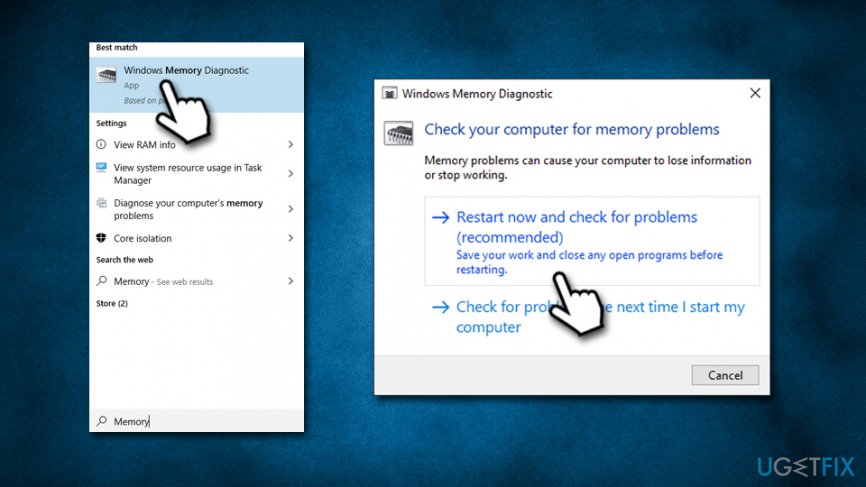
Fix system service exception ntfs sys error run windows memory diagnostic
Bottom line
To fix the SYSTEM_SERVICE_EXCEPTION (ntfs.sys) error, you can try updating your drivers, running a system file check, or performing a malware scan. If these solutions do not resolve the issue, consider checking your hardware components or seeking professional assistance.
Frequently asked questions
This error is often caused by corrupted system files, outdated drivers, or issues with the NTFS file system. It can also occur due to incompatible software or hardware conflicts.
You can run the System File Checker by opening Command Prompt as an administrator and typing 'sfc /scannow'. This will scan and repair corrupted system files that may be causing the error.
Yes, updating drivers is a common and safe troubleshooting step that can resolve compatibility issues leading to the SYSTEM_SERVICE_EXCEPTION error. Ensure to download drivers from the official manufacturer’s website.




Report an issue
What's wrong with this guide? We review every report and update or remove content.
Report received — thank you. We'll review and fix it.
You need a free account to submit a report.
Be the first to comment