How to fix
Blue Screen of Death when playing Escape from Tarkov
on Windows
Resolve Blue Screen of Death issues while playing Escape from Tarkov on Windows 10 and 11. Quick, effective fixes, expert-tested solutions!

What causes How to fix Blue Screen of Death when playing Escape from Tarkov?
- Hardware problems
- Outdated or corrupted drivers
- Software conflicts
- Malware
- Incorrect allocation of paging file size
- Incorrect priority of the game in Task Manager
Repairs Windows system files, removes malware, and restores a clean OS state — without reinstalling.
Hello. Recently I started experiencing Blue Screen of Death errors when playing Escape from Tarkov quite frequently. What could be the issue? Can I fix it?
Blue Screen of Death (BSOD)[ref en-1] errors, also known as Stop Errors or system crashes, are serious errors that occur when the operating system is unable to recover from an error. These errors can be caused by a variety of issues, including hardware problems, outdated or corrupted drivers, software conflicts, malware, and more.
BSODs typically occur when the operating system encounters a problem that it cannot handle, and they can cause the system to crash and display a blue screen with an error message. It is important to address BSOD errors promptly, as they can indicate serious problems with the system that may lead to data loss or damage if not addressed.
Some users report suffering BSODs when playing Escape from Tarkov, which is a first-person shooter survival game developed by Battlestate Games. It is set in a fictional city in Russia called Tarkov, which has been sealed off by government forces following a political conflict. The game has gained a large following for its realistic gunplay, extensive customization options, and immersive gameplay.
If you have been experiencing Blue Screen of Death (BSOD) errors while playing Escape from Tarkov, there are several steps you can try to fix the issue. Users report the BSOD error "KERNEL_MODE_HEAP_CORRUPTION" and other errors such as:
- DRIVER_PORTION_MUST_BE_NONPAGED; What failed: mrxsmb.sys
- ATTEMPTED_WRITE_TO_READONLY_MEMORY; What failed: winusb.sys
- SYSTEM_SCAN_AT_RAISED_IRQL_CAUGHT_IMPROPER_DRIVER_UNLOAD; What failed: Qcamin10x64.sys
These errors can occur due to incorrect allocation of paging file size on Windows or incorrect priority of the game in Task Manager. These errors may also occur after installing update patches for the game. In this guide, you will find 5 steps that should help you fix Blue Screen of Death when playing Escape from Tarkov. Follow the step-by-step instructions below:
Solution 1. Change the Paging File Size or Virtual Memory
The paging file (also known as the swap file or page file) is a hidden file on your hard drive that is used as virtual memory by the operating system. Virtual memory is a feature that allows the system to use more memory than is physically available by temporarily transferring data from the RAM to the hard drive.
In Windows, you can configure the size of the paging file to be larger or smaller than the default size. The default size is usually set to be equal to the amount of physical RAM in your system, but you can increase or decrease it depending on your needs. Sometimes changing the size of the paging file can help you determine if a particular problem is related to the allocation of virtual memory.
- Press the Windows key + R to open the Run box
- Type sysdm.cpl and press Enter
- In the System Properties window, click on the Advanced tab
- Under the Performance section, select Settings
- In the Performance Options window, click on Advanced
- Go to the Virtual memory section and select Change
- Uncheck the option Automatically manage paging file size for all drives, check Custom
- Enter 2000 for the Initial size (MB) and 32000 for the Maximum size (MB)
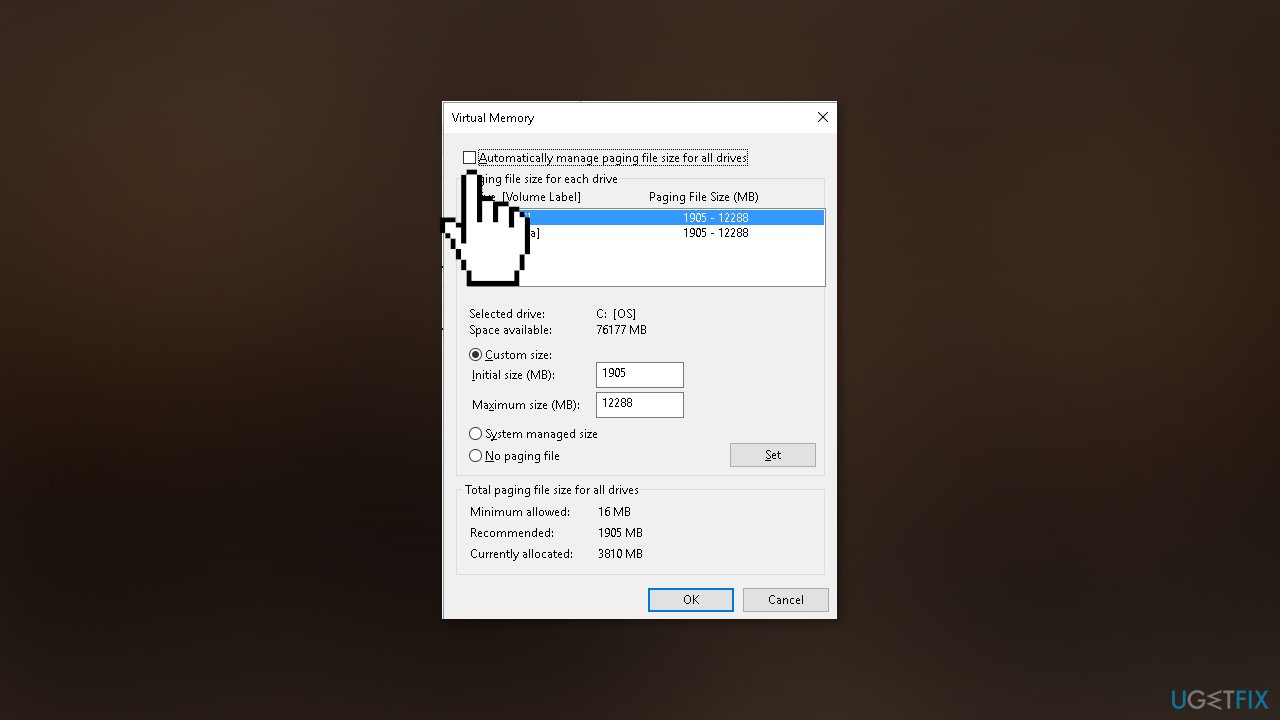
- Click OK and restart your computer to save the changes
Note: The paging file is a critical part of the operating system and should not be disabled or set to a size that is too small. Doing so can cause problems with system stability and performance.
Solution 2. Change the Priority of the Game
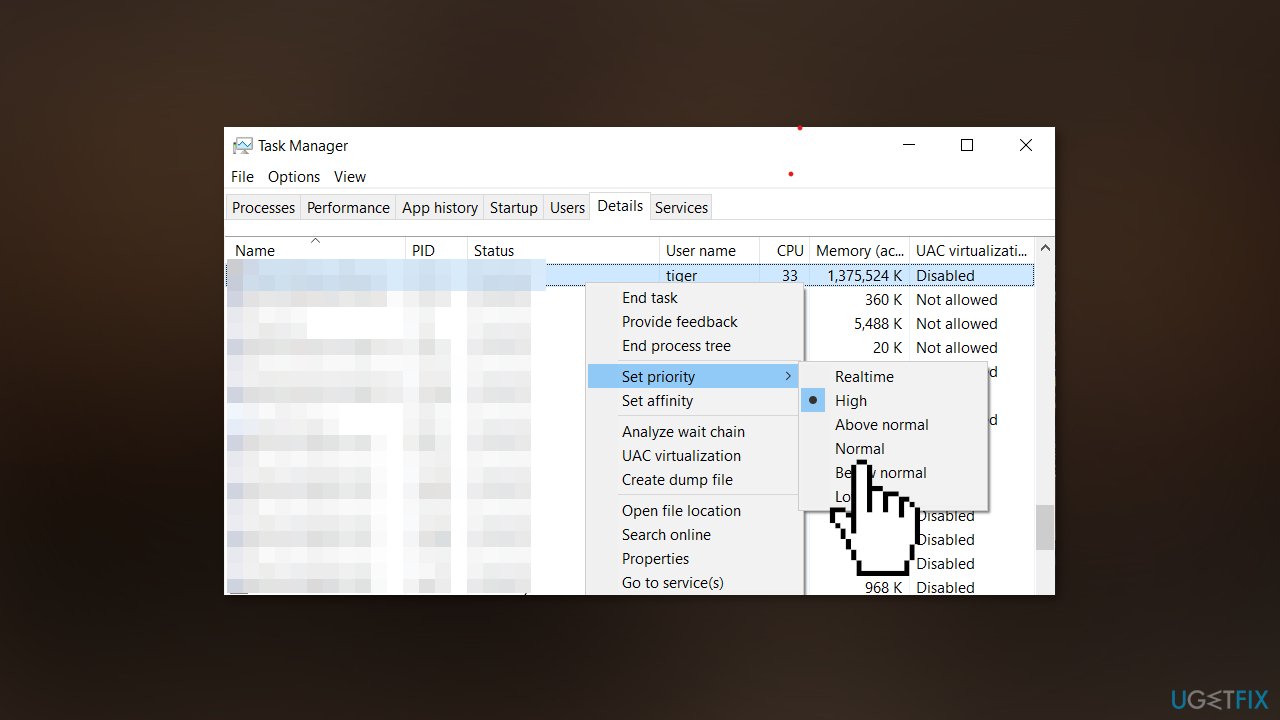
Changing the priority of an application in Task Manager allows the user to specify how much of the system's resources (such as CPU, memory, and disk usage) should be dedicated to the application. By default, the operating system assigns normal priority to most applications, but you can change the priority of an application to high or low. If you have previously changed the priority of Escape from Tarkov in Task Manager, we recommend assigning the default (Normal) amount of resources to it:
- Press Ctrl + Shift + Esc to open Task Manager
- Go to the Details tab
- Find and right-click on Escape from Tarkov
- Hover on Set priority and select Normal
Solution 3. Uninstall Gaming Services
Gaming services, in particular, may cause BSOD errors if there is a problem with the graphics card or driver, if there is not enough memory available to run the game, or if there is some other conflict or issue with the game or its components.
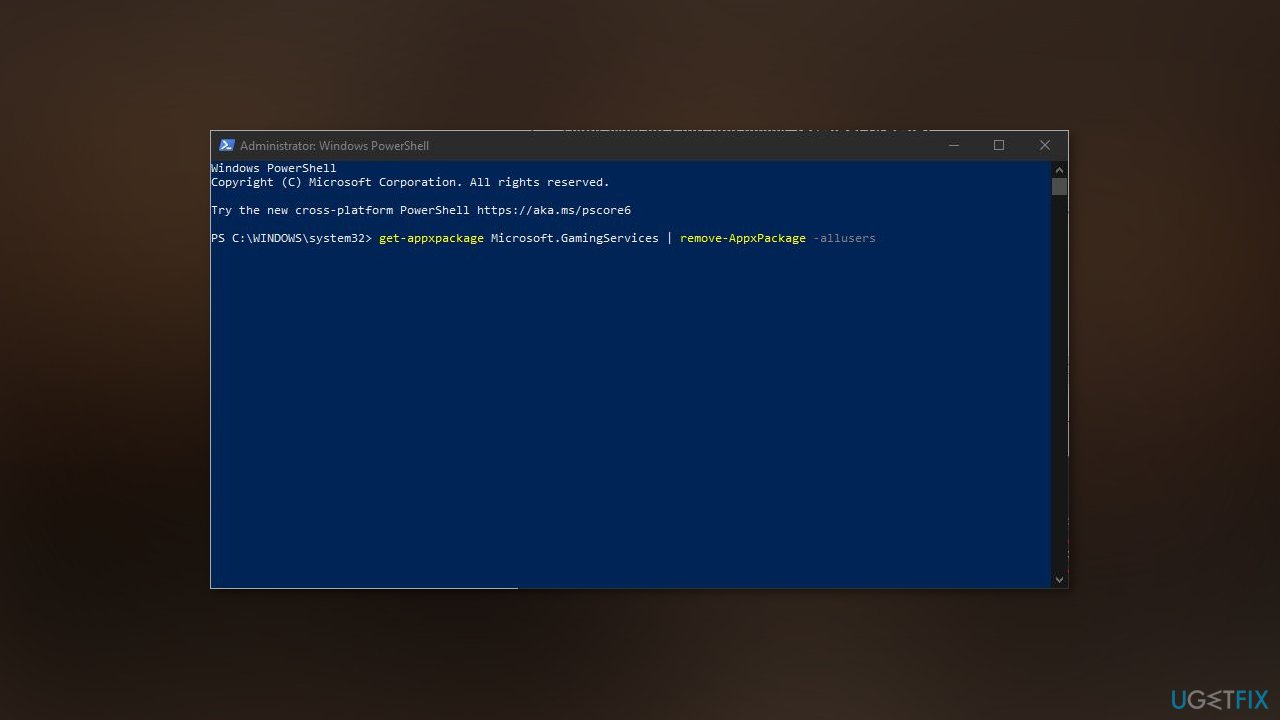
- Right-click on Start and select PowerShell (Admin)
- In the User Account Control dialog that appears, select Yes
- In the Windows PowerShell, type the following command and press Enter to execute it:
get-appxpackage Microsoft.GamingServices | remove-AppxPackage -allusers
- Reboot your computer.
Solution 4. Uninstall any Recent Windows Updates
Windows 11:
- Click on the Search icon and type updates
- Press Enter to launch the Settings app
- From the right side of the window, click on Update history
- On the list, check if any Windows updates have been installed in the last few days
- If so, note down the KB number
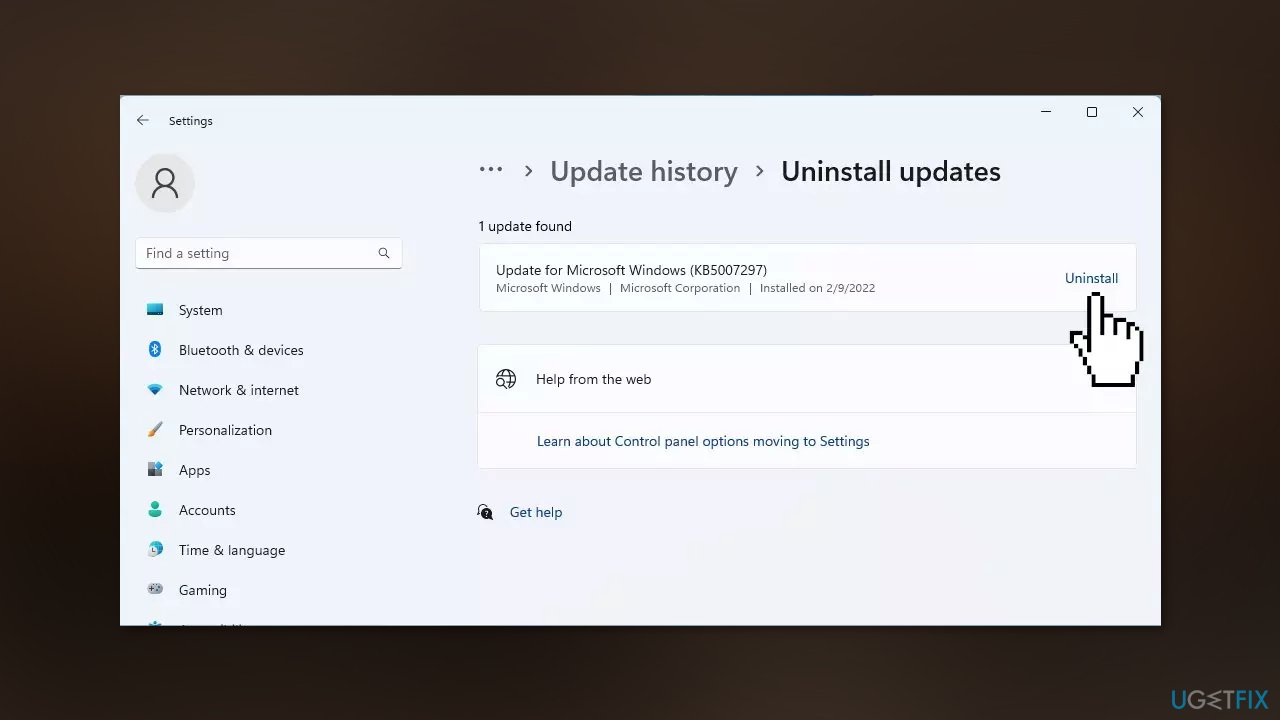
- Scroll down to the bottom of the same page and click on Uninstall updates
- Select the update you want to uninstall and click on Uninstall
Windows 10:
- Right-click on the Start button and choose Run
- Type appwiz.cpl and press Enter
- Select View installed updates from the left pane
- Find the Windows update that you recently received
- Select the update and click on Uninstall
- When prompted to confirm the uninstall, select Yes
Solution 5. Use System Restore
System Restore is a feature in Microsoft Windows that allows users to revert their computer's state to a previous point in time. This can be helpful if you have made changes to your system that are causing problems.
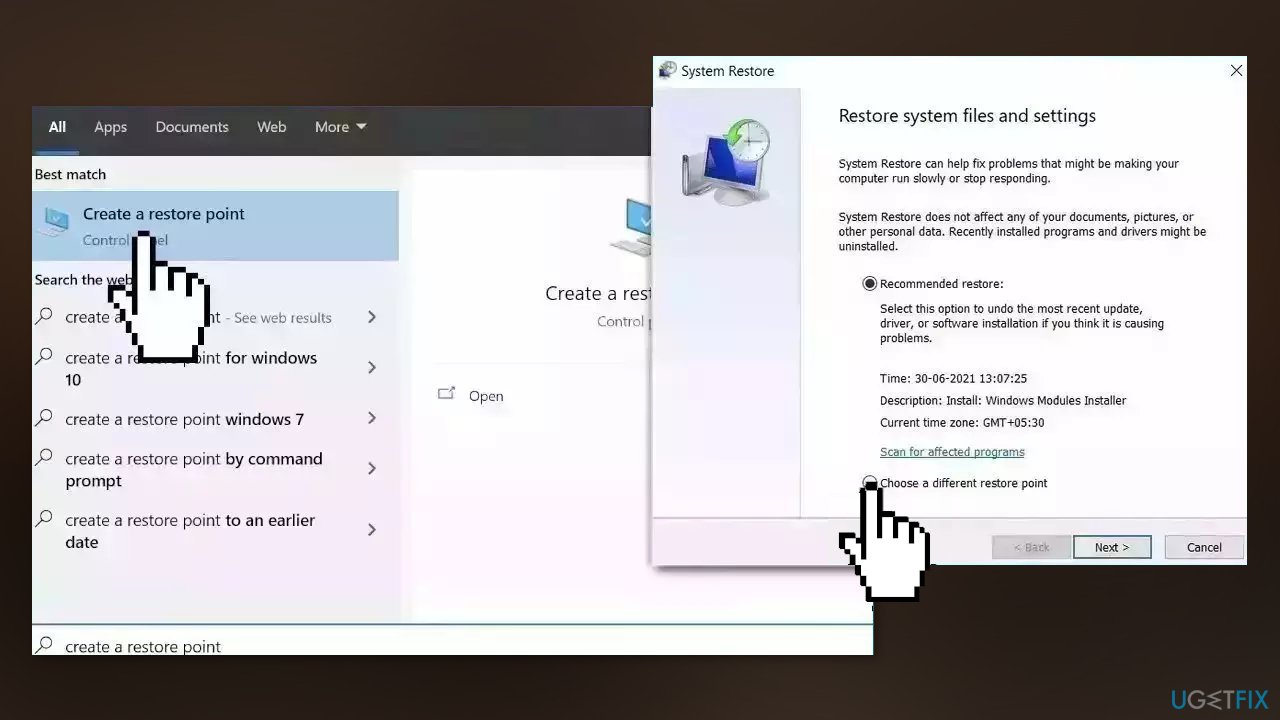
- Go to the Start menu, type restore, and click on Create a restore point
- Click System Restore, then follow the prompts until you can select a restore point
- Select the one you want (ideally before the issue started occurring) and go ahead with the process
Solution 6. Use a System Repair Tool
[d1] is a PC repair tool that is designed to diagnose and fix problems with the operating system. It is typically used to troubleshoot and repair things such as system errors, BSODs, corrupted files, registry[ref en-2] issues, and other problems that can cause a computer to perform poorly or become unresponsive. It can also clear cookies and cache[ref en-3] automatically which are often the culprits behind many malfunctions.
The tool performs a scan of the system to identify problems and then repairs or replaces any damaged or corrupted files, as well as any other issues that it finds. Many users have reported that it can be effective at fixing certain types of problems with a computer, although it is important to note that it is not a guaranteed solution and may not work for all issues. Here are the steps on how to use it:
- Download and install [d1] on your computer
- Launch the application
- Click on the Start Repair button to begin the scan
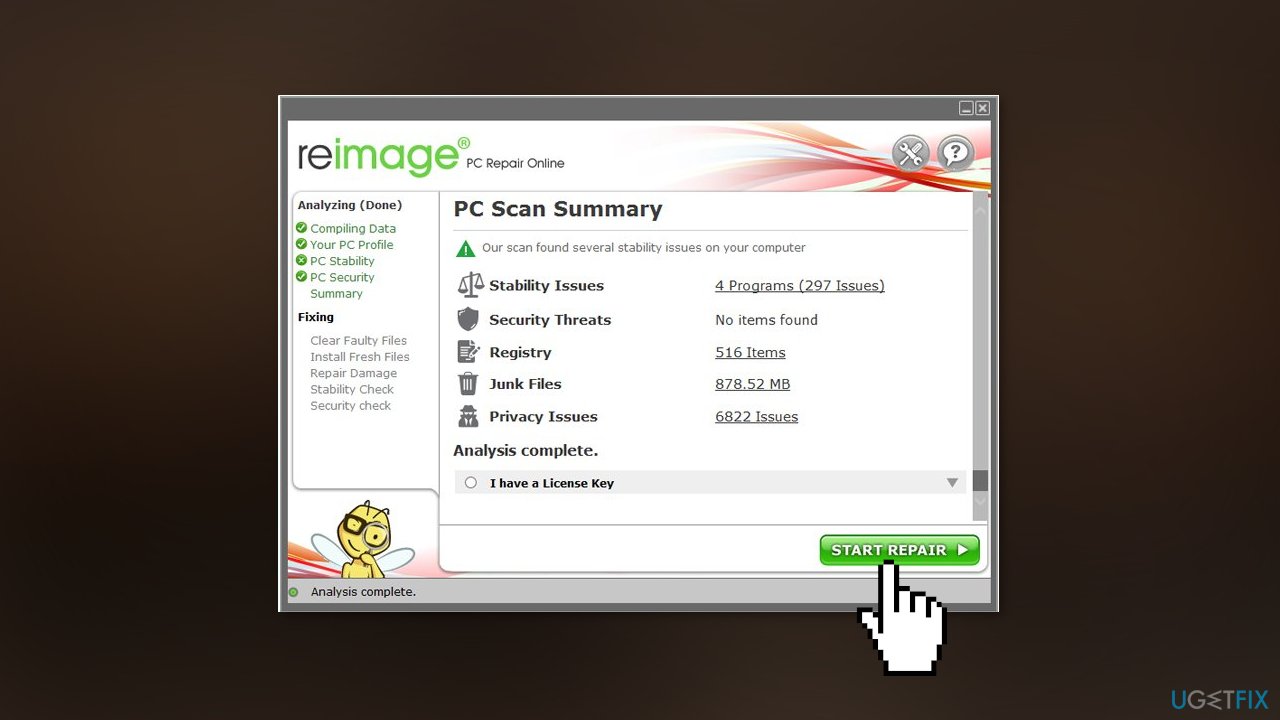
- Wait for the scan to complete. This may take several minutes.
- Review the results of the scan. It will identify any problems that it finds and provide recommendations for repair.
- The application will repair or replace any damaged or corrupted files and perform any other necessary repairs.
- Once the repair process is complete, restart your computer.
Bottom line
To fix the Blue Screen of Death errors when playing Escape from Tarkov, you can try changing the paging file size or virtual memory, adjusting the game's priority in Task Manager, and ensuring your drivers are up to date. If these solutions do not resolve the issue, consider checking for malware or further investigating hardware problems.
Frequently asked questions
Common causes include outdated graphics drivers, hardware issues, or conflicting software. It's essential to ensure all drivers are updated and to check for hardware malfunctions.
You can update your graphics drivers by visiting the manufacturer's website or using the Device Manager in Windows 10 or Windows 11. Right-click on the Start menu, select Device Manager, expand Display adapters, right-click your graphics card, and choose 'Update driver'.
If the issue persists, try running a memory diagnostic tool to check for RAM issues, or consider performing a clean boot to eliminate software conflicts on Windows 10 or Windows 11.




Report an issue
What's wrong with this guide? We review every report and update or remove content.
Report received — thank you. We'll review and fix it.
You need a free account to submit a report.
Be the first to comment