How to fix
Bluetooth hotkeys broken
on Windows
Restore your Bluetooth hotkeys in Windows 10 with simple fixes. Get your device working perfectly again—expert-tested solutions await!

What causes How to fix Bluetooth hotkeys broken in Windows 10?
- Recent Windows update (built 1803)
- Malfunctioning Bluetooth device or software
- Corrupt or broken Windows files
- Infections from malware
- Outdated Bluetooth drivers
Repairs Windows system files, removes malware, and restores a clean OS state — without reinstalling.
Hello. I am using a wireless headset with Bluetooth controls included. I am using Bose QC35s and while using Media player, or any other (like VLC), I can no longer Play/Pause/Fast Forward anymore. It happened unexpectedly, and I have no clue why. Can you please help me solve this issue? I am too used to using my Bluetooth controls on my headset and would like to keep doing so.
Bluetooth[ref en-1] controls are a useful feature that is included on keyboards, headsets and other devices that are connected to your computer. For example, users can skip, pause or play various songs while not being at the PC.
Nevertheless, some users recently reported problems with Bluetooth Controls, especially when it comes to media players. Our team compiled a bundle of solutions that you can try to fix broken Bluetooth hotkeys on Windows 10, so keep reading.
Most users that addressed the issue on official Microsoft forums[ref en-2] stated that the problem occurred after the most recent update - built 1803. It is not surprising that various malfunctions develop after Windows updates go live, as it is not the first time it happened. Errors like 0x8007005, 0x8024a112, 0x80071A91 and many others are all related to Windows updates.
In such case, users are often advised to roll back the latest patch and go back to previous built. However, in most cases, there is no need for that, and problems could be fixed in other ways, like by using a built-in Troubleshooter, updating Bluetooth drivers or other methods.
[d1] is security software that is also capable of fixing various Windows issues automatically. If you are in any doubt that the malware[ref en-3] is affecting your PC, you can perform a scan, and it will remove any infections it finds. What is more, the software stores various Windows files inside its continually updated database. This way, it can replace broken or corrupt Windows files without the need to restart the machine.
This video will help you:
[youtube MZUAKxlIEAk]
Fix 1. Use the built-in Bluetooth Troubleshooter
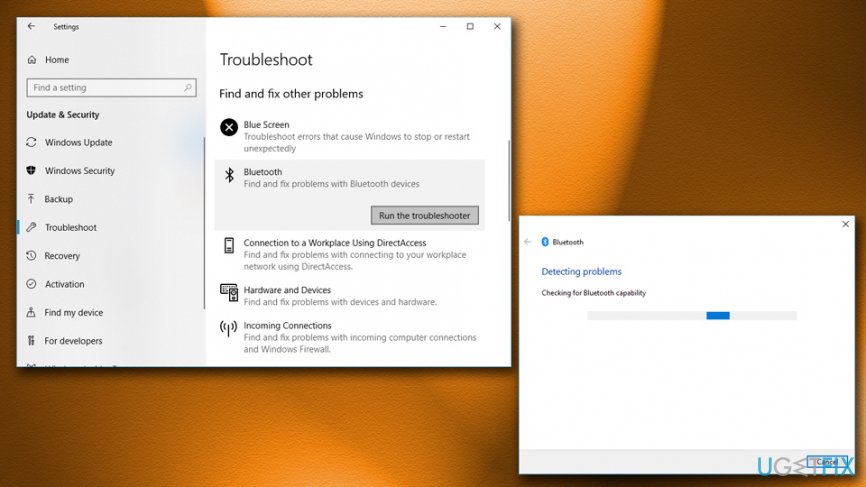
In some cases, the Bluetooth device or its software might be malfunctioning. To detect problems and fix Bluetooth hotkeys, follow these steps:
- Right-click on Start button and pick Settings
- Go to Updates and Security > Troubleshoot
- Scroll down and find Bluetooth
- Click on Run the troubleshooter
- Let Windows scan your device and repair any issues found
Bluetooth hotkeys broken run troubleshooter
Fix 2. Run System File Checker
System File Checker[ref en-4] is another way to fix any issues you have on your PC. This scanner is capable of detecting and eliminating any errors it finds automatically. Remember, you need to enter Command Prompt with administrative rights:
- In the search box, type in Command Prompt
- From the results, Right-click on Command Prompt and select Run as administrator
- User Account Control window will pop up - click Yes
- Once Command Prompt opens, type in sfc /scannow and hit Enter
- Let System File Checker run (it might take sometime) and fix issues automatically (note you might have to restart your PC after the process is complete)
Fix 3. Update or downgrade Bluetooth drivers
Hardware driver is a link between computer's hardware and software. It lets the device function properly. In some cases, these drivers might get corrupt, be unsuitable, etc. Therefore, you need to modify them. First, try to update them to the most recent version:
- Right-click on the Start button and select Device Manager
- Expand the category you want to update and select the device (for example - Bluetooth)
- Right-click on your Bluetooth device and pick Update Driver
- Select Search automatically for updated driver software and wait till Windows installs it
- Restart your PC
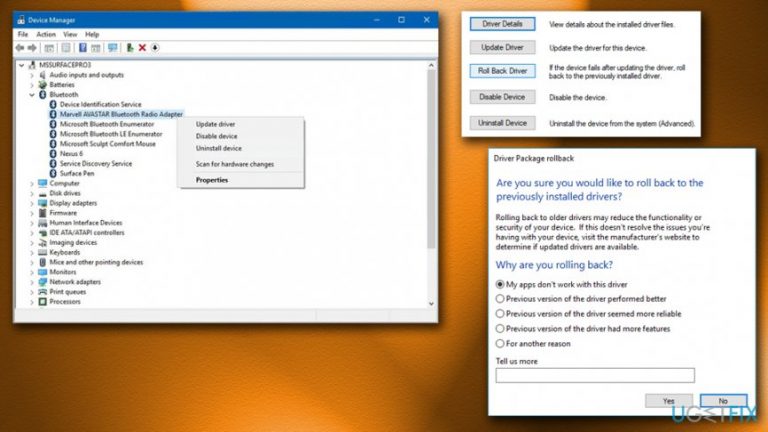
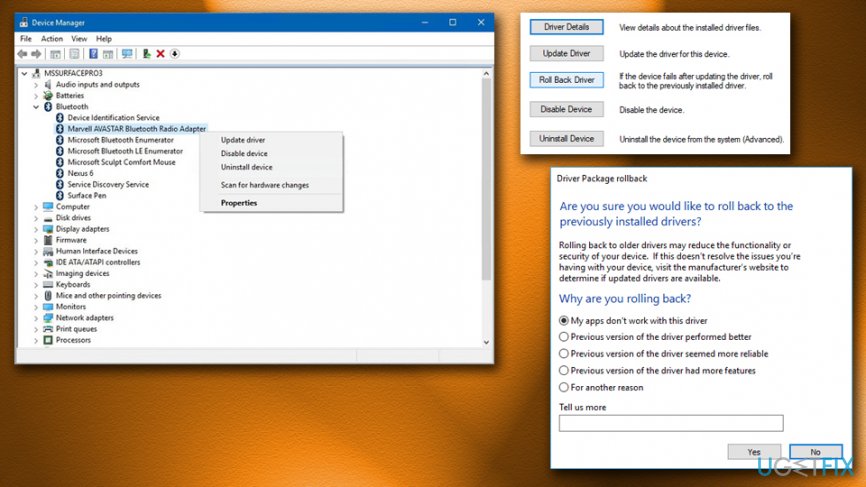
In case the driver installed is the latest version, you should try to downgrade to previous version instead:
- Right-click on the Start button and select Device Manager
- Expand Bluetooth devices and select the Bluetooth you want to downgrade
- Rick-click on it, select Properties and go to Driver tab
- Pick Roll back driver, choose one of the reason options provided and click Yes
Bluetooth hotkeys broken roll back drivers
Fix 4. Use System Restore to fix Bluetooth hotkeys
You can perform System Restore in the following way:
- Type in Control Panel into the search box
- Then pick Recovery > System Restore (make sure you view options in Small icons mode)
- Select a restore point and follow on-screen guidelines
- Restart your PC and see if the problem is fixed
Fix 5. Roll-back Windows updates
If nothing else works, roll back Windows updates in the following way:
- Type in Control panel into the search box
- Pick Programs > Uninstall a program
- Find the latest Windows update, right-click on it and select Uninstall
- Restart your PC
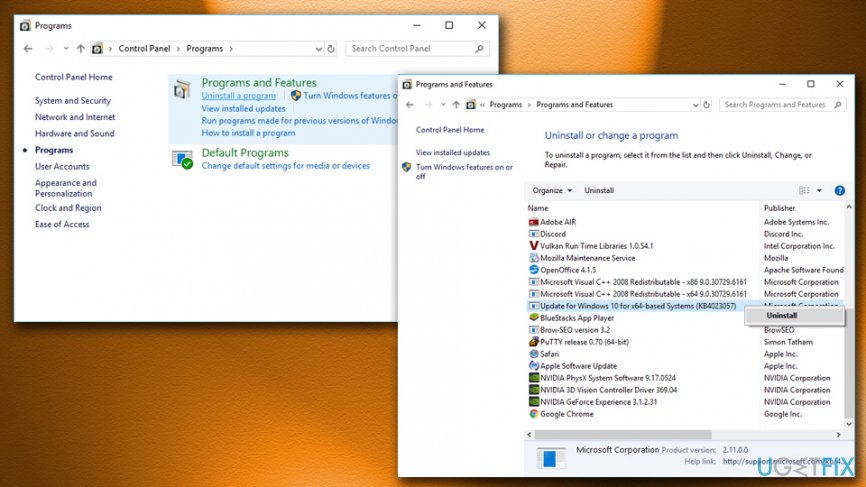
Bluetooth hotkeys broken uninstall windows updates
Bottom line
To fix broken Bluetooth hotkeys on Windows 10, you can use the built-in Bluetooth Troubleshooter, update your Bluetooth drivers, or scan for malware. If none of these solutions work, consider rolling back the latest Windows update.
Frequently asked questions
First, ensure that your Bluetooth drivers are up to date by checking the Device Manager. If the issue persists, try resetting the Bluetooth settings in the Windows Settings app.
Yes, most troubleshooting steps for fixing Bluetooth hotkeys are similar on Windows 11, including updating drivers and checking Bluetooth settings.
You can reset Bluetooth settings by going to Settings > Devices > Bluetooth & other devices, then toggling Bluetooth off and on again, or by removing and re-adding your Bluetooth devices.




Report an issue
What's wrong with this guide? We review every report and update or remove content.
Report received — thank you. We'll review and fix it.
You need a free account to submit a report.
Be the first to comment