How to fix
Can’t Connect to Battle.net
on Windows
Resolve Battle.net connection issues on Windows 10 and 11 effortlessly with expert-tested fixes. Enjoy seamless gaming in minutes!

What causes How to fix Can’t Connect to Battle.net on Windows?
- Corrupted game files
- Corrupted app files
- Unstable internet connection
- Recent app update issues
- App stuck on login or in a loop
Repairs Windows system files, removes malware, and restores a clean OS state — without reinstalling.
Hello. I need help with the Battle.net app. I was recently forced to update it as per usual, but this time it was all different. I could not launch any games installed via the app - I got the "Can't Connect to Battle.net" error instead. I thought that waiting would help, but it didn't - it's been four days already. Please help.
There have been many players complaining about not being able to connect to Battle.net app for a while now. The online platform was launched by Blizzard Entertainment as early as 1996, although it did not act as a standalone app until 2013.[ref en-1] Since then, it became an integral part of every game released by the company.
Yes, not everybody liked the fact that they needed a launcher to be installed on their computers. Initially, people could play games such as World of Warcraft, Diablo III, Overwatch, Hearthstone, or Call of Duty series, and others, without having it tied to the Battle.net app, i.e., they could simply launch the game via the EXE file.
Unfortunately, a few years ago, every game app was integrated into the launcher app, which meant that if it were deleted, players would not be able to launch any Blizzard Activision game. Having it installed is something that people can survive with, but what to do if Battle.net is stuck on login or results in a loop?
Users claimed that the problem typically showed up after an update for the app, while others said that the issue occurred seemingly out of nowhere. If you can't connect to Battle.net, there could many reasons behind why this is happening. For example, you could have corrupted game or app files, or your internet connection could be unstable.
In order to fix this problem, you will have to perform several troubleshooting steps below. Before you do so, you could try using [d1] repair tool that can serve as an excellent tool for automatic diagnostics and repair process for all types of Windows-related problems, including registry errors, BSODs, system lag,[ref en-2] and much more.
Solution 1. Use a different DNS
You should try using different DNS settings and see if it helps to connect to Blizzard servers:
- Right-click on Start and pick Settings
- Go to Network and Internet section
- Scroll down and select Change adapter options
- Right-click on your internet connection and select Properties
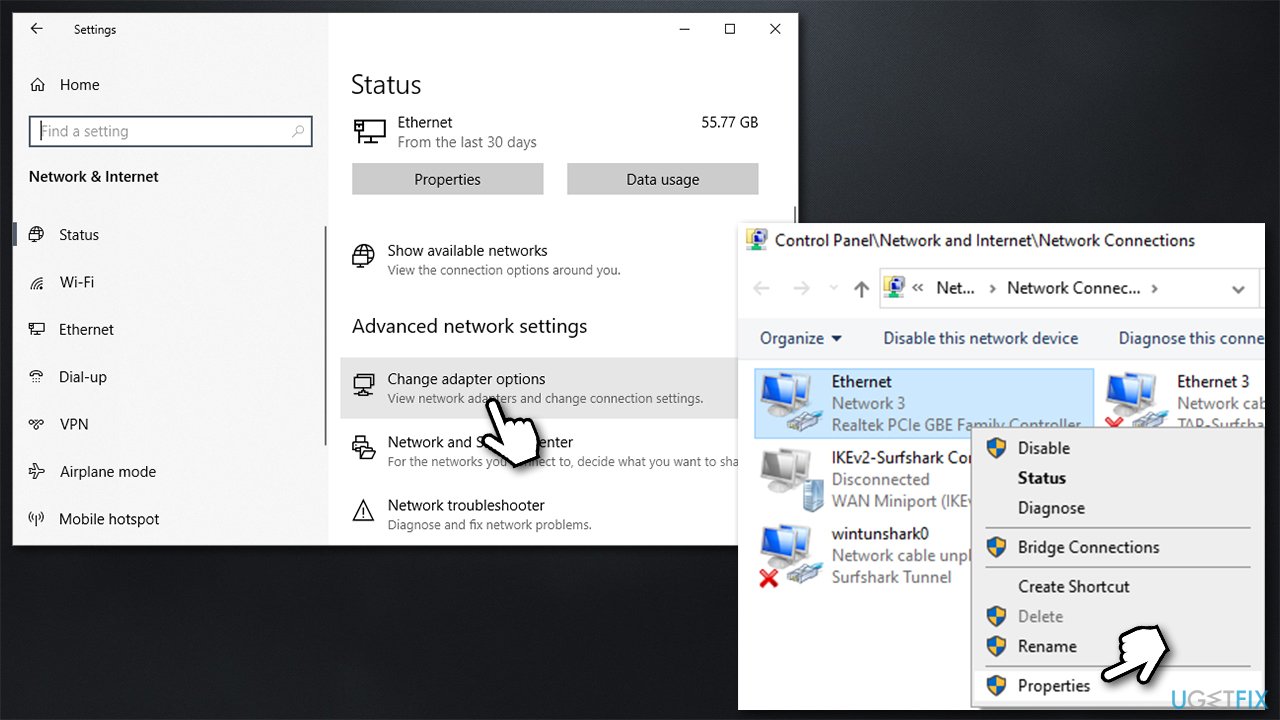
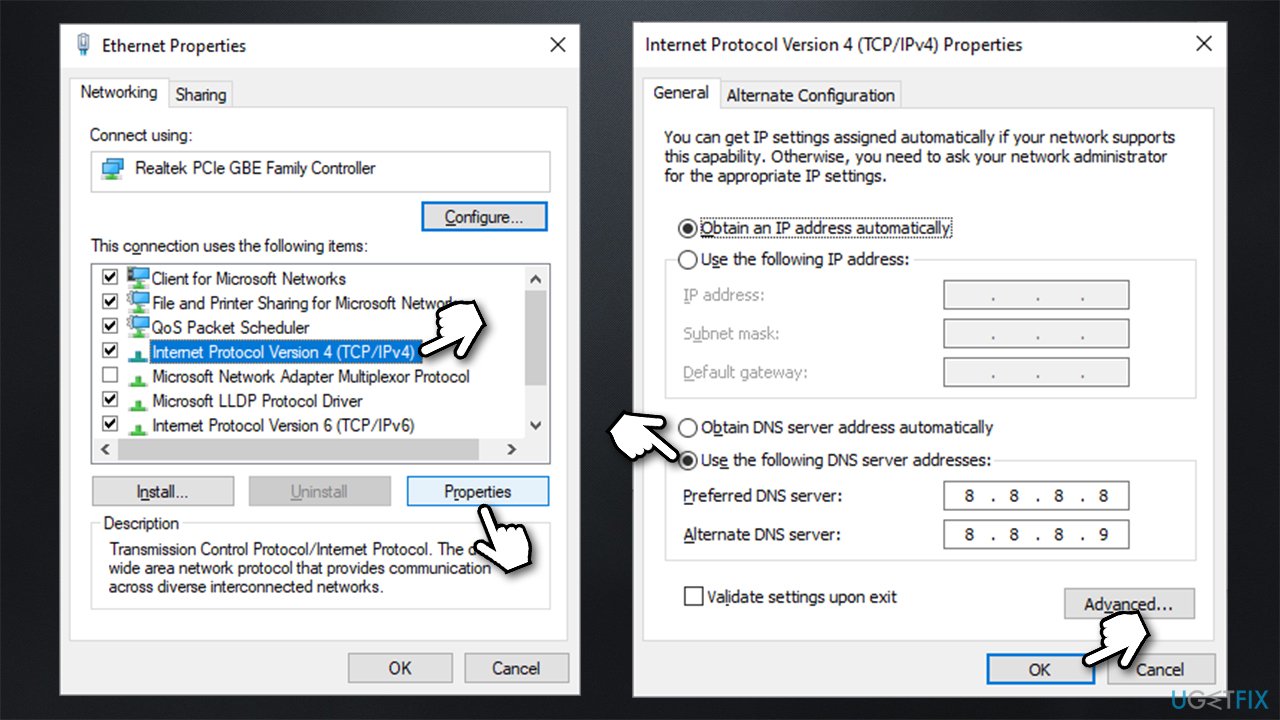
How to fix cant connect to battle net on windows change dns - Click Internet Protocol Version 4 (TCP/IPv4) once and pick Properties
- Select Use the following DNS server addresses option and set your DNS to Google's as follows:
Preferred DNS server: 8.8.8.8
Alternate DNS server: 8.8.4.4 - Click OK and see if that helped you solve the problem.
How to fix cant connect to battle net on windows change dns2
Solution 2. Reset your internet connection
If changing DNS did not help, try resetting your internet connection altogether:
- Type cmd in Windows search
- Right-click on Command Prompt and pick Run as administrator
- Copy and paste the following commands, pressing Enter after each:
ipconfig /flushdns
ipconfig /registerdns
ipconfig /release
ipconfig /renew
netsh winsock reset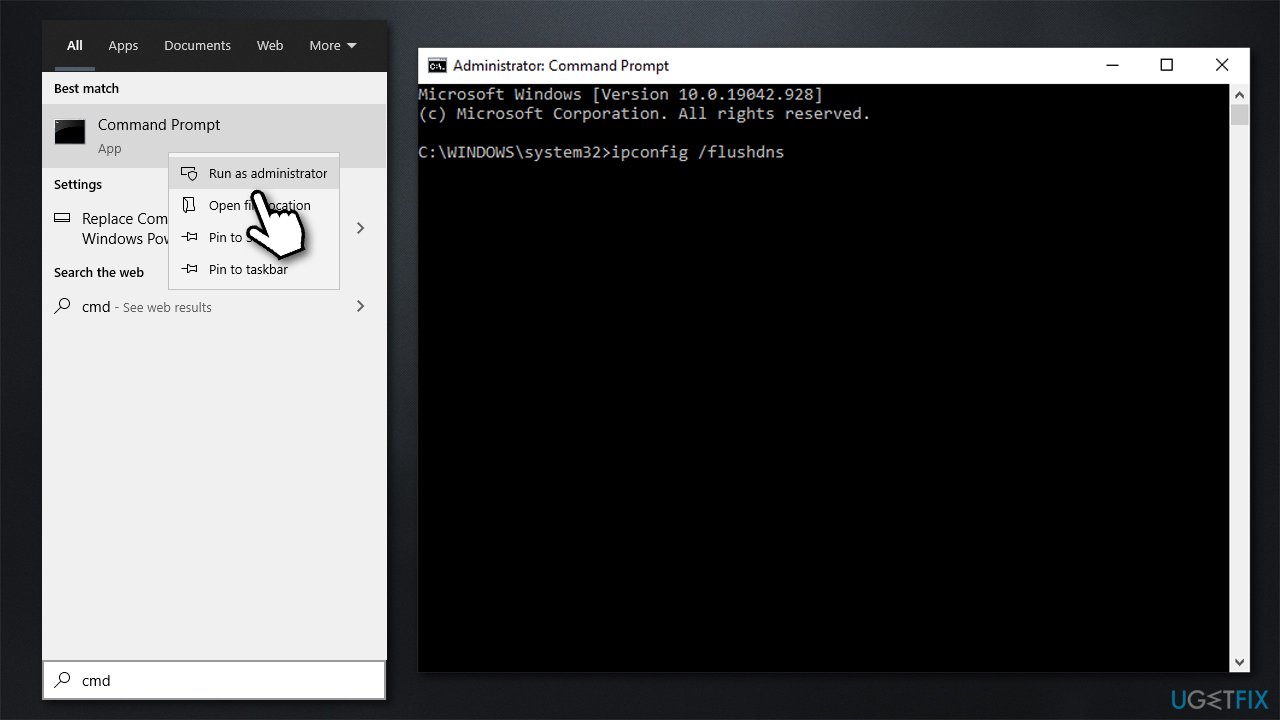
How to fix cant connect to battle net on windows reset internet connection - Once done, restart your PC.
Solution 3. Disable or use a VPN
First of all, if you have a third-party VPN installed and have it connected, disconnect from a remote location and try logging into Battle.net again.
If you do not use a VPN but are facing this problem, we strongly suggest your try using a VPN connection. There are plenty of apps to choose from, but our favorite remains the [rev id="Private Internet Access"] . Even if it does not help you solve this problem, gamers often employ a VPN to increase connection speeds to particular servers. This is especially useful if the game server is located further away from your own location and you want to reduce the ping[ref en-3] to it while gaming.
Solution 4. Rebuild app's corrupted files
- Press Ctrl + Shit+ Esc on your keyboard
- Right-click on all Battle.net processes and select End Task
- Press Win + E on your keyboard to open File Explorer and navigate to the following location:
C:\\ProgramData - Mark Battle.net folder and press Shift + Del on your keyboard
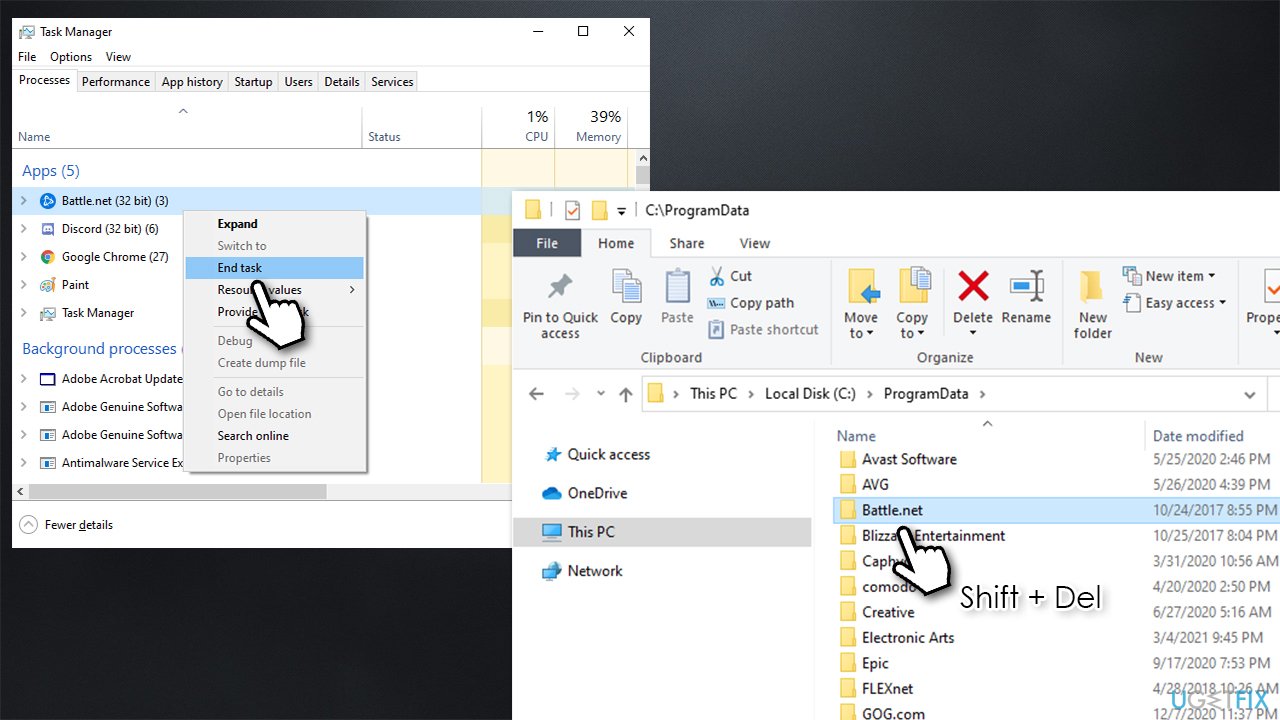
How to fix cant connect to battle net on windows rebuild apps corrupted files - Launch the app and see if the problem persists.
Solution 5. Reinstall the launcher
You can try reinstalling the app if deleting the program's folder as explained above did not help:
- Right-click on Start and pick Apps and Features
- Scroll down to find Battle.net
- Click Uninstall and then Uninstall
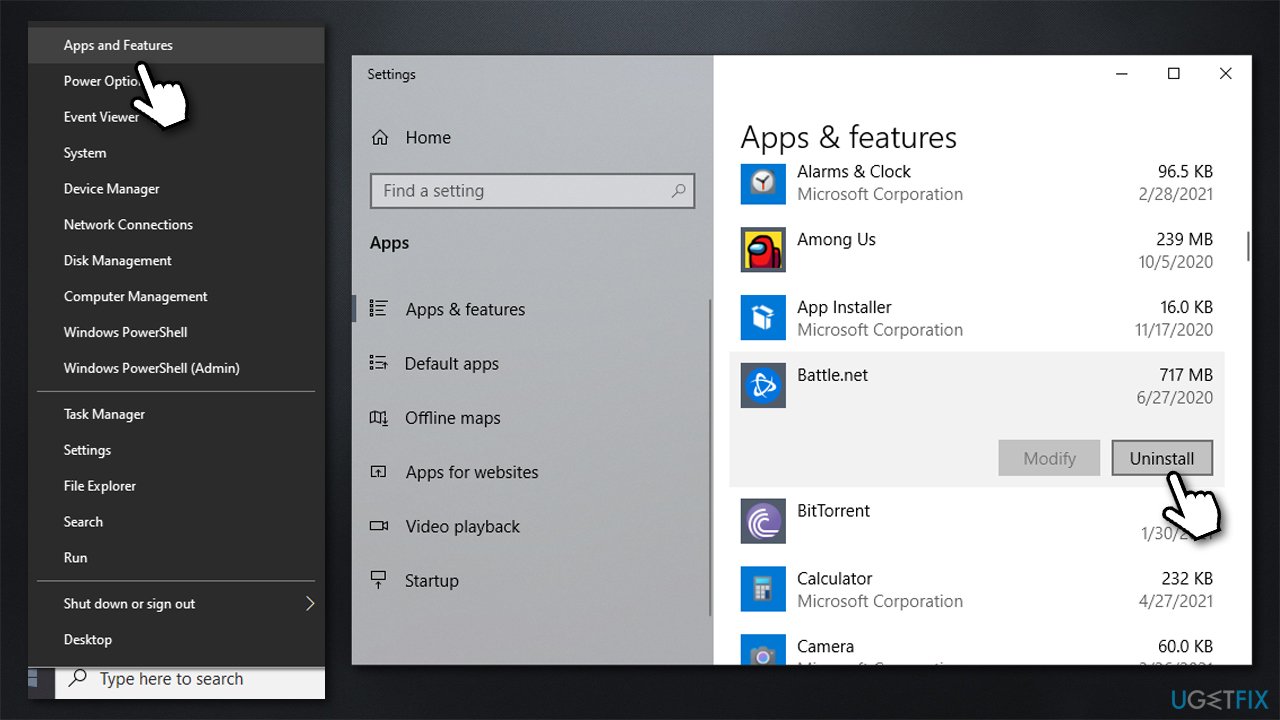
How to fix cant connect to battle net on windows reinstall the app - Now go to the official Blizzard website and download the desktop app.
Solution 6. Reset your router
Resetting the router helped some users - here's how:
- Turn off your computer
- Go to your router/modem, press and hold the Power button to shut it down completely
- Unplug the device from the electric socket
- Wait for about a minute, then plug it back in and launch it
- Wait till your router fully boots up, turn on your PC and check if your issue is resolved.
We hope that this article helped you fix "Can't Connect to Battle.net" error on Windows. Here are a few other related topics that could interest you:
Bottom line
To fix the 'Can't Connect to Battle.net' error, you can try using the repair tool for automatic diagnostics and repair, check your internet connection, and ensure your app files are not corrupted. If these solutions do not resolve the issue, further troubleshooting steps may be necessary.
Frequently asked questions
First, ensure your internet connection is stable, then try restarting the Battle.net app or your PC. If the problem persists, check for any Windows updates and ensure your firewall settings allow Battle.net access.
You can try resetting your network settings by going to Settings > Network & Internet > Status, and selecting 'Network reset.' Additionally, disabling any VPNs or proxies may help restore connectivity.
Yes, switching to Google's Public DNS (8.8.8.8 and 8.8.4.4) can often resolve connection problems. You can change these settings by going to Network and Sharing Center in the Control Panel.




Report an issue
What's wrong with this guide? We review every report and update or remove content.
Report received — thank you. We'll review and fix it.
You need a free account to submit a report.
Be the first to comment