How to fix
Can’t see Bluetooth drivers
on Windows
Resolve Bluetooth driver issues in Windows 10 effortlessly. Get expert-tested solutions to restore connectivity and enhance your experience in minutes.

What causes How to fix can’t see Bluetooth drivers in Windows 10?
- Automatic Windows updates
- Newly installed software
- Drivers are outdated
- Device does not support Bluetooth
- Bluetooth is disabled in settings
Repairs Windows system files, removes malware, and restores a clean OS state — without reinstalling.
Hi, I have a problem with my Windows 10 computer. Yesterday, my Bluetooth mouse suddenly stopped working. I was trying to check it via the Device Manager, but it was simply missing. I connected a wired mouse for now, but it is a really annoying problem. I want to be fixed as soon as possible.
Bluetooth technology has been prominent in the use of devices that require a wireless[ref en-1] connection. Devices such as mice, headphones, keyboards, and other peripherals often rely on it to provide connectivity without dealing with annoying wires. Thus, many people prefer using wireless technology for their connectable devices.
Unfortunately, every technology sometimes has some hiccups, and Bluetooth is not an exception. Previously, users complained that their mice were not working or about the very poor quality of Airpods Pro on Windows machines. However, what to do if you can't see Bluetooth at all?
There were several complaints on various IT forums about Windows 10 users not being able to use their Bluetooth devices. While in some cases, this change happens seemingly out of nowhere (although this issue is commonly connected to automatic Windows updates or newly installed software), others said that they couldn't even see their Bluetooth via the Device Manager.
Problems with Bluetooth are usually related to drivers,[ref en-2] so updating or reinstalling them could help people fix the issue. Since the entry of it is not visible on the Device Manager, they might be struggling to do so.
One of the first things you should do in order to reinstall Bluetooth drivers is to check whether your device supports it in the first place. Most laptops and desktop computers are currently equipped with this technology, although it does not apply to everyone.
If you are sure that the technology is installed on your machine, you will find solutions on how to fix this problem and install Bluetooth drivers that are missing.
Check whether your PC supports Bluetooth
Before you proceed, you should first ensure that your Windows machine supports Bluetooth in the first place. If it is the first time you bought a Bluetooth device and found it not working, it might be that your computer simply does not have an adapter installed in the first place. Below you will find methods on how to check that:
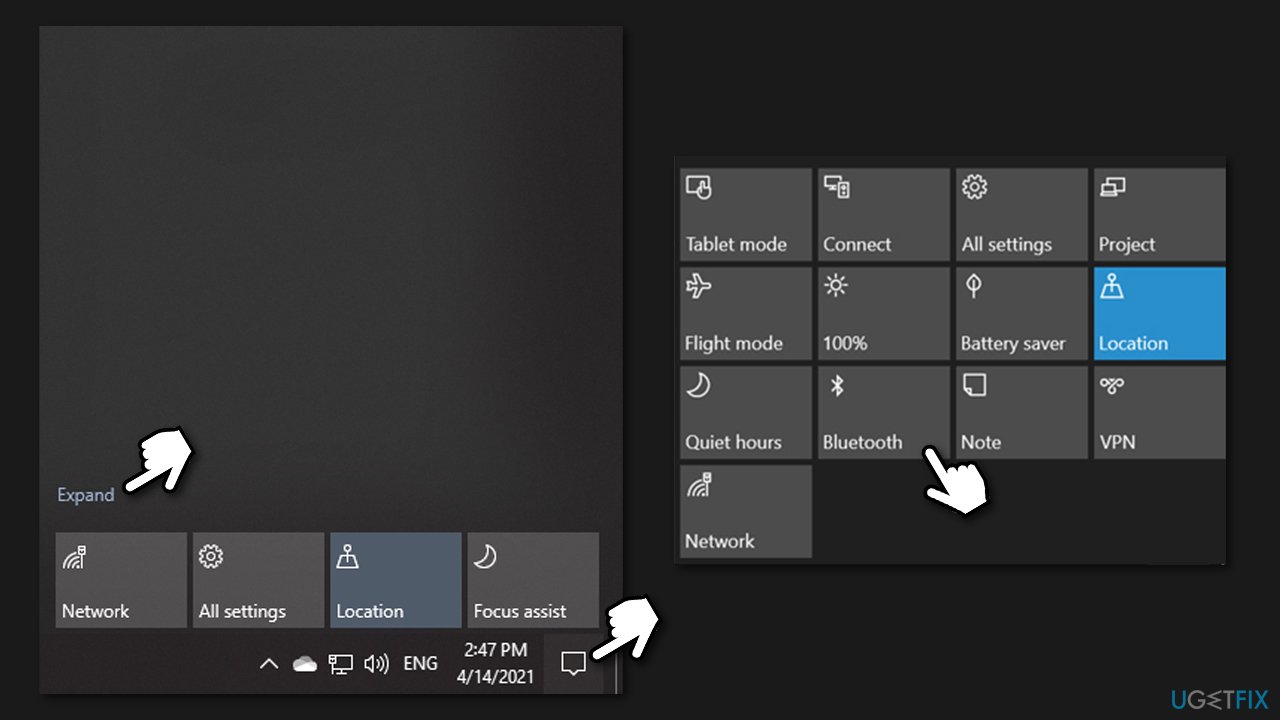
Check the Action Center
- Click on the Action Center located at the right side of your taskbar
- Select Expand
- Here, you should see Bluetooth entry
- Select Bluetooth to turn it on or off.
Use Settings Panel
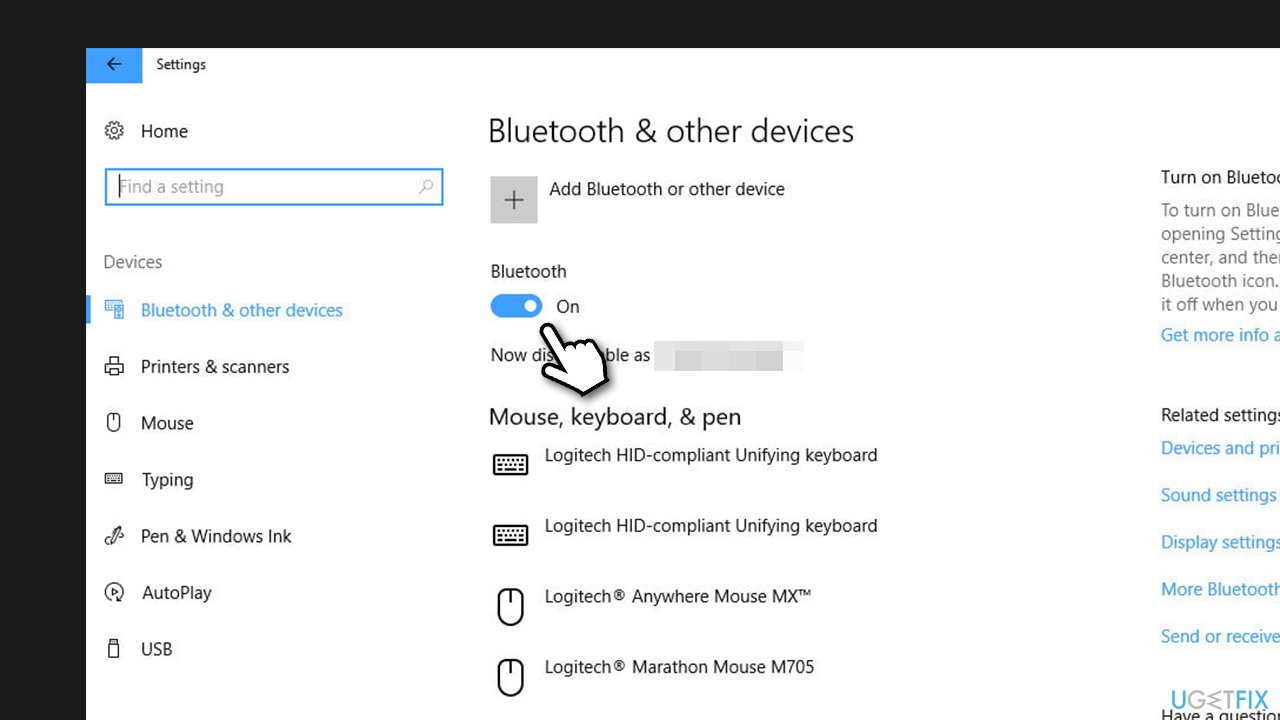
- Right-click on Start and pick Settings
- Go to Devices
- Here, you should see a switch next to Bluetooth section
- If it is switched to Off position, toggle it to the right to turn it on.
If you can't see Bluetooth in any of these spots, you will have to add it to your computer. Luckily, it is not that hard to do. All you need is an empty USB slot and a USB Bluetooth adapter. These are typically not that expansive, and there are simply no other ways to get them (unless you want to change your motherboard or another PC component).
Once you purchase the dongle, all you have to do is connect it via the USB[ref en-3] slot. It includes basic device drivers, so Bluetooth would automatically show up on your Device Manager. To update Bluetooth drivers, proceed with the next steps.
1. Check hidden/other devices
If you are sure that your PC has a Bluetooth adapter installed, but you still can't see it in your Device Manager, try the following:
- Right-click on Start and pick Device Manager
- Here, select View from the top menu and pick Show hidden devices
- Check whether Bluetooth section showed up in the Device Manager.
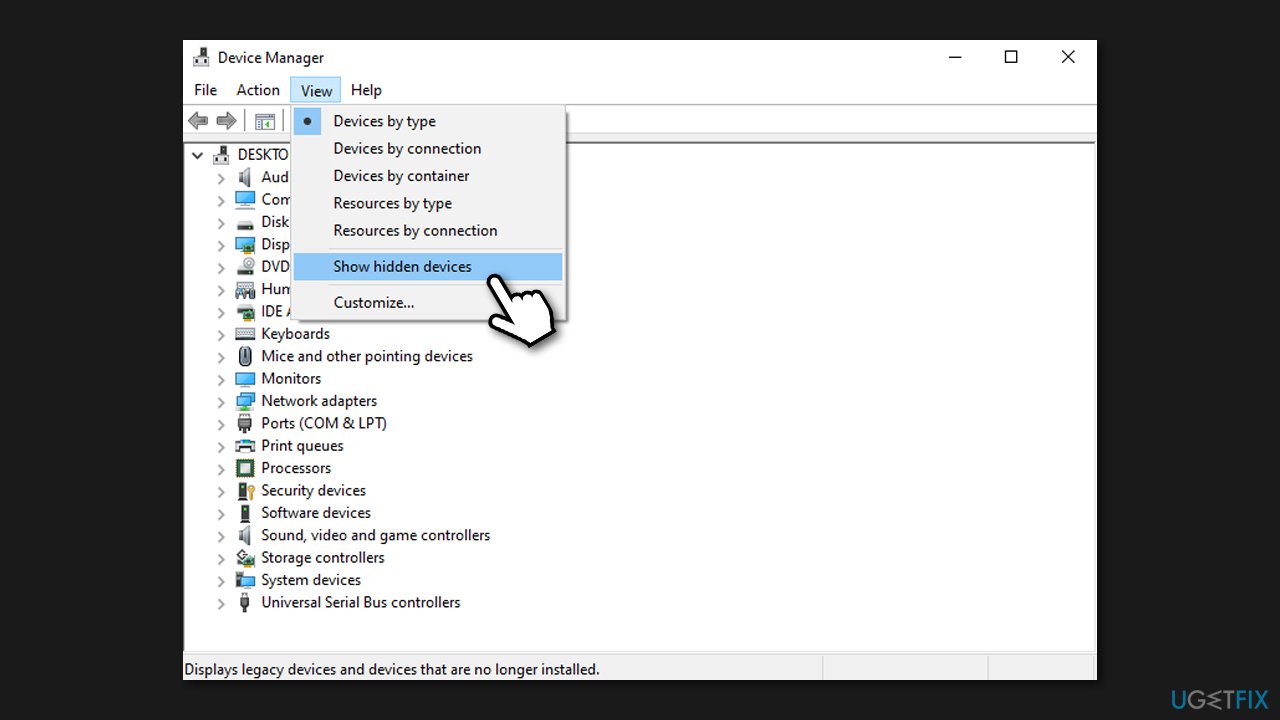
In some cases, Bluetooth might not be visible directly but instead can be seen under the Other devices section, so you should check there as well.
2. Run Bluetooth troubleshooter
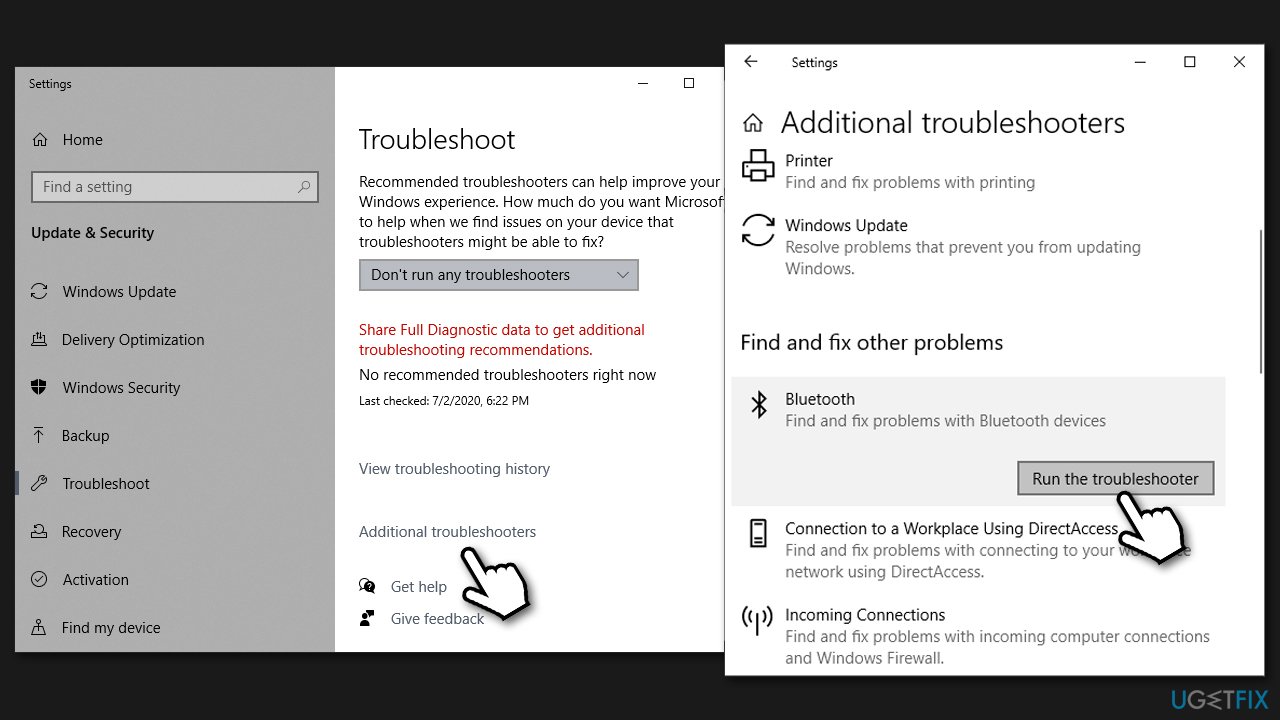
- Type Troubleshoot in Windows search and press Enter
- If you can't see troubleshooters listed on the right, click Additional Troubleshooters
- Here, select Bluetooth
- Click Run the troubleshooter and apply the suggested changes.
3. Restart Bluetooth Support service
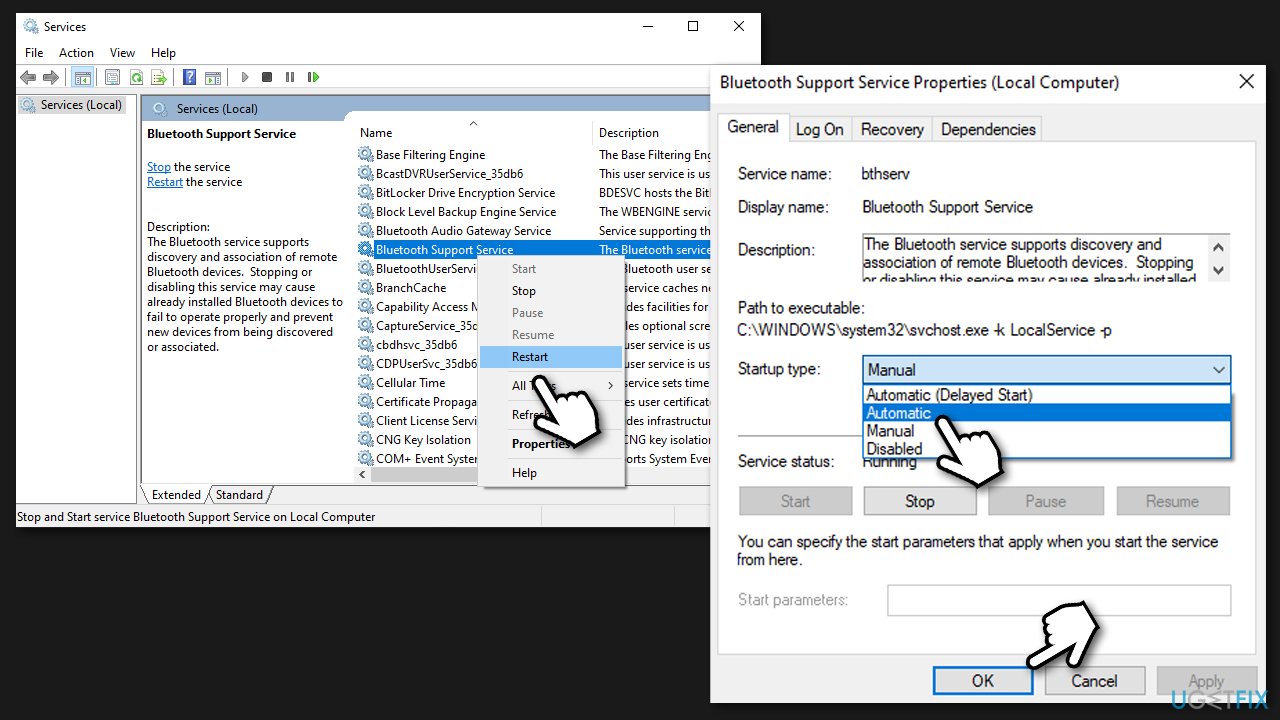
- Type in Services in Windows search and press Enter
- Here scroll down to find Bluetooth Support service
- Right-click on it and select Restart
- After that, double-click the service and set the startup type to Automatic
- Restart your PC.
4. Uninstall your current Bluetooth drivers
Once Bluetooth is visible, follow these steps:
- Open the Device Manager
- Right-click on the Bluetooth device and select Uninstall device
- Follow on-screen instructions and restart your PC.
5. Download drivers from manufacturer's website
In some cases, the drivers may not be visible via the Device Manager due to corrupted system files. In order to resolve this issue, you should try running a scan with [d1] repair software, as it can be used to fix common Windows system issues, such as BSODs, missing DLLs, registry errors, etc.
If you still can't see Bluetooth, you should try accessing the manufacturer's website and downloading drivers from there. Which site you have to visit depends on the maker of your device - you also need to know the model of it. If you are confused here, proceed with the next step.
6. Use automatic driver updater
Every Windows machine has dozens of devices that need drivers in order to operate correctly. For example, graphics drivers are particularly important when it comes to video rendering or gaming. Unfortunately, Device Manager is far from perfect for the driver updating process, as not only it often fails to find the relevant updates, but it also takes a long time to do, especially if you need to update all drivers.
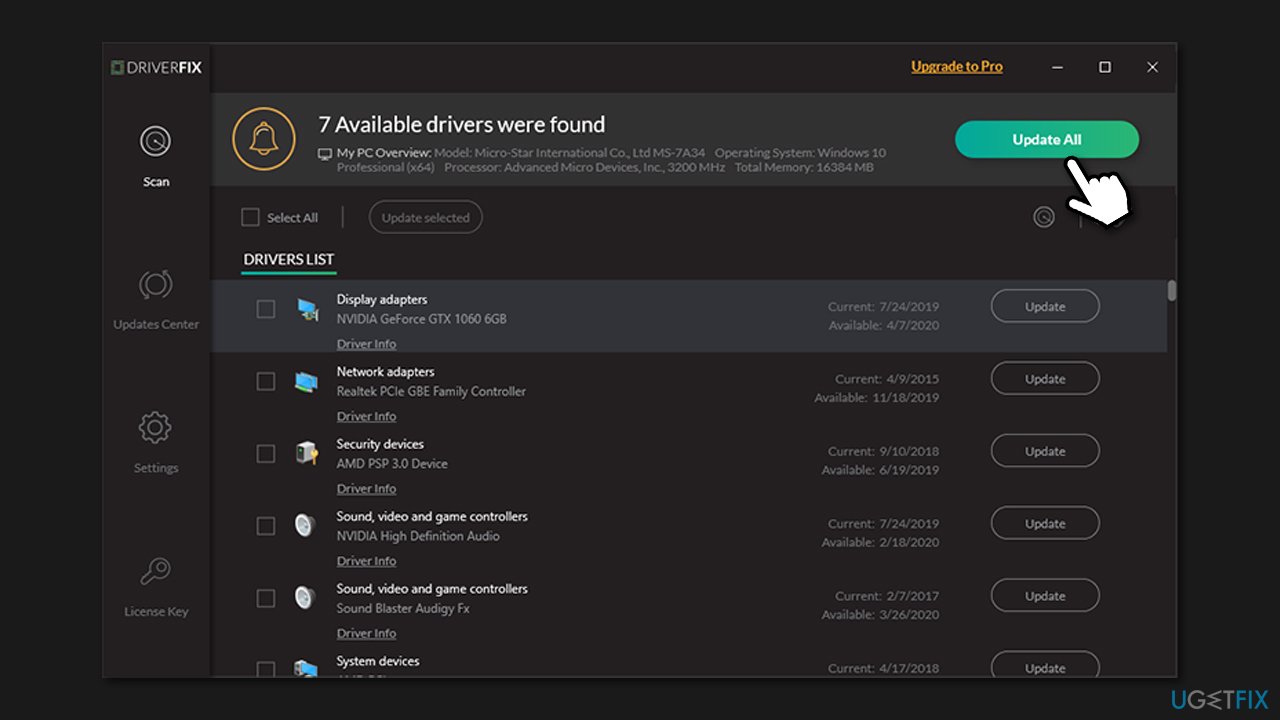
Therefore, to save time, we highly recommend you download and install [rev id="DriverFix"]. This tool determines which devices are installed on your computer and which ones need to be updated. By using this program, you will be able to update drivers within just a few minutes.
Bottom line
To fix the issue of missing Bluetooth drivers, check if your device supports Bluetooth, update or reinstall the drivers, and ensure Bluetooth is enabled in your settings. If these solutions do not resolve the problem, further troubleshooting may be necessary.
Frequently asked questions
First, try updating your Bluetooth drivers through Device Manager by right-clicking on 'Bluetooth' and selecting 'Update driver'. If that doesn't work, reinstall the Bluetooth adapter from the same menu.
You can check if Bluetooth is enabled by going to 'Settings' > 'Devices' > 'Bluetooth & other devices' and ensuring the Bluetooth toggle is switched on.
If your Bluetooth device is still missing, run the Bluetooth troubleshooter by going to 'Settings' > 'Update & Security' > 'Troubleshoot' and selecting 'Additional troubleshooters'.




Report an issue
What's wrong with this guide? We review every report and update or remove content.
Report received — thank you. We'll review and fix it.
You need a free account to submit a report.
Be the first to comment