How to fix
Cldflt.sys BSOD
on Windows
Resolve cldflt.sys BSOD issues on Windows 10 and 11 quickly and effectively. Get expert-tested solutions and regain system stability today!

What causes How to fix cldflt.sys BSOD in Windows?
- Driver incompatibilities
- Outdated software
- Improper installations
- Buggy system updates
- Corrupted system files
Repairs Windows system files, removes malware, and restores a clean OS state — without reinstalling.
A few days ago, my PC crashed with SYSTEM_SERVICE_EXCEPTION, and it was also pointed out at cldflt.sys file. I have no clue what it means and how to proceed.
Blue Screen of Death (BSOD) is a critical Windows system error, which manifests as a full-screen error display on a blue background. These errors occur when the operating system reaches a condition where it can no longer operate safely. When it occurs, all the system operations are suspended, and Windows crashes.
While nobody likes these crashes, a BSOD serves a very important role in the Windows ecosystem - it protects the system from potential damage by halting all operations. It presents diagnostic information that can be used to understand the cause of the error, which consists of an error code, and also often points at the file that failed.
In this case, we are talking about cldflt.sys Blue Screen of Death error, which can be shown along the code System_Service_Exception, Kmode_Exception_Not_Handled, and some others. It is a system file associated with the Cloud Files Mini Filter Driver, meaning that there could be an issue with the driver itself.
Driver issues are often associated with incompatibilities, outdated software, or improper installations. However, it's important to note that a cldflt.sys BSOD can also be triggered by other factors such as a buggy system update or corrupted system files. These are more complex scenarios where the system's integral components become unstable or malfunction.
When you encounter a cldflt.sys BSOD, it's a sign that your system is trying to prevent further damage by stopping all operations. Although the immediate cause might be related to the cldflt.sys file, the underlying issue can vary.
To resolve this problem, you will have to perform some troubleshooting, ranging from simple steps to a bit more challenging solutions. It's important to approach this problem with a comprehensive understanding of your system's current state and recent changes, such as recent software installations or system updates.
In addressing a cldflt.sys BSOD, a PC repair tool, like [d1], can be highly beneficial. Such tools are designed to diagnose and automatically resolve a wide range of Windows issues. They work by scanning the system for common problems and implementing fixes that can restore system stability and performance.
Fix 1. Install all available Windows updates
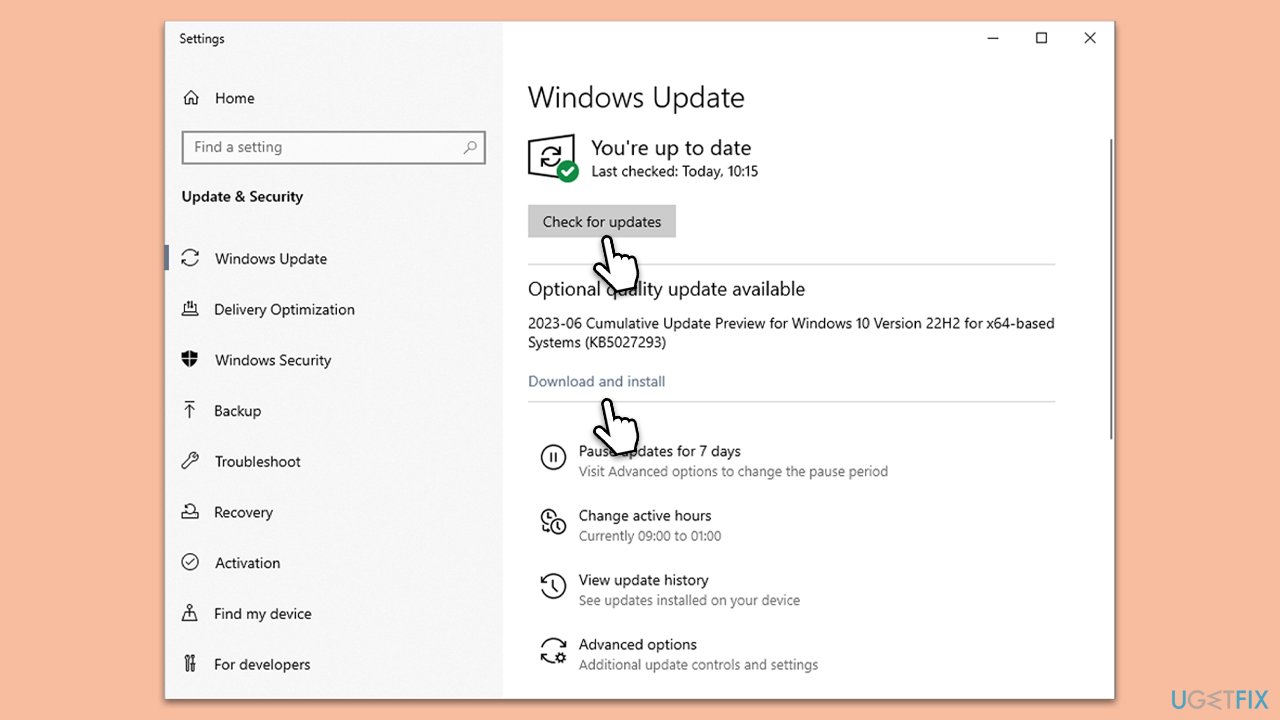
Windows updates often include patches for security issues, improvements, and bug fixes that can resolve existing system problems, including BSODs. Keeping your system updated ensures that it runs on the latest, most stable version of Windows.
- Open the Start menu and select Settings.
- Navigate to Update & Security.
- Click on Check for updates.
- If updates are available (including optional ones), allow them to download and install.
- Restart your computer once updates are complete.
Fix 2. Uninstall the most recent update.
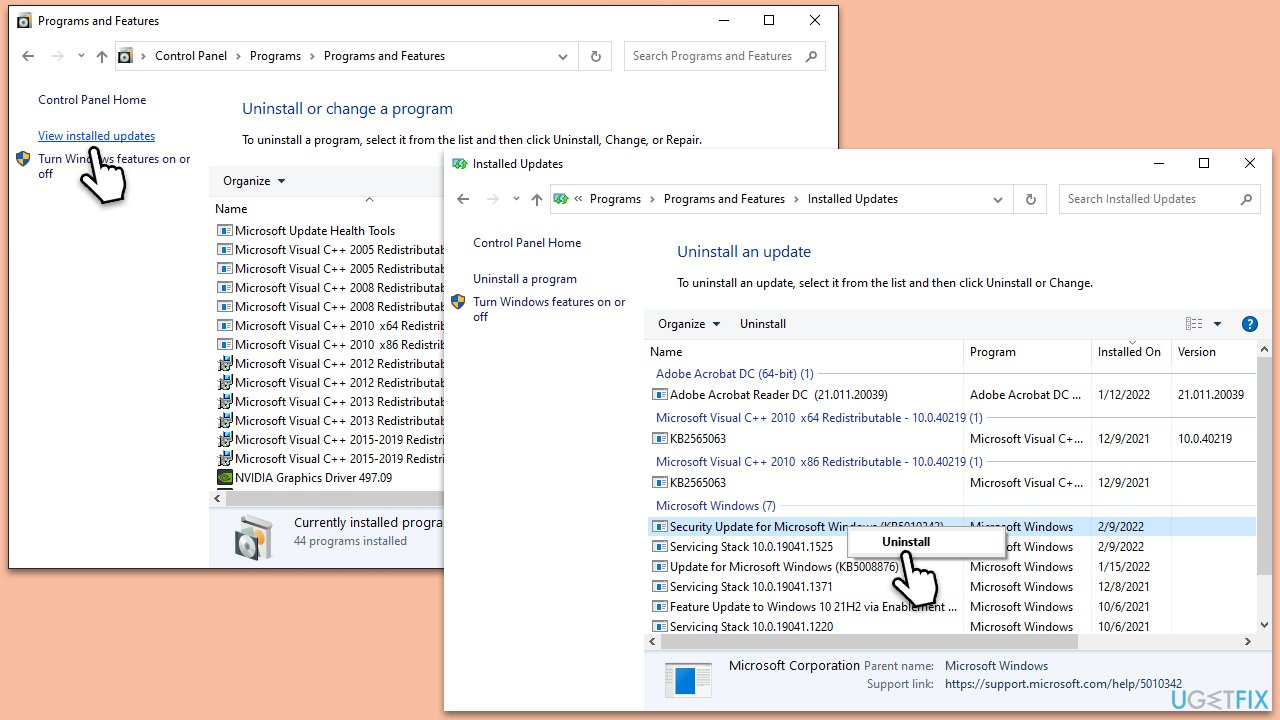
his option is useful for those who have already installed all updates. In some cases, a recent update might be causing the BSODs due to compatibility issues or bugs. Rolling back the latest update can sometimes resolve these issues.
- Type Control Panel in Windows search and press Enter.
- Go To Programs > Uninstall a program.
- On the left side, click on View installed updates.
- Scan the list for KB5029351, KB5029331, or another most recent update.
- Right-click on the problematic update and select Uninstall.
- Type Updates in Windows search and press Enter.
- Click Pause the updates for 7 days (in Windows 11, you can pick a different time period).
- Restart the computer.
Fix 3. Repair system file corruption
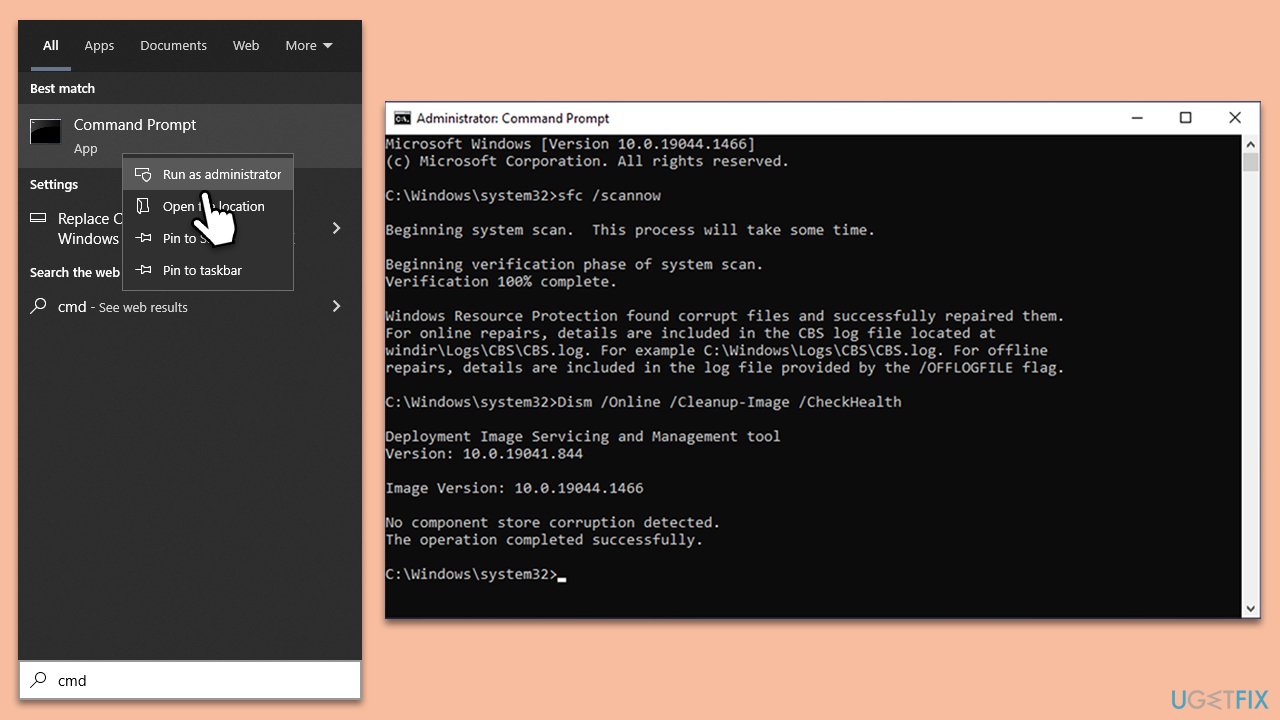
Corrupted system files are often responsible for BSOD. To address this, you can run commands in Command Prompt:
- Type in cmd in Windows search.
- Right-click on Command Prompt and select Run as administrator.
- When User Account Control shows up, click Yes.
- In the Command Prompt window, paste the following command and hit Enter:
sfc /scannow - Next, use the following commands, pressing Enter each time:
Dism /Online /Cleanup-Image /CheckHealth
Dism /Online /Cleanup-Image /ScanHealth
Dism /Online /Cleanup-Image /RestoreHealth
(Note: if you get an error executing this last command, add /Source:C:\RepairSource\Windows /LimitAccess to it and try again). - Reboot your PC.
Fix 4. Update all drivers
Outdated or corrupt drivers can cause BSODs. Updating them ensures that all hardware components communicate effectively with the operating system.
- Right-click the Start button and select Device Manager.
- Expand each section and look for devices with a yellow exclamation mark.
- Right-click on each device and select Update driver.
- Choose Search automatically driver.
- Follow the on-screen instructions.
- Restart your computer.
This process might be tedious because not all faulty drivers can be shown with the exclamation mark. As such, you should either download and install them manually or simply employ automatic tools such as [rev id="DriverFix"].
Fix 5. Update BIOS
Updating the BIOS can resolve compatibility issues and improve system stability. However, this process is sensitive and should be done carefully to avoid damaging the motherboard.
- Before proceeding, backup your data as a precaution.
- Visit the manufacturer's website and download your specific model's latest BIOS update file (you can check which BIOS you are using by typing System information in Windows search and checking the BIOS Version/Date and BaseBoard Product entries there).
- Extract the BIOS update files and read any provided instructions or documentation.
- Create a bootable USB drive with the BIOS update files, if required.
- Update the BIOS using the manufacturer's recommended method, which may be through a built-in utility or booting from a USB drive.
- Restart your device to complete the process.
Fix 6. Modify the registry related to CldFlt
Modifying the registry can resolve issues specifically related to CldFlt.sys. Caution is advised as incorrect changes to the registry can cause serious system problems, so make sure to back up the database before proceeding.
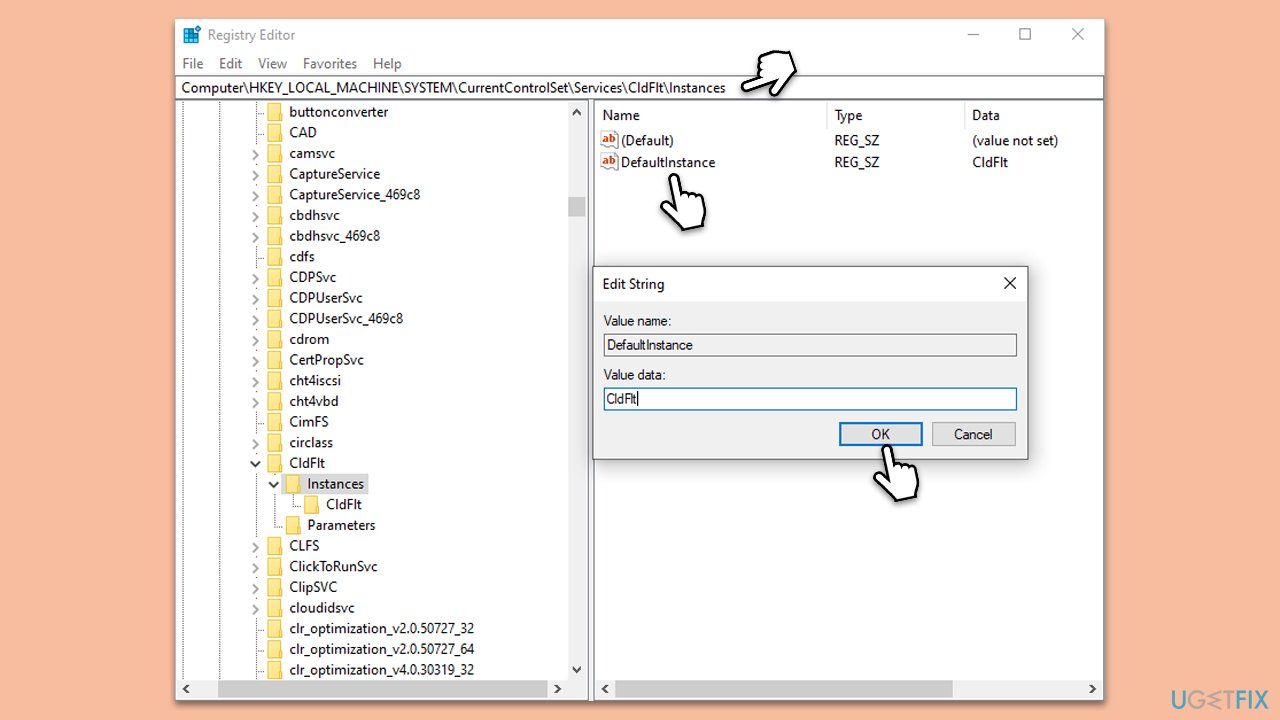
- Type regedit in Windows search and hit Enter.
- When UAC shows up, click Yes.
- Navigate to the following location:
HKEY_LOCAL_MACHINE\SYSTEM\CurrentControlSet\Services\CldFlt\Instances - Double-click DefaultInstance key on the right.
- Type CldFlt under Value Data and click OK.
- Restart your PC.
Fix 7. Reinstall OneDrive
For those experiencing BSODs when using OneDrive, reinstalling the application can resolve conflicts or issues with the software.
- Type Add or remove programs in the Windows search bar and press Enter.
- Find OneDrive in the list and click Uninstall.
- Download the latest version of OneDrive from the official Microsoft website.
- Install OneDrive and sign in with your Microsoft account.
- Restart your computer.
Fix 8. Use System Restore
System Restore can revert your computer's state to a previous point in time where it was functioning correctly. This can undo recent changes that might be causing the BSOD.
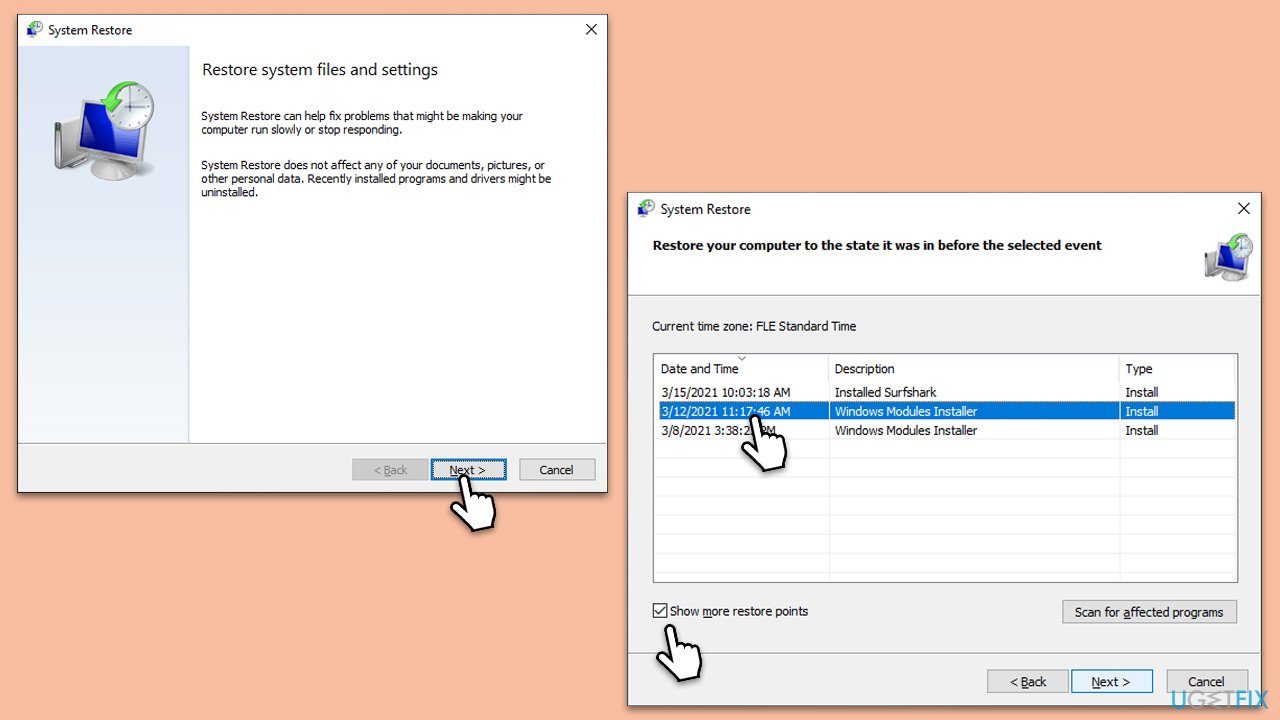
- Type in Create a Restore point in Windows search and hit Enter.
- Go to the System Protection tab and pick System Restore.
- Click Next.
- Click Show more restore points (if available).
- Pick the time before the problem occurred and click Next.
- Follow the prompts to finish the process.
Fix 9. Repair-install Windows
This tool allows a system repair without data loss, resolving many underlying issues. If none of the above solutions helped, you should try to repair-install Windows as follows:
Create Windows ISO
- Download Windows 11 Installation media from the official Microsoft website. [Windows 10 version]
- Double-click the MediaCreationTool.exe file to launch it.
- When UAC shows up, click Yes.
- Accept license terms.
- Select Language and Edition (make sure it matches the one you have currently installed) or simply mark the Use the recommended options for this PC and click Next).
- Select the ISO file and click Next.
- Pick the location for your ISO file and wait till all the needed files are downloaded, then click Finish.
Repair-install Windows
- Go to the location of your ISO file, right-click, and select Mount.
- Run the setup.exe file.
- You will be asked whether you want to update Windows to the latest version - pick Not right now and click Next.
- Accept Terms and Windows will make several checks to ensure everything is fine.
- Click Change what to keep.
- Here, you have several options: Keep your files and apps, Keep files only, or Keep nothing - choose what suits you the best. Click Next.
- Finally, click Install to begin the installation process.
Bottom line
To resolve the cldflt.sys BSOD, you may need to update your drivers, uninstall recent software, or use a PC repair tool to diagnose the issue. If these steps do not work, consider performing a system restore or seeking professional assistance.
Frequently asked questions
The cldflt.sys BSOD error is typically caused by issues with the Cloud Filter driver, which can be related to outdated drivers, corrupt system files, or conflicts with third-party software.
You can troubleshoot the cldflt.sys BSOD issue by updating your drivers, running the System File Checker tool, or performing a clean boot to identify conflicting applications.
Disabling the cldflt.sys driver might temporarily resolve the BSOD, but it is not recommended as it can affect cloud storage functionalities; it's better to seek a proper fix.




Report an issue
What's wrong with this guide? We review every report and update or remove content.
Report received — thank you. We'll review and fix it.
You need a free account to submit a report.
Be the first to comment