
How to fix CTF Loader high CPU usage in Windows?
Prefer to fix it yourself? The manual steps follow.
6 methods in this guide
Hello. Recently I noticed that my Windows computer is getting slower. I found a process in the Task Manager called "CTF Loader" that is using high amounts of CPU. What can I do to fix this?
Operating systems are complex. They rely on thousands of processes working in the background to keep it running smoothly. In Windows, even if one process goes rogue, people can start experiencing bugs, glitches, and errors. Some of the applications and services can malfunction, and start using high amounts of CPU power. This can result in a significant decrease in performance.
Some users have been having problems with CTF Loader (The Collaborative Translation Framework Loader) high CPU usage in Windows. It is an important Windows process that makes sure that certain Windows components are connected and communicate with each other. Windows also use the CTF Loader to offer text support and help activate different input languages in Microsoft Office, known as the Language Bar.
It is unknown what exactly causes CTF Loader high CPU usage but in this guide, you will find 6 steps that should help you fix it. Most of the time, such issues are caused by corrupted system files, missing Windows updates, and malware infections. However, manual troubleshooting can be a lengthy process.
This powerful software can also clear up cookies and cache, often the culprits behind many malfunctions. If you want to begin the guide that could fix CTF Loader high CPU usage in Windows, make sure to follow the step-by-step instructions carefully.
Method 1. Check if CTF Loader is not a Virus
Make sure that the CTF Loader process is legitimate. Cybercriminals usually design their malicious programs to imitate original Windows processes.
- Open the Task Manager using Ctrl + Shift + Esc
- Locate and right-click on CTF Loader
- Choose Properties from the context menu
- Copy the path next to Location
- Open the File Explorer, paste the copied path into the search bar and press Enter
- Locate and right-click on ctfmon
- Choose Properties from the context menu
- In the Properties window, switch to the Details tab
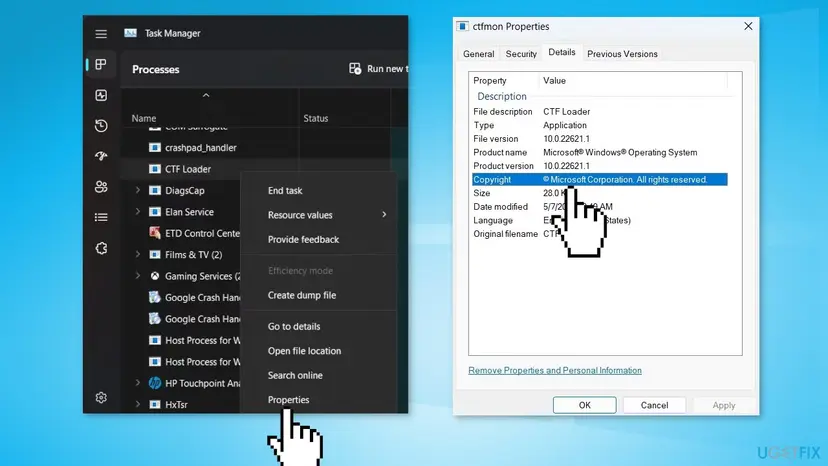
- Make sure © Microsoft Corporation. All rights reserved is written next to Copyright
If it is not, we recommend running a scan with Microsoft Defender.
Method 2. Install Windows Updates
- Type Updates in Windows search
- Click Check for updates and wait till the process is finished
- If optional updates are available, install them too
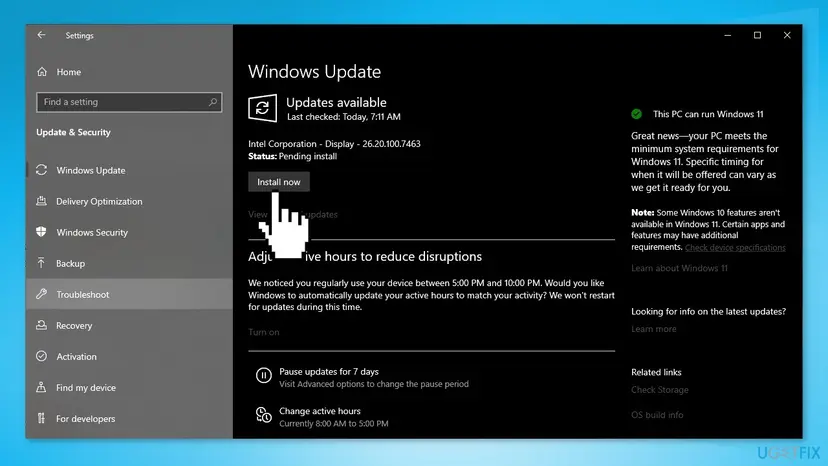
- Once done, restart your system
Method 3. Fix Corrupted System Files
Use Command Prompt commands to repair system file corruption:
- Open Command Prompt as administrator
- Use the following command and press Enter:
sfc /scannow
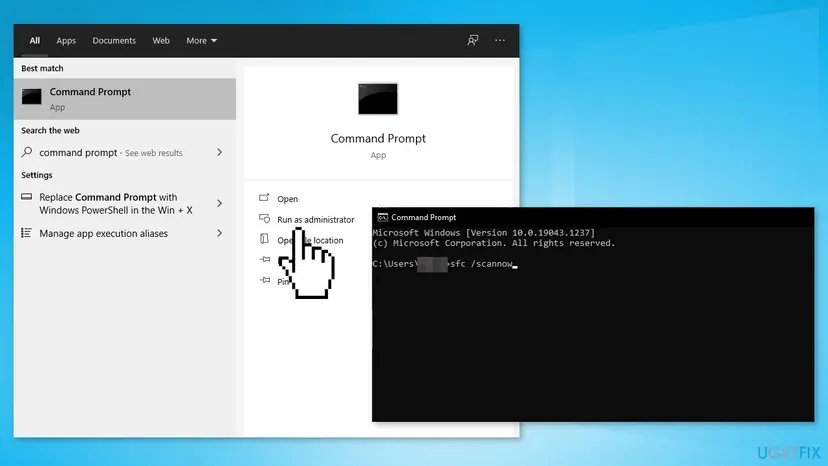
- Reboot your system
- If SFC returned an error, then use the following command lines, pressing Enter after each:
DISM /Online /Cleanup-Image /CheckHealth
DISM /Online /Cleanup-Image /ScanHealth
DISM /Online /Cleanup-Image /RestoreHealth
Method 4. Disable the Text Input Management Service
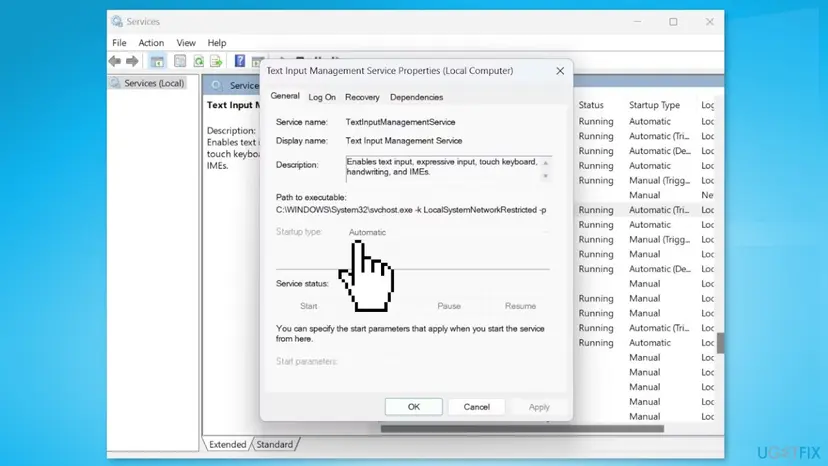
- Open the Services app, locate and double-click on Text Input Management Service
- Click on the drop-down arrow next to Startup type and choose Disabled
- Click on Apply and OK
Method 5. Prevent CTF Loader From Starting
- Open the Start Menu, type Task Scheduler and press Enter
- Double-click on the Task Scheduler Library option to expand it
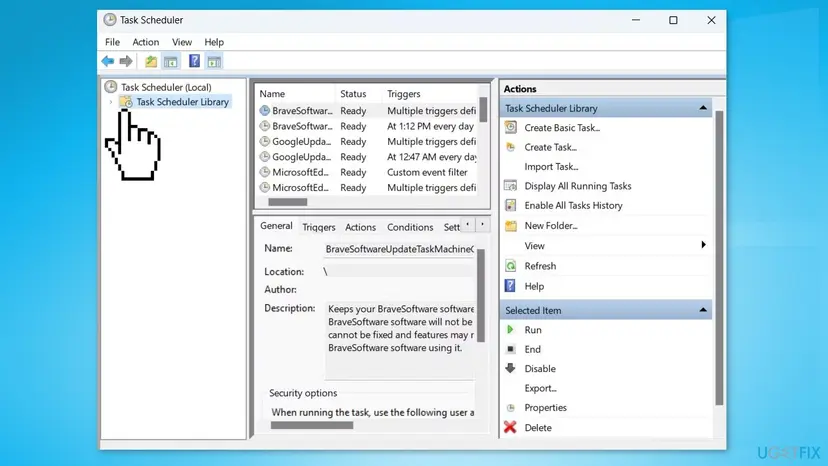
- Head towards Microsoft, then Windows
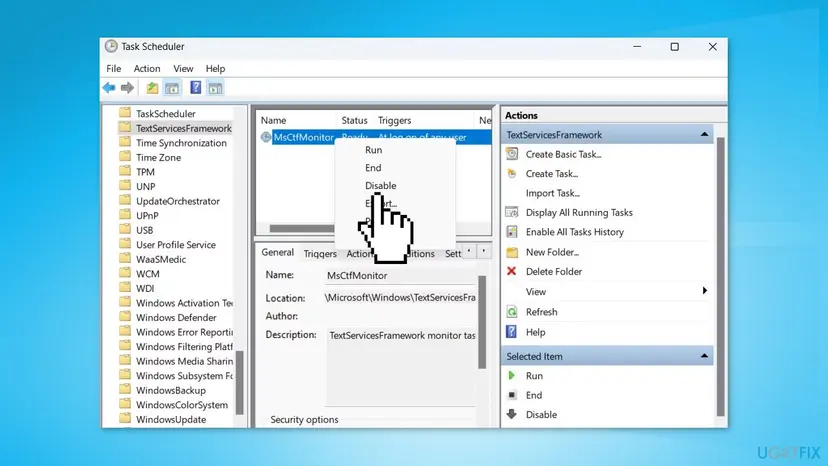
- Locate and double-click on TextServicesFramework
- Select and right-click on MsCtfMonitor and choose Disable from the context menu
Method 6. Run System Restore
If none of the previous steps helped you solve the high CPU issue, you can try restoring your system to a previous point, before the problem started.
- Go to the Start menu, type
restore, and click on Create a restore point - Click System Restore, then follow the prompts until you can select a restore point
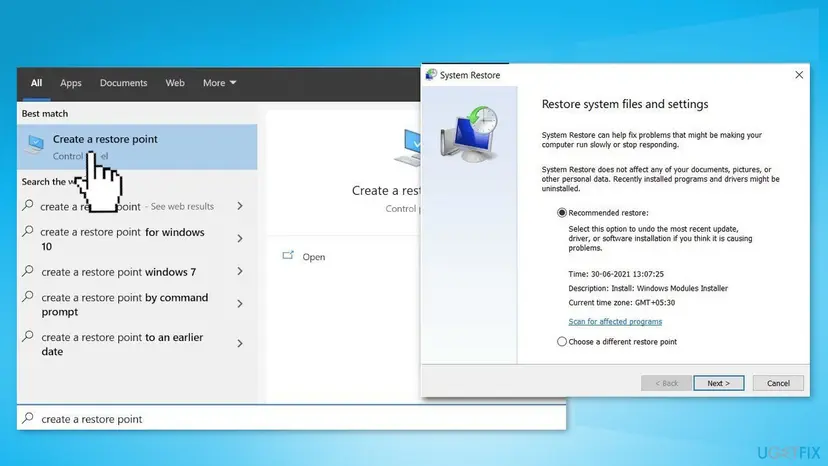
- Select the one you want (ideally before the CTF Loader high CPU usage started) and go ahead with the process
Did this fix work?
One click, no account. It tells the next reader which guides are worth their time.
Questions and experiences: fix CTF Loader high CPU usage in Windows
Still broken, or found a fix we did not cover? Ask here: members and our editors answer. Reading is open; writing needs a free account.
…