How to fix
Cyberpunk 2077 Phantom Liberty crashes
on Windows
Resolve Cyberpunk 2077 Phantom Liberty crashes on Windows 10 and 11 effortlessly. Follow our expert-tested tips for a smooth gaming experience. Fixed in…

What causes How to fix Cyberpunk 2077 Phantom Liberty crashes on Windows?
- Outdated video drivers
- Corrupted game files
- Corrupted system files
- Software conflicts from leftover mods
- Inadequate system requirements
Repairs Windows system files, removes malware, and restores a clean OS state — without reinstalling.
I played Cyberpunk 2077 around a year ago, and everything ran fine. Now that Phantom Liberty is released, I can't wait to jump back in. Unfortunately, the game keeps crashing on me - I use an RTX 3060 GPU and Intel i5-12600K processor.
Phantom Liberty is the first expansion for Cyberpunk 2077 - a game first released in December 2020 and one of the next significant releases by Polish studio CD Projekt Red. Set to release on September 26, 2023, the game promises players a new action RPG adventure, along with exciting changes with the major 2.0 patch, which overhauled multiple gameplay systems and improved the overall gaming experience.
Cyberpunk 2077 was notorious when it came to technical issues at launch, with hundreds of players reporting in-game bugs and glitches, as well as constant "Flatlined" crashes. Ultimately, the developers released dozens of patches over almost three years, and the new Phantom Liberty expansion is now put on the pedestal of whether or not it can perform well. Unfortunately, for some users, Phantom Liberty crashes, resulting in a less-than-pleasant gaming experience.
Since the game came with plenty of new changes, implementing new Nvidia technologies such as DLSS 3.5, path tracing, and overdrive mode, it is not surprising that the experience of the new content might not be the same as that of vanilla gameplay, but Phantom Liberty crashes are not something that people should have to deal with.
CD Projekt has previously announced that it is updating the system requirements to run Cyberpunk 2077, so this is something that some users should look into first when experiencing crashes. On the other hand, some users might not have removed all the mods from before, resulting in software conflicts.

When it comes to the broader perspective, Phantom Liberty crashes might be related to outdated video drivers, corrupted game or system files, as well as other Windows-related issues. If you are having trouble enjoying the game because it keeps crashing, you might find a fix below. Before proceeding, we recommend you try an all-in-one PC repair tool [d1] that can automatically resolve underlying Windows issues.
Fix 1. Check the system requirements
CD Projekt Red has updated the system requirements for Cyberpunk 2077, especially with the Phantom Liberty expansion. It's essential to ensure that your PC meets these requirements to experience the game without crashing. Lower-than-required specifications can lead to performance issues and game crashes.
Minimum system requirements:
- CPU: Intel Core i7-6700 or AMD Ryzen 5 1600
- GPU: Nvidia GeForce GTX 1060 (6GB) or AMD Radeon RX 580 (8GB) or Intel Arc A380
- RAM: 12GB
- Memory: 70GB available (SSD preferred)
- DirectX: Version 12
- OS: Windows 10 (64-bit)
Recommended requirements:
- CPU: Intel Core i7-12700 or AMD Ryzen 7 7800X3D
- GPU: Nvidia GeForce RTX 2060 Super or AMD Radeon RX 5700 XT or Intel Arc A770
- RAM: 16GB
- Memory: 70GB available (SSD preferred)
- DirectX: Version 12
- OS: Windows 10 (64-bit)
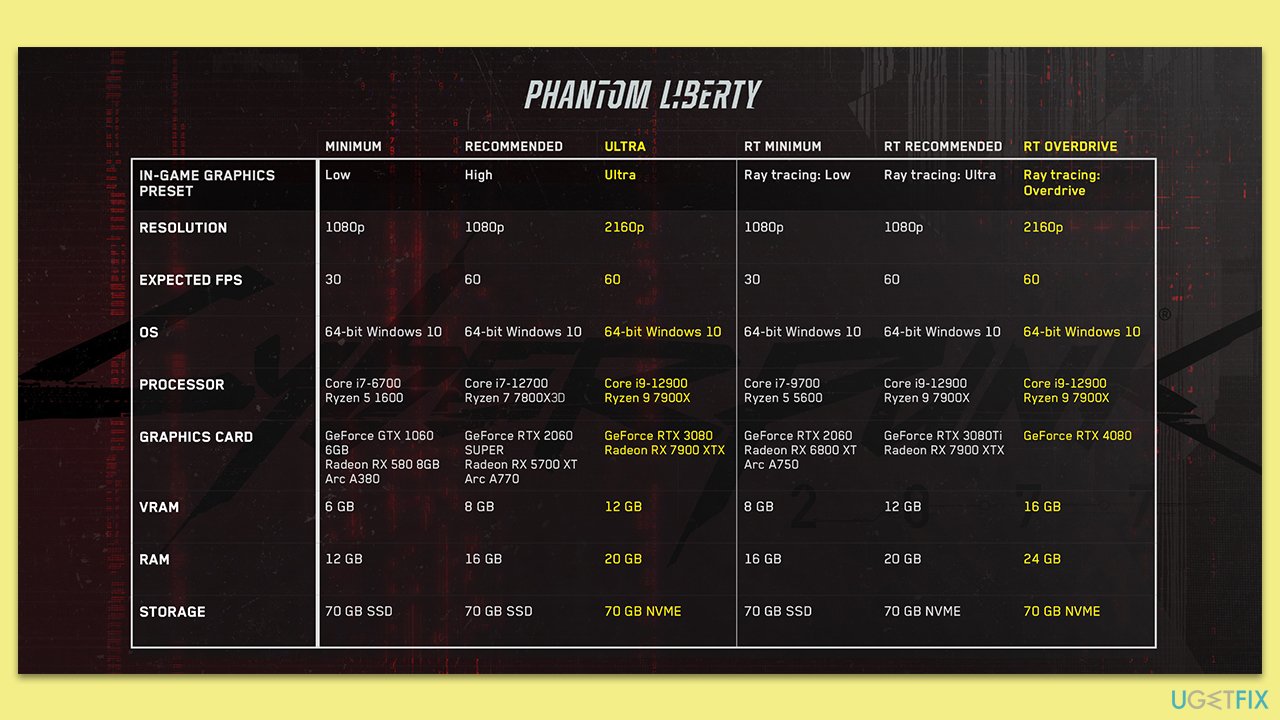
Keep in mind that the game should not be run on an HDD anymore because it can be one of the main causes of issues. Instead, please install the game on an SSD.
Fix 2. Remove all the mods
Old or incompatible mods can cause conflicts with the game, leading to crashes. If you've previously installed mods for Cyberpunk 2077, it's a good idea to remove them before playing the Phantom Liberty expansion.
- Navigate to the game's installation directory (right-click on the game and select Manage > Browse local files on Steam or Manage installation > Show folder on GOG).
- Look for the Mods folder or any associated files/folders related to mods.
- Delete all the mod files and folders.
- Restart the game to see if it improves stability.
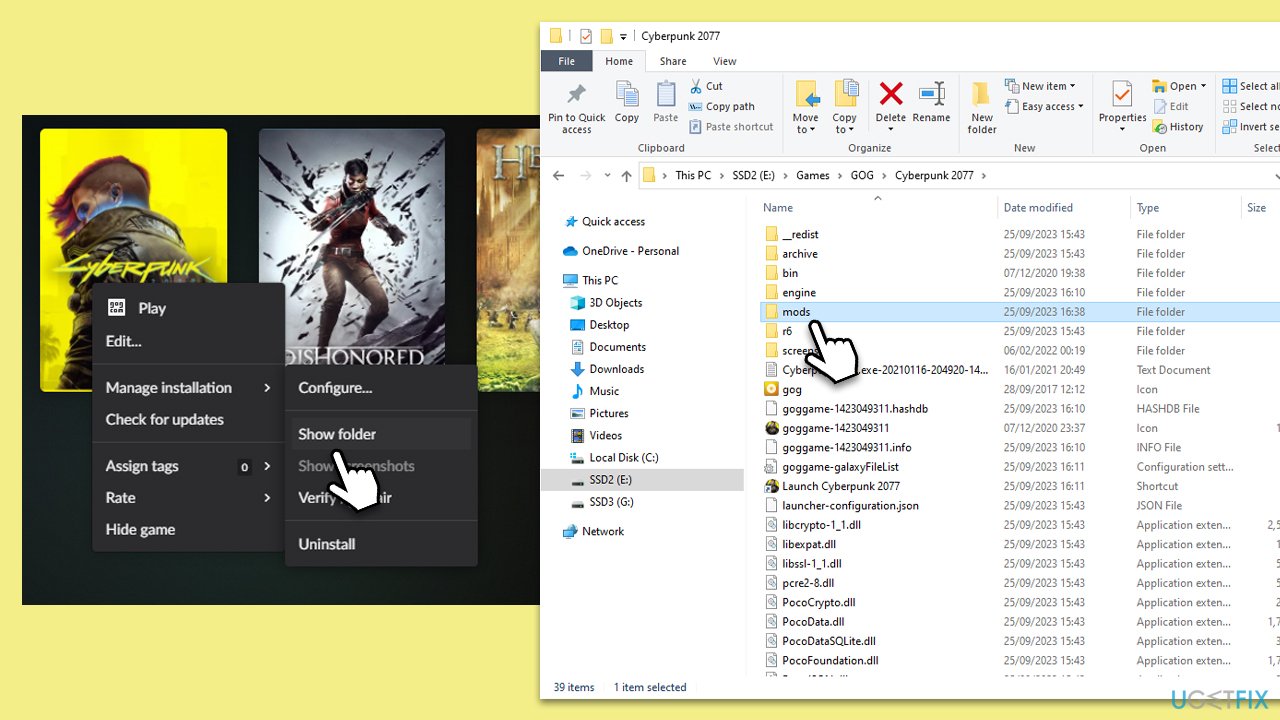
To play the game modded, you should visit the website you download the mods from (for example, Nexus Mods) and install the newest versions of the mods released specially for Phantom Library and the 2.0 game version,
Fix 3. Reinstall the game
A fresh install can solve various issues caused by corrupted or missing files. If the game keeps crashing, reinstalling it can be a solid approach.
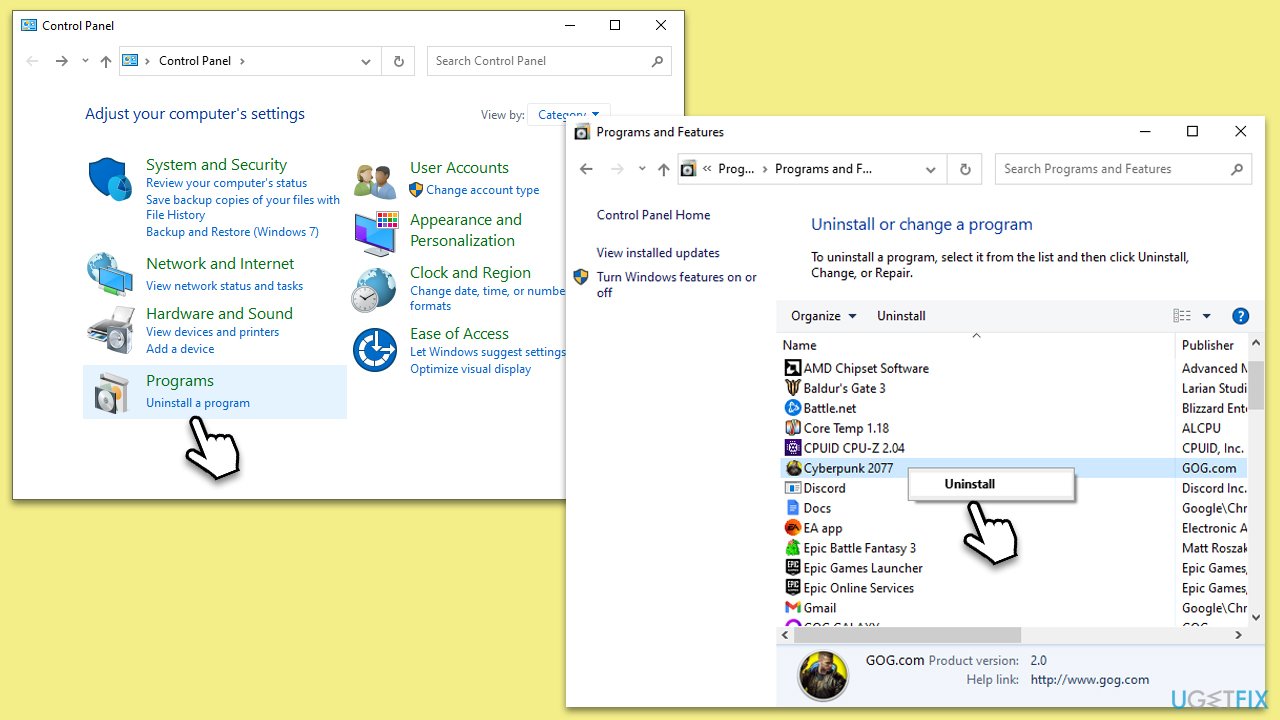
- Type Control Panel in Windows search and hit Enter.
- Go to Programs > Uninstall a program.
- Find Cyberpunk 2077 Phantom Libery on the list.
- Right-click and select Uninstall.
- Follow the prompts and restart your computer.
- Open a launcher and download/install the game once again.
Fix 4. Update your GPU drivers
Outdated or incompatible GPU drivers can cause games to crash or have performance issues. Updating them can ensure better compatibility with the latest game updates.
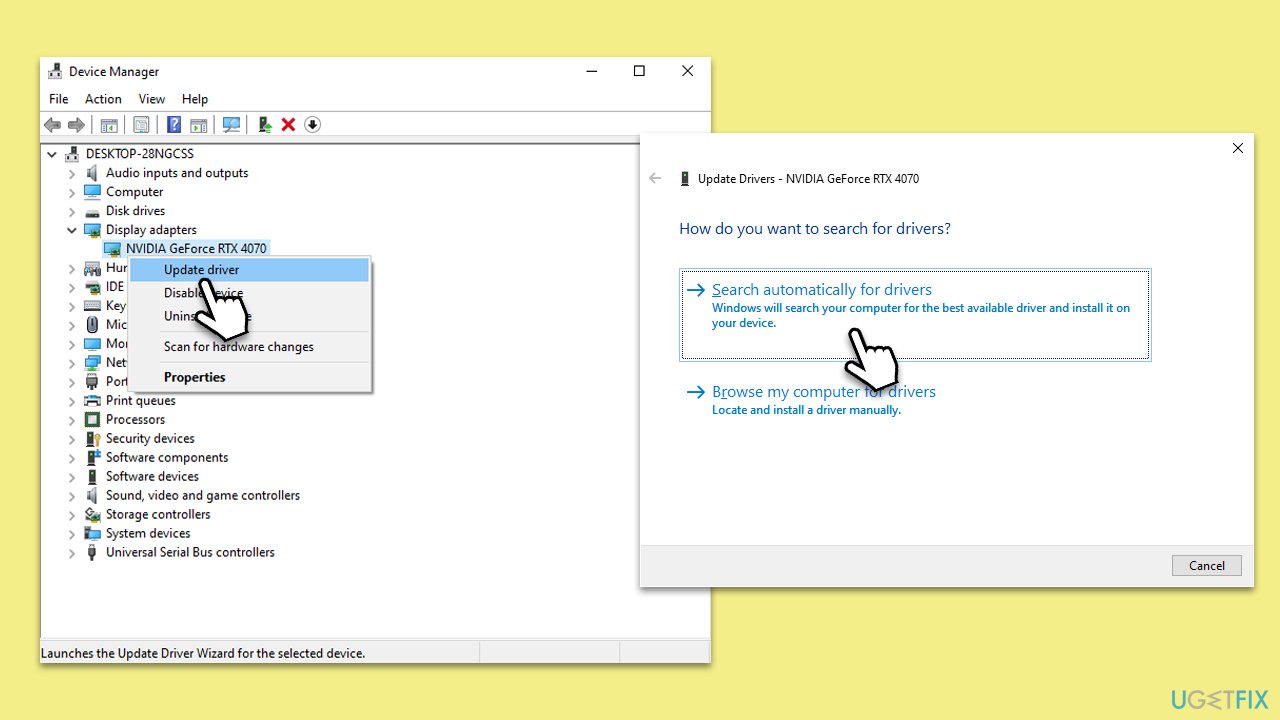
- Right-click on Start and pick Device Manager.
- Expand Display adapters.
- Right-click on it and choose Update driver.
- Select Search automatically for drivers.
- Follow the on-screen instructions and then restart your system.
For a quicker solution when it comes to driver backups, reinstall, and updates, we recommend employing [rev id="DriverFix"].
Fix 5. Run SFC and DISM
SFC and DISM can detect and repair corrupted or missing system files, which can sometimes cause game crashes.
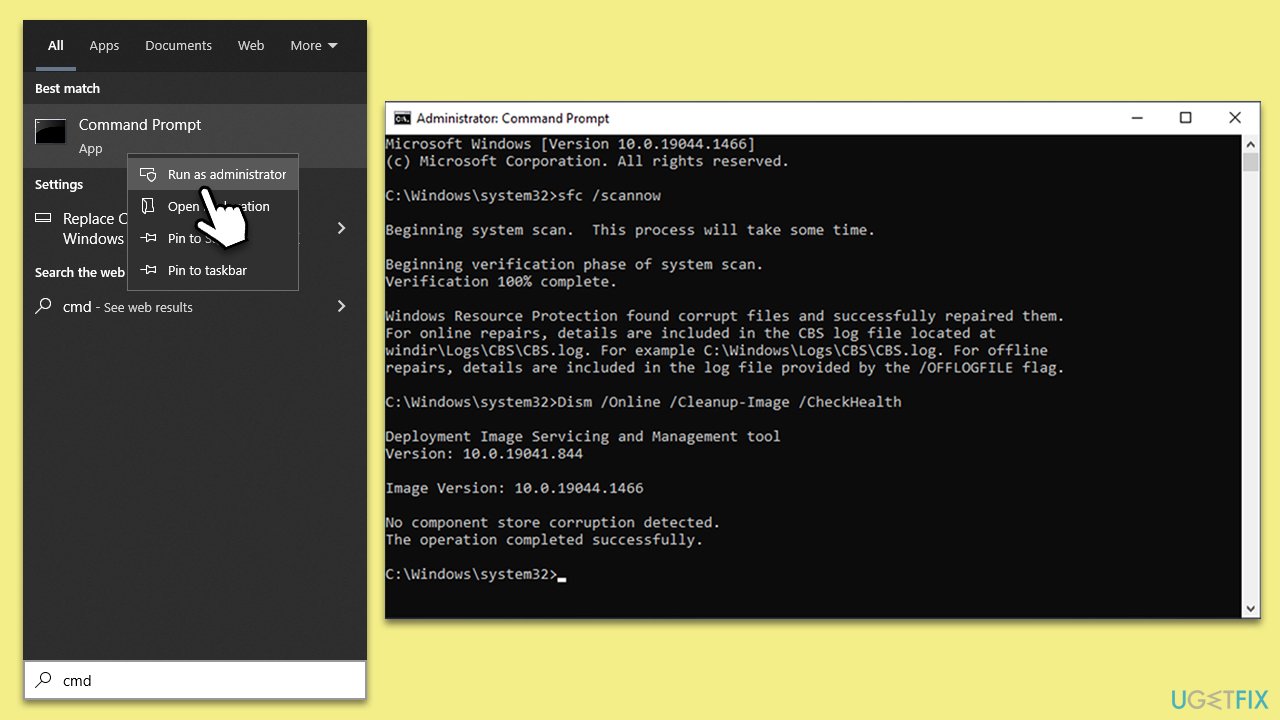
- Type in cmd in Windows search.
- Right-click on Command Prompt and select Run as administrator.
- When User Account Control asks you whether you allow changes to your system - click Yes.
- Copy and paste the following command, pressing Enter after:
sfc /scannow - Next, use these commands, pressing Enter each time:
Dism /Online /Cleanup-Image /CheckHealth
Dism /Online /Cleanup-Image /ScanHealth
Dism /Online /Cleanup-Image /RestoreHealth
(Note: if you get an error executing this last command, add /Source:C:\RepairSource\Windows /LimitAccess to it and try again). - Reboot your system.
Fix 6. Verify the integrity of game files
This process checks for any missing or corrupted game files and replaces them. It's especially useful if the game wasn't installed correctly or if an update caused an issue.
Steam:
- Open Steam and go to your Library.
- Right-click on Cyberpunk 2077 and select Properties.
- Go to the Installed Files section.
- On the right side, click Verify integrity of game files.
- Wait till the process is complete and relaunch the game.
GOG:
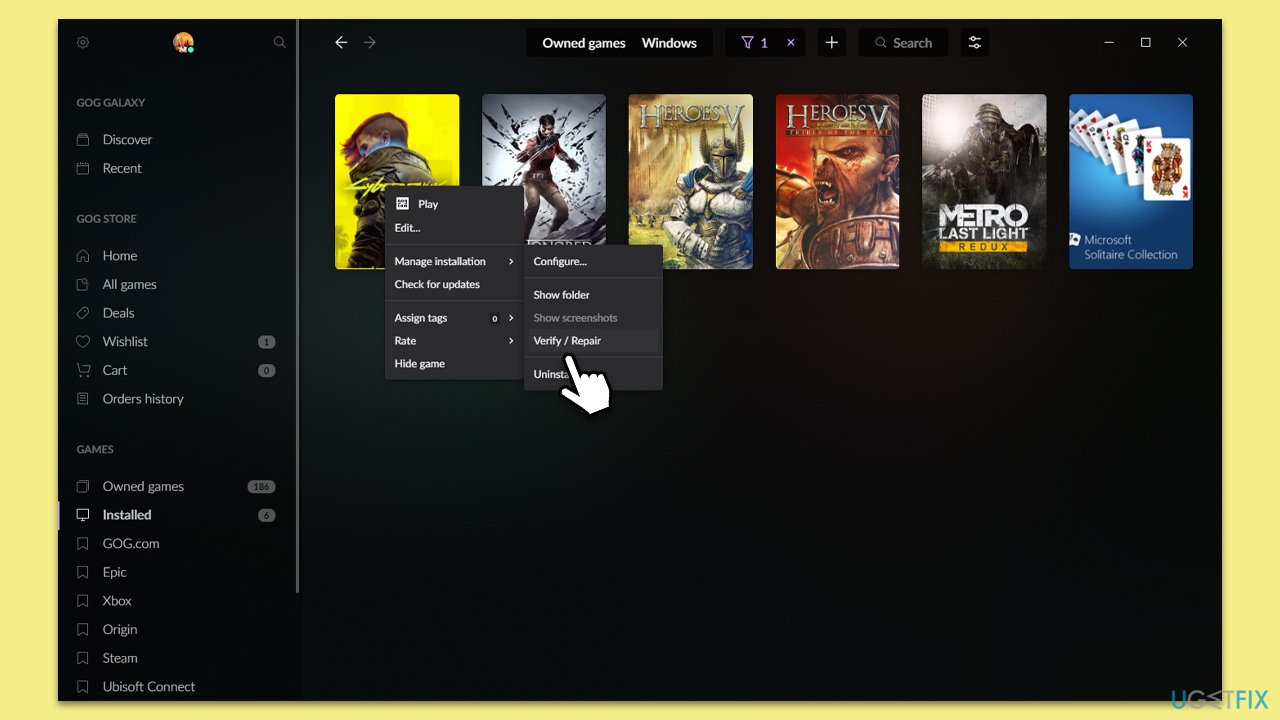
- Open the GOG client and go to the Owned games section.
- Right-click on Cyberpunk 2077.
- Select Manage installation and pick Verify/Repair.
- Wait until the process is finished.
Fix 7. Stop overclocking
Overclocking pushes your hardware components beyond their factory-set limitations to achieve better performance. While this can lead to improved game performance, it can also make systems unstable, leading to potential crashes or other issues, especially when playing resource-intensive games like Cyberpunk 2077.
- If you're using software to overclock your GPU (like MSI Afterburner or EVGA Precision X1), open the application.
- Set the clock speed, memory speed, and voltage settings back to default.
- Save the settings and close the application.
- If you've overclocked your CPU:
- Restart your computer.
- Enter the BIOS/UEFI settings during boot (commonly done by pressing Del, F2, or another key, which will be indicated on the startup screen).
- Navigate to the overclocking settings section (this might be under advanced settings or a similarly named section).
- Reset CPU multiplier, voltage, and other related settings to their default values.
- Ensure any RAM overclocking is also reverted to default settings, especially if using profiles like XMP.
- After making changes, save your BIOS/UEFI settings and restart your computer.
- Test Cyberpunk 2077 to see if disabling the overclocking resolves the crashes.
Bottom line
To fix the crashes in Cyberpunk 2077 Phantom Liberty, ensure your video drivers are updated, verify the integrity of game files, and check for any corrupted system files. Additionally, remove any leftover mods and confirm that your system meets the updated requirements. If none of these solutions work, consider reaching out to support for further assistance.
Frequently asked questions
Try verifying the game files through Steam or the Epic Games Launcher, as corrupted files can cause crashes. Additionally, ensure that your graphics drivers are up to date for optimal performance.
Lowering the graphics settings or disabling ray tracing may help reduce crashes. Also, check for any available Windows updates that could improve system stability.
Ensure that your internet connection is stable and consider disabling background applications that may interfere with the game. Additionally, adjusting your firewall settings to allow the game through can help.




Report an issue
What's wrong with this guide? We review every report and update or remove content.
Report received — thank you. We'll review and fix it.
You need a free account to submit a report.
Be the first to comment