How to fix
DarkSoulsIII.exe application error
on Windows
Resolve the DarkSoulsIII.exe application error on Windows 10 or Windows 11 effortlessly. Get expert-tested solutions and fix it in minutes!

What causes How to fix DarkSoulsIII.exe application error in Windows?
- Outdated or corrupted graphics drivers
- Missing or damaged game files
- Not enough system resources
- Conflicts with other third-party applications
- Corrupted DirectX components
Repairs Windows system files, removes malware, and restores a clean OS state — without reinstalling.
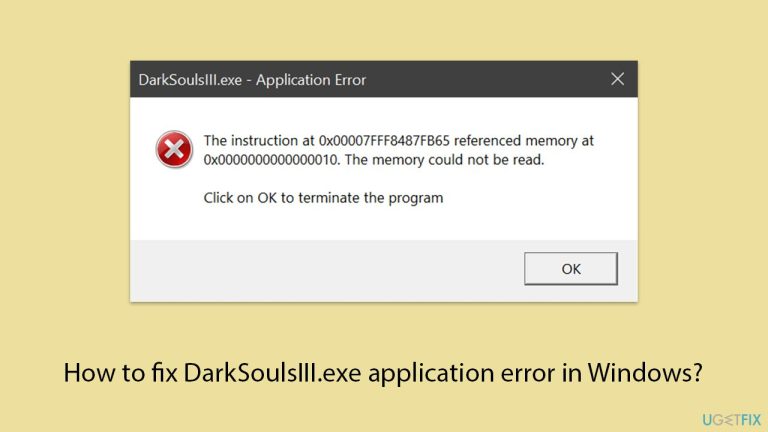
Actually, it has been for a very long time since I wanted to try Dark Souls 3, but somehow it doesn't seem to start with me. I try playing through Steam, and every time I try to launch, this is the DarkSoulsIII.exe application error.
The DarkSoulsIII.exe application error in Windows is quite an annoying issue for many players who enjoy this challenging action RPG. This error can strike unexpectedly either when launching the game or during the game and often results in the application crashing or failing to respond. It disrupts the gaming experience and leaves users searching for solutions to resolve the problem.
This error typically manifests as a popup window with the message that "DarkSoulsIII.exe has stopped working," sometimes accompanied by additional error codes or details. Commonly reported symptoms include the game freezing on startup, crashing during intense sequences, or failing to launch altogether. In some cases, users report receiving an application error message linked to specific system files or components, such as DirectX or Visual C++ Redistributables.
A few factors can cause the DarkSoulsIII.exe application error, including but not limited to: outdated or corrupted graphics drivers that may prevent proper compatibility between the game and your system; missing or damaged game files; not enough system resources; conflicts with other third-party applications; or corrupted DirectX components.
Players often highlight that this error tends to appear more frequently after system updates or when game patches are released. Additionally, running the game on unsupported hardware or operating system configurations can result in similar errors. For some users, antivirus software or overly aggressive security settings might interfere with the game’s operation, mistaking certain processes as threats and blocking them.
Addressing the DarkSoulsIII.exe application error usually involves a mix of troubleshooting techniques. These range from updating drivers and verifying the integrity of game files to more advanced solutions like adjusting in-game settings or reinstalling critical system components. While the fixes may vary depending on the underlying cause, they generally aim to eliminate conflicts, repair corrupted files, or optimize system compatibility with the game.
If you're struggling with this error and want a quick way to identify and fix potential issues, using a reliable tool like the [d1] repair app can save time and effort. This automatic solution can diagnose and resolve common application errors efficiently, allowing you to get back to your gaming experience without unnecessary frustration.
Fix 1. Install the latest DirectX
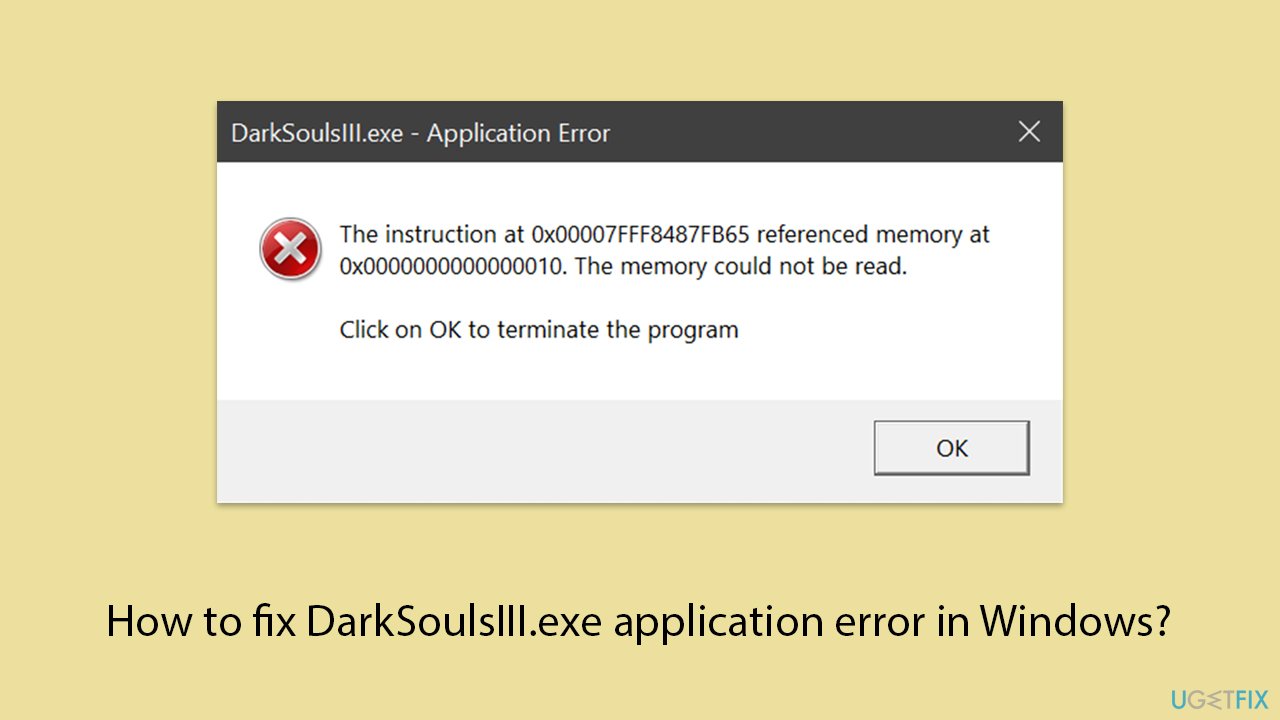
Many users reported that installing the latest DirectX resolved the DarkSoulsIII.exe application error. DirectX is crucial for rendering graphics and handling multimedia tasks in games. Outdated or corrupted DirectX files can prevent the game from running properly.
- Press Win + E to open File Explorer and go to your main drive (by default, C:).
- Search for d3dx9.dll and delete all the search results (press Ctrl + A and then Shift + Del).
- Visit the official Microsoft DirectX End-User Runtime Web Installer download page.
- Download the setup file to your computer.
- Once the download is complete, open the setup file.
- Follow the on-screen instructions to install the latest version of DirectX.
- Complete the installation and restart your computer.
- After restarting, launch Steam and try to run the game again.
Fix 2. Repair NET. Framework
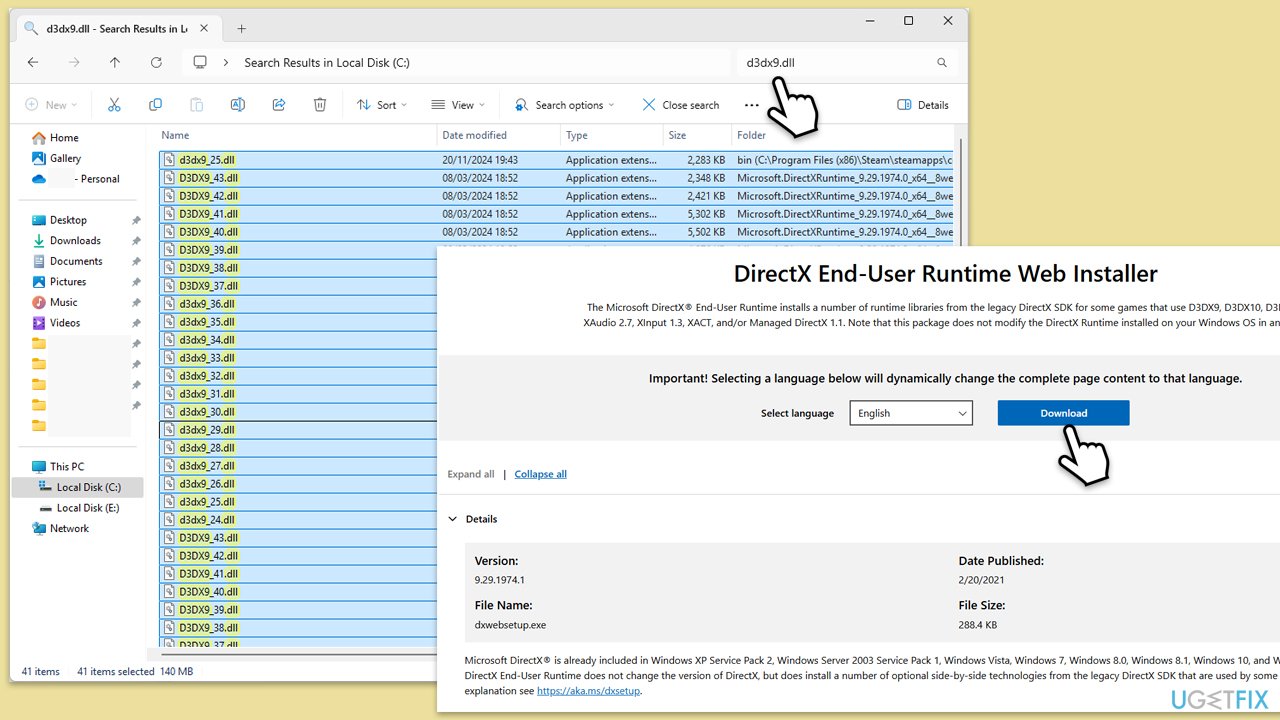
- Open your browser and navigate to the official Microsoft website.
- Download Microsoft .NET Framework Repair Tool from the link provided and launch the installer.
- When the UAC window shows up, click Yes.
- Mark the I have read and accept the license terms and then click Next.
- Follow on-screen instructions to finalize the process.
Fix 3. Reinstall your GPU driver
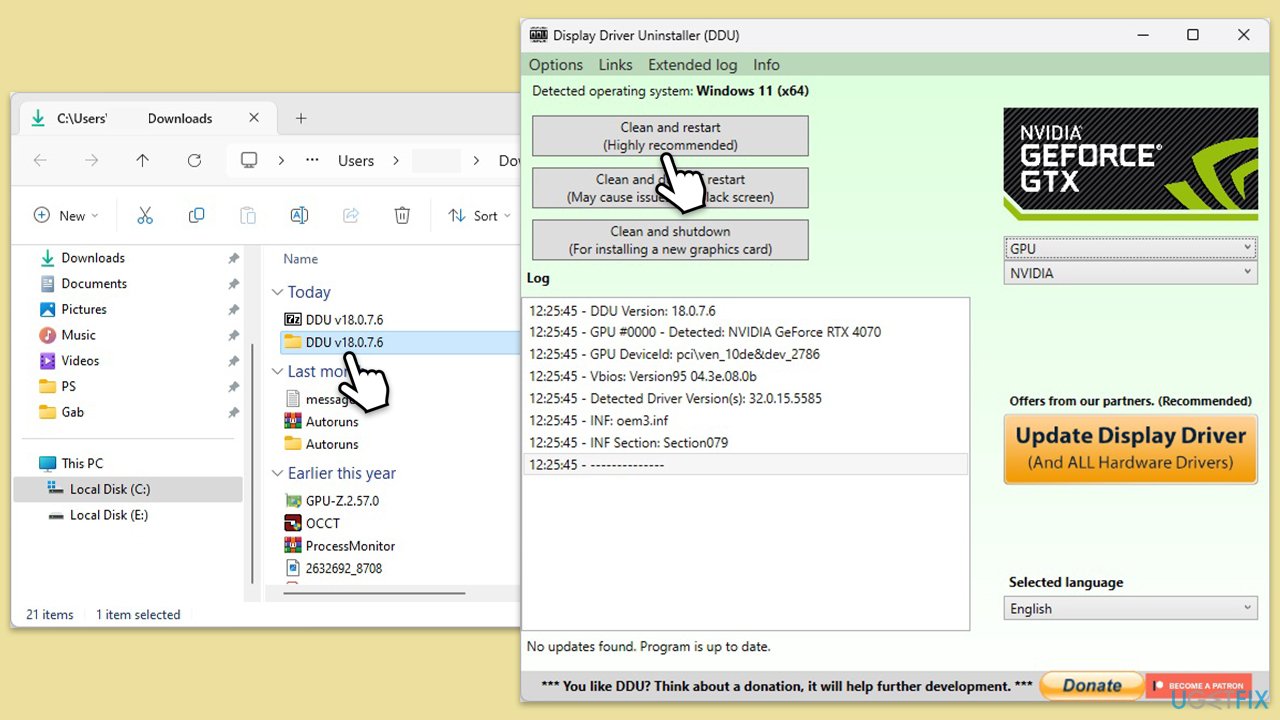
- Download DDU from the official website.
- Extract the compressed file, you should find the installer inside.
- Next, while holding the Shift button, click on Start > Restart.
- After a reboot, go to Troubleshooter > Advanced options > Startup settings > Restart.
- Press 4 or F4 to access Safe Mode.
- After a restart, go to the location where you downloaded DDU.
- Click on Display Driver Uninstaller.exe to open the program.
- Close the Options window.
- Under Device type, pick GPU from the drop-down menu.
- Click Clean and restart.
- Your PC will reboot.
To install the newest graphics drivers, either download it manually on the official website, use the built-in Device Manager or employ automatic tools like [rev id="DriverFix"].
Fix 4. Repair corrupted system files
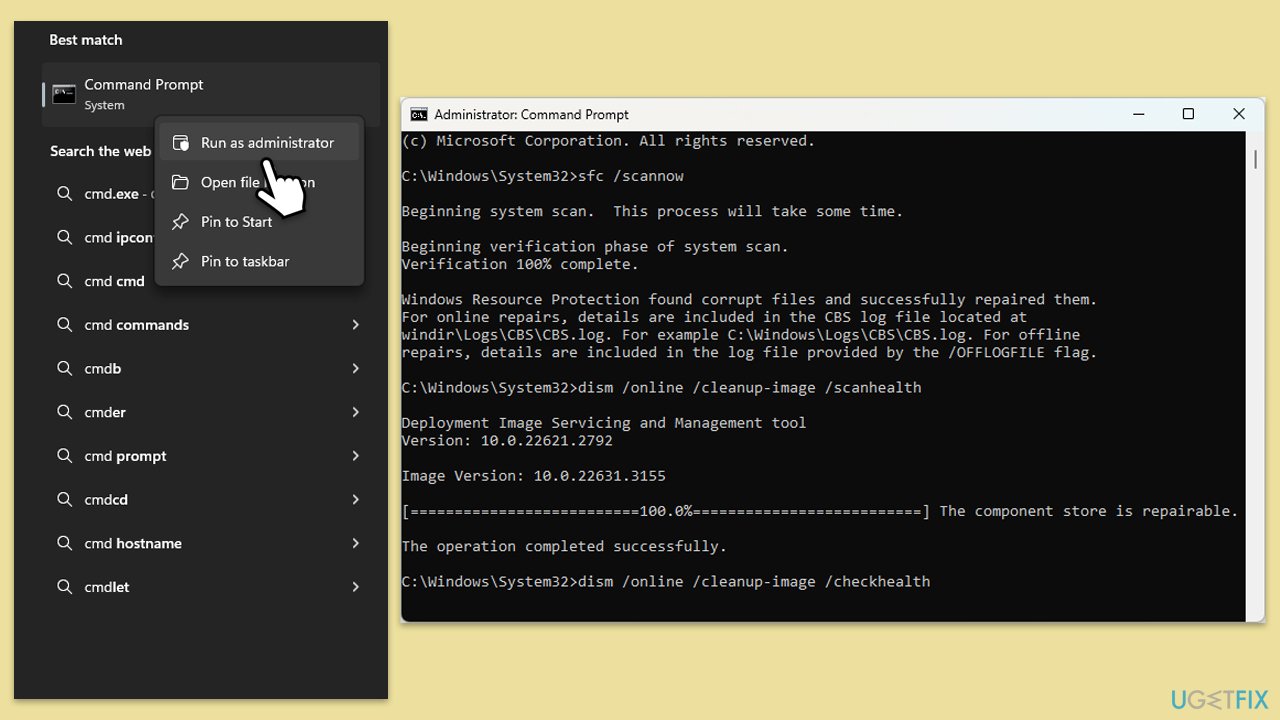
- Type cmd in Windows search.
- Right-click on Command Prompt and pick Run as administrator.
- User Account Control pop-up will ask to confirm, click Yes.
- Type in the following command and press Enter:
sfc /scannow - When done, run the following commands as well:
dism /online /cleanup-image /scanhealth
dism /online /cleanup-image /checkhealth
dism /online /cleanup-image /restorehealth
(Note: if you get an error executing this last command, add /Source:C:\RepairSource\Windows /LimitAccess to it and try again). - Restart your computer.
Fix 5. Verify integrity of game files
- Open Steam and go to your Library.
- Right-click on Dark Souls III and select Properties.
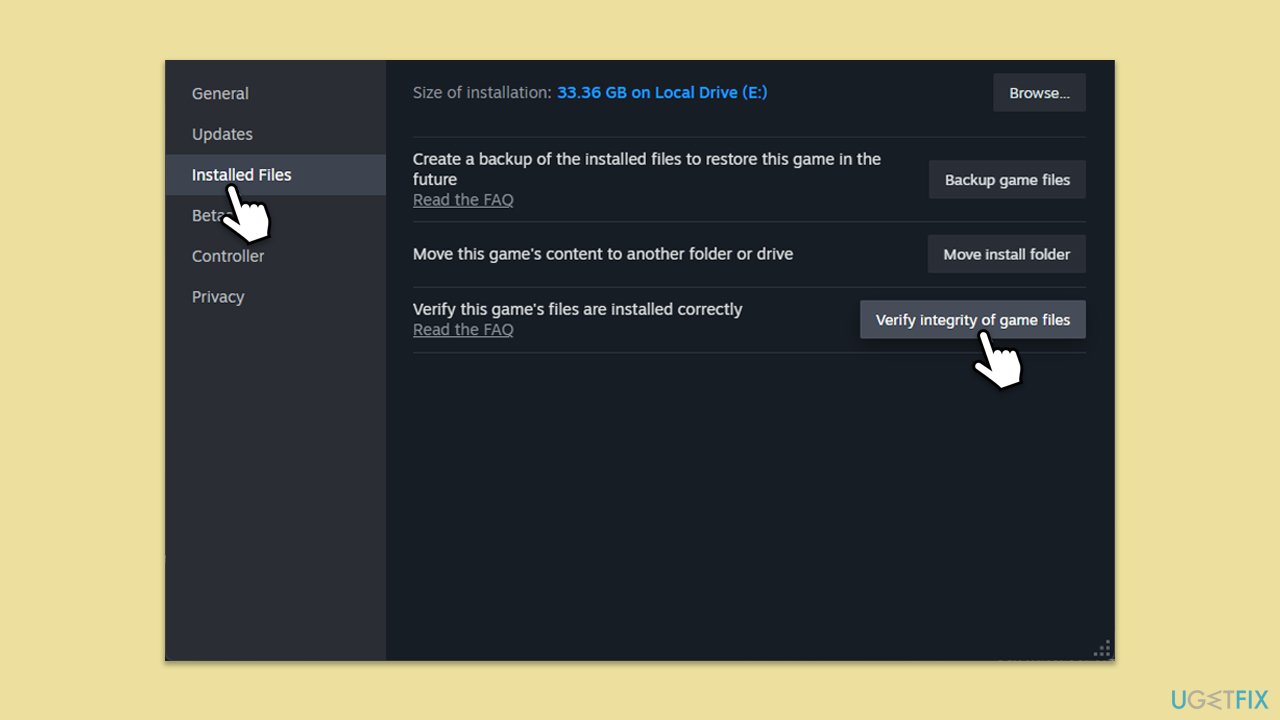
- Click the Installed Files tab, then select Verify integrity of game files.
- Wait for the process to complete, then relaunch the game.
Fix 6. Reinstall Dark Souls III
If none of the above solutions work, reinstalling the game can fix persistent errors by providing a fresh set of files.
- Open the Steam client and go to your Library.
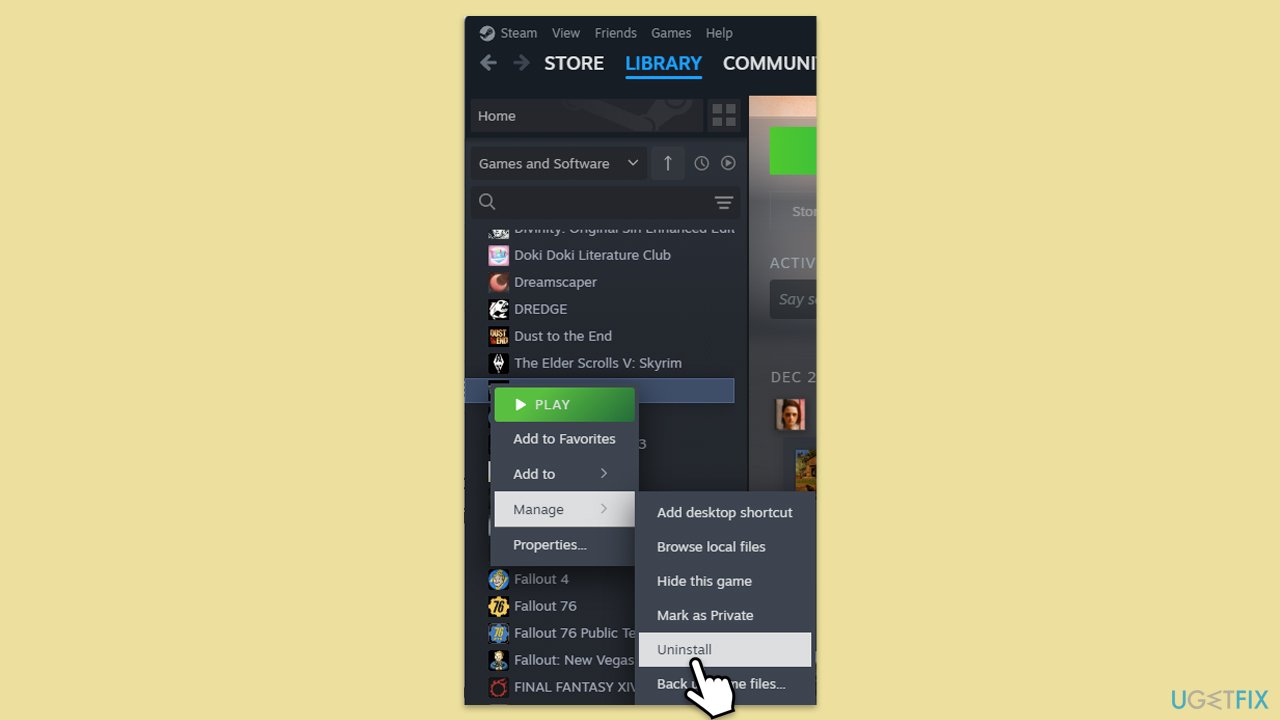
- Right-click on Dark Souls III and select Uninstall.
- Confirm the uninstallation and restart your system.
- Now redownload and install the game through Steam.
- Launch it and see if the issue is gone.
Related articles:
Bottom line
Addressing the DarkSoulsIII.exe application error usually involves updating drivers, verifying the integrity of game files, and adjusting in-game settings. If these solutions do not resolve the issue, consider reinstalling critical system components or seeking further assistance.
Frequently asked questions
You can try verifying the game files through Steam, updating your graphics drivers, or running the game in compatibility mode for Windows 8 or 7.
Ensure that your Windows 11 is up to date, and check if any background applications are interfering with the game by performing a clean boot.
Disabling full-screen optimizations and adjusting the DPI settings for DarkSoulsIII.exe can help resolve the application error on both Windows 10 and Windows 11.




Report an issue
What's wrong with this guide? We review every report and update or remove content.
Report received — thank you. We'll review and fix it.
You need a free account to submit a report.
Be the first to comment