How to fix
Destiny 2 freezing and crashing to desktop
on Windows
Resolve Destiny 2 freezing and crashing issues on Windows 10 and 11 effortlessly. Expert-tested solutions ensure smooth gaming experiences, fixed in min…

What causes How to fix Destiny 2 freezing and crashing to desktop in Windows?
- Corrupted system files
- Outdated GPU drivers
- Dust accumulation in hardware components
- Video settings too high for older GPU
- Issues after recent game patches
Repairs Windows system files, removes malware, and restores a clean OS state — without reinstalling.
Hi, I have been playing Destiny 2 for a few months now with no issues whatsoever. Suddenly, I started experiencing this issue: the game freezes and, after around 15-20 seconds, crashes to desktop without any error codes. I used to play the game with no issues at all and now I face freezes and crashes constantly. Any advice on what I should do? I'm using Windows 10.
Destiny 2 is a first-person looter-shooter game developed and published by Bungie in October 2019. The game is quite successful and since then has retained a relatively large fanbase. Just as many other franchises in the industry, the title does not avoid technical issues that players have to face - freezes and crashes in Destiny 2 in particular.
Users reported that the game simply freezes and then shuts down after a short while without providing any insights or error codes. Without a doubt, this behavior might be difficult to troubleshoot, as error codes can help to find a more precise reason for the unwanted behavior.
In some cases, users claimed that the issues started without them changing anything in Windows - installing new hardware or software. However, the more consistent reasons for Destiny 2 freezing and crashing are those that occur after the game developers apply the newest patches.[ref en-1] For example, people reported that the problems started after updating to the most recent Witch queen 4.0.0.3 patch.
There could be many reasons for the issue to occur - corrupted system files or caches,[ref en-2] outdated GPU drivers, and more. Some users said they had to reinstall Gaming Services in order to fix the problem. Check out the details below.
General checks to make
In some cases, the reason for Destiny 2 crashes and freezes can be much more simple than one could anticipate. Therefore, we recommend trying these quick solutions first:
- Restart your computer
- Clean the dust from your GPU, motherboard, RAM, and PSU (power supply)
- Update Windows to the latest version
- Set video settings to low if you are using an older GPU
- Reinstall the game.
If these fixes do not help, you can proceed with the more advanced ones below. Also, we would like to recommend scanning the device with [d1] PC repair tool, which can easily find and eliminate underlying Windows issues automatically.
1. Update drivers
GPU drivers[ref en-3] are a very important part of a high-quality gaming experience. Not only can the latest driver updates fix glitches and bugs in games, but they also solve various crashes and errors. You can try to update them via the built-in Windows update feature:
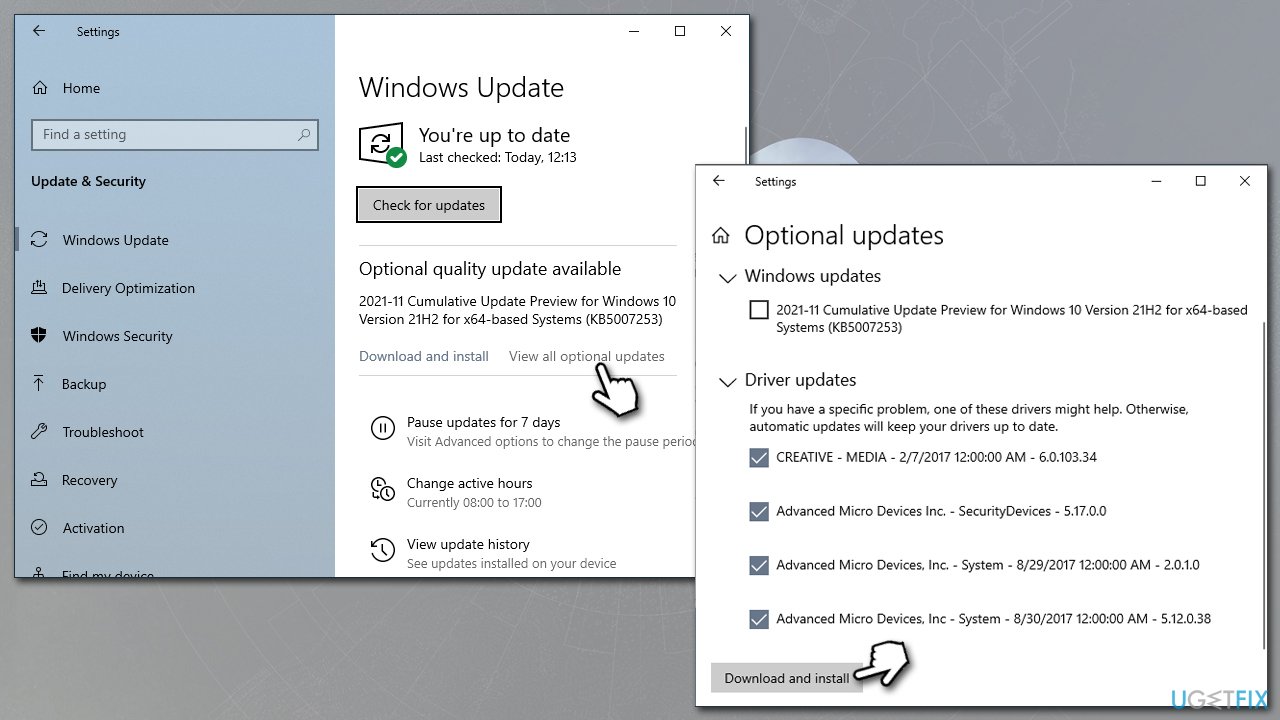
- Type Update in Windows search and hit Enter
- Click Check for updates and install everything available
- Then, click View optional updates
- Find the Driver Updates section, tick the checkboxes, and click Download and Install
How to fix destiny 2 freezing and crashing to desktop in windows update drivers - Restart your system.
However, this option might not always be effective, as Windows might fail to find the latest drivers. If that's the case, you can instead visit Nvidia, AMD, or Intel official websites and find the appropriate drivers there. If you would rather do that quickly or you don't know which drivers you need, we recommend using [rev id="DriverFix"] instead.
2. Reinstall drivers
Bugged driver cache might cause various gaming issues, including game crashes and freezes. Uninstall your drivers:
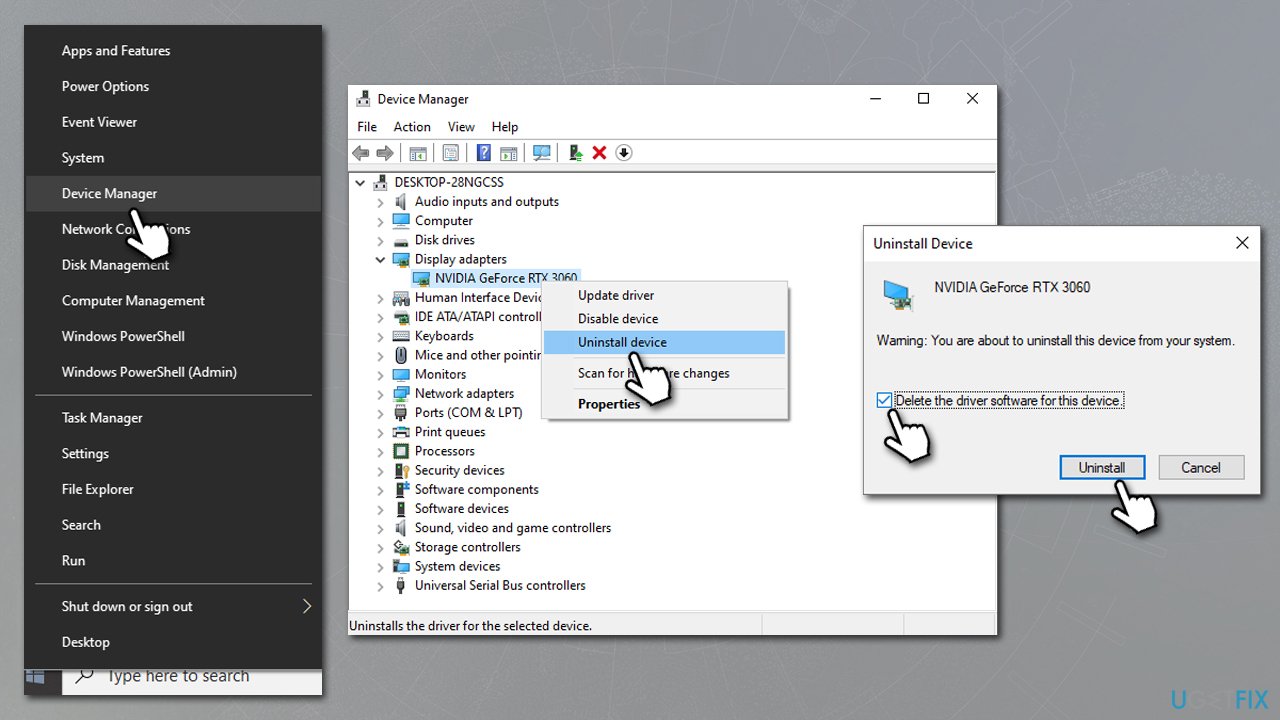
- Right-click on Start and pick Device Manager
- Expand the Display Adapters section
- Right-click on your GPU and select Uninstall device
- Tick the Delete the driver software for this device checkmark and click Uninstall
How to fix destiny 2 freezing and crashing to desktop in windows reinstall drivers - Restart your PC
- Use one of the methods mentioned in the previous section to install the newest drivers for your GPU.
3. Check system files for corruption
- Type cmd in Windows search
- Right-click on Command Prompt search result and select Run as administrator
- When the User Account Control window shows up, click Yes
- Type in the following command and press Enter:
sfc /scannow - Once done, run the following commands as well:
dism /online /cleanup-image /checkhealth
dism /online /cleanup-image /restorehealth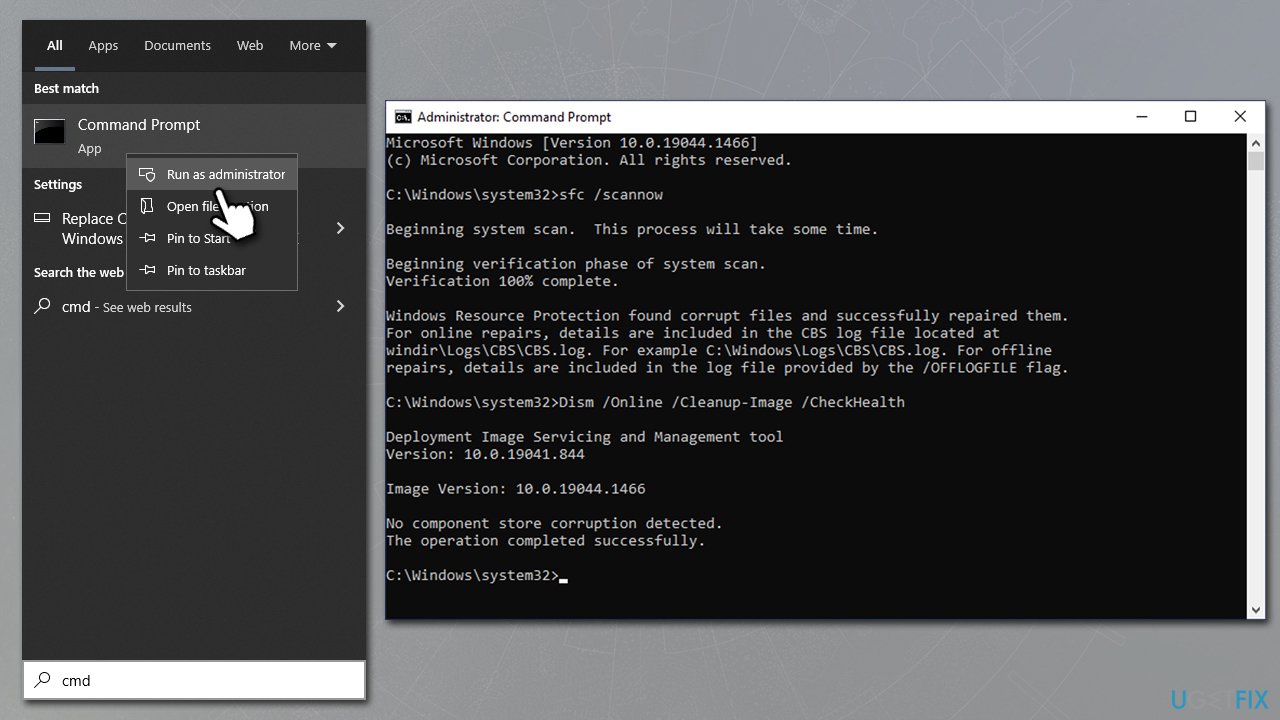
How to fix destiny 2 freezing and crashing to desktop in windows run sfc dism - Restart your device.
4. Reinstall Gaming Services
For those using GamePass, Windows should have Gaming Services installed. You can reinstall it as follows:
- Right-click Start and pick PowerShell (admin)
- When User Account Control shows up, click Yes
- In the new window, copy and paste the following command, hitting Enter after:
Get-AppxPackage *gamingservices* -allusers | remove-appxpackage -allusers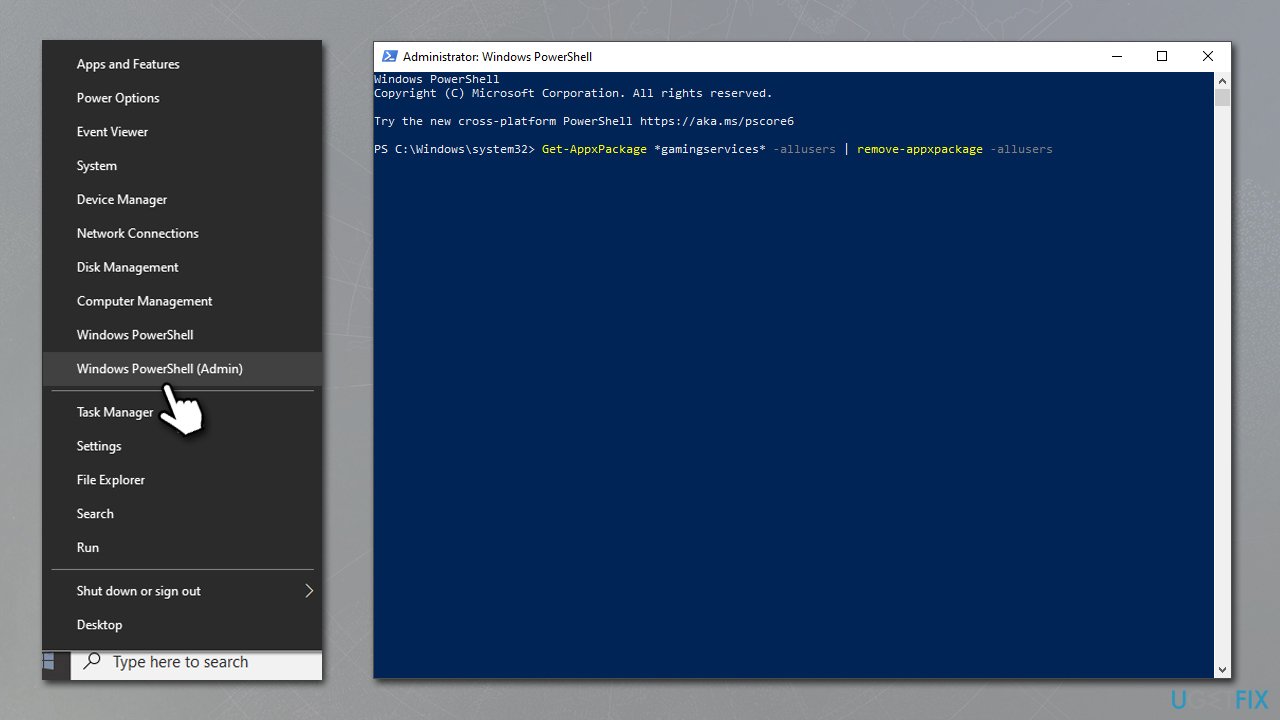
How to fix destiny 2 freezing and crashing to desktop in windows reinstall gaming services - Once the command is executed, run the following commands next:
Remove-Item -Path "HKLM:\\System\\CurrentControlSet\\Services\\GamingServices" -recurse
Remove-Item -Path "HKLM:\\System\\CurrentControlSet\\Services\\GamingServicesNet" -recurse - Once done, restart your computer
- When Windows loads, open the Xbox app - a prompt would ask you to install Gaming Services
- Press Install and follow on-screen instructions.
5. Clean Shader cache [Nvidia only]
- Open Nvidia Control Panel
- Select Manage 3D settings on the left
- In the Global Settings tab, scroll down and locate Shader Cache Size
- From the drop-down menu, select Disabled
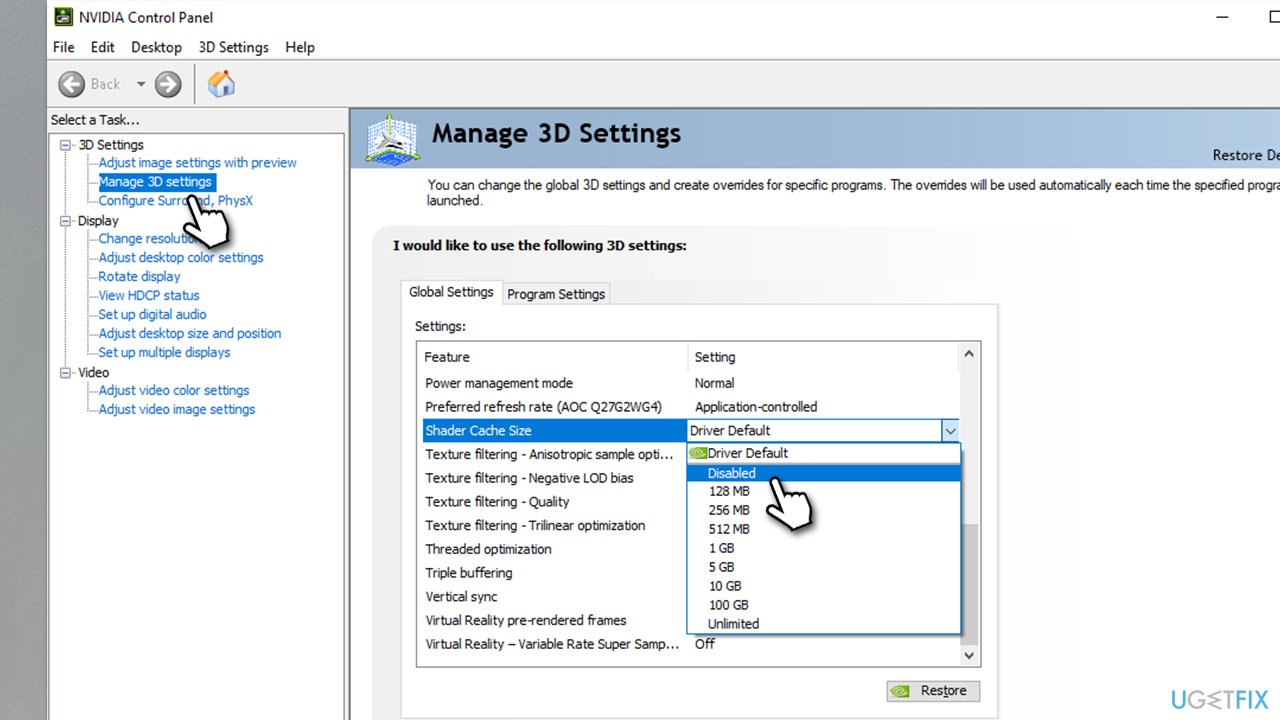
How to fix destiny 2 freezing and crashing to desktop in windows reset shader cache - Restart your PC
- [Optional] At this point, you can clean-install GPU drivers - refer to solution number 2
- Next, type in Disk Cleanup in Windows search and press Enter
- Select the main drive (C: by default) and click OK
- Mark the DirectX Shader cache and click OK
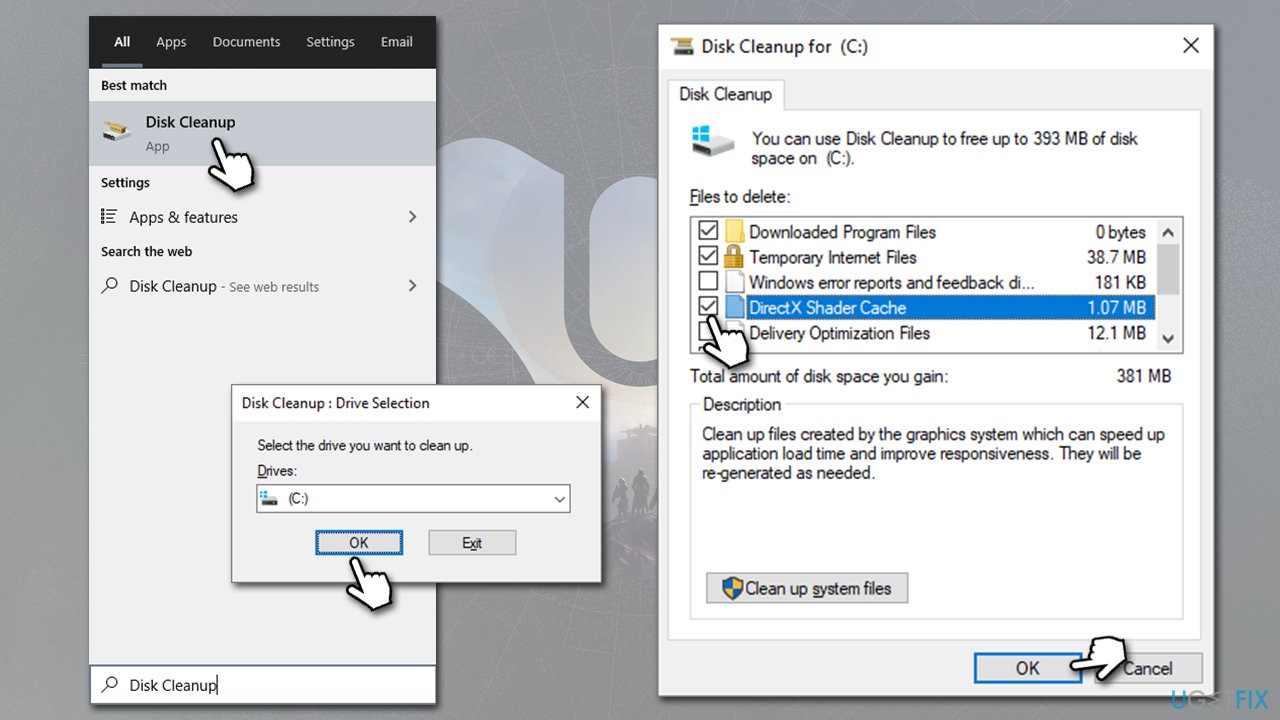
How to fix destiny 2 freezing and crashing to desktop in windows reset shader cache2 - Reboot your PC once again
- Open Nvidia Control Panel once again and re-enable Shader Cache Size.
Similar topics you might be interested in:
Bottom line
To address the freezing and crashing issues in Destiny 2, try restarting your computer, cleaning dust from hardware components, updating Windows, lowering video settings, or reinstalling the game. If these solutions do not resolve the problem, consider reinstalling Gaming Services or further troubleshooting.
Frequently asked questions
Common causes include outdated graphics drivers, insufficient system resources, and conflicts with background applications. Ensuring your Windows is up to date can also help mitigate these issues.
You can update your graphics drivers by visiting the manufacturer's website or using Device Manager on Windows 10 or Windows 11 to search for updates automatically.
Yes, disabling unnecessary background applications can free up system resources and reduce the likelihood of Destiny 2 freezing or crashing on Windows 10 or Windows 11.




Report an issue
What's wrong with this guide? We review every report and update or remove content.
Report received — thank you. We'll review and fix it.
You need a free account to submit a report.
Be the first to comment