
The device that is required by this cryptographic provider is not ready for use: how to fix

Prefer to fix it yourself? The manual steps follow.
- 7methods
- 5 to 30 minutes
- Medium
Applies to Windows 11 and Windows 10 PCs that sign in with a Windows Hello PIN, face or fingerprint, and PCs where tpm.msc reports the same message
7 methods in this guide
For some reason, I cannot sign in using my PIN. Windows Security says that it can't sign me in and provides this explanation: "The device that is required by this cryptographic provider is not ready for use." Could you please help?
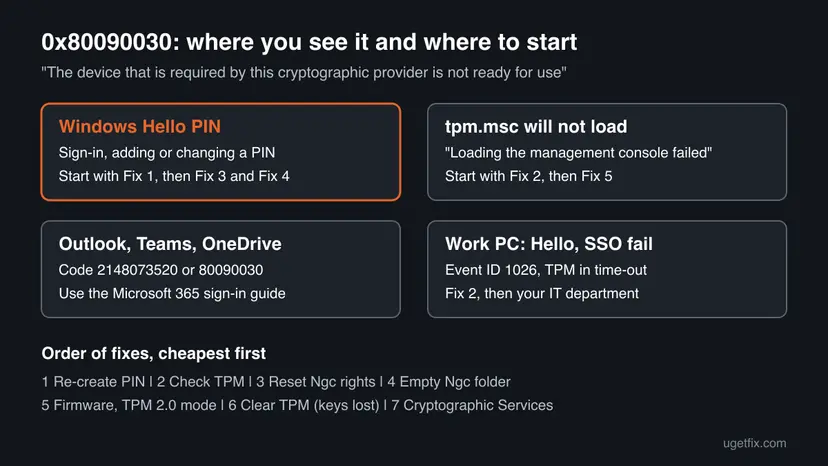
The device that is required by this cryptographic provider is not ready for use is Windows error 0x80090030: the key behind your Windows Hello PIN lives in the TPM security chip, and Windows could not use it. Sign in with your password, remove the PIN and set a new one first.
Windows could not use the TPM key that protects your PIN. Choose Sign-in options, sign in with your account password, then open Settings > Accounts > Sign-in options, remove the PIN, restart and set a new one (Fix 1). If the PIN cannot be added again, check the TPM in tpm.msc (Fix 2), then repair the PIN folder called Ngc (Fix 3 and Fix 4).
| Error | The device that is required by this cryptographic provider is not ready for use. Code 0x80090030, name NTE_DEVICE_NOT_READY. |
|---|---|
| Where it appears | Most often on the Windows sign-in screen when you use a PIN, and in Settings when you add, change or remove a PIN. Also when the TPM console tpm.msc fails to open, and in Microsoft 365 sign-in windows. |
| Main cause | The PIN's key container (the Ngc folder) no longer matches the TPM, or the TPM itself is not ready: switched off, locked out, waiting for firmware, or faulty. |
| Fastest fix | Sign in with the password, remove the PIN, restart and add a new PIN (Fix 1). |
| Also written as | 0x80090030, 80090030, 2148073520, -2146893776, NTE_DEVICE_NOT_READY, "the device that is required by the cryptographic provider isn't ready for use". |
| Not the same as | The device that is required by this cryptographic provider is not found on this platform. That message says Windows found no usable TPM at all, not one that is busy or broken. |
| Affects | Windows 11 and Windows 10 with Windows Hello. Windows 10 left support on 14 October 2025. On TPM 1.2 PCs Microsoft ties it to hardware or firmware faults. |
| Microsoft's status | Microsoft lists the message as a known TPM issue and points to TPM firmware, the TPM 2.0 mode and, last, clearing the TPM (checked 15 October 2026). There is no Windows update that fixes it. |
| Time to fix | 5 minutes for a new PIN, 15 to 30 minutes for the Ngc folder or a firmware update. |
Facts checked on 15 October 2026. Steps written for Windows 11 (25H2 and 26H2) and Windows 10 22H2 with a Windows Hello PIN and TPM 2.0, read against Microsoft's TPM troubleshooting documentation.
What "The device that is required by this cryptographic provider is not ready for use" means
A cryptographic provider is the part of Windows that creates and uses secret keys. For a Windows Hello PIN, face or fingerprint, that provider keeps the key in the TPM (Trusted Platform Module), the security chip on the motherboard or inside the processor. The PIN only unlocks that key. When the chip does not answer or the key is not where Windows expects it, the provider returns 0x80090030, named NTE_DEVICE_NOT_READY.
Microsoft shows the same message in a second place. On a PC with TPM 1.2, opening the TPM console can fail with Loading the management console failed. The device that is required by the cryptographic provider is not ready for use. followed by HRESULT 0x80090030 - NTE_DEVICE_NOT_READY.
| Spelling | Where you see it |
|---|---|
| The device that is required by this cryptographic provider is not ready for use. | Windows sign-in screen and Sign-in options in Settings |
0x80090030 or 80090030 | Event Viewer, tpm.msc, older Office and Teams windows |
2148073520 | The same code in decimal, in newer Microsoft 365 sign-in windows |
-2146893776 | The same code as a signed number, in server and certificate logs |
NTE_DEVICE_NOT_READY | The code's name in Microsoft documentation and logs |
If the code appears in a Microsoft 365 app with Something went wrong and a tag such as 657rx, the fixes are different: they clear Office's stored sign-in. Use our guide to sign-in error 2148073520. This page is about Windows Hello and the TPM itself.
What causes the cryptographic provider error, from the most common
The ranking is our reading of Microsoft's TPM pages and of the reports behind the old version of this guide, not a statistic. What matters is whether other TPM features still work: if they do, the PIN data is the problem; if not, the chip is.
| How often | Cause | Typical sign | Fix |
|---|---|---|---|
| Most often | The PIN setup no longer matches the TPM key, for example after a failed PIN change or a clean install | The PIN fails but the password works. Adding a new PIN shows the same message. | Fix 1, Fix 3, Fix 4 |
| Often | Wrong permissions on the Ngc folder that holds the PIN data | Windows cannot add, change or remove a PIN at all. | Fix 3, Fix 4 |
| Less often | The TPM is off, hidden in the firmware settings or in a lockout time-out | tpm.msc does not say The TPM is ready for use. | Fix 2 |
| Less often | TPM firmware fault, often on TPM 1.2 or after a BIOS change | tpm.msc itself fails with 0x80090030. | Fix 5, then Fix 6 |
| Rarely | Cryptographic Services stopped or disabled | Other security features also fail, such as certificate checks. | Fix 7 |
| Rarely | The TPM hardware has failed | The error stays after a firmware update and a TPM clear. | Still broken section |
The message comes from Windows' own key handling. Your Microsoft account and its password are not damaged, which is why the password still signs you in.
How to fix "The device that is required by this cryptographic provider is not ready for use"
Sign in with your account password first: choose Sign-in options on the sign-in screen and select the key icon. The fixes start with what changes nothing important and end with clearing the TPM, which deletes its keys. You are done when Windows accepts a new PIN and signs in with it after a restart.
| Your situation | Start with | Then |
|---|---|---|
| The PIN fails at sign-in, the password works | Fix 1 | Fix 3 |
| Settings shows the error when you add or change a PIN | Fix 3 | Fix 4 |
| tpm.msc will not open or does not say the TPM is ready | Fix 2 | Fix 5 |
| The PC has TPM 1.2 or you changed BIOS settings recently | Fix 5 | Fix 6 |
| Work or school PC, Windows Hello for Business and single sign-on fail | Fix 2 | Ask IT before Fix 6 |
| Outlook, Teams or OneDrive show code 2148073520 | The Microsoft 365 guide | Fix 2 |
Fix 1. Sign in with the password, remove the PIN and set a new one
5 minutesLow riskEveryone who can still sign in with the account password.
Removing the PIN tells Windows to drop the PIN's key setup, and adding one creates a new key in the TPM. When the old setup and the TPM key no longer match, this replaces the broken pair with a fresh one.
- On the sign-in screen select Sign-in options, select the key icon and sign in with your account password.
- Open Settings > Accounts > Sign-in options and expand PIN (Windows Hello).
- Select Remove and confirm with your password.
- If Remove is grey, under Additional settings turn off For improved security, only allow Windows Hello sign-in for Microsoft accounts on this device. On Windows 10 it is Require Windows Hello sign-in for Microsoft accounts.
- Restart the PC and sign in with the password again.
- Back in Sign-in options, select PIN (Windows Hello) > Set up and choose a new PIN.
- Lock the PC with Win + L and sign in with the new PIN.
Windows Hello face and fingerprint sign-in need a PIN. They stop working when you remove it, and you may need to set them up again after the new PIN.
It worked if: Windows saves the new PIN without an error and accepts it at the next sign-in.
If not: If Remove or Set up shows the same message, check the TPM with Fix 2, then repair the Ngc folder with Fix 3.
Fix 2. Check that the TPM is ready in tpm.msc and Windows Security
5 minutesLow riskA new PIN cannot be added, tpm.msc fails, or a work PC loses Windows Hello and single sign-on.
The error literally says the key device is not ready. tpm.msc tells you whether the TPM is on, ready, or asking for a lockout reset, and that decides which of the later fixes applies.
- Press Win + R, type
tpm.mscand press Enter. - Under Status, look for The TPM is ready for use.
- If the console asks you to unlock the TPM or reset the lockout, Microsoft advises asking the PC maker whether a known fix exists. For a lockout after wrong PINs, see our guide to the incorrect PIN message.
- If it says that no compatible TPM is found, open the PC's firmware settings and check that the TPM (often called PTT on Intel or fTPM on AMD) is not turned off or hidden.
- If the console itself fails with Loading the management console failed and 0x80090030, go to Fix 5.
- To see the same status in Windows, open Windows Security > Device security > Security processor details.
On a work or school PC joined to Microsoft Entra ID, Microsoft also looks in Event Viewer > Windows Logs > System for Event ID 1026 from Microsoft-Windows-TPM-WMI with The TPM is defending against dictionary attacks and is in a time-out period. That event means the TPM is not ready, and the PC cannot get its sign-in token. Send that event to IT.
It worked if: tpm.msc shows The TPM is ready for use. Then the fault is in the PIN data: go on with Fix 3.
If not: If the TPM is off or missing, turn it on in the firmware and repeat Fix 1. If tpm.msc fails, go to Fix 5.
Fix 3. Reset the permissions of the Ngc folder with icacls
5 minutesLow riskThe TPM is ready but Windows cannot add, change or remove a PIN.
Windows keeps the PIN data of every account in the Ngc folder. If its permissions are damaged, Windows Hello cannot read its key data. Resetting the permissions to the inherited defaults is a community fix shared on Microsoft's forum; Microsoft has not documented it.
- Select Start, type
cmd, right-click Command Prompt and select Run as administrator. - Paste the command below and press Enter. If Windows is not on drive C:, change the letter.
- Close Command Prompt, restart the PC and set up the PIN again as in Fix 1.
icacls C:\Windows\ServiceProfiles\LocalService\AppData\Local\Microsoft\Ngc /T /Q /C /RESET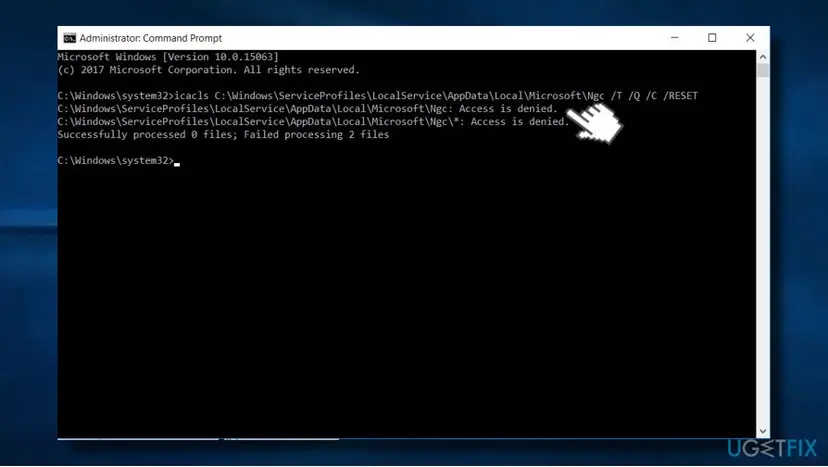
It worked if: icacls reports the files as processed with no failures, and the new PIN saves.
If not: If you get Access is denied as in the picture, take ownership and empty the folder with Fix 4.
Fix 4. Take ownership of the Ngc folder and empty it, then add a new PIN
15 minutesRead the warningFix 1 and Fix 3 did not help, or icacls says Access is denied. You must be able to sign in with a password.
Emptying the folder deletes all Windows Hello PIN data on the PC, so Windows builds a new, clean setup the next time you add a PIN. It removes a damaged container that Fix 1 could not remove.
The folder holds the PIN, face and fingerprint setup of all users on the PC. Each of them must sign in with a password afterwards and set Windows Hello up again. Make sure you know your account password before you start. Do not do this on a work PC that uses Windows Hello for Business without asking IT.
- Sign in with your password to an administrator account.
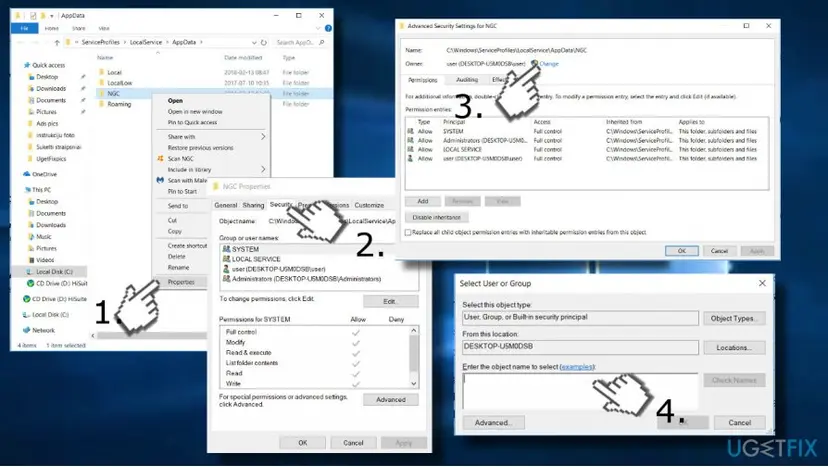
- Open File Explorer and go to
C:\Windows\ServiceProfiles\LocalService\AppData\Local\Microsoft. Confirm the access prompt if one appears. - Right-click the Ngc folder and select Properties > Security > Advanced.
- Next to Owner select Change, type your user name, select Check Names and OK.
- Tick Replace owner on subcontainers and objects and select Apply and OK.
- Open the Ngc folder, select everything in it and delete it. Keep the empty Ngc folder.
- Restart the PC, sign in with the password and add a new PIN in Settings > Accounts > Sign-in options.
It worked if: Windows asks you to set up a PIN as if for the first time, and the new PIN works after a restart.
If not: If the new PIN still fails with the same message, the TPM is the problem: go to Fix 5.
Fix 5. Update the BIOS or TPM firmware and switch the TPM to version 2.0
20 to 30 minutesRead the warningtpm.msc fails with 0x80090030, the PC has TPM 1.2, or the error started after a BIOS change.
For the tpm.msc version of this message Microsoft names TPM hardware or firmware issues as the suspected cause. Its fixes are, in order: switch the TPM from 1.2 to 2.0 if the PC offers it, then install the PC maker's UEFI, BIOS or TPM update.
Changing TPM settings or firmware can make BitLocker ask for its recovery key at the next start. Find the 48-digit key in your Microsoft account or with IT before you change anything, and suspend BitLocker if the PC maker's update tool asks for it.
- Note the exact model of the PC or the motherboard from the sticker or System Information.
- On the PC maker's support page for that model, look for a BIOS, UEFI or TPM firmware update. Follow the maker's own instructions to install it.
- If the firmware settings offer a choice between TPM 1.2 and TPM 2.0, choose 2.0.
- Start Windows, open
tpm.mscand check for The TPM is ready for use. - Set up the PIN again as in Fix 1.
Microsoft adds that if a firmware update does not help or none exists, the PC maker may need to replace the motherboard. Data in the TPM is lost when that happens.
It worked if: tpm.msc opens and reports that the TPM is ready, and a new PIN saves.
If not: If the TPM still is not ready, clear it with Fix 6.
Fix 6. Clear the TPM from Windows Security
10 minutesRead the warningA PC you own, after Fix 5, when the TPM still is not ready. Never on a work or school PC without IT.
Clearing resets the TPM to an unowned state and Windows prepares it again at the next start. Microsoft names it as the step after contacting the hardware vendor when Windows Hello cannot use the TPM.
Microsoft warns that clearing the TPM can cause data loss: you lose all keys created in it and the data they protect, such as a sign-in PIN or a virtual smart card. Before you clear it, save the BitLocker recovery key, back up files encrypted with TPM keys, and know your account password. Step by step: Back up your files (Windows Backup, File History, Time Machine).
- Open Windows Security and select Device security.
- Select Security processor details, then Security processor troubleshooting.
- Select Clear TPM and restart when asked.
- During the restart, press the key the screen asks for to confirm the clear.
- Sign in with your password. Windows prepares the TPM again on its own.
- Set up a new PIN as in Fix 1.
Microsoft says to clear the TPM only from Windows, with Windows Security or tpm.msc, and not directly from the UEFI settings.
It worked if: tpm.msc shows The TPM is ready for use and the new PIN works.
If not: If the TPM cannot be cleared or the error returns, read the still broken section below.
Fix 7. Check that Cryptographic Services is running
2 minutesLow riskOther security features fail too, or you want to rule out the service before a TPM clear.
Cryptographic Services (CryptSvc) handles certificate and signature checks in Windows. It is not the TPM itself, but a stopped or disabled service is a cheap thing to rule out, and the old version of this guide started here.
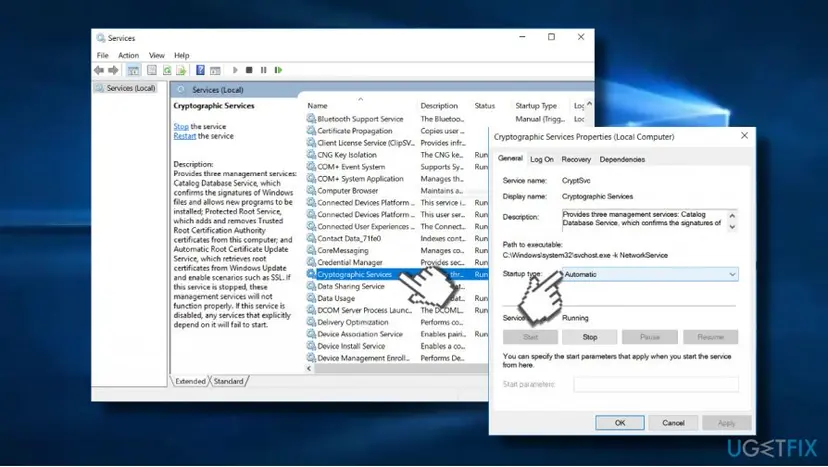
- Press Win + R, type
services.mscand press Enter. - Double-click Cryptographic Services.
- Check that Startup type is Automatic and Service status is Running, then select OK.
- Right-click Cryptographic Services and select Restart. Full steps: Check and restart Windows services.

It worked if: The service runs with startup type Automatic, and a new PIN saves.
If not: If the service already ran, it was not the cause. Go back to the TPM fixes or read the section below.
If the cryptographic provider error is still there
Your PC still signs in with the password, so nothing is locked. Before you try anything bigger, collect what the PC maker or IT will ask for.
- The TPM status: a picture of
tpm.mscwith its Status and TPM Manufacturer Information boxes, or of Security processor details in Windows Security. - Event Viewer: in Windows Logs > System, filter by the source Microsoft-Windows-TPM-WMI and note events such as Event ID 1026 with their text.
- Work or school PC: run
dsregcmd /statusand look at AzureAdPrt. Microsoft says No means the PC did not get its sign-in token. IT can check the TPM and Windows Hello for Business from their side. - Hardware: if the TPM stays not ready after a firmware update and a clear, Microsoft points to the PC maker and, at worst, a motherboard replacement. That is a warranty case, not a Windows setting.
Until the TPM is repaired, a password sign-in works. Turn off the setting that allows only Windows Hello for Microsoft accounts (Fix 1, step 4) so the password option stays on the sign-in screen.
How to keep the cryptographic provider error from coming back
- Change the PIN only in Settings, not by deleting files, and let Windows finish before you restart.
- Know your account password. It is the way in whenever the PIN cannot be used.
- Keep the TPM on one setting. Microsoft warns that switching between two TPMs in the firmware is not supported and can make BitLocker ask for recovery.
- Install BIOS and TPM updates from the PC maker when they mention TPM fixes, with the BitLocker recovery key at hand.
- Do not clear the TPM from the UEFI settings. Microsoft says to use Windows for that.
Frequently asked questions
What does "The device that is required by this cryptographic provider is not ready for use" mean?
It means Windows asked for a key stored in a security device, almost always the TPM chip, and the device did not respond or the key was not usable. The code is 0x80090030, NTE_DEVICE_NOT_READY. On a home PC you usually see it with a Windows Hello PIN. Sign in with the password, remove the PIN and add a new one. If that fails, check the TPM in tpm.msc.
What is error 0x80090030?
0x80090030 is the Windows code NTE_DEVICE_NOT_READY, the error behind this message. The same code is written as 80090030, as 2148073520 in decimal and as -2146893776 as a signed number. Microsoft documents it in tpm.msc on TPM 1.2 PCs and treats it as a TPM hardware or firmware issue there. In Windows Hello it more often means the PIN data no longer matches the TPM, which Fix 1 and Fix 4 repair.
Is error 80090030 in Outlook or Teams the same problem?
It is the same Windows code, but the fix starts in a different place. In Outlook, Teams and OneDrive the code comes with Office's own sign-in window and is usually solved by clearing Office's saved credentials and reconnecting the work account. We cover that in our guide to sign-in error 2148073520. Only if that fails does the TPM check on this page (Fix 2) become the next step.
What does "not found on this platform" mean instead of "not ready for use"?
The message "The device that is required by this cryptographic provider is not found on this platform" says Windows did not find a usable TPM at all. That usually means the TPM is turned off or hidden in the firmware settings, or the PC has none. Open tpm.msc: if it reports that no compatible TPM is found, turn on the TPM (PTT or fTPM) in the firmware, then set up the PIN again.
Is this a Microsoft Pluton cryptographic provider error?
It can be, on newer PCs where Microsoft Pluton, a security processor built into the CPU, acts as the TPM. Windows treats Pluton as its TPM, so the same message and the same fixes apply: re-create the PIN, check tpm.msc, then the PC maker's firmware. We did not find a Microsoft article about a Pluton-only version of this error, so treat any firmware update from the PC maker as the first hardware step.
Will deleting the Ngc folder delete my files?
No. The Ngc folder holds Windows Hello data only: PIN, face and fingerprint setup for every account on the PC. Your documents, apps and passwords are not stored there. After you empty it, each user signs in with a password and sets a PIN again. Do not delete the Ngc folder itself, only what is inside, and keep your account password ready before you start.
Is it safe to clear the TPM?
It is safe for Windows, but not for data protected by TPM keys. Microsoft warns that clearing removes every key created in the TPM, such as a sign-in PIN or a virtual smart card, and the data those keys protect. Save the BitLocker recovery key and back up encrypted files first. Never clear the TPM of a work or school PC without your IT administrator, and only do it from Windows, not from the UEFI settings.
Can I just stop using the PIN and sign in with the password?
Yes. A password sign-in does not use the Windows Hello key, so it works while the TPM is not ready. Turn off the setting that only allows Windows Hello sign-in for Microsoft accounts so the password option shows. You lose face and fingerprint sign-in until a PIN works again. On a work PC, IT policy may require Windows Hello, so ask them.
Lỗi này là gì (fix lỗi in Vietnamese)?
Searchers also ask for this error in Vietnamese: "fix lỗi" means "fix the error". The message means Windows cannot use the TPM chip that protects your PIN. This page is in English. The short fix is the same in every language: sign in with your password, remove the PIN in Settings, restart and set up a new PIN. If that fails, check the TPM in tpm.msc.
Sources
- Microsoft Learn: BitLocker and TPM: other known issues (0x80090030 NTE_DEVICE_NOT_READY in tpm.msc, Windows Hello for Business and Event ID 1026, dsregcmd AzureAdPrt) (learn.microsoft.com)
- Microsoft Learn: Troubleshoot the TPM (TPM initialization, clearing the TPM and its precautions, turning the TPM on) (learn.microsoft.com)
Did this fix work?
One click, no account. It tells the next reader which guides are worth their time.
Questions and experiences: The device that is required by this cryptographic provider is not ready for use: how to fix
Still broken, or found a fix we did not cover? Ask here: members and our editors answer. Reading is open; writing needs a free account.
…