How to fix
Discord Search not working
on Windows
Troubleshoot and resolve Discord search issues on Windows 10 and 11 with our expert-tested solutions. Get back to finding messages in minutes!


What causes How to fix Discord Search not working?
- Server error
- Slow internet connection
- Issues with cables
- Wi-fi connection problems
- Discord feature outages
Repairs Windows system files, removes malware, and restores a clean OS state — without reinstalling.
I have a question about Discord. I think not all functions are working. But I guess it might be the issue with my PC. The search feature is not showing any results. I know that I had a conversation with a friend about a certain issue, but none of the keywords gave me results. I have the same issues with channels. I think Discord search is not working at all. Maybe you know something that I don't?
Discord Search not working or any other function that is not useful on the platform can be the problem of many since the social media service or program for streaming and communicating is extremely popular nowadays.[ref en-1] The issue with not working search can occur in various General channels, NSFW channels, and other chats. The important question here is to diagnose what is the root cause of the problem and if this is a Discord issue.
Many users report[ref en-1] the problem that the search is not giving any results. It is possibly the server error, and the problem is on the end of Discord. You can rely on some troubleshooting steps and find how to fix Discord Search not working problem for your individual case.
Discord is the platform that provides a game-playing experience as well as communication features for many users. Search not working issue is not the only problem that platform users might encounter. There are various errors regarding the program: overlay not working; Discord won't open; Discord No Route error; and other problems.[ref en-2]
It is possible that you need to make particular changes to fix Discord Search not working. The platform relies on its servers that should provide proper work. All the functions rely on servers so that any issues can lead to outages and Discord feature failure.
How to fix Discord Search not working
Discord Search not working issue can be related to issues with your internet connection. Some of the functions cannot properly work when the internet is slow. You might check your experiences with connection and slowdowns. Check cables and wi-fi connection. You might repair some system issues with PC repair tools like [d1] and then be sure that Windows problems do not interfere with your PC or applications.
We should determine that the Discord virus[ref en-3] or any other malware shouldn't affect the platform in such a way that functions of searching on the platform get disrupted. Discord Search not working is not a result of PUP infection or a different cybersecurity problem.
You can fix Discord Search not working by updating the system or particular drivers. Updating the application can provide some solutions for these Discord issues. [rev id="DriverFix"] can automatically check for such pieces and renew functions for you. You can also restart the application, so the WIndows system checks any issues and resolves them when needed.
Check Discord server issues
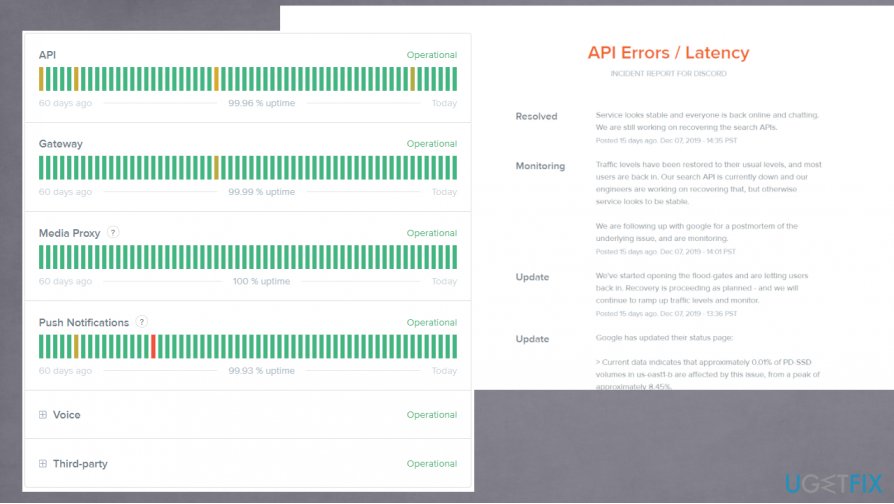
Discord status page checking might help with troubleshooting. The page shows server issues and failures, so the user can see if any clients experience or have experienced issues regarding the server work. Major issues are indicated using red lines. Partial issues with yellow ones. Current and past incidents on the Discord servers get indicated on the page, so you can see what has been done to fix those issues. Further changes and solutions depend on your device and the reasoning behind the disruption.
Check for Discord Updates
- Right-click on the Discord icon at the bottom and choose the Quit Discord button.
- Open Discord again and see if the update process is starting.
- Check the search function after the update.
on iOS
- Go to the App Store and check for available updates.
- Go to Your account, and then under Available updates, click Update next to Discord.
on Android
- Open the Google Play Store app and choose Menu to tap the My apps & games option.
- Check for Discord updates.
Launch Discord as admin to fix Discord Search not working
- Right-click the Discord icon on the desktop and choose Run as administrator.
- Agree with the changes by clicking Yes.
- Discord will start and update itself.
Disable Windows Defender
- Go to Settings.
- Then find Update & security.
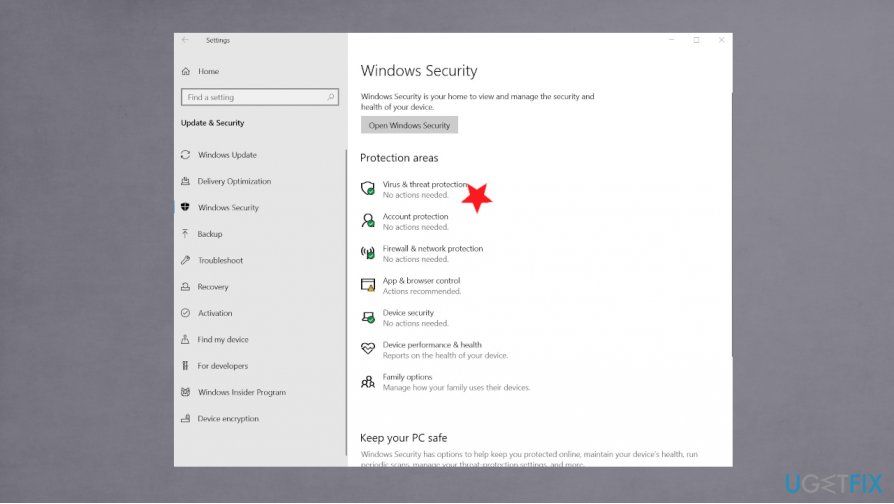
Discord search not working fix threat protection - Find Windows Security and Virus and Threat protection.
- Manage settings and turn off Enable real-time protection.
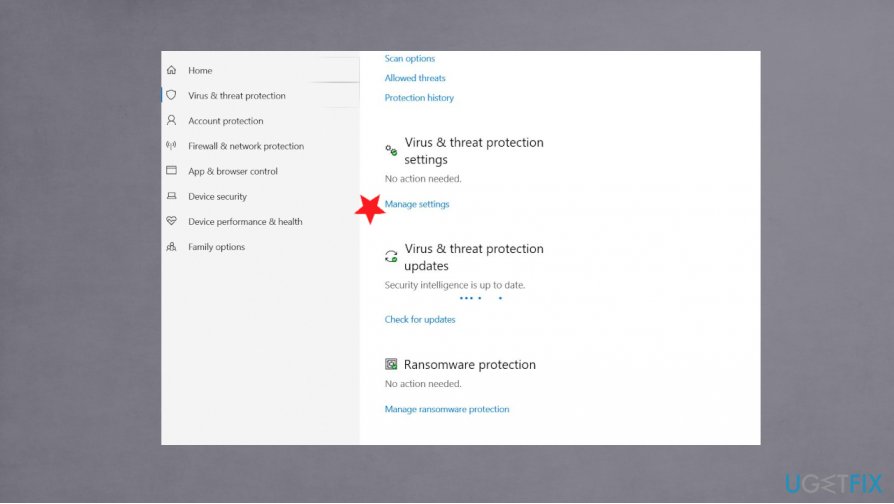
Discord search not working fix manage settings - Save changes and exit.
- Try installing or relaunching Discord.
Bottom line
To fix the Discord Search not working issue, check your internet connection for any slowdowns, and ensure that your cables and Wi-fi are functioning properly. If the problem persists, consider troubleshooting other potential issues with Discord's servers or features. If none of these solutions work, further investigation may be needed.
Frequently asked questions
The Discord search feature may not work due to temporary glitches, corrupted files, or outdated software. Ensure that your Discord app is updated and try restarting the application.
You can refresh Discord by pressing Ctrl + R on your keyboard or by closing and reopening the application on Windows 10 or Windows 11.
If the search issue persists, consider reinstalling Discord or checking your internet connection to ensure there are no connectivity problems affecting the service.




Report an issue
What's wrong with this guide? We review every report and update or remove content.
Report received — thank you. We'll review and fix it.
You need a free account to submit a report.
Be the first to comment