How to fix
Dism.exe error 1392
on Windows
Resolve dism.exe error 1392 on Windows 10 and 11 effortlessly. Our expert-tested solutions ensure a smooth, hassle-free experience. Fixed in minutes!


What causes How to fix dism.exe error 1392?
- Corrupt system files
- Inability to update Windows
- Inability to install drivers
- Outdated operating system
- Software vulnerabilities
Repairs Windows system files, removes malware, and restores a clean OS state — without reinstalling.
Hi, I was running a DISM scan on my computer due to crashes that I have been experiencing lately. During the scan, I received an error 1392. I am quite frustrated as I can't get to the root cause of all these crashes and errors that I'm having. Any tips?
Dism.exe, or otherwise known as Deployment Image Servicing and Management tool was introduced with Windows 7 release in 2009. It can be used via Command Prompt[ref en-3] - a built-in utility that can be called up by any home user at any time. By using DISM scan, users can fix recovery image that was broken on Windows for one reason or another.
However, not everything works always as expected. At any time during the scan, users reported that they encountered Dism.exe error 1392, which reads:
Error: 1392
The file or directory is corrupt or unreadable
Following this, the scan gets interrupted without bringing any positive results. This malfunction is unusual and, as explained in the message, is caused by corrupt system files. Because of this, Dism.exe is unable to identify and replace the corrupted files.
Users also reported various other issues they are experiencing along Dism.exe error 1392, including:
- inability to update Windows
- inability to install drivers[ref en-2]
- other errors, crashes, lag, etc.
Without a doubt, this can cause significant impairment when it comes to any Windows computer's stability and function. For example, an outdated operating system can pose a serious security threat, as cybercriminals can use software vulnerabilities[ref en-1] to access the device remotely.
If the issue remains unresolved, it can lead to further system file corruption and various application malfunction. Therefore, we advise you to fix Dism.exe error 1392. Since system file corruption can be caused by many different reasons, there is no universal solution for everyone.
Therefore, to troubleshoot and repair your Windows, you will have to try several methods we list below.
Solution 1. Run a system repair tool
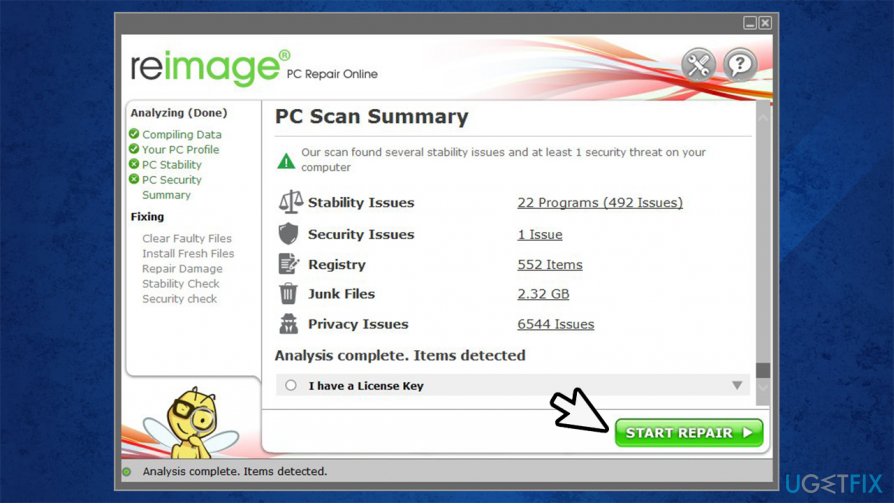
Since Dism.exe error 1392 is frequently accompanied by other errors and system malfunctions, fixing the computer might be extremely difficult. Therefore, we recommend trying an automatic repair solution [rev id="Reimage"]. With the patented technology, this software is unique in a way that none other is - it can automatically fix all types of Windows issues, including BSOD errors like WHEA_UNCORRECTABLE_ERROR, crashes, system file corruption, broken registries, etc.
If you are wondering how is it possible, it holds a database of more than 25,000 Windows files and can replace broken ones on your computer with up-to-date, fresh files from it. In other words, where other programs fail, Reimage can repair many underlying issues on the system. Besides, it is also capable of working as a malware removal tool thanks to multiple engines.
Note that malware can also cause all types of system corruption. If that is the case, removing the infection would fix Dism.exe error 1392. If you are unwilling to try an automatic solution, we provide the fixes below.
Solution 2. Run SFC scan
Besides DISM, you can also run System File Checker via Command Prompt. It is best to use administrator's rights when doing so:
- Type in cmd in Windows search
- Right-click on Command Prompt search result and pick Run as administrator
- Now, type in the following command and hit Enter:
sfc /scannow
- Do not interrupt the scan until it is finished
- Windows will report if it managed to repair system files automatically
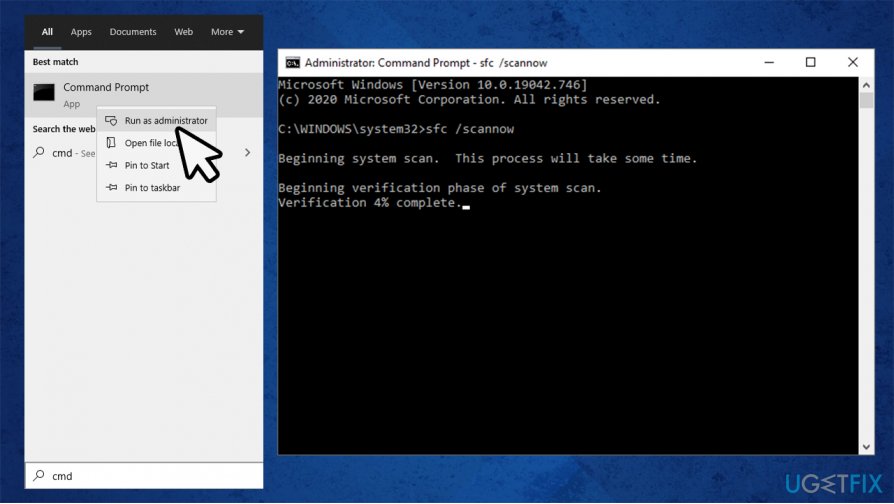
How to fix dism exe error 1392 run sfc scan - Reboot your PC once finished.
Quite often, those who experience Since Dism.exe error 1392 also receive errors while running SFC. If you are one of those, please proceed to the next fix.
Solution 3. Run check disk function
While check disk command can usually help users, in this case, you need to run it in the offline mode. This will allow you to avoid resetting all the associated files on Windows:
- Open Command Prompt (admin) as explained above
- Type in the following command and press Enter:
chkdsk /offlinescanandfix
- Keep in mind that this process might take some time, so please wait
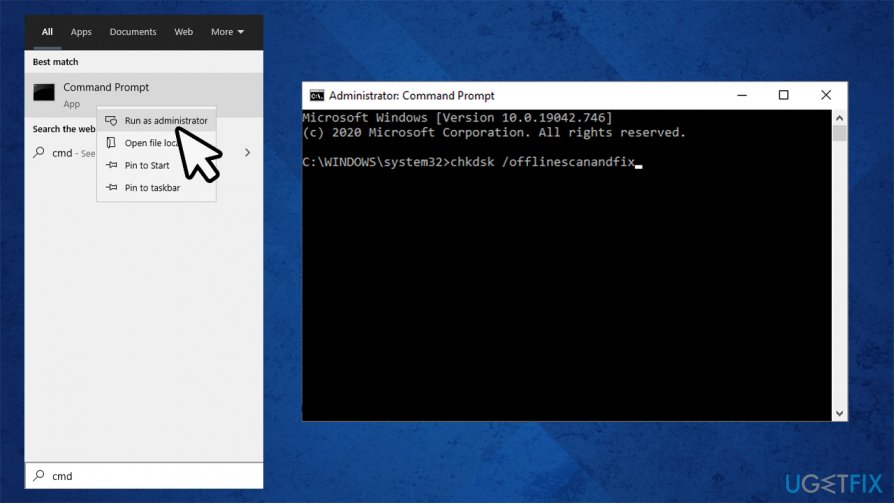
How to fix dism exe error 1392 run check disk - After this, see if this Dism.exe error 1392 fix worked for you.
Solution 4. Clean your system from temporary files
In some cases, the corruption lies within temporary files. Thus, deleting them might solve the problem.
- Type in Disk Cleanup in Windows search
- Pick the drive Windows is installed on (C: by default)
- Select all the temporary files to delete and click Clean up system files.
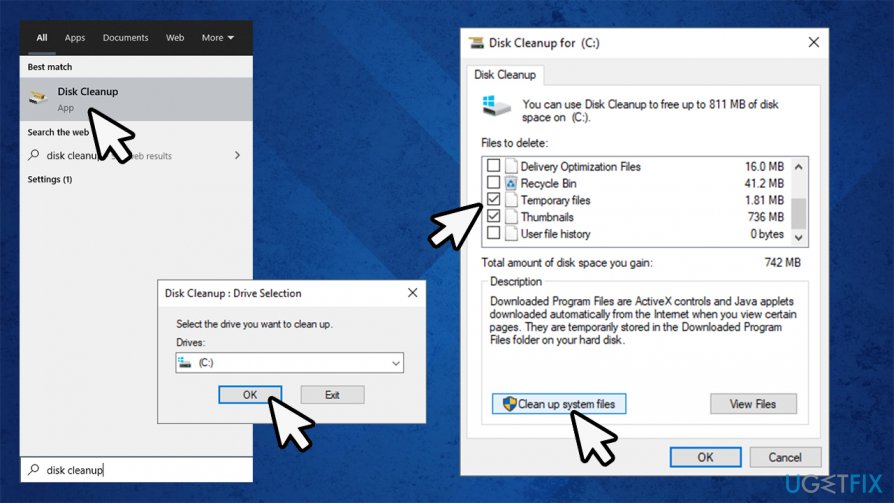
How to fix dism exe error 1392 run disk cleanup
Solution 5. Use System Restore
- Type in Create a restore point and press Enter
- Click on System Restore
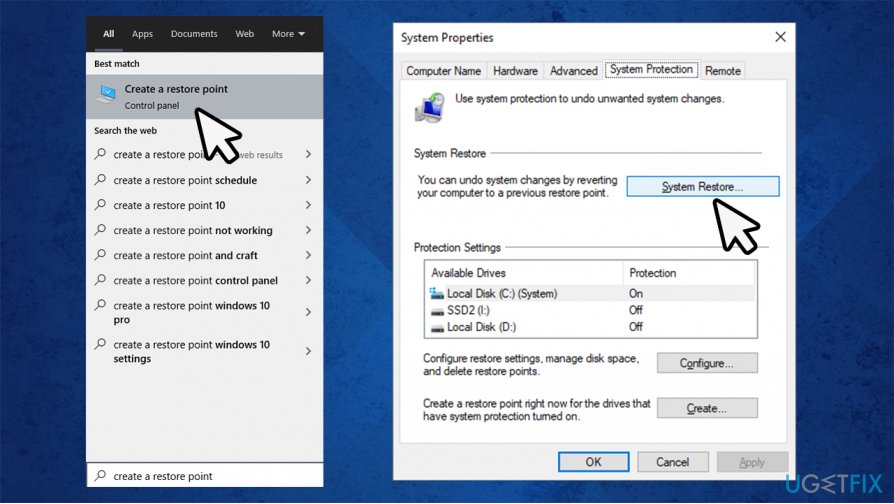
How to fix dism exe error 1392 run system restore - Select Choose a different restore point and click Next
- Tick Show more restore points
- Select the point in time before problem occurred and press Next
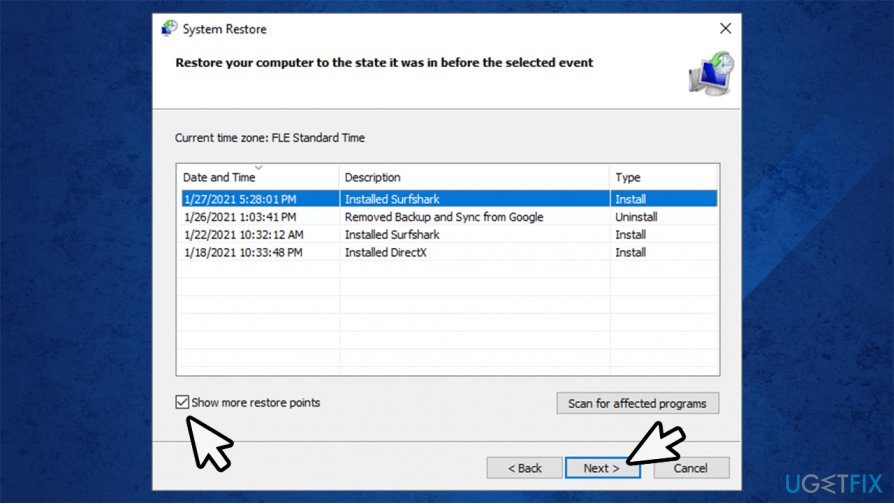
How to fix dism exe error 1392 run system restore2 - Follow the on-screen instructions to finish the process.
Solution 6. Reset Windows
If none of the above solutions helped you, try resetting your PC. Don't worry about personal files, as they will remain intact.
- Right-click on Start and select Settings
- Go to Updates & Security section
- Choose Recovery
- Under Reset this PC, click the Get started button
- Pick Keep my files
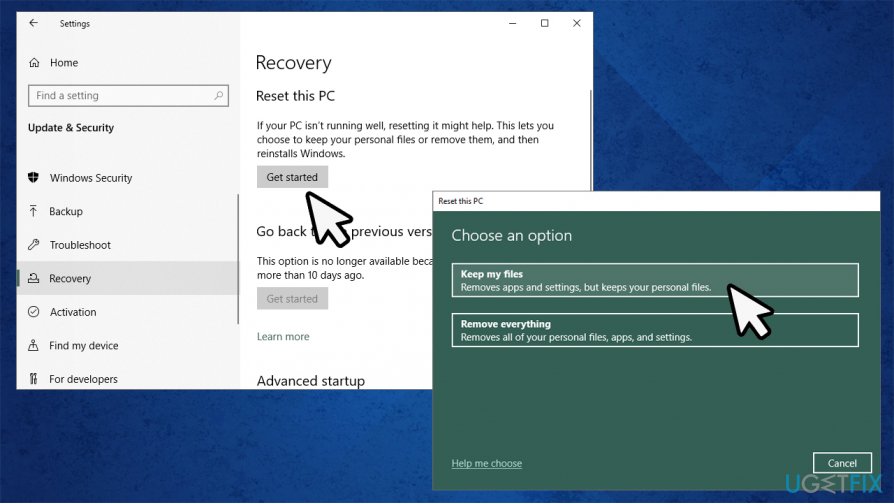
How to fix dism exe error 1392 reset windows - Proceed with on-screen instructions to finish the process.
If you want more extensive options for this process, visit our How to reset Windows 10 to factory settings? article.
Bottom line
To fix Dism.exe error 1392, you can try running a system repair tool or other troubleshooting methods. If these solutions do not resolve the issue, further investigation into the underlying causes may be necessary.
Frequently asked questions
Error 1392 indicates that the file or directory is corrupted and unreadable, which can prevent DISM from completing its task. This usually requires repairing the corrupt files before running DISM again.
You can use the System File Checker by running 'sfc /scannow' in the Command Prompt as an administrator to fix corrupted system files on Windows 10.
To avoid error 1392, ensure your hard drive is healthy by running a disk check with 'chkdsk /f' and keeping your system updated to prevent file corruption.




Report an issue
What's wrong with this guide? We review every report and update or remove content.
Report received — thank you. We'll review and fix it.
You need a free account to submit a report.
Be the first to comment