How to fix
“Dllhost.exe not found” error
on Windows
Resolve the “Dllhost.exe not found” error on Windows 10 or Windows 11 quickly and efficiently. Expert-tested solutions ensure a seamless experience!

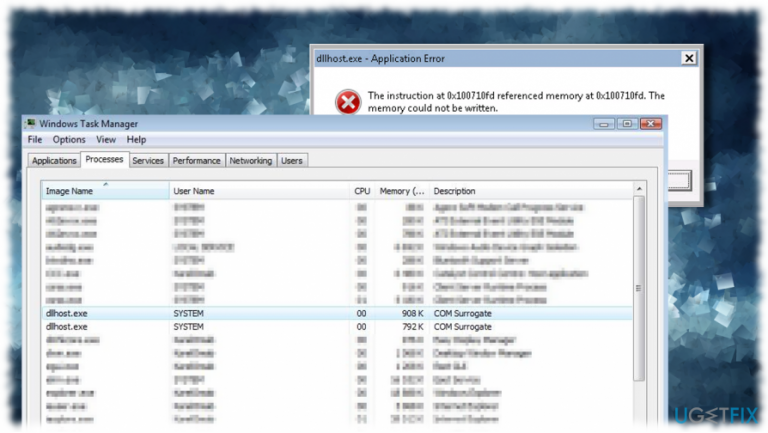
What causes How to fix “Dllhost.exe not found” error on Windows?
- Corrupted Dllhost.exe file
- Damaged display adapter drivers
- Disk errors
- Malware infections
- Missing Windows updates
Repairs Windows system files, removes malware, and restores a clean OS state — without reinstalling.
My PC often throws an error “Dllhost.exe not found.” It shows up under various conditions, for example, when trying to launch apps or remove some useless content. When it shows up, the process is not being executed and the system freezes. I have no idea why this is happening. Could someone please help?
“Dllhost.exe not found” is a Windows OS specific error, which may occur due to the corrupted, damaged or accidentally deleted Dllhost.exe file, corrupted display adapter drivers,[ref en-3] disk errors, etc. Nevertheless, we will try to help you fix “Dllhost.exe not found” on Windows - check the step-by-step guide below.
The original Dllhost.exe file belongs to the Microsoft Windows Operating System and is known as COM Surrogate. It runs a process on Task Manager continually, which is responsible for the smooth performance of the DLL[ref en-1] based applications, controls the operations in Internet Information Services (IIS), and prepares the .NET[ref en-2] runtime for loading. The original Dllhost.exe file is located in the C:\\Windows\\System32 or C:\\Windows\\winsxs directory.
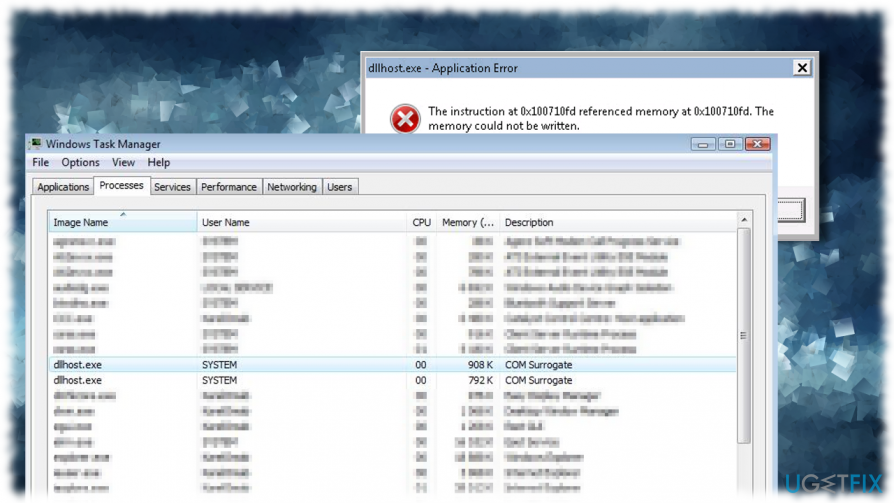
If Dllhost.exe file is located in the subfolder of the user profile, C:\\Windows, C:\\Program Files, C:\\Windows\\System32 or subfolder of Windows folder for temporary files, it’s security rating is more than 60% dangerous. It means that malware is hiding in your operating system.
Security experts have found the following malicious programs named as Dllhost.exe: WORM_INJECT.OB, WORM_VB.GZP, W32.SillyFDC, and W32.Fontra. Therefore, to fix “Dllhost.exe not found” error, you’ll have to launch a scan with a professional anti-malware program.
Fix 1. Update Windows OS
Usually, the problem may occur due to missing Windows updates or corrupted Windows update files. Therefore, we would recommend installing Windows updates or, if you have recently installed them, remove the installed updates and check if that helps. For this purpose, you should:
- Press Win key + I and select Update & security
- Press Check for Updates
- Wait till the Windows Update dialog box appears. If there are any available updates, select the Install Updates button.
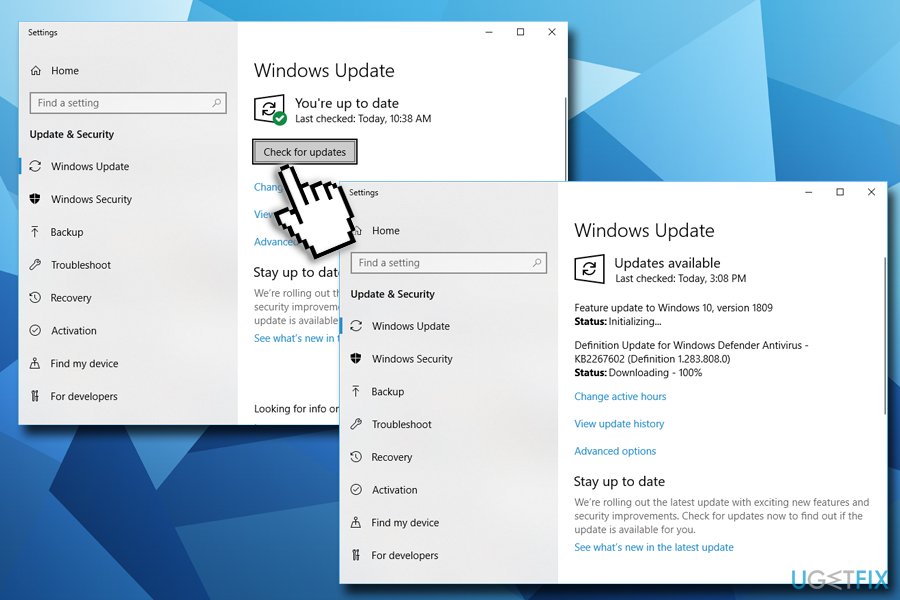
Fix dllhost exe not found update windows
Fix 2. Uninstall Windows updates
In case the “Dllhost.exe not found” error occurred after the installation of the updates, you can uninstall updates or fix the error using Windows System File Checker. To remove the Updates, follow these steps:
- Press Win key + I and select Update & Security
- Click Update History link and select Uninstall Updates
- Select the update that you have installed right before the “Dllhost.exe not found” error occurred and click Uninstall
- Reboot your PC.
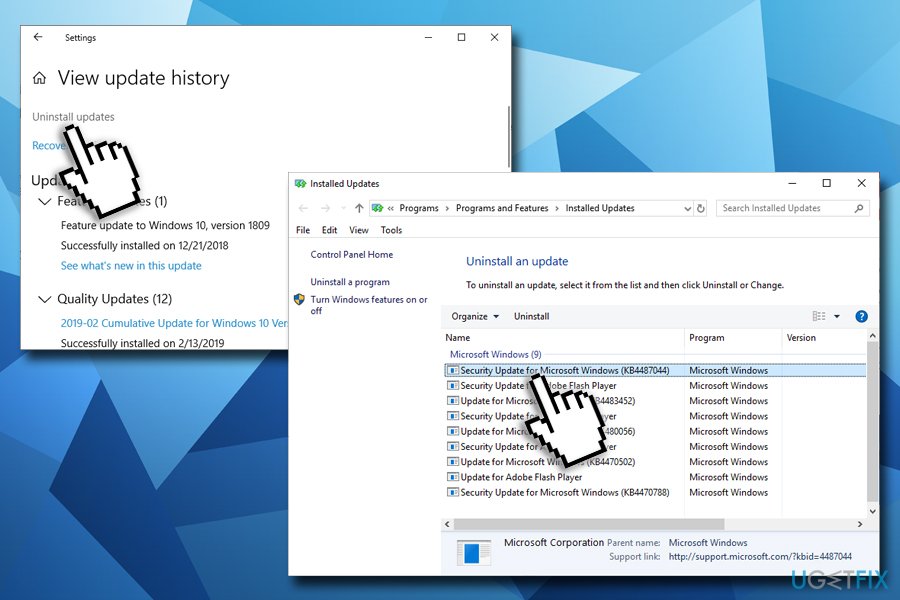
Fix dllhost exe not found error rol back windows updates
Fix 3. Run System File Checker
If Dllhost.exe not found error occurred due to damaged Windows system files, you can run [d1] repair software to fix them. If you prefer manual option, here's how to enter Windows System File Checker:
- Right-click on Windows key and select Command Prompt (Admin)
- Type sfc /scannow and hit Enter
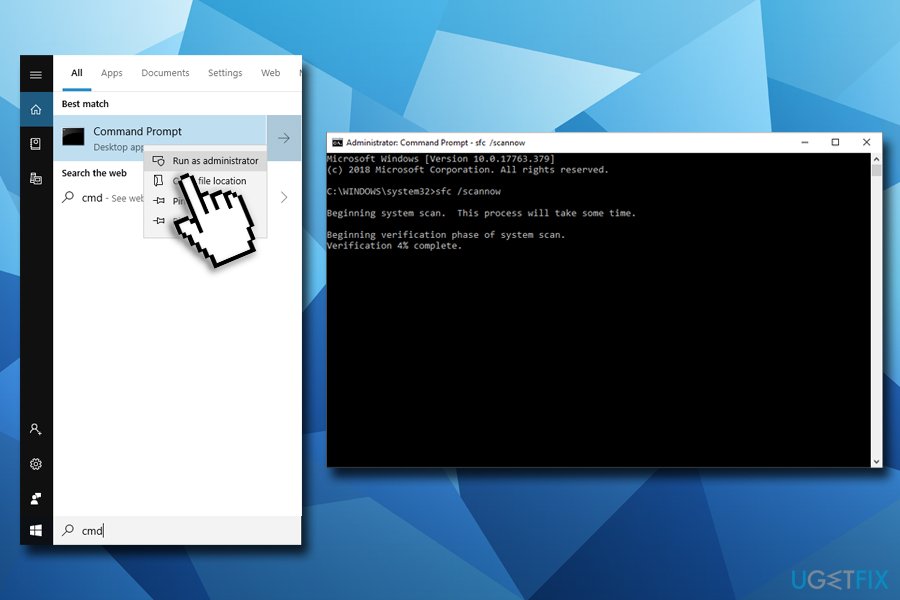
Fix dllhost exe not found run system file checker - Wait while Windows System File starts and finishes scanning for the system file errors.
Fix 4. Check for Disk errors
Disk errors might cause a variety of errors on Windows operating systems including "Dllhost.exe not found." To fix it, run error check as follows:
- Open File explorer (Win key + E)
- In the left pane, click on This PC
- Select the hard disk drive (start from C and proceed to others), right-click and pick Properties
- Go to Tools tab
- Click on Check
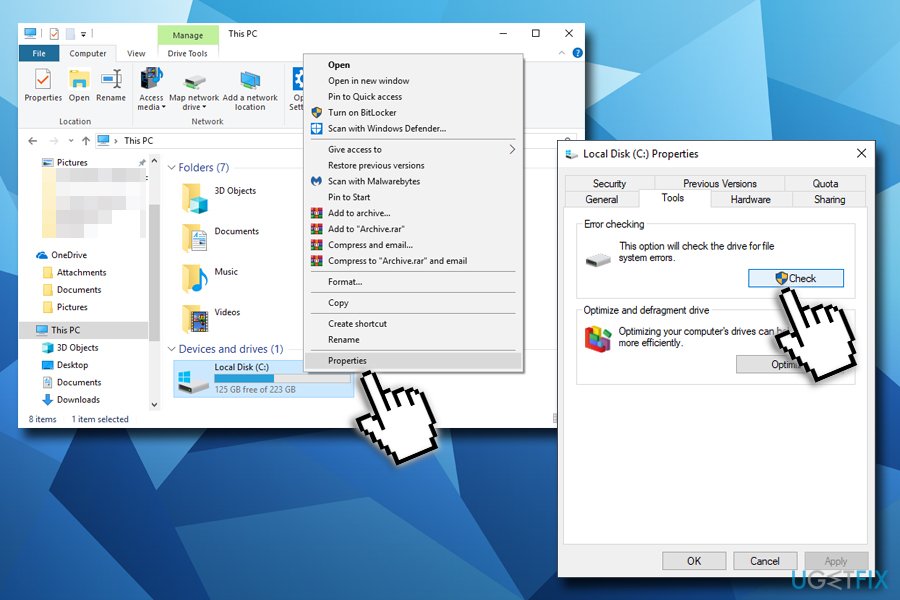
Fix dllhost exe not found check disk for errors - Wait till Windows finishes the scan.
Fix 5. Re-register all DLL files
- In Cortana's search box, type in cmd
- Right-click on the the search results and pick Run as administrator
- When Command Prompt opens, type in the following:
cd C:\\Windows\\system32
- Hit Enter
- Next, type in the following and press Enter again:
for %i IN (dir /b *.dll) DO (regsvr32 /i/s %i)
Bottom line
To fix the 'Dllhost.exe not found' error, you should update your Windows OS, remove recently installed updates if necessary, and run a scan with a professional anti-malware program. If these solutions do not resolve the issue, further investigation into system changes may be required.
Frequently asked questions
The 'Dllhost.exe not found' error usually occurs due to corrupted system files, malware infections, or issues with the Windows registry. It's essential to run a system scan and check for any software conflicts.
To fix this error on Windows 11, you can try restoring your system using System Restore or running the System File Checker tool to repair corrupted files. Additionally, ensure your Windows is up to date.
No, downloading Dllhost.exe from unverified sources can introduce malware and further complications; it's best to use built-in Windows tools to resolve the error safely.




Report an issue
What's wrong with this guide? We review every report and update or remove content.
Report received — thank you. We'll review and fix it.
You need a free account to submit a report.
Be the first to comment