
How to fix DRIVER_OVERRAN_STACK_BUFFER BSOD on Windows 10?
Prefer to fix it yourself? The manual steps follow.
7 methods in this guide
Hi, whenever I play games on my Windows 10 PC, I get interrupted by a DRIVER_OVERRAN_STACK_BUFFER error every 10 to 30 minutes. It forces me to restart, and I sometimes lose my game progress, which is really annoying. Is there a solution for this?
DRIVER_OVERRAN_STACK_BUFFER is a Blue Screen of Death error with the value of 0x000000F7 and occurs at any time during the operating system operation, although users reported that it is most prevalent during the Windows startup process. It was also observed that the DRIVER_OVERRAN_STACK_BUFFER is returned with several culprits, such as ntoskrnl.exe, nvlddmkm.sys, fltmgr.sys, cpip.sys, and many others.
In most of the cases, there are no indicators about the upcoming system crash, although some users might experience slowdowns, random freezes, or unresponsiveness. After that, the PC crashes with the DRIVER_OVERRAN_STACK_BUFFER error, and the description is very generic:
Your PC ran into a problem and needs to restart. We're just collecting some error info, and we'll restart for you.
0% Complete
If you'd like to know more, you can search online later for this error:
DRIVER_OVERRAN_STACK_BUFFER
As explained by the specialists, DRIVER OVERRAN STACK BUFFER error means that the driver has overrun a stack-based buffer to prevent the system from a hacking attack, although the culprit of 0x000000F7 error may vary; therefore, to address it, it is important to analyze the circumstances of the occurrence carefully in order to fix DRIVER_OVERRAN_STACK_BUFFER error once and for all.
For example, if the DRIVER_OVERRAN_STACK_BUFFER error comes up when playing games, it's very likely that the problem occurs due to the graphics drivers. Nevertheless, the reason can be any driver on the system. Other reasons include incorrectly installed Windows updates, broken hardware, corrupted system files, etc. Besides, malware or virus infection may also influence the emergence of the BSOD DRIVER_OVERRAN_STACK_BUFFER.
If that does not work, proceed with the fixes below.
Fix 1. Check for corrupted files with SFC scan feature
System File Checker (SFC) is a great built-in utility that can check for system corruption. You can access it via Command Prompt:
- Type in cmd or Command Prompt into Windows search box
- Right-click on Command Prompt search result and select Run as administrator
- Once the new window shows up, type in the following command and press Enter:
sfc/scannow
- Wait till Windows performs a scan (it might take a few minutes)
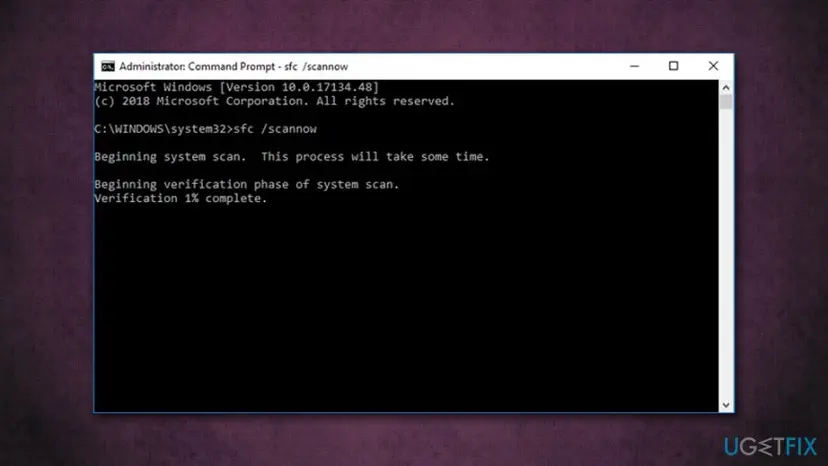
How to fix driver overran stack buffer bsod run sfc scan - If SFC scan returned no results, proceed with the next step that could help you fix DRIVER_OVERRAN_STACK_BUFFER error
Fix 2. Scan your computer for malware
There are several serious malware strains that can cause significant damage to the Windows system, as some might root deep into the kernel. As a result, users might experience a variety of Blue screens and system crashes. To ensure no malware is involved, run a full system scan with Windows Defender/Microsoft Defender or another security software.
- Type in Security into Windows search and click Windows Security
- Select Virus & Threat protection
- Go for Scan options
- Select Full scan and then choose Scan now
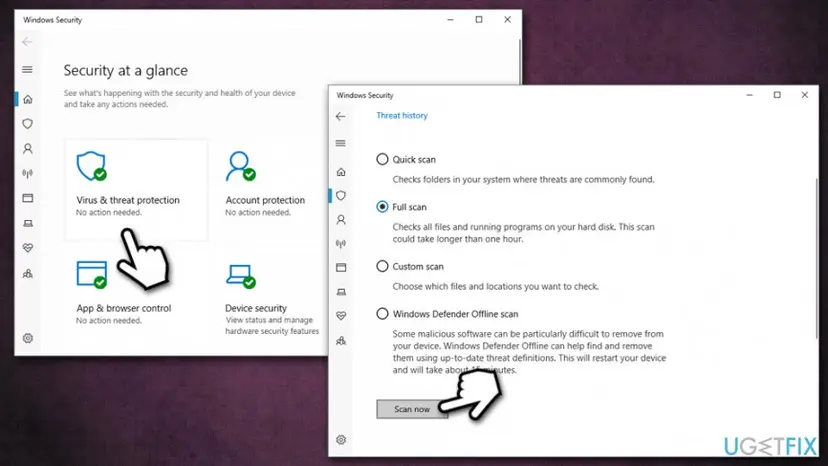
How to fix driver overran stack buffer bsod scan pc for malware
Fix 3. Apply the latest Windows updates
Windows updates are extremely important not only for system stability but also protection from the attackers. Therefore, if you encountered DRIVER_OVERRAN_STACK_BUFFER error, you should make sure that you are running the latest version of the operating system.
- Right-click on Start and select Settings
- Go to Update & Security
- Click on Check for updates
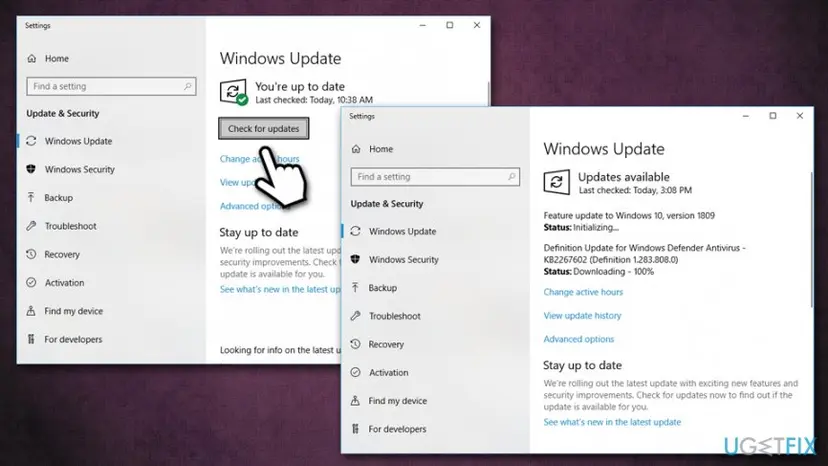
How to fix driver overran stack buffer bsod update windows - Wait till Windows downloads and installs the newest updates
- Reboot your machine
Fix 4. Update your drivers
Some users reported that the culprit of the DRIVER OVERRAN STACK BUFFER error was the Atheros wireless driver, as well as Broadcom Network Adapter wireless driver. Nevertheless, the problem might lie in any driver located on the system. As mentioned before, if the issue occurs when playing games, it is highly likely that the graphics driver is at fault:
- Right-click on Start and select Device Manager
- Expand the relevant section (for example, Display adapters)
- Right-click on the driver and select Update Driver
- Pick Search automatically for updated driver software
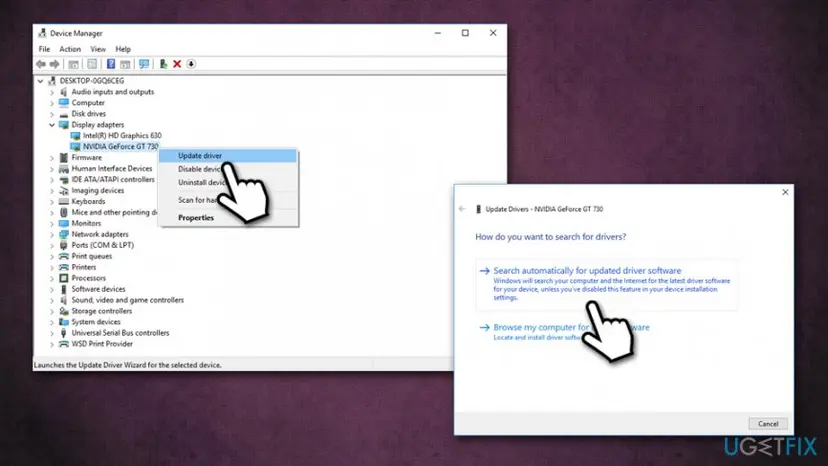
How to fix driver overran stack buffer bsod update drivers - Wait till Windows installs drivers and reboot
Note: you can update all the other drivers the same way. In such a case, first update everything required, and only then perform a system reboot.
Fix 5. Run a Check disk command via Command Prompt
Check disk function can help you identify disk problems. Run the scan as follows:
- Access Command Prompt as explained in fix no.1
- Type Chkdsk /f and press Enter
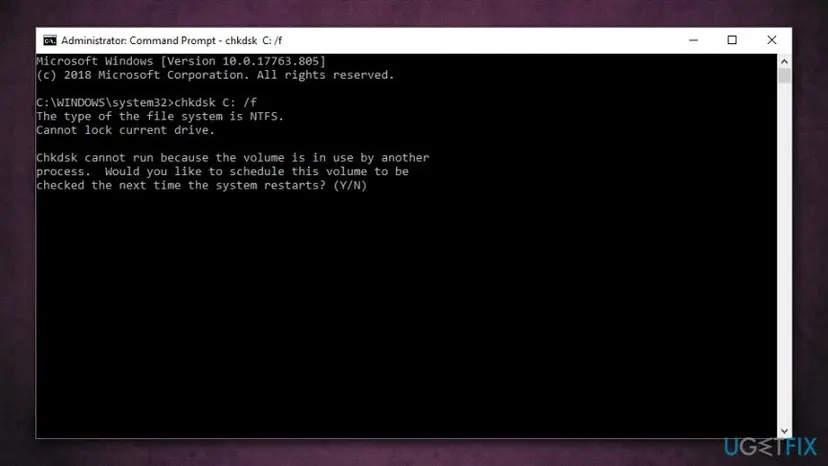
How to fix driver overran stack buffer bsod check disk - Press Y when you are prompted to check the disk next time that the system restarts
- Reboot the system.
- Upon Windows boot, the scan will be performed - be patient as it might take awhile
Fix 6. Check computer for memory issues
To make sure your RAM is in a working condition, run Windows Memory Diagnostic tool.
- Type in Memory into Windows search box
- Right-click on Windows Memory Diagnostic and pick Run as administrator
- Select Restart now and check for problems (recommended)
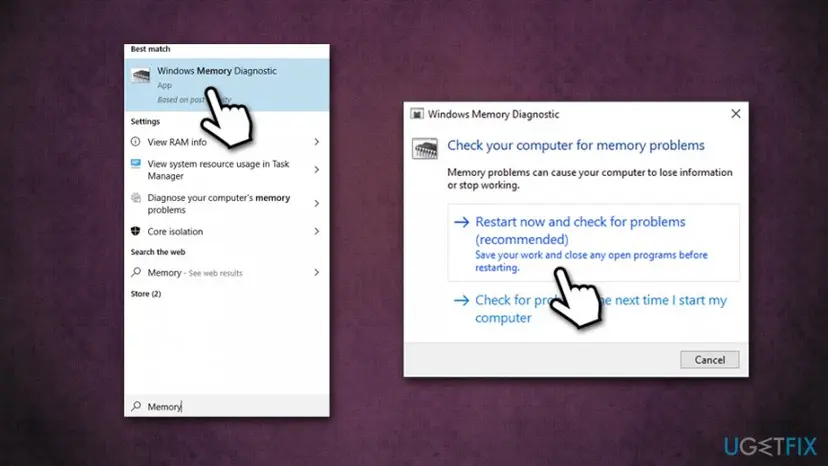
How to fix driver overran stack buffer bsod run memory diagnostic - The PC will immediately restart, so make sure you safe all your work
Fix 7. Check hardware for corruption
Windows machines are complicated, as they are created from components that were developed by different manufacturers. For the system to work, hardware and software need to work in harmony, and any disturbance might result in BSOD errors like DRIVER_OVERRAN_STACK_BUFFER, as well as various other malfunctions.
First of all, you need to make sure that all your hardware is compatible. If you recently changed any components on your computer (such as motherboard or RAM), you should take them out and try different ones. Giving advice here is really hard, as it depends on what components you are using, so you need to look it up on the manufacturer's website, which configuration would suit you the best.
Finally, DRIVER_OVERRAN_STACK_BUFFER error might be caused by faulty hardware as well. To pinpoint which component is faulty, you would have to physically take it out and replace it with one that you are sure is in a working condition. Additionally, there are several tools that are capable of detecting hardware issues, such as Speccy or CrystalDiskInfo.
Did this fix work?
One click, no account. It tells the next reader which guides are worth their time.
Questions and experiences: fix DRIVER_OVERRAN_STACK_BUFFER BSOD on Windows 10
Still broken, or found a fix we did not cover? Ask here: members and our editors answer. Reading is open; writing needs a free account.
…