How to fix
DtsApo4Service.exe has stopped working
on Windows
Resolve the DtsApo4Service.exe error in Windows 10 and 11 effortlessly. Get quick, effective solutions from our expert-tested guide. Fixed in minutes!

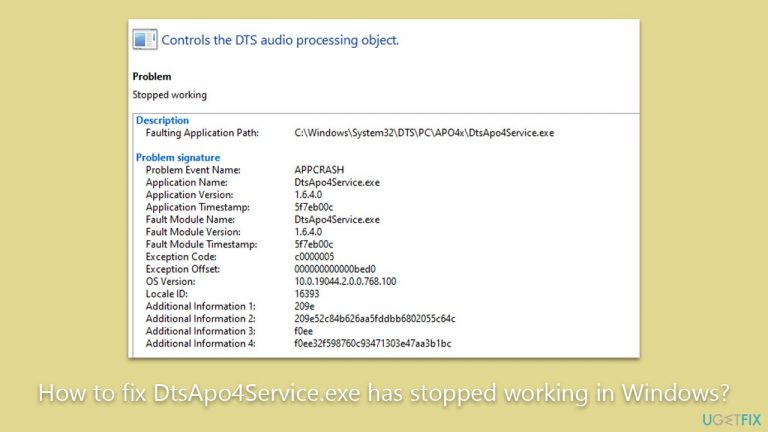
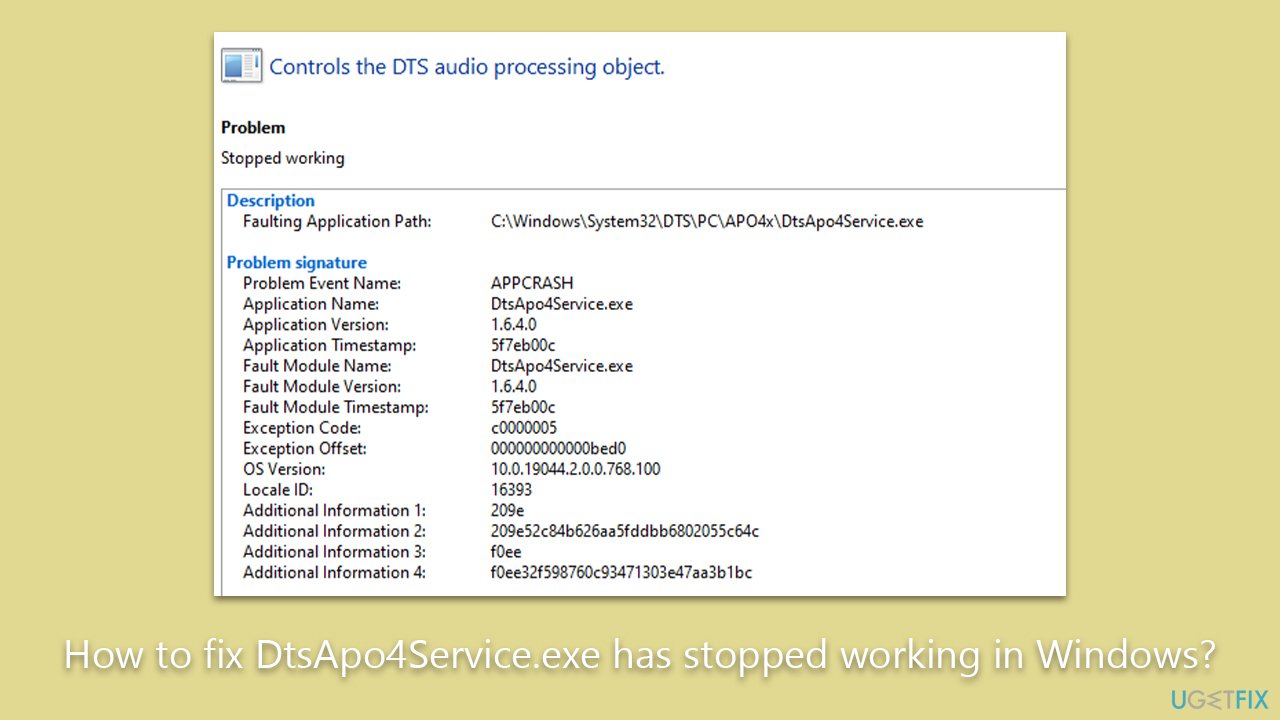
What causes How to fix DtsApo4Service.exe has stopped working in Windows?
- Conflicts with other software
- Issues with sound drivers
- Malware infection
- Corrupted DTS software
- Outdated audio drivers
Repairs Windows system files, removes malware, and restores a clean OS state — without reinstalling.
When listening to music or playing a video, I've noticed that my audio started cutting out. I checked the Reliability report, which showed that DtsApo4Service.exe keeps crashing. How do I fix this?
Sound systems are integral to the holistic digital experience, providing dynamic multimedia experiences for individuals. However, sometimes users encounter challenges that compromise this. One such situation revolves around the DtsApo4Service.exe program, which, when malfunctioning, can cause sound to abruptly cut-off, sound distortion, or even complete absence of audio output. Users gaming, streaming movies, or attending virtual meetings may suddenly find their sound disrupted, degrading the overall experience.
When these sound problems occur, users often turn to Windows' built-in diagnostic tools for answers. The Event Viewer or Reliability Monitor are particularly useful in these scenarios. These tools may indicate that the root of the problem is DtsApo4Service.exe, which has unexpectedly stopped working and crashed.
DtsApo4Service.exe is a significant part of the Windows operating system, particularly in the context of audio. As a component of the DTS Sound Unbound software, it is a part of the broader DTS audio platform, which enhances audio experiences in PCs. DtsApo4Service.exe contributes to this by processing audio enhancement features, ensuring that sound output is immersive and high-quality.
However, like any software component, DtsApo4Service.exe is susceptible to problems. The service can crash for a myriad of reasons, ranging from conflicts with other software and issues with sound drivers to even malware infection. These challenges can prevent DtsApo4Service.exe from functioning optimally, hence leading to the reported sound issues.
Despite the initial apprehension, these issues might provoke, rest assured that viable solutions are within reach. Actions such as updating your audio drivers or reinstalling the DTS software can frequently rectify these problems. It's also worth investigating possible malware infestations or software conflicts that could be causing the DtsApo4Service.exe crash.
In addition to manual solutions, third-party tools like the [d1] PC repair tool can also be beneficial. This software is designed to identify and fix issues that might directly cause the DtsApo4Service.exe error. It simplifies the process and reduces the risk of exacerbating the problem, making it a suitable option for users experiencing this specific error.
Fix 1. Reinstall DTS Studio software
Sometimes, the DTS software itself may have issues that lead to DtsApo4Service.exe crashes. Reinstalling the software can reset any problematic settings or corrupted files.
Instructions:
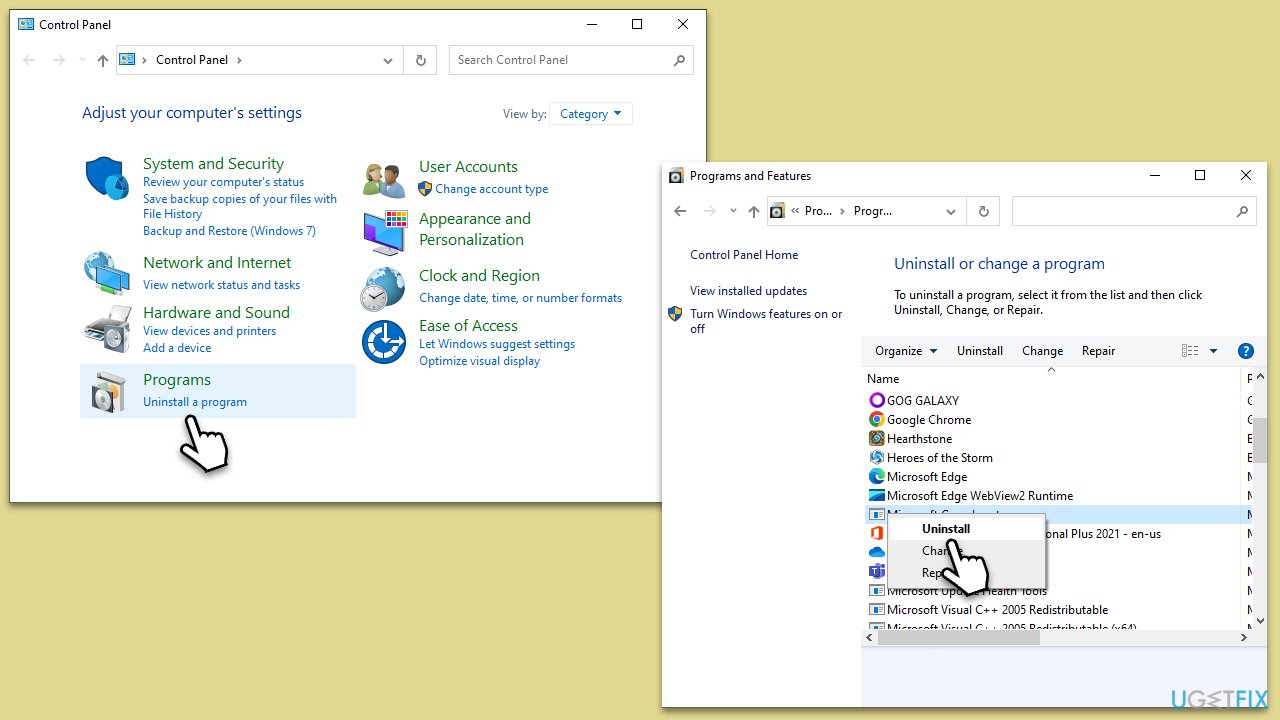
- Type Control Panel in Windows search and press Enter.
- Go to Programs > Uninstall a program.
- Locate DTS software in the list, click on it, and select Uninstall.
- Follow the prompts to complete the uninstallation.
- Visit the DTS website or your device manufacturer's website to download and install the latest version of the software.
Fix 2. Check for malware
Malware can interfere with system processes like DtsApo4Service.exe. Running a thorough scan can detect and remove any malware. You can use any reliable third-party app, although Microsoft Safety Scanner can be used, as well as the built-in Microsoft Defender:
- Type Windows Security in the Windows search bar and hit Enter.
- Select Virus & threat protection.
- Pick Scan options.
- Choose Microsoft Defender Offline scan and click Scan now.
- Your computer will immediately reboot and begin a deep scan.

Fix 3. Update audio drivers
Outdated or corrupt audio drivers may cause the issue. Keeping these drivers updated ensures the smooth operation of audio processes.
Instructions:
- Right-click on Start and select Device Manager from the menu.
- Expand the Sound, video and game controllers category.
- Right-click on your audio device and choose Update driver.
- Select Search automatically for updated driver software and follow the prompts.
- Restart your system to implement changes.

If you would like a faster approach, you can always rely on an automatic driver updater such as [rev id="DriverFix"].
Fix 4. Install all Windows updates
Keeping your operating system updated is crucial for its optimal functioning. Windows updates often contain patches for bugs that could be causing issues.
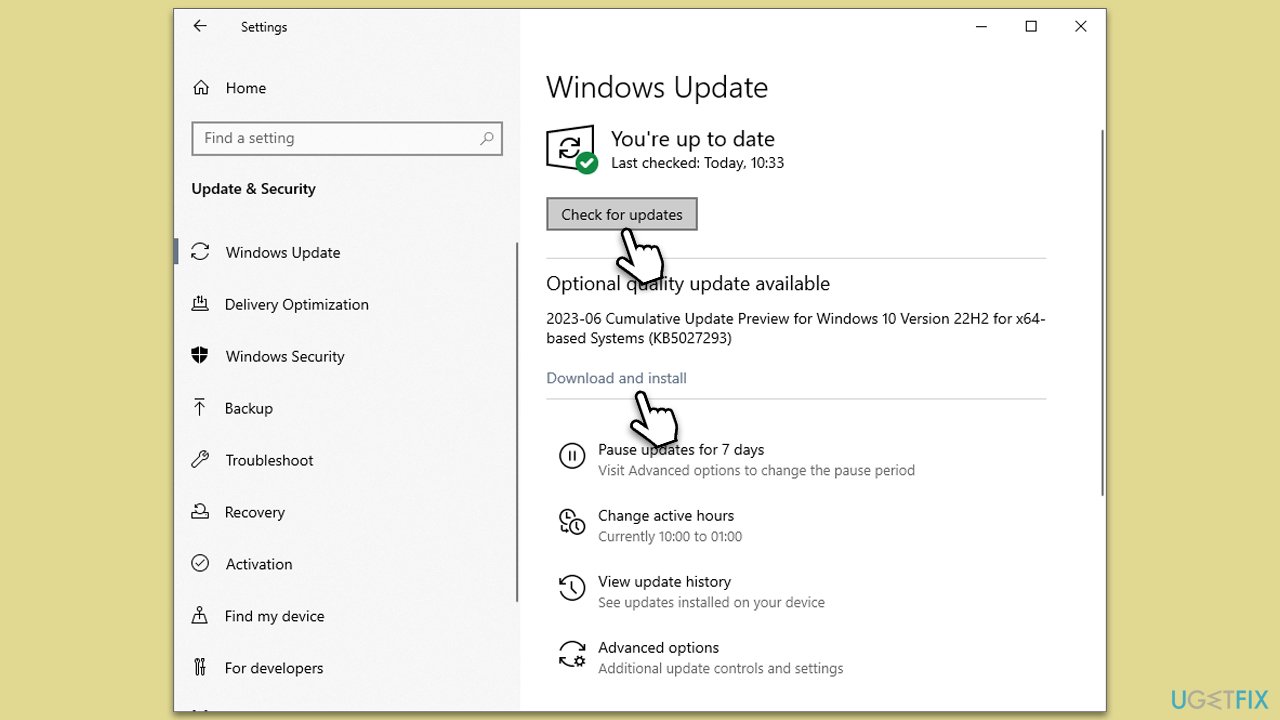
- Type Updates in Windows search and hit Enter.
- In the new window, click Check for updates.
- Install all the available updates, including optional ones.
- Once done, restart your device.
Fix 5. Run audio troubleshooter
Windows comes with built-in troubleshooting tools designed to automatically detect and fix a variety of issues, including those related to audio output. Running the audio troubleshooter can potentially fix issues.
- Type Troubleshoot in Windows search and hit Enter.
- Pick Additional troubleshooters/Other troubleshooters.
- Select Playing audio from the list and click Run the troubleshooter/Run.
- The troubleshooter will automatically scan your system for potential problems and display any issues it finds.
- If the troubleshooter finds any issues, it will provide recommended solutions.
- Follow the on-screen instructions to apply them.
Fix 6. Reinstall audio driver
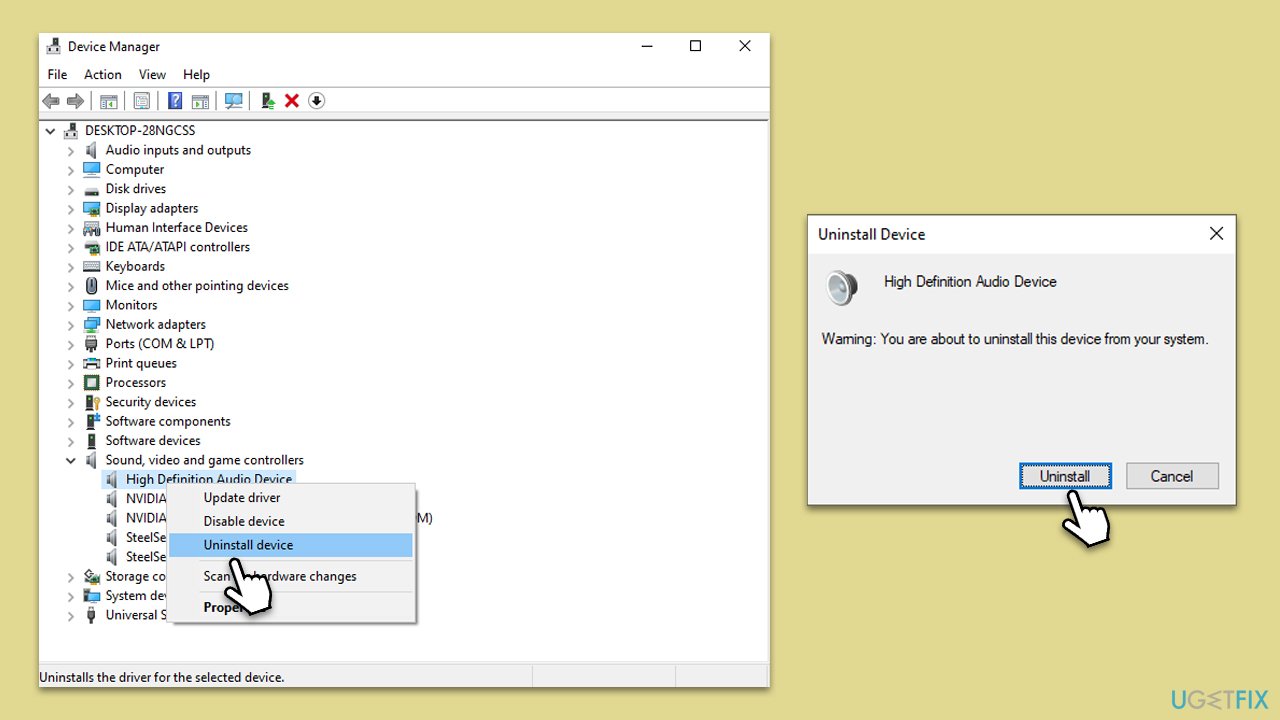
- Open Device Manager and expand Sound, video and game controllers section.
- Right-click on your device and select Uninstall device.
- When the confirmation prompt shows up, click Uninstall.
- Follow the on-screen instructions and restart your device.
- Install the newest audio drivers, as explained previously.
Related topics:
Bottom line
To fix the DtsApo4Service.exe error, consider updating your audio drivers, reinstalling the DTS software, or checking for malware infections. If these solutions do not resolve the issue, using a third-party PC repair tool may help identify and fix underlying problems.
Frequently asked questions
This error is often caused by outdated audio drivers or corrupt system files in Windows 10. Ensuring your audio drivers are up to date can help resolve the issue.
You can fix this error by running the Windows Troubleshooter for audio playback or by reinstalling the audio drivers in Windows 11. Both methods can restore functionality and eliminate the error.
Yes, you can disable the DtsApo4Service.exe service through the Services application in Windows 10 or Windows 11, which may prevent the error from occurring.




Report an issue
What's wrong with this guide? We review every report and update or remove content.
Report received — thank you. We'll review and fix it.
You need a free account to submit a report.
Be the first to comment