
How to fix DTS:X Ultra not working on Windows

Prefer to fix it yourself? The manual steps follow.
- 7methods
- 5 to 30 minutes
- Easy
Applies to PCs that came with DTS:X Ultra where the app shows "Please connect external speakers to use DTS audio controls" or does not open
7 methods in this guide
Hello. I am having difficulties with DTS:X Ultra; I just can't get it to work. Whenever I try to use it, I get the error "Please connect external speakers to use DTS audio controls. Please connect a Headphone to use DTS audio controls." Could you please advise?
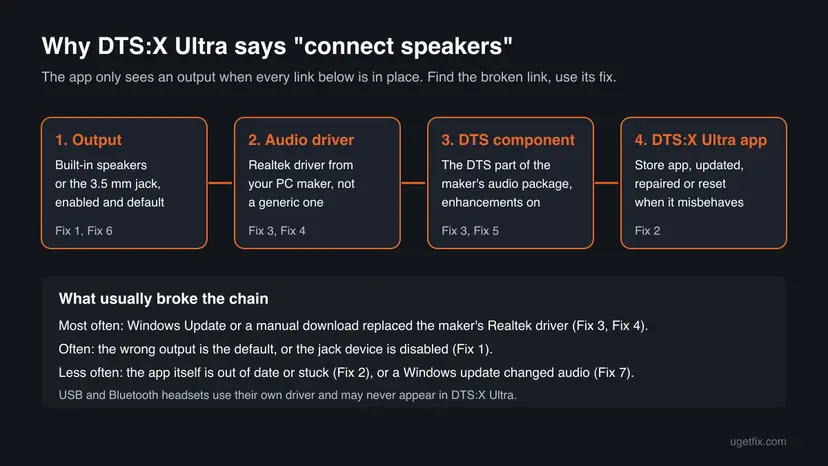
DTS:X Ultra stops working when the app can no longer reach the DTS sound component inside your PC maker's audio driver. The speakers are usually fine; the app simply sees no output it can control. Check the output device first, then reinstall the maker's audio driver and the DTS app together.
Make the built-in speakers or the 3.5 mm headphone jack your default output and make sure it is enabled (Fix 1). Update, repair and reset DTS:X Ultra in Microsoft Store and Installed apps (Fix 2). If the message stays, uninstall the audio driver and DTS app, then install the audio and DTS packages for your exact model from the PC maker's support page (Fix 3). A generic Realtek driver from Windows Update is the most common cause.
| Error | "Please connect external speakers to use DTS audio controls." or "Please connect a Headphone to use DTS audio controls." shown inside DTS:X Ultra, or the app opens with every control greyed out |
|---|---|
| Where it appears | In the DTS:X Ultra app on laptops and desktops that ship with it (ASUS, Acer, HP and others), right after you open it or after you plug in headphones |
| Main cause | The PC maker's Realtek audio driver, which carries the DTS component, was replaced by a generic driver or removed, so the app finds no output it can process |
| Fastest fix | Set the right default output and enable it (Fix 1), then reinstall the maker's audio driver and DTS package (Fix 3) |
| Also written as | DTS X Ultra not working, DTS:X Ultra not opening, DTS Ultra not working, DTS X Ultra not detecting headphones, Connect a speaker to use DTS audio controls |
| Affects | Windows 11 (25H2 and 26H2) and Windows 10 22H2; Windows 10 lost support on 14 October 2025, so check that your maker still lists drivers for it |
| Which PCs have it | Only models whose maker lists DTS:X Ultra in the audio specifications. ASUS says models with DTS Audio Processing cannot be upgraded to DTS:X Ultra |
| Vendor status | No general fix announced. ASUS says the headphone database needs the latest DTS:X Ultra from Microsoft Store and points to its own support pages for the download |
| Time to fix | 5 minutes for the output and app checks, 20 to 30 minutes for a driver reinstall |
Facts checked on 15 October 2026. Steps written for Windows 11 (25H2 and 26H2) and Windows 10 22H2.
What "Please connect external speakers to use DTS audio controls" means in DTS:X Ultra
DTS:X Ultra is the sound app that some laptop and desktop makers put on their PCs. ASUS describes it as a 3D audio technology with content modes for games and movies, a graphic equalizer, custom audio, a database of more than 450 headphone models and a Personalizer EQ. The app is only the control panel. The sound processing itself runs inside the audio driver that the PC maker installs.
So the message does not mean your speakers are broken. It means DTS:X Ultra looked for an output that its DTS component is attached to and found none. Users report it even with headphones plugged in and sound playing normally, which tells you Windows sees the device while the DTS part of the driver does not.
- Exact text
- Please connect external speakers to use DTS audio controls. Please connect a Headphone to use DTS audio controls.
- Other wording users report
- Connect a speaker to use DTS audio controls
- Does sound still work?
- Usually yes, but without the DTS effects
- Related app on some PCs
- DTS Sound Unbound, a separate DTS app that adds spatial sound formats
Why DTS:X Ultra is not working, from most to least common
In the reports we read, the message almost always follows a change to the audio driver. One Microsoft Q&A reader with an Acer Predator laptop let Windows reinstall the Realtek driver to fix headphone detection, and from then on DTS:X Ultra showed the message for every device. The same reader saw Windows put the old driver back after each restart.
| Cause | How common | What you see | Fix |
|---|---|---|---|
| Windows Update or a manual download replaced the maker's Realtek driver with a generic one | Most common | Sound works, DTS:X Ultra shows the message for every output | Fix 3, Fix 4 |
| The wrong output is the default, or the speakers or jack device are disabled | Common | The message appears only with one device, or after you plugged something in | Fix 1 |
| The DTS:X Ultra app is out of date or its data is damaged | Common | The app does not open, freezes, or the headphone list is empty | Fix 2 |
| Audio enhancements were turned off, or another spatial sound format is active | Less common | DTS effects do nothing, the toggle has no effect | Fix 5 |
| A desktop plays to the rear and front jacks at once | Less common, desktops | Headphones in the front jack are not picked up by DTS | Fix 6 |
| A Windows update changed the audio stack | Rare | It broke on the day an update installed | Fix 7 |
| The PC never had DTS:X Ultra and it was downloaded from elsewhere | Rare | The app installs but never finds a device | See the FAQ |
Older guides suggest the sound troubleshooter and a Windows reinstall with Media Creation Tool. The troubleshooter does not restore the DTS component, and a Windows reinstall brings back the generic driver that caused the problem. The maker's audio package is what fixes it.
How to fix DTS:X Ultra not working on Windows 11 and 10
Fix 1 and Fix 2 take a few minutes and cover the output and the app. Fix 3 and Fix 4 restore the driver, which is the answer for most readers whose message stays. Fixes 5 to 7 are for the cases that are left.
| What you see | Start with |
|---|---|
| The message appears with headphones plugged in, or only with one device | Fix 1 |
| DTS:X Ultra does not open at all, or freezes | Fix 2 |
| The message appears for every output and sound itself works | Fix 3 |
| DTS works after Fix 3 but breaks again after a restart or update | Fix 4 |
| The app opens and finds the device, but the effects do nothing | Fix 5 |
| A desktop with front and rear audio jacks | Fix 6 |
| It broke on the day a Windows update installed | Fix 7 |
Fix 1. Set the built-in speakers or headphone jack as the default output and enable it
5 minutesNo riskEveryone first, and especially readers who see the message only with headphones, or after plugging in a USB or Bluetooth device.
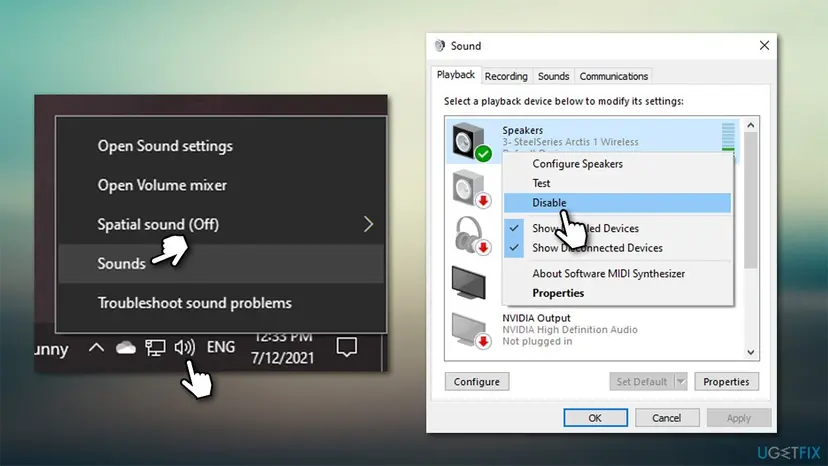
DTS:X Ultra only controls the outputs of the built-in audio chip that its DTS component is attached to. If a USB headset, a monitor or Bluetooth headphones are the default, or the speakers are disabled, the app sees nothing to control.
- Plug wired headphones into the PC's own 3.5 mm jack, not a USB adapter or dock.
- Windows 11: open Settings > System > Sound. Windows 10: open Settings > System > Sound.
- Under Output, pick Speakers or Headphones with the Realtek name, not a USB, HDMI or Bluetooth device.
- Windows 11: scroll down and select More sound settings. Windows 10: select Sound Control Panel under Related settings.
- On the Playback tab, right-click an empty spot and tick Show Disabled Devices.
- Right-click your speakers or headphones, select Disable, wait about 30 seconds, then right-click again and select Enable.
- Select Set Default, then open DTS:X Ultra again.
A USB or Bluetooth headset runs on its own driver, so DTS:X Ultra may never list it. That is how the app is built, not a fault. If you need DTS effects, use wired headphones in the PC's jack.
It worked if: DTS:X Ultra opens with the power button available and shows the device that is playing sound.
If not: If the app will not open at all, go to Fix 2. If it opens and still shows the message for every output, go to Fix 3.
Fix 2. Update DTS:X Ultra in Microsoft Store, then repair and reset it
5 minutesLow riskReaders whose DTS:X Ultra does not open, freezes, or shows an empty headphone list.
DTS:X Ultra is a Microsoft Store app. ASUS notes that its headphone database needs the latest Store version, and an app that was half updated or carried over badly by a Windows upgrade often starts again after a repair or reset.
- Open Microsoft Store, select Library and then Get updates. Let DTS:X Ultra update if it is listed.
- Windows 11: open Settings > Apps > Installed apps. Windows 10: open Settings > Apps > Apps & features.
- Find DTS:X Ultra, select the three dots (Windows 10: select the app) and choose Advanced options.
- Select Terminate, then Repair, and open the app.
- If it still fails, select Reset and confirm. Your DTS presets and equalizer settings go back to their defaults.
- If DTS Sound Unbound is also installed, repeat steps 3 to 5 for it, then restart the PC.

The full steps are in How to repair or reset an app in Windows. If the Store will not update anything, reset it first with Reset the Microsoft Store.
It worked if: DTS:X Ultra opens, a tick appears next to Repair or Reset, and the app shows your speakers or headphones.
If not: If the app opens but still shows the message, the problem is the driver: go to Fix 3.
Fix 3. Reinstall your PC maker's audio driver and DTS package
20 to 30 minutesLow riskReaders who see the message for every output while sound itself works; this is the fix for most of them.
The DTS component ships inside the maker's audio package, not in Windows. A Microsoft Q&A advisor told a reader with this exact message that there are two pieces of software, the sound driver and the app, and to reinstall the app after the maker's driver. Both must come from the maker.
- Note your exact model from the label or Settings > System > About.
- On the maker's support page for that model, download the newest Audio driver and any DTS entry for your Windows version. ASUS lists them under Driver & Utility, or under System Update in MyASUS.
- Windows 11: open Settings > Apps > Installed apps. Windows 10: open Control Panel > Uninstall a program.
- Uninstall DTS:X Ultra and, if listed, DTS Sound Unbound.
- Uninstall Realtek Audio Driver (on some PCs Realtek High Definition Audio Driver) and restart the PC.
- Run the maker's audio driver you downloaded, restart, then install the DTS package or DTS:X Ultra from the maker's page or Microsoft Store.
- Restart once more and open DTS:X Ultra.
A newer generic Realtek driver plays sound but carries no DTS component, so the app still reports no speakers. If your maker lists separate entries for the audio driver and DTS, install both, in the order the maker gives.
The same driver and Store app pairing breaks Realtek Audio Console too; our guide to the Realtek Audio Console "This app can't open" message explains how that pairing works.
It worked if: After the last restart DTS:X Ultra shows your speakers or headphones and the power button turns the effects on and off.
If not: If DTS works and then breaks again after a restart or update, go to Fix 4.
Fix 4. Stop Windows Update from replacing the DTS audio driver
10 minutesLow riskReaders whose DTS:X Ultra works after Fix 3 but breaks again after a restart or a Windows update, as the Microsoft Q&A reader described.
Windows Update can offer a different Realtek driver than the one your maker ships. If it installs on top of the maker's package, the DTS component is gone again. Rolling back returns the previous driver.
- Right-click Start and select Device Manager.
- Expand Sound, video and game controllers, right-click Realtek(R) Audio and select Properties.
- On the Driver tab, read Driver Provider and Driver Date and compare them with the maker's download page.
- If they differ and Roll Back Driver is available, select it, choose a reason and select Yes.
- If the button is greyed out, run the maker's audio package from Fix 3 again.
- Windows 11: in Settings > Windows Update > Advanced options > Optional updates, do not tick a Realtek audio driver that is offered there.

Rolling back and reinstalling drivers step by step: Update, roll back or reinstall a driver.
It worked if: The Driver Date matches the maker's package and DTS:X Ultra keeps working after a restart.
If not: If the app sees the device but the effects do nothing, go to Fix 5.
Fix 5. Turn audio enhancements on and set spatial sound to off
5 minutesNo riskReaders whose DTS:X Ultra finds the device but the DTS effects change nothing.
DTS processing runs as an audio enhancement of the device. When enhancements are off, Windows skips it. A spatial sound format from another app, such as Windows Sonic or DTS Headphone:X from DTS Sound Unbound, can also sit on top of it.
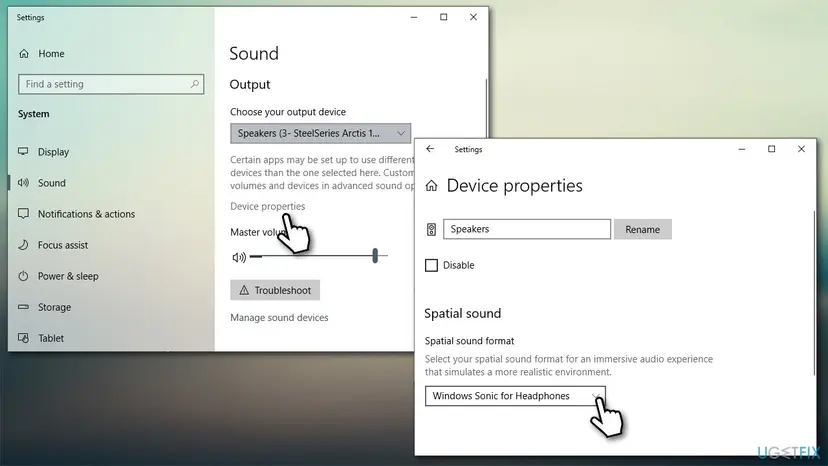
- Windows 11: open Settings > System > Sound and select your speakers or headphones under Output.
- Set Audio enhancements to Device Default Effects. Windows 10: in Sound Control Panel, open the device's Properties and untick Disable all enhancements on the Enhancements tab.
- Windows 11: under Spatial audio, set Type to Off. Windows 10: open Device properties and set Spatial sound format to Off.
- Restart DTS:X Ultra and turn it on with its power button.
It worked if: The DTS:X Ultra content modes and equalizer change the sound you hear.
If not: If you use a desktop with front jacks, try Fix 6. Otherwise go to Fix 7.
Fix 6. Mute the rear output when front headphones are plugged in (Realtek Audio Console)
5 minutesNo riskDesktop PCs with front and rear audio jacks, where DTS:X Ultra does not pick up headphones in the front jack.
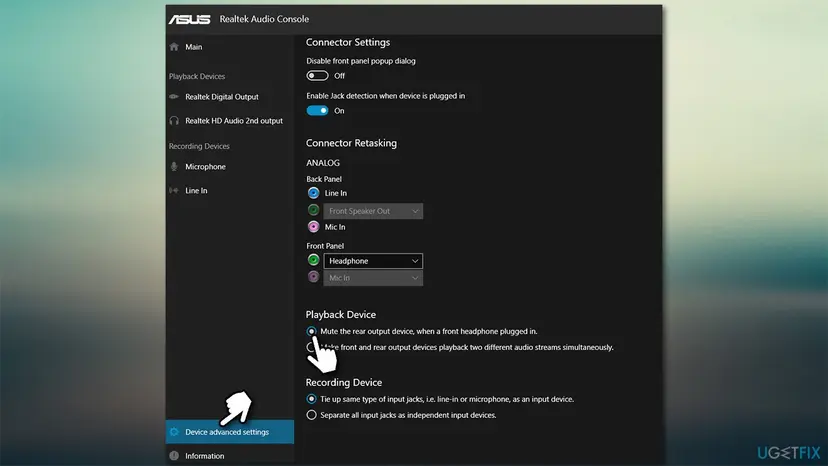
Users report that when the Realtek driver plays to the rear and front jacks as two streams, DTS:X Ultra does not detect the headphones. Telling Realtek to mute the rear output turns the front jack into the one active output.
- Open Realtek Audio Console from Start.
- Select Device advanced settings at the bottom left.
- Under Playback Device, select Mute the rear output device, when a front headphone plugged in.
- Unplug and plug in the headphones, then open DTS:X Ultra.
It worked if: With headphones in the front jack, DTS:X Ultra lists them and the rear speakers go quiet.
If not: If Realtek Audio Console will not open either, the driver pair is broken: repeat Fix 3.
Fix 7. Uninstall the Windows update that broke DTS:X Ultra
15 minutesRead the warningReaders whose DTS:X Ultra stopped working on the day a Windows update installed, and Fixes 1 to 4 did not help.
Some readers report the problem right after a cumulative or feature update. Removing that update for a short time shows whether it is the cause, while you wait for the maker's newer audio driver.
An uninstalled update also takes away the security fixes it carried. Pause updates for a short time only, check the maker's site for a newer audio driver, then let Windows install the update again.
- Open Windows Update. Select Start > Settings > Windows Update.
- Open the update history. Under More options, select Update history. Note the KB number and the date of the update you suspect.
- Open the list of removable updates. Scroll down to Related settings and select Uninstall updates.
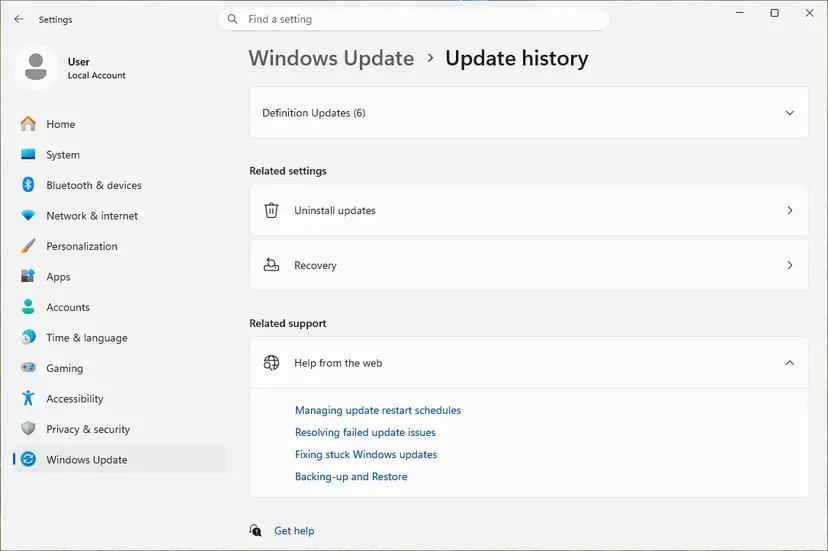
Uninstall updates is under Related settings. Screenshot: Windows 11 26H2. - Uninstall the update. Find the update in the list and select Uninstall next to it. If the update is not in the list, Windows does not allow it to be removed this way.
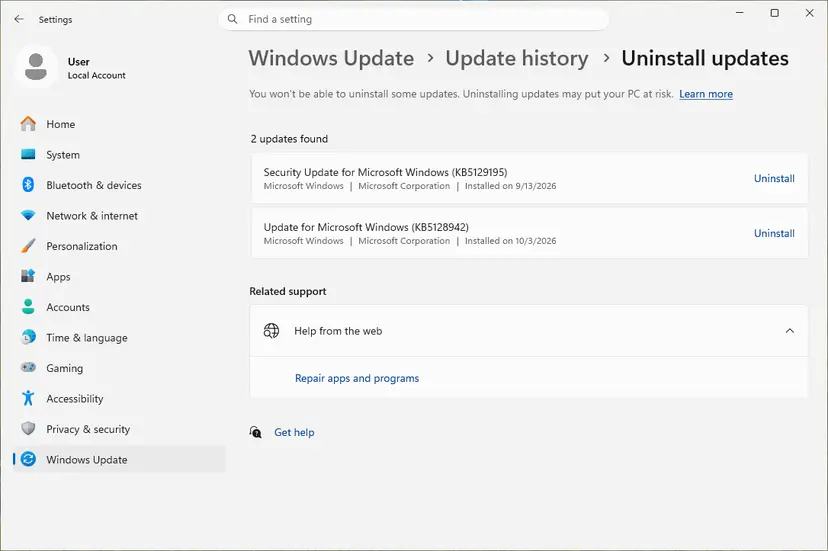
Each removable update has its own Uninstall link. Screenshot: Windows 11 26H2. - Pause updates. Go back to Settings > Windows Update and select Pick a date on the Pause updates control. If your PC shows a list there instead, select the pause length you prefer. Without a pause Windows downloads the same update again.
These steps were written for Windows 11 25H2 and 26H2. The full page with the other versions and what each result means: How to uninstall a Windows update
Note the KB number before you remove it, so you can search for it later in the maker's driver notes.
It worked if: After the restart DTS:X Ultra shows your output again.
If not: If it is still broken after the update is gone, read the section below on what to check when DTS:X Ultra is still not working.
DTS:X Ultra still not working: what to check
DTS:X Ultra writes no log you can read, so check the pieces one by one. In Device Manager, open the Realtek device's Properties and note Driver Provider, Driver Date and Driver Version on the Driver tab. Compare them with the newest audio driver on your maker's support page for your exact model.
- Driver Provider is Microsoft: Windows uses its own generic audio driver, which has no DTS part. Install the maker's driver (Fix 3).
- The maker has no driver for your Windows version: ASUS notes that it provides drivers only for supported systems. Ask the maker whether one is planned.
- DTS:X Ultra is not in your model's specifications: the app will not work on that PC, whatever you install.
- No sound from the jack with any driver: test other headphones; a worn jack is a hardware fault.
Give the PC model, the Windows version from winver, the Realtek Driver Version and Driver Date, the version of DTS:X Ultra from Installed apps, the exact message and the fixes you tried.
How to keep DTS:X Ultra working after updates
DTS:X Ultra breaks most often when a different audio driver replaces the maker's one. A few habits keep the pair intact.
- Install audio drivers only from your PC maker's support page or its update app, such as MyASUS on ASUS PCs.
- Skip optional Realtek audio drivers offered in Windows Update when your maker's package works.
- Avoid driver updater tools that swap the Realtek driver for a newer generic one.
- Keep DTS:X Ultra updated through Microsoft Store Library.
- Before a Windows feature upgrade, check that your maker lists an audio driver for the new version.
Frequently asked questions
Why is DTS not working on my laptop?
Most often the audio driver your PC maker installed was replaced by a generic Realtek or Microsoft driver, usually through Windows Update. Sound keeps working, but the DTS component that lives in the maker's driver is gone, so DTS:X Ultra finds no output. Check the output device first (Fix 1), then reinstall the maker's audio driver and DTS package (Fix 3).
What does "Please connect external speakers to use DTS audio controls" mean?
It means DTS:X Ultra cannot find an output that its DTS sound processing is attached to. It does not mean your speakers are missing. The usual reasons are a disabled or wrong default output, a USB or Bluetooth headset that DTS does not control, or a driver that is not your maker's. Work through Fix 1 and Fix 3.
Why is DTS:X Ultra not detecting my headphones?
DTS:X Ultra only sees headphones in the PC's own 3.5 mm jack, handled by the maker's Realtek driver. USB and Bluetooth headsets run on their own drivers, so the app may never list them. On desktops, headphones in the front jack can be missed while the rear output is also active; Fix 6 changes that in Realtek Audio Console.
Why is DTS:X Ultra not opening?
An app that does not open at all is usually out of date or has damaged data. Update it from Microsoft Store Library, then use Repair and Reset under Advanced options in Installed apps (Fix 2). If it opens and shows the speaker message, the driver is the problem instead, and Fix 3 is the next step.
Where can I download DTS:X Ultra for Windows 11?
From your PC maker's support page for your exact model, or Microsoft Store when your PC came with it. ASUS points readers to its own driver pages and MyASUS. The app needs the DTS component in the maker's audio driver, so a copy from a download site will install and still say there are no speakers. Do not install it from unofficial sites.
Can I install DTS:X Ultra on a PC that did not come with it?
In general no. DTS:X Ultra is licensed to PC makers for specific models, and the processing lives in their audio driver. ASUS says to check the audio part of each model's tech specs and that models with DTS Audio Processing cannot be upgraded to DTS:X Ultra. Without the matching driver, the app opens but never finds an output.
Does DTS:X Ultra work on Windows 11?
Yes, on models whose maker supplies a Windows 11 audio driver with the DTS component. The fixes on this page cover Windows 11 25H2 and 26H2 and Windows 10 22H2. If your laptop was sold with Windows 10 and the maker lists no Windows 11 audio driver, DTS:X Ultra may stop working after the upgrade.
What is DTS:X for Home Theater, and why is it disabled?
DTS:X for Home Theater is a spatial sound format from DTS Sound Unbound, a separate DTS app, not part of DTS:X Ultra. It is meant for home theater systems, not laptop speakers or headphones, so it can stay unavailable on those outputs. For headphones, use DTS:X Ultra itself or a headphone format, and set other spatial formats to off (Fix 5).
Should I reinstall Windows to fix DTS:X Ultra?
No. A Windows reinstall or an in-place upgrade with Media Creation Tool brings back Windows' own audio driver, which is the usual cause. Reinstalling only the maker's audio driver and DTS package (Fix 3) restores DTS in a fraction of the time and keeps your apps and files untouched. Try Fix 7 before any reinstall if the problem started with an update.
Is DTS:X Ultra the same as DTS Sound Unbound or DTS Headphone:X?
No. DTS:X Ultra is the app PC makers install for their built-in audio. DTS Sound Unbound is a separate DTS app that adds spatial sound formats to Windows, and DTS Headphone:X is one of those formats. Some PCs have both apps; when DTS:X Ultra fails, update and repair both (Fix 2) and turn other spatial formats off (Fix 5).
Sources
Did this fix work?
One click, no account. It tells the next reader which guides are worth their time.
Questions and experiences: fix DTS:X Ultra not working on Windows
Still broken, or found a fix we did not cover? Ask here: members and our editors answer. Reading is open; writing needs a free account.
…