How to fix
DUser.dll is missing or not found error
on Windows
Resolve the DUser.dll missing error in Windows 10 and 11 quickly. Get expert solutions and restore your system's functionality in minutes!

What causes How to fix DUser.dll is missing or not found error in Windows?
- System file corruption
- Viruses
- Hardware failures
- Software conflicts
- Outdated or incorrect device drivers
- Registry issues
Repairs Windows system files, removes malware, and restores a clean OS state — without reinstalling.
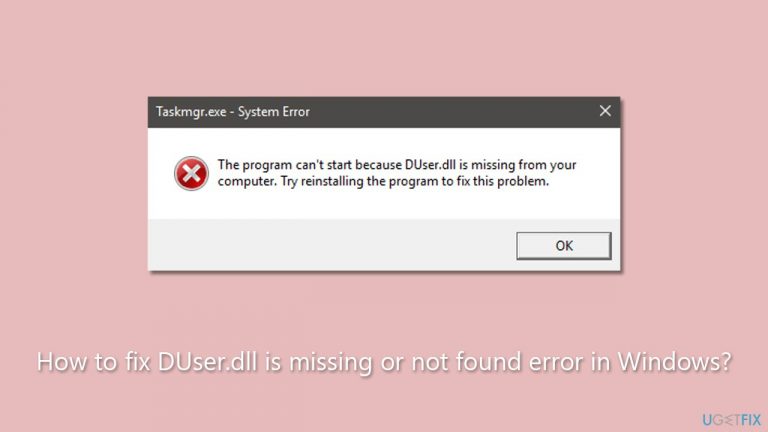
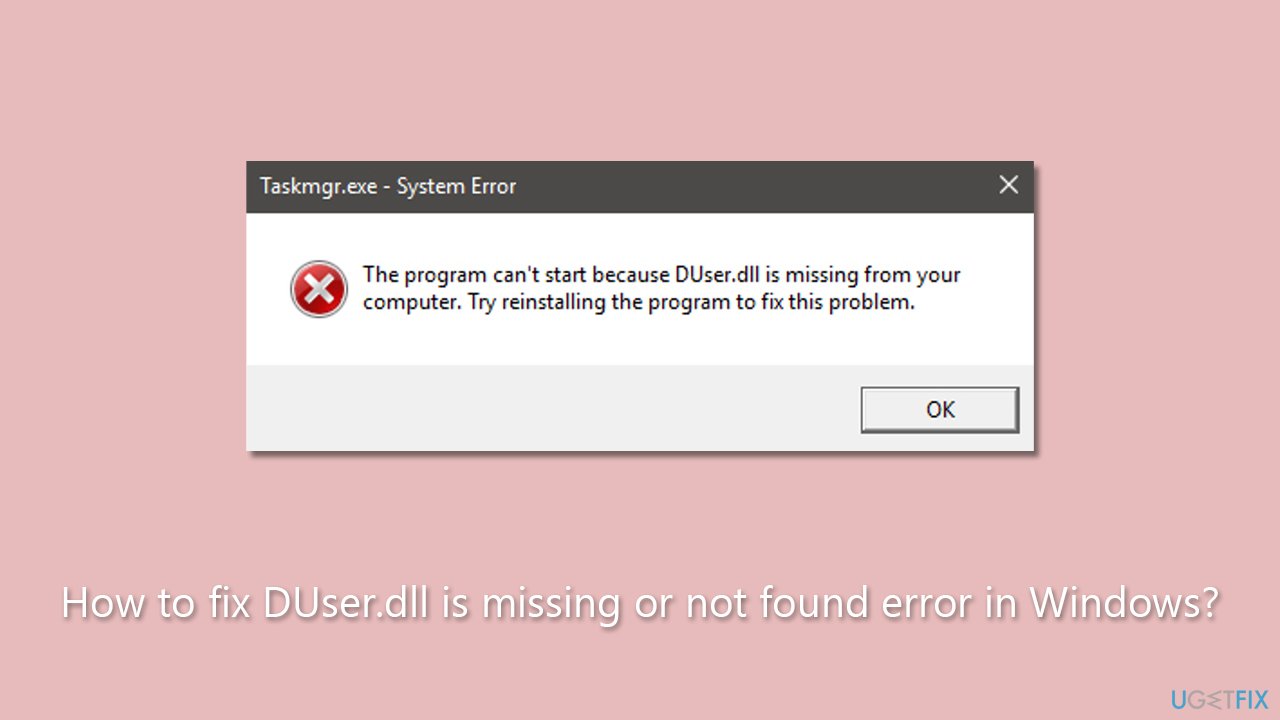
Hello, something very bad is happening with my Windows PC. Yesterday, I decided to launch a game (which was working fine just a few days ago), and I received an error "DUser.dll is missing from your computer. Try reinstalling the program to fix this problem." I then realized that File Explorer and Task Manager were also not working. Please help.
Windows is a popular operating system used by millions of people worldwide. One of the key components of Windows is DLL files. DLL stands for "Dynamic Link Library," and it contains code and data that multiple programs can use at the same time. These files are essential for the proper functioning of many Windows applications.
However, some users may encounter errors related to missing or not found DLL files, such as "DUser.dll is missing or not found." DUser.dll is a crucial system file that stands for Windows DirectUser Engine. It provides the foundation for DirectUI, a framework used to create user interfaces for Windows applications.
When this file is missing or corrupted, users may not be able to launch some applications, along with File Explorer and the Task Manager, which significantly limits their ability to control their device.
The main reason for the "DUser.dll is missing or not found" error is system file corruption. This can happen due to a variety of reasons, such as viruses, hardware failures, or software conflicts. In addition, the error can also occur due to outdated or incorrect device drivers, registry issues, or even malware infections.
It is important to address this error as soon as possible, as it can lead to further system instability and compromise users' ability to control their devices. There are several ways to fix the "DUser.dll is missing or not found" error, such as performing a system file check, running a malware scan, updating drivers and software, and reinstalling the affected application.
If you encounter the "DUser.dll is missing or not found" error, do not worry. There are various solutions available, such as restoring the system to a previous point, performing a system file check, reinstalling the affected software, and more. If you would like to try a comprehensive solution, we recommend using [d1], which can fix errors automatically for you.
1. Repair damaged system files
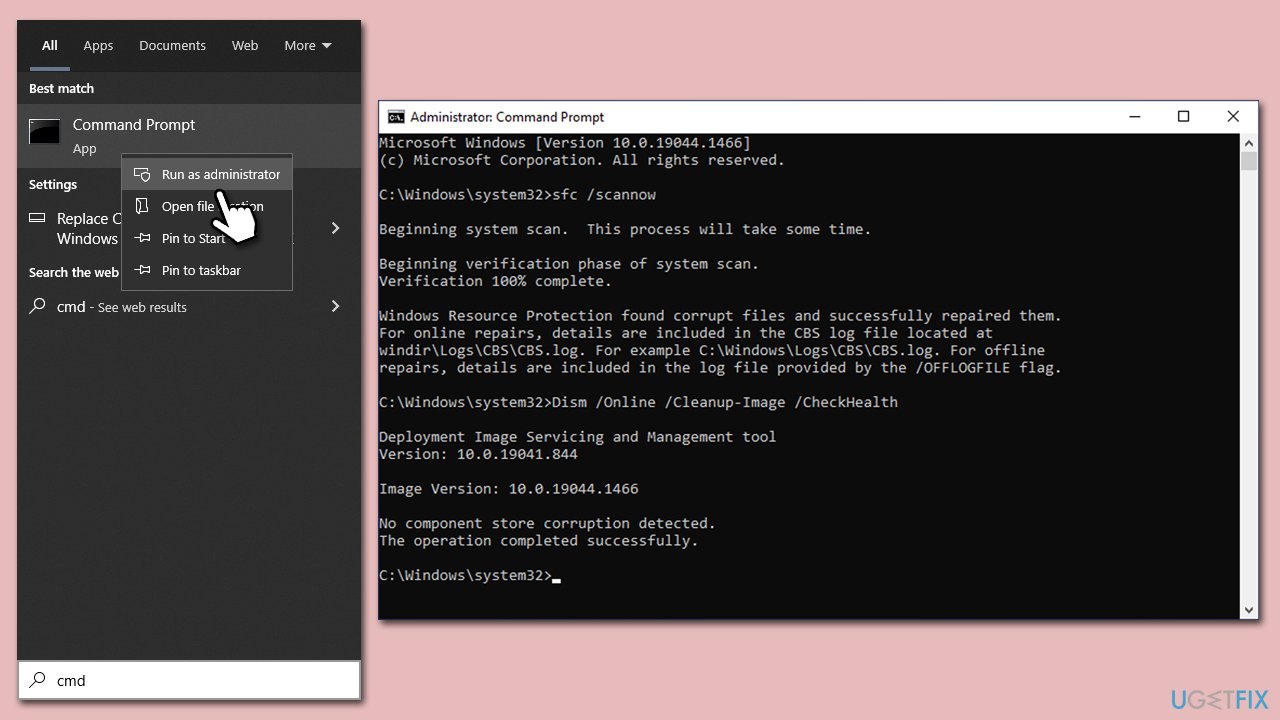
- Type cmd in Windows search.
- Right-click on Command Prompt and pick Run as administrator
- When User Account Control shows up, click Yes
- Use the following command lines, pressing Enter each time:
sfc /scannow
DISM /Online /Cleanup-Image /CheckHealth
DISM /Online /Cleanup-Image /ScanHealth
DISM /Online /Cleanup-Image /RestoreHealth - Restart your system.
2. Install the latest updates
Microsoft ships updates regularly, and many of them comprise of plenty of bug fixes.
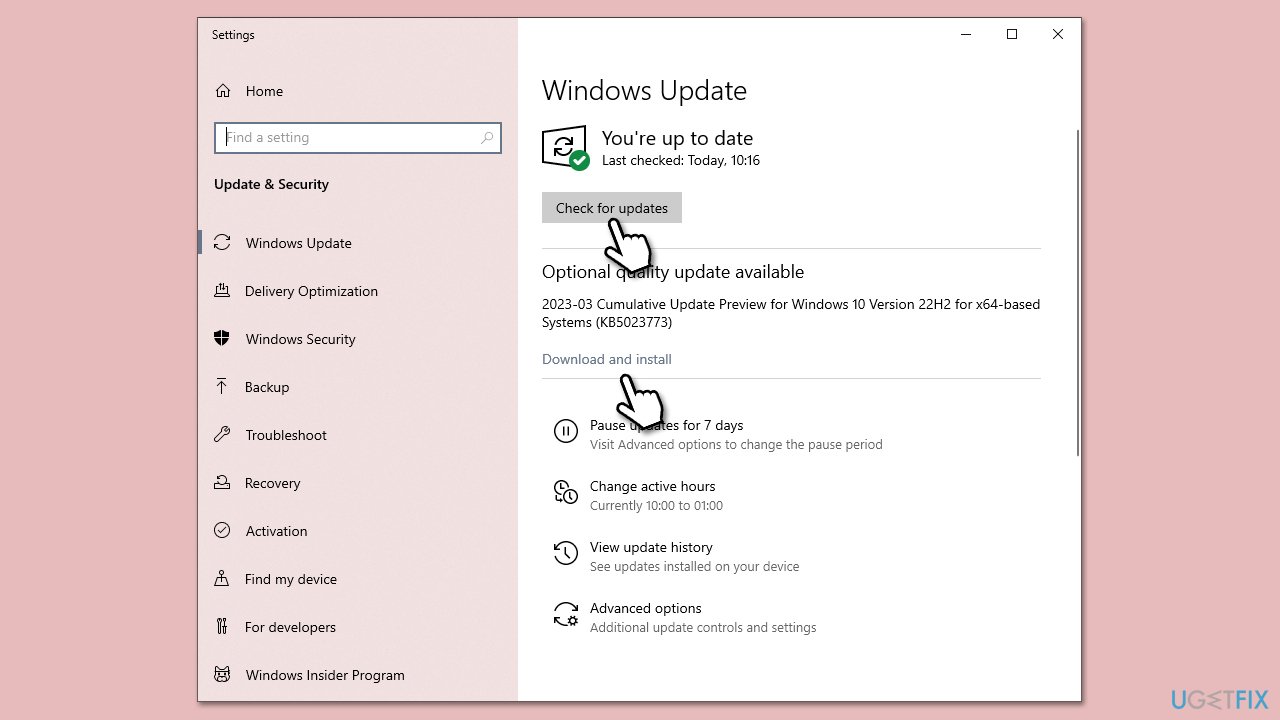
- Type Updates in Windows search and press Enter.
- On the right side of the window, press Check for updates.
- If you see any optional updates available, install them as well.
- Wait until all the files are downloaded and installed, then restart the computer.
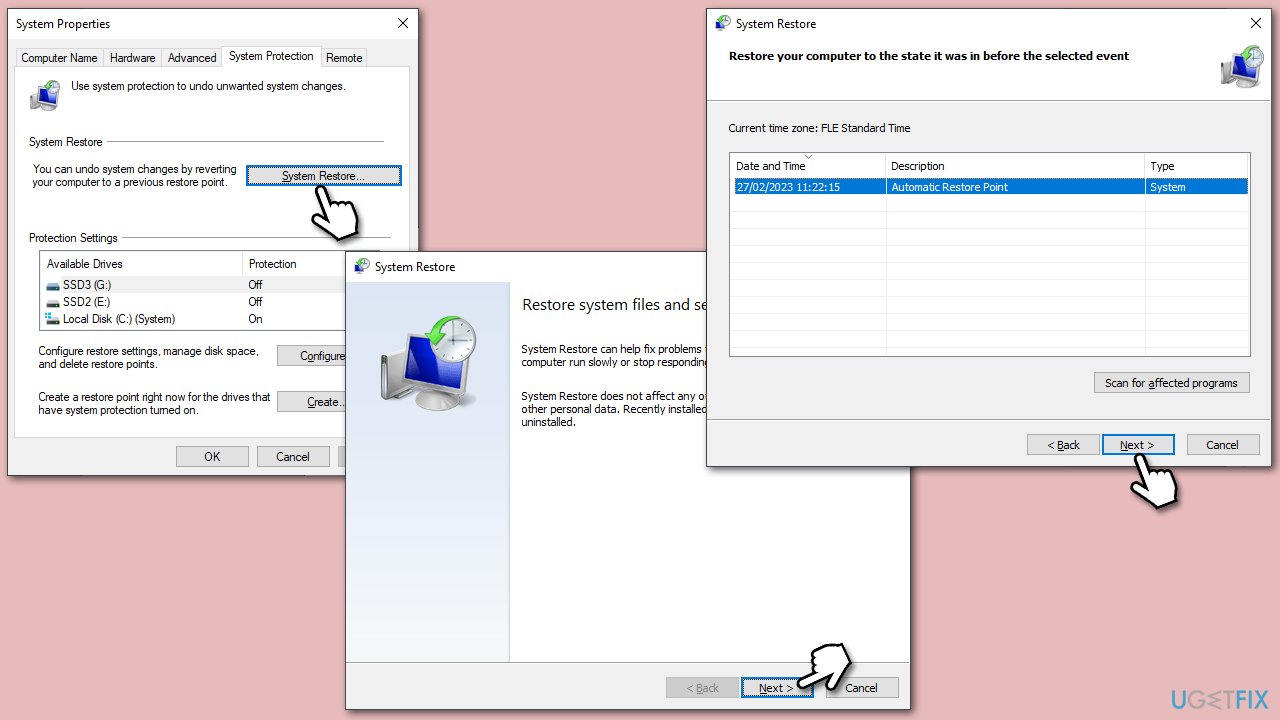
3. Perform System Restore
System Restore can return your OS to a time when the problem did not exist.
- Type in Create a restore point in Windows search and hit Enter.
- Go to System Restore and click Next.
- Mark the Show more restore points option (if available).
- Pick the time when the problem did not exist and click Next.
- Finalize the process - your PC will restart.
4. Reset Windows
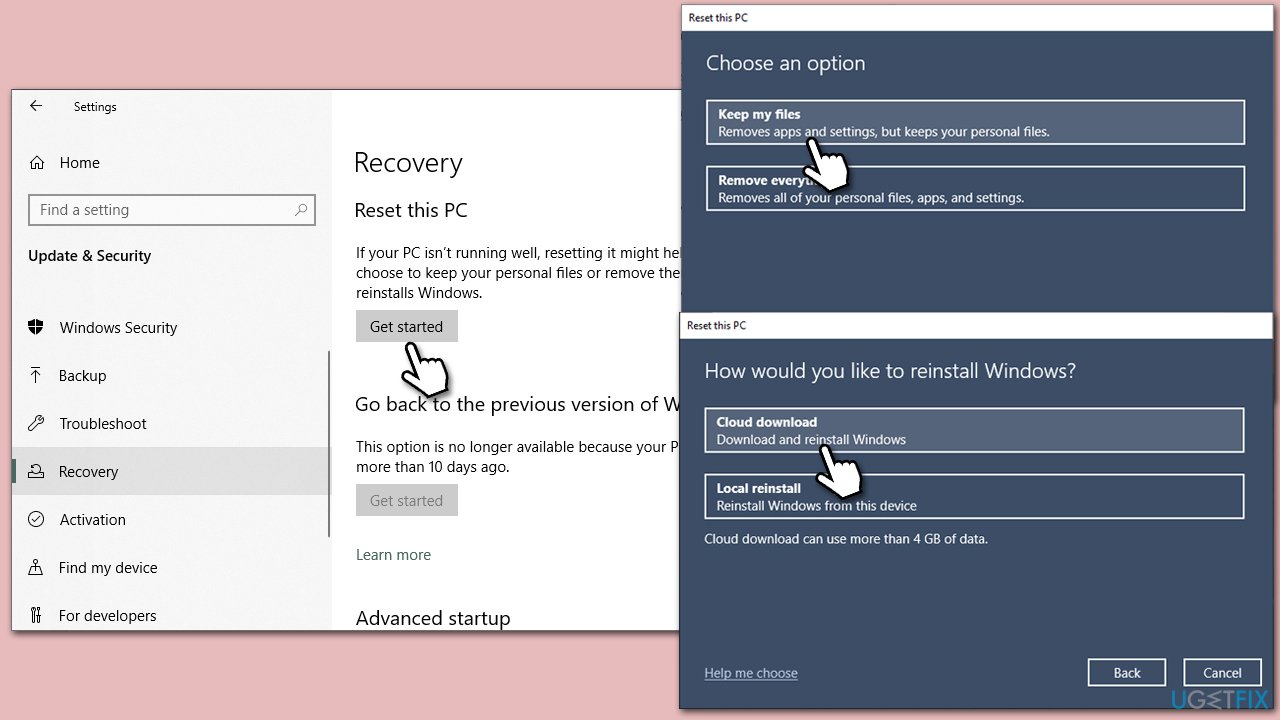
Resetting Windows is quick and easy, and you won't lose your files.
- Right-click on Start and select Settings.
- Choose the Update & Security section and pick Recovery.
- Under Reset this PC section, click Get Started.
- Select Keep my files and then follow up with Cloud download.
- Simply follow the on-screen instructions - your system will restart at some point.
5. Use Media Creation Tool
Since File Explorer is not working, you will need to create a bootable USB on a working computer.
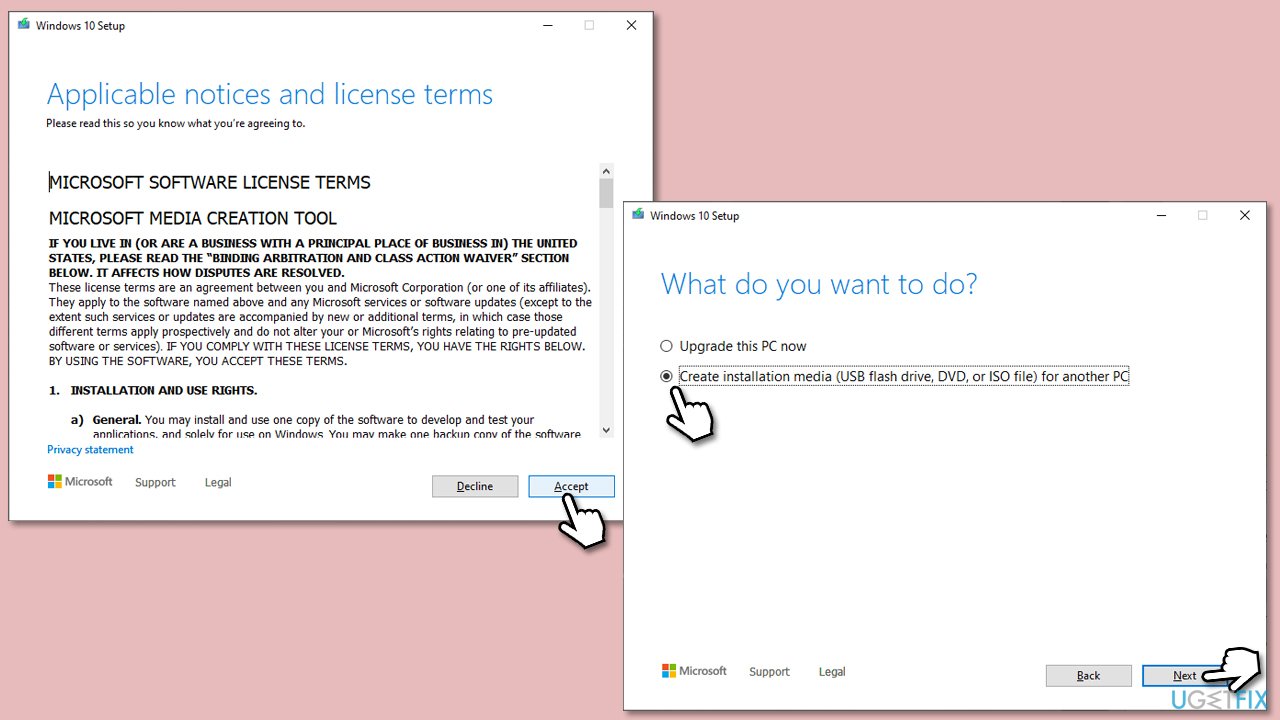
- Download Windows 10 installation media (Windows 11 version) from the official Microsoft website.
- Double-click the installer to launch it.
- Agree to Terms and select Next.
- Select Create installation media (USB flash drive, DVD or ISO file) for another PC and click Next.
- Pick a USB flash drive (make sure you have USB connected to your PC).
- Mark the Use Recommended options for this PC checkbox and click Next
- Pick the ISO file and click Next to finish the process.
When you have the bootable USB ready, proceed with the following steps:
- Connect the USB to the PC that you are having trouble with.
- Boot into BIOS (typically by pressing F2, F8, F12, Del, or another key several times) and go to Boot menu.
- Here, select the Boot priority option and set it to USB.
- Restart the PC.
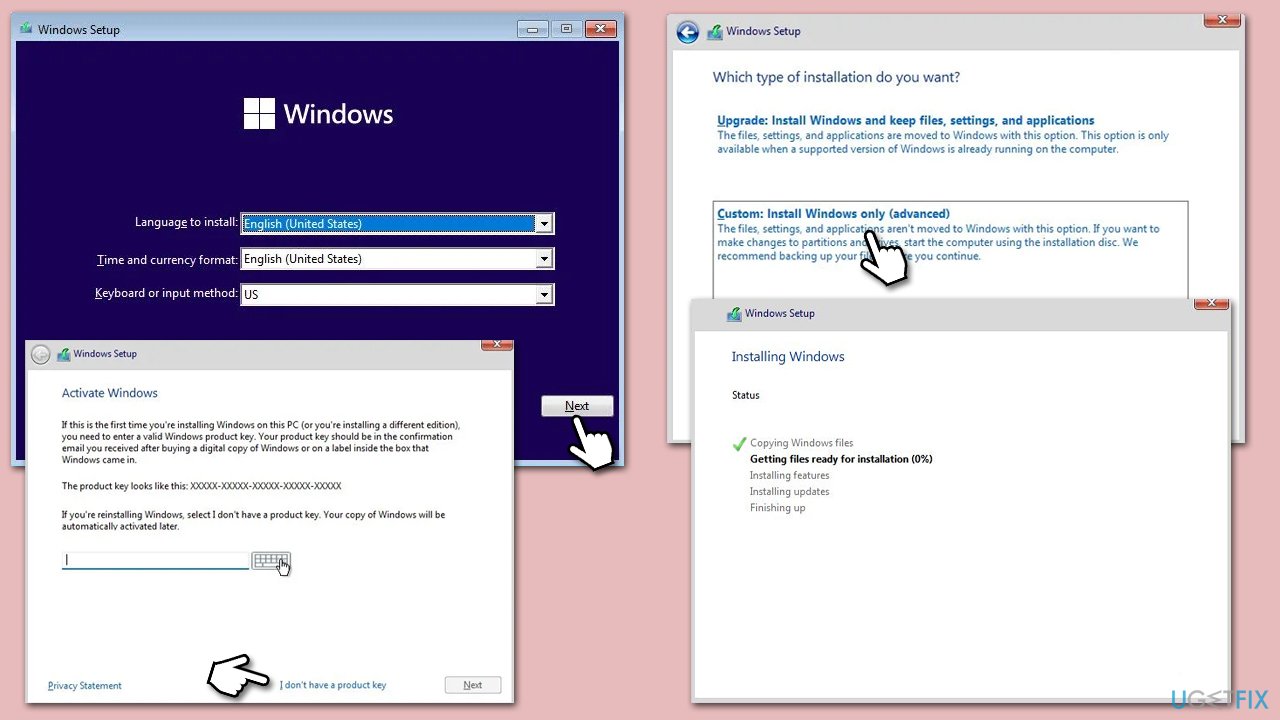
- When the system boots, you should see the Install now option - click it.
- Pick all the preferences and click Next.
- Skip Windows activation for now - select I don't have a product key.
- Select the correct operating system version (if you were using Windows 10 Home before, use the same option).
- Next, select Upgrade: Install Windows and keep files, settings, and applications.
- Select the correct partition and click Next.
- Wait until the process - you will be presented with several other fields you should fill in.
Similar articles you might find useful:
Bottom line
To fix the 'DUser.dll is missing or not found' error, you can perform a system file check, run a malware scan, update drivers and software, or reinstall the affected application. Addressing this error promptly is crucial to prevent further system instability. If none of these solutions work, consider restoring the system to a previous state.
Frequently asked questions
The DUser.dll missing error can be caused by corrupted system files, malware infections, or improper software installations on Windows 10 or Windows 11.
You can restore the DUser.dll file by running the System File Checker tool; just open Command Prompt as an administrator and type 'sfc /scannow'.
Downloading DUser.dll from the internet is not recommended as it may contain malware or be incompatible; it's safer to restore the file using system tools.




Report an issue
What's wrong with this guide? We review every report and update or remove content.
Report received — thank you. We'll review and fix it.
You need a free account to submit a report.
Be the first to comment