How to fix
EOS ERR 1603 Epic Games failed to install error
on Windows
Resolve the EOS ERR 1603 installation error on Windows 10 or 11 effortlessly. Expert-tested solutions guarantee a smooth fix in minutes.

What causes How to fix EOS ERR 1603 Epic Games failed to install error?
- Microsoft .NET Framework 3.5 is not functioning properly
- Interference from other programs replacing .NET Framework files
- Missing DLL files such as MSVCR71.dll, VCRUNTIME140.dll, or MSVCP100.dll
- Incompatibility with Windows updates
Repairs Windows system files, removes malware, and restores a clean OS state — without reinstalling.
Hello. Every time I try to install Epic Games Online Services, I receive an error EOS ERR 1603. It prompted me to install NET Framework 3.5, although I do have it installed already. Any idea on what this can be about?
Epic Games Online Services are a type of service provided by the company to allow game developers to successfully launch or operate their games. Developers can access these services across all other platforms, stores, or game engines,[ref en-1], making it a very convenient tool.
In other words, it is a part of the Software Development Kit (SDK)[ref en-2] that makes it easier for developers to create, manage, scale or operate their game creations. These services were introduced in May 2020, along with an announcement of Epic's Unreal Engine 5.[ref en-3]
While many developers were happy about such an iteration (it can be installed via the Epic Games Launcher), some did not have much luck when installing Online Services. These errors are usually marked with "EOS ERR" codes and can also include a number that points to the reason for the issue.
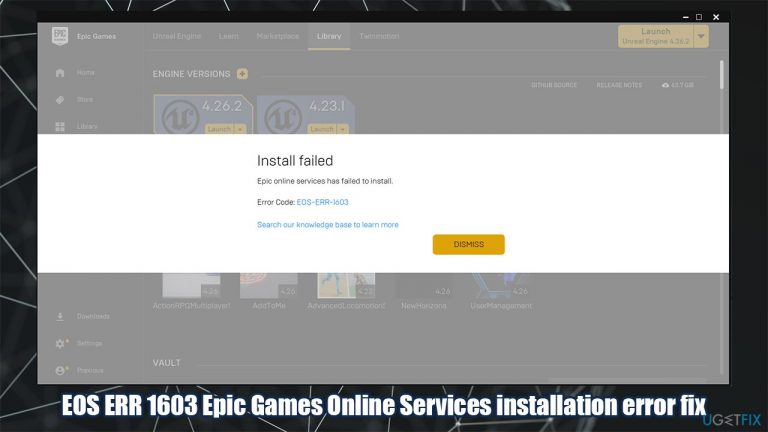
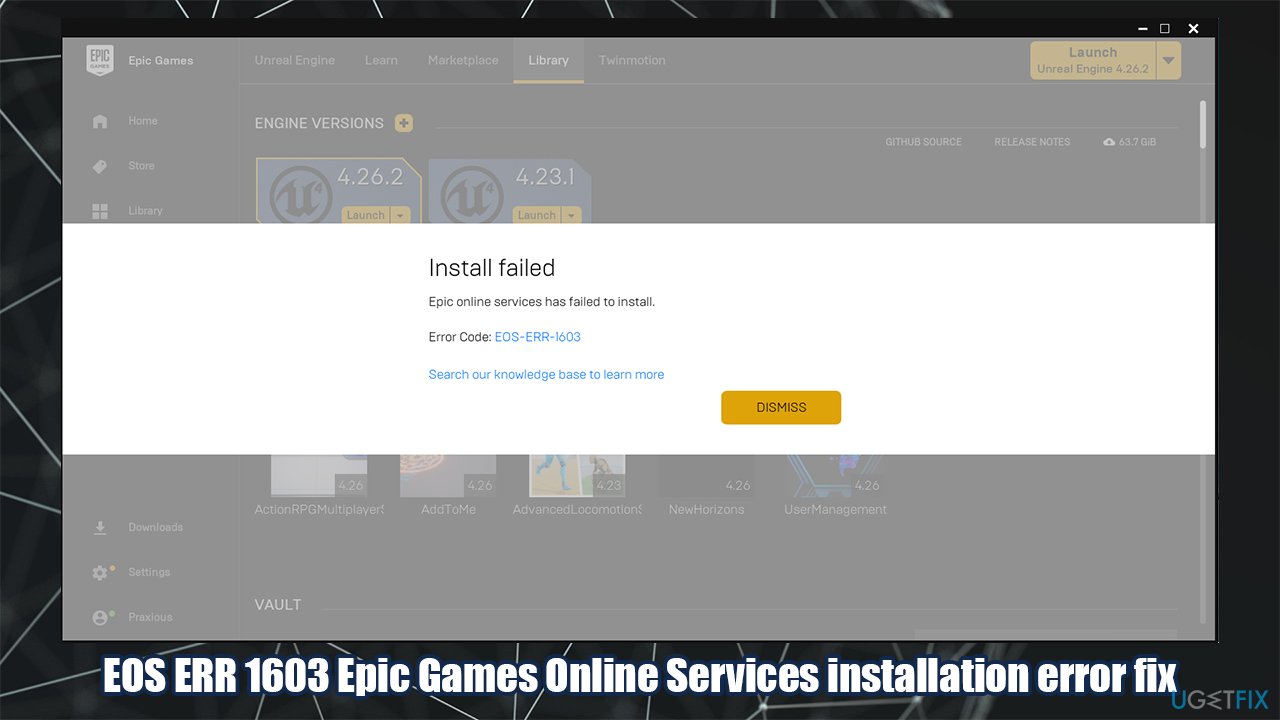
Epic Games EOS ERR 1603 is an error that occurs when trying to install the new features, an update, or Online Services themselves. As a result, game developers are unable to use the function of the services at all. Here's the full message:
Install failed
Epic online services has failed to install.
Error Code: EOS-ERR-1603
The reason for this error to occur lies within the Microsoft .NET Framework 3.5 - software development heavily relies on this component. In most cases, it is installed along with Windows updates and should work without any issues.
However, some programs might interfere with this component and replace particular files with third-party ones. This is one of the main reasons why missing DLL errors occur (for example, MSVCR71.dll, VCRUNTIME140.dll, or MSVCP100.dll) as well. If a missing DLL is causing this issue, we strongly recommend trying a PC repair tool [d1] to solve this problem for you.
The error suggests to download and install the Microsoft .NET Framework 3.5. However, most people claimed they they already had the component installed or that the installation did not succeed. Below you will find several methods that should help you fix error code EOS-ERR-1603 for good.
Fix 1. Run Epic Games Launcher as an administrator
- Right-click on Epic Games Launcher and select Run as administrator
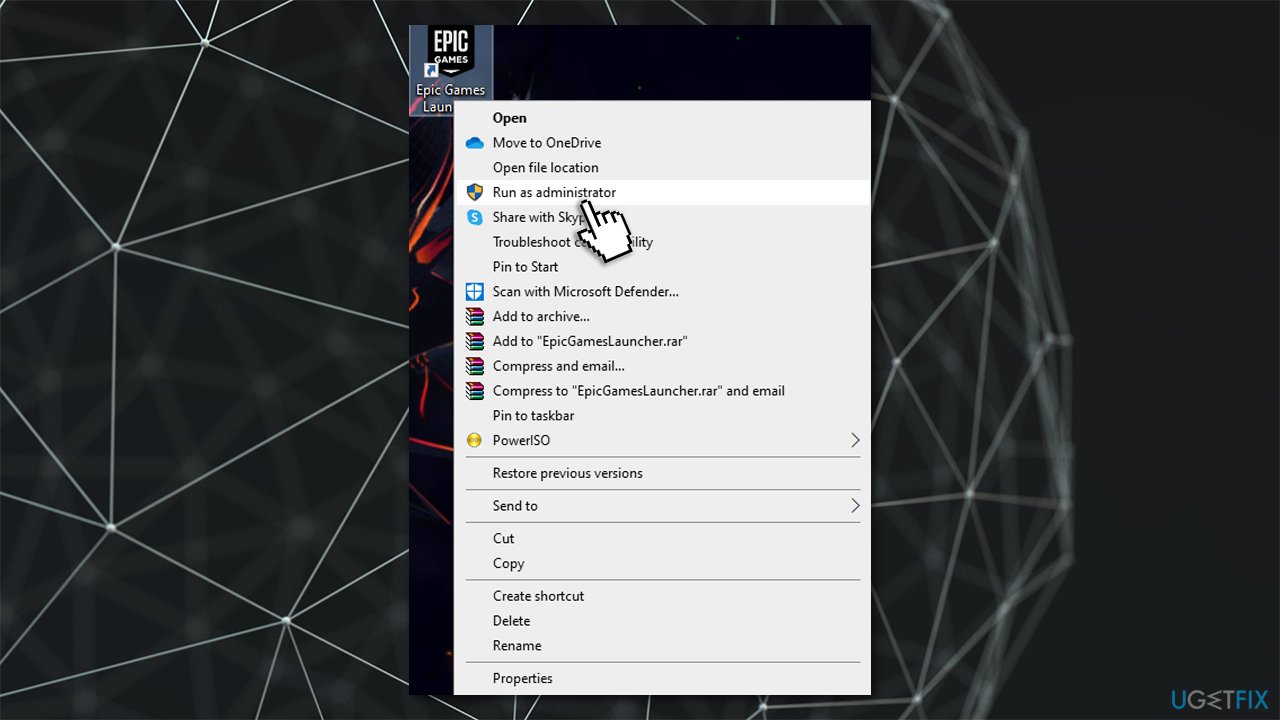
How to fix eos err 1603 epic games failed to install error run as administrator - If UAC shows up, click Yes
- Try installing the required component again.
Fix 2. Run all Windows updates
Microsoft .NET Framework 3.5 is a part of Windows updates, so apply all the available updates to ensure you have the component installed.
- Type Updates in Windows search and press Enter
- In the new window, click Check for updates
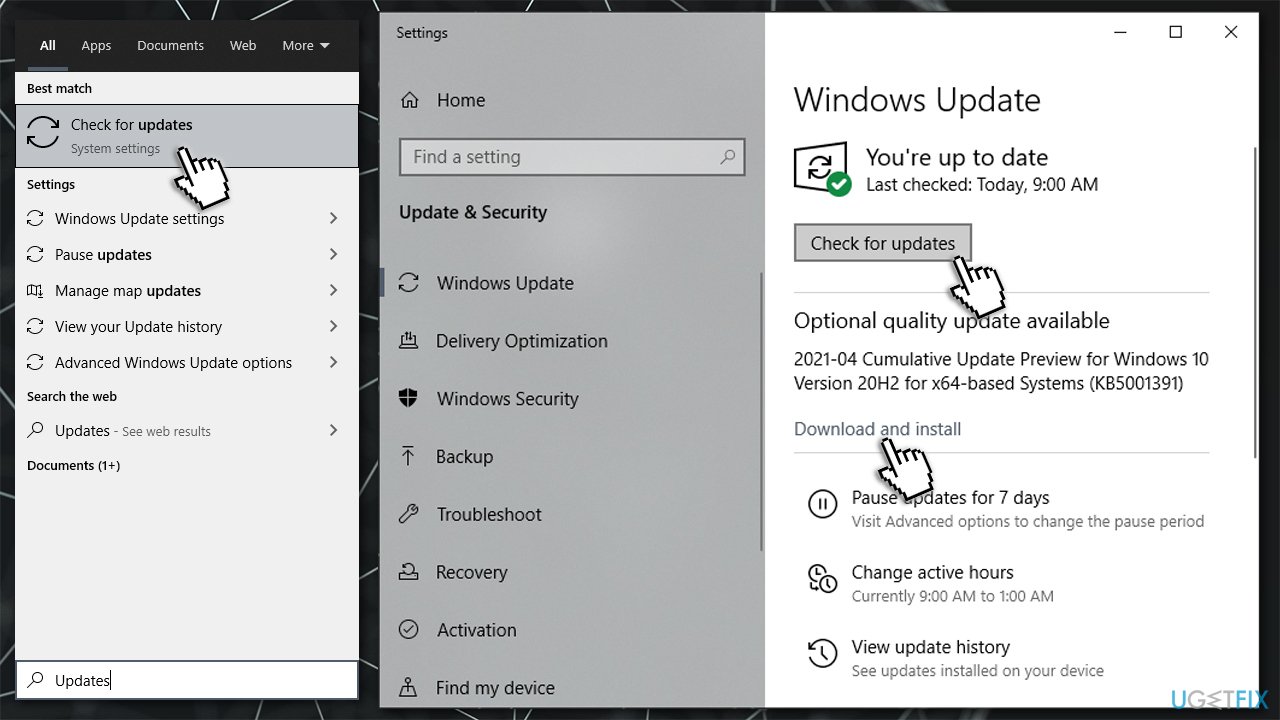
How to fix eos err 1603 epic games failed to install error install all windows updates - Install everything available (including optional updates)
- Reboot your system.
Fix 3. Grant write and read access to Epic Games Launcher
- Type Epic Games in Windows search
- Right-click and select Open file location
- Right-click on Epic Games Launcher and select Properties
- Go to Security tab
- Select your username from the list
- Click on Edit
- Select your username and make sure the permissions for Read and Write are set to Allow
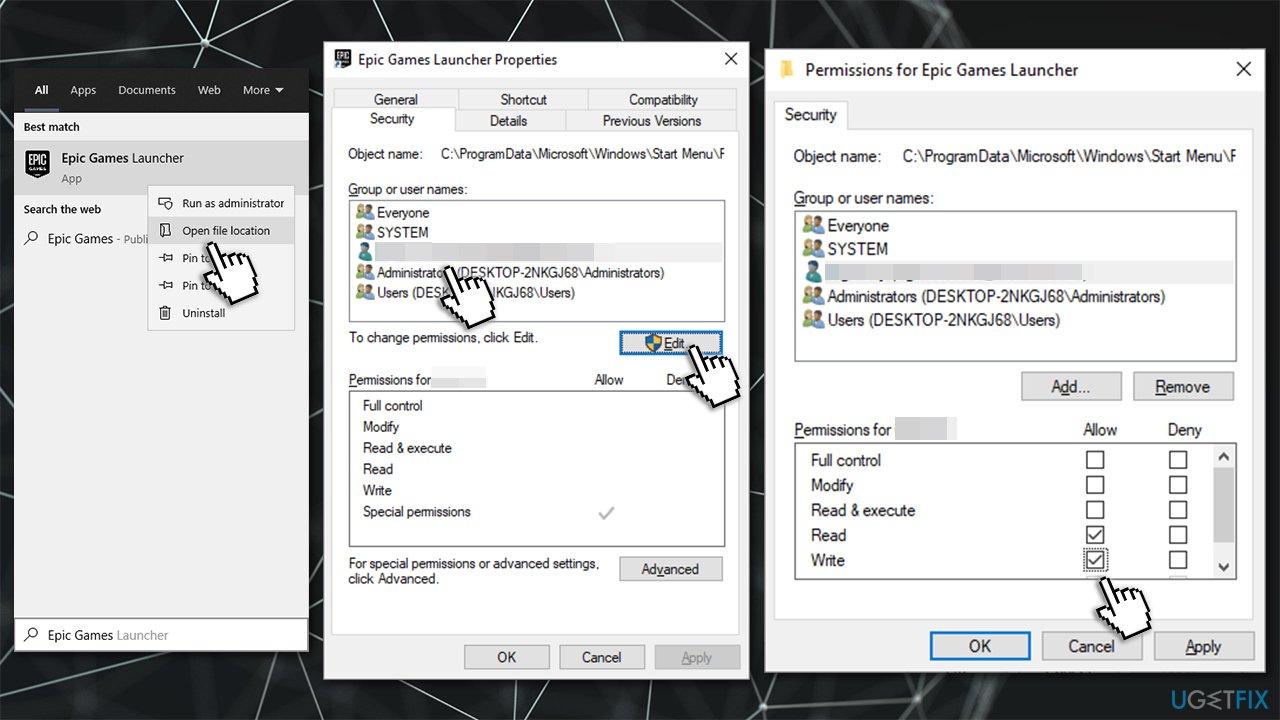
How to fix eos err 1603 epic games failed to install error grant write and read permissions - Click Apply and OK.
Fix 4. Shut down Windows Installer service
- Press Ctrl + Shift + Esc on your keyboard to open the Task Manager
- Go to the Details tab
- Scroll down until you find msiexec.exe
- Highlight msiexec.exe and select End Task.
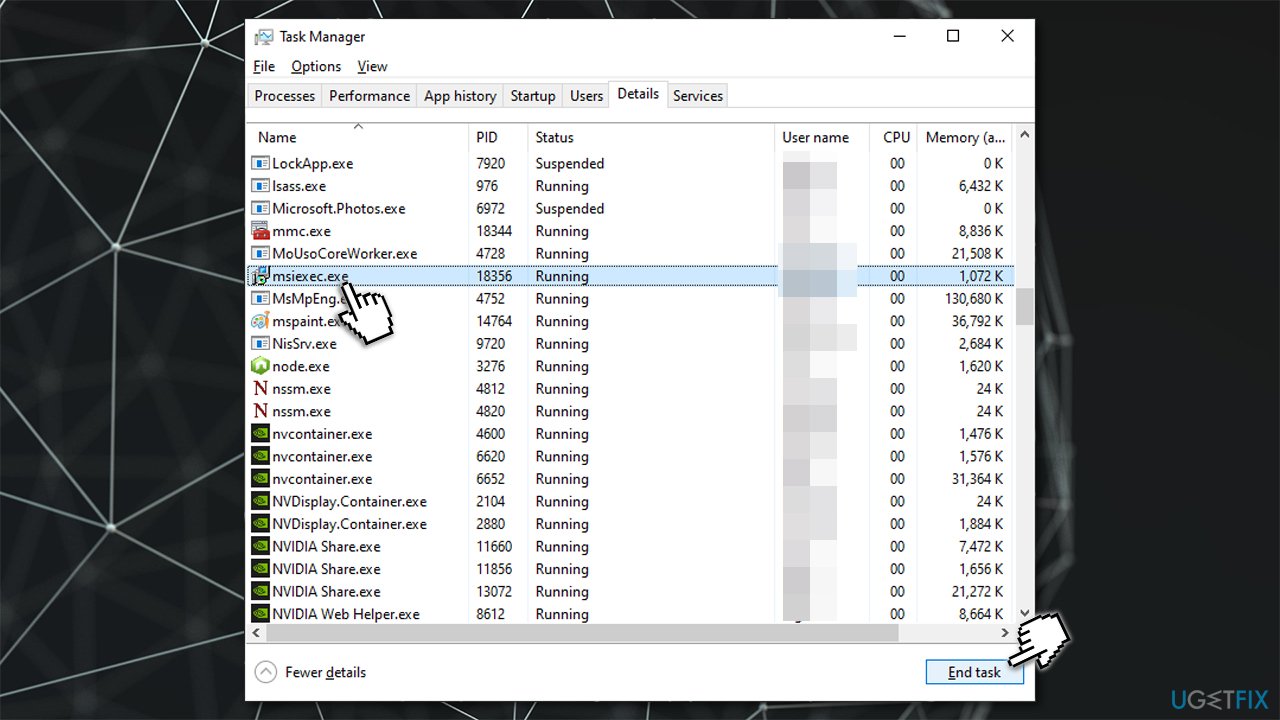
How to fix eos err 1603 epic games failed to install error shut down windows installer service
Fix 5. Run Install and Uninstall troubleshooter from Microsoft
- Visit the official Microsoft Website for the troubleshooter
- Click Download troubleshooter
- Once downloaded, double-click the MicrosoftProgram_Install_and_Uninstall.meta.diagcap file
- When launched, pick the Installing option.
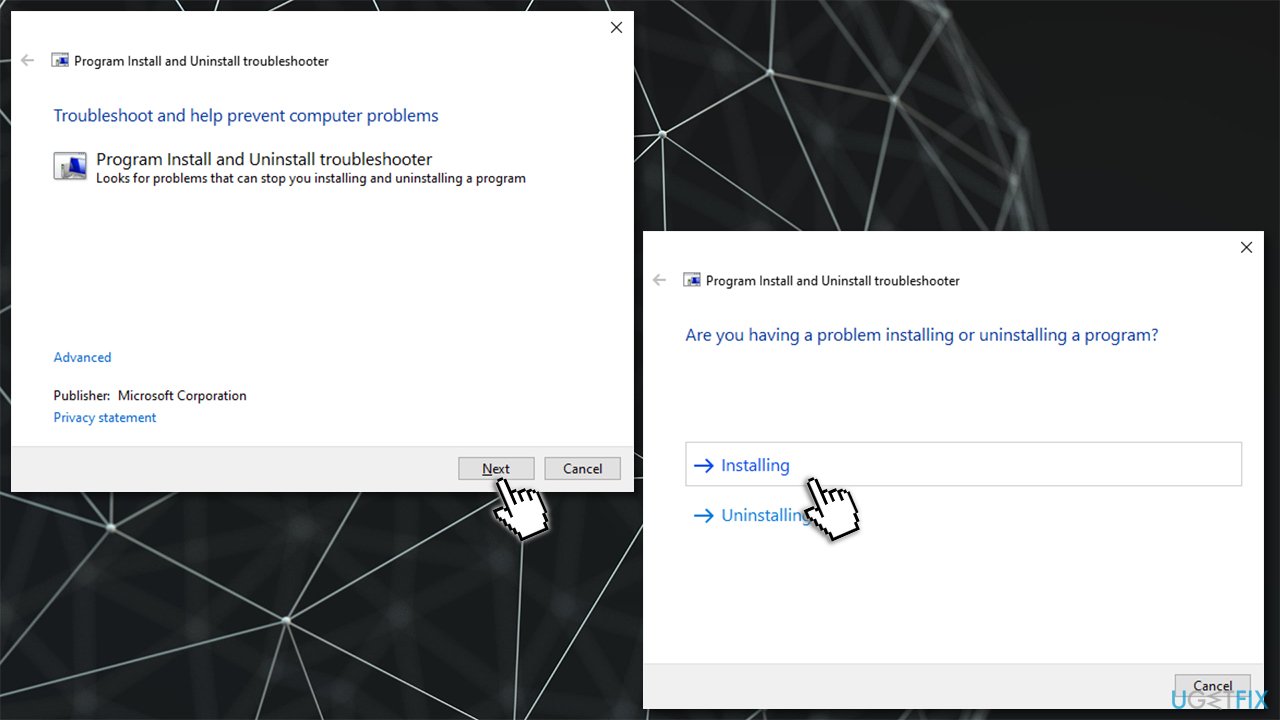
How to fix eos err 1603 epic games failed to install error run troubleshooter
Fix 6. Reinstall Epic Games Launcher on your main drive
If Epic Games Launcher is not installed on the same drive as Windows, you should try installing it on your main drive. Many users said that they managed to fix EOS ERR 1603 error after reinstalling Epic Games Launcher on their main drive (by default, C:).
Alternatively, you can also run the Epic Games Online Services manually and install it in the correct installation path as explained below:
- Press Win + E to open File Explorer
- Create the following folder/path:
C:\\Program Files (x86)\\Epic Games
- Go to the following location:
[your install location]\\Epic Games\\Launcher\\Portal\\Extras\\EOS
- Double-click EpicOnlineServics.msi and install into the previously created location.
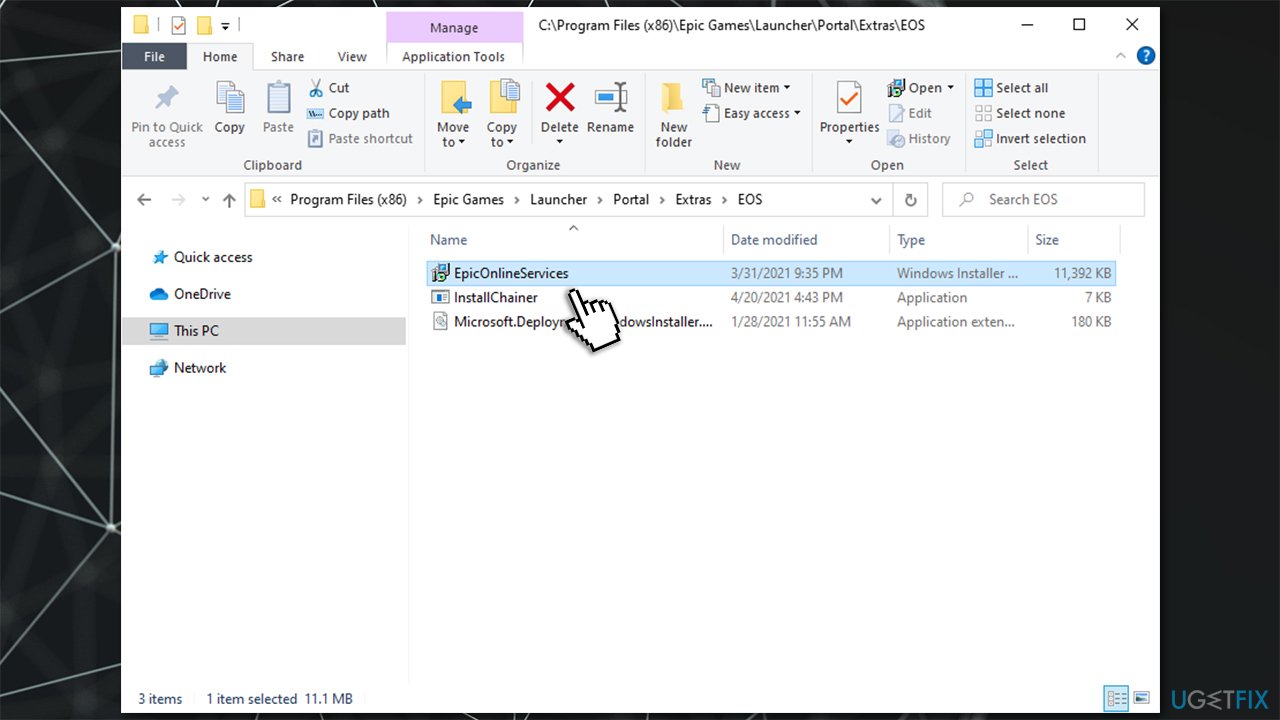
How to fix eos err 1603 epic games failed to install error reinstall in main drive location
Bottom line
To fix the EOS ERR 1603 error, ensure that Microsoft .NET Framework 3.5 is properly installed and functioning. Additionally, consider using a PC repair tool to address any missing DLL issues. If these solutions do not resolve the problem, further troubleshooting may be necessary.
Frequently asked questions
To resolve the EOS ERR 1603 error, ensure that your Windows 10 has the latest updates installed and try running the Epic Games Launcher as an administrator.
You can check for conflicting software by opening Task Manager and ending any unnecessary background processes that may interfere with the Epic Games installation on Windows 11.
Yes, you can repair the Epic Games Launcher by navigating to Control Panel > Programs and Features, selecting the launcher, and choosing the Repair option to fix any issues causing the EOS ERR 1603 error.




Report an issue
What's wrong with this guide? We review every report and update or remove content.
Report received — thank you. We'll review and fix it.
You need a free account to submit a report.
Be the first to comment