How to fix
Error 0x80242020
on Windows
Resolve error 0x80242020 in the Windows Xbox app effortlessly. Follow our expert-tested guide for quick fixes and enjoy seamless gaming today!

What causes How to fix error 0x80242020 in Windows Xbox app?
- Pending Windows updates
- Pending Microsoft Store updates
- Corrupted MS Store cache
- Damaged sectors in the operating system
- Corrupted registries
Repairs Windows system files, removes malware, and restores a clean OS state — without reinstalling.
Hi, I have recently got a new SSD and tried to move my games there. I uninstalled the games from my old drive and whenever I try to install them via the Xbox app, I receive an error 0x80242020. I first thought that there might be problems with my new drive but it seems to be working just fine - I can easily install games from Steam and random apps too. It's just the Xbox app games that don't work. Please help.
Xbox app is yet another platform dedicated to gaming. Released by Microsoft as a successor to Xbox Companion in 2019, the app can be used to manage, download, install, and uninstall various PC games. Unfortunately, just like with any other program, not everything goes smoothly while using it - users claimed that they couldn't install some Game Pass games; others couldn't even sign into the app successfully.
In this case, we will be talking about the Xbox installation error 0x80242020. Many users claimed that they were unable to install or, in some cases, uninstall various games, including Crackdown 3, Minecraft, or others. The error might also occur when trying to install apps through Microsoft Store as well; in this case, they receive the following message:
Something unexpected happened
Reporting this problem will help us understand it better. You can wait a bit and try again ot restart your device. That may help.
Code: 0x80242020
Despite this advice, users claimed that they were unable to fix the error, and it persists each time they attempt to install a game or an app.
There are several solutions that should help you fix the 0x80242020 Xbox and MS Store installation error. For example, pending Windows or Store updates could cause this problem. In other cases, the simple fix would be to reset the MS Store cache. Make sure you try all the methods below until you find one which works for you.
Before you proceed, we recommend you employ [d1] to diagnose and remove damaged sectors in Windows operating system if such persist. By removing corrupted registries or replacing damaged system files, this repair tool can quickly and easily fix the most common issues users encounter while using Windows.
1. Install all available Windows updates
Some users claimed that, as soon as they installed all the pending updates on other Windows apps, the 0x80242020 error was fixed.
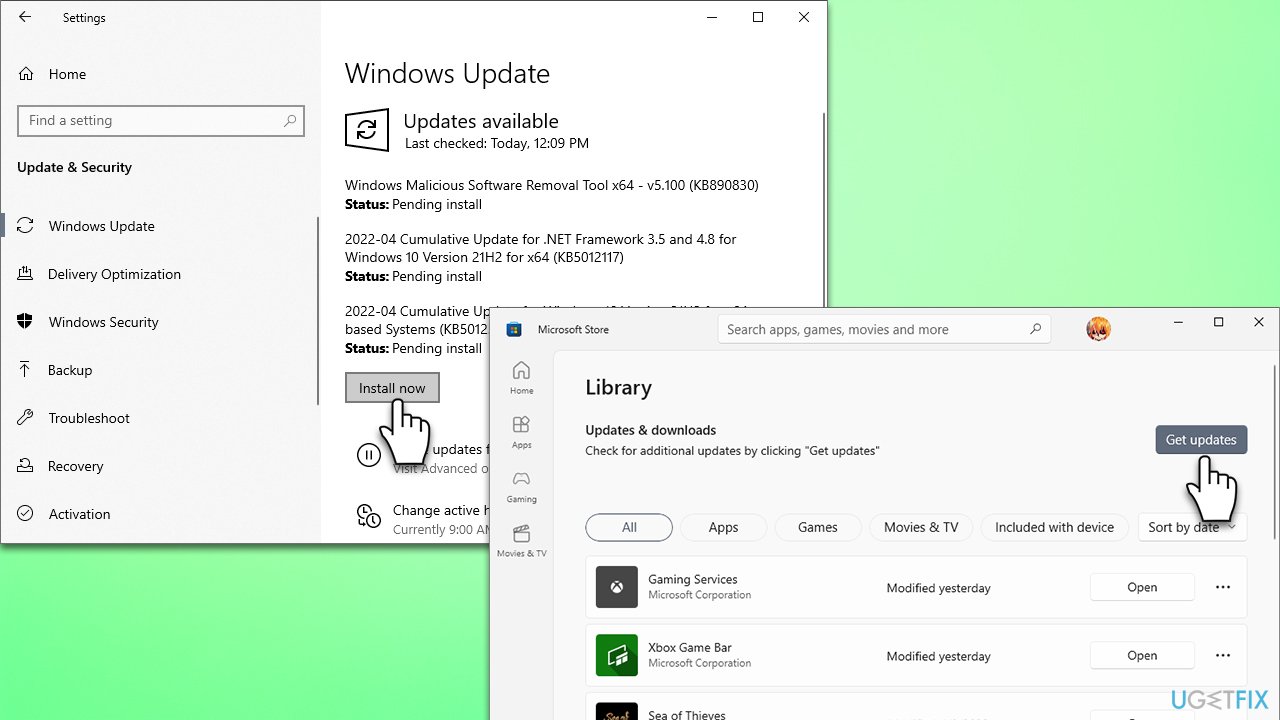
- Type Updates in Windows search and press Enter
- Here, click Check for updates
- Make sure you install all the optional updates as well
- Next, open Microsoft Store and go to Library
- Click Get updates and make sure everything is installed
- Once done, restart your system and try installing games once again.
Howto fix error 0x80242020 in windows xbox app install updates
2. Relog to your Xbox and MS Store accounts
- Launch the MS Store app, click your profile picture at the top-right corner and select Sign out
- Then, open the Xbox app, click your name and select Sign out
- Restart your computer
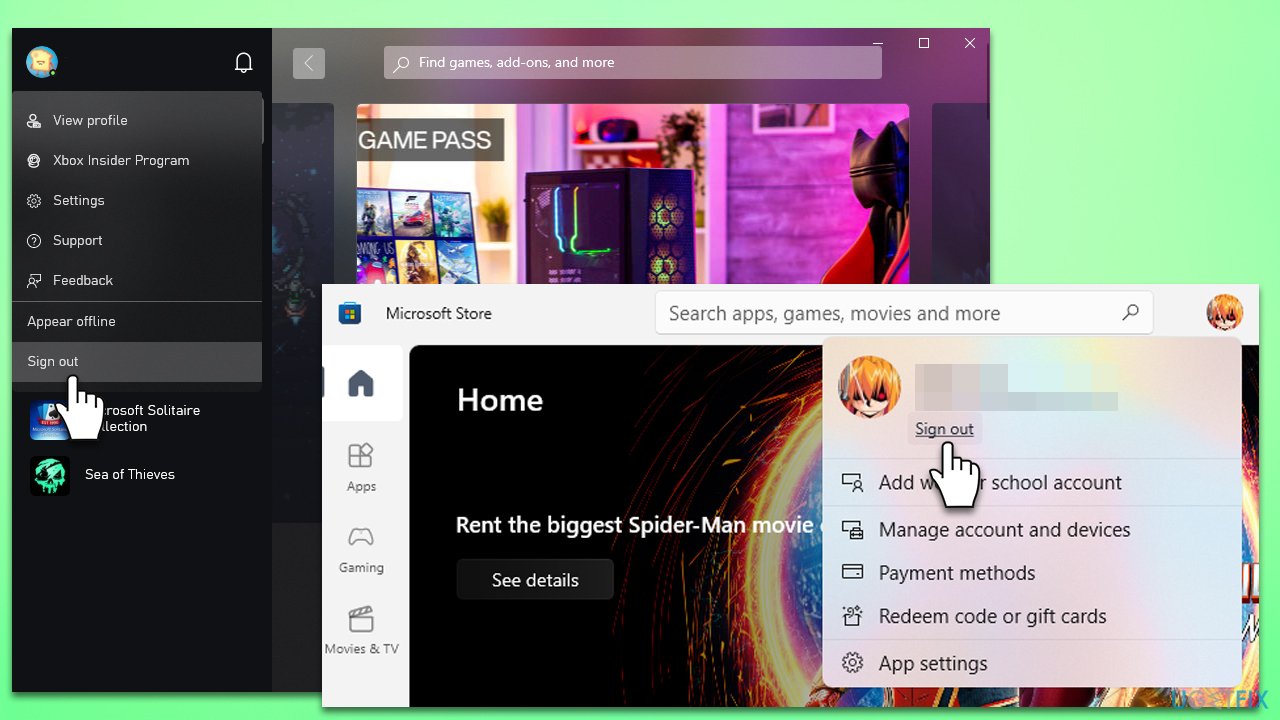
Howto fix error 0x80242020 in windows xbox app relog - Once back, log back into your Microsoft Store and Xbox apps and try again.
3. Use MS Store or Xbox app to download the game
If you are having this problem when using Microsoft Store, you should try installing the game via the Xbox app, and vice versa (many users said they fixed the problem once they did that).
4. Change the default save location
If you have recently installed a new drive into your PC, there could be a location mismatch, so you need to set it manually.
- Open Xbox app
- Click on your name at the top-left and select Settings
- Select General tab
- Scroll down to find Game install options
- Here, click on Change Folder to change the location of your apps - make sure it matches the drive letter you are trying to install new games into.
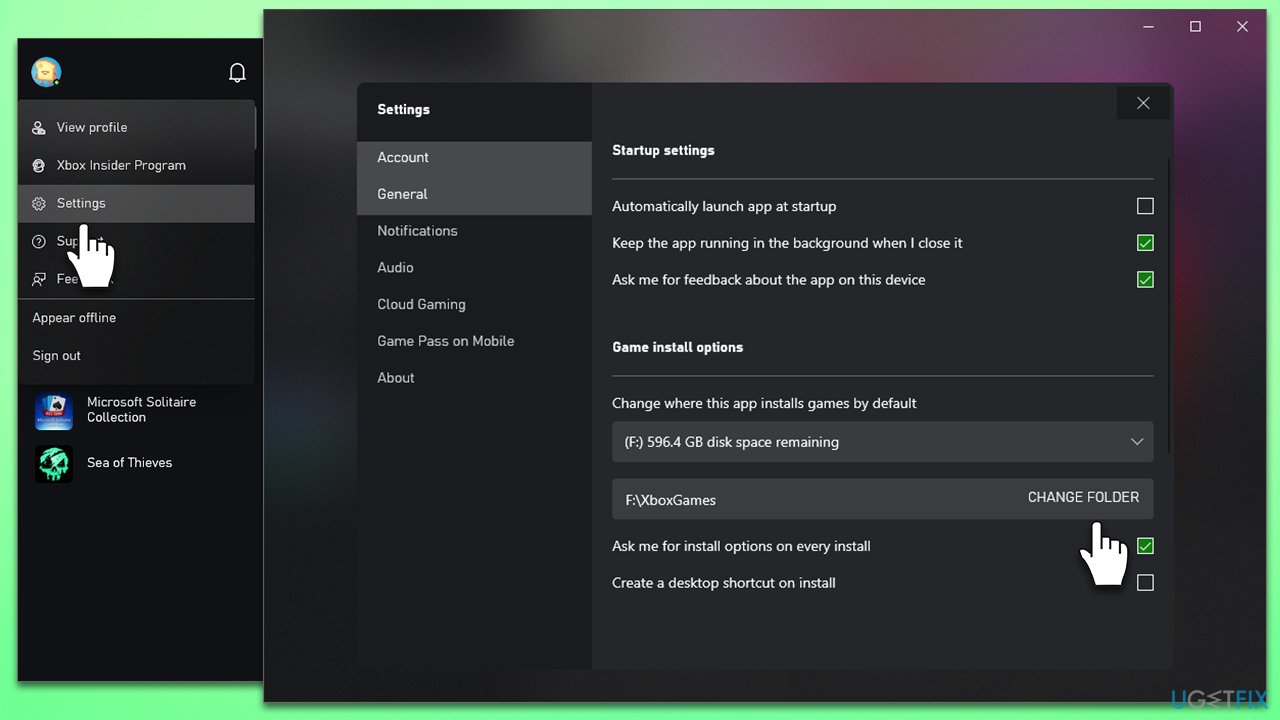
Howto fix error 0x80242020 in windows xbox change location
5. Repair or reset Microsoft Store
There is a built-in option to repair or reset MS Store. In case the broken app is causing the error to arise, this step will fix it:
- Right-click on Start and pick Apps and Features
- Scroll down to find Microsoft Store
- Select Advanced options
- Scroll down a bit and click Terminate
- Next, click the Repair button and check if the problem is gone
- If the error returns, try using the Reset option instead.
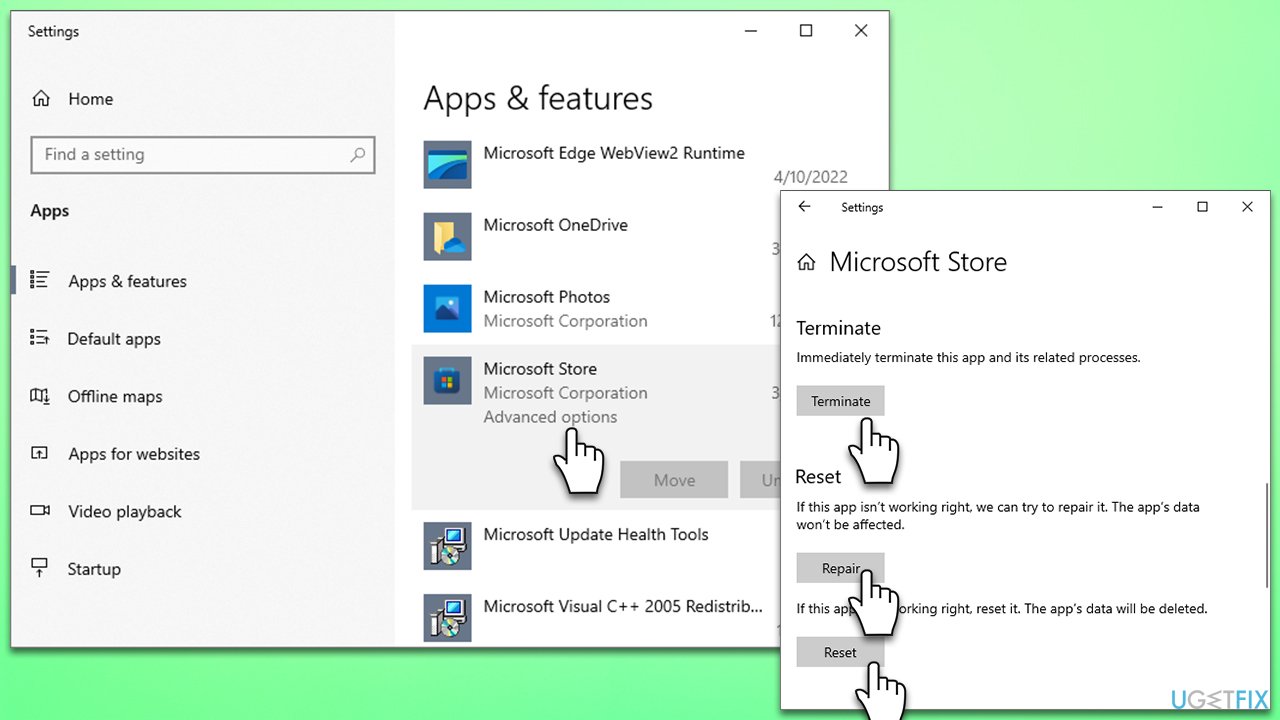
Howto fix error 0x80242020 in windows xbox reset store
Bottom line
To fix the error 0x80242020, you can try updating Windows and the Microsoft Store, resetting the MS Store cache, and diagnosing your system for damaged sectors. If these solutions do not resolve the issue, consider seeking further assistance or exploring additional troubleshooting methods.
Frequently asked questions
Error 0x80242020 typically indicates a problem with downloading or updating games in the Xbox app, often related to network issues or corrupted files.
To fix this error, try resetting the Xbox app through Settings > Apps > Apps & features, then find Xbox and select 'Advanced options' to reset it.
Yes, clearing the cache can help; you can do this by running 'wsreset.exe' in the Run dialog to reset the Windows Store cache, which may resolve the error.




Report an issue
What's wrong with this guide? We review every report and update or remove content.
Report received — thank you. We'll review and fix it.
You need a free account to submit a report.
Be the first to comment