How to fix
Error code 0x80070652
on Windows
Resolve error code 0x80070652 on Windows 10 or 11 quickly and effectively. Get expert-tested solutions that work, with screenshots for easy guidance.


What causes How to fix error code 0x80070652 on Windows?
- Clash of already installed update files
- Faulty installation of the same program in the past
- System cache issues
- Registry damage
- Malware presence
Repairs Windows system files, removes malware, and restores a clean OS state — without reinstalling.
I can’t upgrade Windows 10 from version 10074 to 10122 as I’m getting a BSOD with an error 0x80070652. I’ve tried doing this several times, tried to reboot the PC, and even left the stuck upgrade process overnight believing that I’ll find it completed in the morning. Unfortunately, the miracle did not happen. A couple of days ago I installed Microsoft Office 2016, and that’s the only system change I remember performing. Could you please help me?
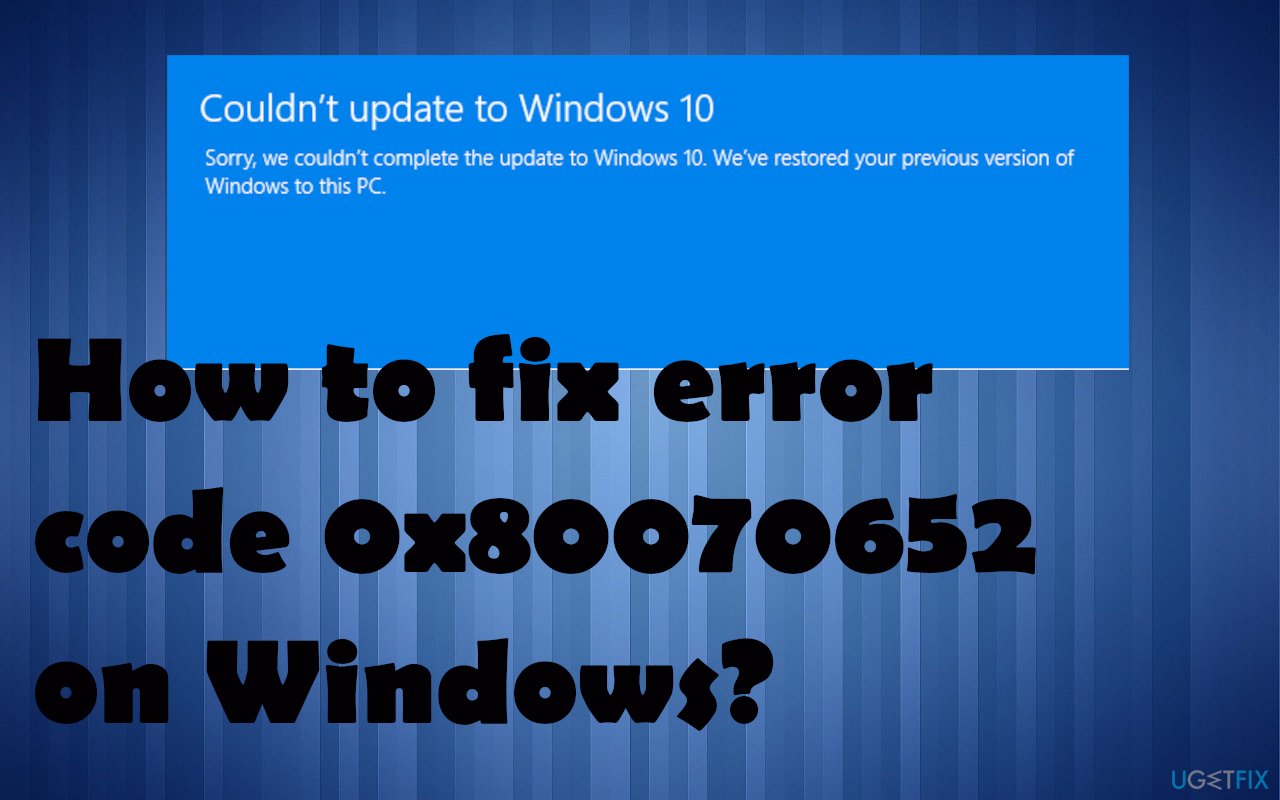
The Error Code 0x80070652 typically emerges in a Blue Screen of Death (BSOD) environment. It may occur on all Windows versions, but currently, it’s most common on Windows 10. Quite a lot of people reported[ref en-1] that the BSOD claims that ERROR_INSTALL_ALREADY_RUNNING.
In this case, it means that the process of the Windows 10 upgrade has been terminated for some reason, which is why it hasn’t been completed successfully. Therefore, the reason why the 0x80070652 error occurs is related to the clash of already installed update files and the ones that are about to be installed during the newly launched setup.
According to Microsoft, this issue should be fixed by simply restarting the system. However, the majority of people who were struggling to fix 0x80070652 ERROR_INSTALL_ALREADY_RUNNING claim that system restart did nothing except wasted their time. Many users that encounter this issue when the update cannot be launched also state about particular errors that interchange: Windows 10 Update Error 0xc1900107, Windows error 0x80242016.
Not to mention, several people have reported that they received a pop-up message with this error 0x80070652 code on it when installing software. In this case, it may be triggered by faulty installation of the same program in the past, system cache, registry damage, or similar issues.[ref en-2]
Therefore, we would recommend you fix the 0x80070652 error pop-up by running a scan with an optimization tool like [d1]. If this program did not manage to solve the issue or if you are not willing to use additional software, there are several methods that can help you. To ensure that malware[ref en-3] is not the trigger for the error- rely on anti-malware tools.
How to fix error code 0x80070652 on Windows?
Since there are many possible 0x80070652 error causes, there are a variety of methods that can be users. Thus, select the suitable one depending on the environment when this bug shows up or perform all of them one by one. Here’s what you have to do:
Solution 1. Check if any updates failed to install in the near past
- Click Win key and type Windows Update.
- Click on Windows Update from the search results and then select Update History.
- Now you should see the list of updates that were installed. Below each of them you should see the status, i.e. failed to install or successfully installed.
- Locate the ones that have failed to install and click on them. This way you will be redirected to the Windows Knowledge Base article, which will explain how to proceed with the incompletely installed update.
Solution 2. Run the troubleshooter to fix the 0x80070652 error
- Press the Windows logo key + I to open the Settings app.
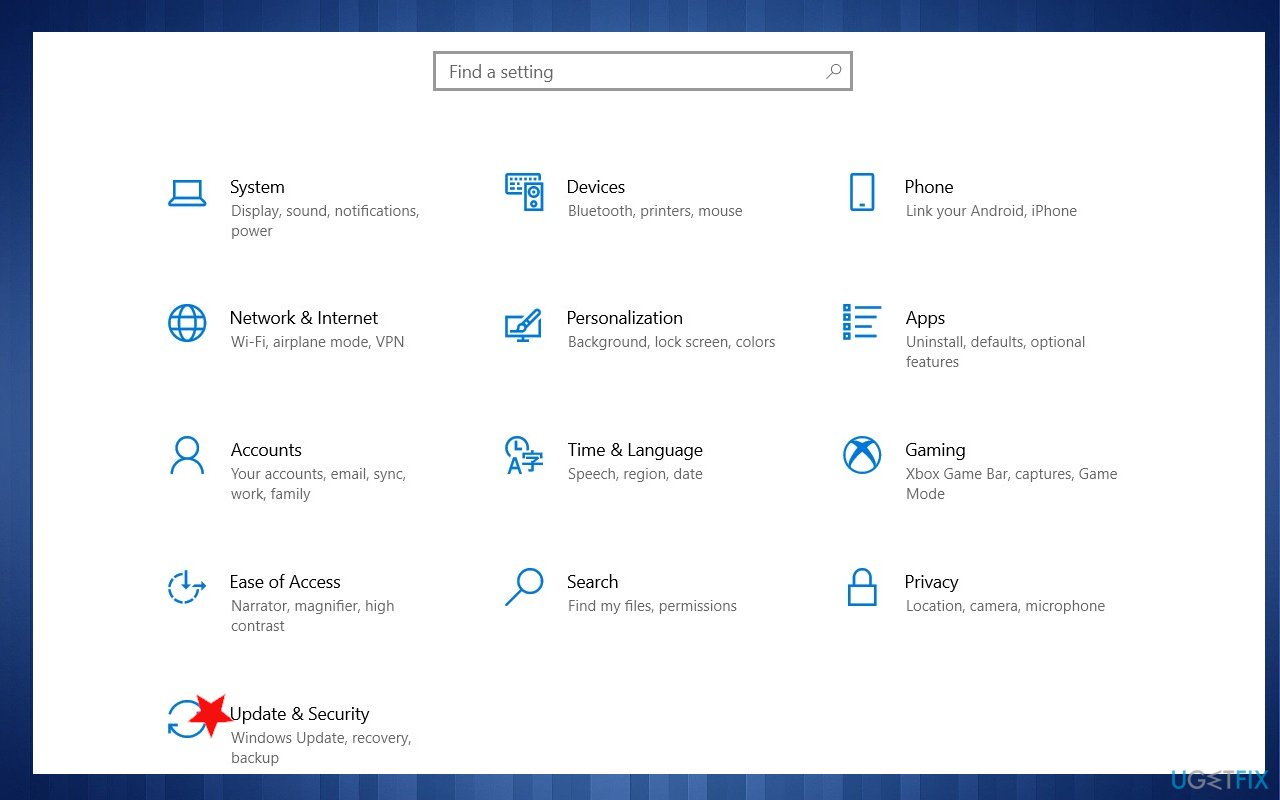
Error 0x80070652 fix manual update security - Open Update & security and navigate to the left pane.
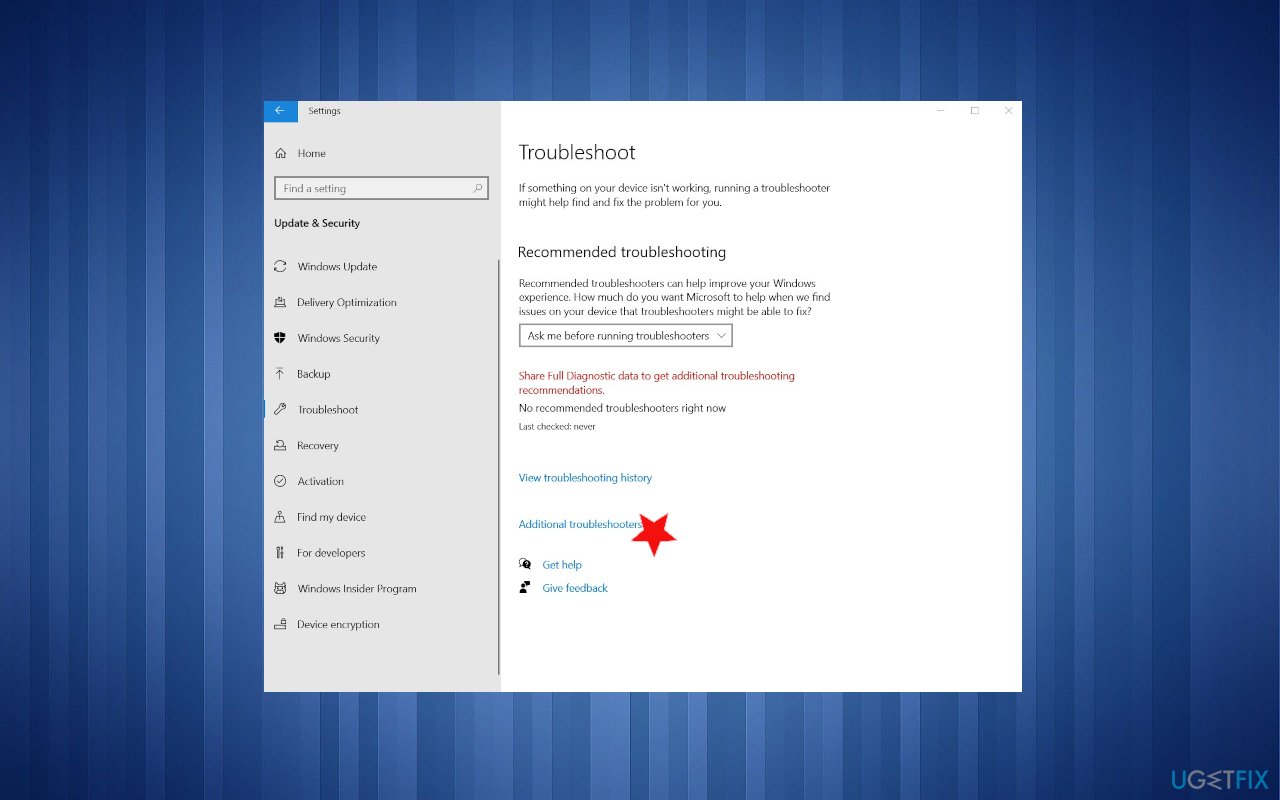
Error 0x80070652 fix troubleshooting - Select Troubleshoot and click on Additional troubleshooters.
- Then find and click on Windows Update.
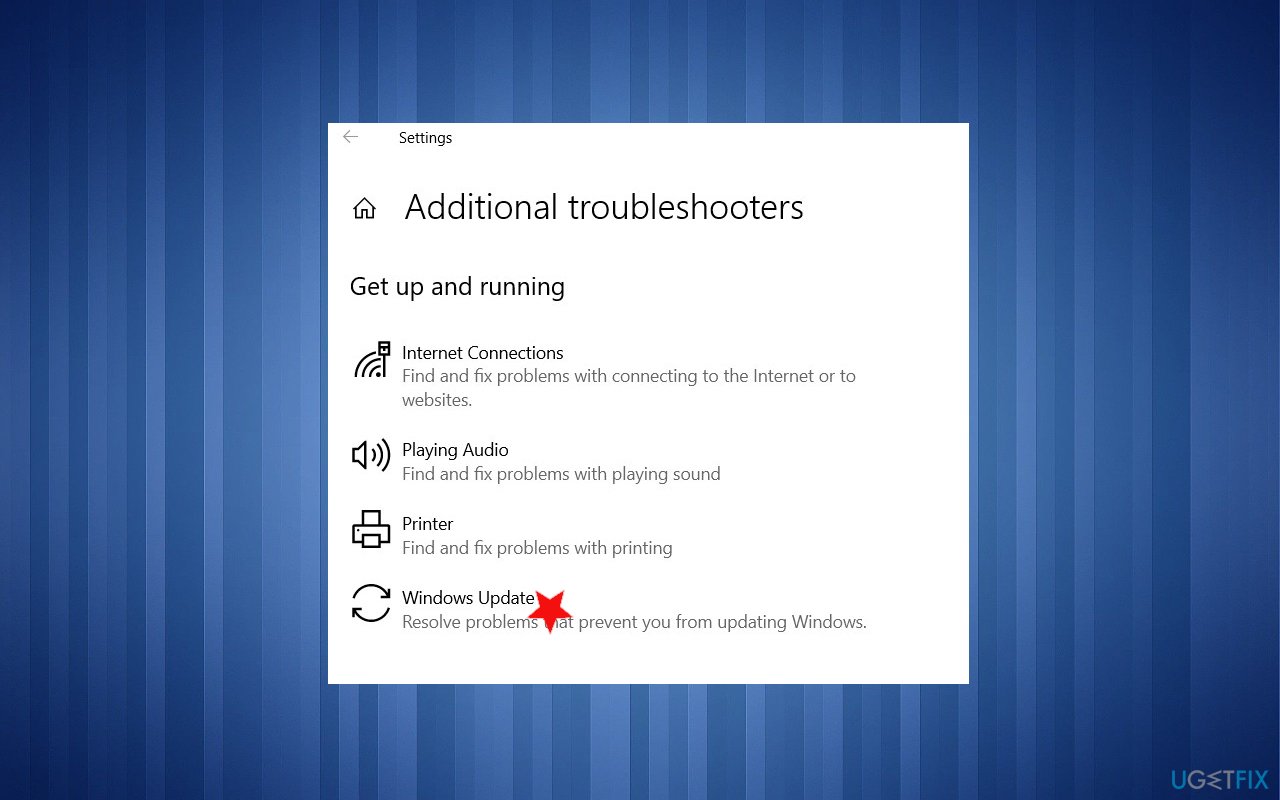
Error 0x80070652 fix additional troubleshooting - Run the troubleshooter.
Solution 3. Update drivers
- Press the Windows key and type Device Manager into the search bar.
- Click on the Device Manager option.
- Right-click on the device driver name and select Update Driver Software.
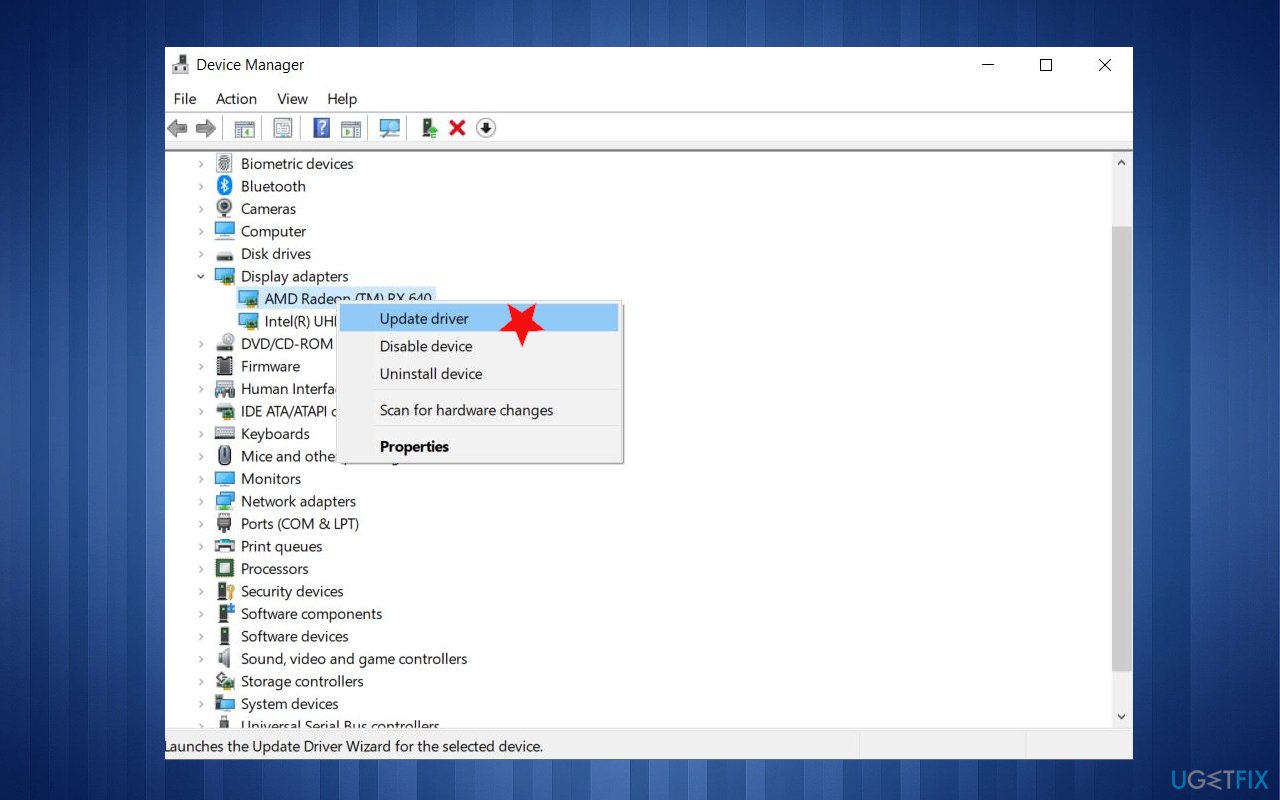
Error 0x80070652 fix manual update driver - Select the Search automatically for updated driver software option.
- The system should automatically search for available drivers.
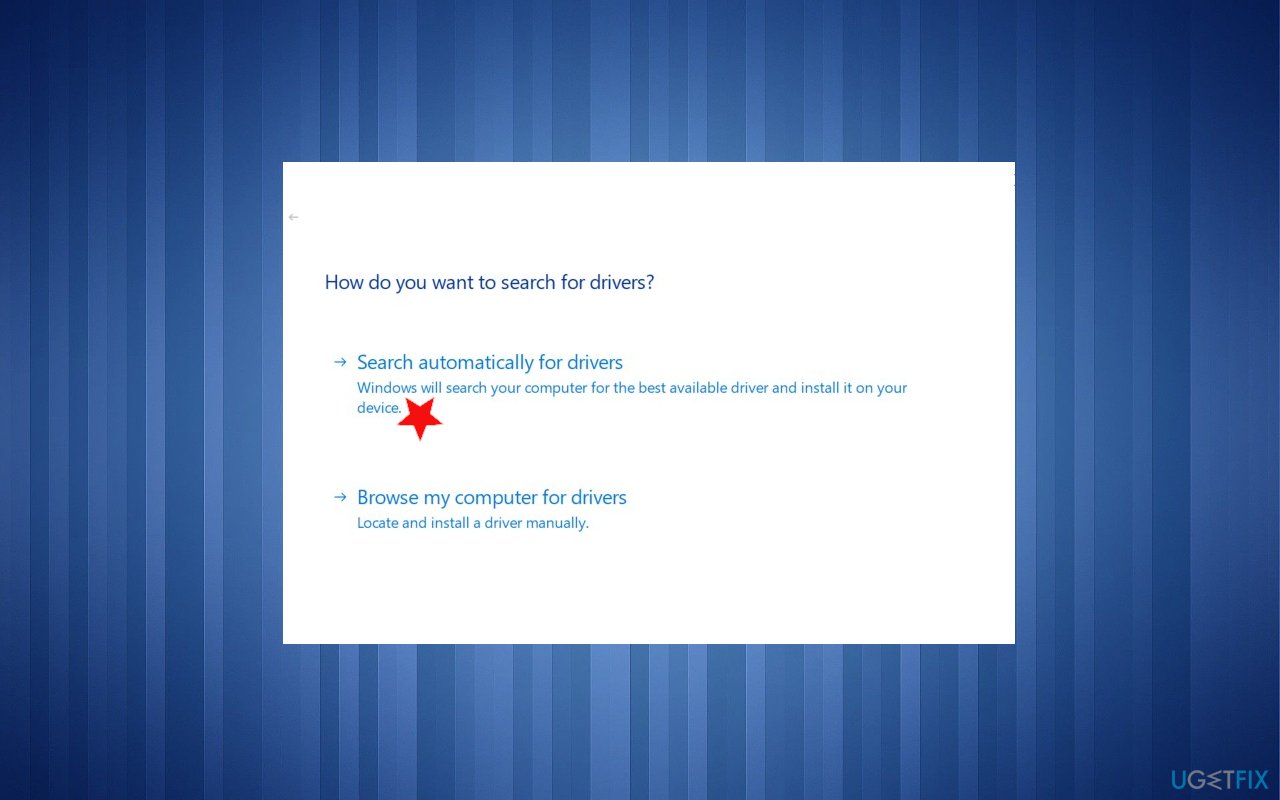
Error 0x80070652 fix manual driver update - You can repeat with drivers that have the exclamation point near them.
- Finally, restart Windows to finish up with the installation.
Or you can use the automatic driver updater software like [rev id="DriverFix"] that is designed to find such pieces automatically. When the system requires drivers this application checks for the compatible ones and installs them from the reliable database. You can save a lot of time by using this quick driver update method instead of manual.
Solution 4. Use a System Restore Point
This method works only if you have had a system restore point created before. If you are not sure if you have created a System Restore Point, you can check that by doing the following:
- Click Win key and type Create a Restore point in the search bar.
- Click on the search results and select System Protection on the new window.
- After that, click on System Restore and Next.
- Now you should see the list of created system restore points. If you have created one or more, select the latest one, and click Next.
- Finally, click Finish and let the system to restore. After that, reboot your PC and we are pretty sure that 0x80070652 error code will be gone.
Solution 5. Run Clean Boot
By performing this task, you will load Microsoft services only, which means that all third-party software that may be causing 0x80070652 errors will be left overboard. To Clean Boot your device, you have to perform the following steps:
- Click on Win key + S and type msconfig in the search bar.
- Select System Configuration from the search results and click on Services tab.
- Place a tick alongside all Microsoft Services box and then select Disable all.
- After that, click Ctrl + Alt + Delete to Open Task Manager.
- Open Startup and disable all programs that are set to boot along with the Windows system automatically.
- Once done, restart your PC and check if BSOD 0x80070652 error shows up when you try to run the upgrade or install the software.
Solution 6. Run a system file checker and fix error code 0x80070652
- Type cmd in search and press Enter.
- Locate and right-click Command Prompt.
- Select Run as administrator.
- Type sfc /scannow and hit Enter.
Bottom line
To fix the 0x80070652 error, you can try restarting your system, running a scan with an optimization tool, or checking for malware. If these methods do not resolve the issue, consider exploring additional troubleshooting steps.
Frequently asked questions
Error code 0x80070652 typically indicates that there is an issue with the Windows Update process or a problem with a specific application installation.
To troubleshoot this error, try running the Windows Update Troubleshooter and ensure that your system is not running any other installations simultaneously.
Yes, resetting Windows Update components can often resolve error code 0x80070652; you can do this using Command Prompt with administrative privileges.




Report an issue
What's wrong with this guide? We review every report and update or remove content.
Report received — thank you. We'll review and fix it.
You need a free account to submit a report.
Be the first to comment