
How to fix error code 0x8013153B in Microsoft Store?

Prefer to fix it yourself? The manual steps follow.
5 methods in this guide
- Ways to fix 0x8013153B Microsoft Store error
- Troubleshoot Microsoft Store applications
- Reset corrupted Windows Store Cache
- Delete files in the temp folder
- Use Developers tab to enable Microsoft Store Apps
- Execute PowerShell commands to re-register Microsoft Store
- BONUS: Enter Airplane mode to fix 0x8013153B error on smartphones
I have encountered a problem when trying to open Microsoft Store. The application displayed error code 0x8013153B with and offered to refresh the page or try again later. I tried to restart my computer. Although, it didn't help. Could you please provide instructions on how to fix 0x8013153B error when opening Microsoft Store? Thanks in advance!
0x8013153B is an error code which might appear when trying to open Microsoft store on the Windows computer, Xbox or a smartphone. This Microsoft error can be translated to "The operation has been canceled" and display the message asking to try again later or refresh the page.
According to the analysis, our experts have discovered multiple causes of 0x8013153B error on specific devices. The first culprit of the issue might not even be related to your computer or other machines as 0x8013153B Microsoft store error may be related to internal server problems.
Researchers note that there have been cases when users were not able to open Microsoft Store with 0x8013153B error code for the full day as the inbuilt application merely crashed or has been under the maintenance. As a result, there is nothing more you can do to fix 0x8013153B error rather than wait for it to be repaired by the technicians.
However, 0x8013153B Windows store error might also appear corrupted cache folder — if this is the case, you should execute specific commands to reset Windows Store. Otherwise, 0x8013153B error may arise due to the installation of applications from less than reliable sources.
Luckily, we have prepared instructions showing how to fix error code 0x8013153B when opening Microsoft Store. They are designed to help you eliminate related problems despite what is the culprit. Note that you can also find guidelines for your smartphone devices to get rid of 0x8013153B error.
Ways to fix 0x8013153B Microsoft Store error
Before you try to fix 0x8013153B error, we recommend you to make sure that this issue is not related to the internal server problems. You can do that by visiting the official Microsoft website for notifications or following them on Twitter. Usually, IT specialists notify users about all arisen issues.
Furthermore, our security experts suggest you scan your device with a professional system optimization tool to detect and eliminate potentially unwanted programs (PUPs) that might interfere with the inbuilt Microsoft store application.
This video contains information about solving this error:
[youtube YwE74Hysm2s]
Method 1. Troubleshoot Microsoft Store applications
- Click Windows key + R and type ms-settings:troubleshoot;
- Open Troubleshoot tab and search for Find and Fix Other Problems;
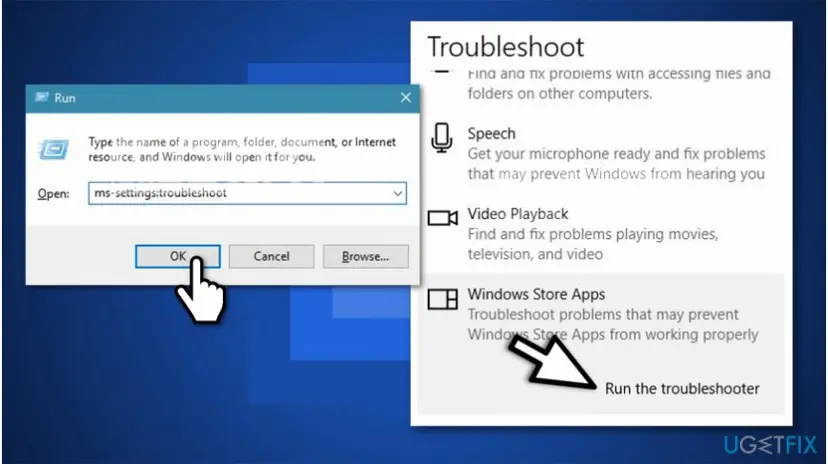
Run windows store app troubleshooter - Select Windows Store Apps and press Run the Troubleshooter.
- Once the scan is over, click Apply this fix;
- Restart your computer.
Method 2. Reset corrupted Windows Store Cache
- Press Windows key + R and submit WSreset.exe;
- Once the command is executed, Windows store should restart automatically, or you will receive "The cache for the Store was cleared. You can now browse the Store for apps." message.
- Try opening Microsoft Store to check if 0x8013153B error persists.
Method 3. Delete files in the temp folder
- Navigate to C:\\Windows\\temp and click Yes on the User Account Control (UAC) pop-up window;
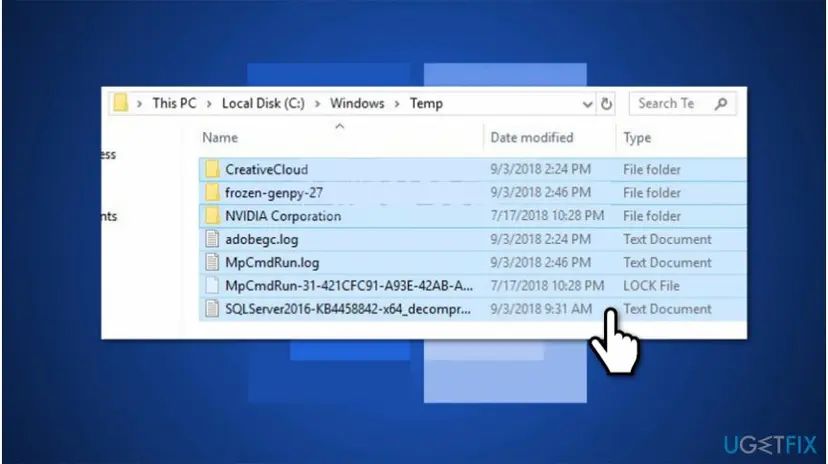
Delete files in windows temp folder - Select all files in the folder and get rid of them by right-clicking and selecting Delete;
- Reboot your computer.
Method 4. Use Developers tab to enable Microsoft Store Apps
- Click Windows key + R and type ms-settings:windowsupdate;
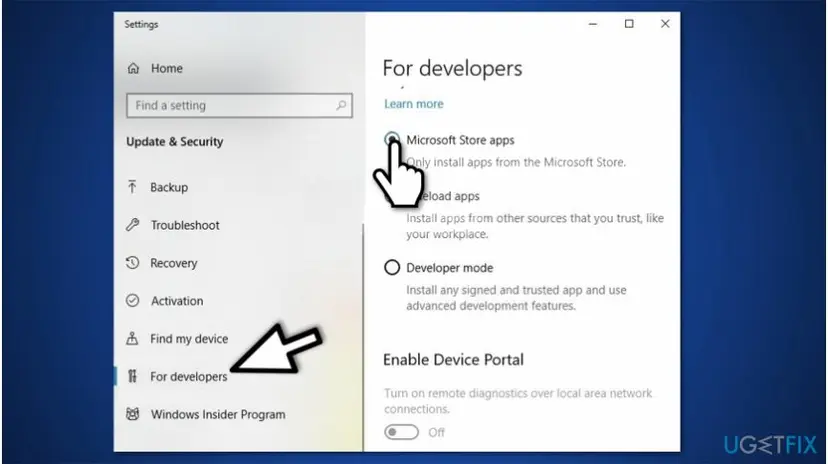
Enable microsoft store apps from developers tab - On the left pane select For Developers and tick Microsoft Store Apps checkmark;
- Close the window and restart your PC.
Method 5. Execute PowerShell commands to re-register Microsoft Store
- Click Windows key + R and submit powershell;
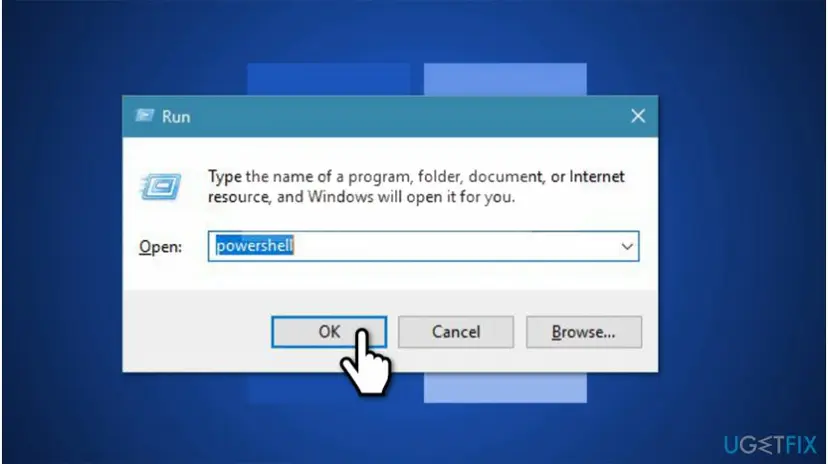
Re register microsoft store - Press Ctrl + Shift + Enter and click Yes in UAC pop-up window;
- Copy and paste the following command by clicking Enter afterward:
AppXPackage -AllUsers | Foreach {Add-AppxPackage -DisableDevelopmentMode -Register "$($_.InstallLocation)\\AppXManifest.xml"} - Restart your computer.
BONUS: Enter Airplane mode to fix 0x8013153B error on smartphones
- Open Microsoft Store and let it start loading;
- Exit the app and turn on Airplane mode;
- Open the application once again and let it load again;
- Exit Microsoft Store and turn off Airplane mode;
- Re-enter the application.
Did this fix work?
One click, no account. It tells the next reader which guides are worth their time.
Questions and experiences: fix error code 0x8013153B in Microsoft Store
Still broken, or found a fix we did not cover? Ask here: members and our editors answer. Reading is open; writing needs a free account.
…