How to fix
Event Log error 1108 (Microsoft Windows Security Auditing)
on Windows
Resolve Event Log error 1108 in Windows 10 or 11 quickly with our expert-tested solutions. Get your security audits back on track—fixed in minutes!

What causes How to fix Event Log error 1108 (Microsoft Windows Security Auditing) in Windows?
- Corrupted files
- Missing Windows updates
- Service malfunction
- Windows registry issues
Repairs Windows system files, removes malware, and restores a clean OS state — without reinstalling.
Hello. I recently installed Windows 11 on my computer and I keep getting the Event Log error 1108 related to Microsoft Windows Security Auditing. Any tips would be appreciated.
Windows 11 was released at the end of 2021. Microsoft introduced a new user interface, design, and features. However, many people are having various issues. We previously wrote about Windows 11 problems such as icons keep disappearing from taskbar, high RAM usage, Security Dashboard won't open, etc.
Recently, some people encountered error 1108 in the Event Viewer. The full message reads as follows:
The event logging service encountered an error while processing an incoming event published from Microsoft-Windows-Security-Auditing.
Windows security auditing[ref en-1] is a feature designed to monitor user activity, investigate potential incidents, and determine solutions for any identified issues. This helps to ensure that both the computer and corporate network are secure. The Event Log error 1108 could be caused by corrupted files, missing Windows updates, service malfunction, or the Windows registry.[ref en-2]
In this guide, you will find 7 steps that should help you fix Event Log error 1108 (Microsoft Windows Security Auditing) in Windows. Keep in mind that the manual troubleshooting process can be lengthy. To avoid it, you can use a maintenance tool like [d1] that can fix most system errors, BSODs,[ref en-3] corrupted files, and registry issues. Otherwise, follow the step-by-step instructions below.
Method 1. Fix Corrupted System Files
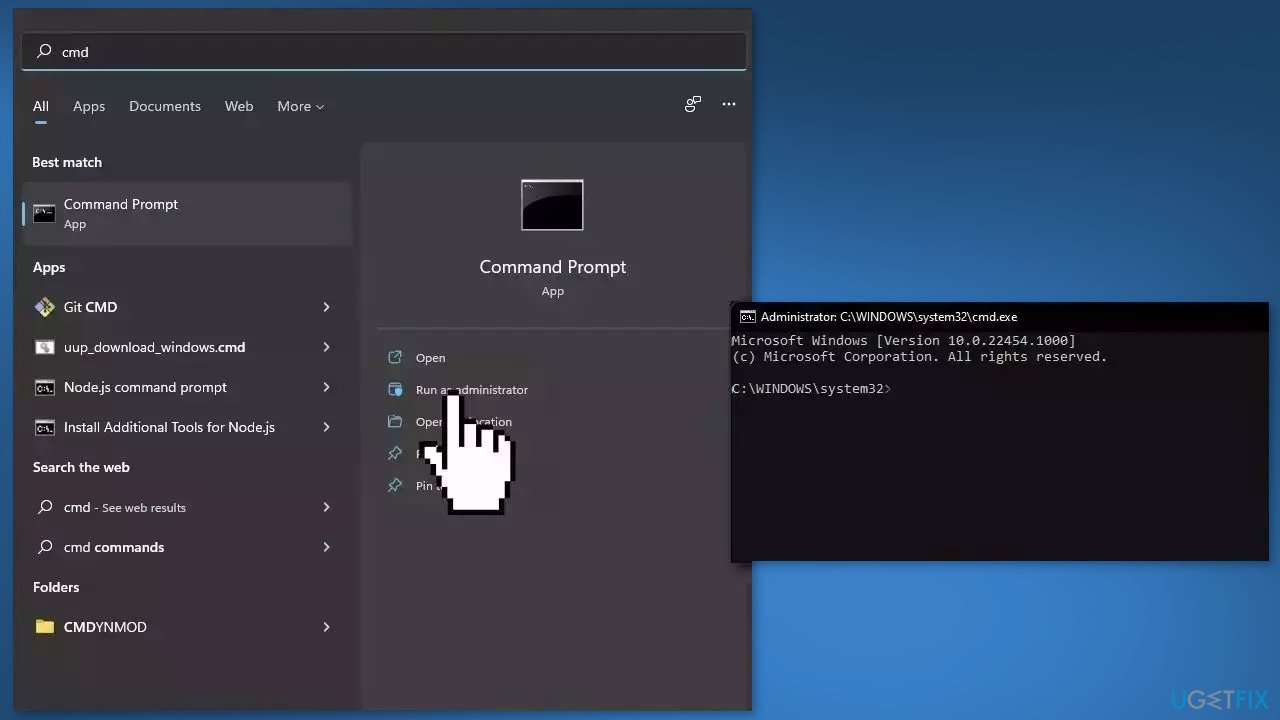
Use Command Prompt commands to repair system file corruption:
- Open Command Prompt as administrator
- Use the following command and press Enter:
sfc /scannow
- Reboot your system
- If SFC returned an error, then use the following command lines, pressing Enter after each:
DISM /Online /Cleanup-Image /CheckHealth
DISM /Online /Cleanup-Image /ScanHealth
DISM /Online /Cleanup-Image /RestoreHealth
Method 2. Install Windows Updates
- Press the Windows key + R to open the Run box
- Type ms-settings:windowsupdate in the text box and press Enter
- Click the Check for Updates button
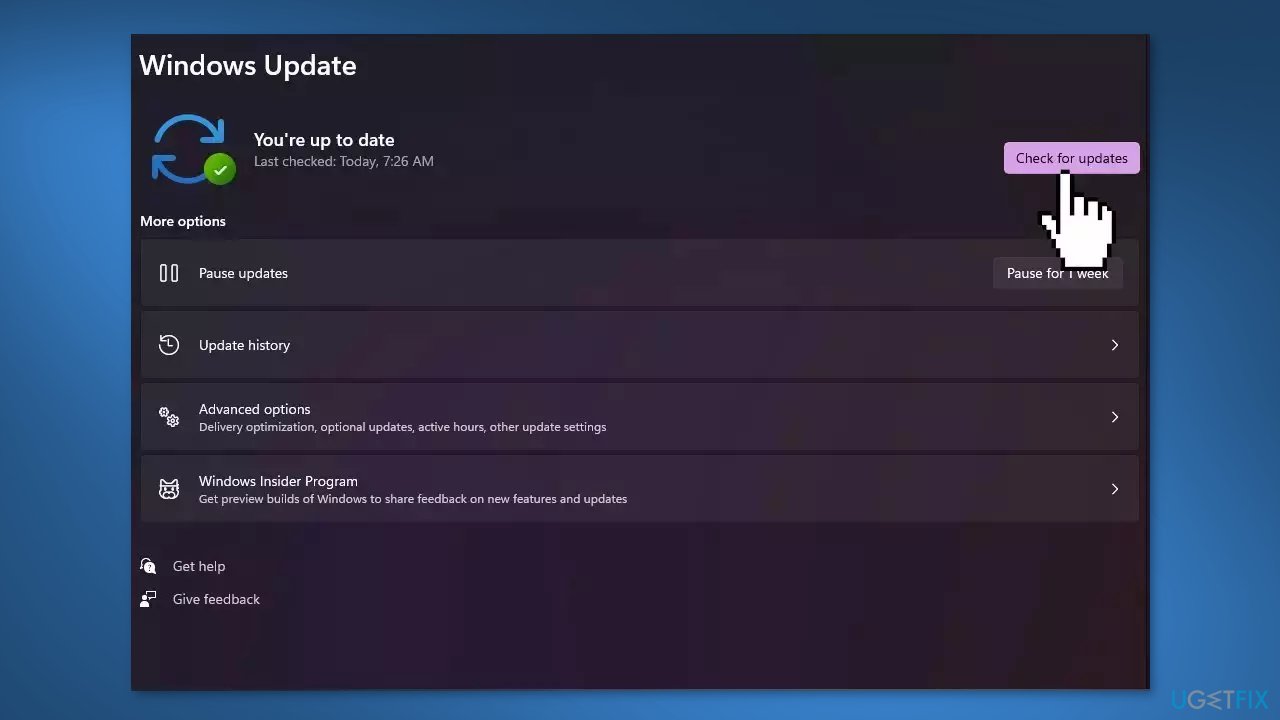
- If a new update is available, click the Download & Install all button.
- Restart your computer after the process is finished and check to see if the problem is fixed
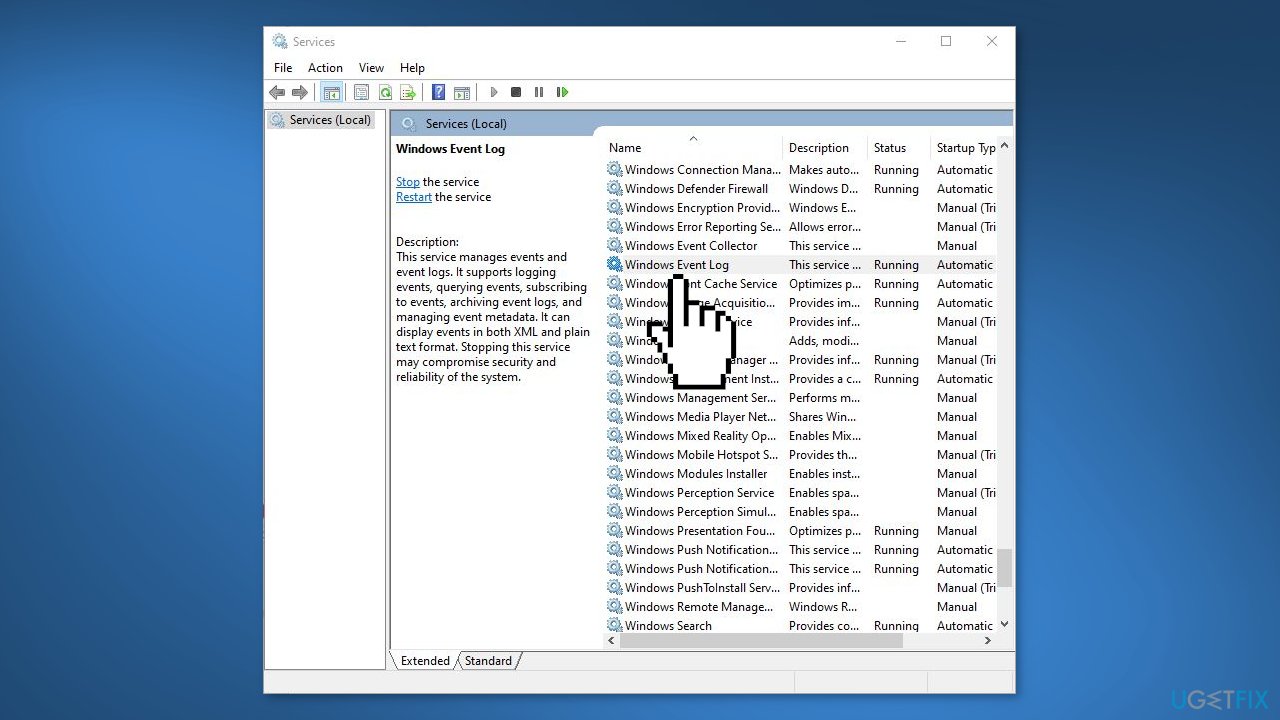
Method 3. Restart Windows Event Log Service
- Press the Windows key + R to open the Run dialog box
- Type services.msc and hit Enter
- Search for Windows Event Log service, right-click on it, and select Restart
Method 4. Modify the Registry Editor
- Press the Windows key + R to open the Run dialog box
- Type regedit and hit Enter
- Navigate to the following path:
HKEY_LOCAL_MACHINE > SYSTEM > CurrentControlSet > Services > EventLog
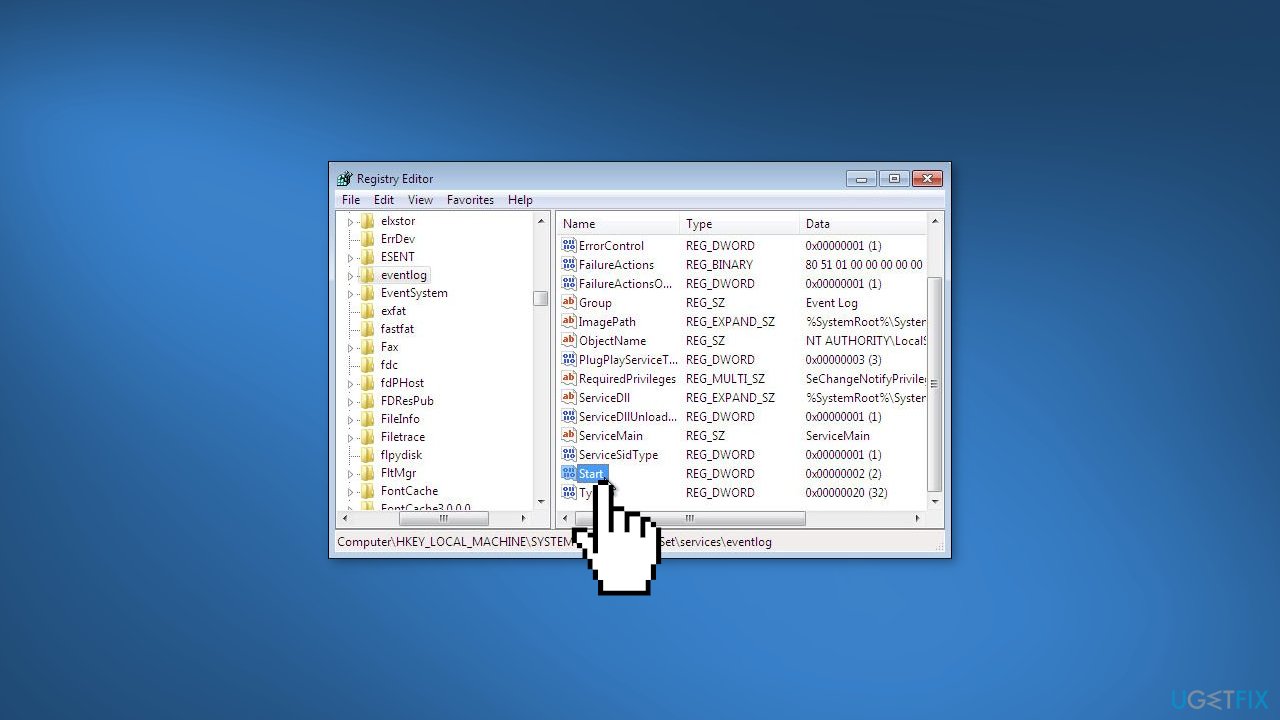
- Right-click on Start in the right pane and select Modify
- Set the Value Data as 1 and click on Ok to save the changes
Method 5. Delete Subkey for the DFSR Service
- Press the Windows key + R to open the Run dialog box
- Type regedit and hit Enter
- Navigate to the following path:
HKEY_LOCAL_MACHINE\SYSTEM\CurrentControlSet\Services\Dfsr\Restore
- Now backup and delete the restore subkey
- Once done, open Services and restart the DFS Replication Service
- Restart your device
Method 6. Run System Restore
- Go to the Start menu, type restore, and click on Create a restore point
- Click System Restore, then follow the prompts until you can select a restore point
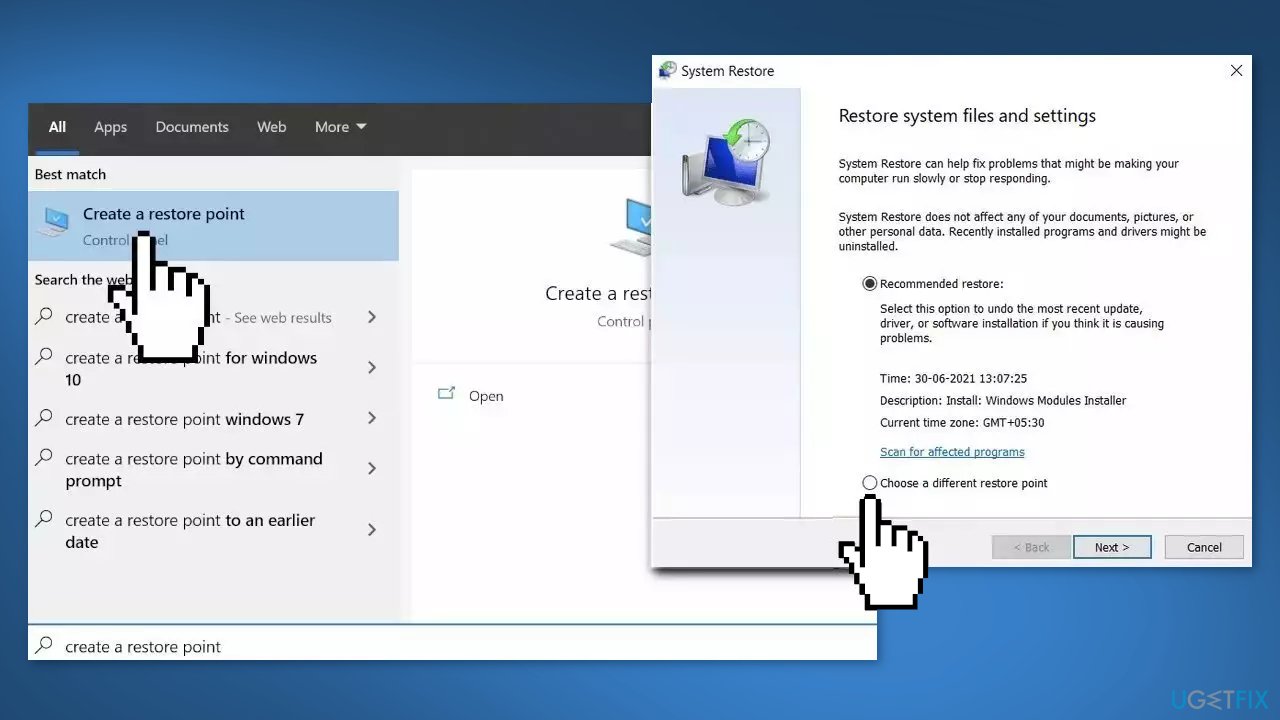
- Select the one you want (ideally before the Event Log error 1108 started appearing) and go ahead with the process
Method 7. Perform a Repair Installation
- Visit the official Microsoft website to download Windows 11 Installation Media
- Run the Media Creation Tool and select Create Installation Media for another PC
- Select your USB drive
- Let the Process complete of writing the Installation files to the USB drive
- Click Finish
- On the PC you wish to upgrade, Press Windows + E to open the File Explorer
- Open the Removable drive and click Setup.exe
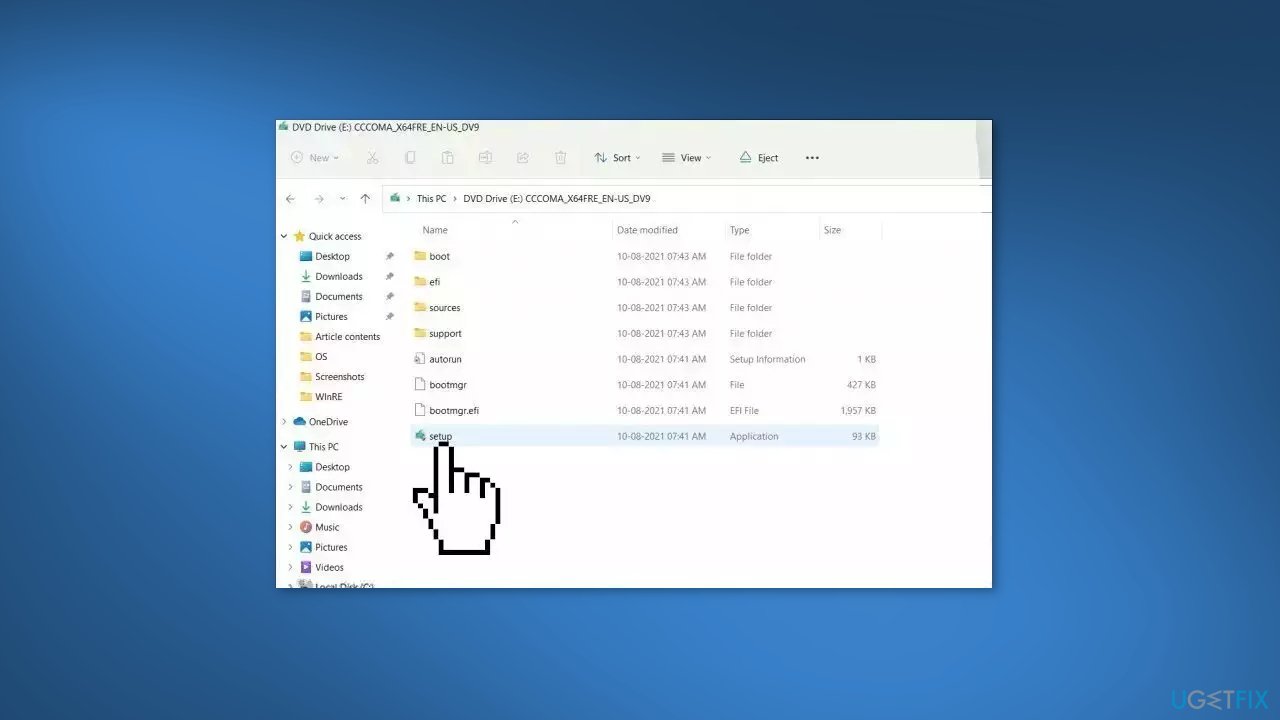
- Accept the license terms on the next screen
- Confirm the Upgrade options – Files, apps and Settings are kept
- Click Install, and the upgrade should start
Bottom line
To fix Event Log error 1108, you can repair corrupted system files using Command Prompt, install any missing Windows updates, and restart the Windows Event service. If these steps do not resolve the issue, consider using a maintenance tool to address system errors.
Frequently asked questions
The Event Log error 1108 typically occurs due to a lack of available space for the security audit logs or corruption in the event log files. This can prevent Windows from logging security events properly.
To clear the event logs in Windows 10 or Windows 11, open the Event Viewer, right-click on the log you want to clear, and select 'Clear Log.' Ensure that you back up the logs if needed before clearing them.
Yes, you need administrative privileges to access and manage the Event Viewer and to modify the settings related to the event logs in Windows 10 or Windows 11.




Report an issue
What's wrong with this guide? We review every report and update or remove content.
Report received — thank you. We'll review and fix it.
You need a free account to submit a report.
Be the first to comment