How to fix
Fatal exception error 0x85100084 in World of Warcraft
on Windows
Resolve the Fatal Exception Error 0x85100084 in World of Warcraft on Windows 10 and 11 quickly and efficiently. Expert-tested solutions inside.


What causes How to fix Fatal exception error 0x85100084 in World of Warcraft?
- Corrupted game files
- Outdated hardware components
- Faulty hardware components
- Conflicts with other software
- Running background processes
Repairs Windows system files, removes malware, and restores a clean OS state — without reinstalling.
Hi. Whenever I start World of Warcraft, I receive ERROR #132 (0x85100084) Fatal exception. I have enough space on my PC, and other games run just fine. How do I fix this?
Fatal exception errors are a common problem that can arise when playing video games. One such error that is encountered by players of World of Warcraft is the 0x85100084 error, also known as ERROR #132.
World of Warcraft is one of the most popular and significant massively multiplayer online role-playing games (MMORPG) of all time. Since its launch in 2004, it has amassed a huge player base, with millions of active subscribers at its peak. While the number of players has declined, it remains one of the most prominent representatives of its genre.
This error can be frustrating and cause players to not be able to access the game or get disconnected in the middle of playing group content, resulting in poor results in-game. The cause of the error can vary, but it is often related to issues with the game files or the computer's hardware.
One common cause of the 0x85100084 error is corrupted game files. This can happen due to a variety of reasons such as incomplete updates, interrupted installations, or viruses. To fix this, players can try repairing their game files using the repair tool provided by Blizzard, the game's developer.
Another cause of the error can be related to outdated or faulty hardware components such as the graphics card or the RAM. Players can try updating their drivers or replacing any faulty hardware to fix this issue. Additionally, players can try reducing the game's graphics settings to lower the strain on their hardware.
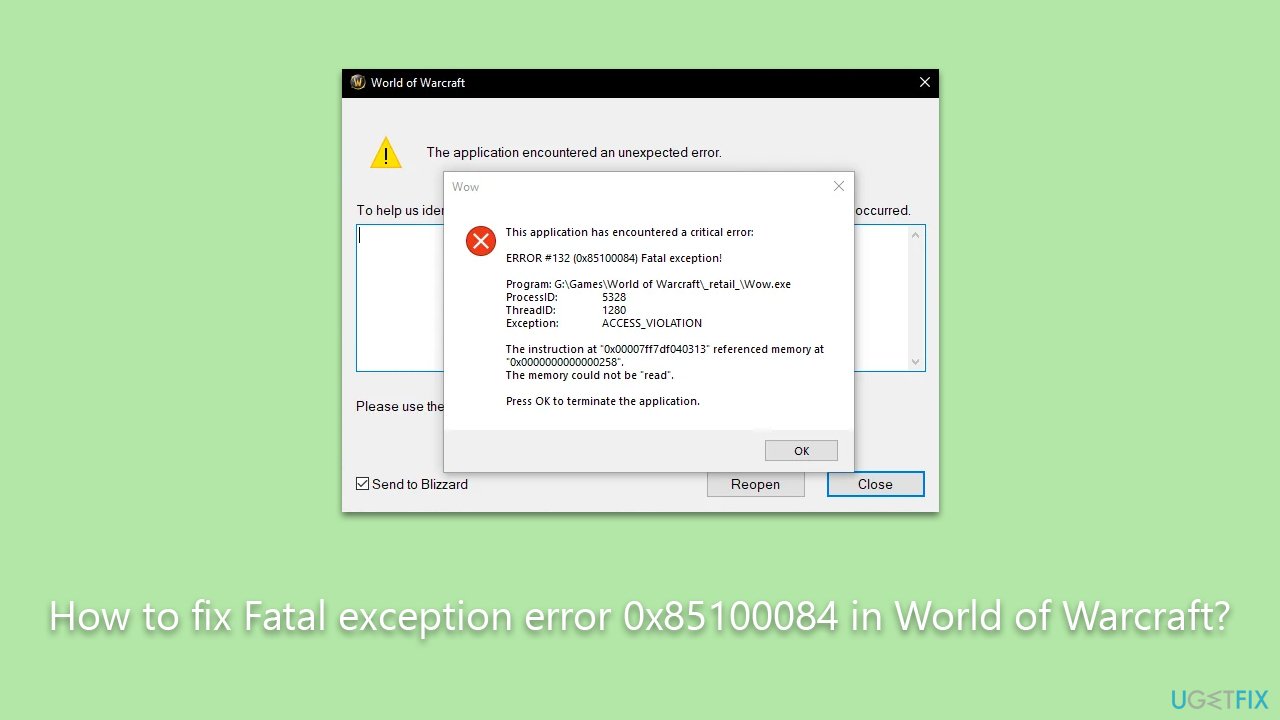
Some people managed to fix the ERROR #132 (0x85100084) Fatal exception in WoW after applying legacy DirectX in the Battle.net settings. In other cases, the error may also be caused by conflicts with other software or running background processes. Players can try disabling any unnecessary programs or services running on their computers to reduce the strain on their system.
Regardless of your situation, please try out the solutions below - we provide a step-by-step guide. We also recommend checking the system with a powerful PC repair tool [d1], which can quickly check whether there are underlying Windows issues and fix them automatically for you.
1. Update your GPU drivers
If you have been neglecting Windows and driver updates, you should check this solution as your first option to fix the Fatal exception error 0x85100084 in WoW. There are several ways you could do this, but we recommend starting by updating your operating system:
- Type Update in Windows search and press Enter or go to Start > Settings > Update & Security.
- Click Check for updates and wait.
- If optional updates are available, install them, too, as this is where driver updates come from.
- When done, restart your system.
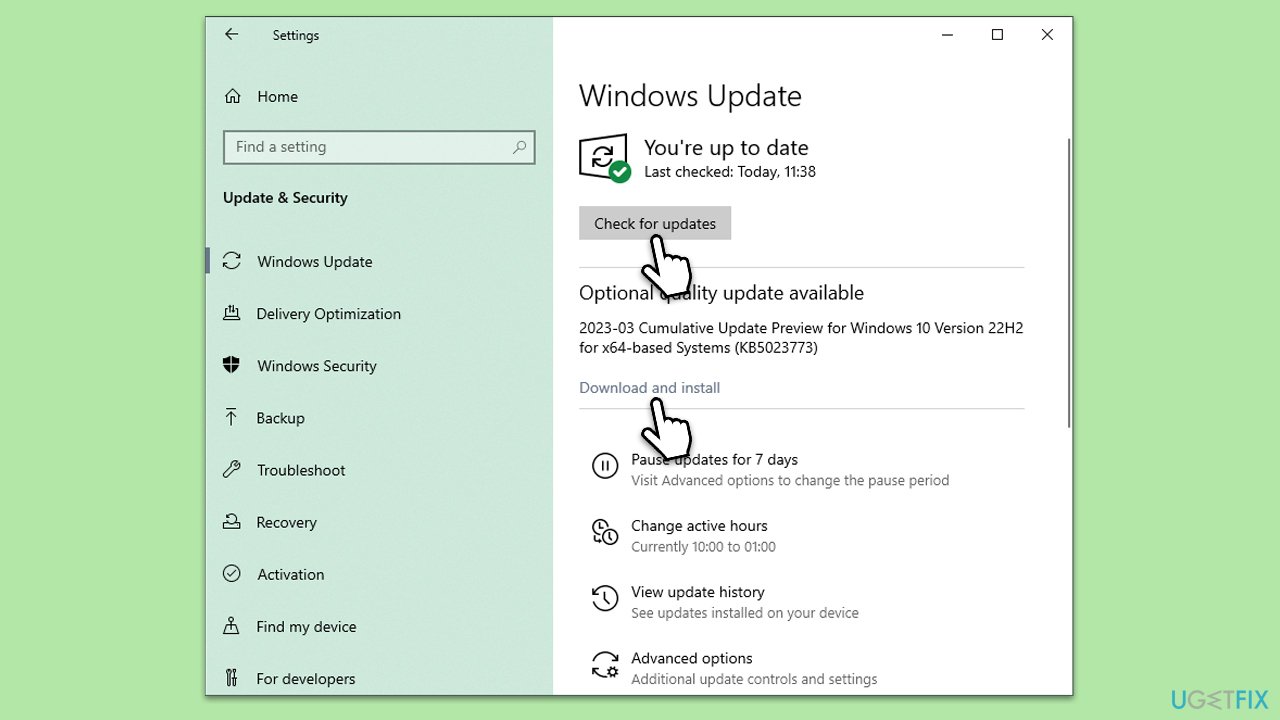
Windows updates will make sure that all the bugs in the system are adhered to and it is stable. However, it might not install the latest drivers for your GPU. Thus, you should either visit your video card manufacturer's website and download drivers manually. If you want a quick solution, we recommend using [rev id="DriverFix"].
2. Change DirectX Settings
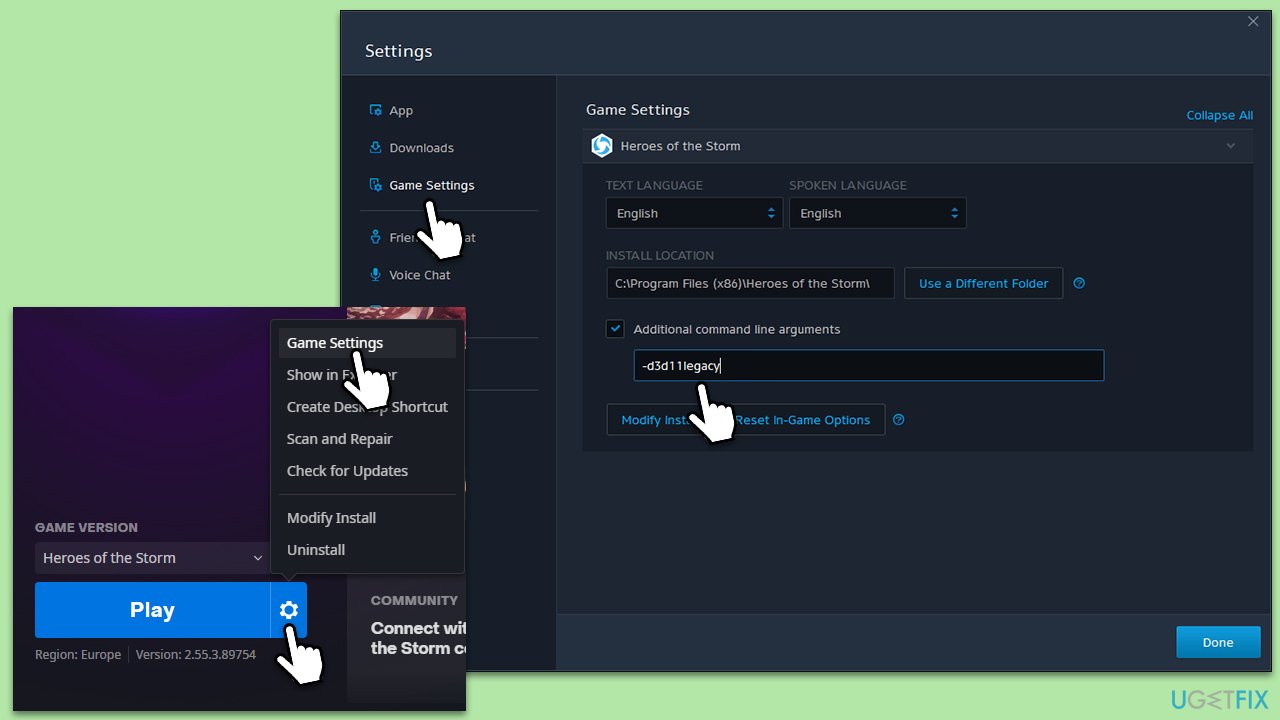
Stopping the game from running in DirectX legacy mode helped users to resolve the issue. To do so, follow these steps:
- Open the Battle.net app and select World of Warcraft.
- Click on Options (cogwheel) and select Game Settings.
- Tick the Additional command arguments checkbox.
- Then, type the following into the empty field:
-d3d11legacy - Click Done and launch the game to see if the error persists.
3. Repair the installation
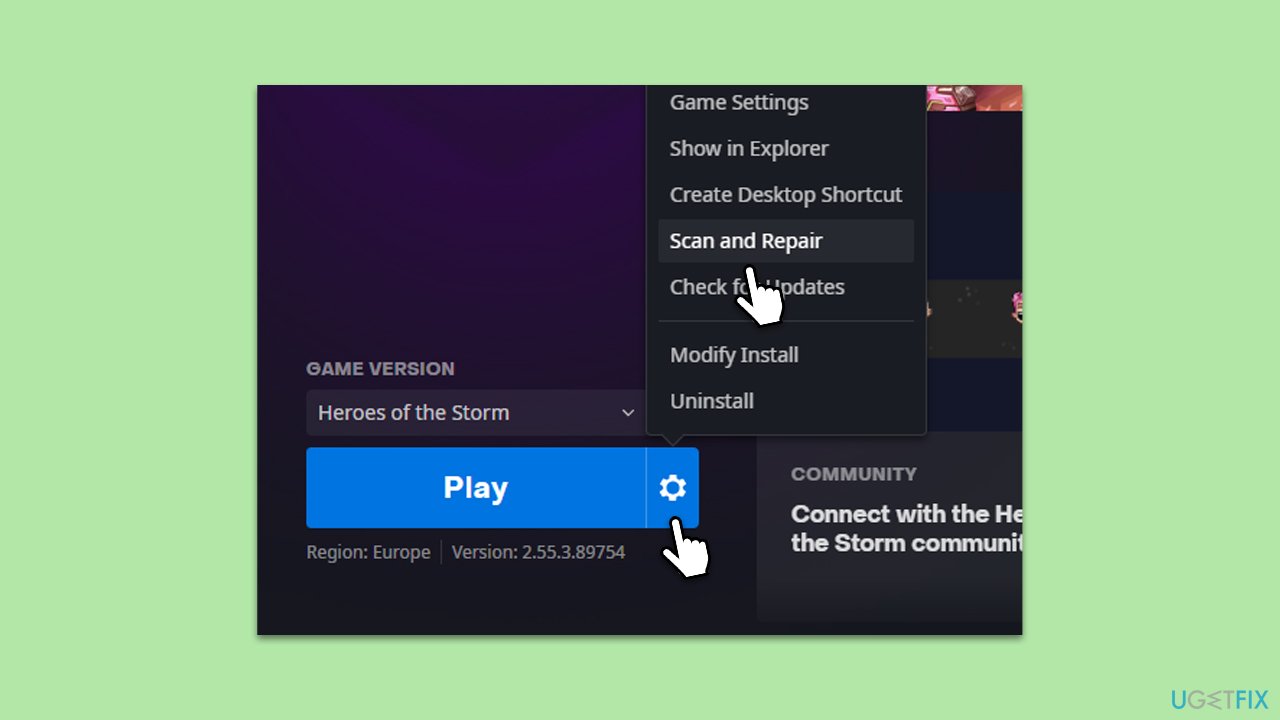
- Open the Battle.net app and select World of Warcraft.
- Click on Options (cogwheel) and select Scan and repair.
- Wait till Battle.net finishes the scan.
- Once the repair is finished, restart your PC and launch the game.
4. Reset your UI
UI issues are known to cause various errors, so you should reset it as follows:
- Close World of Warcraft and open Battle.net app.
- Click on Options (cogwheel) and select Show in Explorer.
- Go to either _retail_ or _classic_ based on the version of the game you are playing.
- Rename Cache, Interface, and WTF folders as follows:
CacheOld
InterfaceOld
WTFOld - Relaunch World of Warcraft and see if the error persists.
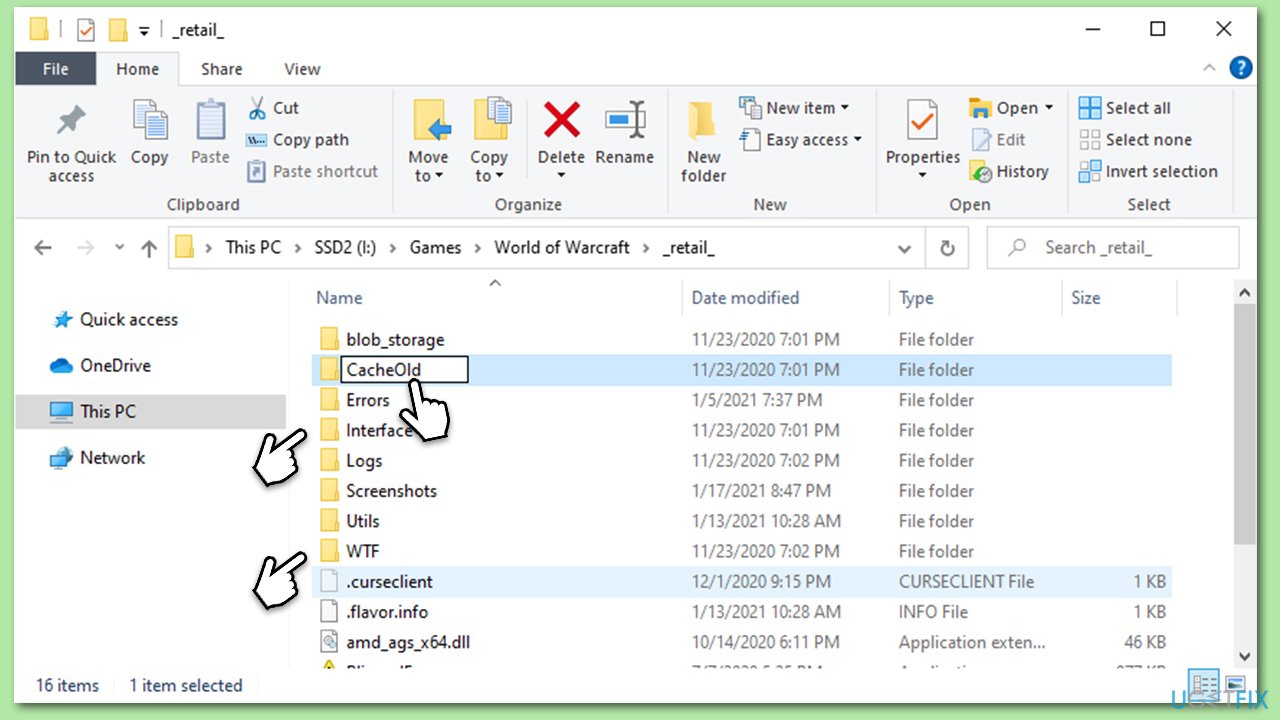
You can also reset the console variable to default by pasting the following command in-game chat and pressing Enter:
- /console cvar_default
5. Check your hardware
First, make sure that the drive you are using is not corrupted. To do so, you can do the following:
- Type cmd in Windows search.
- Right-click on Command Prompt and select Run as administrator.
- When the User Account Control window shows up, click Yes.
- In the new window, type in the following command and press Enter:
chkdsk c: /f
(Note: use chkdsk c: /f /r /x command if you are using SSD as your primary partition) - If you receive an error, type in Y, close down Command Prompt and restart your computer.
- Wait till the scan is finished - you can then find the results in the Event Viewer.
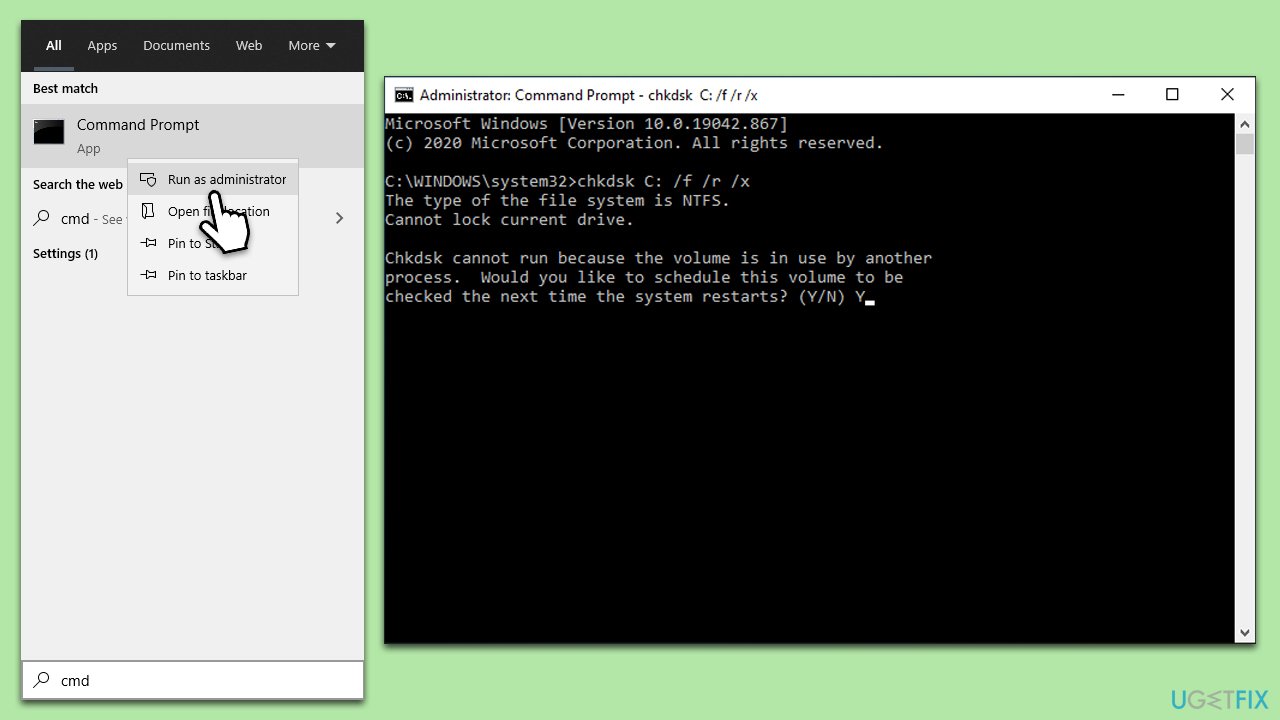
Another thing you should check is your RAM (Memory). Windows Memory Diagnostics tool is a good built-in solution for this (although free, third-party apps are also available for more detailed checks):
- Type Memory in Windows search and press Enter.
- Select Windows Memory Diagnostics result.
- Click Restart now and check for problems (recommended) (note that your PC will restart immediately).The
- A memory test will run during startup and display any detected errors - this might take a while.
- Replace or repair faulty RAM module(s) if errors are found.
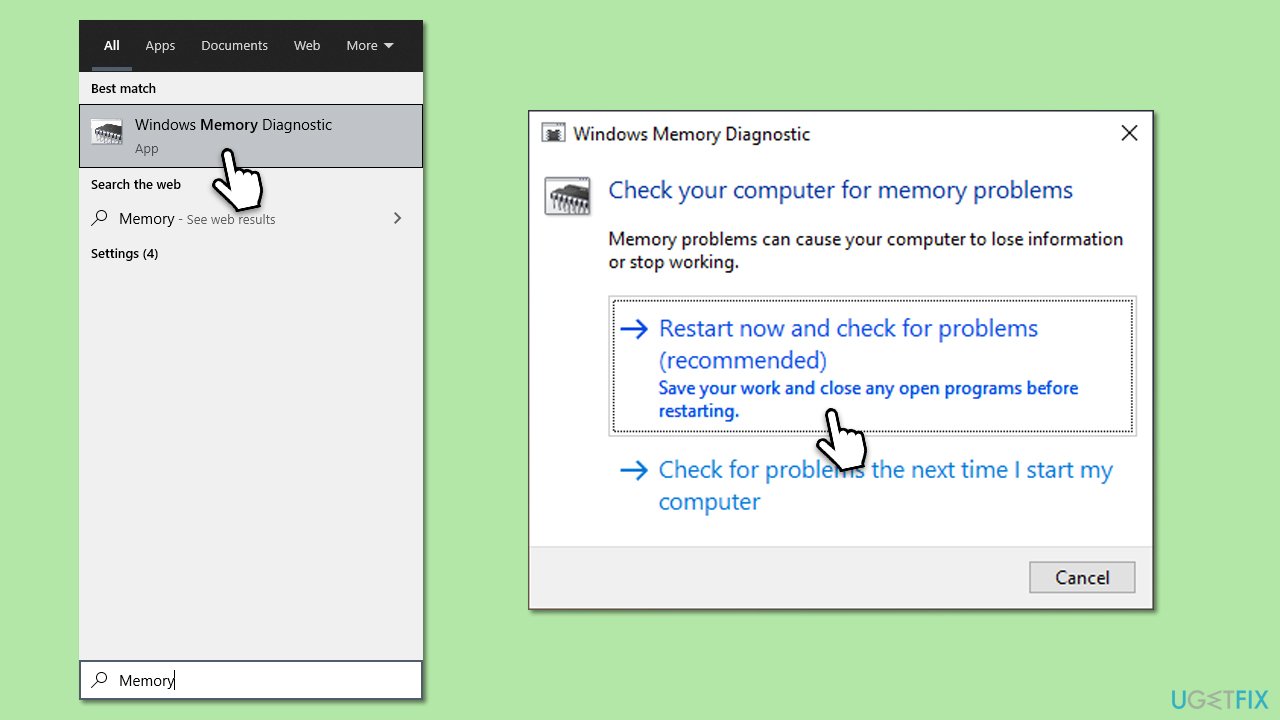
Other topics that might be useful:
Bottom line
To fix the ERROR #132 (0x85100084), players can repair their game files using the Blizzard repair tool, update their drivers, or replace faulty hardware. Additionally, reducing the game's graphics settings and disabling unnecessary programs may help. If none of these solutions work, further investigation into system compatibility or contacting support may be necessary.
Frequently asked questions
This error typically indicates a problem with the game files or a conflict with system settings on Windows 10. It can often be resolved by repairing the game installation or adjusting graphics settings.
To fix this error on Windows 11, try updating your graphics drivers and ensuring that your Windows system is fully updated. Additionally, running the game in compatibility mode might help.
To prevent this error, regularly update your game and system software, and ensure that your hardware meets the game's requirements on both Windows 10 and Windows 11. Also, consider disabling background applications that may interfere with the game.




Report an issue
What's wrong with this guide? We review every report and update or remove content.
Report received — thank you. We'll review and fix it.
You need a free account to submit a report.
Be the first to comment