How to fix
File Explorer keeps crashing
on Windows
Resolve File Explorer crashes in Windows 10 and 11 effortlessly with our expert tips. Fix issues quickly and effectively, trusted by users worldwide.

What causes How to fix File Explorer keeps crashing in Windows?
- High resource usage
- Corrupted system files
- Conflicting third-party applications
- Outdated drivers
- Malware or virus infection
Repairs Windows system files, removes malware, and restores a clean OS state — without reinstalling.
Hi, I am dealing with super annoying issue with File Explorer. Every time I attempt to copy/drag a file to another folder, or even access a directory, File Explorer stops responding, crashes, and restarts. This repeats constantly, and this makes my computer usage experience a complete nightmare. Please advise - I would appreciate.
In the Windows operating system, the File Explorer is the default application used for browsing and managing files and directories on the computer. It is typically referred to as "Windows Explorer" or "File Explorer" and can be accessed by clicking on the folder icon in the taskbar or by pressing the Windows key and "E" on the keyboard.
File Explorer in Windows provides a number of features and tools for managing and organizing files and directories. For example, it allows the user to view and navigate through the file system using a tree-like structure, create new folders and files, copy, move, and delete files and directories, and access various options and settings through the menu bar and context menu. Overall, File Explorer in Windows is a powerful and user-friendly application that allows users to easily manage and organize their files and directories on the computer.
Despite these benefits, this Windows component can sometimes cause issues to users - it was previously observed causing high resource usage, taking too long to open directories, and similar. This time, we will be delving into File Explorer crashing for users on Windows operating systems.
According to many user reports on various forums, they claimed that the app starts crashing as soon as an interaction with it is initiated, e.g., when copying files, accessing folders or sometimes even just having one of the windows open. If you are suffering from this problem, you shouldn't worry, as we prepared several solutions that should help you with File Explorer crashes.
We recommend running an automatic PC repair tool [d1] before following manual steps below, as it may solve your issue quickly and easily. Besides, the app works great when dealing with typical Windows issues such as BSODs, system crashes, DLL errors, registry corruption, and similar.
Fix 1. Start with SFC and DISM
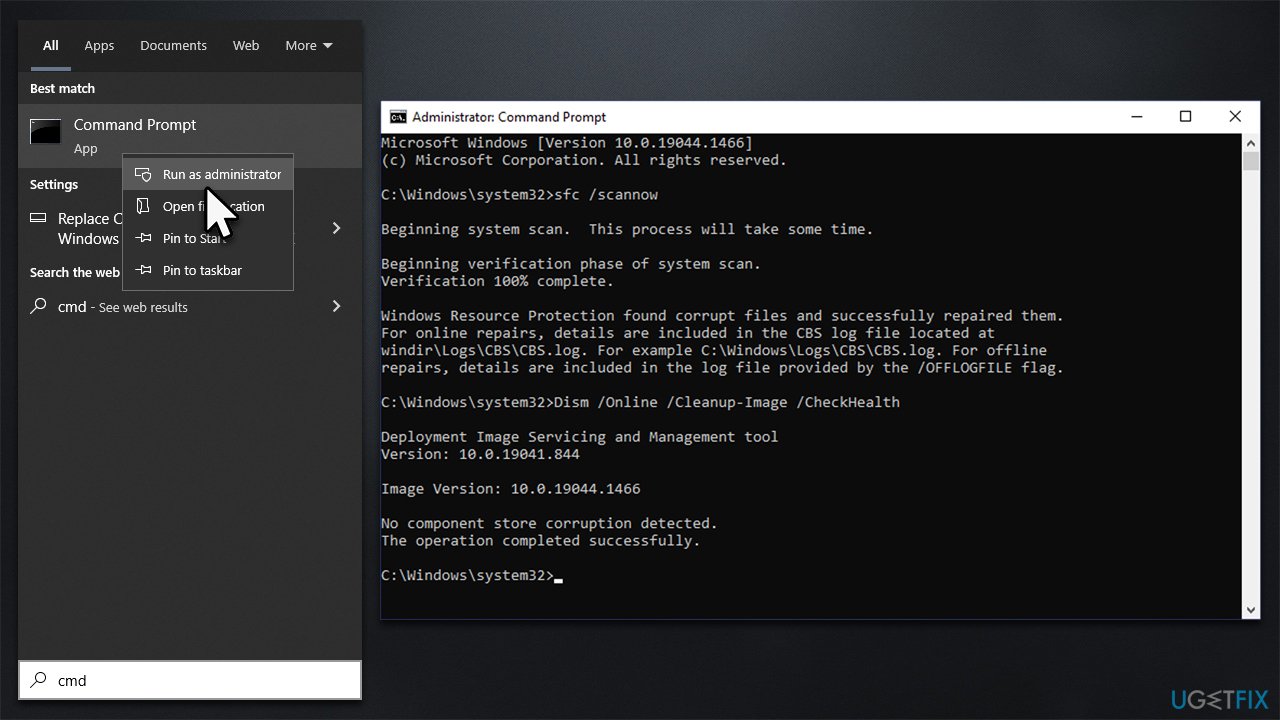
First, make sure that your system files aren't corrupted with SFC. DISM can check your Windows image files.
- Type cmd in Windows search
- Right-click on Command Prompt result and select Run as administrator
- Paste the following command into the new window:
sfc /scannow - Press Enter and wait till the scan is finished
- Once done, run this set of commands, pressing Enter after each:
DISM /Online /Cleanup-Image /CheckHealth
DISM /Online /Cleanup-Image /ScanHealth
DISM /Online /Cleanup-Image /RestoreHealth - Restart your PC.
Note: if you receive an error when using Restorehealth command, use the following command instead:
Repair-WindowsImage -Online -RestoreHealth
Fix 2. Change File Explorer options and clear history
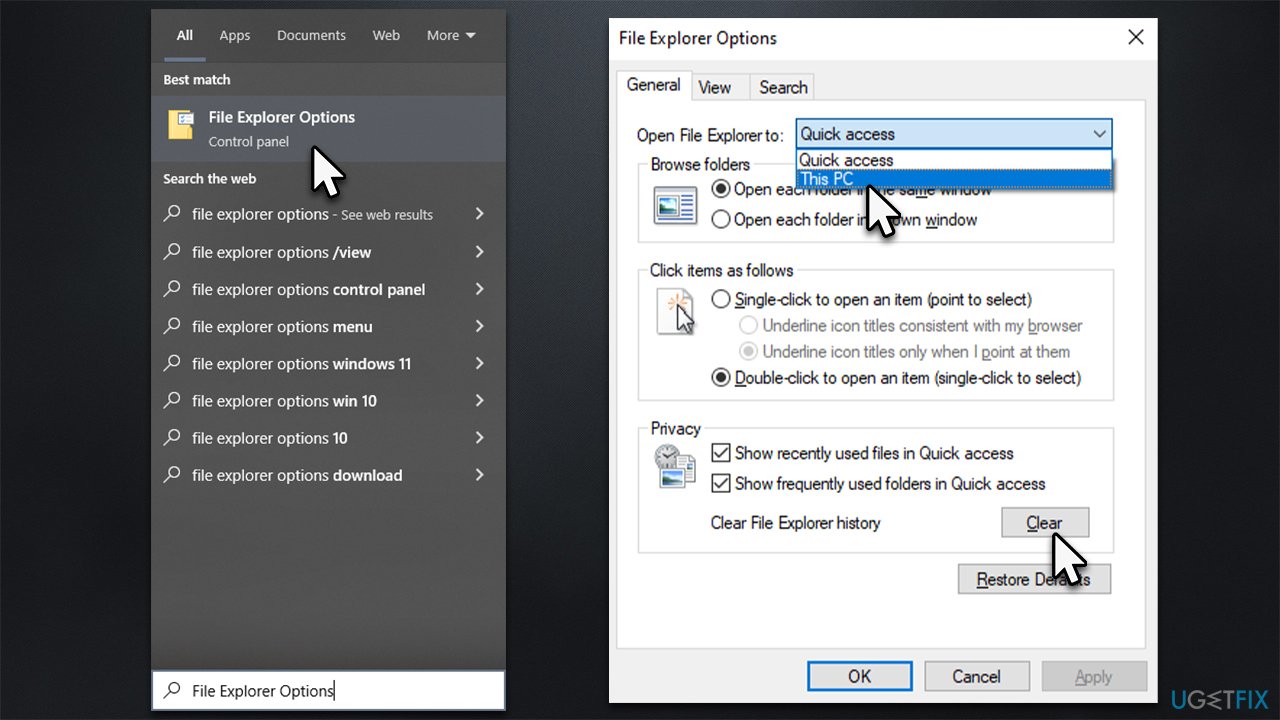
- In Windows search, type in File Explorer Options and press Enter
- In the General tab, locate Open File Explorer to: section at the top
- Click on the drop-down menu and select This PC
- In the Privacy section, click Clear to clear File Explorer history
- Click Apply and OK.
Fix 3. Change display settings
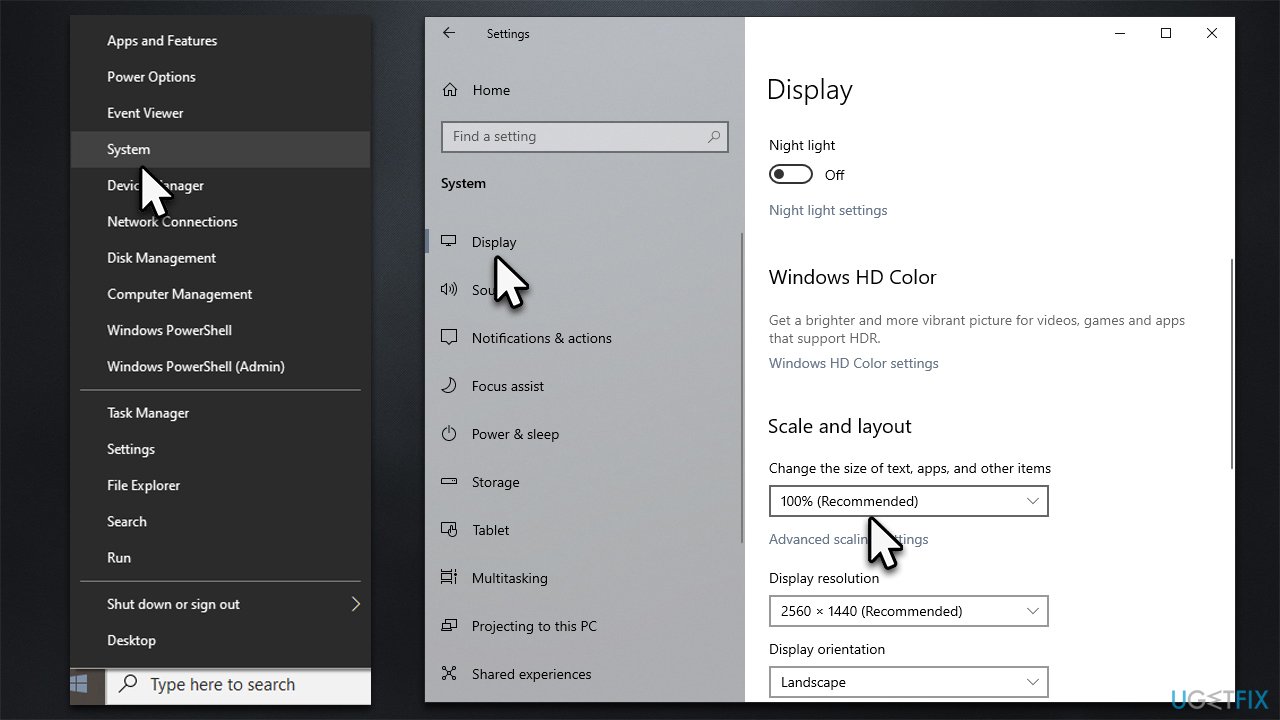
In some cases, Windows Explorer crashing may be caused by incorrect display settings. In this case, we recommend setting them to default:
- Right-click on Start and pick System
- Select Display section on the left side of the window
- Find Scale and layout section
- Under Change the size of text, apps, and other items, make sure the option is set to 100% (Recommended).
Fix 4. Restart File Explorer
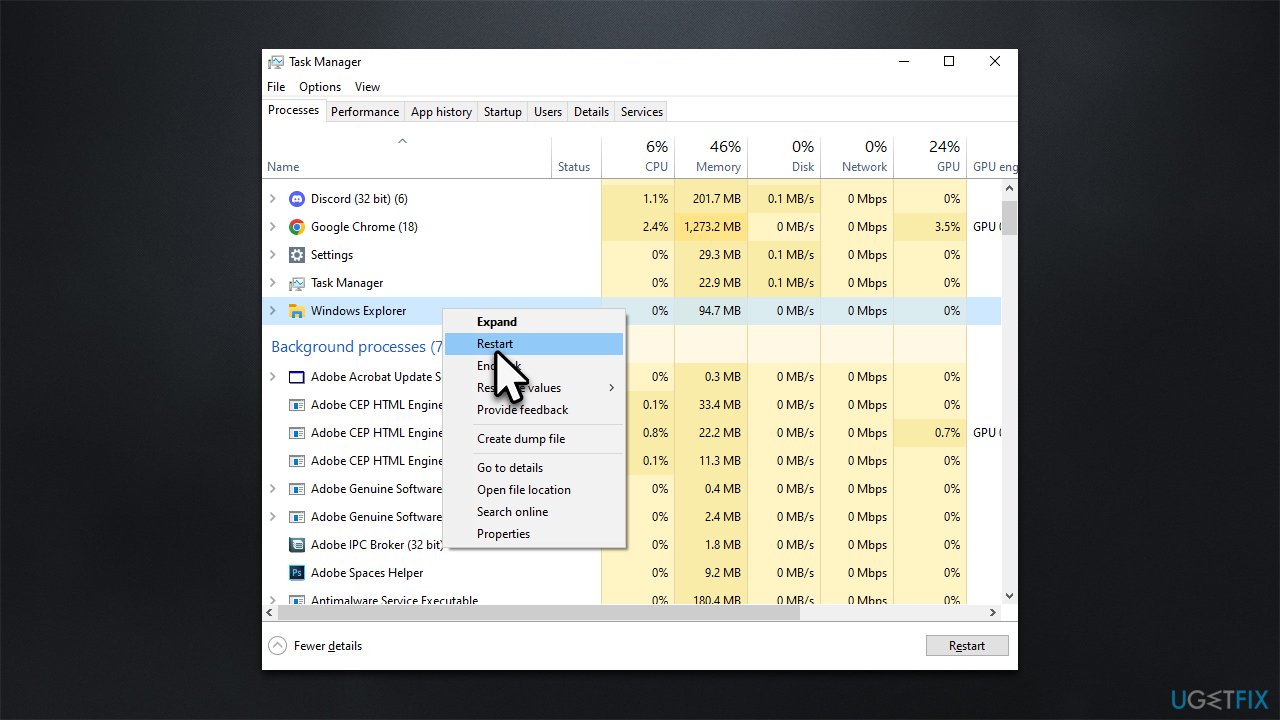
If you haven't done so yet, you should restart File Explorer via the Task Manager:
- Press Ctrl + Shift + Esc to open Task Manager
- Click More details if required to expand the list of processes
- Find Windows Explorer entry
- Right-click and select Restart.
Fix 5. Try Clean Boot
Running clean boot will allow you to see whether conflicting or buggy apps are causing issues with File Explorer.
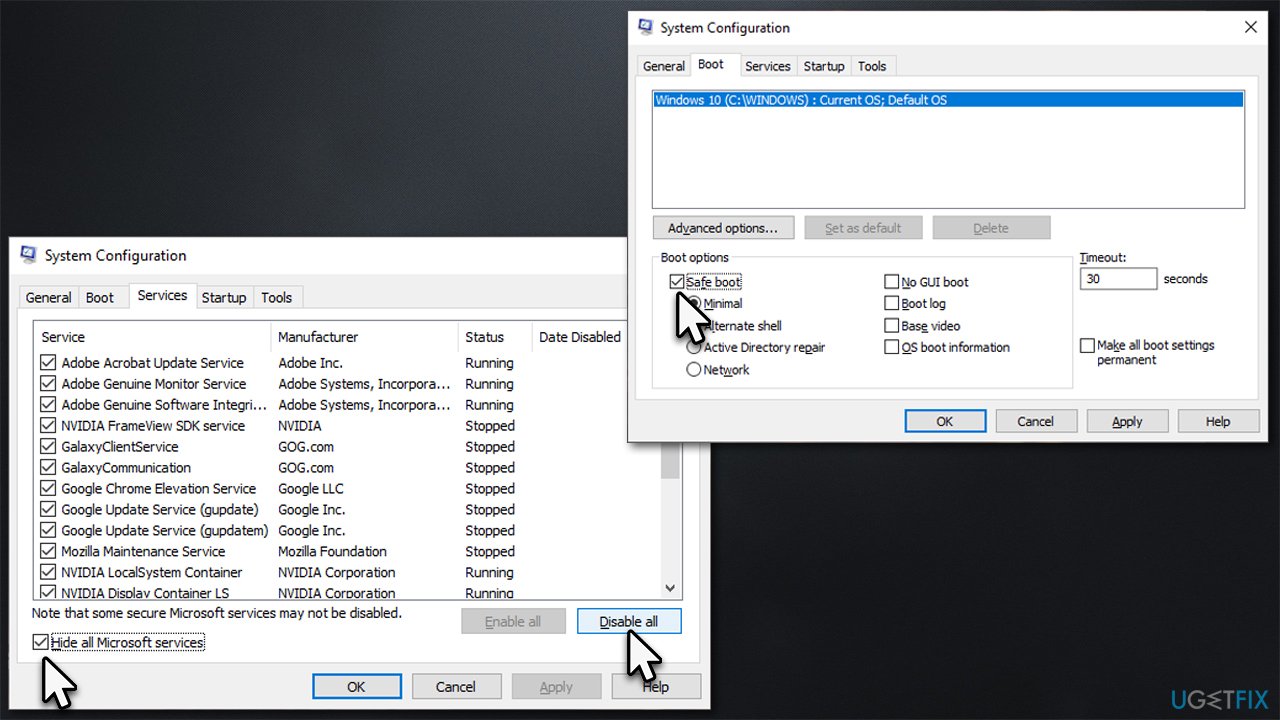
- Press Win + R, type msconfig, and hit Enter
- Go to the Services tab and tick the Hide all Microsoft services checkbox
- Select Disable all
- Go to the Startup tab and click Open Task Manager
- Here, right-click on each of the non-Windows entries and select Disable
- Close down the Task Manager
- Go to the Boot tab and tick the Safe boot option
- Restart your computer.
If the problem does not occur when in Clean Boot environment, you need to locate and remove the faulty app that's causing it. To identify the startup application or service that is causing the File Explorer crashes, boot into a clean environment and systematically turn items on/off until you locate the source of trouble. Though this method may be slow if done one at a time, you can reduce diagnostic time by marking half of them, and then repeating the process until you find the culprit.
Fix 6. Reset Windows
Sometimes, Windows system itself could be bugged. If none of the methods above helped you, we recommend you reset Windows. You won't lose your personal files, although we do recommend making backups just in case.
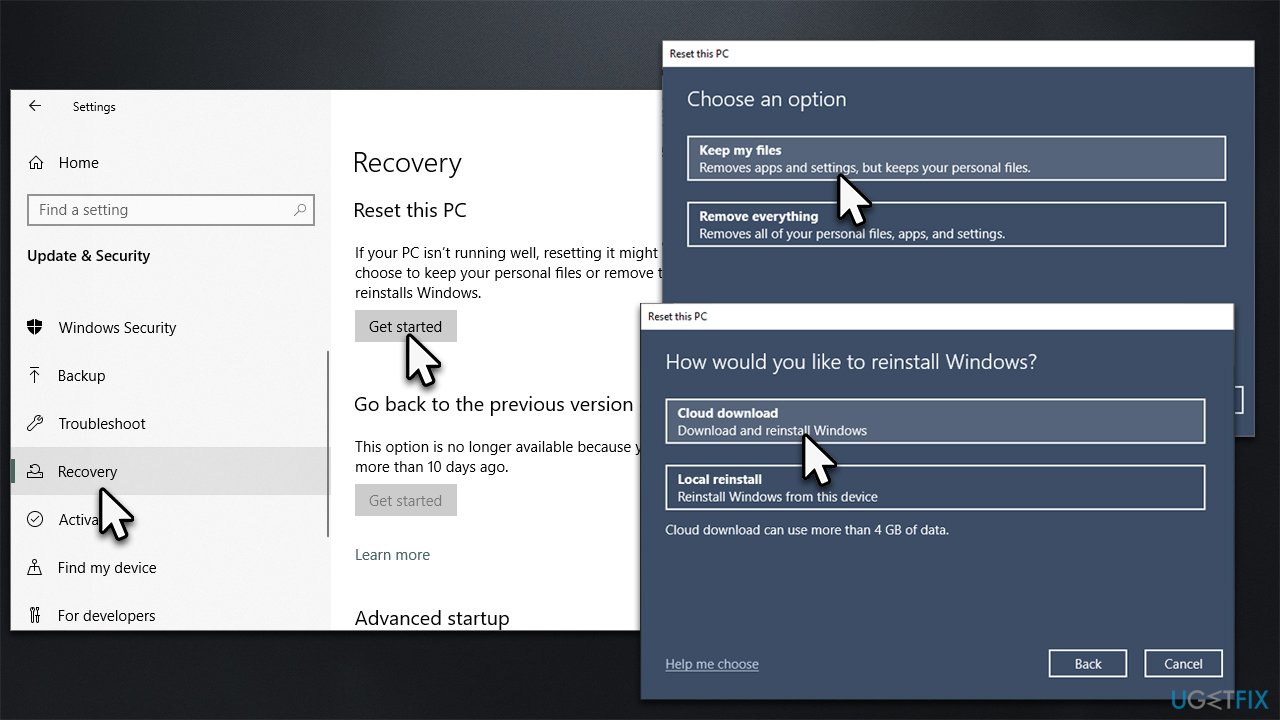
- Right-click on Start and pick Settings
- Go to Update & Security and pick Recovery
- Find Reset this PC section and click Get Started
- Select Keep my files > Cloud download
- Proceed with the on-screen instructions (your PC may restart several times).
Bottom line
To fix the File Explorer crashing issue, you can try running an automatic PC repair tool, checking for corrupted system files, updating drivers, and scanning for malware. If these solutions do not resolve the problem, consider seeking further assistance or exploring additional troubleshooting steps.
Frequently asked questions
Try resetting File Explorer by right-clicking the taskbar, selecting 'Task Manager,' finding 'Windows Explorer,' and clicking 'Restart.' If the issue persists, consider running the System File Checker tool.
Uninstall the recent update by going to Settings > Update & Security > Windows Update > Update history, and then selecting 'Uninstall updates.' This can resolve compatibility issues causing File Explorer to crash.
Yes, disabling Quick Access in File Explorer's Options menu can help, as well as ensuring your graphics drivers are up to date to maintain stability.




Report an issue
What's wrong with this guide? We review every report and update or remove content.
Report received — thank you. We'll review and fix it.
You need a free account to submit a report.
Be the first to comment