How to fix
Fingerprint reader not working – “This option is currently unavailable”
on Windows
Resolve the "Fingerprint reader not working" issue in Windows 11 effortlessly. Get expert-tested solutions to restore functionality in minutes.

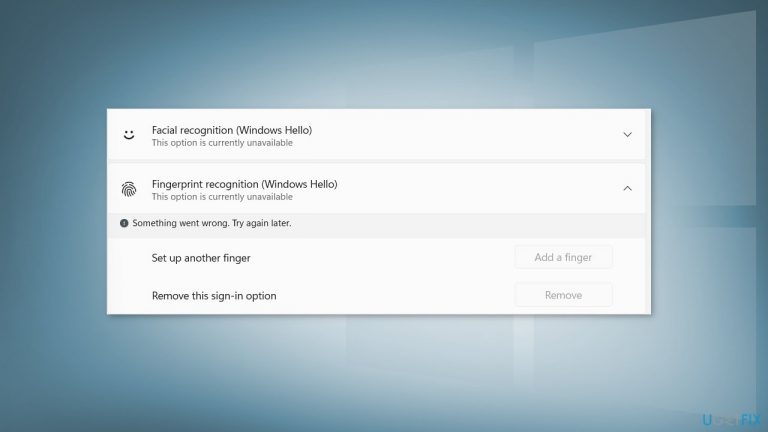
What causes How to fix Fingerprint reader not working – “This option is currently unavailable” in Windows 11?
- Problems with the Biometric driver
- Registry issues
- Corrupted files
- System errors
- BSoDs
Repairs Windows system files, removes malware, and restores a clean OS state — without reinstalling.
[ref 2][ref 1][ref 3]Hello. I have recently purchased a laptop which came with Windows 11. At first, the fingerprint function was working fine, but it suddenly stopped. What could be the issue?
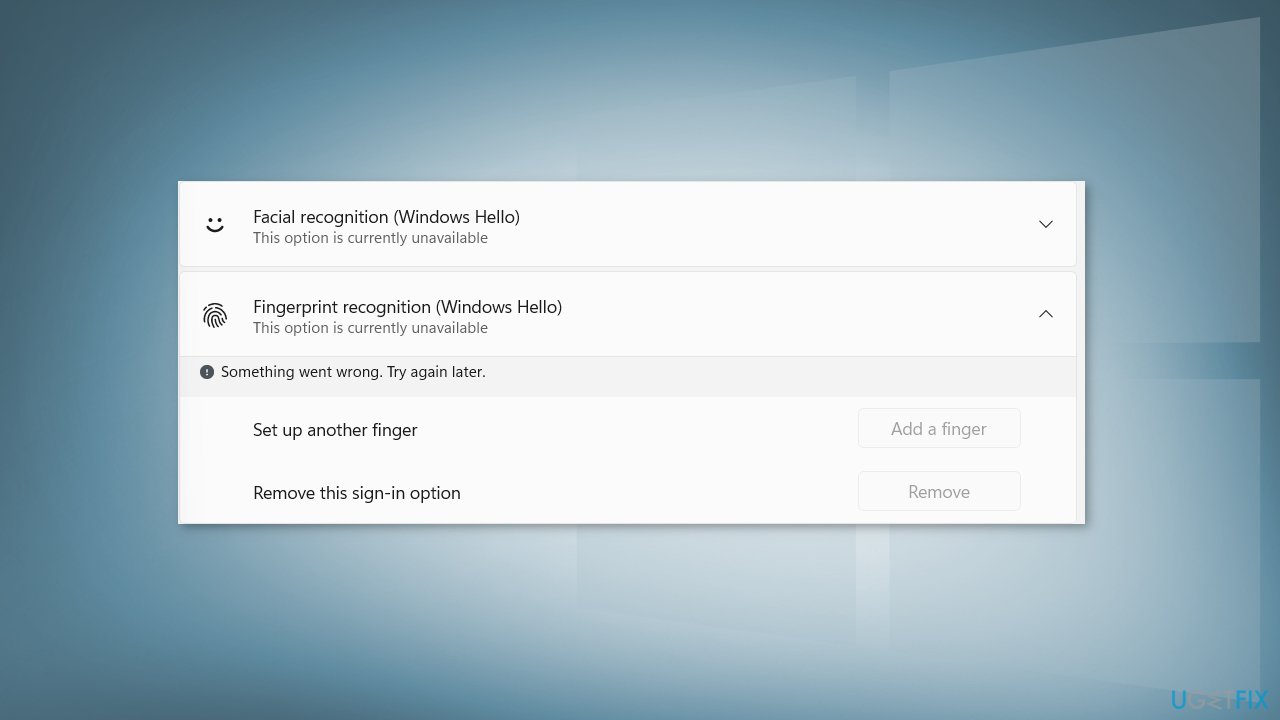
With Microsoft rolling out the newest version of Windows, many users were quick to notice various bugs, certain features not working or missing, etc. We previously wrote about Windows 11 issues like Scanner not working, clock and date missing, and File Explorer lagging. Now users detected that their fingerprint readers have stopped working mysteriously. People report seeing that the option to add a finger or remove the fingerprint is greyed out and not clickable.
It is hard to tell why this could be happening. One reason for the "This option is currently unavailable" message could be problems with the Biometric driver.[ref en-1] Another possibility for the fingerprint reader not working in Windows 11 could be the registry.[ref en-2] In this guide, you will find 5 methods that could help you bring back the fingerprint reader. If that will not work, we suggest checking if there are any system updates available or running a built-in troubleshooter which could identify the cause.
More often than you might think, users experience various Windows problems, like corrupted files, system errors, BSoDs,[ref en-3] registry issues, cookie, and cache accumulation. The fingerprint malfunction could have been caused by any of these. We recommend having a maintenance tool like [d1] that can fix these things most of the time. It is powerful software that can help you keep the system running smoothly. Otherwise, proceed with the guide below and follow the steps very carefully.
Method 1. Rollback Fingerprint Driver
- Go to Device Manager
- Expand the Biometric driver or Human Interface Device
- Look for the Fingerprint driver that was installed
- Right-click and Update
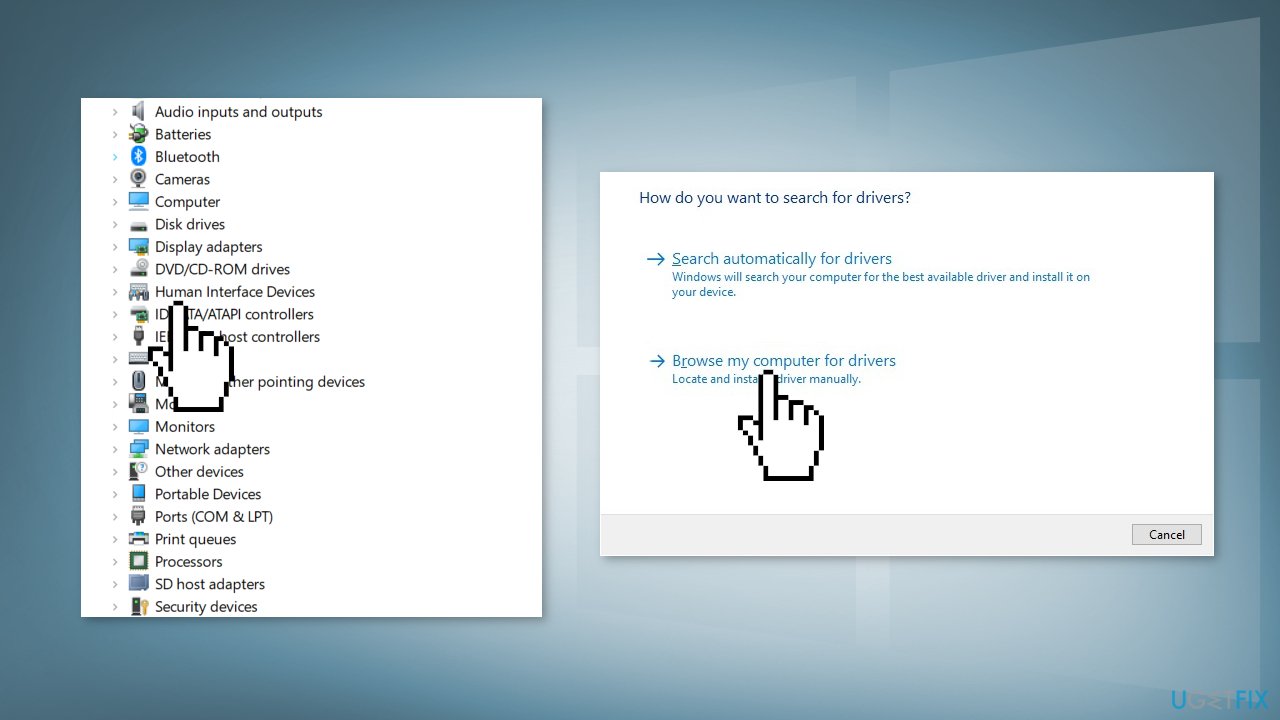
- Look for the Browse my computer for drivers option
- Then click on Let me pick drivers and available drivers
- Choose an old driver and use it
- Restart your computer and check the fingerprint
Method 2. Reinstall Fingerprint Driver
- Go to Device Manager
- Expand the Biometric driver or Human Interface Device
- Look for the Fingerprint driver that was installed
- Right-click and Uninstall
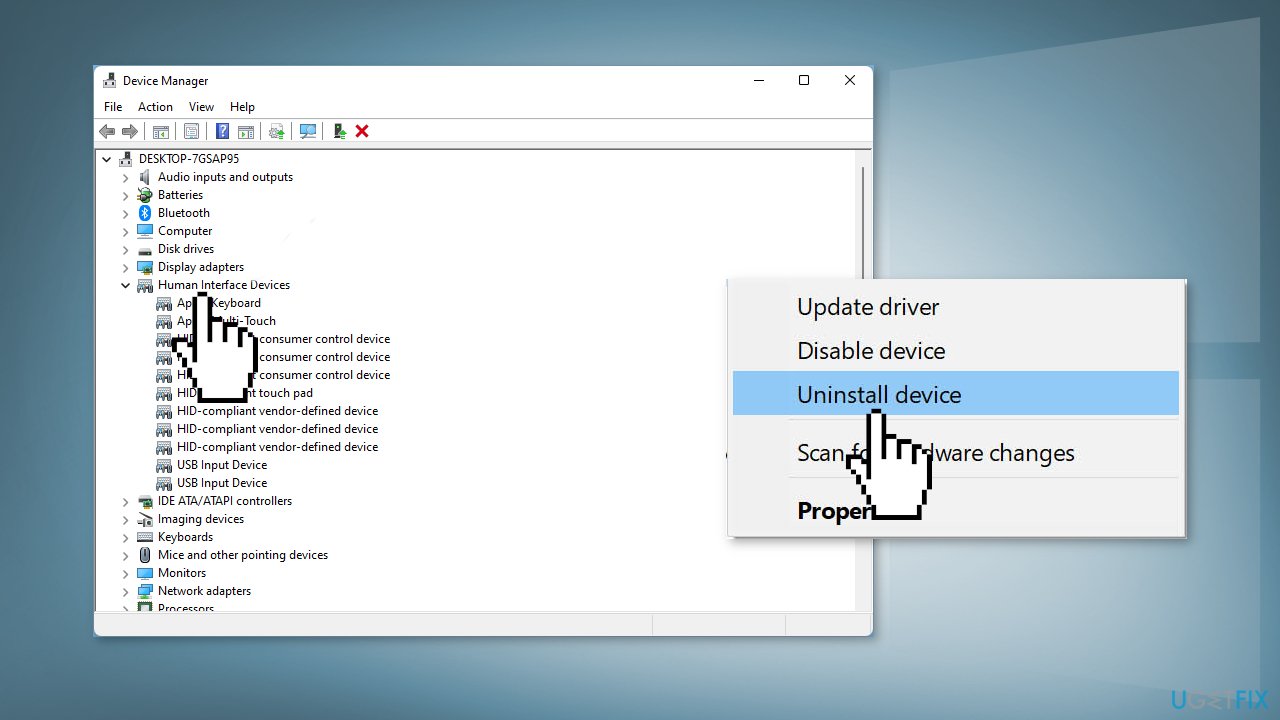
- Once uninstalled, restart your computer
Method 3. Re-scan your Fingerprints
- Perform a hard reboot (the process depends on each machine individually, so find out how to do a hard reboot on your device)
- Go into Windows Hello settings and remove all fingerprints that you had saved
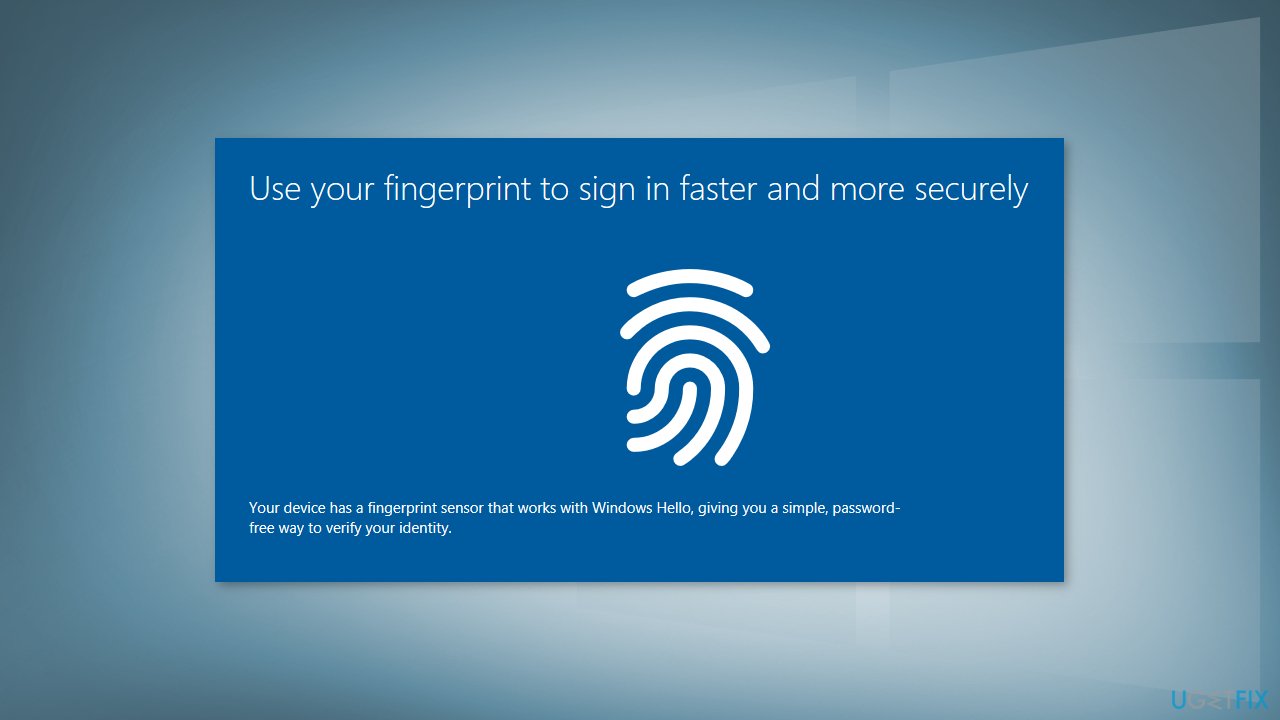
- Perform a hard reboot again, and go back to Windows Hello
- Find the fingerprint or security section and rescan your fingerprints
- Now you may need to power off/on your PC
- Check if the issue persists
Method 4. Switch to a Local Account
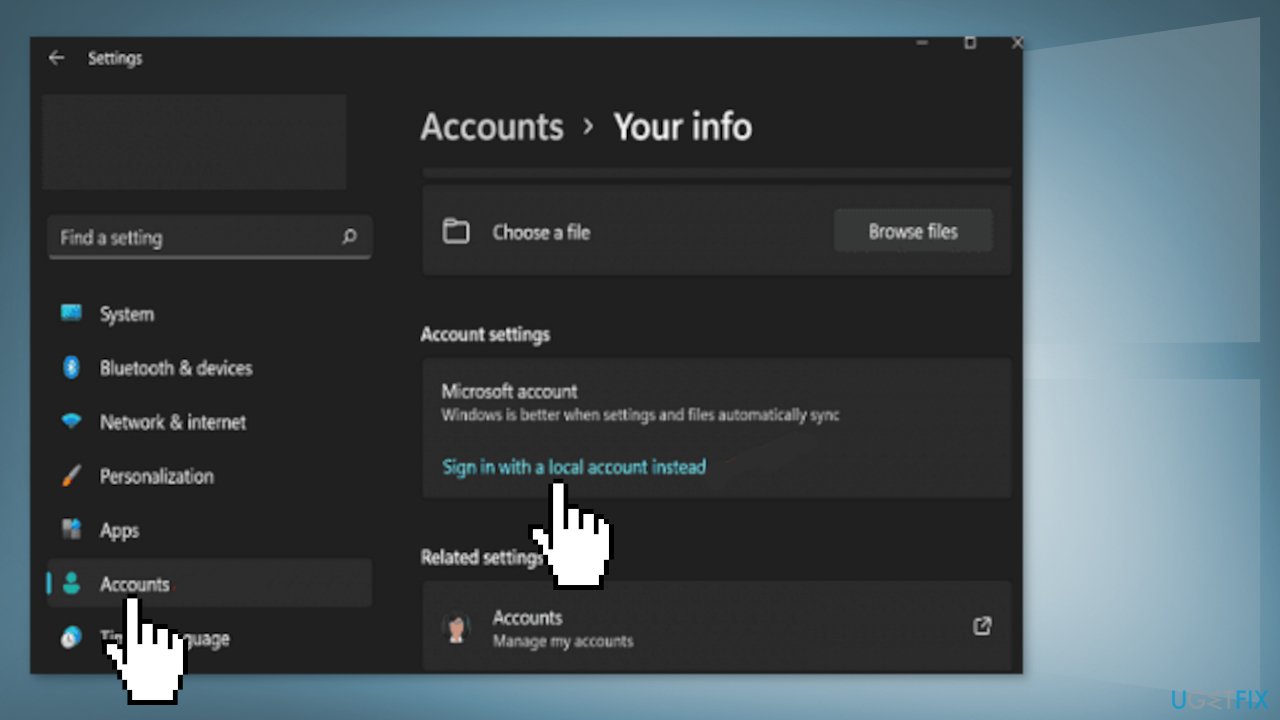
- Navigate to Settings
- Select Accounts and click on Your info
- Select Sign in with a local account instead
- Enter your user name, password, and password hint
- Then, sign out and hit Finish
If you still can’t use the fingerprint reader, make sure the Credential Manager service is set to Automatic:
- Press Windows key + R and type services.msc
- Double-click on the Credential Manager
- Set the startup type to Automatic
- Then, click on the Log On tab
- Select Log On As: Local System Account
- Tick the checkbox that says Allow service to interact with desktop
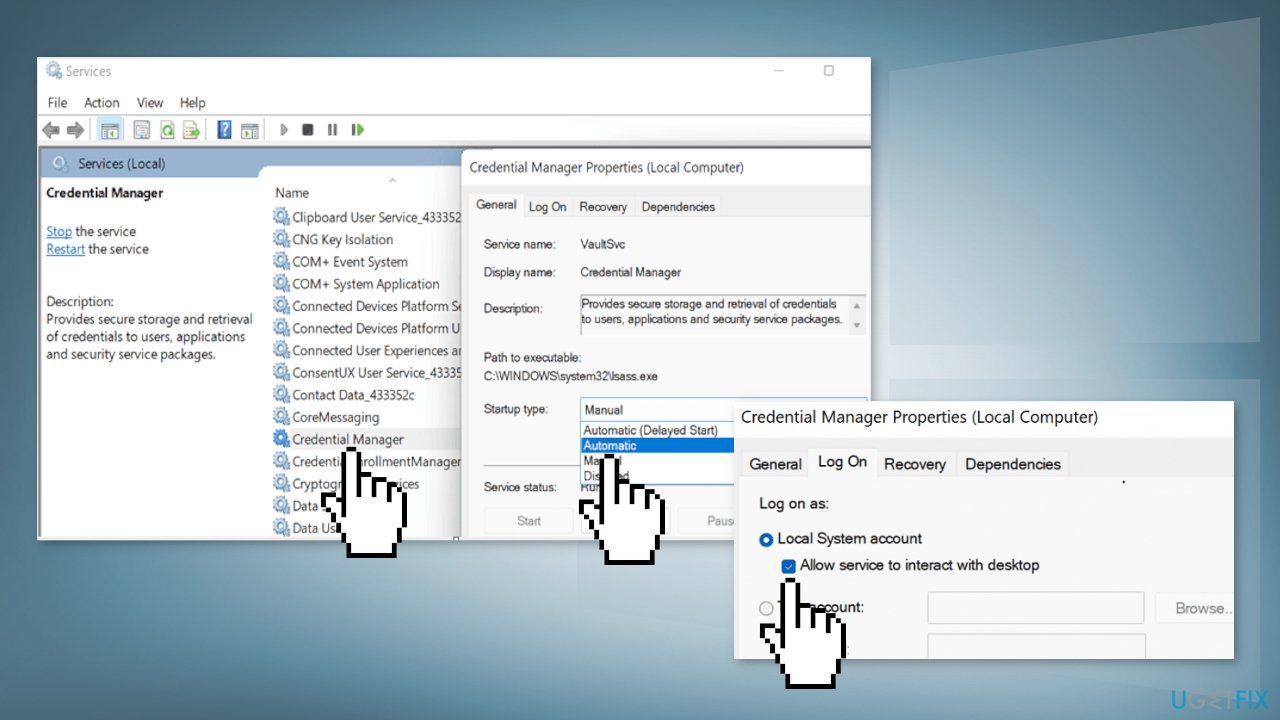
- Save the settings, and restart your computer
Method 5. Edit Your Registry
- Click on the Search icon and type Registry Editor
- Double-click on the Registry Editor
- Navigate to HKEY_LOCAL_MACHINE\\SOFTWARE\\Policies\\Microsoft\\Windows\\System
- Right-click on an empty area in the right-hand pane
- Select New and DWORD (32-bit) Value
- Name the new entry AllowDomainPINLogon
- Double-click on the entry and set its value to 1
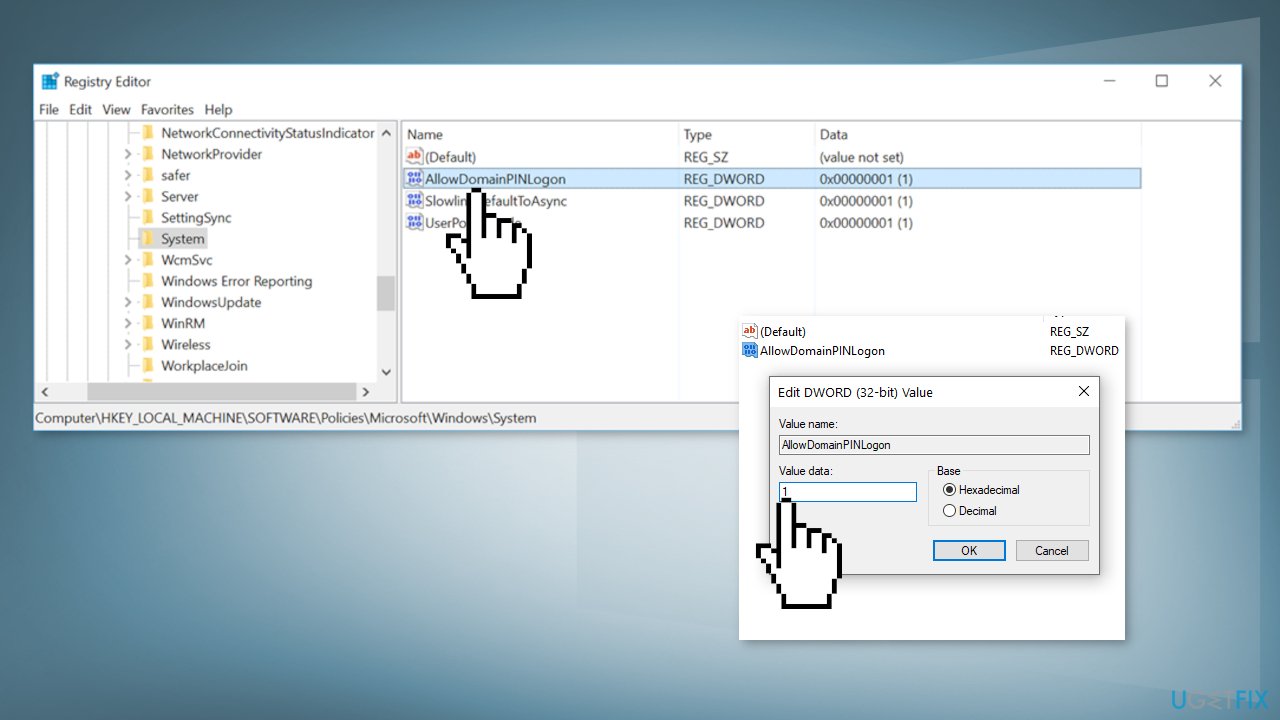
- Close the Registry Editor and restart your computer
- Check if the fingerprint option is available
Bottom line
This guide provides methods to fix the fingerprint reader issue, including rolling back or reinstalling the fingerprint driver. If these steps do not resolve the problem, check for system updates or run a built-in troubleshooter.
Frequently asked questions
Start by ensuring that your fingerprint reader drivers are up to date through Device Manager, and then restart your computer to see if the issue persists.
You can reset the fingerprint reader by going to Settings > Accounts > Sign-in options, removing your existing fingerprints, and then re-enrolling your fingerprints.
Yes, make sure your Windows 11 is fully updated as Microsoft often releases patches that fix hardware compatibility issues, including those affecting fingerprint readers.




Report an issue
What's wrong with this guide? We review every report and update or remove content.
Report received — thank you. We'll review and fix it.
You need a free account to submit a report.
Be the first to comment