How to fix
Headphone jack not recognized
on Windows
Resolve headphone jack issues in Windows 11 quickly and effectively. Expert-tested solutions ensure your audio works flawlessly, fixed in minutes.

What causes How to fix headphone jack not recognized in Windows 11?
- Previous sound configurations lost during the update
- Audio drivers may be outdated or corrupted
- Corrupted system files
- Issues with the headphone jack connection
- Software bugs in Windows 11
Repairs Windows system files, removes malware, and restores a clean OS state — without reinstalling.
Hello. I recently upgraded to Windows 11 and my headphones are not recognized even though they worked before. How do I fix this?
Windows 11 is the newest operating system version of Microsoft. It was released at the end of 2021. Many people rushed to upgrade from Windows 10 or older versions. Unfortunately, it is not resistant to various issues, such as bugs, errors, crashes, etc. Recently, some people report having trouble with their peripherals.
Users say that after upgrading to Windows 11, their headphone jack is not recognized. There is no specific reason why this issue occurs. It is possible that previous sound configurations were lost during the updating process, and users need to check their sound settings to set up the headphones again.
We previously wrote about other issues that people have with their headphones - Can’t connect JBL headphones to Windows 10, Headphones not working in Windows 10, and Headphone Driver missing after Windows 10 update. The problem can be related to audio drivers,[ref en-1] corrupted system files, etc.
In this guide, you will find 4 steps that should help you fix headphone jack not recognized in Windows 11. Keep in mind, that the manual troubleshooting process can be lengthy. To avoid it, use a maintenance tool like [d1]. It can fix most system errors, BSODs,[ref en-2] corrupted files, and registry[ref en-3] issues automatically. Otherwise, follow the step-by-step instructions below.
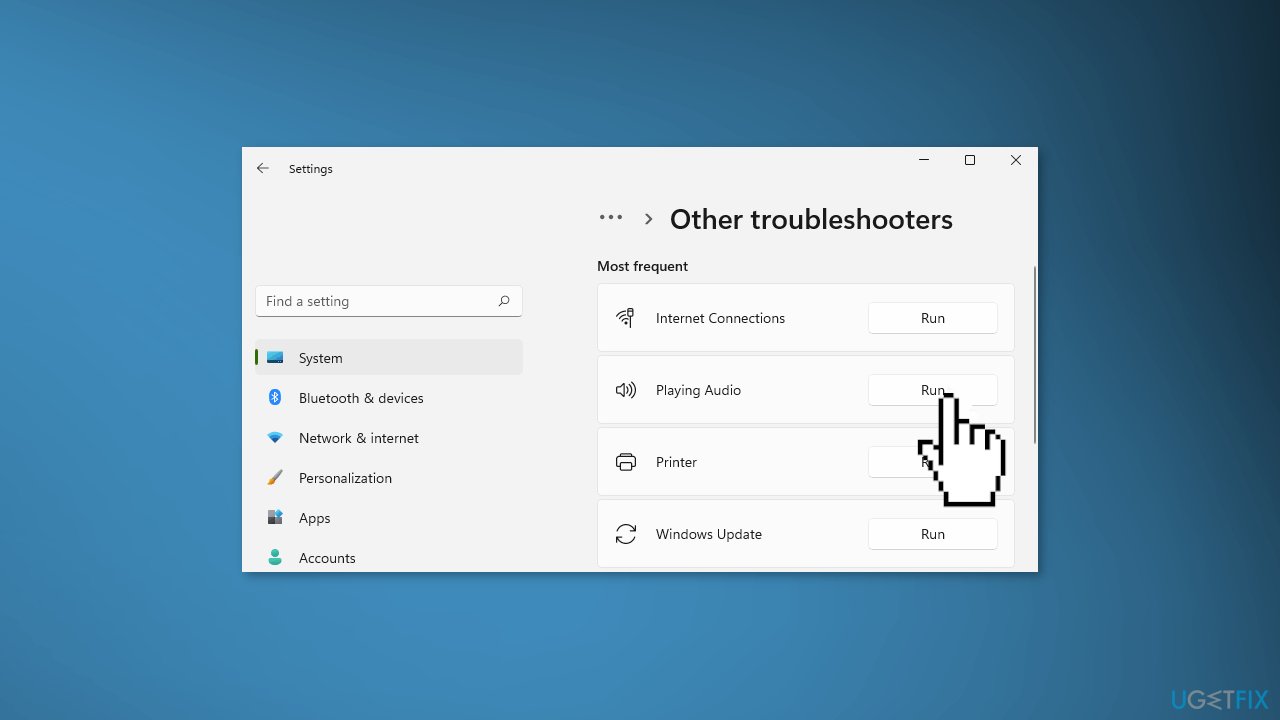
Solution 1. Run the Playing Audio Troubleshooter
Windows has built-in troubleshooters that can automatically identify minor system issues and repair them. Try to run the Audio troubleshooter and see if it fixes the issue.
- Go to Settings and click on System
- Click Troubleshooter then Additional troubleshooters
- Look for Playing Audio and run the troubleshooter
Solution 2. Roll back Audio Driver
- Go to Device Manager
- Expand the Sound and Video Game Controllers
- Look for the Audio driver
- Right-click on it and choose Update
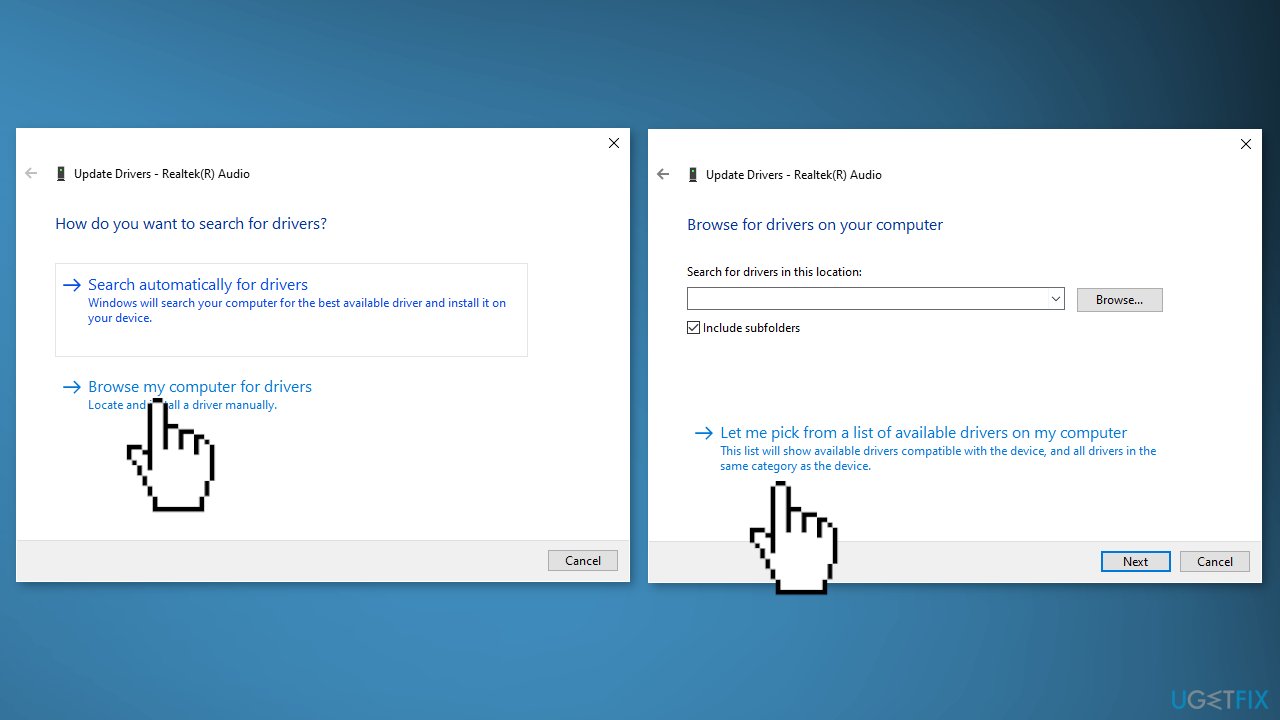
- Look for Browse my computer for drivers
- Then click on Let me pick available drivers
- Choose an old driver and use it
Solution 3. Check Sound Settings
- Connect your headphones and go to Control Panel
- Select Large icons from the View by drop-down menu
- Select Sound and then go to the Playback tab
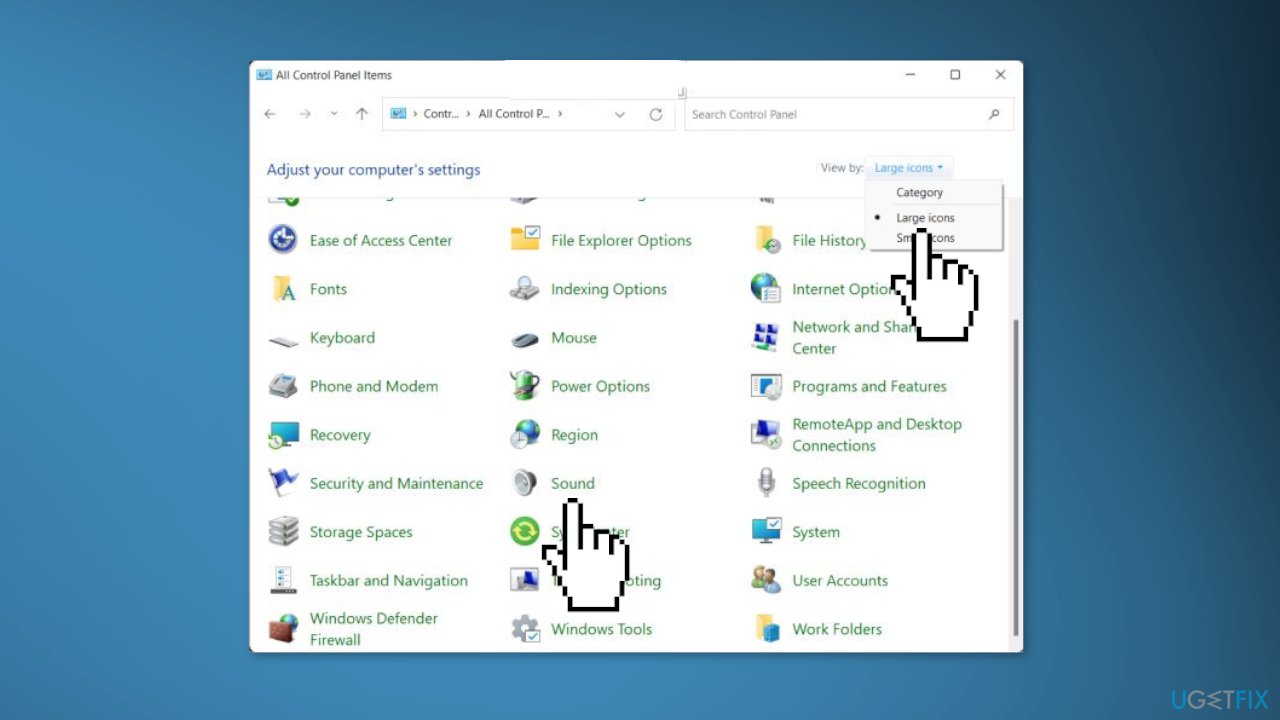
- Right-click on your headphones and click Enable
- Right-click it again and select Set as Default Device
- Right-click headphones and click Properties
- Click the Levels tab, then drag the volume slider toward the largest value
- Click on Advanced Tab
- Uncheck the box to Allow Application to take exclusive controls on this device
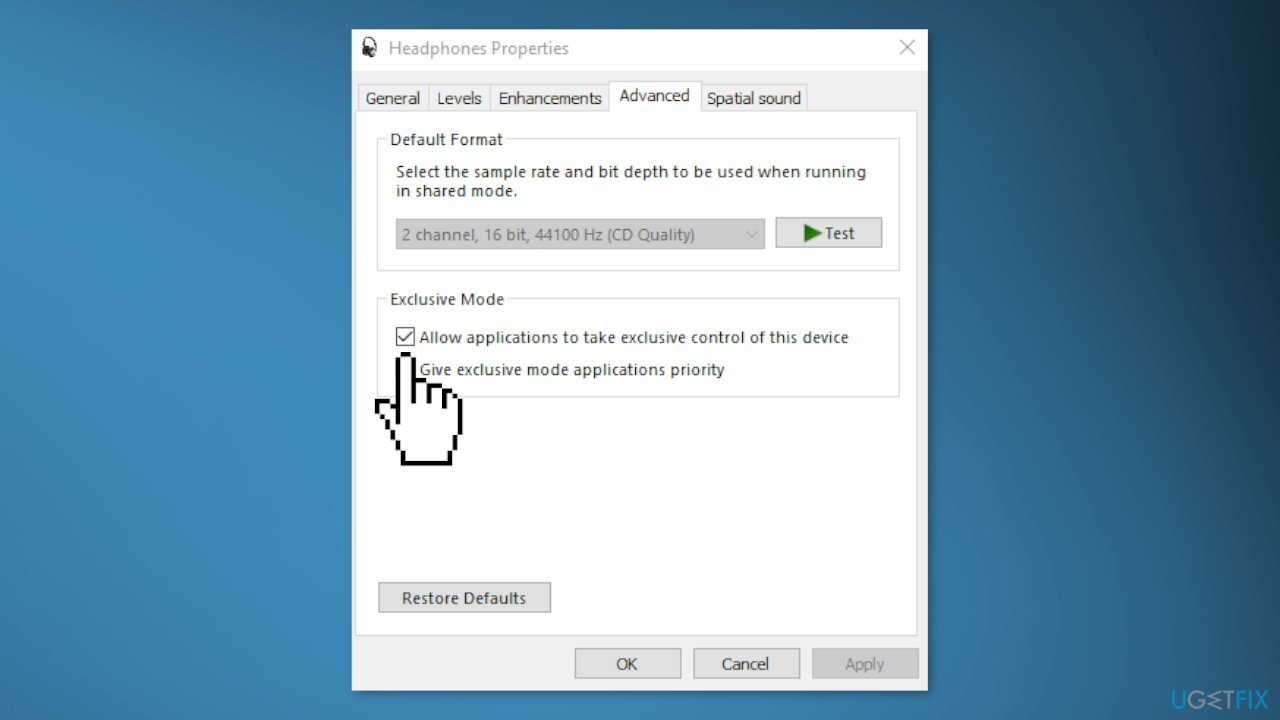
- Click OK, restart your computer and test the headphone audio
Solution 4. Perform a Repair Upgrade
If none of the above methods worked, we recommend trying to repair upgrade Windows 11. It is possible that the previous installation of Windows was not performed correctly and resulted in corrupted system files. Just in case, you should back up your data on an external device to prevent any loss.
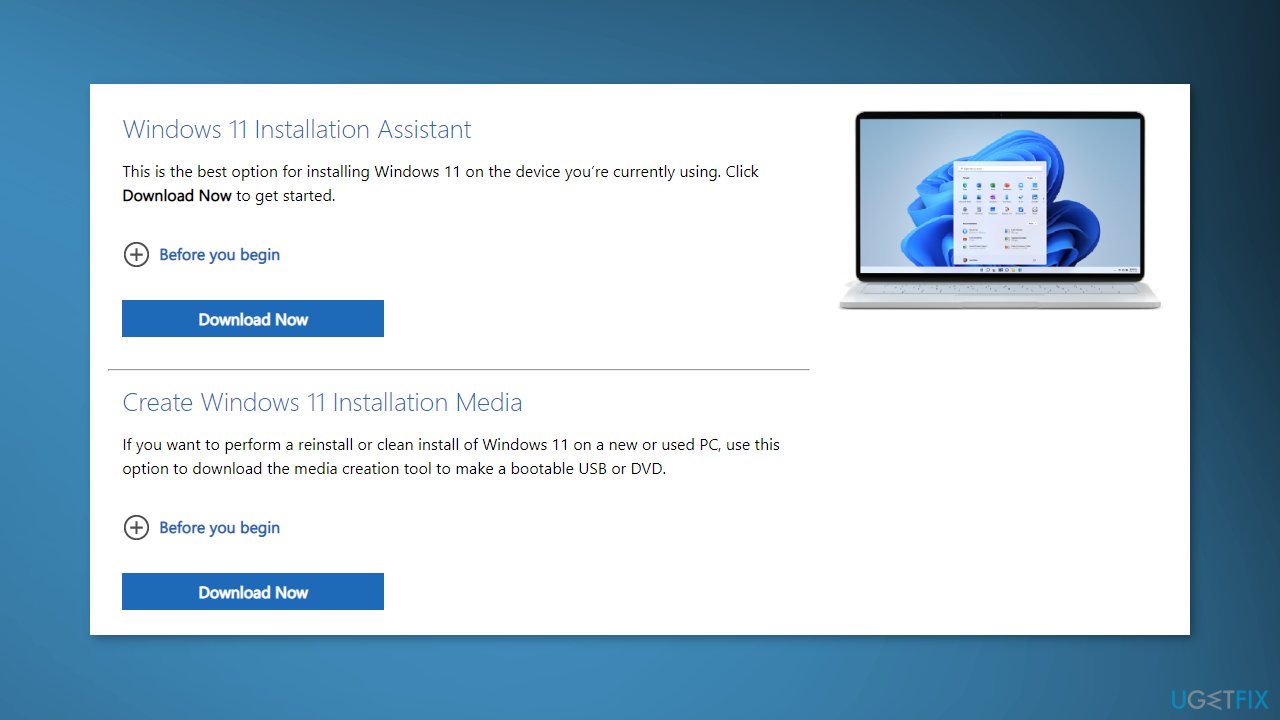
- Download Media Creation Tool from Microsoft
- Click Download Tool Now
- Run MediaCreationTool.exe
- Choose Upgrade this PC now
- Select Keep personal files and apps
- Let it install
- Restart once done and check if the issue is resolved
Bottom line
To fix the headphone jack not recognized issue in Windows 11, you can run the Playing Audio Troubleshooter, roll back the audio driver, and check your sound settings. If these solutions do not resolve the problem, consider using a maintenance tool to fix system errors automatically.
Frequently asked questions
First, check if the audio drivers are updated by going to Device Manager and updating the sound drivers. If that doesn't work, try rolling back the update or reinstalling the audio drivers.
You can check the connection by right-clicking the sound icon in the taskbar, selecting 'Open Sound settings,' and looking under 'Output' to see if your headphones are listed as an available device.
Ensure that the correct playback device is selected in the Sound settings and check the 'Device properties' to make sure the headphone jack is enabled.




Report an issue
What's wrong with this guide? We review every report and update or remove content.
Report received — thank you. We'll review and fix it.
You need a free account to submit a report.
Be the first to comment