How to fix
Imfilter.sys blue screen error
on Windows
Resolve the imfilter.sys blue screen error in Windows 10 and 11 with expert-tested solutions and troubleshooting tips. Fix it in minutes!

What causes How to fix imfilter.sys blue screen error in Windows?
- Audio drivers may be faulty
- Video drivers may be faulty
- System files might be corrupted
- Malware could be causing system malfunctions
- Problems with RAM
Repairs Windows system files, removes malware, and restores a clean OS state — without reinstalling.
Hello, I have recently installed a new game from Steam, and every time I launch it and try playing it, I receive a blue screen crash with the message "Attempted execute of noexecute memory. What failed: imfilter.sys." Is there any way to resolve this problem - I want to get to play the game.
While Blue Screen of Death scenarios may seem like a nightmare to encounter or deal with, they perform a rather important function on a Windows machine - preventing the system from sustaining critical damage and forcing it to restart. Of course, it is not a pleasant experience for users, as they may be interrupted in the middle of something or even lose some valuable data.
Imfilter.sys BSOD is one of the issues that so many people have been complaining about for years. Usually, the system crash occurs whenever users play video games - it may take place whenever they launch the game or after playing for a while. In other scenarios, people said the problem started after installing software such as Folder Lock, which is primarily used for file encryption[ref en-1] and folder locking.
The blue screen always comes with the ATTEMPTED_EXECUTE_OF_NOEXECUTE_MEMORY error code, and the particular file related to the crash is Imfilter.sys. This points to the fact that a device driver attempted to execute a program from an area that is non-executable within the memory.[ref en-2]
This means that there might be something wrong with either audio or video drivers, system files might be corrupted, malware could be causing system malfunctions, or there are problems with your RAM. Below we will address all of these issues and provide you with solutions that should help you fix the Imfilter.sys BSOD.
Before you proceed with manual methods, we recommend you try using [d1] PC repair solution - it can automatically find the damaged system files and replace them with brand new ones using patented technology.[ref en-3]
If you can't boot into Windows...
There are different levels of severity when it comes to the imfilter.sys BSOD. Some people say they can't boot into Windows, while others say their monitor, mouse, and the PC are not responding at all. This might seem like a dire situation, but before you bring your PC over to a repair shop, you should try enabling Safe Mode or resetting your device.
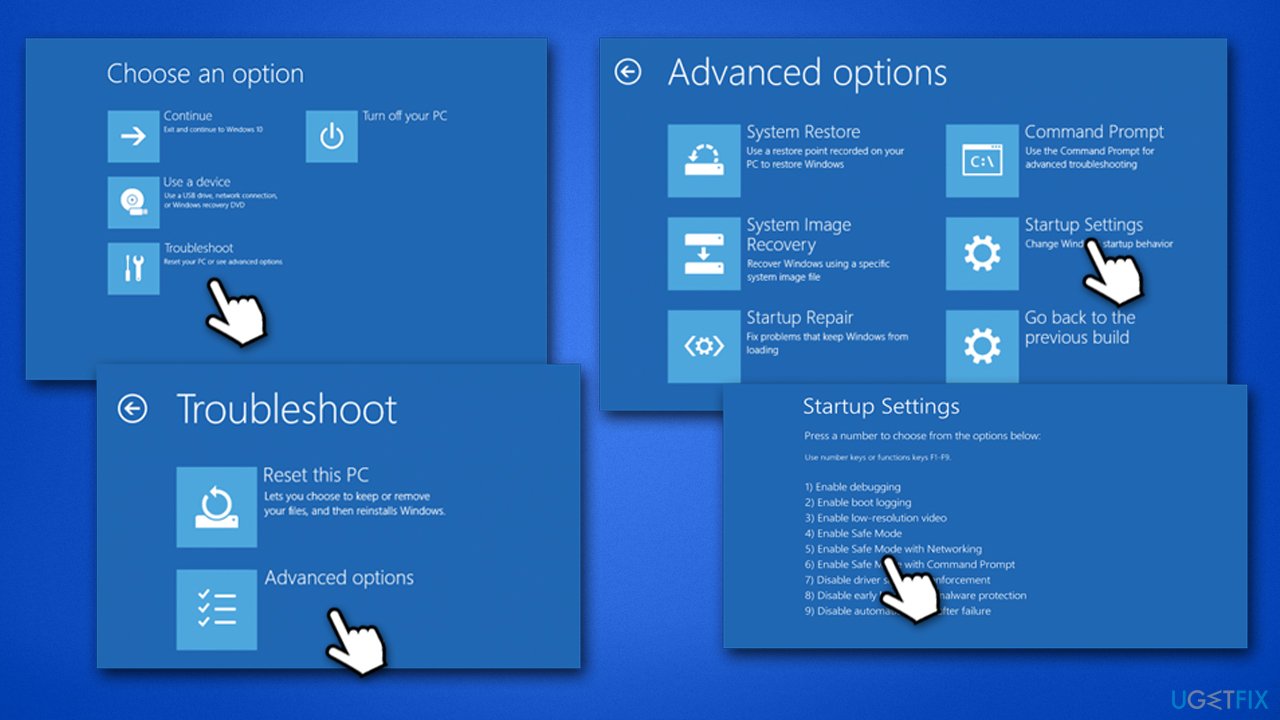
Enter Safe Mode
- Press and hold the Power button on your PC until it shuts down
- Press Power again to boot it back up
- As soon as you see the Windows logo, press and hold Power again for at least 5 seconds to interrupt the boot process
- Repeat the process two more times, which should direct you to the Windows Recovery Environment
- Pick the following options: Advanced Settings > Startup Settings > Restart
- In Startup Settings, press F5 or click 5) Enable Safe Mode with Networking.
Reset your device
A black screen is a huge problem, as it does not allow any inputs from the user side. In order to get into the PC, you should disconnect all the external devices (including the mouse and keyboard) and unplug it from the electric socket. Wait for at least 20 minutes, re-connect all your peripherals and try booting up the PC.
Fix 1. Run SFC and DISM
If your system files or Windows image are damaged, you may encounter system crashes. We recommend starting from the SFC and DISM scans to fix these problems.
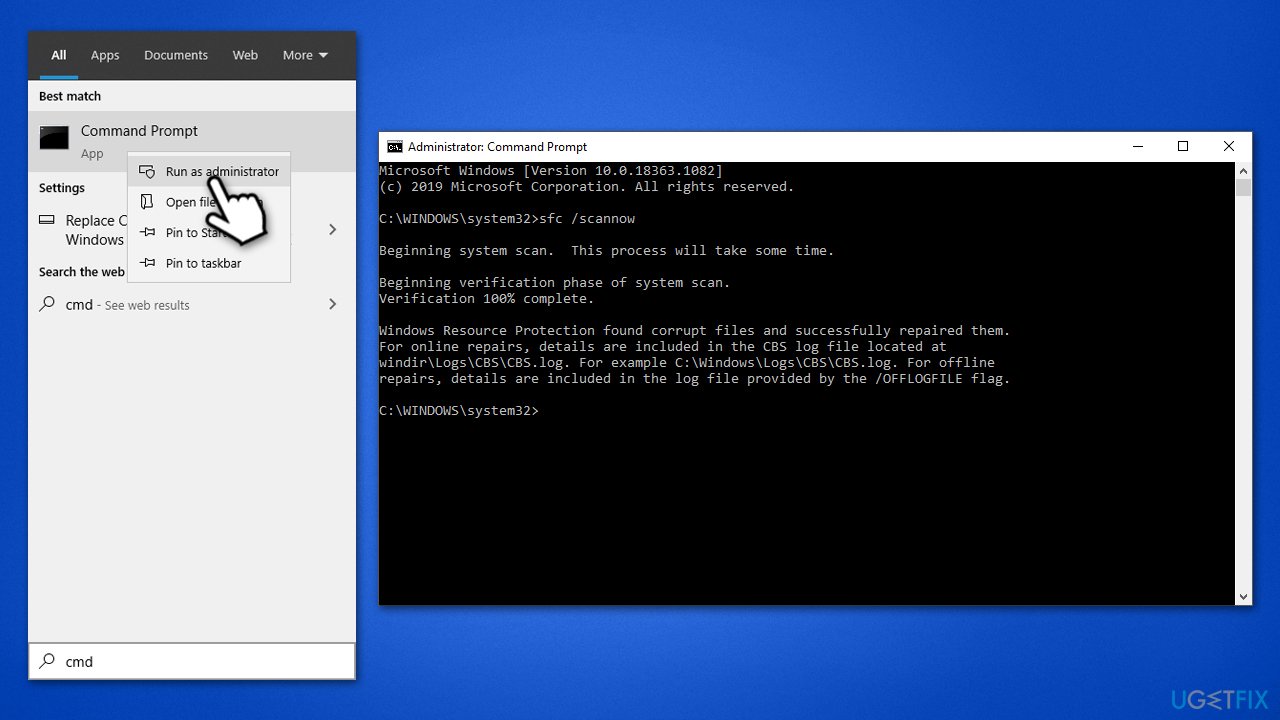
- Type in cmd in Windows search
- Right-click on Command Prompt result and select Run as administrator
- Type sfc /scannow and press Enter
- Wait till the scan is finished. Even if nothing was found or the scan returned an error, proceed with the following commands, pressing Enter after each:
DISM /Online /Cleanup-Image /CheckHealth
DISM /Online /Cleanup-Image /ScanHealth
DISM /Online /Cleanup-Image /RestoreHealth - Restart your computer.
Fix 2. Update your audio and video drivers
There are several ways you can update drivers. The easiest and fastest method is by employing an automatic driver updater such as [rev id"=DriverFix"]. You can also download drivers from your hardware manufacturer's website, although you need to know the make and the model of the said device.
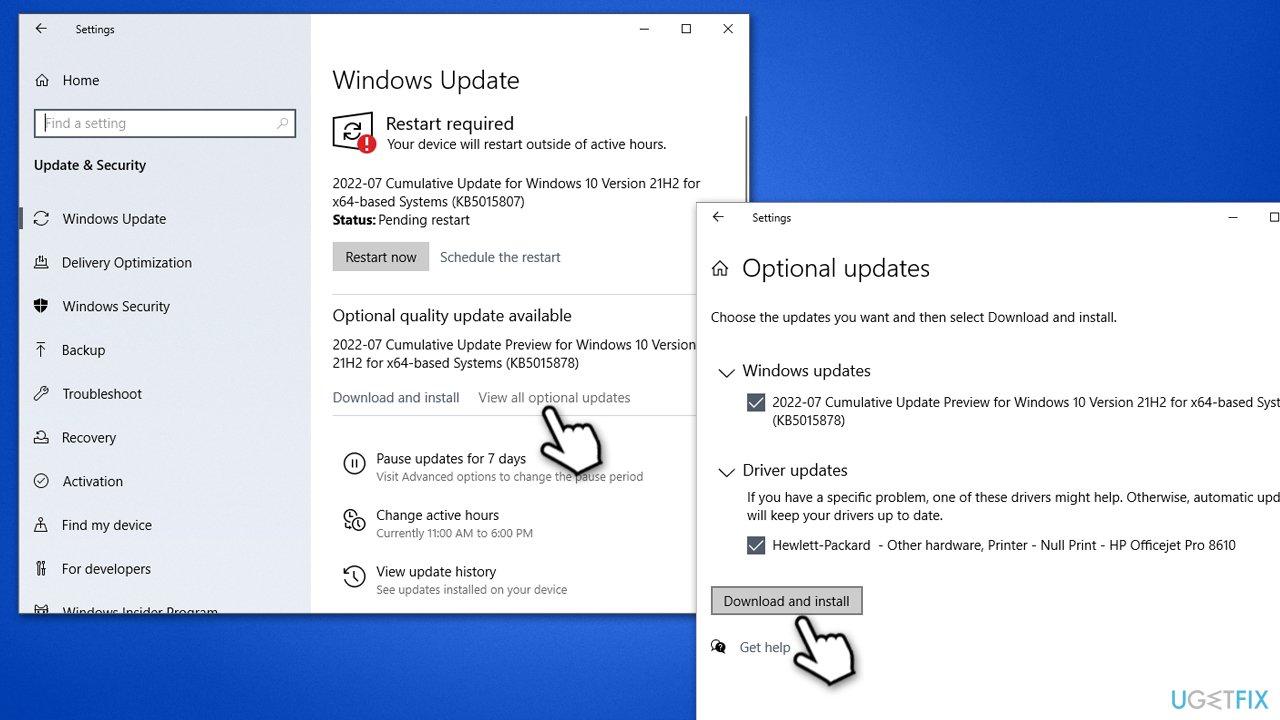
Alternatively, you could use the Windows Update feature, which may not always be effective.
- Type Updates in Windows search and press Enter
- Click Check for Updates and wait till the necessary files are downloaded
- Go to the Optional updates section
- Expand the Driver updates section, select all the available drivers and click Download and install.
Fix 3. Reinstall drivers
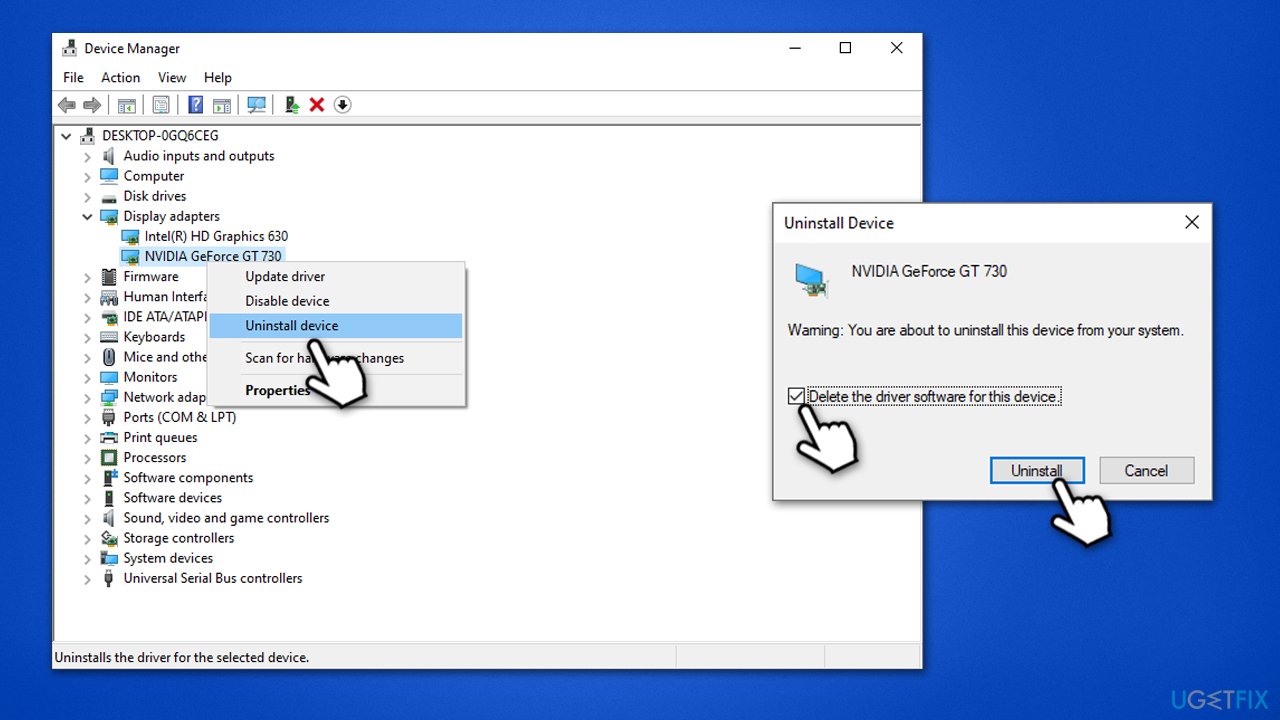
If the above step gave no results, you should try reinstalling your drivers completely.
- Right-click on the Start button and pick Device Manager
- Expand the Display adapters section
- Right-click on the currently installed driver and pick Uninstall device
- Tick the Delete the driver software for this device box
- Click Uninstall and reboot your PC
- Finally, choose one of the options described in the previous step to install the newest drivers for your device.
Fix 4. Run memory diagnostics
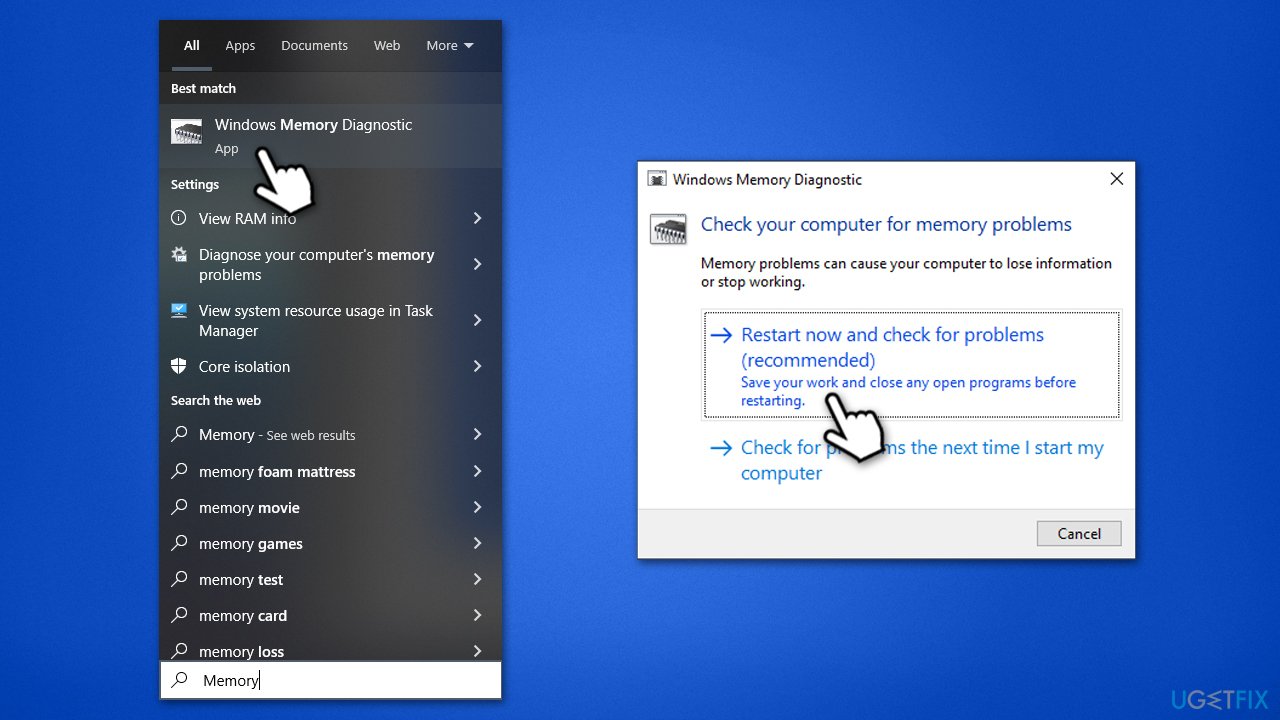
If your memory is not in the best state, it may result in BSODs. In order to check memory for corruption, perform the following steps:
- Type in Memory into Windows search
- Right-click on the Windows Memory Diagnostic and pick Run as administrator
- Click Restart now and check for problems (recommended) - the PC will restart IMMEDIATELY, so make sure you save all your work before doing this
- Do not worry that the test runs for a while (might be hours), the results will be displayed after the scan is finished. If you did not manage to catch it, you can open Event Viewer, go to Windows Log, and right-click System, then click Find. Copy and paste MemoryDiagnostics-Results and select Find Next.
Fix 5. Scan for malware
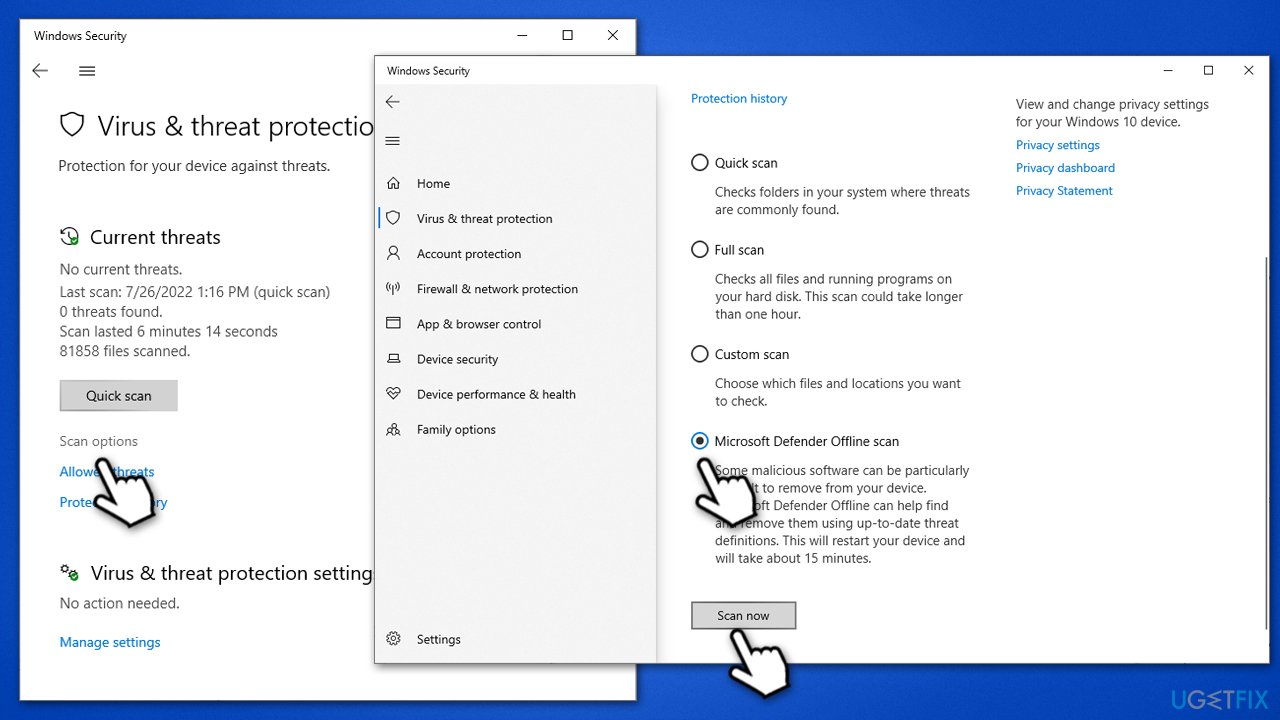
You should scan your system for malware to ensure it is not causing the issue. You can either employ the built-in Microsoft Defender, download Microsoft Safety Scanner, or use a third-party security application. If you choose to run Microsoft Defender, go to Scan options and pick the Microsoft Defender Offline scan. Before proceeding, make sure that anti-malware software has all the available definition updates installed.
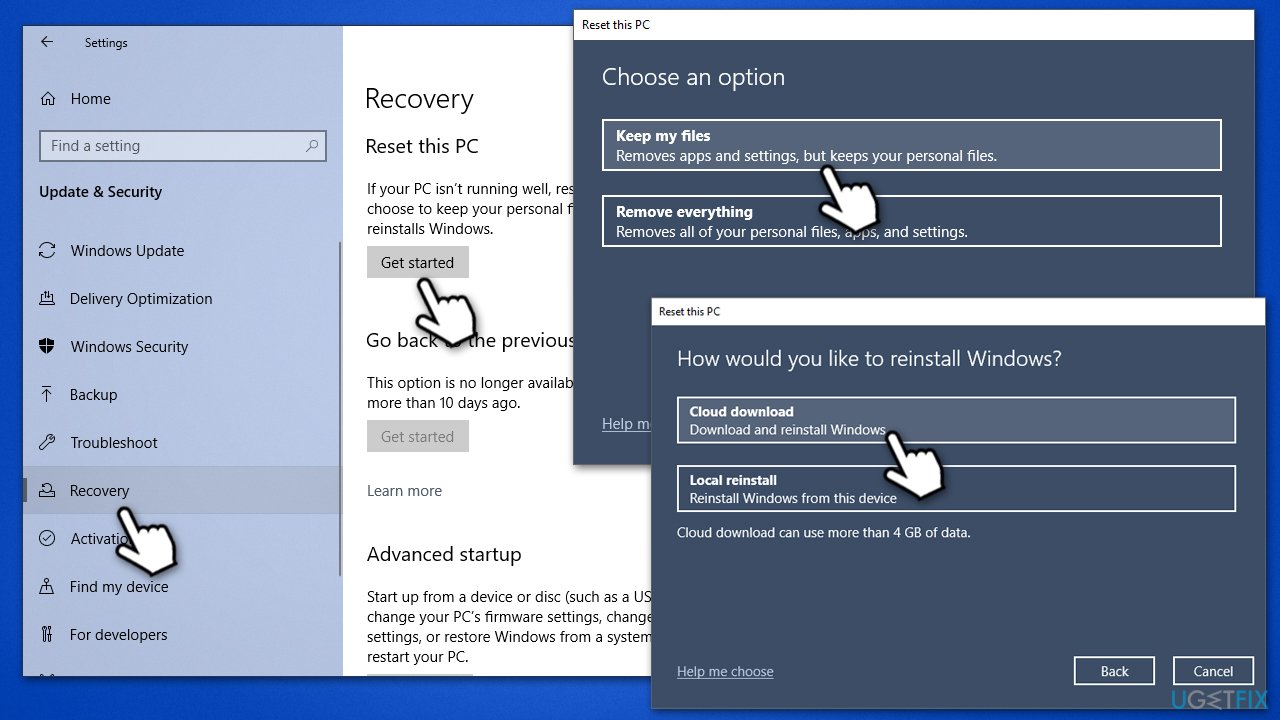
Fix 6. Reset your PC
Resetting the system is not difficult, and the process does not make you wipe your personal files. We recommend making backups of more important files before proceeding, though.
- Right-click on Start, select Settings and go to Update & Security
- On the left side, pick Recovery
- Under Reset this PC, click Get Started
- Pick Keep my files option and then select Cloud download
- Windows will then download all the necessary files
- Your PC will restart.
Bottom line
To fix the imfilter.sys blue screen error, you can try updating your audio and video drivers, scanning for malware, and repairing corrupted system files. If these methods do not resolve the issue, consider using a PC repair solution to automatically find and replace damaged system files.
Frequently asked questions
The imfilter.sys blue screen error in Windows 10 is often caused by a corrupted or incompatible driver related to image filtering software or hardware. Updating or reinstalling the driver can usually resolve this issue.
To troubleshoot the imfilter.sys error on Windows 11, you can boot into Safe Mode and remove any recently installed applications or drivers. Additionally, running a system file check can help identify and repair corrupted files.
To prevent the imfilter.sys blue screen error from recurring in Windows, ensure that all drivers are up to date and compatible with your system. Regularly check for Windows updates and consider using reliable antivirus software to avoid potential conflicts.




Report an issue
What's wrong with this guide? We review every report and update or remove content.
Report received — thank you. We'll review and fix it.
You need a free account to submit a report.
Be the first to comment