How to fix
Internet connection problems
on Windows
Struggling with Internet connection issues on Windows 10 or 11? Discover quick fixes and expert tips to get you back online in minutes. Expert-tested.

What causes How to fix Internet connection problems on MacOS Catalina?
- Internet connection problems may not be related to the latest update
- Third-party software might cause WiFi drops and disconnects
- Some users reported issues with antivirus software
- Firewall applications may interfere with Internet connectivity
- Mac optimization software could contribute to connection problems
Repairs Windows system files, removes malware, and restores a clean OS state — without reinstalling.
Hello, I have been having issues with Internet connection after the MacOS Catalina 10.15.7 update on my Mac Book Pro. The WiFi connection seems fine, but the Internet keeps disappearing after about 10-15 minutes of using the computer. I tried to turn off the WiFi and then turning it back on again, which I first thought helped. However, the problem returns once again. Any ideas on how this could be fixed? Thanks.
MacOS Catalina was released in October 2019 as the sixteenth upgrade to Apple's operating system, which brought new features such as Activation Lock or Voice Control for applications.[ref en-2] Following the release, multiple patches followed to fix the existing bugs and improve the performance of the operating system on every Mac device.
While Catalina was overall received positively by the community, it also brought some annoyances and excessive bugs. On September 24, when Apple released the 10.15.7 patch, which was designed to fix relatively minor issues, the official forums were flooded[ref en-1] with thousands of reports about Accounts using too much CPU, following by reports of Internet connection problems. Nonetheless, the latter issues might not be related just to the latest update, and have been around in previous Catalina versions.
So, what causes Internet connection to drop on various Catalina versions? As evident, the problem is not universal, as not all the users who have the latest OS version installed suffer from issues. Some users managed to fix Internet connection problems on Mac after uninstalling all the third-party related software.
Nonetheless, this solution is rather extreme and most likely temporary. Third-party software is not supposed to cause WiFi drops and disconnects - the operating system is designed to host such applications. In the meantime, some users were particularly unsatisfied with third-party apps, such as antivirus, Firewall, or Mac optimization software.
From a security point of view, having a powerful anti-malware software installed on a Mac for an extra layer of protection is beneficial and even advised by many security experts.[ref en-3] Until Apple manages to provide a solution for the Internet connection problems on MacOS Catalina, there are very limited options that users can try.
Below you will find the solutions that might help you fix Internet connection problems on MacOS Catalina. Keep in mind that, since no precise cause has been determined so far, the solutions might not work for everybody.
Fix 1. Uninstall third-party applications
Several users reported that uninstalling applications such as CleanMyMac, Norton Antivirus, Avast Firewall, or similar third party apps helped them fix Internet connection problems on MacOS Catalina. Most secure applications can be deleted by simply dragging them to Trash. Nonetheless, if you use less reputable applications, they might not provide an easy way for uninstallation. As a result, you might find that these apps return and files remain on the system.
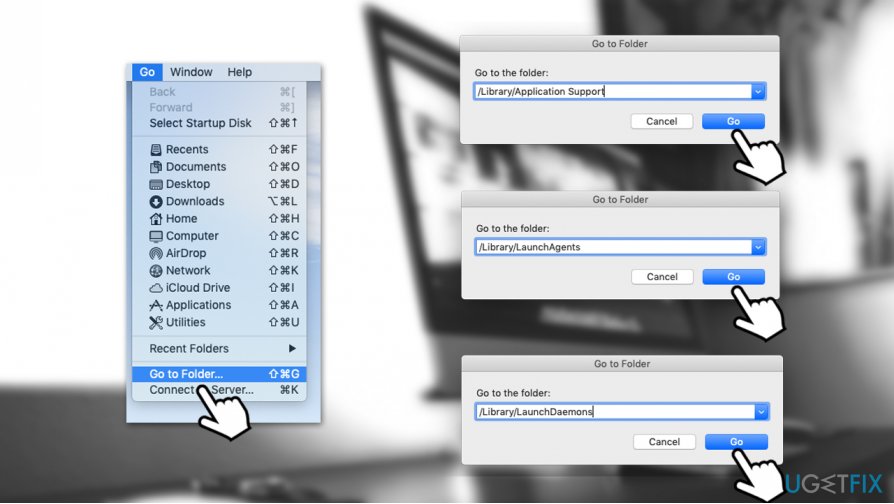
To prevent that, we recommend you check the following location and delete all the unnecessary files, profiles, and login items:
- ~/Library/Application Support
- ~/Library/LaunchAgents
- ~/Library/LaunchDaemons
- System Preferences > Accounts> Login Items
- System Preferences > Users&Groups > Profiles
If you prefer to keep your Mac secure and optimized, we recommend using [d1].
Fix 2. Re-ad your WiFi
- Click Apple menu and select System Preferences
- Pick Network
- On the left menu, select Wi-Fi
- At the bottom-left on the window, click on the “—” button
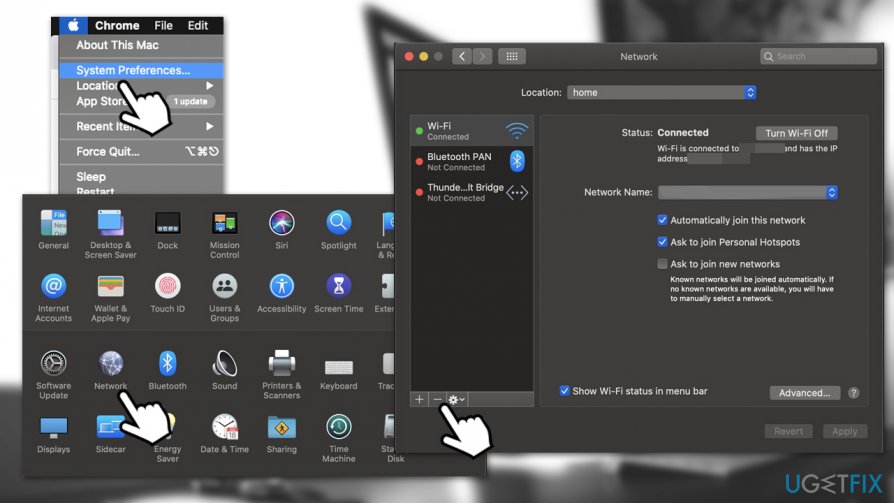
How to fix internet connection problems on macos catalina re add wifi connection - Click Apply
- Now click the "+" and select your Wi-Fi to add it again
Fix 3. Create a new Network Location
- Pick Apple menu and select System Preferences
- Click on Network
- Under Location, click on the drop-down menu
- Pick Edit Locations...
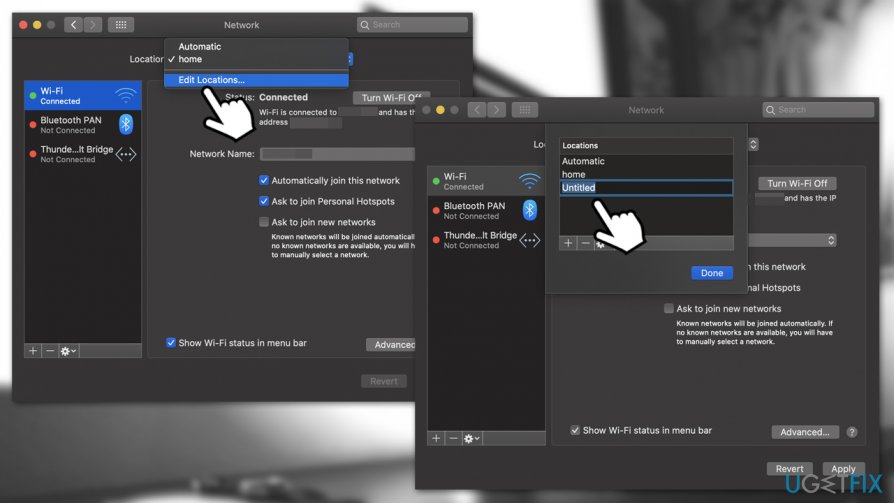
How to fix internet connection problems on macos catalinacreate new network location - Click the "+" button and add a new location
- Select Done and Apply.
Fix 4. Revert your macOS to previous version from Catalina
If none of the previous versions worked for you, you can temporarily downgrade your MacOS to its previous version Mojave.
- Go to Apple menu and pick Restart
- Press and hold Command + R combination on your keyboard until Apple logo appears
- Pick Restore from Time Machine backup disk
- Select the most recent version of Mojave and follow on-screen instructions.
Bottom line
To address Internet connection issues on MacOS Catalina, users can try uninstalling third-party software, particularly antivirus and firewall applications. If the problem persists, it may be necessary to wait for an official fix from Apple.
Frequently asked questions
Yes, while the steps may differ, many troubleshooting techniques for Internet connectivity can be adapted for Windows 10 or Windows 11.
Start by ensuring that your network adapter is enabled and that you are connected to the correct Wi-Fi network or Ethernet cable.
Yes, both Windows 10 and Windows 11 come with built-in network troubleshooting tools that can help identify and fix connectivity issues.




Report an issue
What's wrong with this guide? We review every report and update or remove content.
Report received — thank you. We'll review and fix it.
You need a free account to submit a report.
Be the first to comment