How to fix
KB5011831 fails to install
on Windows
Resolve KB5011831 installation issues on Windows 10 quickly and effectively. Follow our expert-tested solutions for a smooth update experience.

What causes How to fix KB5011831 fails to install on Windows 10?
- Update initiated manually or automatically
- Error code 0x800f0831
- Malware-induced issues
- Blue Screen crashes
- Registry corruption
Repairs Windows system files, removes malware, and restores a clean OS state — without reinstalling.
Hello, I have been trying to install KB5011831 but to no avail. The process simply freezes midway through the installation, only to return an error claiming that the update failed. Is there anything that can be done to fix this problem? Thanks for any tips provided.
Windows is operated as a service by Microsoft, which means that, as long as you purchased the operating system, you will be receiving regular updates. Some of the patches might be critical (usually related to a serious bug or security vulnerability)[ref en-1] - they are shipped out of the regular Patch Tuesday[ref en-2] cycle.
Outside of these, Microsoft would ship cumulative, feature, security, or regular updates for Windows. Each of these updates has a KB number which is meant for identification purposes. One of the most recent updates, KB5011831, was released in late April 2022, and, unfortunately, some users might fail to receive these due to various errors.
While the update is optional, it is meant to fix 26 bugs and includes numerous system improvements.[ref en-3] Among the issues that were fixed was a rather serious black screen crash and issues related to various Windows components, including Remote Desktop, OneDrive, Azure Active Directory, News and Interests, as well as system booting delays. Therefore, if you are experiencing issues with any of these components, it is highly recommended you install the KB5011831 update.

As mentioned, KB5011831 fails to install in Windows under various circumstances - be it when the update is initiated manually or automatically. It may also return an error code under some circumstances (for example, 0x800f0831), while in other cases, the update might simply fail without any indication as to why.
Below we will provide several solutions that should help you fix issues that prevent the update from installing correctly. Before you proceed with manual solutions, we recommend you try fixing the problem automatically with [d1]. The app can also be useful when dealing with malware-induced issues, Blue Screen crashes, registry corruption, and more.
Fix 1. Run Windows Update troubleshooter
Whenever you have problems with Windows update installation, you should run the troubleshooter first. While it might not ultimately solve the issue, it might point you in the right direction.
- Type troubleshoot in Windows search and press Enter
- Select Additional troubleshooters
- Click the Windows Update option and select Run the troubleshooter
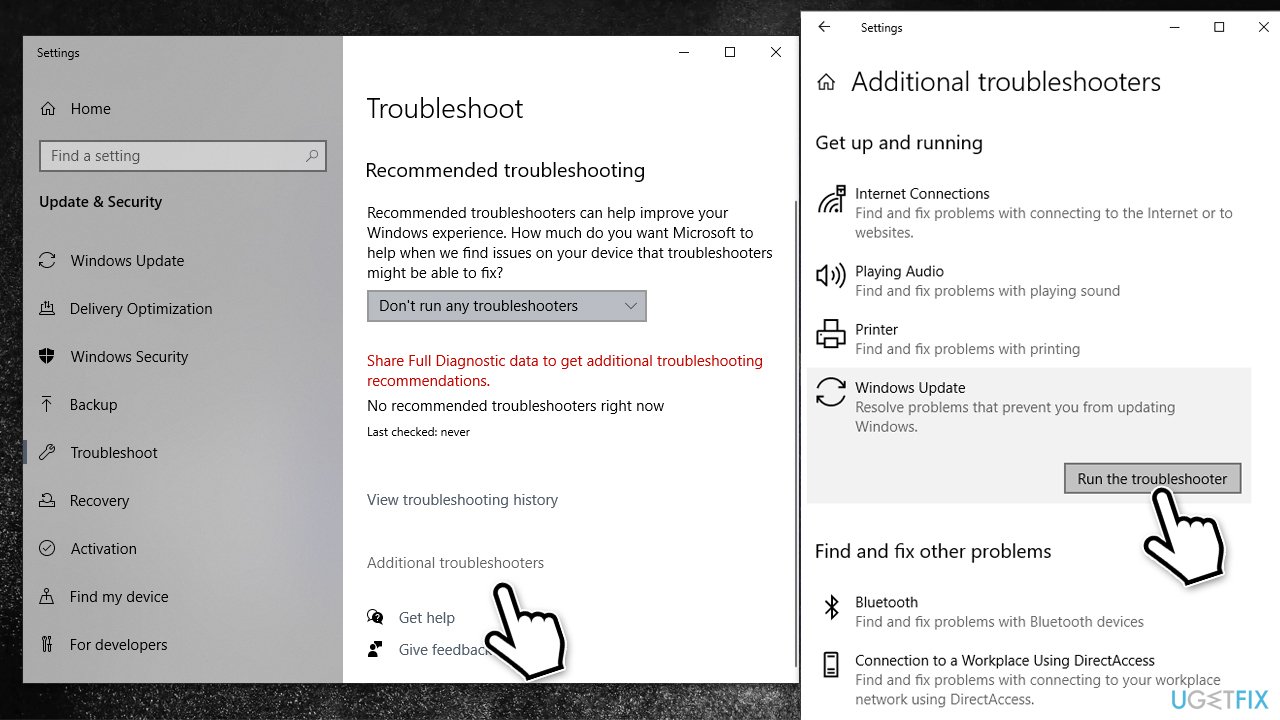
How to fix kb5011831 not installing in windows 10 run the troubleshooter - Once the scan is finished, apply the suggested fixes.
Fix 2. Perform system cleanup
While most people have a lot of space on their computers nowadays, those who use older SSDs might run out of it rather quickly, considering that Windows 10 operating system files can take up to 16GB of space. In this situation, you can do a disk cleanup and remove older Windows update caches, temp files, and similar. Note that this step would help to resolve bugged Windows update cache files.
- Type Disk Cleanup in Windows search and press Enter
- Select your main drive - C: by default
- At the bottom-left of the window, click Clean up system files
- Here, select what you want to delete - we recommend choosing Windows Update Cleanup, Windows update log files, Temporary Internet Files, Recycle Bin, and Temporary files.
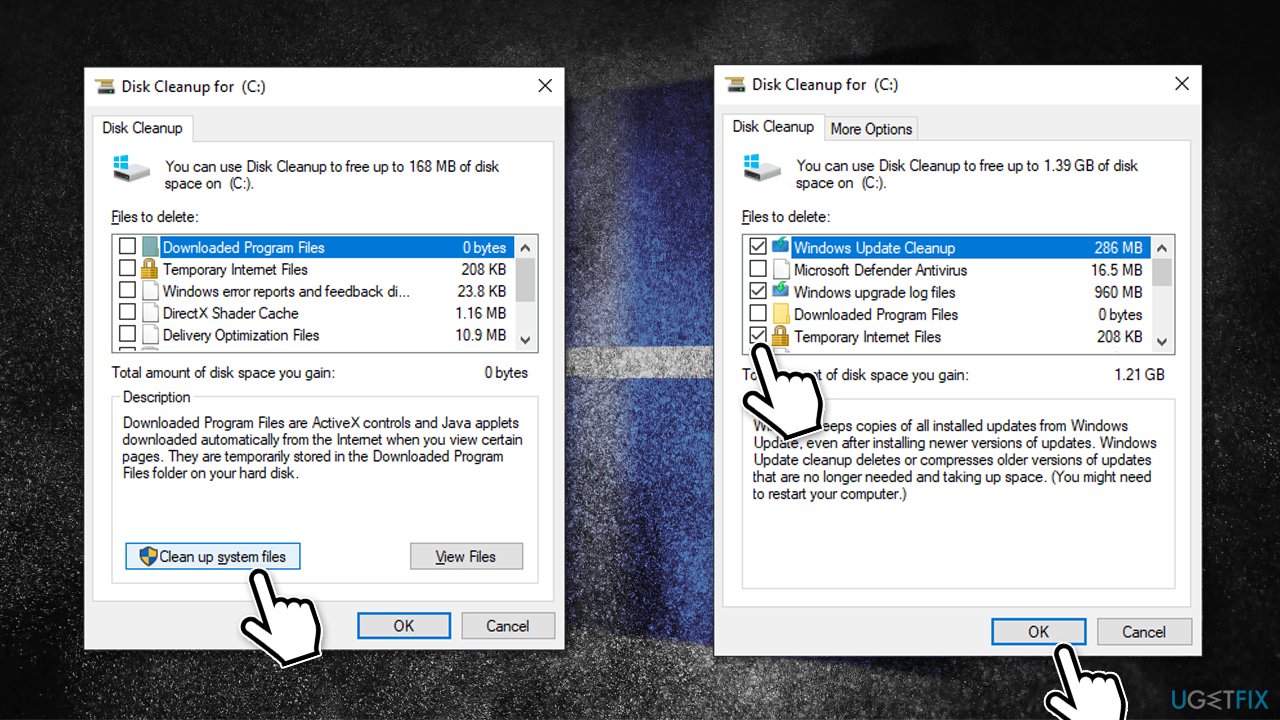
How to fix kb5011831 not installing in windows 10 use disk cleanup - Once the appropriate options are selected, click OK.
Fix 3. Repair damaged system files
If some of the system files are corrupted, you might not be able to install the newest updates. You could run SFC and DISM via elevated Command Prompt to address this.
- Type cmd in Windows search
- Right-click on Command Prompt and select Run as administrator
- When User Account Control (UAC) shows up, click Yes
- Use the following command lines, pressing Enter each time:
sfc /scannow
DISM /Online /Cleanup-Image /CheckHealth
DISM /Online /Cleanup-Image /ScanHealth
DISM /Online /Cleanup-Image /RestoreHealth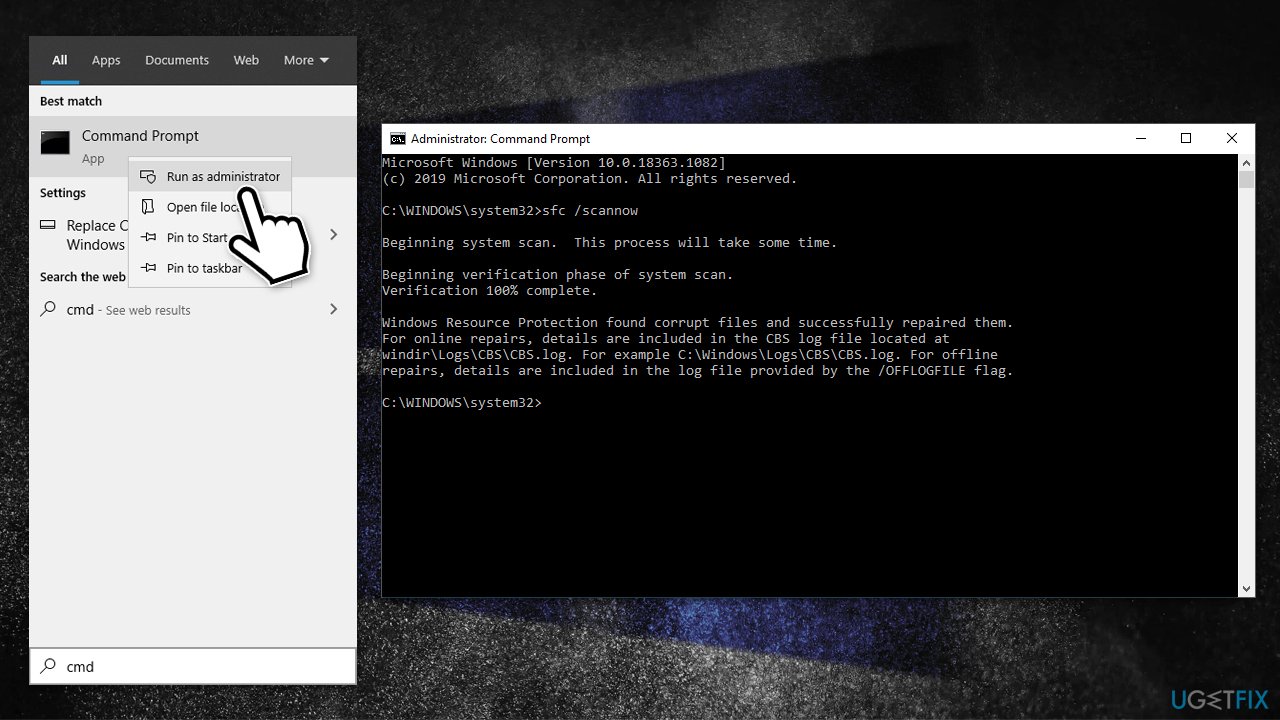
How to fix kb5011831 not installing in windows 10 run sfc dism - Once finished, you should restart your computer and try updating again.
Fix 4. (Re)start relevant services
In order to perform a successful update, some services need to be running - BITS and Windows Update in particular. If they are already running, we recommend restarting them; if not - setting them to start automatically.
- Type in Services in Windows search and press Enter
- Locate Background Intelligent Transfer Service (BITS)
- If it is already running, right-click and select Restart
- if the service is not running, double-click it, select Automatic under the Startup type from the drop-down menu
- Click Start, Apply, and OK
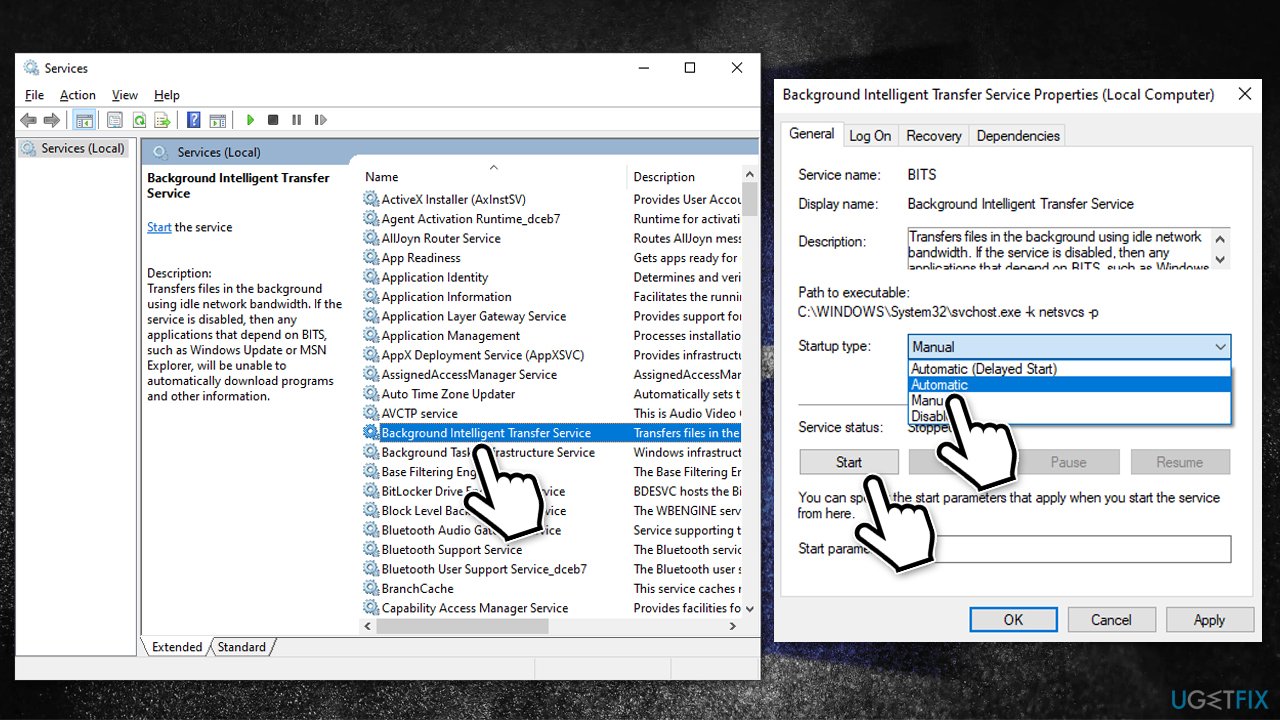
How to fix kb5011831 not installing in windows 10 restart bits update services - Use the same steps to (re)start Windows update service.
Fix 5. Consider updating manually
If updates fail to install via Microsoft service, you can try installing them yourself from Microsoft Update Catalog.
- Go to the official Microsoft Update Catalog website
- Type KB5011831 into the search bar and click Search
- You will find many different versions on the update – you need to find the one that matches your PC specs and Windows version (as a home user, ignore Windows server versions)
- Right-click on Start and pick System
- Under Device specifications, check the System type section: it should either be 64-bit or 32 bit
- Scroll down to Windows specifications and check the Version section
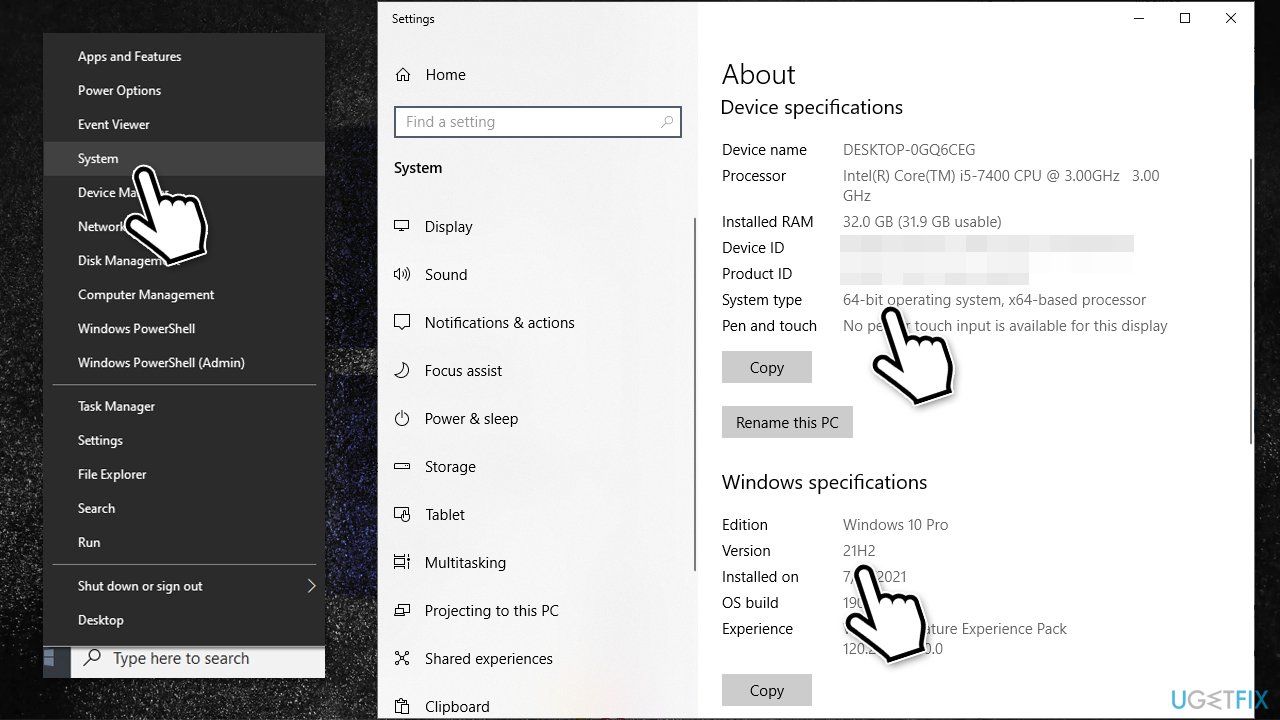
How to fix kb5011831 not installing in windows 10 check system and os version - With all this information, pick the correct version for your device
- Go back to the Microsoft Update catalog, download the appropriate version, and install it
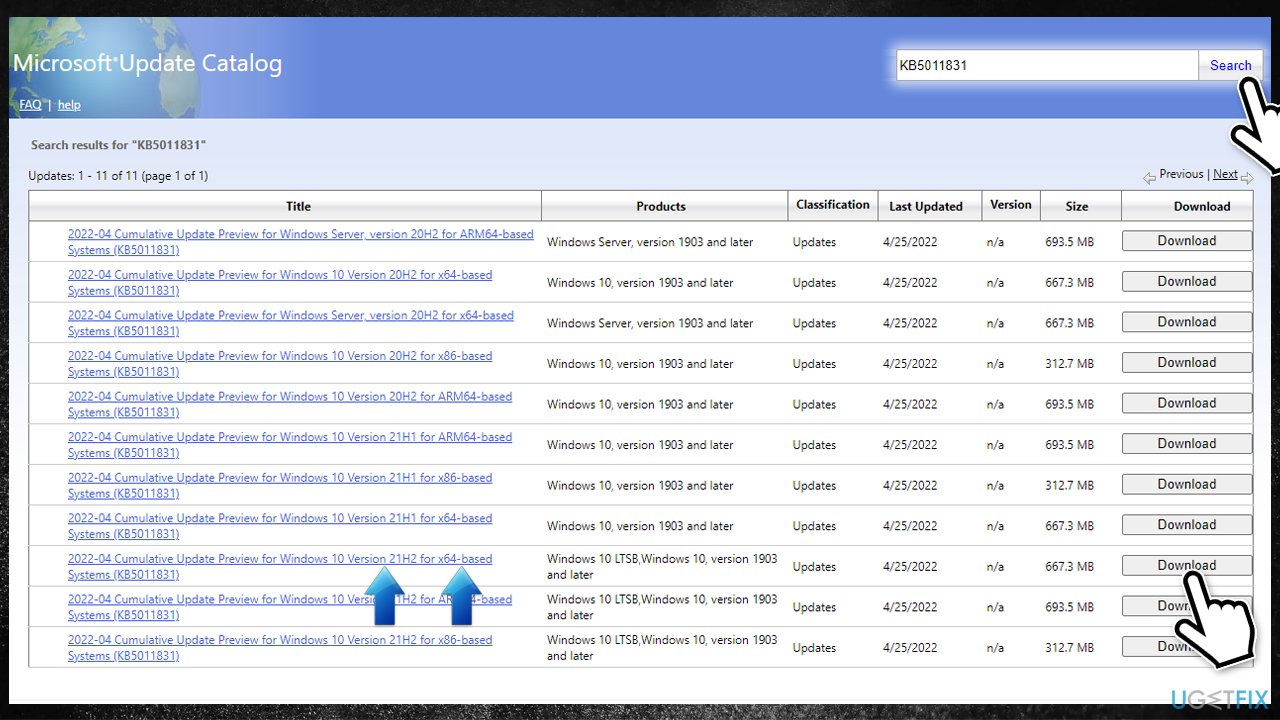
How to fix kb5011831 not installing in windows 10 install updates manually - Once done, restart your computer.
Fix 6. Use Media Creation Tool
Before proceeding with this step, we recommend making personal file backups as a precautionary measure. Don't worry - everything is likely to be okay, and your data will be secure as long as you pick this option during the upgrade installation.
- Download Media Creation Tool from the official Microsoft Website
- Launch the installer and agree to terms
- Pick Upgrade this PC now and click Next
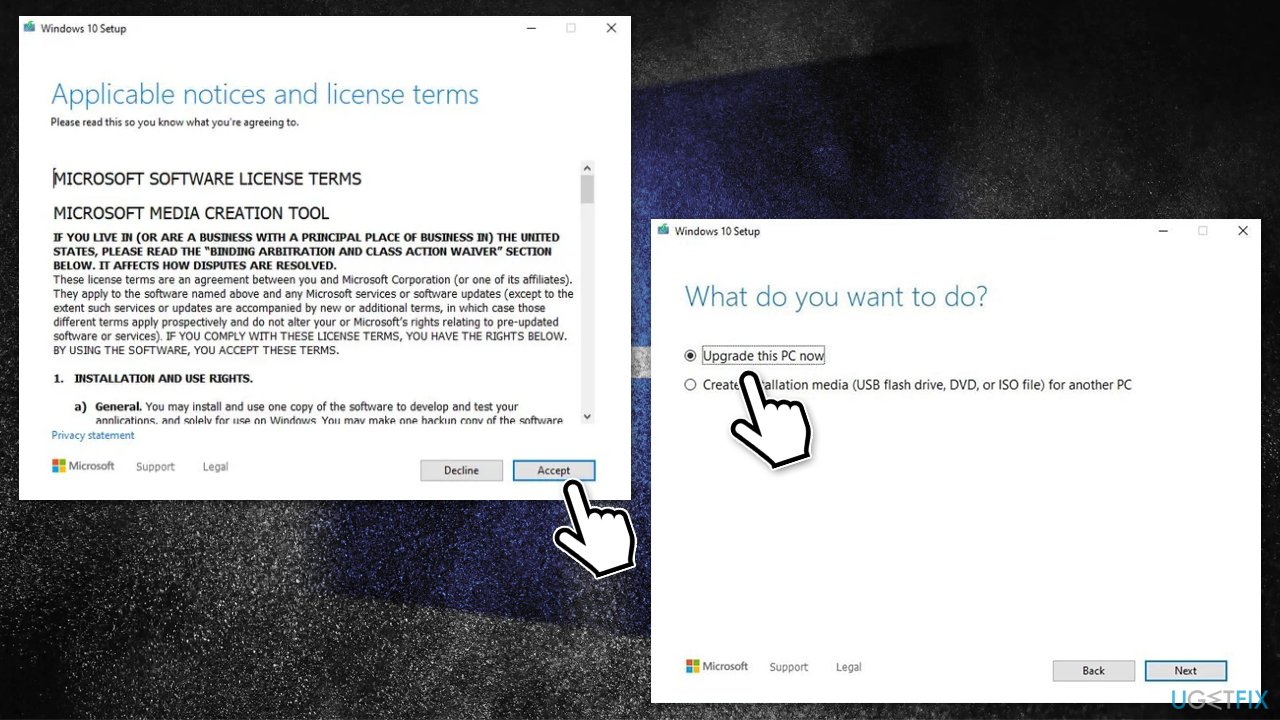
How to fix kb5011831 not installing in windows 10 use media creation tool - Wait till Windows downloads all the necessary files
- Agree to terms once more and ensure that you are happy with your choices
- Click Install and proceed with on-screen instructions to finalize the installation.
Bottom line
To resolve the installation failure of KB5011831, you can run the Windows Update troubleshooter and try automatic fixes. If these solutions do not work, consider checking for malware or addressing any system corruption issues.
Frequently asked questions
First, try running the Windows Update Troubleshooter, which can automatically detect and fix issues related to updates. If that doesn't work, consider manually downloading the update from the Microsoft Update Catalog.
The installation may fail due to corrupted update files, insufficient disk space, or conflicts with antivirus software. Ensure your system is up-to-date and try disabling any third-party security programs before attempting the installation again.
Yes, resetting Windows Update components can often resolve installation failures like KB5011831. You can do this by running specific commands in the Command Prompt to stop services, rename folders, and restart the services.




Report an issue
What's wrong with this guide? We review every report and update or remove content.
Report received — thank you. We'll review and fix it.
You need a free account to submit a report.
Be the first to comment