How to fix
KB5014019 fails to install
on Windows
Resolve the KB5014019 installation error on Windows 10 and Windows 11 quickly with our expert-tested solutions. Fixed in minutes!


What causes How to fix KB5014019 fails to install on Windows?
- Windows Update service issues
- Background Intelligent Transfer Service problems
- Corrupted system files
- Third-party security program interference
- .NET Framework application bugs
Repairs Windows system files, removes malware, and restores a clean OS state — without reinstalling.
Hello. I have been trying to install the latest update for Windows 11 but the process fails. What should I do?
Windows 11 was released by Microsoft at the end of 2021. People can enjoy an updated user interface, new design, and many other features. However, the newest version of the operating system did not come without any issues. Users regularly experience various bugs, errors, and crashes.
We previously wrote about problems like WiFi icon missing, clock and date missing, mouse cursor freezing or not responding above Windows 11 taskbar, and many others. Now users are running into issues with Windows updates. Specifically, many receive an error when trying to install the KB5014019[ref en-1] optional update. The error message reads as follows:
This update could not be installed, but you can try again (0x800f081f)
Optional updates are always labeled as "preview" on Windows. It is not necessary to install them as they are used to test non-security fixes, improvements, and new features. Additionally, those who managed to install KB5014019 experience major issues such as:
- Third-party security program protection features not working
- .NET Framework application bugs
- Taskbar icons missing
In this guide, you will find 6 steps that could help you fix KB5014019 fails to install on Windows issue. You will also find instructions on how to uninstall the update if it causes you problems. However, troubleshooting can be a lengthy process, so you can use a maintenance tool like [d1] that can fix various system errors, BSODs,[ref en-2] corrupted files, and registry[ref en-3] issues. Otherwise, follow the step-by-step instructions below carefully.
Method 1. Run Windows Update Troubleshooter
- Click the Windows button and select Settings
- Select System from the left pane, then scroll down on the right pane, and click on Troubleshoot
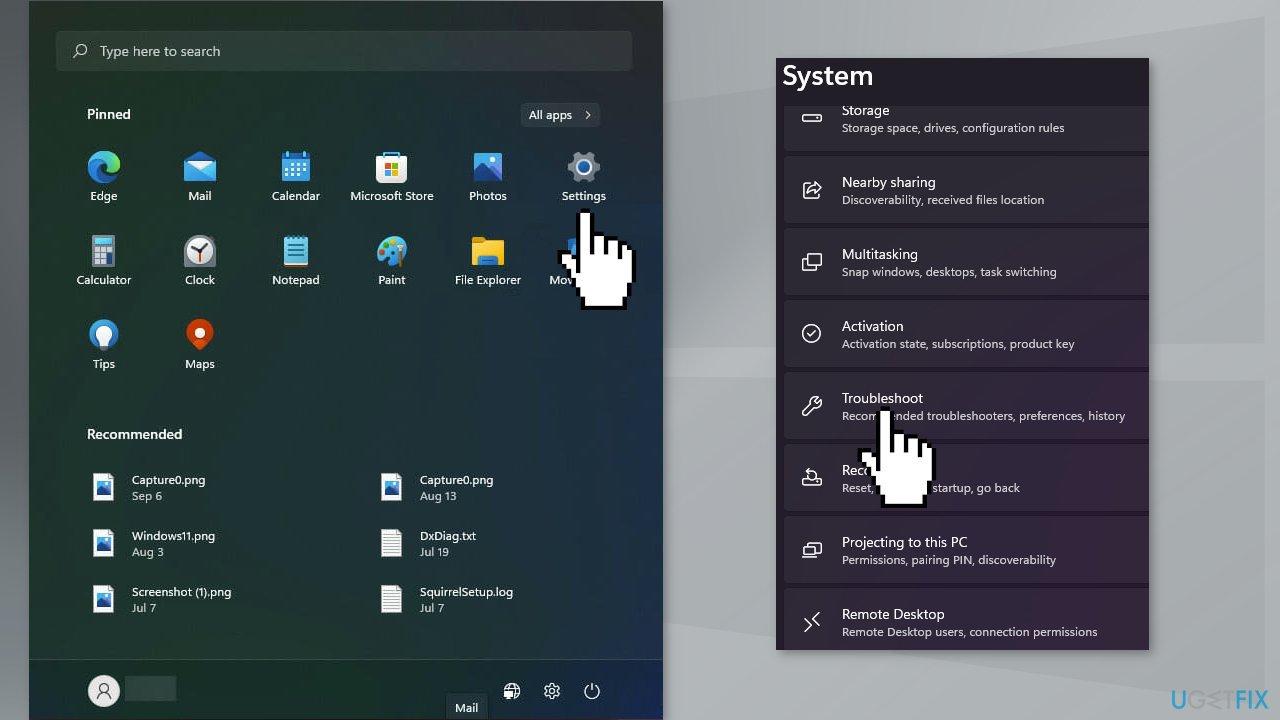
- Click on Other troubleshooters
- Locate the Windows Update troubleshooter and hit the Run button
Method 2. Restart Windows Services
- Type services in the search bar and launch the Services utility
- Find Windows Update in the list
- Double-click on it, set the Startup type to Automatic, and click Apply
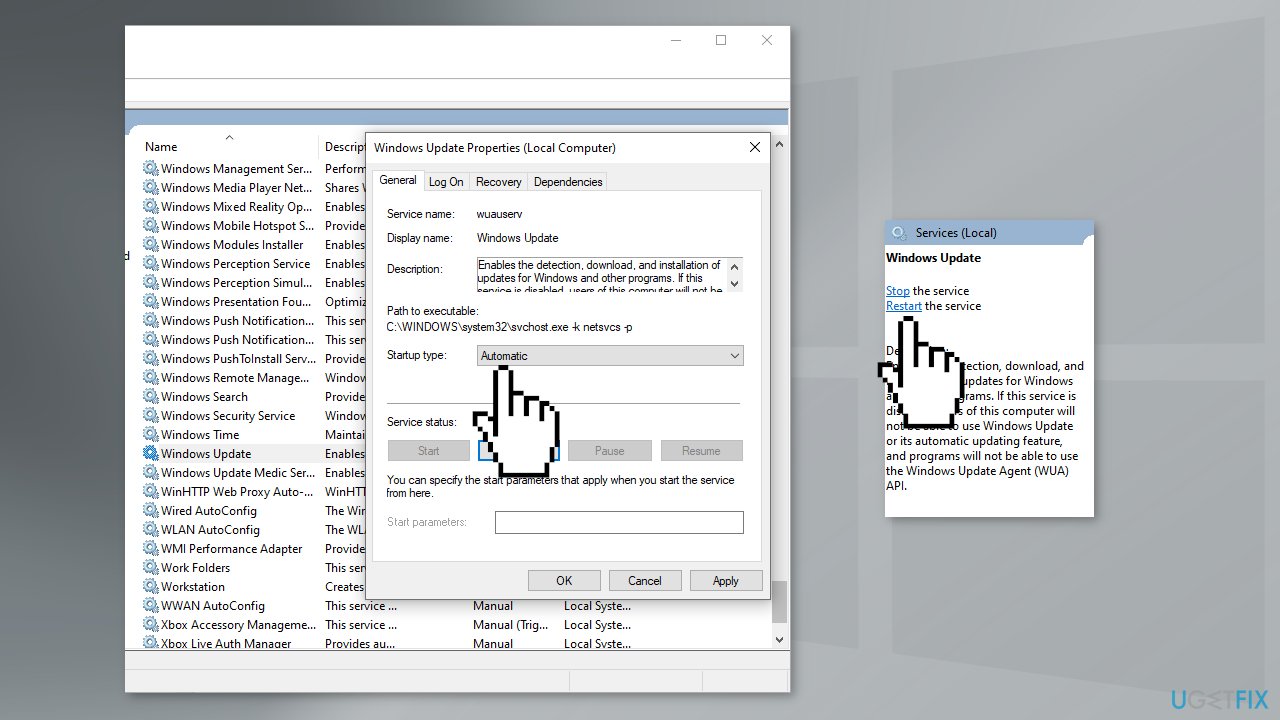
- Now click on Restart the Service
- Do the same with Background Intelligent Transfer Service
Method 3. Use Microsoft Update Catalog
Whenever Windows updates fail to install automatically, you can always try doing it manually. First, you need to find out which KB number is relevant to you.
- Right-click Start button and pick Settings
- Go to Update & Security
- On the right, locate and click View update history
- From the list, note the KB number that fails to install with the error code
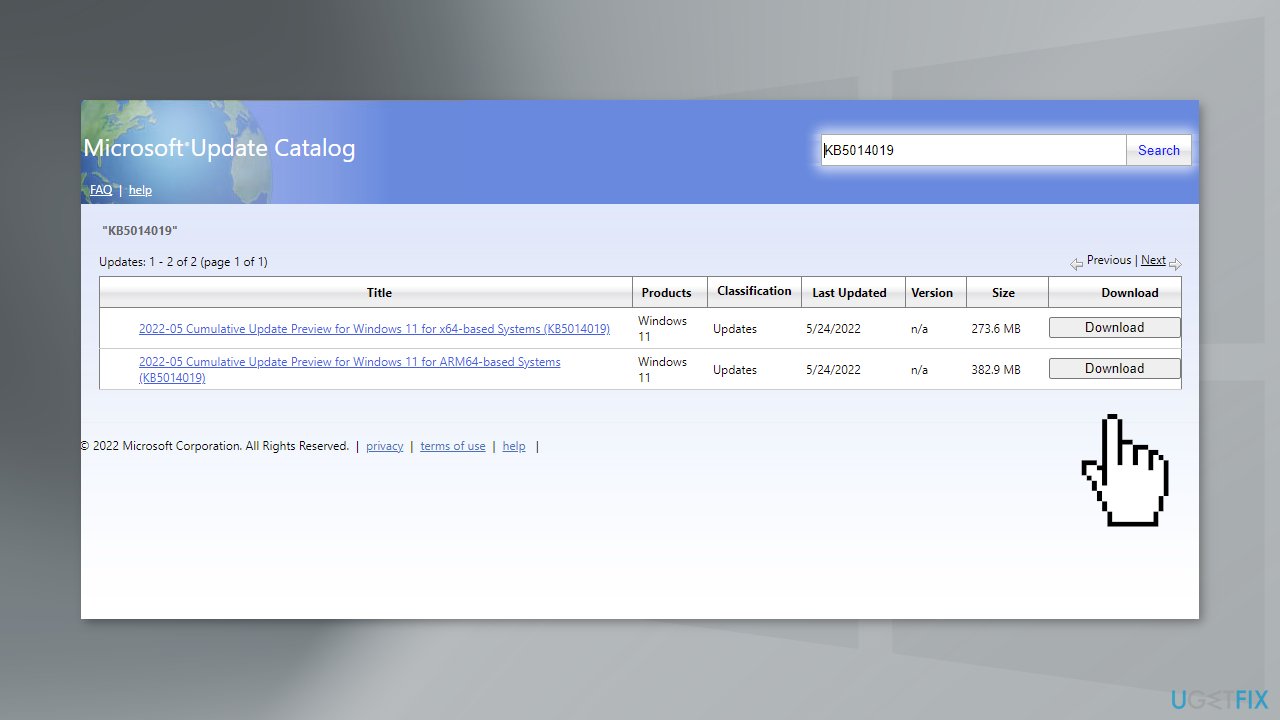
- Go to Microsoft Update Catalog page, type in the KB number and press Search
- Download the update and install it manually
Method 4. Reset Windows Update Components
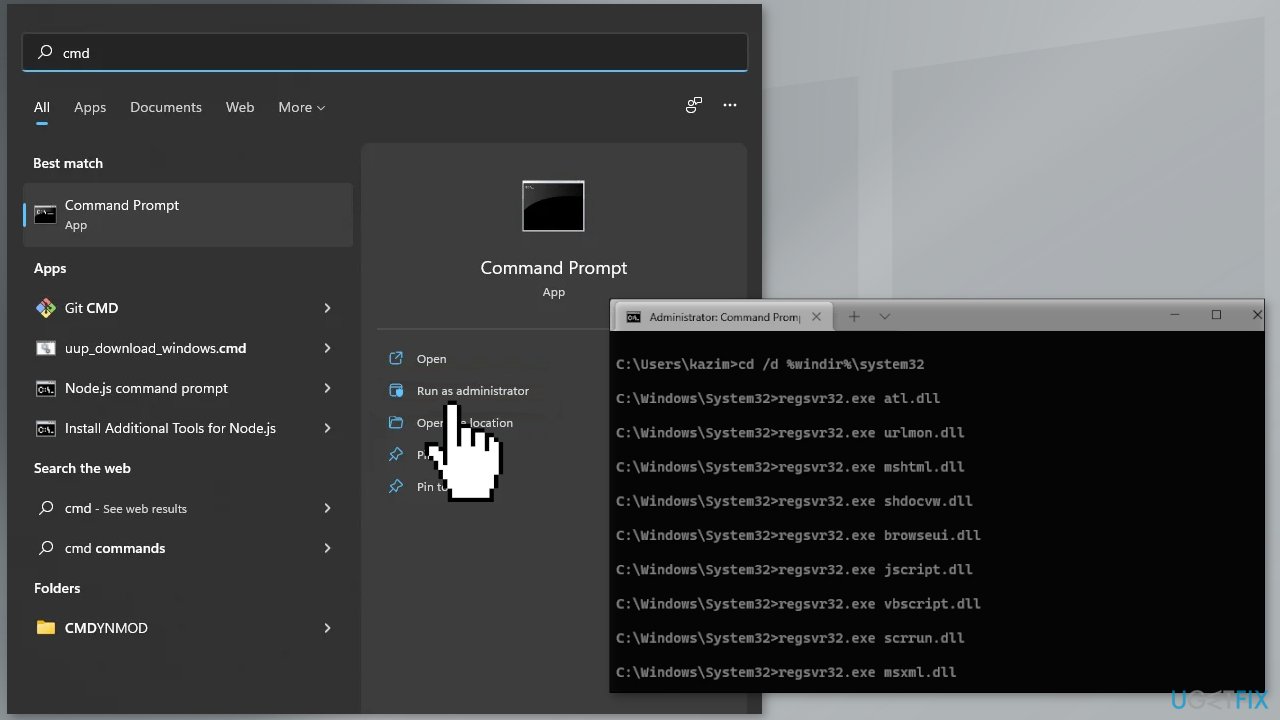
- Open the Command Prompt as an Administrator
- Type the following commands one by one and press Enter after each:
net stop bits
net stop wuauserv
net stop cryptsvc
Del "%ALLUSERSPROFILE%\Application Data\Microsoft\Network\Downloader\qmgr*.dat"
Ren %Systemroot%\SoftwareDistribution\DataStore DataStore.bak
Ren %Systemroot%\SoftwareDistribution\Download Download.bak
Ren %Systemroot%\System32\catroot2 catroot2.bak
sc.exe sdset bits D:(A;;CCLCSWRPWPDTLOCRRC;;;SY)(A;;CCDCLCSWRPWPDTLOCRSDRCWDWO;;;BA)(A;;CCLCSWLOCRRC;;;AU)(A;;CCLCSWRPWPDTLOCRRC;;;PU)
sc.exe sdset wuauserv D:(A;;CCLCSWRPWPDTLOCRRC;;;SY)(A;;CCDCLCSWRPWPDTLOCRSDRCWDWO;;;BA)(A;;CCLCSWLOCRRC;;;AU)(A;;CCLCSWRPWPDTLOCRRC;;;PU)
cd /d %windir%\system32
regsvr32.exe atl.dll
regsvr32.exe urlmon.dll
regsvr32.exe mshtml.dll
regsvr32.exe shdocvw.dll
regsvr32.exe browseui.dll
regsvr32.exe jscript.dll
regsvr32.exe vbscript.dll
regsvr32.exe scrrun.dll
regsvr32.exe msxml.dll
regsvr32.exe msxml3.dll
regsvr32.exe msxml6.dll
regsvr32.exe actxprxy.dll
regsvr32.exe softpub.dll
regsvr32.exe wintrust.dll
regsvr32.exe dssenh.dll
regsvr32.exe rsaenh.dll
regsvr32.exe gpkcsp.dll
regsvr32.exe sccbase.dll
regsvr32.exe slbcsp.dll
regsvr32.exe cryptdlg.dll
regsvr32.exe oleaut32.dll
regsvr32.exe ole32.dll
regsvr32.exe shell32.dll
regsvr32.exe initpki.dll
regsvr32.exe wuapi.dll
regsvr32.exe wuaueng.dll
regsvr32.exe wuaueng1.dll
regsvr32.exe wucltui.dll
regsvr32.exe wups.dll
regsvr32.exe wups2.dll
regsvr32.exe wuweb.dll
regsvr32.exe qmgr.dll
regsvr32.exe qmgrprxy.dll
regsvr32.exe wucltux.dll
regsvr32.exe muweb.dll
regsvr32.exe wuwebv.dll
netsh winsock reset
net start bits
net start wuauserv
net start cryptsvc
- Wait for the process to finish and restart your PC
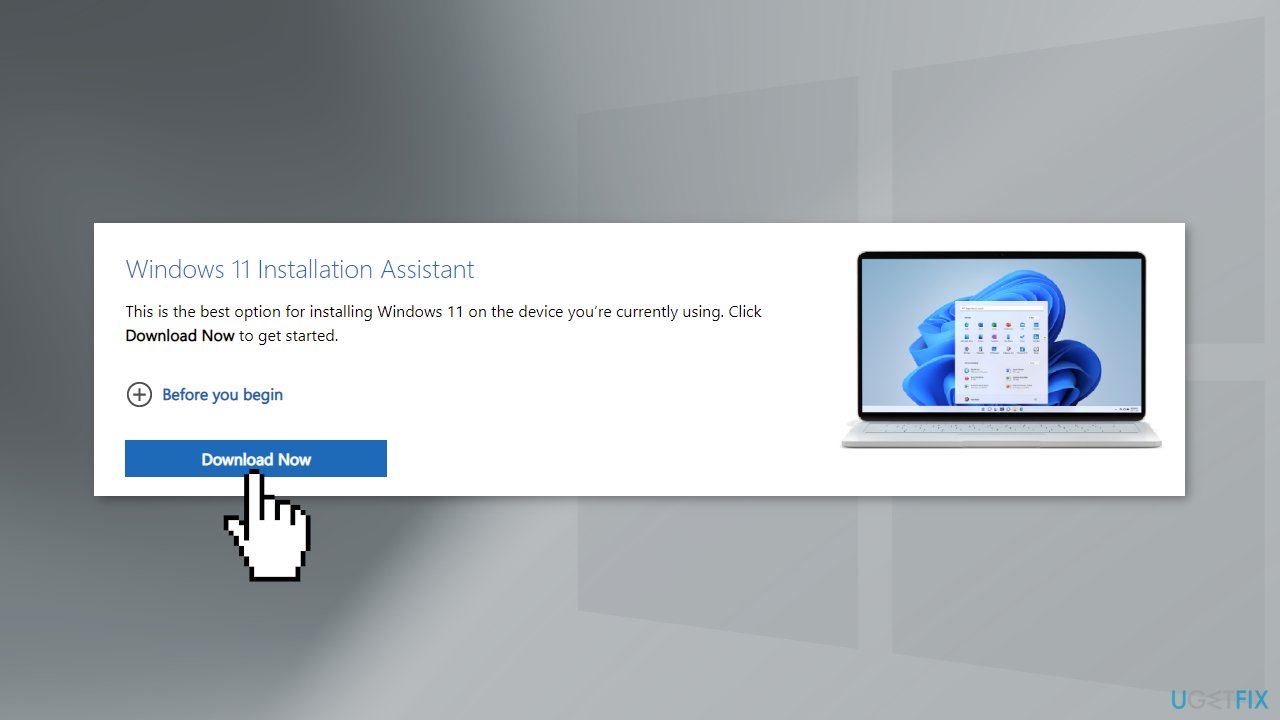
Method 5. Use Windows 11 Installation Assistant
- Download the Windows 11 Installation Assistant from the official Microsoft website
- Click on the downloaded file and follow the on-screen instructions
Method 6. Use Media Creation Tool
- Visit the official Microsoft website to download Windows 11 Installation Media
- Run the Media Creation Tool and select Create Installation Media for another PC
- Select ISO file
- Click Finish
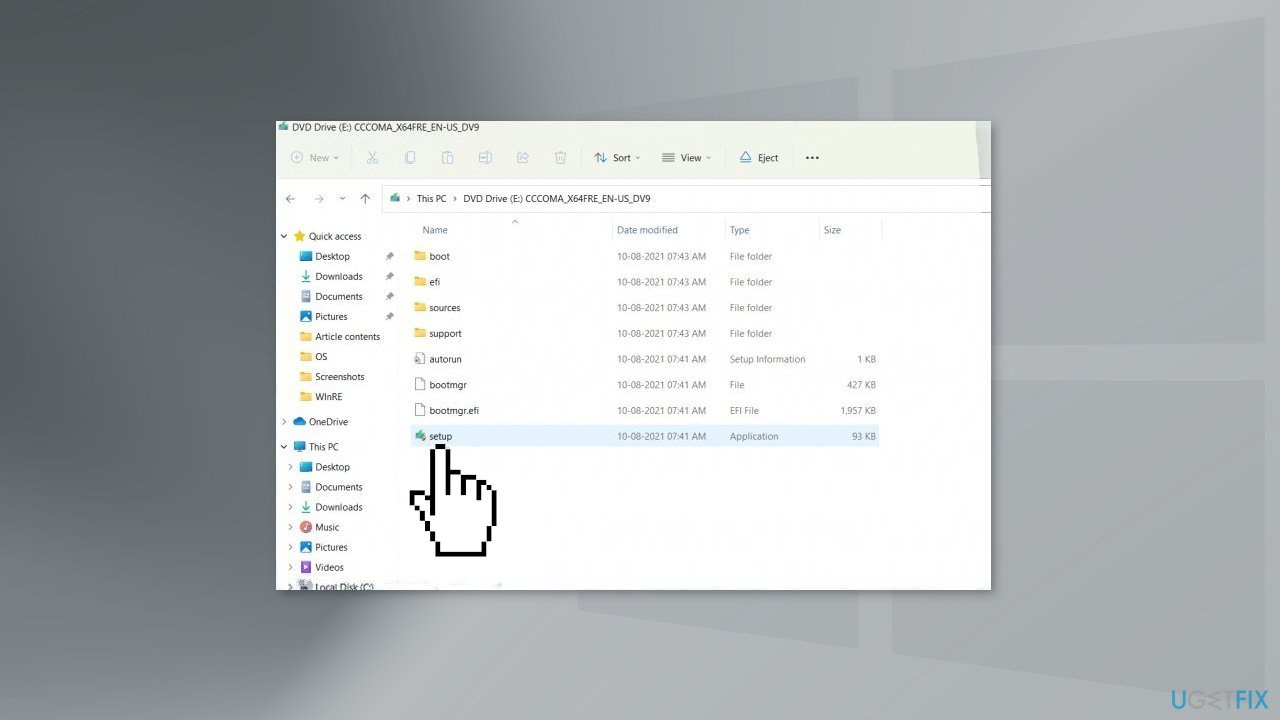
- On the PC you wish to upgrade, press Windows + E to open the File Explorer
- Open the Removable drive and click Setup.exe
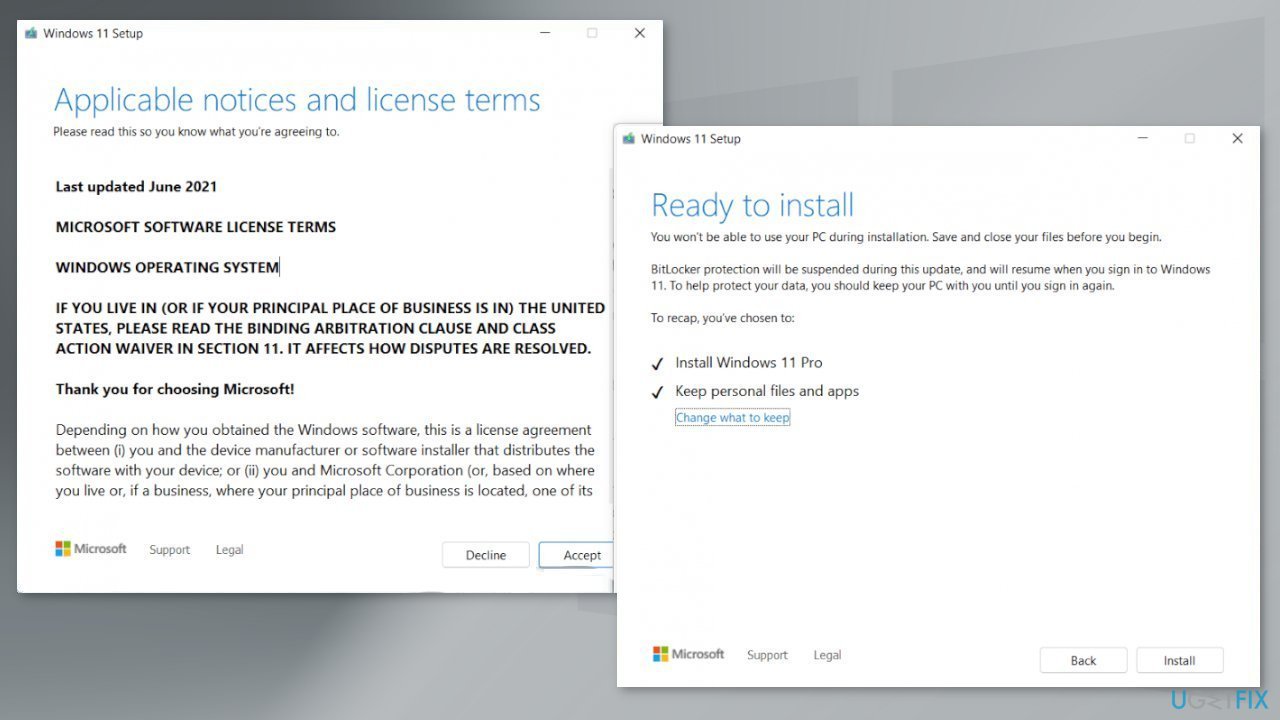
- Accept the license terms on the next screen
- Confirm the Upgrade options – Files, apps and Settings are kept
- Click Install, and the upgrade should start
How to uninstall the KB5014019 update?
If the installation of KB5014019 has caused you problems, you can try uninstalling it through your settings.
- In Settings, from the left sidebar, select Windows Update
- On the Windows Update page, click Update History
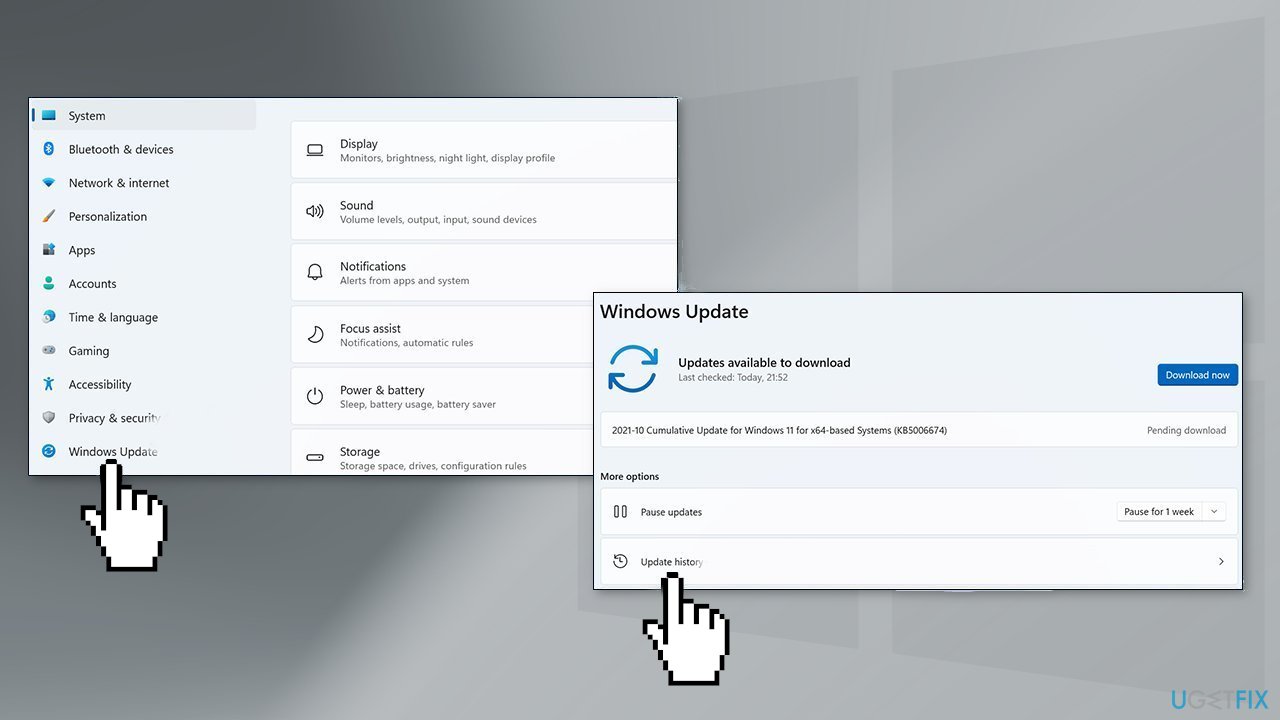
- From the Related Settings section, choose Uninstall Updates
- To remove an update, select it in the list and then click Uninstall
- Click Yes in the prompt to continue
Bottom line
To fix the KB5014019 installation failure, you can run the Windows Update Troubleshooter, restart relevant Windows services, or use the Microsoft Update Catalog. If these methods do not resolve the issue, consider using a maintenance tool to address various system errors.
Frequently asked questions
First, ensure that your Windows 10 system is fully updated and then try running the Windows Update Troubleshooter to identify and fix any issues. If that doesn't work, you can manually download and install the update from the Microsoft Update Catalog.
You can start by checking your disk space and ensuring that there are no pending updates that need to be installed. If the error persists, consider resetting the Windows Update components using Command Prompt.
Yes, common error codes include 0x800f0922 and 0x80073701, which indicate problems with the update process or missing files. You can look up these codes for tailored troubleshooting steps.




Report an issue
What's wrong with this guide? We review every report and update or remove content.
Report received — thank you. We'll review and fix it.
You need a free account to submit a report.
Be the first to comment