
How to fix KB5014699 fails to install on Windows?

Prefer to fix it yourself? The manual steps follow.
6 methods in this guide
Hello. I have tried to install the latest Windows update KB5014699 but the process fails every time. What should I do?
Windows is an operating system developed by Microsoft. It is used by many different people in corporate environments as well as homes. Mostly, people love it for its user-friendly interface, customization abilities, built-in troubleshooters, and more. Microsoft also regularly releases updates that contain security patches, bug fixes, and even new features.
However, sometimes people encounter issues when they try to install the latest Windows updates. Recently, some users report the KB5014699 update installation process failing. There are many different reasons why this could be happening. The problem could be caused by stopped Windows services, malfunctioning update components, or even corrupted system files.
In this guide, you will find 5 steps that could help you fix KB5014699 fails to install on Windows issue. You will learn how to use the built-in Windows troubleshooter, or even how to install the update manually. However, manual troubleshooting can be a lengthy process.
Besides, this powerful software can delete cookies and cache which are often the culprits of malfunctions.
Solution 1. Run Windows Update Troubleshooter
- Press the Windows + X keys and go to Settings
- Go to Update and Security
- Click Troubleshooter
- Select Additional troubleshooters
- Run the Update troubleshooter
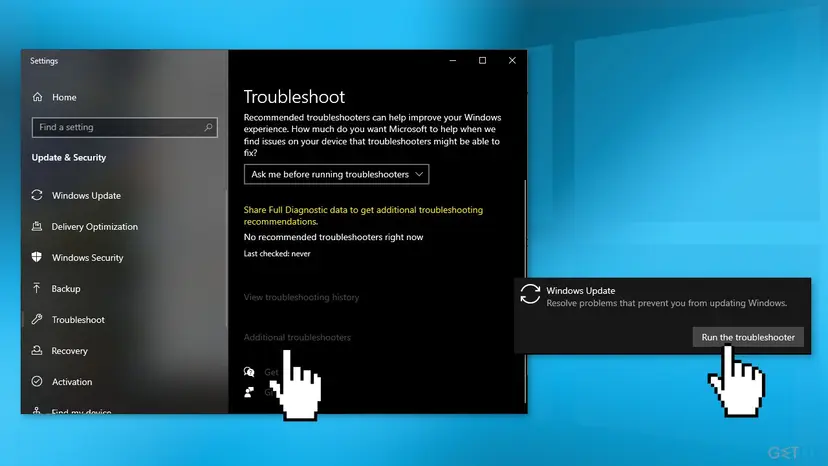
- Restart
Solution 2. Fix Corrupted System Files
Use Command Prompt commands to repair system file corruption:
- Open Command Prompt as administrator
- Use the following command and press Enter:
sfc /scannow
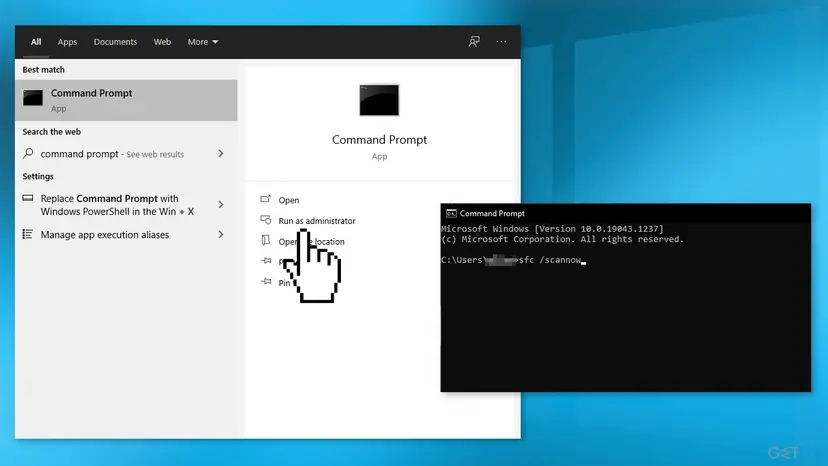
- Reboot your system
- If SFC returned an error, then use the following command lines, pressing Enter after each:
DISM /Online /Cleanup-Image /CheckHealth
DISM /Online /Cleanup-Image /ScanHealth
DISM /Online /Cleanup-Image /RestoreHealth
Solution 3. Restart Windows Services
- Press Windows + R to open the Run box
- Type in services.msc and press OK
- Double-click Background Intelligent Transfer Service
- If the Startup status lists Stopped, click Start and then click OK
- If the status is Running, right-click then select Restart
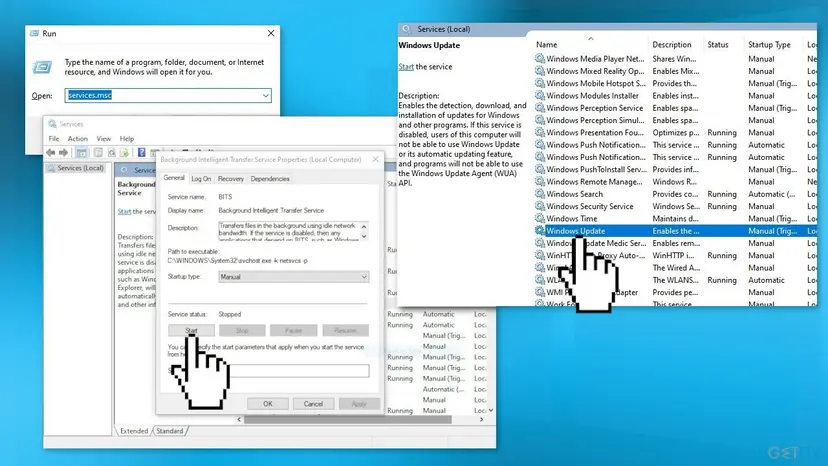
- Locate Windows Update service and double-click it
- If the Startup status lists Stopped, click Start and OK. If the status is Running, right-click, then select Restart
Solution 4. Use Microsoft Update Catalog
Whenever Windows updates fail to install automatically, you can always try doing it manually. First, you need to find out which KB number is relevant to you.
- Right-click Start button and pick Settings
- Go to Update & Security
- On the right, locate and click View update history
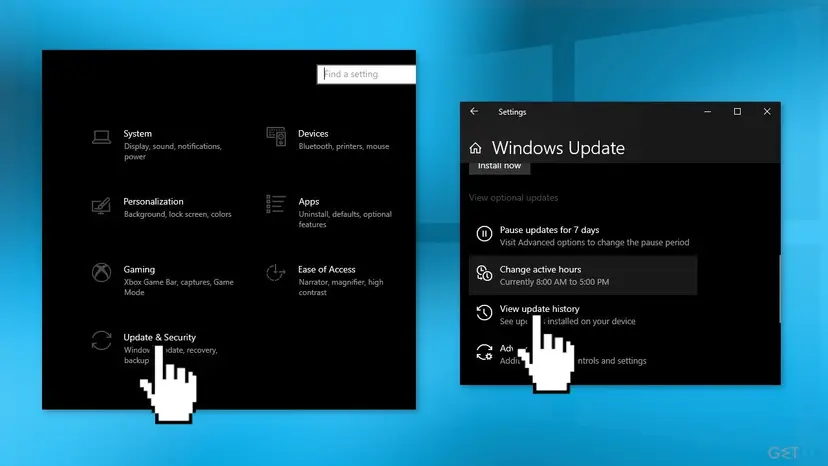
- From the list, note the KB number that fails to install with the error code
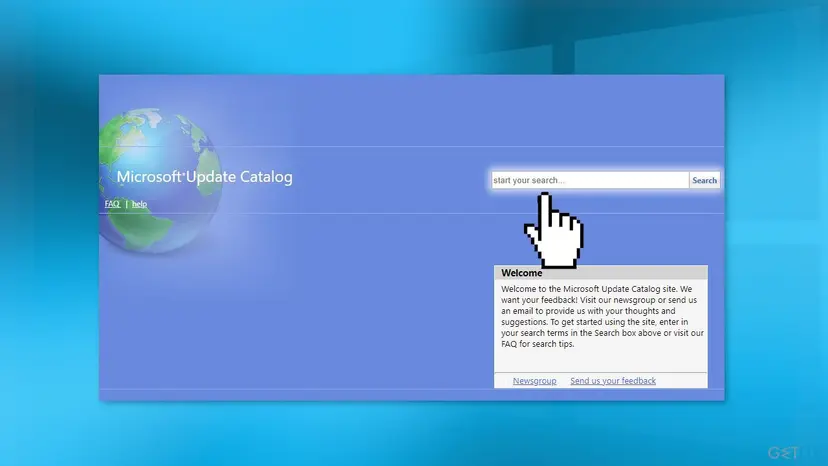
- Go to Microsoft Update Catalog page, type in the KB number and press Search
- Download the update and install it manually
Solution 4. Reset Windows Update Components
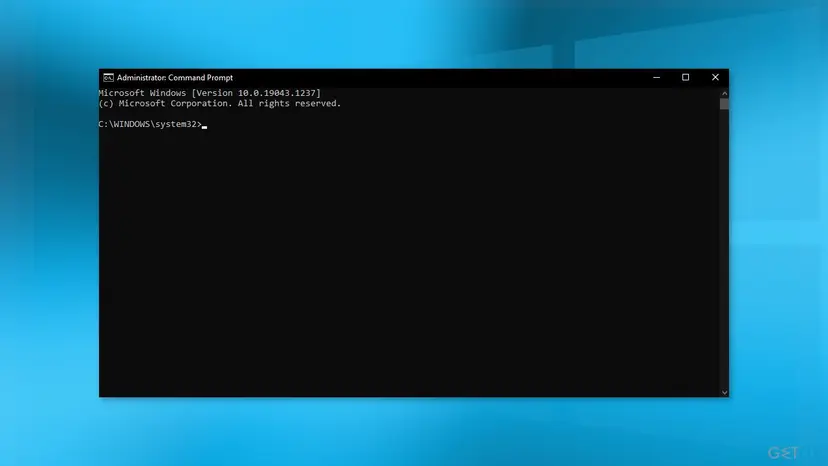
- Open Command Prompt as administrator again
- Copy and paste the following commands, pressing Enter after each:
net stop bits
net stop wuauserv
net stop appidsvc
net stop cryptsvc
Del “%ALLUSERSPROFILE%\Application Data\Microsoft\Network\Downloader\*.*”
rmdir %systemroot%\SoftwareDistribution /S /Q
rmdir %systemroot%\system32\catroot2 /S /Q
regsvr32.exe /s atl.dll
regsvr32.exe /s urlmon.dll
regsvr32.exe /s mshtml.dll
netsh winsock reset
netsh winsock reset proxy
net start bits
net start wuauserv
net start appidsvc
net start cryptsvc
- Restart your PC
Solution 5. Use Windows Installation Media
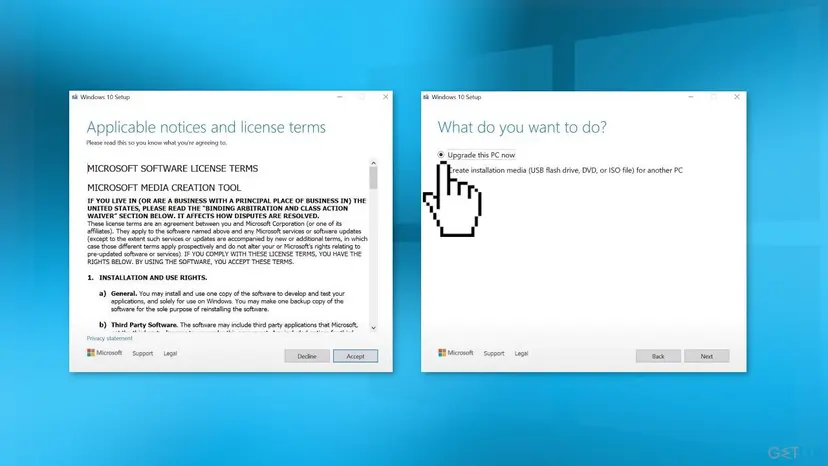
- Download Windows 10 installation media from the official website
- Open the tool once it installed
- Agree to license terms
- Choose Upgrade this PC now
- Wait for the update to be installed
Did this fix work?
One click, no account. It tells the next reader which guides are worth their time.
Questions and experiences: fix KB5014699 fails to install on Windows
Still broken, or found a fix we did not cover? Ask here: members and our editors answer. Reading is open; writing needs a free account.
…