How to fix
KB5015878 fails to install
on Windows
Resolve KB5015878 installation errors on Windows 10 effortlessly. Get expert-tested solutions to fix issues in minutes and enjoy a smooth experience.

What causes How to fix KB5015878 fails to install on Windows 10?
- Windows update service issues
- Corrupted system files
- Insufficient disk space
- Conflicting software or drivers
- Network connectivity problems
Repairs Windows system files, removes malware, and restores a clean OS state — without reinstalling.
Hello, I have tried installing KB5015878 as I saw that it fixed the bug where the troubleshooter would not open (the problem I am dealing with, unfortunately). I came to another dead end now, as the update simply won't install. I am really annoyed by this, so I hope there's something you could help me with regarding this issue.
By default, Windows is set to install updates automatically as soon as the computer is booted and is connected to the internet. This is not a coincidence, as keeping your system up to date can be vital - updates patch various security vulnerabilities, fix bugs, implement new features, and improve stability and performance.
Microsoft operates Windows as a service, which means that it ships new improvements regularly. To be more precise, patches usually arrive on the second Tuesday of every month, hence the process has been named "Patch Tuesday" for many years now. There are also several types of updates - cumulative, feature, security, and others.
KB5015878 is one of the newer updates that was released to the Preview Channel on May 18, 2022,[ref en-3] which is dedicated to those who participate in the Windows Insider Program.[ref en-1] This allows users to check out new features earlier than the rest and allows them to send feedback that Microsoft can use to change things.
The update included a lot of new features, such as the ability for users to consent to receive urgent notifications when focus assist is on, as well as bug fixes such as troubleshooter not opening. Unfortunately, just like any other Windows update, KB5015878 fails to install for some users.
Luckily, there are a few solutions that could help users fix these installation problems. Before you proceed with the manual instructions below, we recommend running a scan with [d1] - a repair solution that can automatically fix common Windows issues, including BSODs,[ref en-2] DLL errors, update failures, and more.
Fix 1. Use the built-in troubleshooter
Troubleshooters are excellent built-in tools that Microsoft offers for free. They can perform s scan that looks at the particular problem and attempts to find the reason for the issue, and offers solutions as well. Therefore, we recommend starting by running Windows Update Troubleshooter.
- Type Troubleshoot in Windows search
- Select Additional troubleshooters
- Find Windows Update from the list
- Click it and select Run the troubleshooter
- Once the download is finished, apply the suggested fixes and restart your computer.
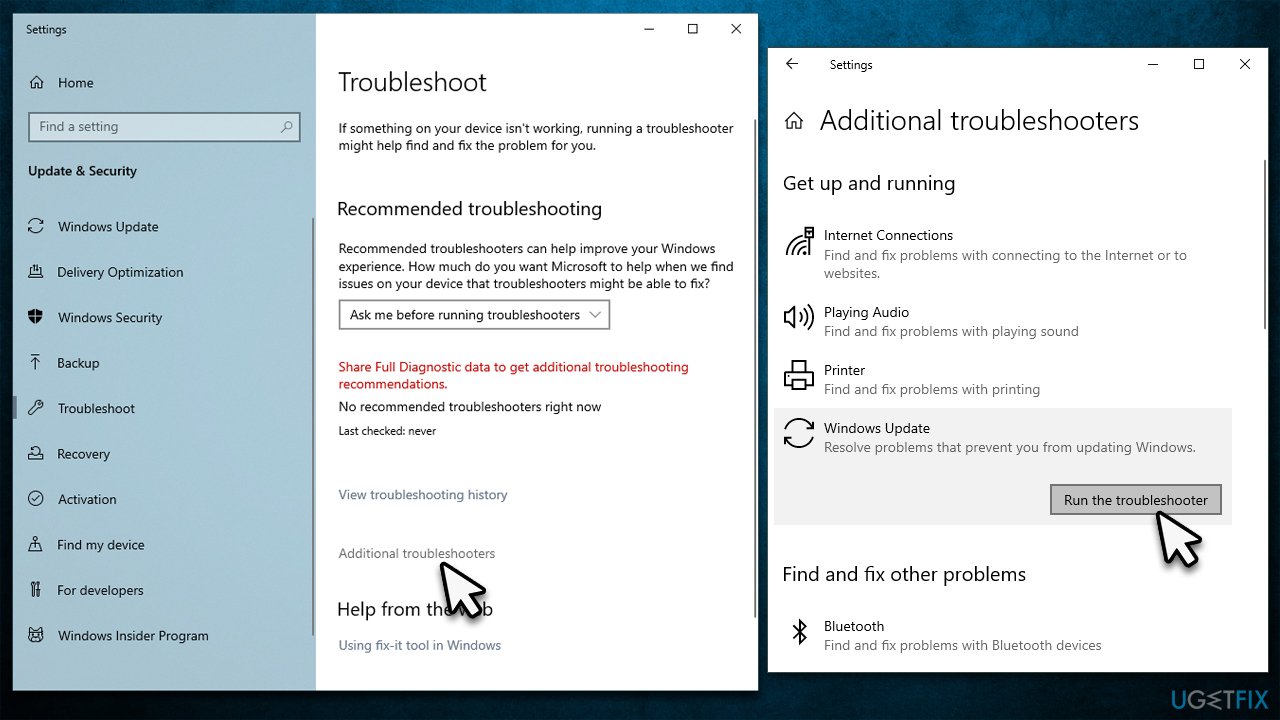
How to fix kb5015878 fails to install on windows 10 run troubleshooter
Fix 2. Perform SFC and DISM scans
System file corruption can always be one of the main reasons for Windows update failures. Thus, make sure it is not the case by following these steps:
- Type cmd in Windows search
- Right-click on Command Prompt and pick Run as administrator
- When User Account Control shows up, click Yes
- Use the following commands, pressing Enter after each of the lines:
sfc /scannow
DISM /Online /Cleanup-Image /CheckHealth
DISM /Online /Cleanup-Image /ScanHealth
DISM /Online /Cleanup-Image /RestoreHealth - Restart your system.
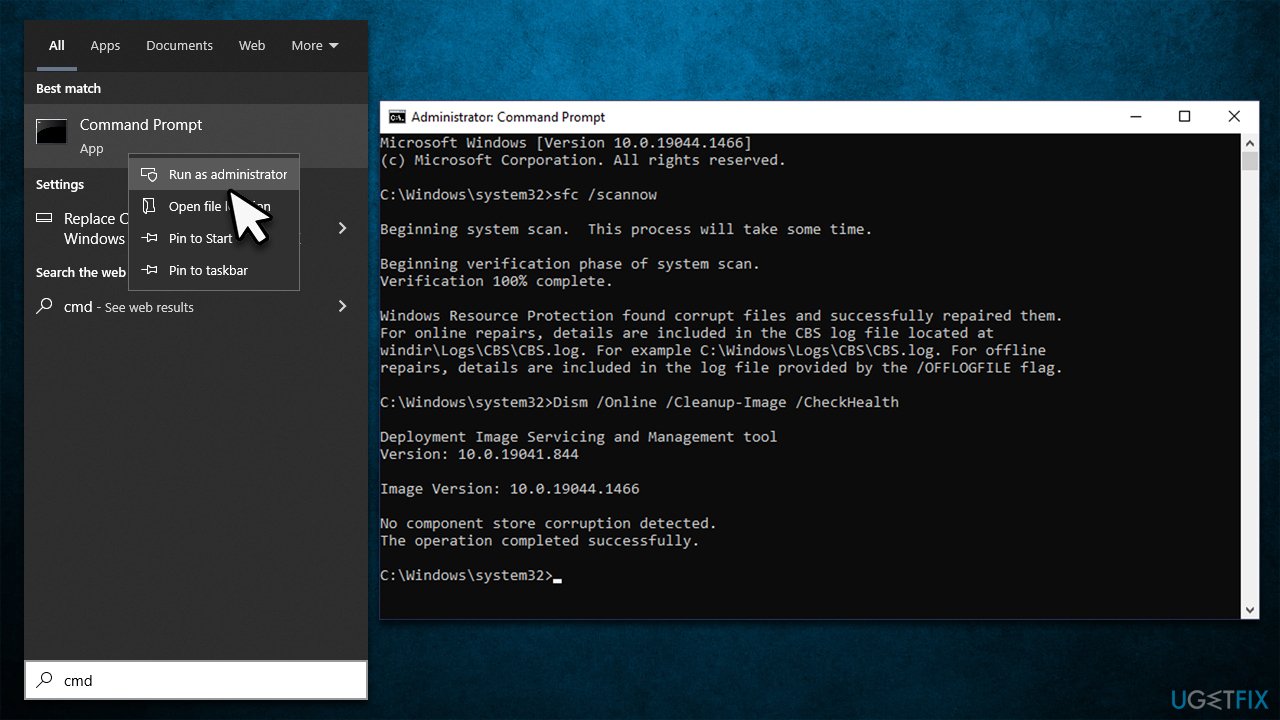
How to fix kb5015878 fails to install on windows 10 run sfc dism
Fix 3. Set to automatic startup type or restart BITS and Windows Updates services
- Type in Services in Windows search and press Enter
- Locate Background Intelligent Transfer Service (BITS)
- If it is already running, right-click and select Restart
- if the service is not running, double-click it, select Automatic under the Startup type from the drop-down menu
- Click Start, Apply, and OK
- Now locate Windows Update Service and perform the same steps.
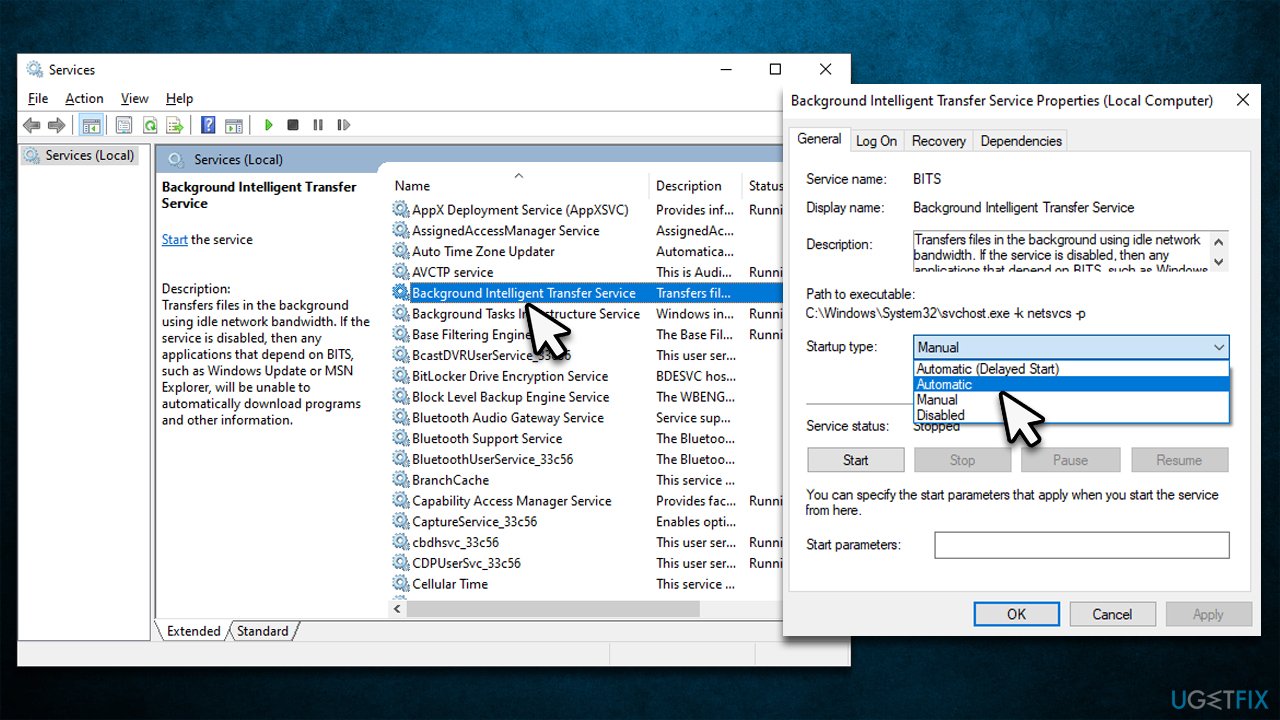
How to fix kb5015878 fails to install on windows 10 restart bits and windows update
Fix 4. Reset Windows Update components
- Open Command Prompt as administrator, as we explained before
- Copy and paste each of the command lines, pressing Enter after each and waiting till each of the commands is executed properly:
net stop bits
net stop wuauserv
net stop appidsvc
net stop cryptsvc
Del "%ALLUSERSPROFILE%\Application Data\Microsoft\Network\Downloader\*.*"
rmdir %systemroot%\SoftwareDistribution /S /Q
rmdir %systemroot%\system32\catroot2 /S /Q
regsvr32.exe /s atl.dll
regsvr32.exe /s urlmon.dll
regsvr32.exe /s mshtml.dll
netsh winsock reset
netsh winsock reset proxy
net start bits
net start wuauserv
net start appidsvc
net start cryptsvc - Restart your computer and attempt to update Windows once again.
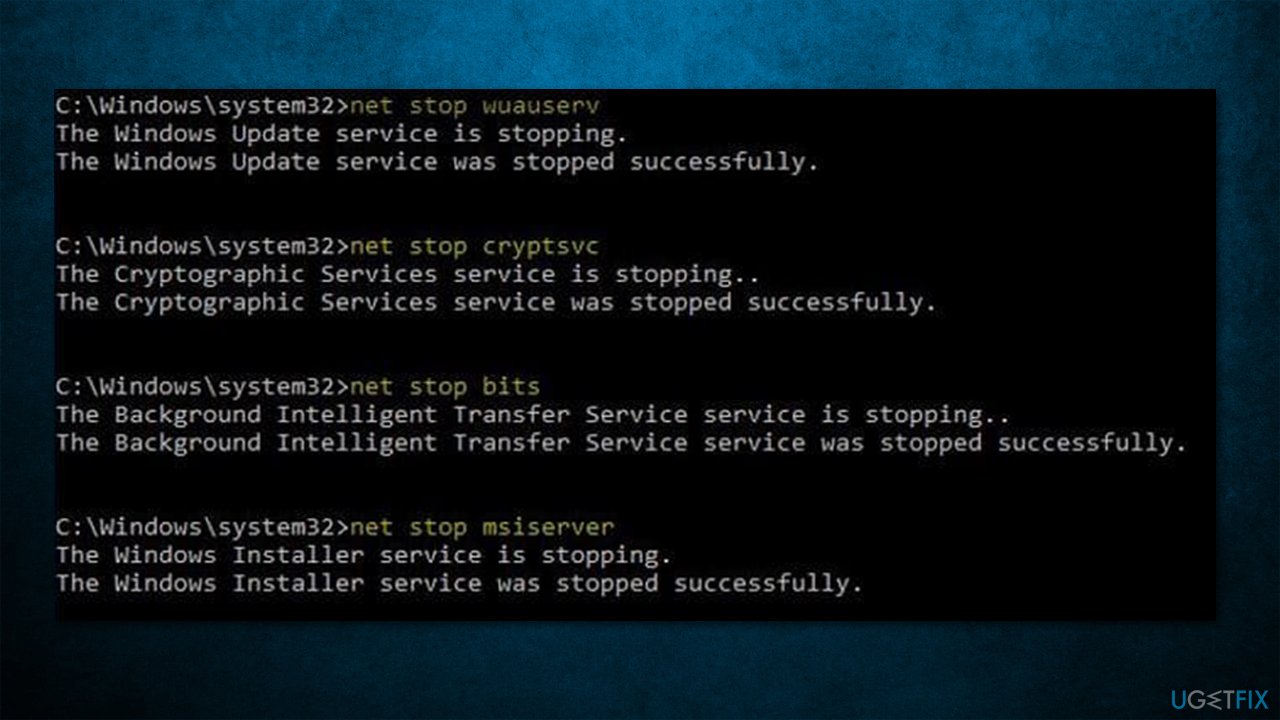
How to fix kb5015878 fails to install on windows 10 reset windows update components
Fix 5. Reset your internet connection
In case your internet connection is unstable, it could result in Windows updates failing. Try resetting your connection:
- Open Command Prompt as administrator again
- Paste in the following commands, pressing Enter after each:
ipconfig /flushdns
ipconfig /registerdns
ipconfig /release
ipconfig /renew
netsh winsock reset - Restart your PC.
Fix 6. Temporarily disable or uninstall third-party security software
Security software might sometimes interfere with the process of Windows updates, for example, it may blacklist one of the servers that the updates are being downloaded. Therefore, if you are using third-party anti-malware software, you should disable or uninstall it and try running the update once again.
Similar topics you may find useful:
Bottom line
To fix the installation failure of KB5015878, users can try using the built-in troubleshooter, running a scan with a repair solution, and ensuring their system is updated. If these solutions do not resolve the issue, further investigation into system settings or contacting support may be necessary.
Frequently asked questions
Try running the Windows Update Troubleshooter, which can automatically detect and fix issues related to Windows Update. You can access it through Settings > Update & Security > Troubleshoot > Additional troubleshooters.
Visit the Microsoft Update Catalog website, search for KB5015878, and download the appropriate version for your system. Once downloaded, double-click the file to initiate the installation process.
Yes, you can uninstall KB5015878 by going to Settings > Update & Security > Windows Update > View update history, then selecting 'Uninstall updates.' However, ensure your system is backed up before doing so.




Report an issue
What's wrong with this guide? We review every report and update or remove content.
Report received — thank you. We'll review and fix it.
You need a free account to submit a report.
Be the first to comment