How to fix
KB5016138 fails to install
on Windows
Fix the KB5016138 installation error on Windows 10 and Windows 11 effortlessly. Resolve issues quickly with expert-tested solutions that work!


What causes How to fix KB5016138 fails to install on Windows?
- System file corruption
- General bugs
- Issues with Windows Update settings
- Underlying issues with Windows
- Conflicting software
Repairs Windows system files, removes malware, and restores a clean OS state — without reinstalling.
Hello. For some reason, I keep getting update failures for KB5016138. I tried several times, but the update just doesn't install. I am using Windows 11. Some tips would be appreciated.
Windows operating system has evolved a lot over the years. With the recent versions, Microsoft began supporting Windows as a service, which means that regular security, feature, cumulative, and other updates[ref en-2] are regularly shipped to users. They improve the stability of the device, improve existing or implement new features, patch security vulnerabilities,[ref en-1] deliver the latest drivers, and more. Without a doubt, updates are important for everyone and should not be neglected.
Windows update process is usually initiated automatically by pre-set settings, which guarantees timely arrival. The procedure can also be initiated manually - some users prefer to have it this way. Regardless of preferences, both types of update methods suffer from issues that prevent implementation.
Windows update errors are relatively common, and the most recent failure was related to KB5016138 when several users reported update failures. Usually, these instances are marked with an error code - most people said they had encountered a 0x800711c7 error when dealing with this problem, although others reported 0x80070643.
When KB5016138 fails to install, there are several ways of fixing it. System file corruption, general bugs, or similar issues might be causing the update to fail. Below you will find several solutions that should help you to resolve the error - try them out and see if any of them help you.
Before you proceed, we recommend you try running a scan with the [d1] repair and maintenance tool. Its patented technology can check whether there are any underlying issues with Windows that might have caused KB5016138 to fail to install and address them immediately.
Solution 1. Run the troubleshooter
A troubleshooter is always a good place to start when dealing with Windows update issues.
- Type Troubleshoot in Windows search
- Select Additional troubleshooters
- Find Windows Update from the list
- Click it and select Run the troubleshooter
- Apply the suggested fixes and restart your computer.
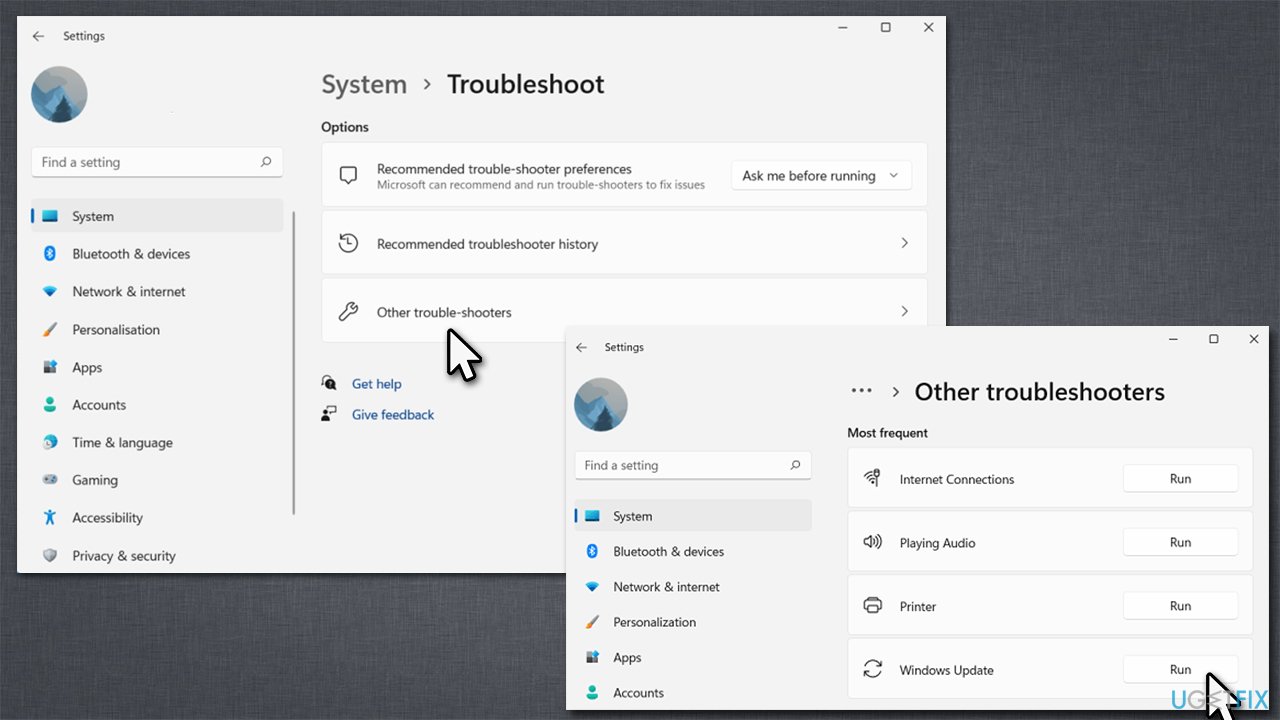
How to fix kb5016138 fails to install on windows run troubleshooter
Solution 2. Run SFC and DISM
If the corrupted system files are causing the updates to fail, you can try the following method:
- Type cmd in Windows search
- Right-click on Command Prompt and pick Run as administrator
- When User Account Control shows up, click Yes
- Use the following command lines, pressing Enter after each:
sfc /scannow
DISM /Online /Cleanup-Image /CheckHealth
DISM /Online /Cleanup-Image /ScanHealth
DISM /Online /Cleanup-Image /RestoreHealth - Restart your PC.
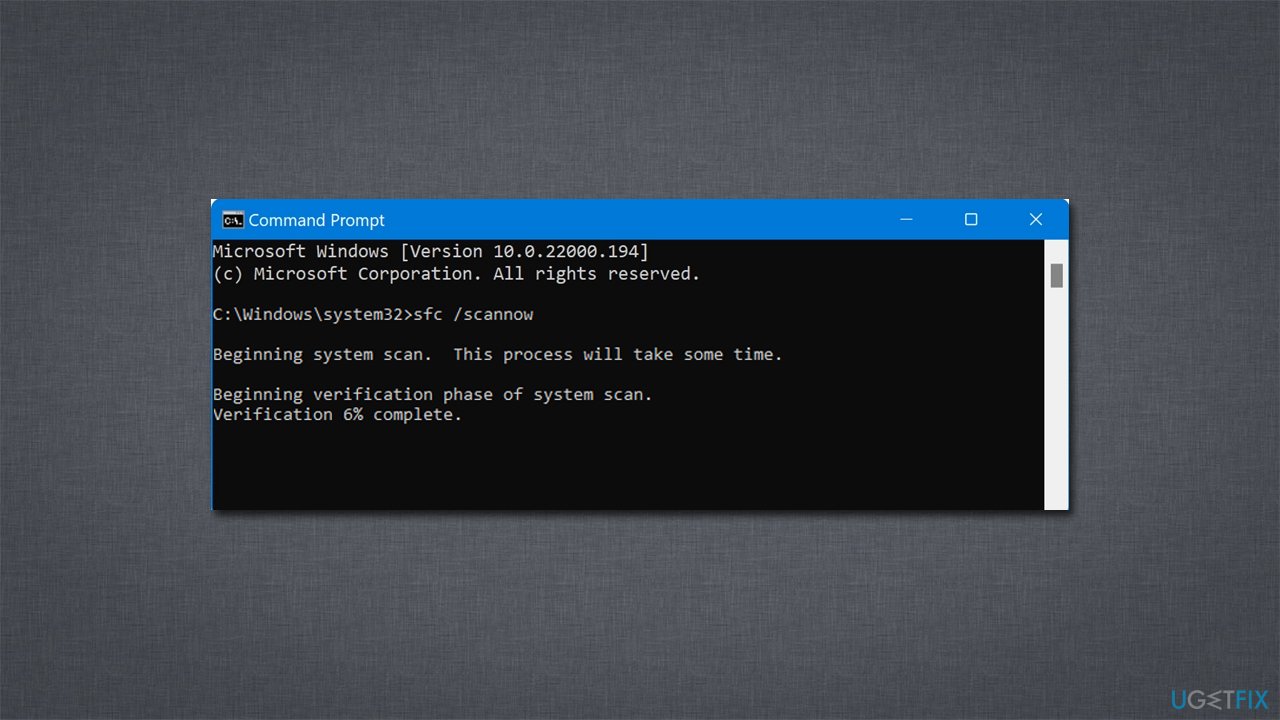
How to fix kb5016138 fails to install on windows run sfc dism
Solution 3. Hide the update [workaround]
Many people complained that Windows keeps bothering them about the update they can't install. If that's the case, you can simply hide the update until Microsoft addresses the issue with KB5016138.
- Download the Show or Hide Updates Troubleshooter from the Microsoft website [direct download link]
- Launch the wushowhide.diagcab file to begin the installation
- Select Advanced and then Apply updates automatically, clicking Next after
- Pick Hide updates, select KB5007651 from the list, and click Next
- Apply changes and click Close.
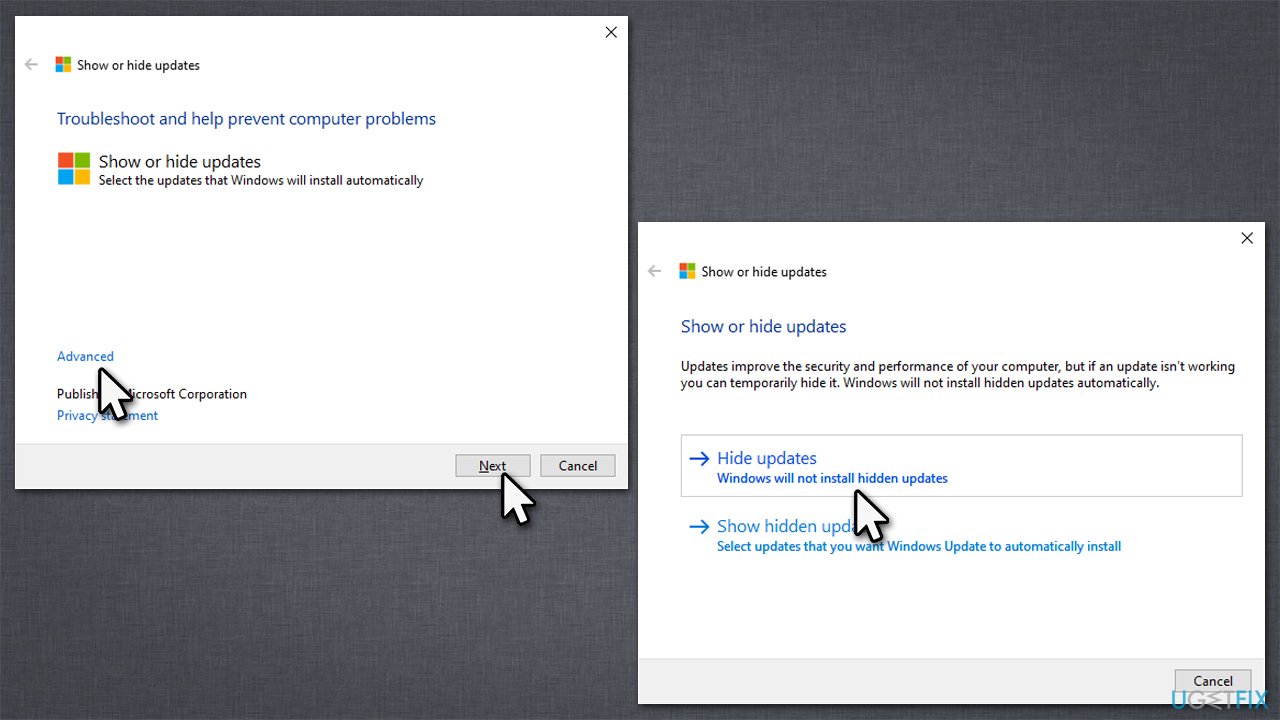
How to fix kb5016138 fails to install on windows use hide update troubleshooter
Solution 4. Reset Windows update components
Windows update caches might get bugged. Resetting Windows update components might be helpful.
- Open Command Prompt as administrator as explained above
- In the new window, paste in each of these commands, pressing Enter every time:
net stop bits
net stop wuauserv
net stop appidsvc
net stop cryptsvc
Del “%ALLUSERSPROFILE%\Application Data\Microsoft\Network\Downloader\*.*”
rmdir %systemroot%\SoftwareDistribution /S /Q
rmdir %systemroot%\system32\catroot2 /S /Q
regsvr32.exe /s atl.dll
regsvr32.exe /s urlmon.dll
regsvr32.exe /s mshtml.dll
netsh winsock reset
netsh winsock reset proxy
net start bits
net start wuauserv
net start appidsvc
net start cryptsvc - Restart your system.
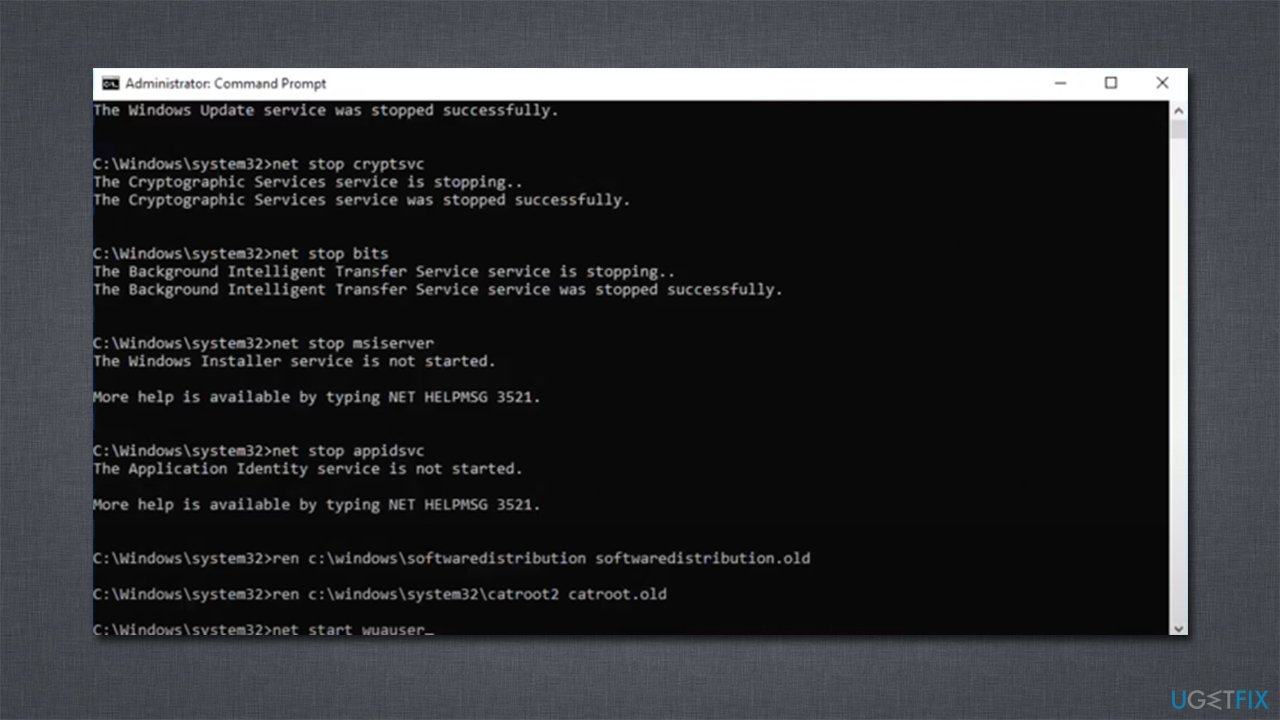
How to fix kb5016138 fails to install on windows reset windows update components
Solution 5. Turn off S mode [workaround]
Many users who had an issue with installing the update said they were using S mode.[ref en-3] Try disabling it if applicable:
- Open Settings and select System
- Pick Activation
- In the Switch to Windows 11 Pro se, click the Open Store button
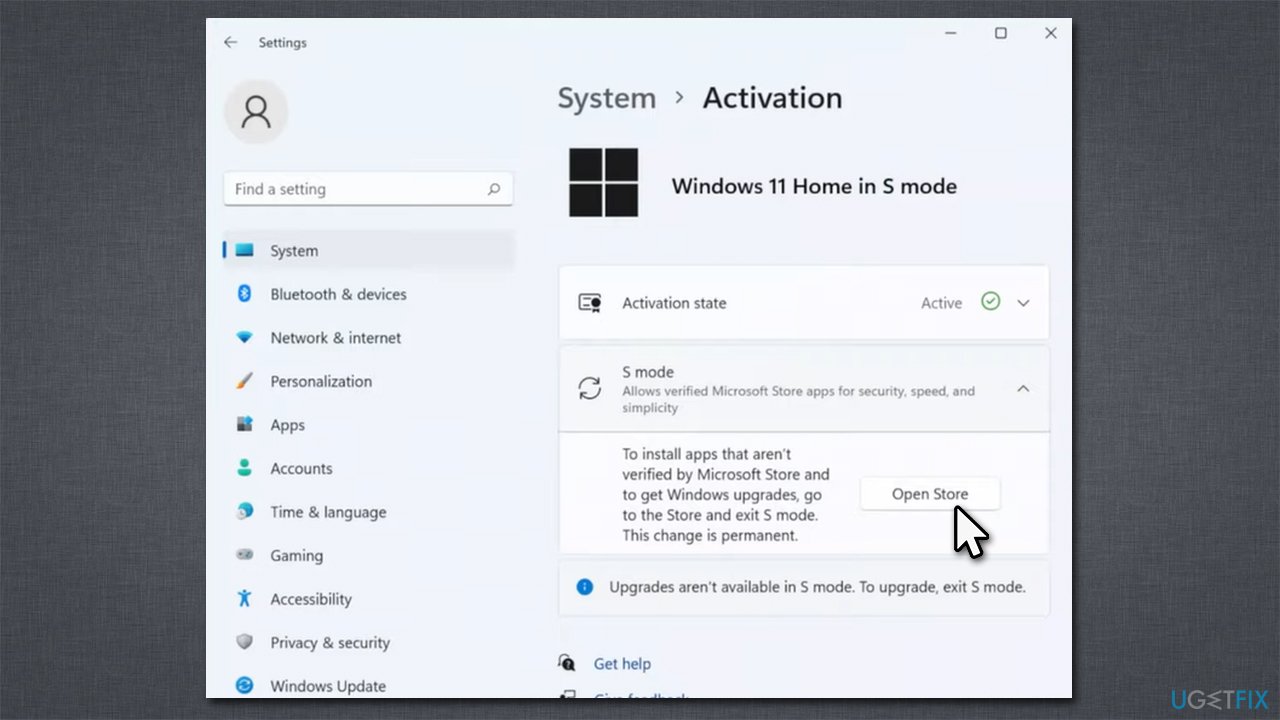
How to fix kb5016138 fails to install on windows disable s mode - In the store, click Get
- Restart your system and try updating again.
Solution 6. Install the update manually
- Open your browser and go to Microsoft Update Catalog
- Type in KB5016138 and click Search
- Find the correct version of the update for your operating system (to check this, right-click on Start and pick System. Under Device specifications and check the System type) and click Download
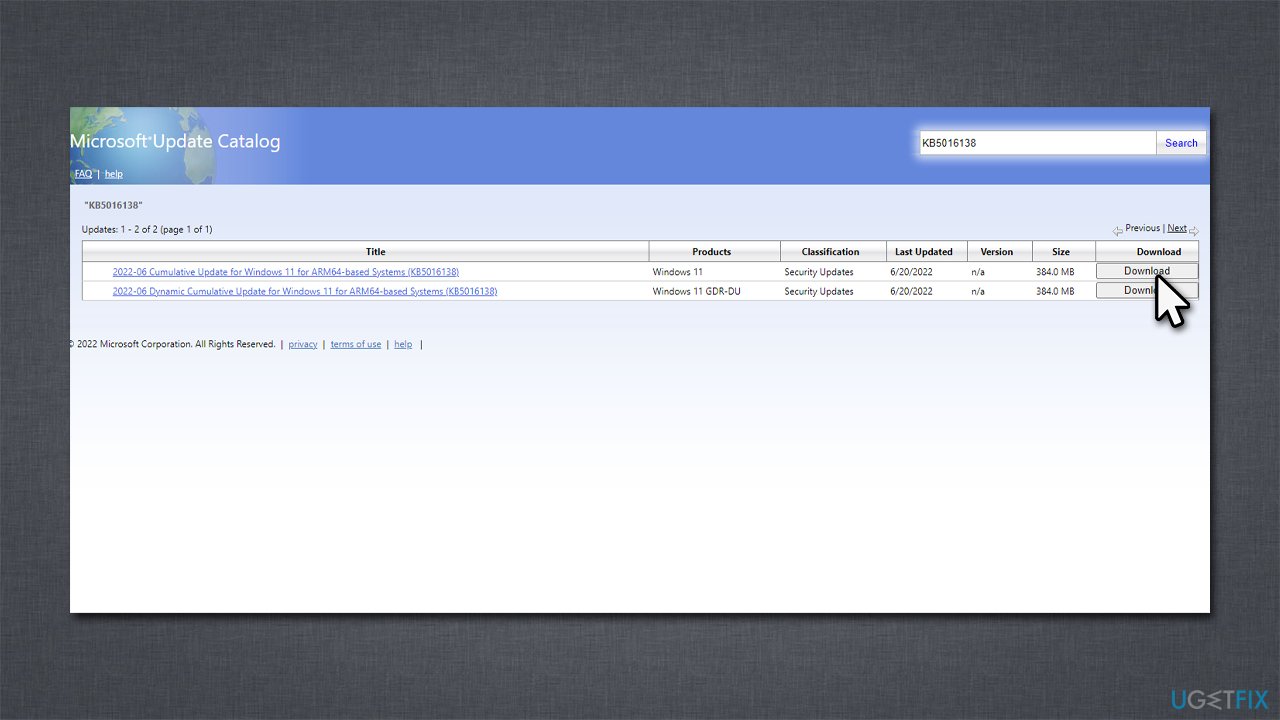
How to fix kb5016138 fails to install on windows update manually - Use on-screen guidelines to finish the installation process and restart your PC.
Bottom line
To fix the KB5016138 installation failure, you can start by running the Windows Update troubleshooter, which may identify and resolve issues. Additionally, consider scanning for system file corruption and applying suggested fixes. If none of these solutions work, further investigation may be necessary.
Frequently asked questions
Common reasons include corrupted system files, insufficient disk space, or conflicts with third-party software. Ensuring your system is updated and running a disk cleanup can help resolve these issues.
You can manually download the KB5016138 update from the Microsoft Update Catalog website and install it by running the downloaded file. Make sure to select the correct version for your Windows 10 or Windows 11 system.
If the update continues to fail, consider running the Windows Update Troubleshooter or performing a system restore to roll back to a previous state. Additionally, check for any pending updates that might be blocking the installation.




Report an issue
What's wrong with this guide? We review every report and update or remove content.
Report received — thank you. We'll review and fix it.
You need a free account to submit a report.
Be the first to comment