
How to fix KB5016616 fails to install on Windows?

Prefer to fix it yourself? The manual steps follow.
6 methods in this guide
Hello, the KB5016616 fails to install on Windows every time I try doing so. Restarting the system does not work, and I'm tired of waiting. Any ideas on how to fix this issue?
Microsoft was getting ready to release its set of updates for different versions of Windows on August 9 as a part of its Patch Tuesday schedule, and KB5016616 is one of the updates that was meant to be released for Windows 10 versions 20H2, 21H1, and 21H2 (OS Builds 19042.1889, 19043.1889, and 19044.1889).
The update is yet another important release by Microsoft, as it addresses tons of issues, including resolving serious bugs: video playback failing in games that use DX12, troubleshooters not launching, search box visualization issues when using multiple monitors, and issues with sound effects of games XAudio API to play sound effects. It also fixes numerous bugs and improves the performance of Windows.
KB5016616 is a mandatory update, and its installation should be triggered automatically. However, some people might not be able to enjoy the new features, bug fixes, and security improvements because the update may simply fail to install.
It is not uncommon for Windows updates to fail, and some machines are more prone to that. In fact, some people might encounter errors like 0x8000ffff, 0x8007007e, 0x80070246, and many others when trying to update Windows. Likewise, there is usually a problem with particular updates that fail to install (KB5015885, KB5014699, KB5015807, etc.), and thousands of people can't get them to install.
There could be numerous reasons why KB5016616 is not installing. For example, people might have corrupted system files or bugged update caches that might not allow the process to go through. Likewise, poor internet connection or relevant services might hinder the successful update.
The app can fix BSODs, registry corruption, DLL errors, system crashes, and similar common issues on Windows quickly and easily.
Fix 1. Run the troubleshooter
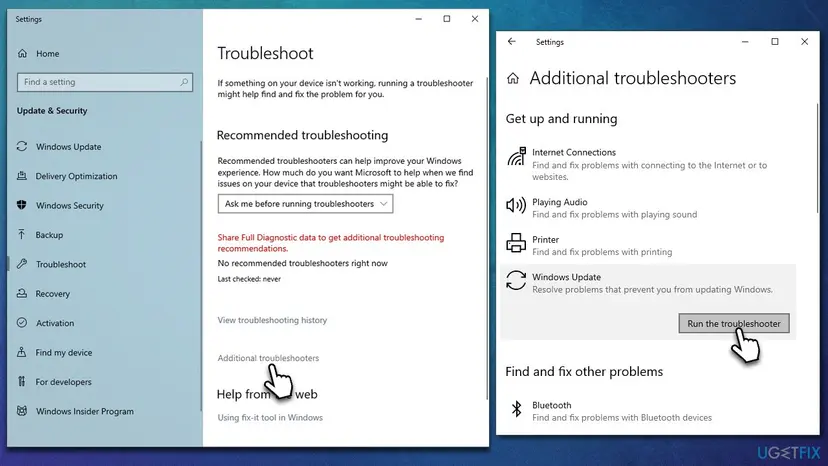
If you haven't yet, make sure you run the built-in Windows Update troubleshooter. While it may not always fix the underlying issue, it can point in the right direction, easing the recovery process.
- Type Troubleshoot in Windows search
- Select Additional troubleshooters
- Find Windows Update from the list
- Click it and select Run the troubleshooter
- Restart your computer once the update process is finished.
Fix 2. Check relevant services
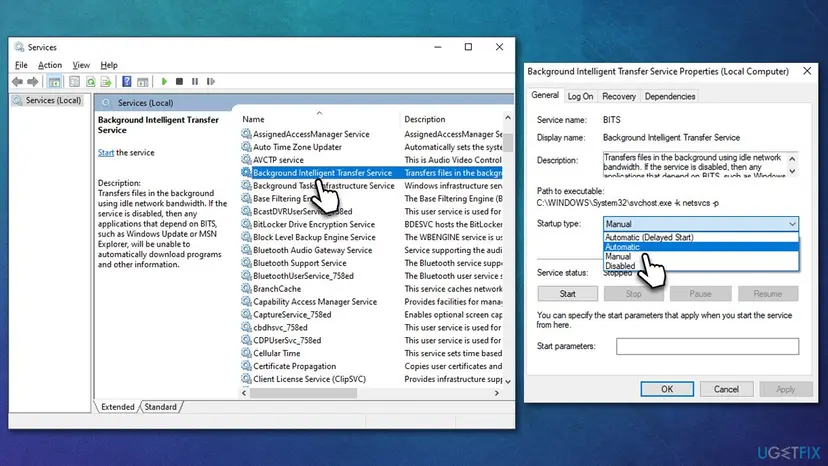
For the update process to be smooth, BITS (Background Intelligent Transfer Service) and Windows Update services need to be active and running. Sometimes, restarting these services can also help.
- Type in Services in Windows search and press Enter
- Locate Background Intelligent Transfer Service (BITS)
- If it is already running, right-click and select Restart
- if the service is not running, double-click it, select Automatic under the Startup type from the drop-down menu
- Click Start, Apply, and OK
- Locate Windows Update Service and repeat the process above.
Fix 3. Check system files with SFC and DISM
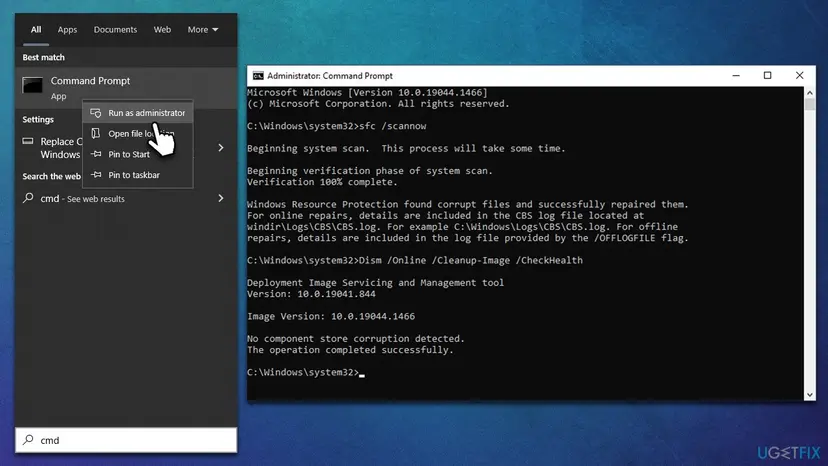
System file corruption can occur under various circumstances, including incorrectly installed updates, malware infections, improperly removed programs, and similar. Windows is capable of repairing this damage via the elevated Command Prompt, as long as the correct commands are used.
- Type cmd in Windows search
- Right-click on Command Prompt and pick Run as administrator
- Copy and paste the following command into the new window:
sfc /scannow - Press Enter and wait till the scan is finished
- Once done, run the following set of commands, pressing Enter after each:
DISM /Online /Cleanup-Image /CheckHealth
DISM /Online /Cleanup-Image /ScanHealth
DISM /Online /Cleanup-Image /RestoreHealth - Restart your machine.
Fix 4. Reset Windows Update Components
- Open Command Prompt as administrator, as we explained above
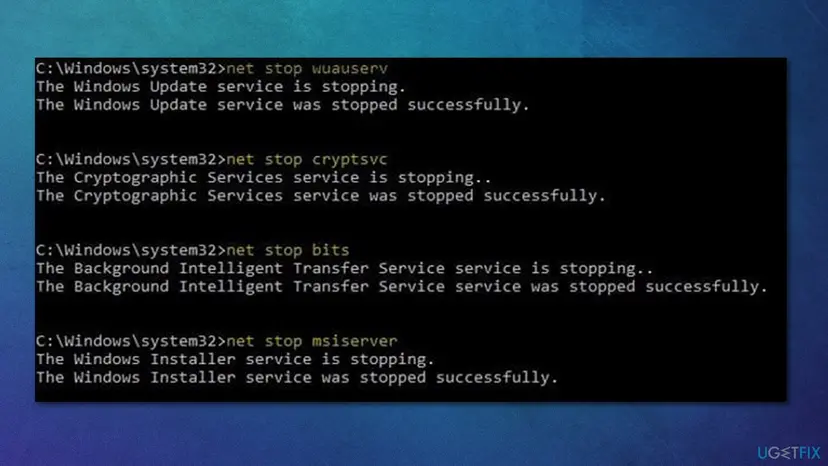
- Copy and paste each of the command lines, pressing Enter after each and waiting till each of the commands is executed properly:
net stop bits
net stop wuauserv
net stop appidsvc
net stop cryptsvc
Del "%ALLUSERSPROFILE%\Application Data\Microsoft\Network\Downloader\*.*"
rmdir %systemroot%\SoftwareDistribution /S /Q
rmdir %systemroot%\system32\catroot2 /S /Q
regsvr32.exe /s atl.dll
regsvr32.exe /s urlmon.dll
regsvr32.exe /s mshtml.dll
netsh winsock reset
netsh winsock reset proxy
net start bits
net start wuauserv
net start appidsvc
net start cryptsvc - Restart your computer and attempt to update Windows once again.
Fix 5. Temporarily disable or uninstall third-party security software
Many users who had problems with installing Windows updates concluded that security software from third parties installed on the system prevented the process from being successful. Overly aggressive anti-malware might sometimes meddle with Microsoft server connections and prevent the update from going through.
Also, there are plenty of other changes that anti-malware does to one's system, so it may trigger issues in some cases. Thus, we recommend you temporarily uninstall or disable your security software and try downloading the KB5016616 update again.
Fix 6. Use Media Creation Tool
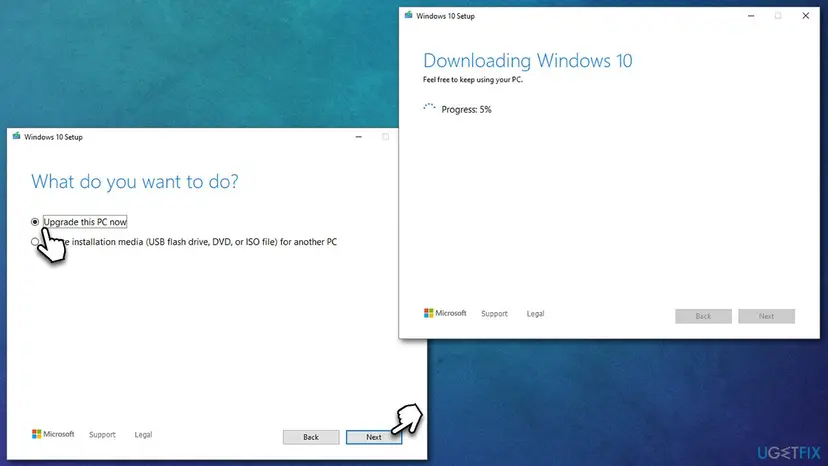
Windows Media Creation Tool can help you restore your system to a good condition where errors would simply go away. Before proceeding, make sure you disconnect any unnecessary external devices such as printers or cameras and backup any important personal files as a precautionary measure.
- Visit the official Microsoft website and download Windows 10 installation media
- Double-click the installer and select Yes when UAC shows up
- Agree to terms and click Next
- Select Upgrade this PC now and click Next
- Wait till Windows downloads all the necessary files
- Restart your PC once finished.
Did this fix work?
One click, no account. It tells the next reader which guides are worth their time.
Questions and experiences: fix KB5016616 fails to install on Windows
Still broken, or found a fix we did not cover? Ask here: members and our editors answer. Reading is open; writing needs a free account.
…