How to fix
KB5016691 fails to install
on Windows
Resolve the KB5016691 installation error in Windows 10 and 11 with our expert-tested troubleshooting tips. Get your system running smoothly—fixed in min…

What causes How to fix KB5016691 fails to install in Windows?
- Microsoft servers issues
- Internet connection problems
- Persistent installation failure
- Generic error message
- Various error codes reported
Repairs Windows system files, removes malware, and restores a clean OS state — without reinstalling.
Hello, I have tried to install the Windows 11 KB5016691 update several times, but it failed with an error during the installation process every time. Is there anything that could be done to fix this, please?
Windows is an always-changing operating system that is constantly being improved by its developers at Microsoft. In 2015, with the release of Windows 10, the operating system was introduced as a service, which means that users would be receiving improvements on a regular basis.
Microsoft ships updates on the second Tuesday of every month, the practice is commonly addressed as Patch Tuesday[ref en-1] (although out-of-band updates may be provided at any time). On August 25th, Microsoft was set to release Windows 11 Build 22000.917 under the code KB5016691.
The newest update, while optional (and non-security), was set to fix multiple bugs[ref en-2] within the newest Windows version, including Auto HDR[ref en-3] issues, Microsoft Edge not responding in IE mode, problems with opening App-V MS Office applications, and much more. Besides, the update is packed with new features that so many people are fond of trying out themselves.
Unfortunately, not everyone was lucky to get the new update in, as many people reported that KB5016691 failed to install for them. The error message is quite generic, which simply points to the fact that the update couldn't be installed.
While, in some cases, the reason may lie within Microsoft servers or internet connection issues (which would result in the error fixing itself automatically after a while), the installation failure is usually persistent.
People reported several different error codes when KB5016691 does not install, including 0x80073701, 0x80248014, and a few others - your error code may differ as well. We have seen similar issues with other Windows builds, including KB5016616, KB5012170, KB5015807, and many others.
Below you will find several useful tips that could help you resolve the issue with Windows update failures. However, we recommend you check out an automatic repair tool first - it may be able to repair underlying system issues and resolve the matter automatically for you.
Solution 1. Disable third-party anti-malware
When it comes to troubleshooting Windows update installation problems, there are certain elements that apply to most situations. This is why we advise uninstalling third-party security software if one is active on your device.
Once such an app is installed, it modifies the OS at the kernel level, which affects how Windows responds to certain activities and software/update installations. You can either disable the real-time protection feature on your anti-malware or temporarily uninstall the app.
Solution 2. Run the troubleshooter
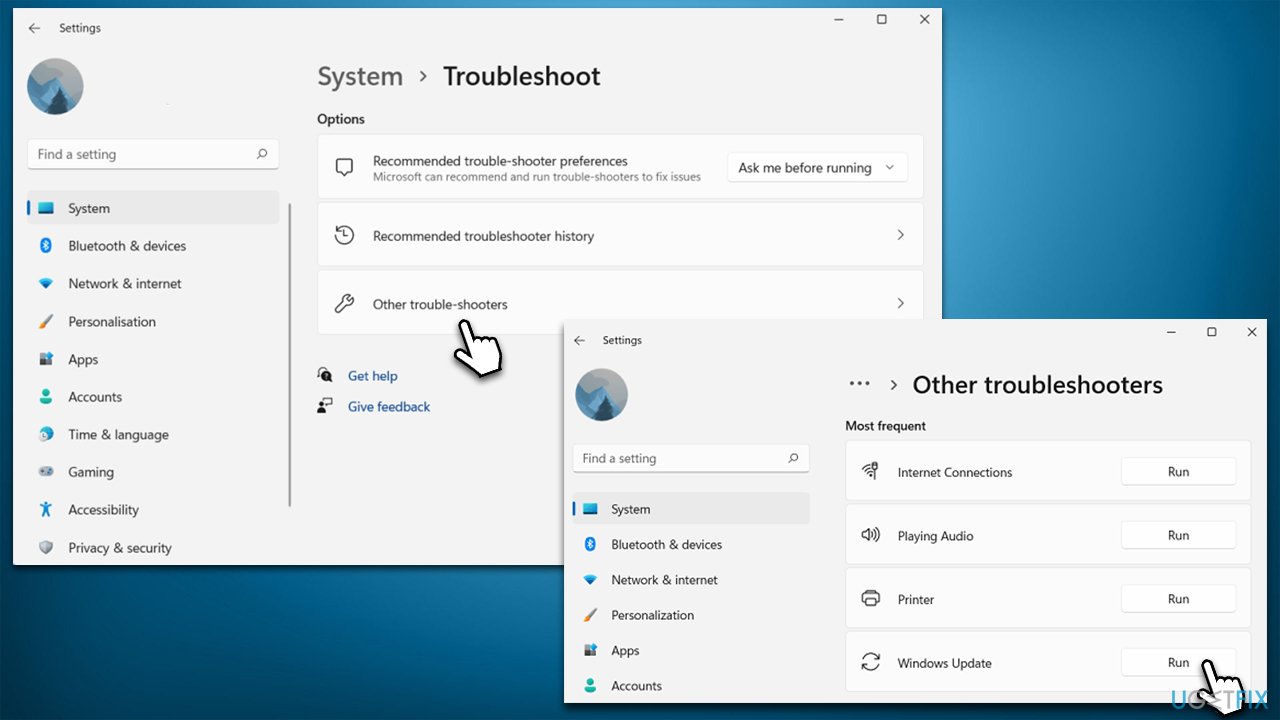
Troubleshooters can oftentimes be very useful when diagnosing and repairing system issues. Run it as follows:
- In Windows search, type in troubleshoot and press Enter (you can also go to Start > Settings > System > Troubleshoot)
- Pick Other trouble-shooters (in Windows 10, pick Additional troubleshooters)
- Scroll down to locate the Windows Update option and click Run
- Wait till the scan is finished, apply the changes, and try running the update process once again.
Solution 3. Reset Windows Update components
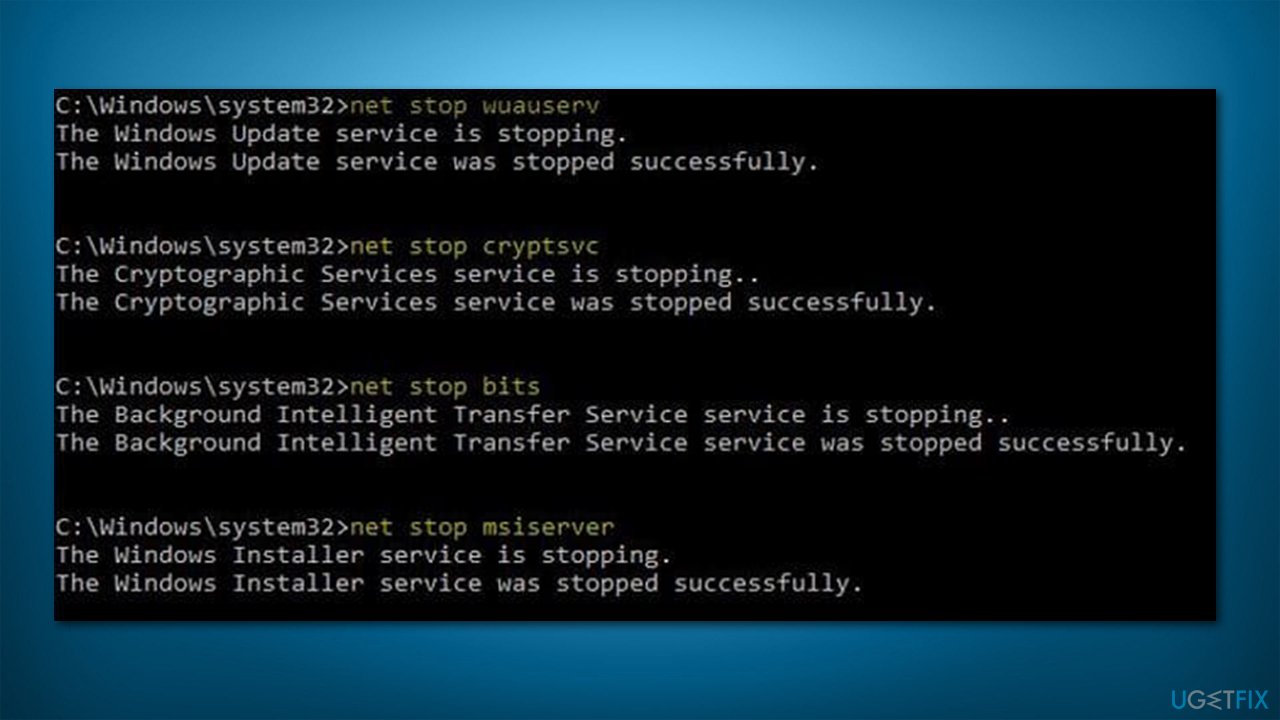
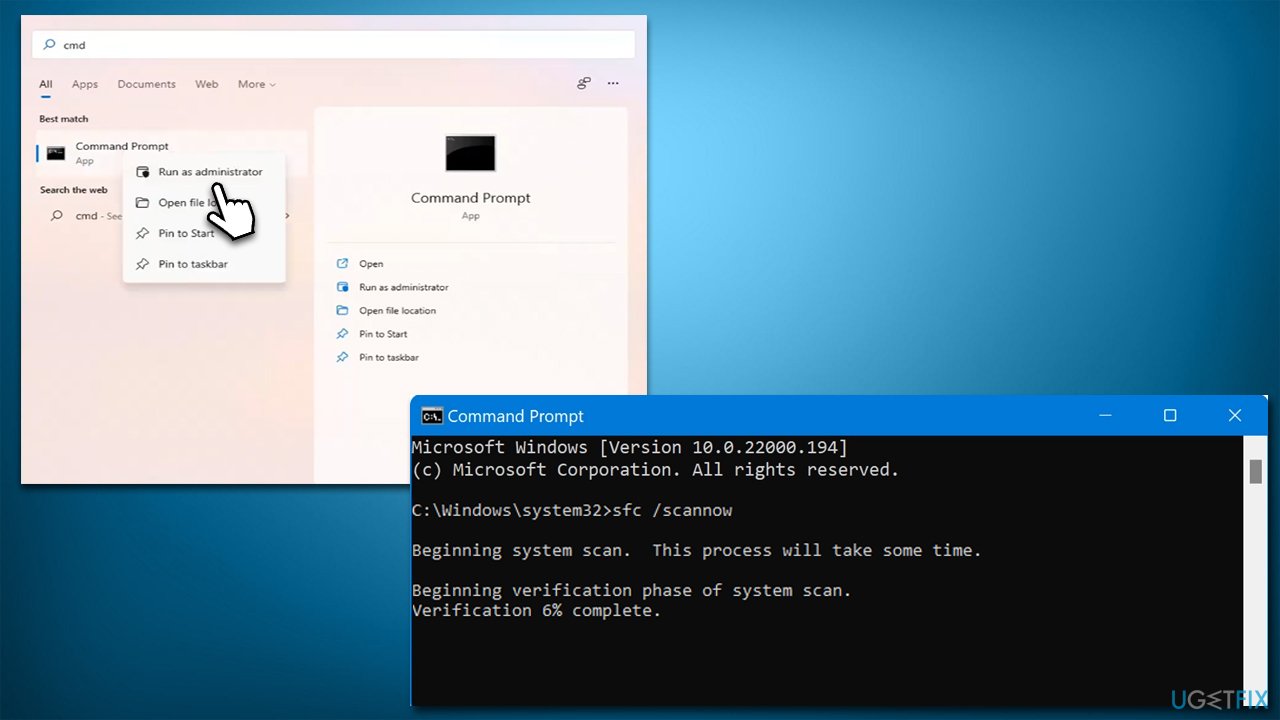
- Type cmd in Windows search, right-click Command Prompt and select Run as administrator
- Once User Account Control shows up, click Yes
- In the new window, copy and paste each of these commands, pressing Enter every time:
net stop bits
net stop wuauserv
net stop appidsvc
net stop cryptsvc
Del "%ALLUSERSPROFILE%\Application Data\Microsoft\Network\Downloader\*.*"
rmdir %systemroot%\SoftwareDistribution /S /Q
rmdir %systemroot%\system32\catroot2 /S /Q
regsvr32.exe /s atl.dll
regsvr32.exe /s urlmon.dll
regsvr32.exe /s mshtml.dll
netsh winsock reset
netsh winsock reset proxy
net start bits
net start wuauserv
net start appidsvc
net start cryptsvc - Restart your device and try updating again.
Solution 4. Repair system corruption
- Open Command Prompt as administrator as explained above
- Copy and paste in the following command lines, pressing Enter after each:
sfc /scannow
DISM /Online /Cleanup-Image /CheckHealth
DISM /Online /Cleanup-Image /ScanHealth
DISM /Online /Cleanup-Image /RestoreHealth - Restart your computer.
Solution 5. Try installing the update manually
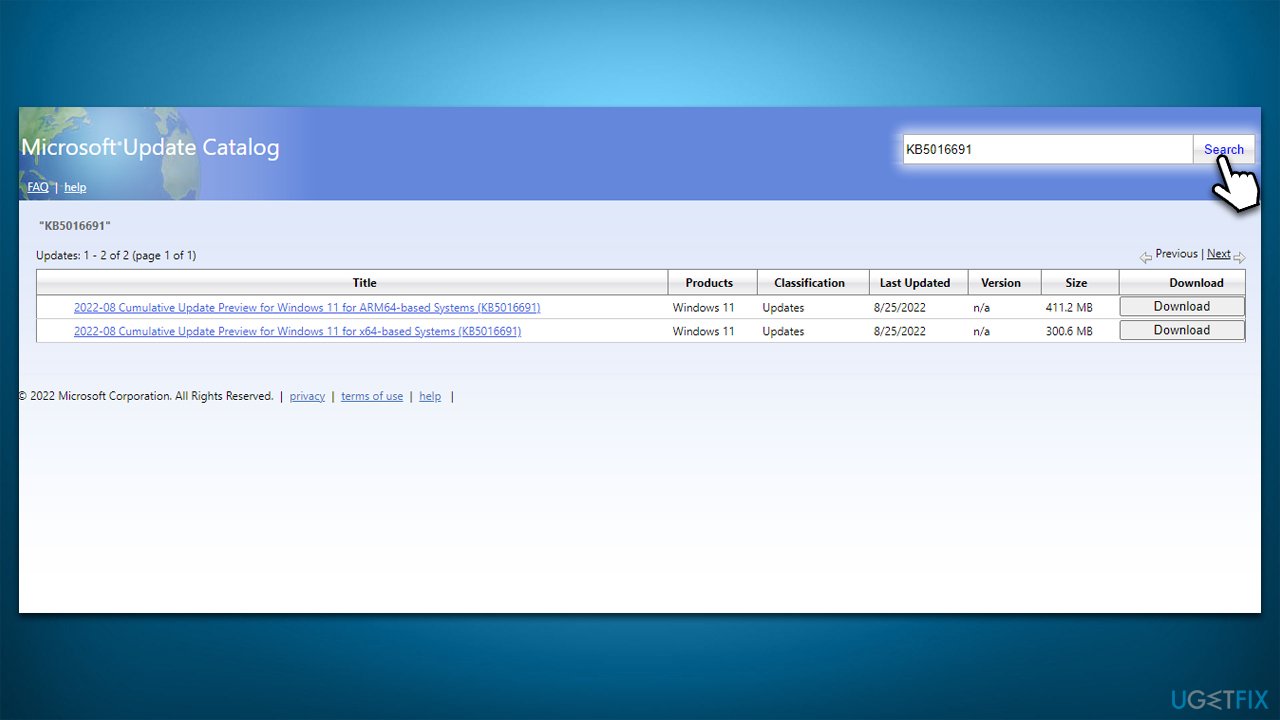
- Go to Microsoft Update Catalog
- Here, type in the KB number and click Search
- Pick the version that is compatible with your operating system (ignore updates for the server) and click Download
- Proceed with on-screen instructions and restart your system once done.
Solution 6. Use Media Creation Tool
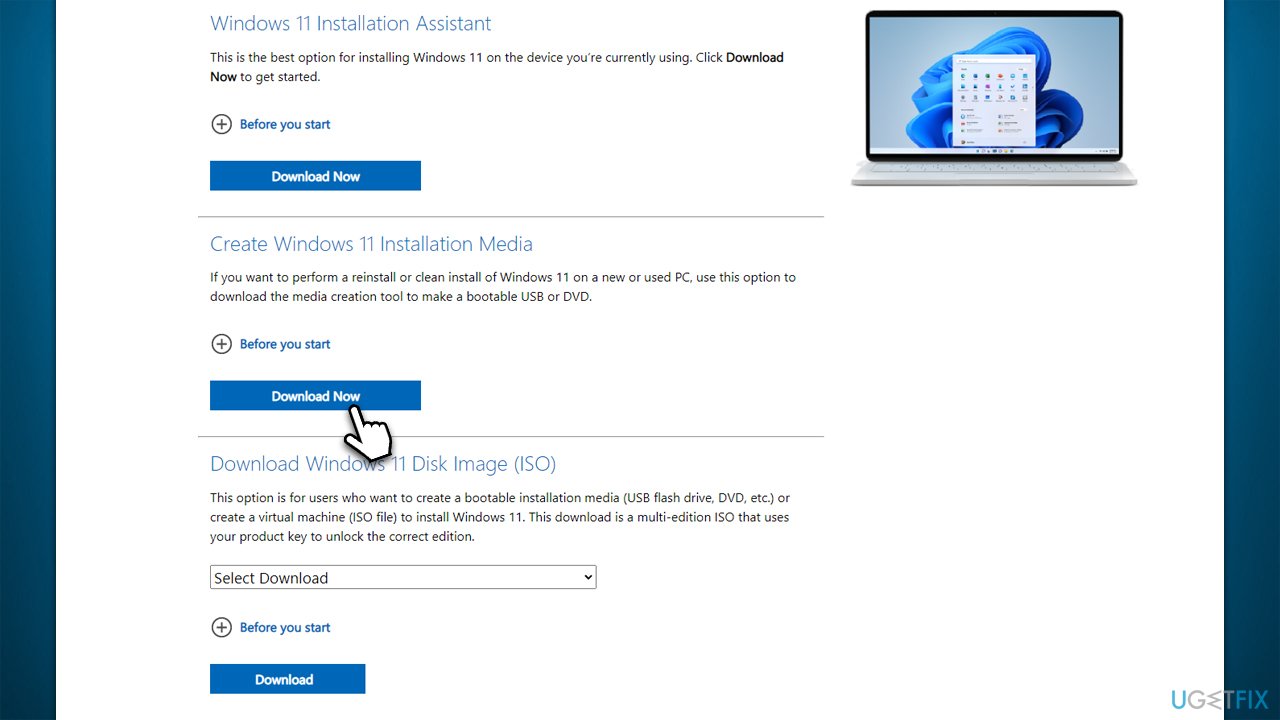
If you are really keen to install the update, you can try using Media Creation Tool from Microsoft, it may require a bit more time, though.
- Visit the official Microsoft website and download Windows installation media
- Double-click the installer and select Yes when UAC shows up
- Agree to terms and click Next
- Select Upgrade this PC now and select Next
- Windows will now download all the necessary files – it might take sometime
- Agree to terms once again and click Next
- Before installing, make sure that you are happy with your choices (otherwise, you can click Change what to keep option)
- Click Install to begin the upgrade process.
Bottom line
To fix the KB5016691 installation failure, you can try using an automatic repair tool to address underlying system issues. Additionally, check for any internet connectivity problems or wait for potential server-side resolutions. If these solutions do not work, consider exploring other troubleshooting methods or seeking further assistance.
Frequently asked questions
Try running the Windows Update Troubleshooter, which can help identify and resolve common issues related to updates. You can access it through Settings > Update & Security > Troubleshoot.
Yes, common error codes like 0x800f0922 or 0x8007000d may indicate issues that need to be addressed before the update can be successfully installed.
Visit the Microsoft Update Catalog website, search for KB5016691, and download the appropriate version for your system, then install it manually.




Report an issue
What's wrong with this guide? We review every report and update or remove content.
Report received — thank you. We'll review and fix it.
You need a free account to submit a report.
Be the first to comment