How to fix
KB5017308 fails to install
on Windows
Resolve the KB5017308 installation error on Windows 10 efficiently. Follow our expert-tested solutions to get your system running smoothly again, fixed …

What causes How to fix KB5017308 fails to install on Windows 10?
- Corrupted system files
- Insufficient disk space
- Conflicting software or drivers
- Network connectivity issues
- Malware interference
Repairs Windows system files, removes malware, and restores a clean OS state — without reinstalling.
[ref 1]Hello, I have been trying to install the latest Windows 10 update KB5017308, but to no avail, I keep getting errors and messages that the update failed. Can you provide me with a few tips on how to resolve this situation? I have been trying since it's been released a few days ago now.
Microsoft offers Windows OS as a service, so users can always anticipate receiving updates. People might get many different kinds of updates, including security, bug fixes, and others. The company releases most of these types every second Tuesday of every month - the phenomenon broadly known as Patch Tuesday[ref en-1] - which makes the cycle more predictable.
KB5017308 was released on September 13, 2022; the new build for Windows 10 versions 21H2, 21H1, and 20H2. Just like any other release, this one was packed with changes and improvements, primarily those focusing on security. Naturally, users might want to install this package as soon as possible to make sure that their systems are thoroughly secured and that no security vulnerabilities[ref en-2] can compromise them.
Unfortunately, not all updates can be successfully applied, as users reported that KB5017308 failed to install on their systems. Usually, failures to install Windows updates are automatically resolved within a few hours or days due to some underlying issues, although some people might try for weeks without success.
While it is indeed true that updates might cause some users to experience serious issues, it is only a small percentage of people experiencing them, particularly because of the unique configurations they are running, leading to unexpected consequences. This also applies to Windows update failures that previously occurred with KB5017390, KB5016688, KB5016691, and many others.
The good news is that, in most cases, users can take a few actions to fix the KB5017308 installation failures with the help of a few troubleshooting steps. Before proceeding with the instructions below, we recommend you try to resolve the problem automatically with [d1] - a potent PC repair tool that can fix malware[ref en-3] damage, replace damaged system components, and clean the device from junk files/trackers for better performance and online privacy.
Fix 1. Run the troubleshooter
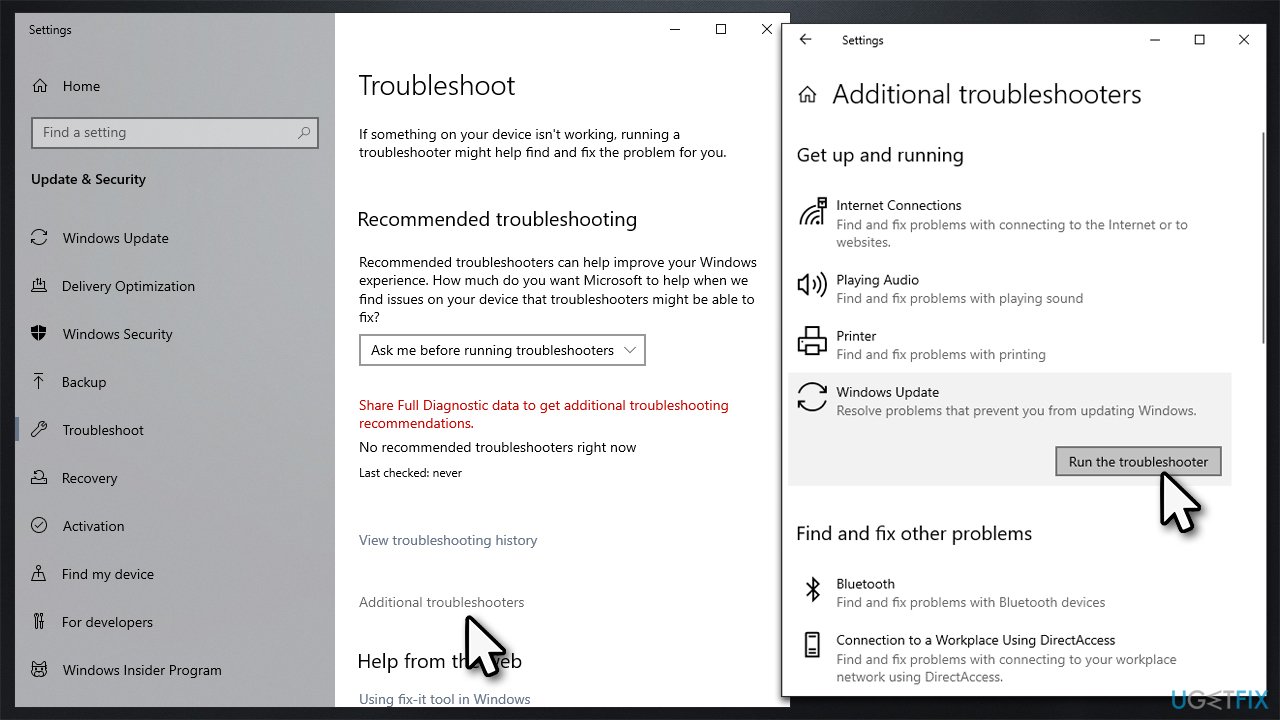
We recommend starting with the troubleshooter - a built-in Windows component that helps users find and repair issues within the system.
- Type Troubleshoot in Windows search
- Select Additional troubleshooters
- Find Windows Update from the list
- Click it and select Run the troubleshooter
- Apply the suggested fixes and restart your computer.
Fix 2. Disable third-party security software
When it comes to troubleshooting Windows update installation issues, there are several criteria that any situation may be subjected to. This is why, if one exists on the device, we recommend uninstalling third-party security software, as it may tamper with connections to Windows servers.
You can either try to disable the app temporarily; if no luck there, you can also try uninstalling it completely and see if that helps with windows update errors. Likewise, if you are using any other software that could tamper with your connection, such as a VPN, try disabling or/and enabling it and see if that does the trick.
Fix 3. Attempt to repair corrupted files
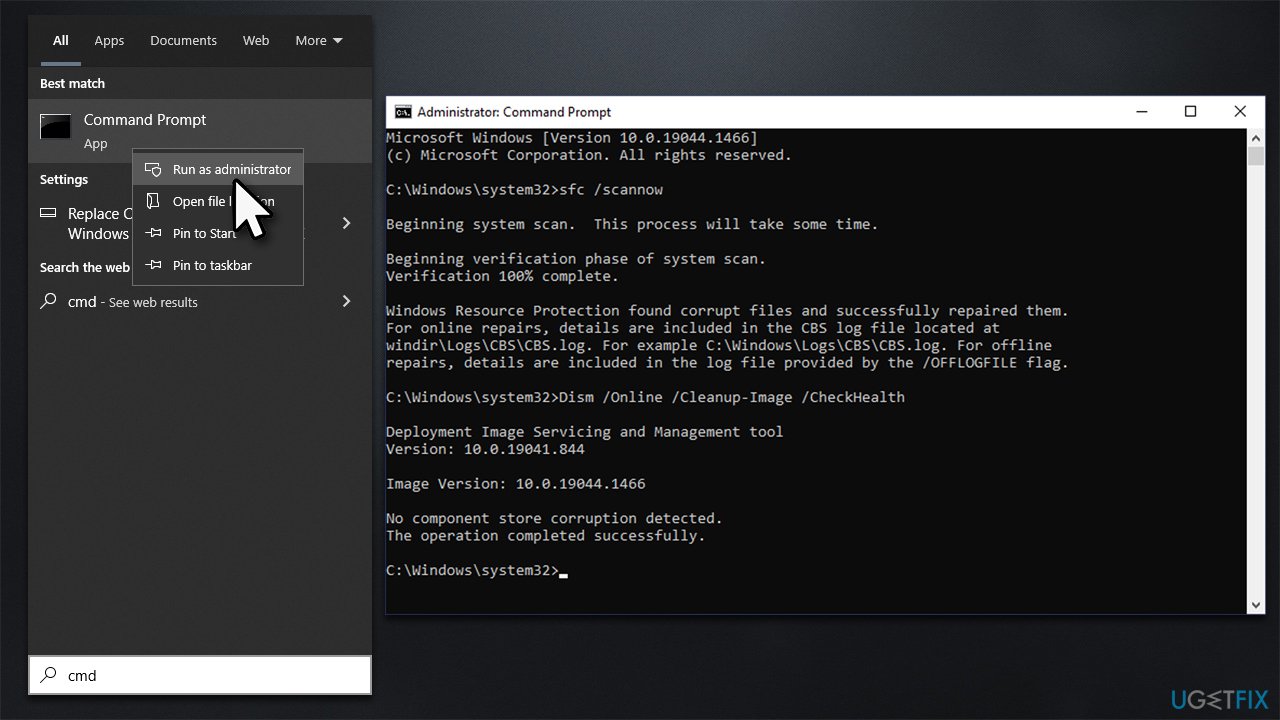
SFC and DISM are scans recommended to perform when certain Windows components are malfunctioning - it could be done via the elevated Command Prompt.
- Type cmd in Windows search
- Right-click on Command Prompt and pick Run as administrator
- Click Yes when User Account Control shows up
- Use the following command lines, pressing Enter each time:
sfc /scannow
DISM /Online /Cleanup-Image /CheckHealth
DISM /Online /Cleanup-Image /ScanHealth
DISM /Online /Cleanup-Image /RestoreHealth - Reboot your device.
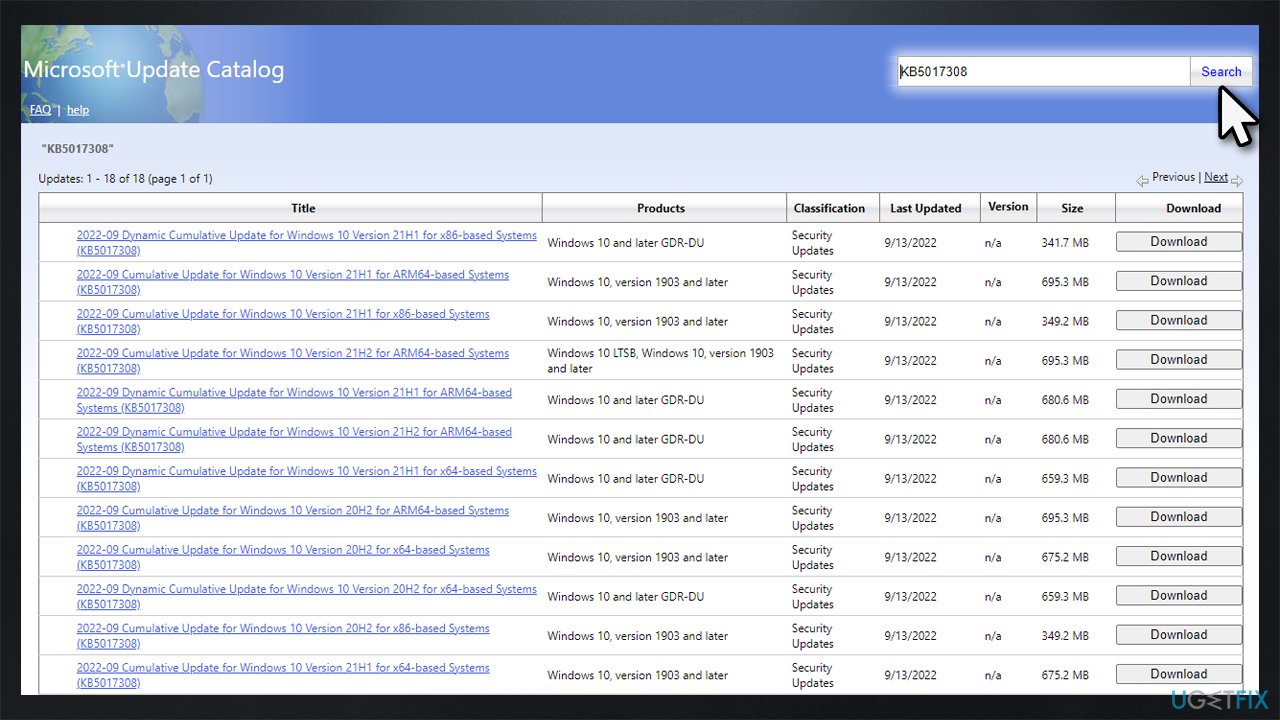
Fix 4. Try downloading manually
- Go to Microsoft Update Catalog
- Here, type in the KB number and click Search
- Pick the version that is compatible with your operating system version (ignore updates for the server) and click Download
- Proceed with on-screen instructions and restart your system once done.
Fix 5. (Re)start related services
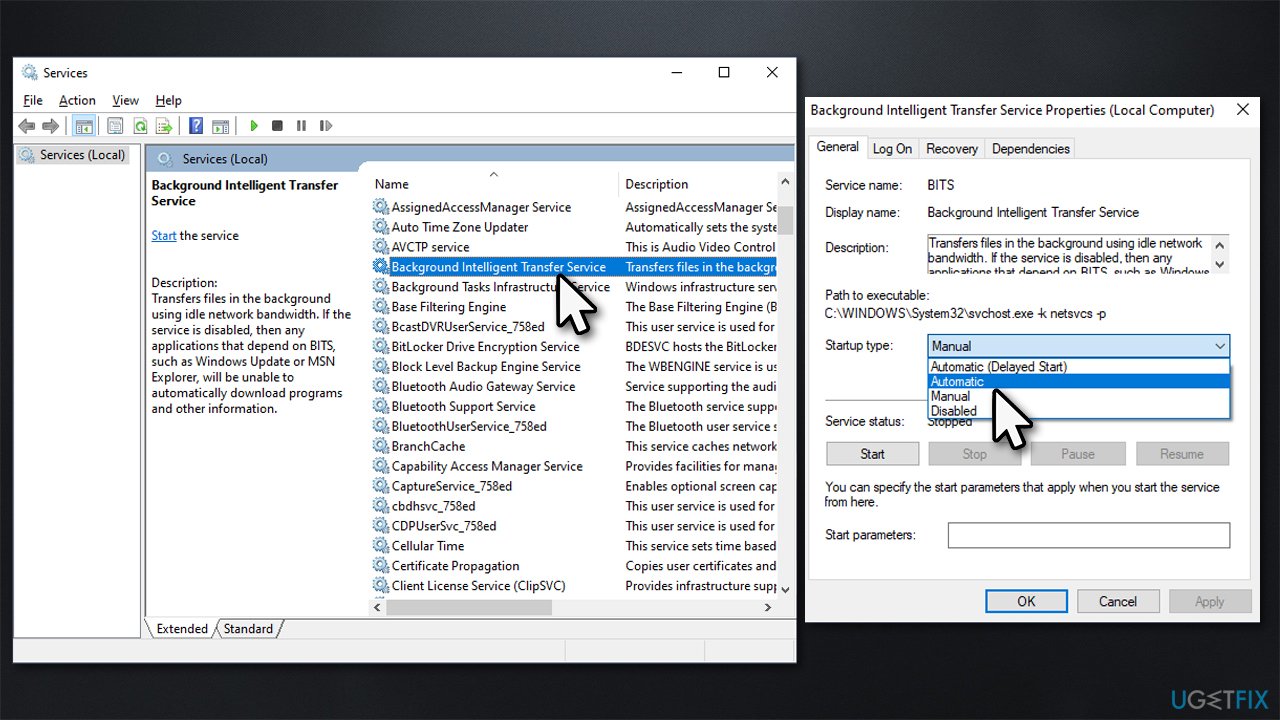
In order for Windows updates to be successful, certain Windows services shouldn't be disabled. If BITS and Windows Update are not up and running, KB5017308 may fail to install:
- Type in Services in Windows search and hit Enter
- Please scroll down to Background Intelligent Transfer Service (BITS) and double-click it
- Under the Startup type section, click on the dropdown menu and pick Automatic, then click on Start, Apply, and OK
- Do the same with Windows Update Service
- Restart your system.
Fix 6. Reset Windows Update Components
If the previous method did not work, try resetting Windows Update Components:
- Open Command Prompt as administrator once again
- In the new window, copy and paste each of these commands, pressing Enter every time:
net stop bits
net stop wuauserv
net stop appidsvc
net stop cryptsvc
Del "%ALLUSERSPROFILE%\Application Data\Microsoft\Network\Downloader\*.*"
rmdir %systemroot%\SoftwareDistribution /S /Q
rmdir %systemroot%\system32\catroot2 /S /Q
regsvr32.exe /s atl.dll
regsvr32.exe /s urlmon.dll
regsvr32.exe /s mshtml.dll
netsh winsock reset
netsh winsock reset proxy
net start bits
net start wuauserv
net start appidsvc
net start cryptsvc - Restart.
Bottom line
To fix the KB5017308 installation failure, users can try troubleshooting steps such as running a system file checker, ensuring there is enough disk space, and checking for any conflicting software. If these solutions do not resolve the issue, consider using a dedicated PC repair tool or seeking further assistance.
Frequently asked questions
First, try running the Windows Update Troubleshooter to automatically detect and fix issues. If the problem persists, consider resetting the Windows Update components manually.
Yes, you can download the standalone update package from the Microsoft Update Catalog website and install it manually. Ensure that you choose the correct version that matches your Windows 10 architecture.
You can check the update history in Windows Settings under 'Update & Security' > 'Windows Update' > 'View update history' to see if KB5017308 is listed as installed. Alternatively, you can run 'winver' in the Run dialog to confirm the version number associated with the update.




Report an issue
What's wrong with this guide? We review every report and update or remove content.
Report received — thank you. We'll review and fix it.
You need a free account to submit a report.
Be the first to comment