How to fix
KB5018482 fails to install
on Windows
Resolve the KB5018482 installation error on Windows 10 quickly and effectively. Expert-tested solutions ensure your updates are fixed in minutes.

What causes How to fix KB5018482 fails to install in Windows 10?
- Graphical issues with D3D9
- Driver-related problems affecting Direct3D 9 games
- Installation errors such as 0x800f0922
- Installation errors such as 0x80070002
- Reversion to previous version during installation
- General Windows update installation errors
Repairs Windows system files, removes malware, and restores a clean OS state — without reinstalling.
How do I install KB5018482 on Windows 10? It just keeps failing every time, and I've been trying for a week already. Please advise if there are any solutions for this. Thanks.
Regularly installing Windows updates is crucial since they typically contain important security patches and bug fixes that protect your computer from malware and hacking attempts. These updates also improve the efficiency and performance of your computer's operating system and software and can include new features to enhance your user experience.
Updates are typically released by Microsoft on a monthly basis, usually on the second or third Tuesday of the month. These updates may include various types, such as feature, cumulative, and security updates, and are identified by a unique KB number.
KB5018482 is one of many updates that were shipped by Microsoft and was tagged as an optional update for Windows 10. It addresses a variety of issues, however, including graphical issues by those using D3D9, issues that affect Microsoft Direct3D 9 games because of the driver, etc. While the update is optional, it fixes many known bugs and should be installed by all users.
Some users couldn't get these fixes due to KB5018482 failing to install on their systems. This Windows update failure is not unique, as many users encounter issues when trying to install the latest patches from Microsoft.
Many users have reported that they encountered errors such as 0x800f0922 or 0x80070002 when trying to install the KB5018482 update. In other cases, no error code was present at all, apparently, and the installation simply stopped at a certain percentage of being finished and then reverted to the previous version.
Just like with any other Windows update installation error, there is no universal solution for all, and you will have to go through several troubleshooting steps before you find one that works for you. If you want to opt for a quicker fix, you can always attempt to resolve Windows issues automatically with [d1].
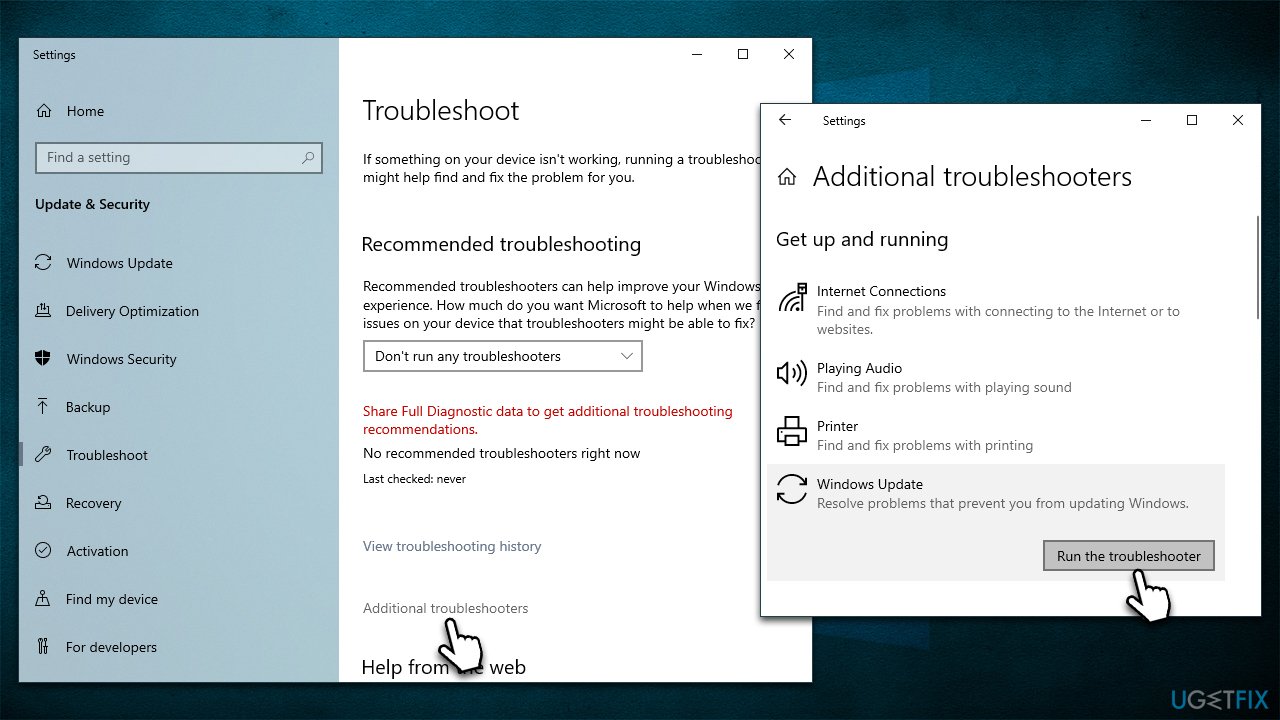
Fix 1. Run the troubleshooter
- Type Troubleshoot in Windows search.
- Select Additional troubleshooters.
- Find Windows Update from the list.
- Click it and pick Run the troubleshooter.
- Apply the suggested steps and restart your device.
Fix 2. Check Windows Update and BITS Services
In order for a Windows update to be successful, it is important that the BITS (Background Intelligent Transfer Service) and Windows Update services are enabled and actively running. If you experience any difficulties during the update process, restarting these services may help to resolve the issues.
- Open the Windows search bar and type Services, and press Enter.
- Scroll through the list of services to locate the Background Intelligent Transfer Service (BITS).
- If the service is currently running, right-click and select Restart.
- If the service is not running, double-click it and select Automatic from the drop-down menu under Startup type.
- Click Start, Apply, and OK.
- Repeat the process for the Windows Update Service.

Fix 3. Temporarily disable or uninstall your third-party security software
Third-party security software, such as antivirus or firewall applications, can sometimes interfere with the Windows update process. This is because these applications may block or restrict the Windows update from accessing the necessary files and resources to complete the update.
Some third-party security software may even flag the Windows update as a potential security threat, which can cause it to be blocked or interrupted. In order to ensure a successful update, it is recommended to temporarily disable or uninstall any third-party security software and then enable it again after the update is completed.
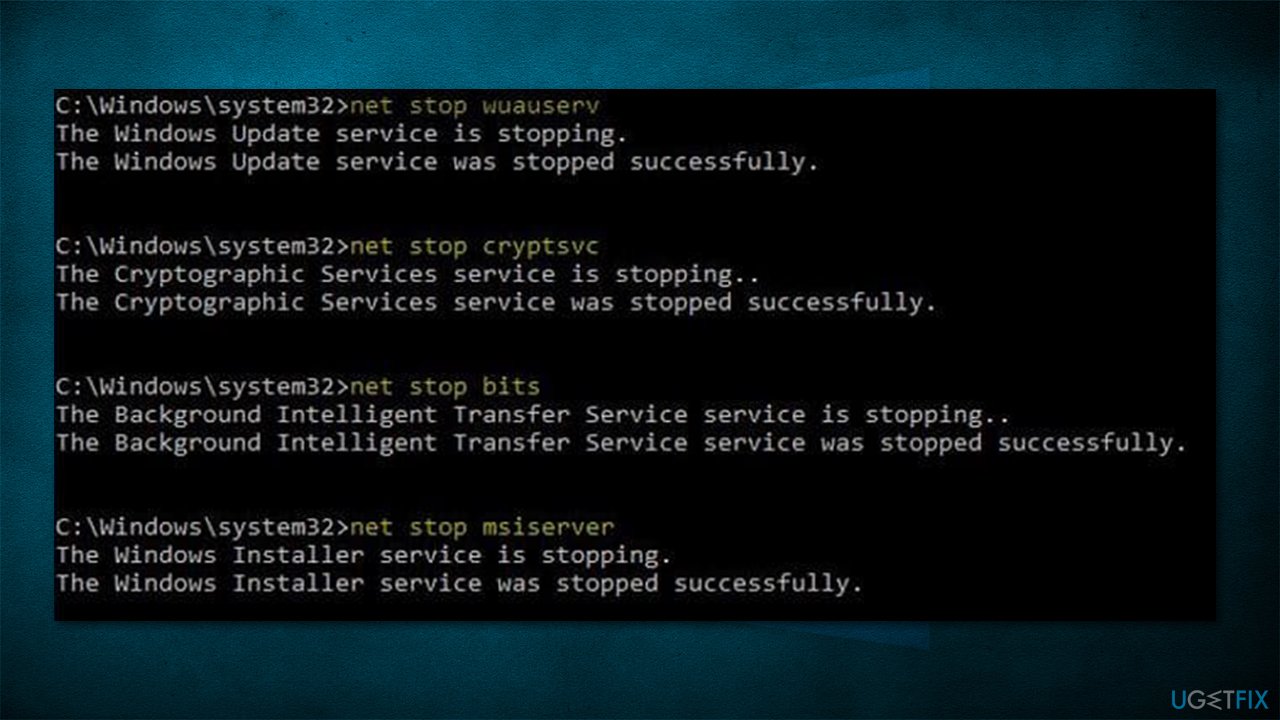
Fix 4. Reset Windows Update Components
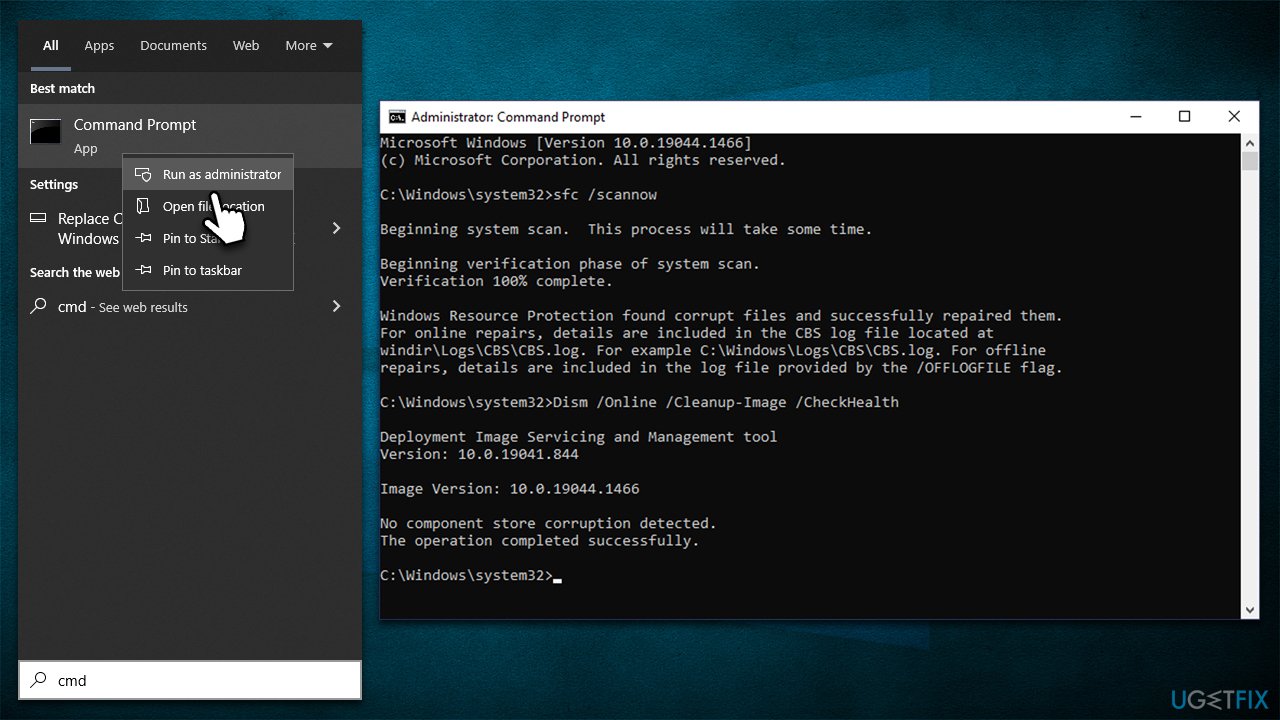
- Type cmd in Windows search.
- Right-click on Command Prompt and pick Run as administrator.
- User Account Control will ask you whether you want to make changes, click Yes.
- Type in the following commands, pressing Enter after each:
net stop bits
net stop wuauserv
net stop appidsvc
net stop cryptsvc
Del "%ALLUSERSPROFILE%\Application Data\Microsoft\Network\Downloader\*.*"
rmdir %systemroot%\SoftwareDistribution /S /Q
rmdir %systemroot%\system32\catroot2 /S /Q
regsvr32.exe /s atl.dll
regsvr32.exe /s urlmon.dll
regsvr32.exe /s mshtml.dll
netsh winsock reset
netsh winsock reset proxy
net start bits
net start wuauserv
net start appidsvc
net start cryptsvc - Restart your PC.
Fix 5. Run SFC and DISM
- Open Command Prompt as administrator, as explained above.
- enter the following command lines one at a time, pressing Enter after each:
sfc /scannow
DISM /Online /Cleanup-Image /CheckHealth
DISM /Online /Cleanup-Image /ScanHealth
DISM /Online /Cleanup-Image /RestoreHealth - Restart your system.
Fix 6. Perform in-place upgrade
While this is something that most people avoid, using Windows ISO files to repair-install the latest version of Windows is actually a very simple process. Before proceeding, please uninstall your third-party security software and disconnect all of the unnecessary peripherals, leaving just the keyboard and mouse. You will retain all your personal files, apps, and settings, so no worries there.
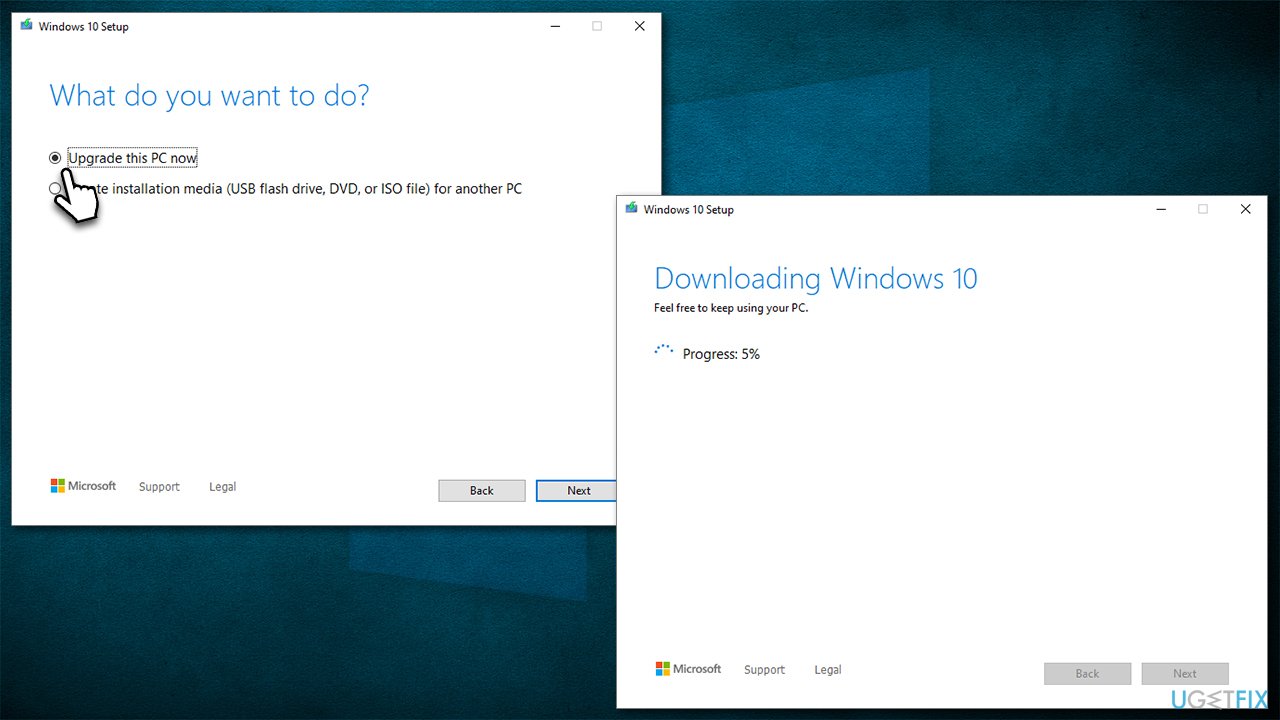
- Visit the official Microsoft website and download Windows 10 installation media.
- Double-click the installer and select Yes when UAC shows up.
- Agree to the terms and click Next.
- Select Upgrade this PC now and click Next.
- Wait till Windows downloads all the necessary files.
- Restart your PC once finished.
Bottom line
To fix the KB5018482 installation failure, you can run the Windows Update troubleshooter and follow the additional troubleshooting steps provided. If these solutions do not resolve the issue, consider using automatic repair tools or seeking further assistance.
Frequently asked questions
First, try running the Windows Update Troubleshooter, which can identify and fix common issues related to Windows updates. If that doesn't work, consider manually downloading and installing the update from the Microsoft Update Catalog.
You can check your system for any pending updates or software that may interfere by going to Settings > Update & Security > Windows Update. Additionally, temporarily disabling any antivirus software may help in diagnosing the issue.
Yes, you can use the System Restore feature to revert your system to a previous state before the update was installed. Access this by searching for 'Create a restore point' in the Start menu, then select 'System Restore' to follow the prompts.




Report an issue
What's wrong with this guide? We review every report and update or remove content.
Report received — thank you. We'll review and fix it.
You need a free account to submit a report.
Be the first to comment